How to track time as you work
Open a ticket and your time is captured while you work, with nothing to remember or click. Replies become time entries, and you can ask Elise to log, start, pause or add up time.
See it
Browse
On this page
How to do it
Open a ticket.
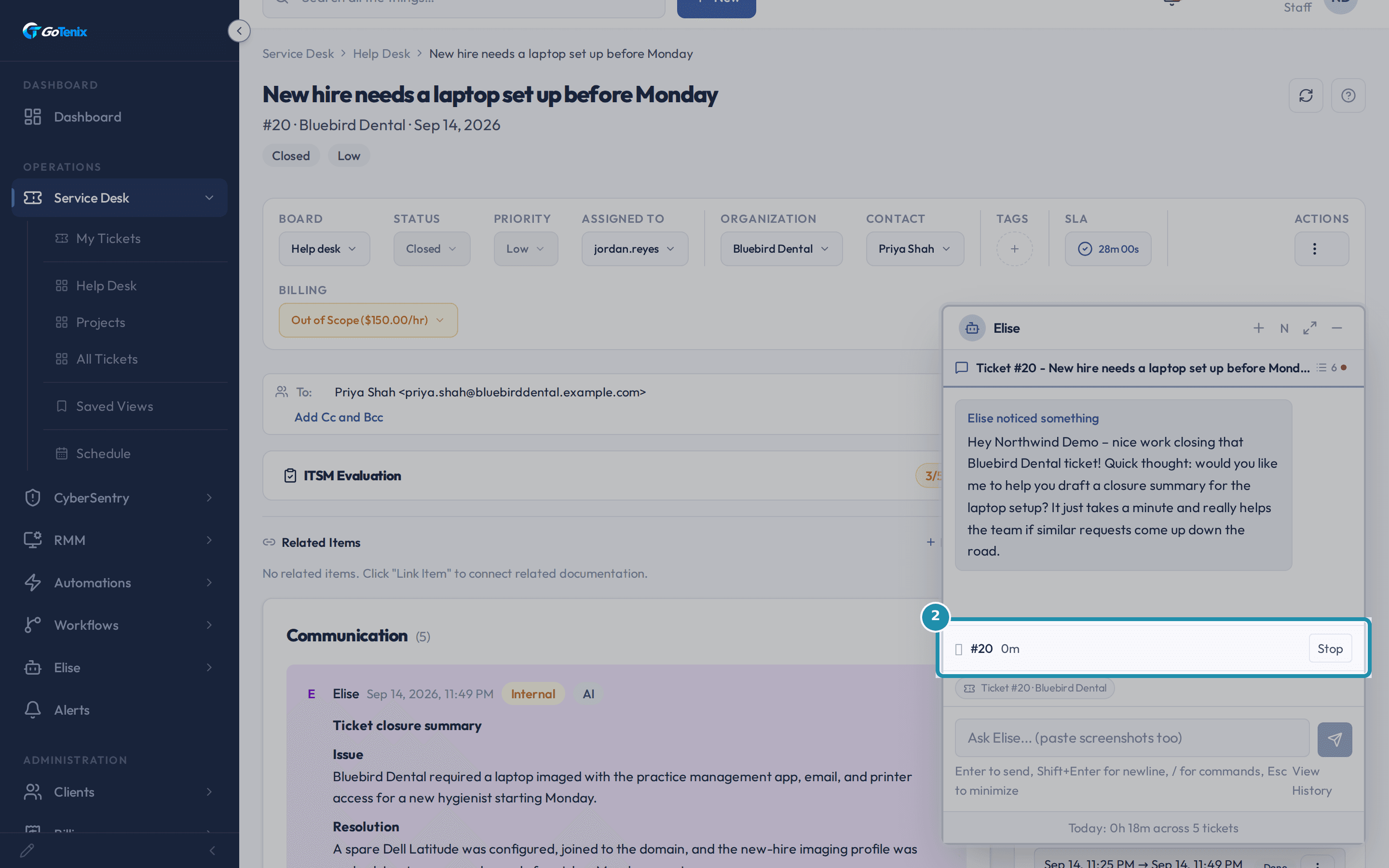
Open any ticket you are working. Half a second later a timer starts for it. The Elise panel shows the ticket number, the minutes and a Stop button, and you did not click anything.
Open a ticket. Open a second ticket.
Open another ticket and the first timer closes by itself while a new one starts on the ticket you opened. You never press Stop between tickets.
Open a second ticket. Step away and let it flag the gap.
Walk away and, after 30 minutes with no mouse or keyboard use in the portal tab, the running time is filed as Idle. If an Idle or Break stretch runs past 120 minutes, it is stopped and you get a notice with the minutes it logged. Both numbers are settings on the Time Tracking page, so your own instance may differ.
Write your reply and look at the time control.
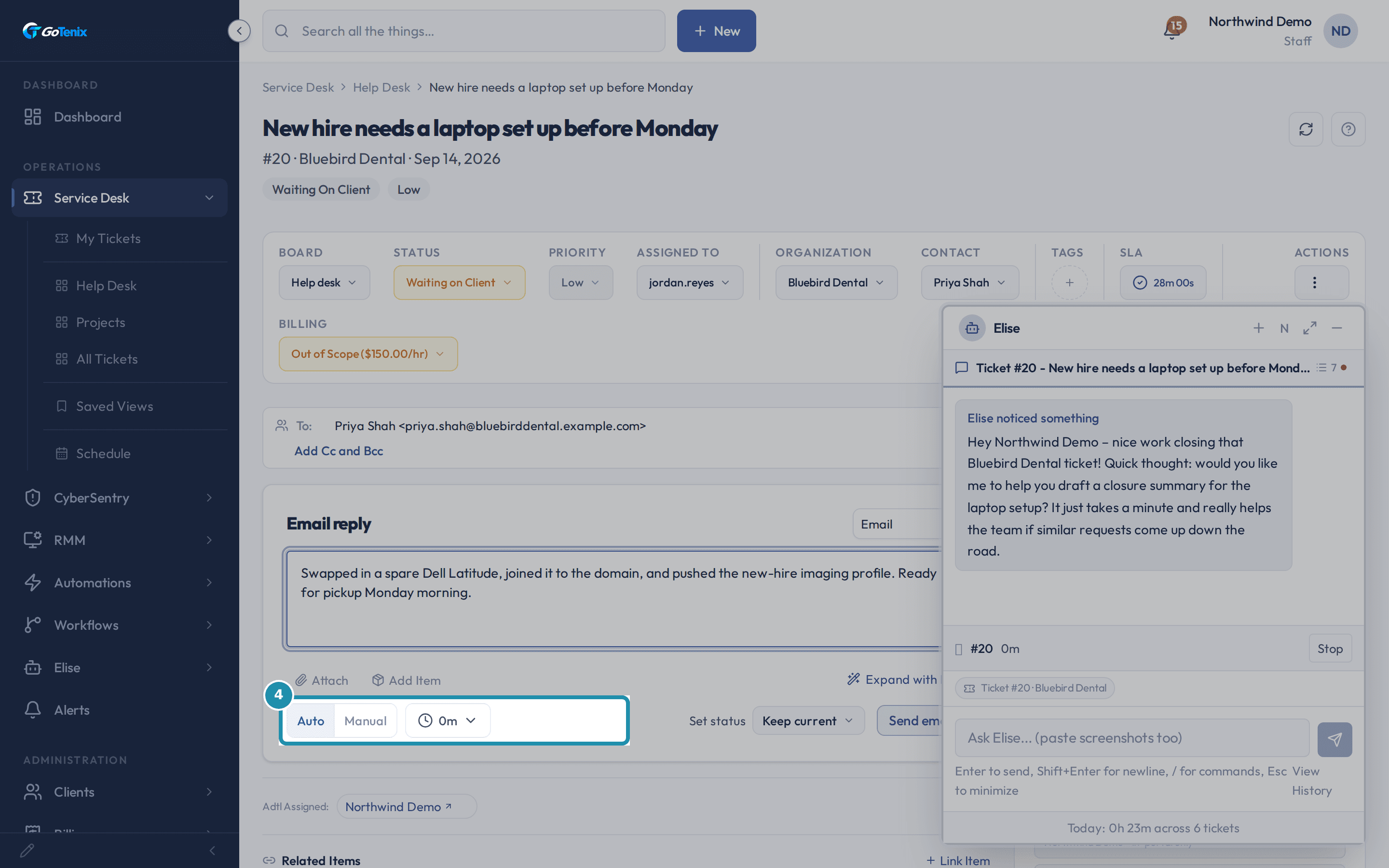
The clock beside Send shows the minutes the tracker saw on this ticket. Auto uses that number. Manual lets you type your own minutes first, for work done by phone or on site.
Write your reply and look at the time control. Send the reply and check the Time Entries card.
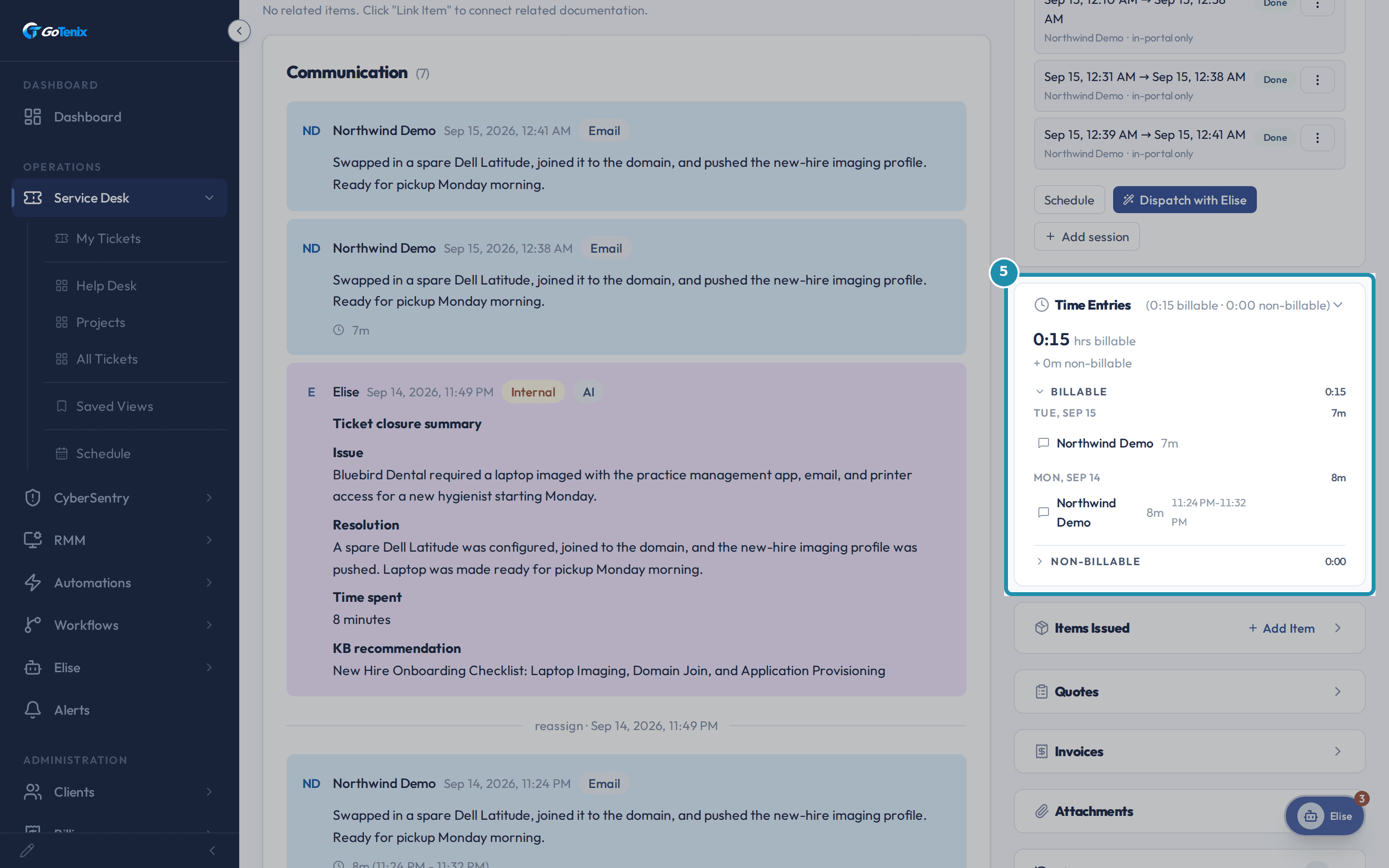
Sending the reply saves the minutes as a time entry on the ticket. The Time Entries card on the right adds them up. On an out of scope ticket it splits Billable from Non-billable, so you can see what will be invoiced. On a ticket the plan covers, it splits Declared (time you typed or sent with a reply) from Observed (time the tracker caught on its own).
Send the reply and check the Time Entries card. Open My Time and fix where minutes landed.
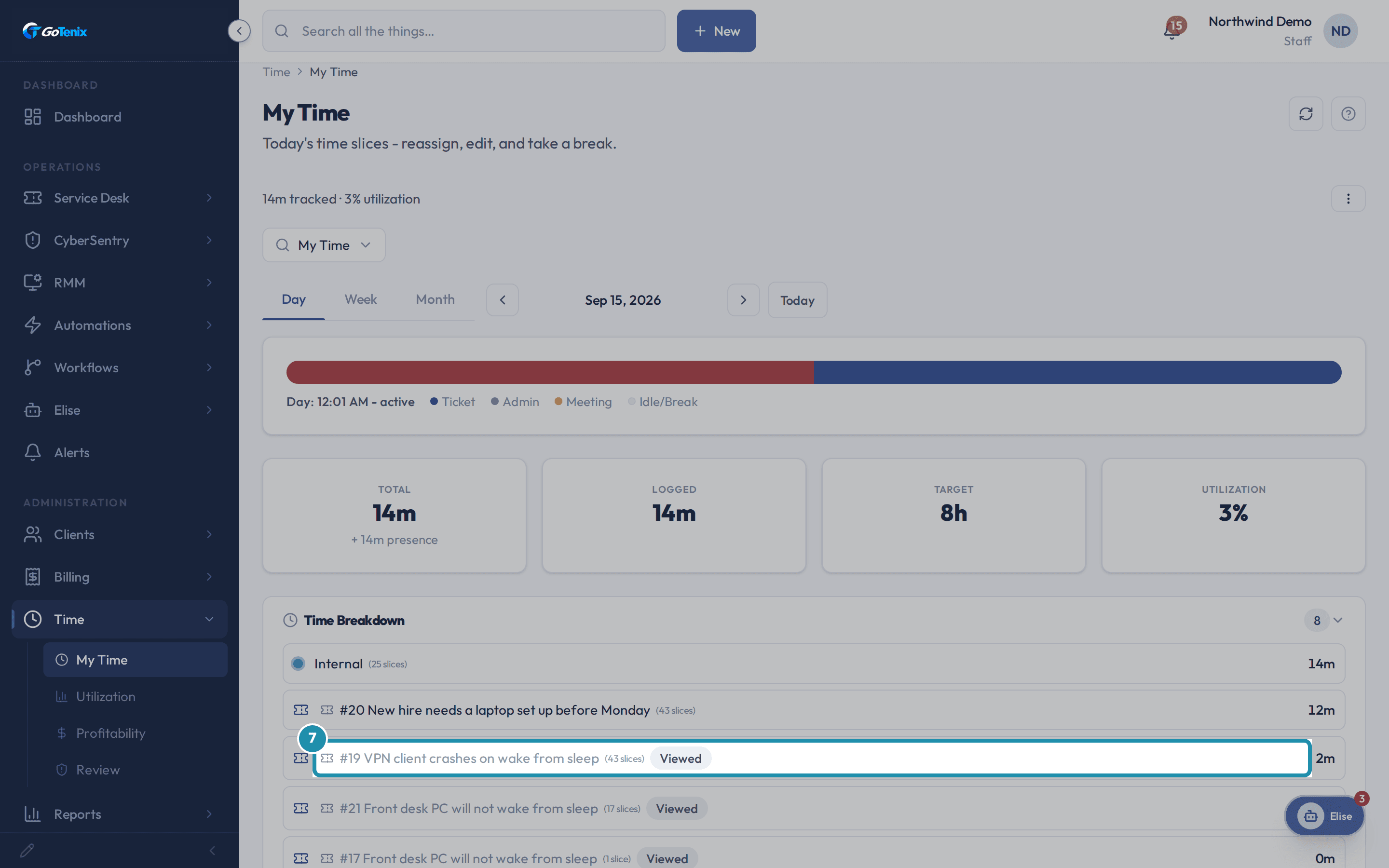
My Time, under Time in the sidebar, lists your day by ticket, with a slice count and a total for each. A ticket you only looked at carries a Viewed tag and does not count as worked time. A Consumed tag marks time already gathered into an entry you declared, so it is not counted twice. Click a ticket to see its slices, click a slice, and move its minutes to another bucket (Ticket, Admin, Internal, Meeting, Break or Idle) or to another ticket you search for. A locked slice cannot be moved.
Open My Time and fix where minutes landed. Ask Elise instead of clicking.
Elise can do the time work from chat. Say "log 20 minutes on ticket 1234 for the call with the client" and she saves a finished entry of up to 16 hours. Say "log 30 minutes on ticket 1234 for Dana" and it lands on Dana. Say "start a timer on ticket 1234" to move your timer there, or "pause my timer" to switch to Idle. Ask "where did my day go today?" and she lists your minutes for today by ticket and by bucket, with your utilization percentage. With Time access you can also ask "how did the team do this week?", "where did Alice's time go yesterday?" and "which client uses the most tech time?".
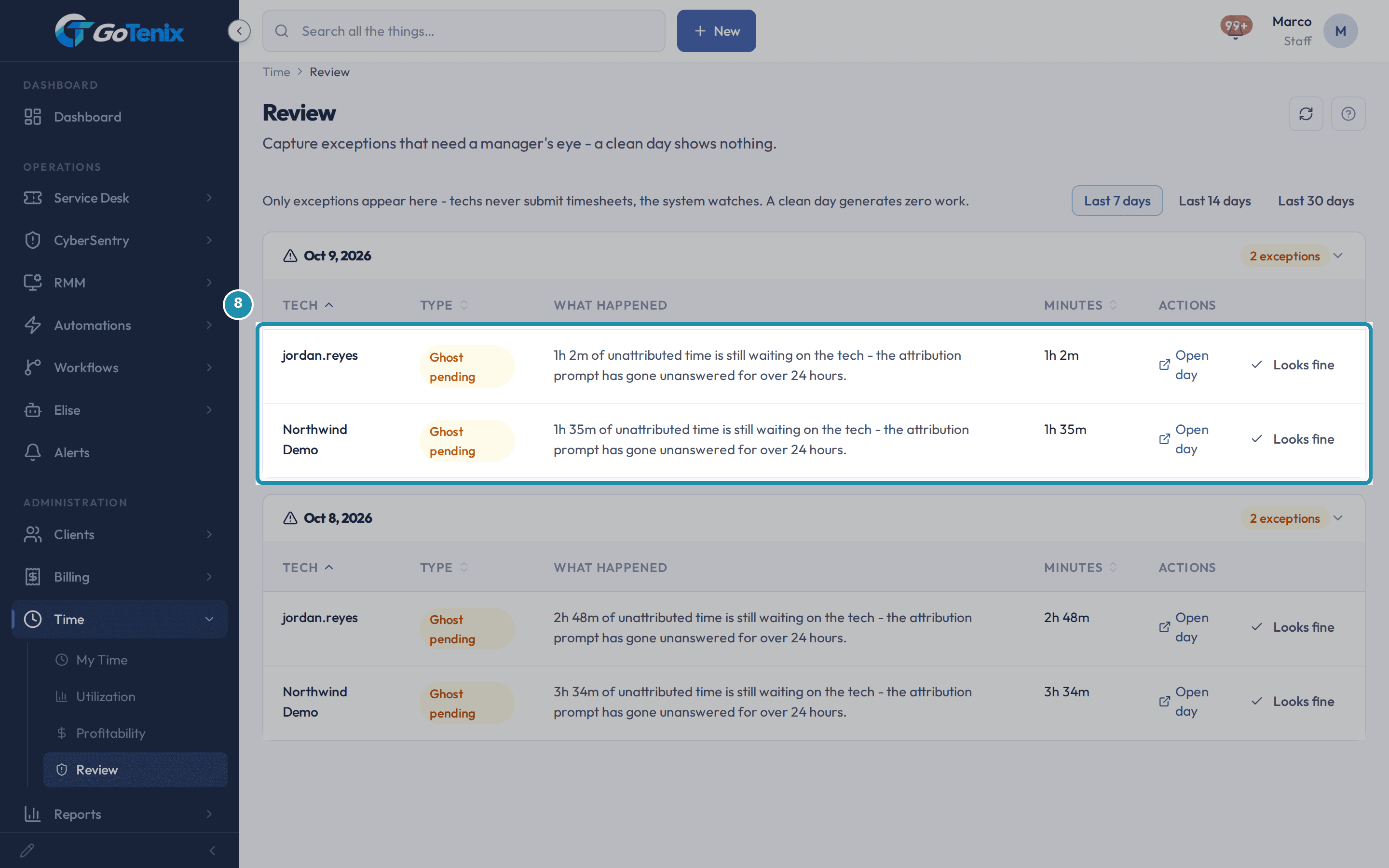
Open Review to see what a manager checks.
Review, under Time, shows only exceptions, because nobody submits a timesheet and a clean day shows nothing. Each row names a type: Needs confirmation, Ghost pending, Overlap, Zero-time day, Huge day, Calendar collision or Money drift. Looks fine clears a row, and Open day takes you to that tech's day.
Open Review to see what a manager checks.
What you will have
- Get your time captured without remembering to start or stop anything.
- See a timer start on its own when you open a ticket, and move itself when you open another.
- Turn a reply into a time entry in the same click that sends it.
- Check where your day went on My Time and move minutes to the right ticket.
- Ask Elise to log time, start or pause a timer, add up your day, report on the team, or rank clients by time used.
- Know what a manager sees on the Review page.
Why it works this way: How to track time as you work
Only one timer runs per person. Opening a ticket closes whatever was running and starts the new one, so the minutes always belong to one place.
Idle time is never guessed. After 30 minutes with no mouse or keyboard use in the portal tab, the running time is filed as Idle instead of ticket work. Nothing is deleted.
Time you only looked at is labeled Viewed on My Time, so it is easy to tell from time you worked.
Other ways to do this: How to track time as you work
Manual time on the ticket
In the reply box, switch from Auto to Manual and type the minutes.
The Stop button
Press Stop in the Elise panel while a timer is running. You start a timer by opening the ticket or by asking Elise.
Elise
Ask in chat, for example "log 15 minutes on ticket 1234" or "pause my timer".
If it did not work: How to track time as you work
- If no timer starts on a ticket, look at the Elise panel. A locked ticket refuses new time and the panel says why, in these words: Time tracking is disabled for tickets in status "Locked". Unlock the ticket first.
- If Elise refuses to start a timer on a ticket, the same lock is the reason. A status that blocks time tracking refuses time that you ask Elise to start.
- If no timer starts on any ticket, check that Auto-Start Timer is on in Settings > Service Levels > Time Tracking.
- If an entry cannot be changed because it is locked, a manager can use Close period or Reopen period from the actions menu on My Time. Closing locks every finished entry dated on or before the day you pick, and reopening unlocks entries on or after a day. Invoiced time stays locked.
Questions this page answers
Does my timer start automatically when I open a ticket?
Yes, opening a ticket page auto-starts a timer for that ticket (with a 500ms debounce). Only one active timer per user is allowed; opening a different ticket stops that timer and starts a new one. Stop it early, or move logged time to a different ticket or bucket, from My Time (Time > My Time). You can turn auto-start off for the whole workspace with the Auto-Start Timer toggle under Settings, Service Levels, Time Tracking. The source is recorded as AUTO_START so reports can split auto-captured vs manual time.
How do I use the timer widget?
A timer starts automatically when you begin working a ticket and keeps running in the background as you move around the portal. The running timer and its Stop control live in the AI assistant widget, and stopping it logs the entry. On the ticket itself you can also log time by hand: type the minutes into the ticket's time bar, pick a date if the work belongs to another day, and click Log. If the entry is refused - the date sits in a closed accounting period or outside the re-attribution window - the reason shows inline in red so you can correct and retry.
How do I log time on a ticket?
There are two doors. A timer starts on its own when you open a ticket. You can stop it from the chat widget in the corner. The other door is the time control in the reply box. Auto uses the slices the timer caught. Manual lets you type the minutes, with a date and a window if you want one. Time is logged per tech and feeds both reports and billing. The Time Entries card only edits or deletes time that is already there.
What is the Auto and Manual switch on the reply time control?
Auto uses the time slices the tracker caught while you worked. You pick which slices go with the reply. Manual lets you type the minutes yourself. It gives you a Date, and a Start and End if you want them. The switch shows only when slices exist. With no slices the box opens on Manual so you can still log the work. Your slice picks are kept if you flip to Manual and back.
What are the two parts on the Time Entries card?
On out of scope tickets the card splits the time by money. You get a Billable part and a Non-billable part. On every other ticket it splits by where the time came from. You get a Declared part and an Observed part. Declared is time somebody put there: typed, timed, or attached to a reply. Observed is time the tracker caught on its own while a tab was open. Each part folds up and has its own subtotal. The big number at the top is the lead part only, never the two added together. A second part shows only when there is something in it.
How do I see and reassign my time for today?
Go to Time > My Time. You'll see a continuous timeline of every minute slice, keyed to tickets, custom buckets (TICKET, ADMIN, INTERNAL, MEETING, BREAK, IDLE), or admin time. Click any slice to reassign - the original assignment is preserved for audit. Locked-period or invoiced slices can't be reassigned.
What do the Viewed and Consumed badges mean on My Time?
They mark slices that are not counted as your declared work. A ticket bucket tagged Viewed is one you only looked at: every slice on it is passive capture and you declared no minutes, so it stays muted and never rolls into your worked time. A slice tagged Consumed was gathered under a time entry you already declared, so its minutes are counted there rather than a second time. Both are shown so you can see where the tracker observed activity, not because they bill.
What are time buckets and can I add my own?
Every time slice is keyed to a bucket type. The built-in bucket types are TICKET, ADMIN, INTERNAL, MEETING, BREAK, IDLE, and CUSTOM. That built-in set is all that's available today, there is no in-app screen yet for adding your own named buckets (like Training or On-Call). Idle, break, and finalize-day behavior is configured under Settings → Service Levels → Time Tracking.
How do I close or reopen a time accounting period?
From the actions menu on this page: Close period stamps a date, and from then on no time entry dated on or before that date can be created or edited - techs get an inline refusal saying the period is closed. Reopen period rolls the boundary back if you closed too far. The stamp is tenant-wide and includes the chosen day; close after invoicing a month so the billed numbers can't drift underneath you.
What shows up in this Review queue?
Exceptions only. A clean day makes no rows, and nobody submits a timesheet. The Type column tells you which kind each row is. Needs confirmation is a held entry. Ghost pending is a timer a tech has left alone for a day. Overlap is two entries on the same clock. Zero-time day is a tech who worked in the portal and banked no minutes. Huge day is one day over your hours limit. Calendar collision is time logged during a booked meeting. Money drift is time whose value moved after it was billed. Each row says what happened.
Was this helpful?