How to set your business hours, boards and response targets
Tell the platform when you are open and how fast you promise to respond. You set your business days, hours and holidays once, and the SLA clock, dispatch and recurring tickets all follow them. Then you add a ticket board and set a response target for each priority.
See it
Browse
On this page
How to do it
Go to Settings > Service Levels, then click Business Hours & Holidays.
Service Levels opens on SLA Policies. Business Hours & Holidays is listed in the same group, next to SLA Display.
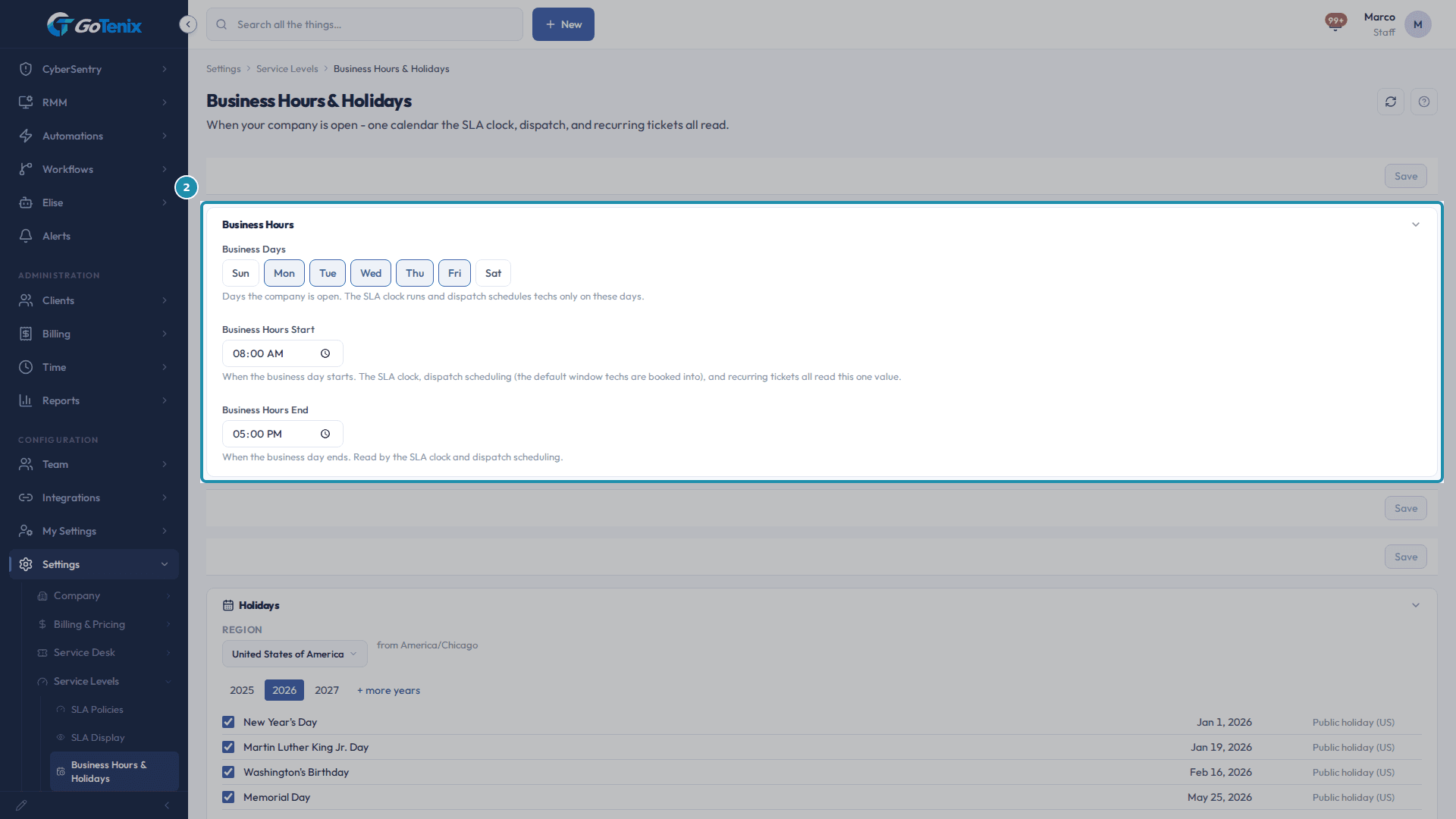
Go to Settings > Service Levels, then click Business Hours & Holidays. Set Business Days and Business Hours Start and End.
The defaults are Monday to Friday, 08:00 to 17:00. Click the days you are open, then set the start and end times. The page states that the SLA clock, dispatch scheduling (the default window techs are booked into) and recurring tickets all read this one value.
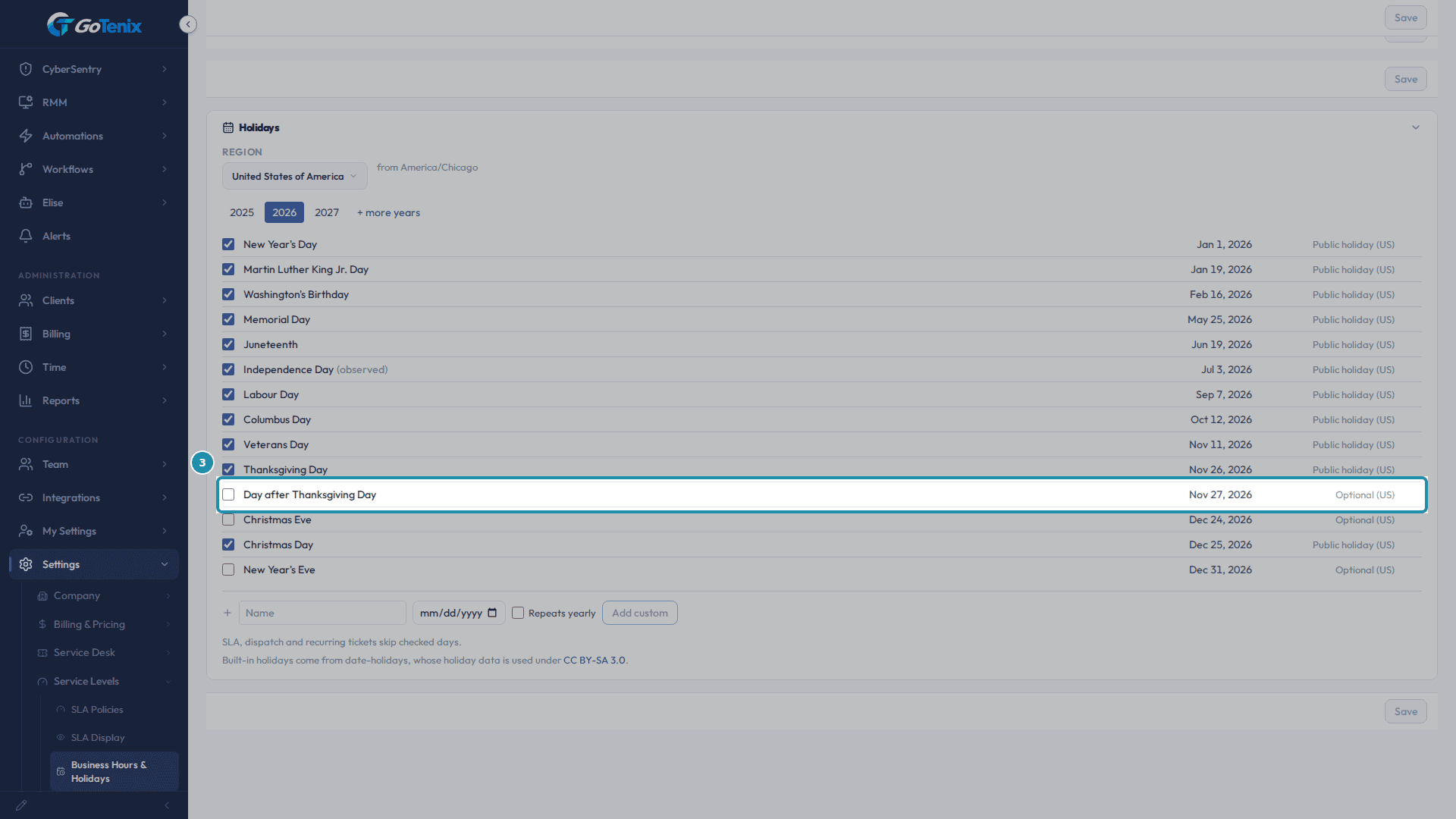
Set Business Days and Business Hours Start and End. In the Holidays card, tick the days you are closed, then click Save.
Public holidays for your region come ticked, and Optional ones such as the Day after Thanksgiving Day come unticked. Tick the days you close. Use the Name, date and "Repeats yearly" row for a closure that is not on the list, then click Add custom. The card states that SLA, dispatch and recurring tickets skip checked days.
Note: The Holidays card picks a region from your timezone. If it cannot tell, it says so, keeps no public holidays, and the SLA clock, dispatch and recurring tickets treat every day as a working day. Pick a region in the card to load its holidays.In the Holidays card, tick the days you are closed, then click Save. Go to Settings > Service Desk > Ticket Boards.
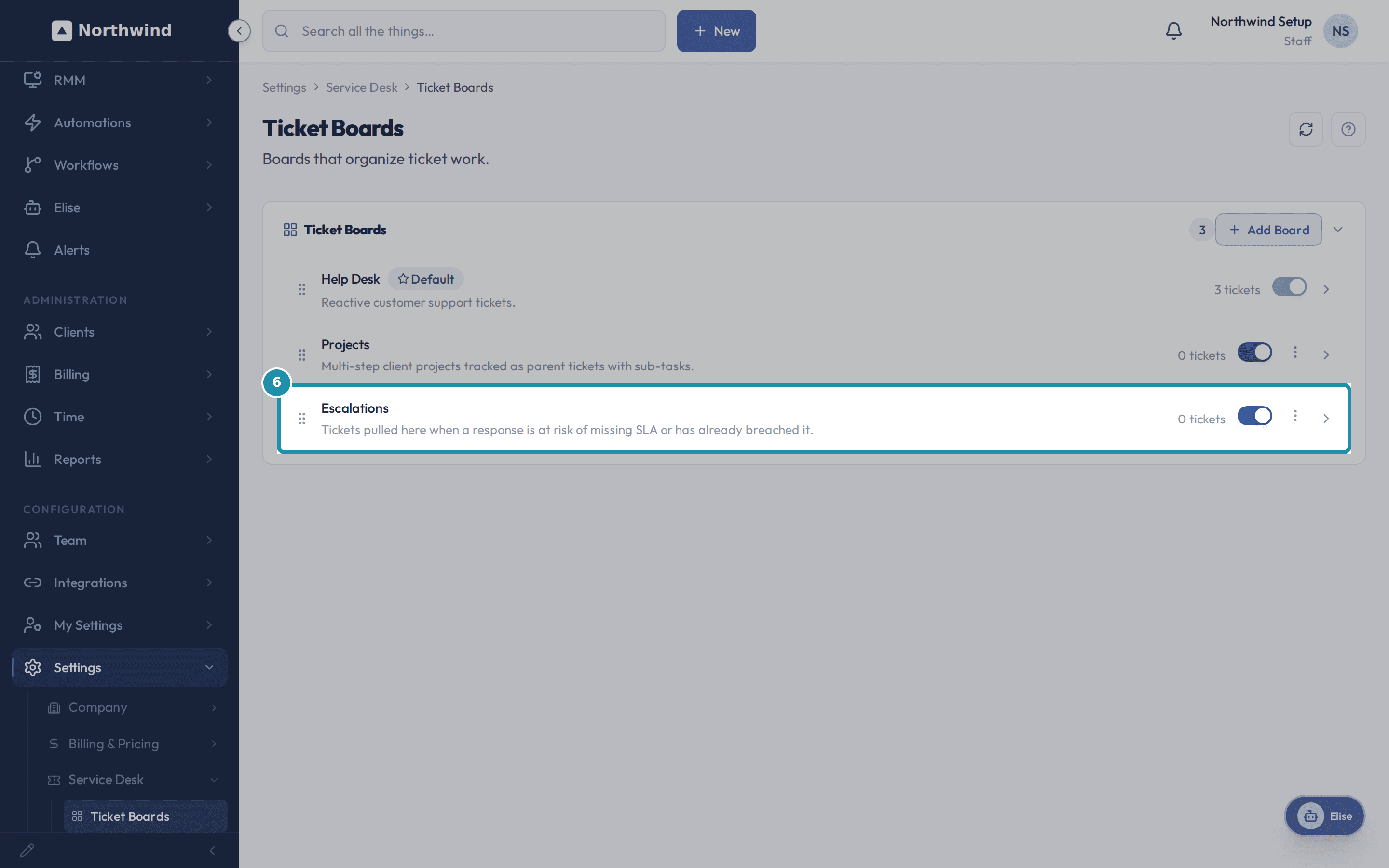
The list shows each board with its description, a ticket count and an on/off switch, and one board carries the Default badge. Add Board sits at the top right.
Click + Add Board, name it, describe it, and click Create Board.
Name and Description are all a plain board needs. The switches are Internal Board (hidden from clients, no client email notifications), Exclude from AI (Elise ignores these tickets for search, agendas and triage), Exclude from SLA (tickets on this board get no SLA deadlines) and Project Board (tickets are projects with sub-tasks). The form also has a Default View field. An Escalations board is a good first extra: a place to pull a ticket whose response is at risk of missing its SLA or has already breached it.
Check the new board in the list and in the Service Desk menu.
The new board is listed on Ticket Boards, and the boards appear under Service Desk in the sidebar, between My Tickets and All Tickets.
Check the new board in the list and in the Service Desk menu. Open Settings > Service Levels > SLA Display and set a response time for each priority.
SLA Display has one card per priority: Critical, High, Medium and Low. Each card has a Response Time, a Unit (Minutes, Hours or Days; with Business Hours counting, Days are business days), a Counting choice (Business Hours or Calendar Time 24/7), an optional Resolution time, and its own Save Changes button. For example, to promise a first response on Critical within 1 hour, set Response Time to 1, Unit to Hours, then click Save Changes.
Do the same for the other priorities, saving each card.
Every priority card saves on its own, so click Save Changes on each one. Leave Resolution time at 0 for no resolution target; the card says "No resolution target - resolution-due stays unset."
Create a ticket and check its SLA badge.
Open a ticket on a client and look at the SLA badge in the SLA field of the ticket's top bar. A ticket waiting for its first response shows "Respond by" with a countdown. Hover the badge for the exact deadline, which reads "Waiting for first response - SLA due:" and the time. With Business Hours counting, the clock runs only on your business days and hours.
What you will have
- Set your Business Days and Business Hours Start and End once, and know the SLA clock, dispatch scheduling and recurring tickets all read them.
- Add the days you are closed to the holiday calendar.
- Create a ticket board for a kind of work, and know what each board switch does.
- Set a response target for each priority on SLA Display, and see the SLA badge count against it.
Why it works this way: How to set your business hours, boards and response targets
Business Hours & Holidays is one calendar the whole app reads. The page says it: "When your company is open - one calendar the SLA clock, dispatch, and recurring tickets all read." Change it here once and all three follow.
Two Service Levels pages are easy to mix up. SLA Policies holds the response quality bands (Excellent and Good minutes), the timer color thresholds and the breach alert settings. SLA Display holds the per-priority response and resolution targets you set in this guide.
Boards are how your tickets are organized. Each board has a description, an on/off switch, a ticket count, and one of them carries the Default badge.
Other ways to do this: How to set your business hours, boards and response targets
Ask Elise about your clock
Ask "When is ticket 4812 due?" and Elise computes the answer from the SLA clocks (ticket.deadline_status, read-only). Ask "How are we doing on SLA over the last 90 days, and which clients miss the most?" for first-response and resolution met-rates by month and priority (sla.attainment_summary, read-only). Ask "What decides when the SLA clock runs?" and Elise explains the setting and where to change it (settings.lookup, read-only).
Ask Elise to change the hours
Say "Set the business day start to 07:30." Elise shows the current and new value and waits for your one-tap approval before saving (settings.set). Business Hours Start, End and Business Days are registered settings that are not owner-only and not rated high risk, so she can change them. Elise can also move a ticket to another board, for example "Move ticket 4812 to the Escalations board" (ticket.change_board).
Per-client targets (a client's Billing > Subscription)
A client's targets can differ from your defaults. A subscription's SLA overrides win first, then the client's assigned policy set, then your global default. The business hours you set here decide when any of those clocks run.
If it did not work: How to set your business hours, boards and response targets
- If a ticket's SLA due time looks wrong, check Business Days and Business Hours first, then the timezone in Company Profile.
- If holidays are not being skipped, check that the Holidays card shows a region. With no region, every day counts as a working day.
- If tickets land on a board you did not expect, check the Default badge on Ticket Boards.
Questions this page answers
What actually changes when a day is ticked?
Three things. The SLA clock does not run on that day. Dispatch will not book a tech on it. A recurring ticket due on it moves to the next open day. Billing does not read this list at all. An invoice period is a stretch of the calendar, not a stretch of work days.
What reads the Business Hours on this page?
One value, read everywhere: the SLA clock (response/resolution deadlines only tick during these hours and days), dispatch scheduling (the default working window techs are booked into, unless a tech or pod has its own special-hours override), and the recurring-ticket scheduler. Change it here and all three follow. Expected Hours per tech per day (the utilization baseline) is a different setting, edited under Service Levels → Time Tracking → Utilization Flags.
What is a project board?
A project board (isProject=true) allows tickets to have sub-tickets. Use it for multi-step projects, onboarding workflows, or any work that needs to be broken into trackable milestones.
Business hours vs. calendar - which counting should I pick?
Business: the SLA timer only counts minutes during configured business hours, so 4-business-hour Critical means “4 working hours,” not “4 wall-clock hours.” Calendar: every minute counts, including overnight and weekends. Pick Business for normal helpdesk; Calendar for 24/7 NOC tiers.
What does SLA Display cover?
Two things. Its per-priority sub-pages (Critical, High, Medium, Low) are where you set each level's First Response and Resolution targets, and those do drive when SLA breaches. Above them, SLA Display shows a read-only view of the display-only indicators: the Excellent / Good response thresholds (the green and blue checkmarks on a row) and the timer color thresholds (green to amber to red). Those indicator values are edited on SLA Policies, so each shows an Edit in SLA Policies link.
Was this helpful?