How to see who is under target and which clients lose you money
See which techs are under their hours target and which clients cost you more than they pay, then act on it. Or ask Elise, for example "who is under 50% so far this week?".
See it
Browse
On this page
How to do it
Open Utilization.
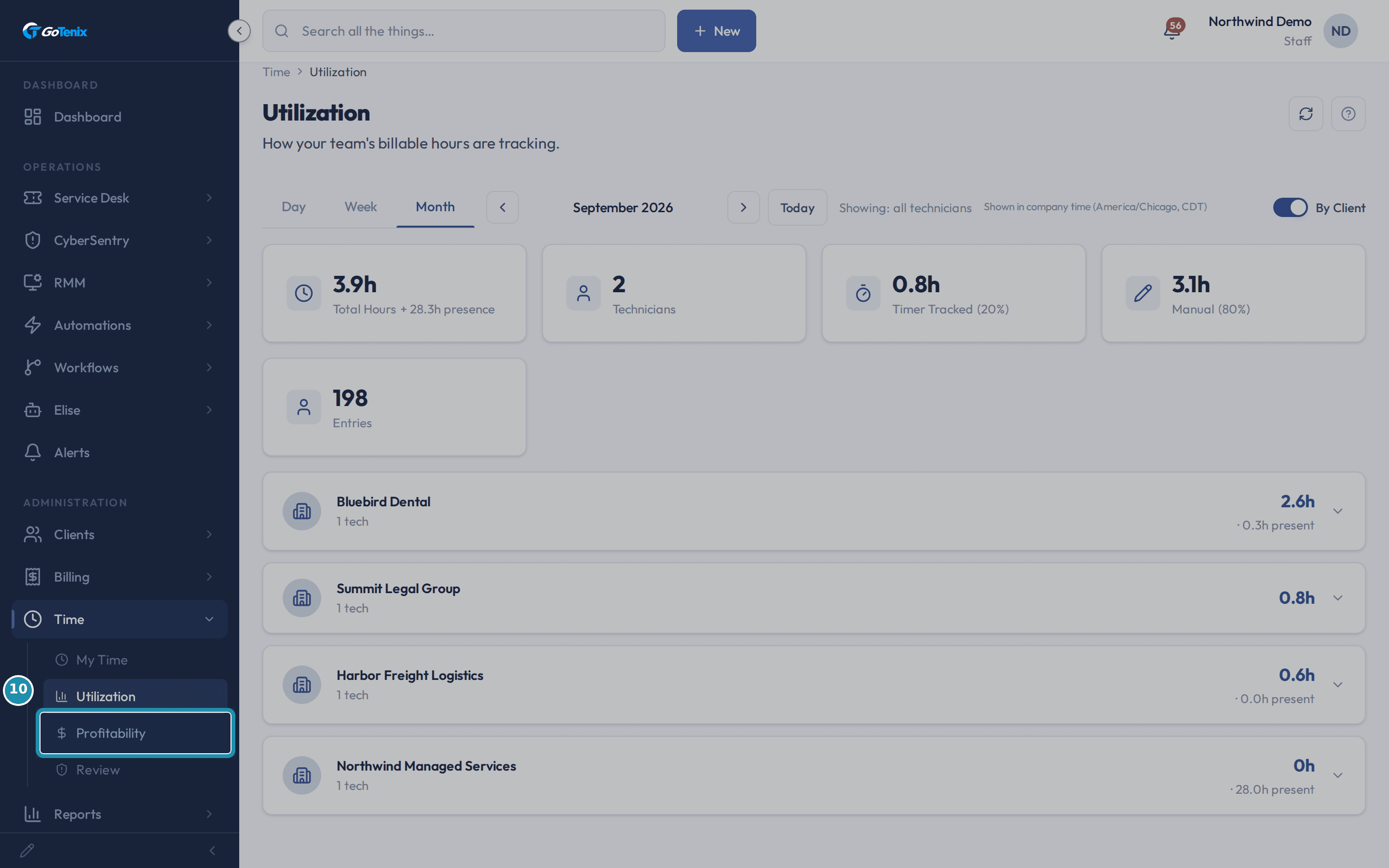
Under Time in the sidebar, click Utilization. Pick Day, Week or Month and step through periods with the arrows and Today. The tiles show Total Hours (with presence beside it), Technicians, Timer Tracked, Manual and Entries.
Open Utilization. Or ask Elise.
Say "who is under 50% so far this week?" and she reads the team report for the week, which carries every tech's percentage against their target. Early in the week most techs read low, because the target is five full days, so ask late in the week or ask "who was under 50% last week?". Say "how did the team do this week?" for the whole picture, or "where did Alice's time go yesterday?" for one tech. Say "which client uses the most tech time?" for a ranking of clients by hours over the last 30 days, with billable hours beside it.
Find who is under target.
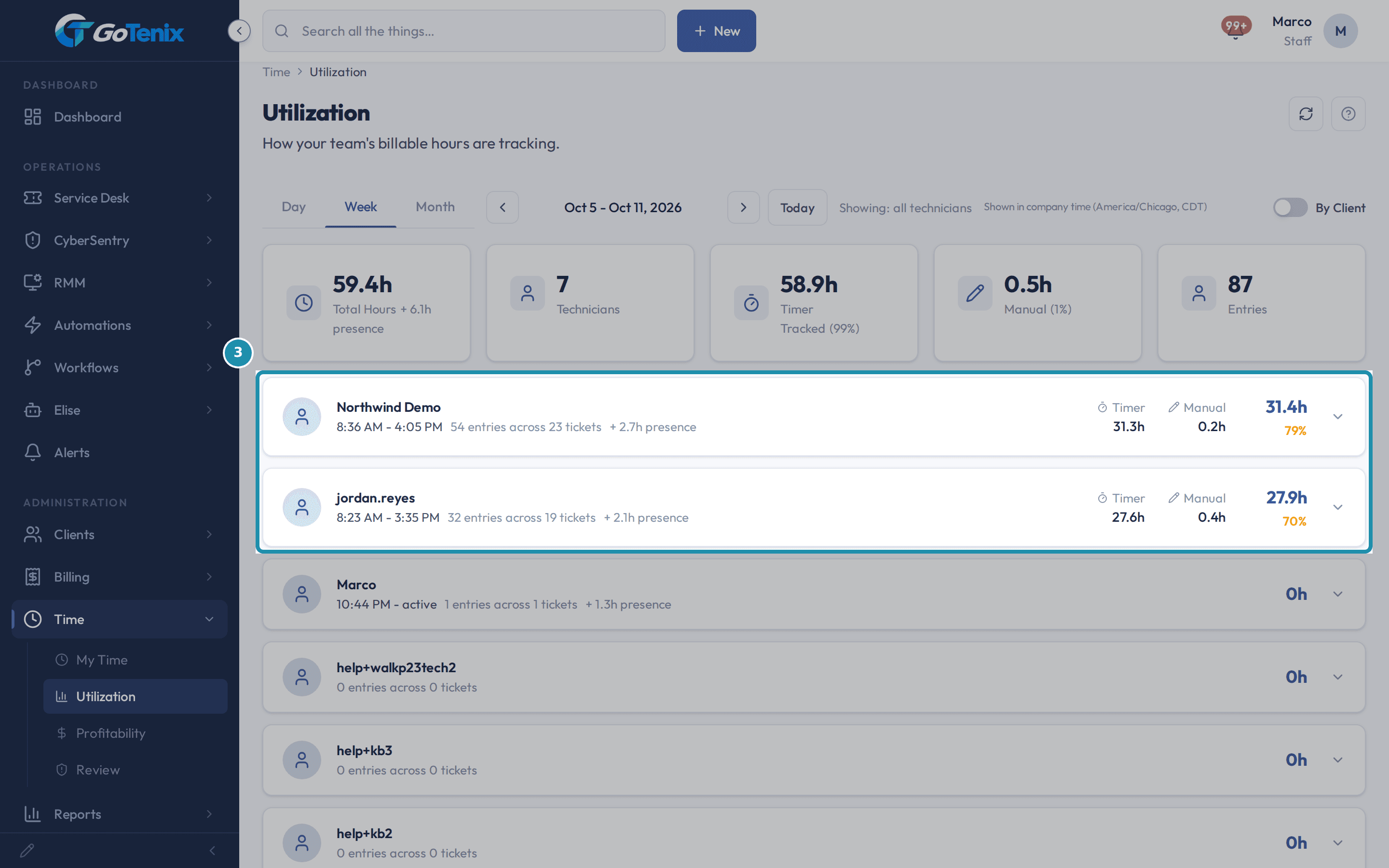
Each tech has one line: first and last activity, entries across tickets, presence, Timer and Manual hours, a total, and a percentage. The percentage compares worked hours with the expected hours for the period. It is green from 80, amber from 50 and grey below 50. Grey is who to talk to.
Find who is under target. Read the timer and manual split.
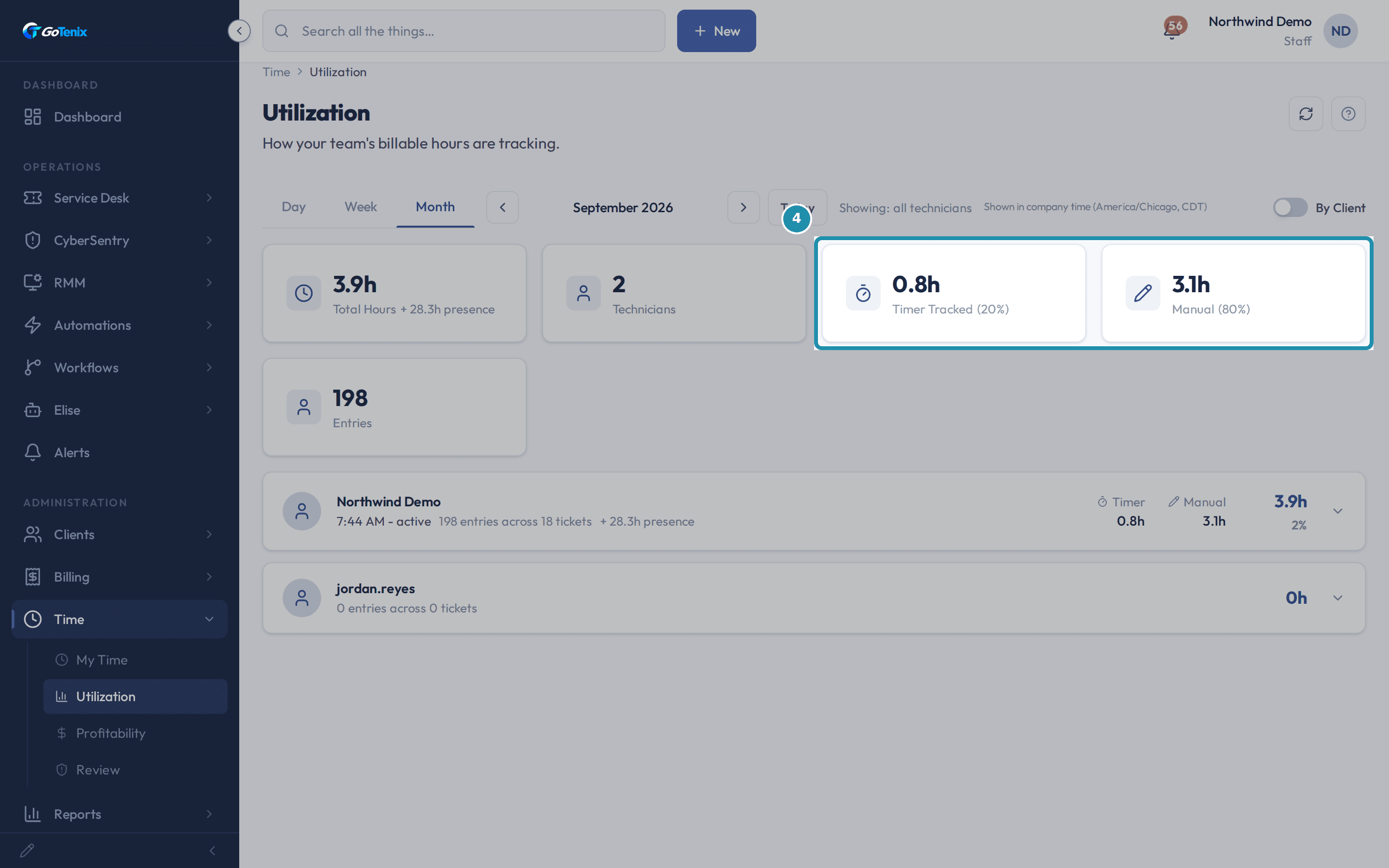
Timer Tracked and Manual show how the hours were captured. Manual is time someone typed in rather than the timer saw. Compare it with Timer Tracked.
Read the timer and manual split. Open a tech's line.
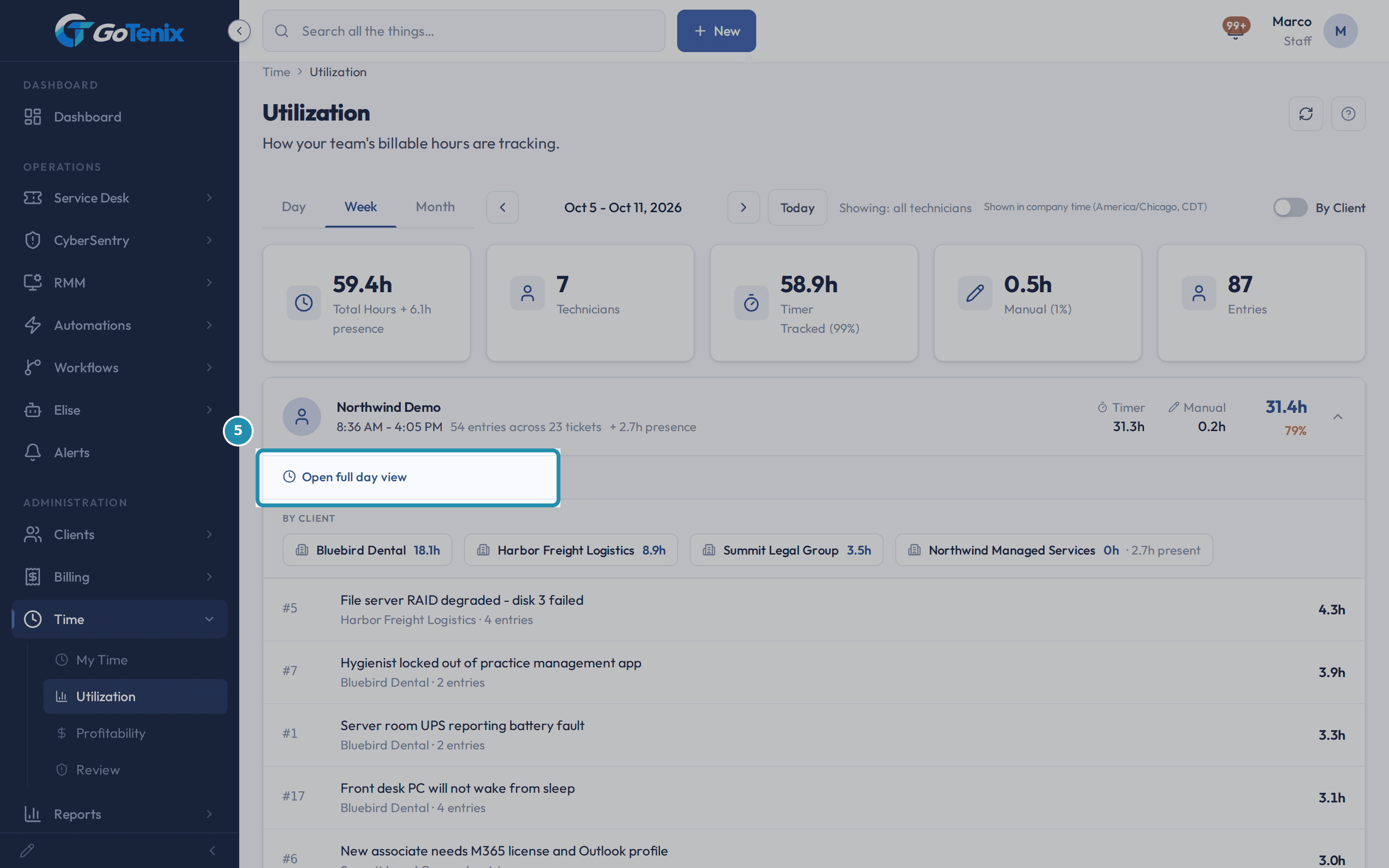
Click a tech's line. Open full day view shows that tech's day on My Time, By Client chips show where the hours went, and the ticket list shows each ticket with its client and minutes. Click a ticket to open it.
Open a tech's line. Switch to By Client.
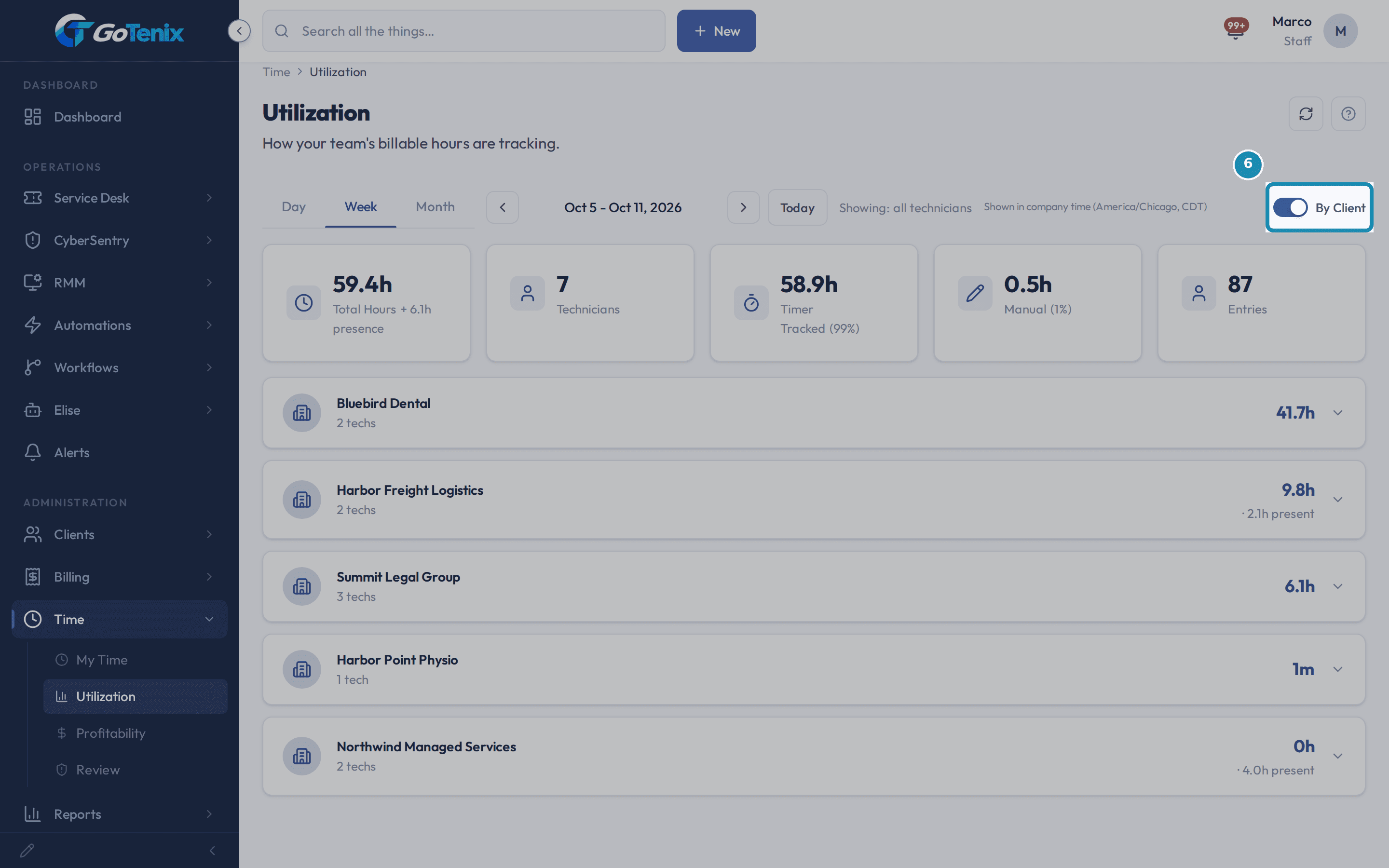
The By Client toggle regroups the same hours by client. Each client shows hours worked and, in small text, presence. A client with presence but almost no worked hours is a client your team was around without anyone declaring time to it. That is time nobody is billing.
Switch to By Client. Open Profitability.
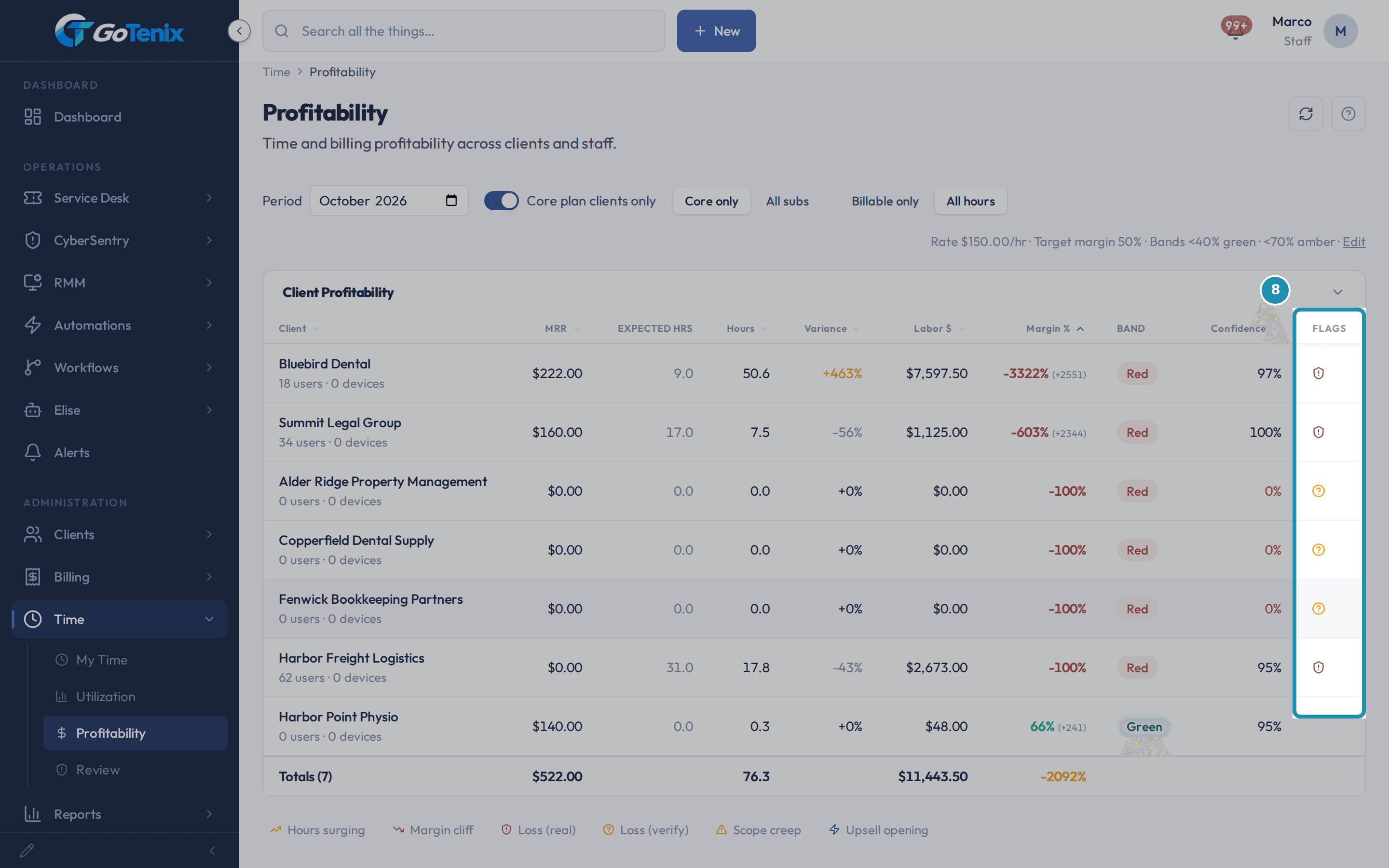
Click Profitability under Time. Each client row shows MRR, Expected hrs, Hours, Variance, Labor, Margin %, Band, Confidence and Flags. Margin is MRR minus labor, as a percent of MRR. The table starts with the worst margin first, so the client costing you most is at the top.
Open Profitability. Read the flags and act.
Loss (real) means a negative margin on mostly auto-captured hours, so it is not a data problem: have the pricing talk. Loss (verify) means a negative margin on mostly typed in hours: fix time capture first. Scope creep means hours 50 percent or more over baseline with a healthy margin: raise it at renewal. Upsell opening means hours 30 percent or more below baseline with a healthy margin: they need you less than expected, so offer more. Margin cliff means margin fell 20 points or more since last month. Hours surging means actual hours are above 1.4 times the trailing two month average, so something changed.
Read the flags and act. Narrow the table.
Core only and All subs choose which plans count as revenue. Billable only and All hours choose which hours count as labor. The Period field picks the month. The line of settings beside them (rate, target margin and band limits) has an Edit link to change the numbers that set the Green, Amber and Red bands.
What you will have
- Find the techs who are under their hours target this week or month.
- Find the clients where the labor costs more than the plan brings in.
- Know what to do about each: fix time capture, reprice, or open a renewal talk.
- Ask Elise the same questions in plain words.
- Read worked time and presence time without mixing them up.
Why it works this way: How to see who is under target and which clients lose you money
Presence, meaning idle time, breaks and time with a page open, is shown beside worked time and is never added into it. A busy looking day should not read as a productive one.
The Confidence number says how much of a client's hours were captured automatically. A loss built on typed in hours is a data question to fix before it is a pricing talk.
Everything on these pages is read only. You change nothing by looking.
Other ways to do this: How to see who is under target and which clients lose you money
A tech's own day
Open My Time under Time for the slices that tech sees for themselves, one day at a time.
Elise
Ask "how did the team do this week?" or "which client uses the most tech time?". For one client's hours, ask for that client's rundown.
If it did not work: How to see who is under target and which clients lose you money
- If the page says No Time Entries, nothing was logged for that period. Pick another period.
- If a client you expect is missing from Profitability, check the Period field. It shows one month at a time.
- If Profitability is missing from the Time sidebar for someone who can see Utilization, check that person's Billing permission.
- If a client shows a loss with low Confidence, fix how the time is captured before changing the price.
Questions this page answers
How does time tracking work?
Time is tracked per-ticket via the timer widget or manual entry. The Time page shows all entries grouped by tech with ticket-level breakdown. Filter by date range to see utilization over different periods.
What does the confidence score on the profitability report mean?
Each client's margin number includes a confidence percentage: how much of the labor time was auto-captured (TIMER / PAGE_VIEW / AUTO_START) vs manually entered. A low confidence score means a margin problem could be a tracking problem, not a pricing problem. Use it to decide whether to fix capture or have a renewal conversation. The Core plan clients only toggle, on by default, hides any client without an active Core service plan so the table reads as your core margin book; switch it off to see every active or onboarding client, whether or not it holds a Core plan.
What is the difference between worked hours and presence on the Utilization report?
Total Hours counts actual work minutes. Passive presence, meaning idle time, breaks, and ambient page-view time captured while a tech simply had the app open, is shown separately as a "+ Nh presence" rider and is never added into worked hours (that double-count once let banked hours exceed the hours in the day). Expand a tech's By Client breakdown and each client chip shows worked hours first, then presence as "· Nh present". Worked time attributes to a client only through ticket-linked work, so the chips line up with the ticket list, while loose presence attributes to whatever org its slice carried. The Timer Tracked and Manual tiles still break the worked total down by how it was captured.
How does time reporting work?
The Time area's Utilization tab totals each tech's worked time over the period you pick, day, week, or month, stepped with the previous/next arrows, with a "By Client" toggle for the same totals grouped by client. Total Hours counts worked minutes only; passive presence (idle, breaks, ambient page-view time) rides alongside as a "+ Nh presence" figure and is never summed into worked time. Every active tech appears, even those who logged nothing, each row showing their working window ("start - end", or "active" while a timer runs) and a utilization percentage against expected hours (green at 80%+, amber at 50%+). A wall-clock timeline plots when each slice happened; the Timer Tracked and Manual tiles split the worked total by capture method. Expand a tech for per-client chips (worked "Nh" then "· Nh present") and an "Open full day view" drill-down into their full day.
What does the Utilization tab show for each tech?
In the default By-tech view every active tech gets a row, including anyone who logged nothing that period, so gaps stay visible. Each row leads with the working window ("start - end", or "active" while a timer is still running) and a utilization percentage against expected hours per day, colored green at 80% or higher, amber at 50% or higher, and muted below. A wall-clock timeline strip plots when each slice actually happened, colored by bucket. Expand a tech and click "Open full day view" to open their full day on the My Time page; managers can view any tech this way, landing on a banner that names whose time you are viewing with a "Back to my time" link.
Was this helpful?