How to manage sign-in security, API keys and webhooks
Control who can sign in and from where, then let your own scripts and tools read tickets, clients and devices through read-only API keys and hear about every new ticket through a signed webhook.
See it
Browse
On this page
How to do it
Open Settings > Security > Access & Sessions and read the sign-in safeguards at the top.
Require Two-Factor (MFA) is Off (optional) by default. Max Failed Login Attempts (5 by default) and Lockout / Window Duration (1 hour by default) work as a pair: the same hours are both the window that counts failed logins and how long the automatic IP block lasts. Require MFA for Remote Activities asks for a fresh MFA check before a technician opens a terminal or runs scripts on a device.
Open Settings > Security > Access & Sessions and read the sign-in safeguards at the top. Scroll to Active Sessions to see who is signed in right now.
Each row shows the user, role, IP address, device, when the session started and when it was last active. The current session carries a you badge. Terminate signs that device out.
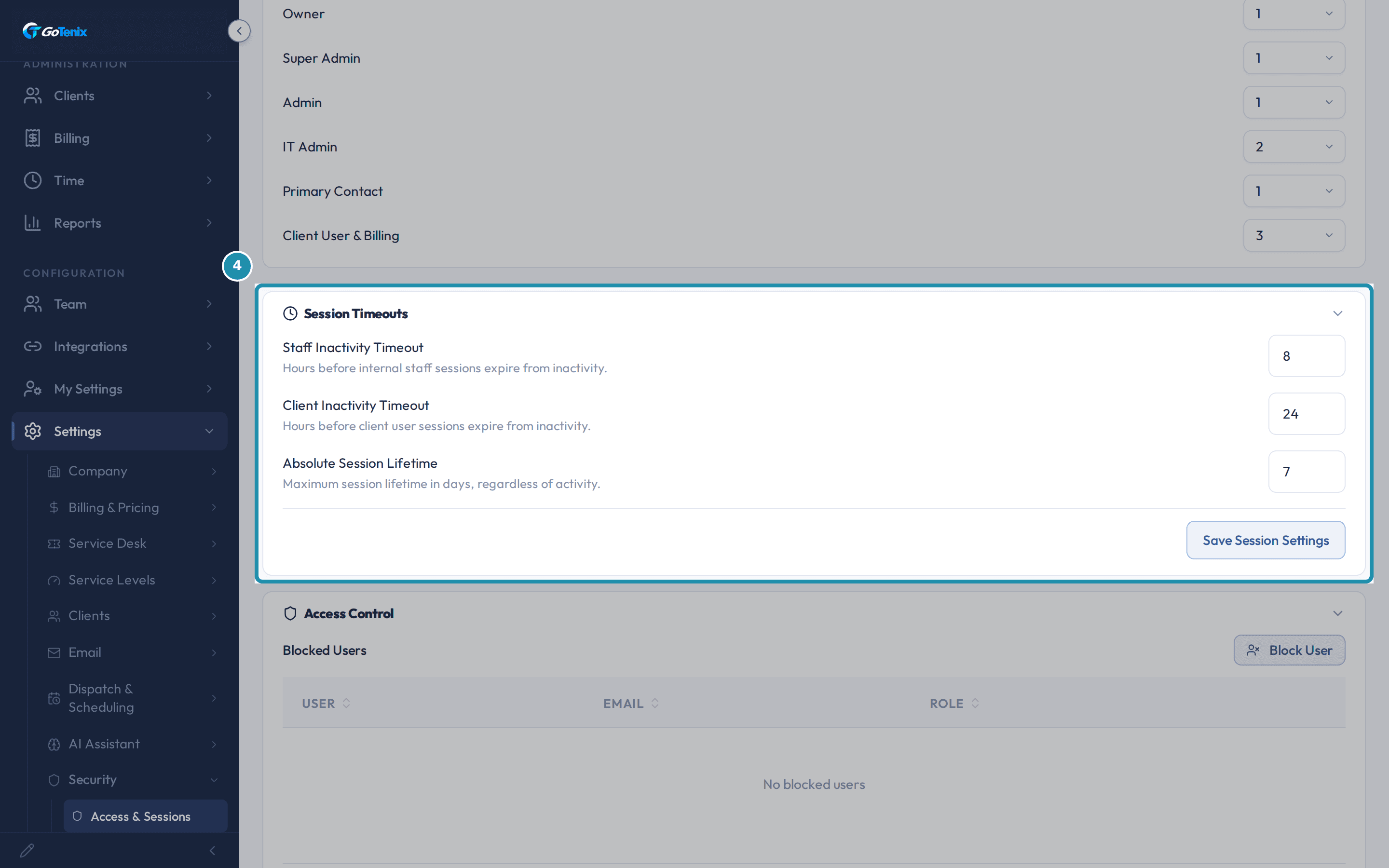
Set Concurrent Session Limits for each role.
A value of 0 means unlimited. The defaults are 1 session for Owner, Super Admin, Admin and Primary Contact, 2 for IT Admin, and 3 for Client User & Billing. When someone already at their cap signs in from a new device, their oldest session is signed out to make room, so a stolen Owner or Super Admin session cannot sit quietly beside the real one.
Set Session Timeouts and click Save Session Settings.
The defaults are Staff Inactivity Timeout 8 hours, Client Inactivity Timeout 24 hours and Absolute Session Lifetime 7 days.
Set Session Timeouts and click Save Session Settings. Open Access Control and click Block IP.
Block IP asks for an IP address or CIDR range and a reason. A range such as 203.0.113.0/24 blocks every address in it. You can also block one user with Block User.
See the new entry on the Blocked IPs list.
Blocked Users and Blocked IPs are Access Control's own deny lists. Each row shows its reason and when it expires, with a Remove button. Removing a block restores sign-in from that range at once.
Scroll to Your Connection and Geographic Access Control.
Your Connection shows your own IP address and country, each with a one-click link to allowlist it. Geographic Access Control stays Inactive until you add at least one country. It is checked on every request, so turning it on signs out anyone already working from a place you have not allowlisted. A warning tells you when your own country is not on the list.
Add an IP or a CIDR range to the IP Allowlist.
Both the Country Allowlist and the IP Allowlist are checked on every request. The IP Allowlist takes a single address or a CIDR range, IPv4 or IPv6, with an optional label.
Open Recent Admin Connections.
Recent Admin Connections lists the IP address and country of recent admin sign-ins, each with an Add link that puts it on the allowlist.
Open API Keys and click New Key.
The form asks for a name and the scopes the key may use. It can also tie the key to one client and set an expiry date. For /api/v1 the scopes that matter are Read tickets, Read clients and Read devices (MSP). The write scopes can be ticked, but /api/v1 accepts only GET and HEAD today.
Create the key, copy its token, and send it as a Bearer header.
The token is shown once, under "Save this key now - it will not be shown again". Your tool sends it in a header called Authorization. The value is the word Bearer, a space, then the key, which always starts with ezk_live_. So a call that lists your newest open tickets sends Authorization: Bearer ezk_live_... to /api/v1/tickets?limit=25 on your portal address. A key acts as the person who made it, so it can do only what that person may do right now, and it stops working if that person loses access or is turned off. Its scopes only narrow what it can do. Revoking a key cuts off every tool using it at once.
Know what a key can read, and how much.
Today a key can read tickets and their replies, the devices linked to a ticket, clients, and devices. A key tied to one client sees only that client. Every key may make 1000 requests an hour by default, counted across all its calls, and the form has no box to change it. Past that, the API answers 429 with a Retry-After number of seconds. Device calls answer 404 on an instance without the MSP module.
Create a webhook and copy its signing secret.
New Webhook asks for a name, an address to call and the events to subscribe to, such as ticket.created, sent when a ticket is created. The signing secret is shown once, like a key's token. Each matching event is sent as a POST with a JSON body holding an id, the event name, a timestamp and the event's data. After 10 failed deliveries in a row the webhook turns itself off and writes a line to the Audit Log.
Check the signature before you trust a message.
Every message carries a header named X-ezCyber-Signature. Its value is sha256= followed by an HMAC of the raw body. The HMAC key is the SHA-256 hash of your signing secret, written as lowercase hex, and not the secret itself. If your own computation matches, the message came from your portal. Two more headers help: X-ezCyber-Event names the event and X-ezCyber-Delivery is a unique id for that delivery.
Put a key and a webhook together.
Subscribe a webhook to ticket.created, sent when a ticket is created. Its data carries the ticket number as ticketId, plus the subject, priority, client id and board id. Your script checks the signature, then calls /api/v1/tickets/ followed by that number with a Read tickets key to get the full record. From there it can post to your team chat, add a row to a spreadsheet or page the on-call tech. A second script can list devices that need attention at /api/v1/devices?attention=true with a Read devices key.
Ask Elise about these settings instead of hunting for them.
Ask "what controls how long a client stays signed in" and Elise lists the settings behind it, what each is set to now and where to change it. Tell her "Marco lost his phone, reset his MFA" and she shows you a card to approve before his authenticator is cleared. Tell her "offboard Marco" and she clears his staff status and his assignments the same way. She will not change an owner-tier setting such as the session limits. She points you to this page instead.
What you will have
- See who is signed in right now and sign one of them out.
- Cap how many sessions each role can hold and how long an idle session lasts.
- Read the sign-in safeguards at the top of the page: two-factor enforcement and the failed-login numbers.
- Block a suspect IP address, and keep the Geographic Access allow lists straight.
- Issue an API key that reads your tickets, clients and devices, and a webhook that tells your own tools the moment a ticket is created.
Why it works this way: How to manage sign-in security, API keys and webhooks
Every field on the top card and the Sessions cards is owner-tier: only the tenant's own owner email or an internal Super Admin can save changes there, although an ordinary Admin can still view the page.
Two IP lists live on this page and do different jobs. The Blocked IPs list under Access Control denies matching addresses outright. The IP Allowlist under Geographic Access lets an address through. An address on one list is not on the other, so add it where you need that effect.
Geographic Access is an allow list only. There is no block list for countries. When it is on, only allowlisted countries and IPs can reach the portal, and it is checked on every request.
An API key's token and a webhook's signing secret are each shown once, when you create them. Copy them then. The portal keeps only a hash, so it can never show them again.
The API is read-only today. It answers GET and HEAD requests and refuses everything else with a 405.
If it did not work: How to manage sign-in security, API keys and webhooks
- If Save Session Settings or the fields above it will not save, sign in as the tenant's owner email or an internal Super Admin. Those fields are owner-tier.
- A 401 from the API means the Authorization header is missing, does not start with Bearer ezk_, or the key is revoked or expired.
- A 403 means the key lacks the scope for that call. Reading tickets needs Read tickets, clients need Read clients and devices need Read devices (MSP).
- A 405 means you sent something other than GET or HEAD. A 429 means the key used its hour's requests, so wait the Retry-After seconds.
Questions this page answers
Why does raising Lockout Duration also change detection?
One value drives BOTH the rolling window for counting failed logins AND the IP block duration when the threshold trips. Raising it makes detection more lenient (a longer window to accumulate failures) AND blocks the offender longer once tripped. Lowering it tightens detection AND shortens blocks. Splitting these into two separate settings is a planned follow-up.
What does Max Sessions per role do?
Caps concurrent active sessions for that role. Value of 0 = unlimited. When a user already at the cap signs in from a new device, the oldest existing session is force-revoked. Useful for Owner / Super Admin (typically 1) where a stolen session shouldn't silently overlap with the legit one.
What is geographic access control?
Geographic access control restricts logins by country. When enabled, only sign-ins from approved countries are allowed. Configure it in the Geographic Access section of Settings → Security → Access & Sessions.
How do API keys work?
An API key lets another program use the public API in place of a sign-in. It acts as the person who made it, so it can do only what that person may do right now. Its scopes narrow that further and never add to it. A key can also be tied to one client, and then it sees only that client. The full key is shown once when you make it, so copy it then; the portal keeps only a hash. Send it as the header `Authorization: Bearer ezk_live_...`.
How do webhooks fire?
Pick events from the picker, point at an HTTPS URL, and save. Each event the portal emits that matches a subscription is POSTed to that URL with an HMAC signature header. After 10 consecutive delivery failures the webhook auto-disables, and that auto-disable is recorded in the audit log.
Was this helpful?