When something changed and nobody did it
Why did the system do that on one ticket?
Name one tech on a client and every new ticket for that client lands on them, with the ticket's history naming the setting that did it. Follow it from the setting to the rule to the history row, then ask Elise why in plain words.
See it
Browse
On this page
How to do it
Open the client, click Edit, then Settings, and find Default Ticket Assignee.
This is the setting the rest of the guide follows. Its own note says what it does: every new ticket for this client, whether emailed in, created from the admin UI, or submitted by the client portal, is locked to this person ahead of every other assignment mechanism. While it reads "None (use board notification rules)", nothing is set and new tickets go through ordinary dispatch.
Pick the tech, then click Save Changes.
Save Changes sits at the top of the form, not at the bottom of the page. From now on the field names one person.
Open Automations, then Library, and look in the System group.
A rule called "Dedicated tech assignment" is there, tagged Setting, triggered by Ticket Created. Nobody wrote it by hand. Other rows in that group have the same tag, such as auto-close and reactivate on client reply, because a setting somewhere drives each one.
Click the rule and read the line under its name.
It says: "Generated from Clients and controlled there. Edited there, not here." Clients is a link. The setting is the control, and this page is the read-only view of what it produced.
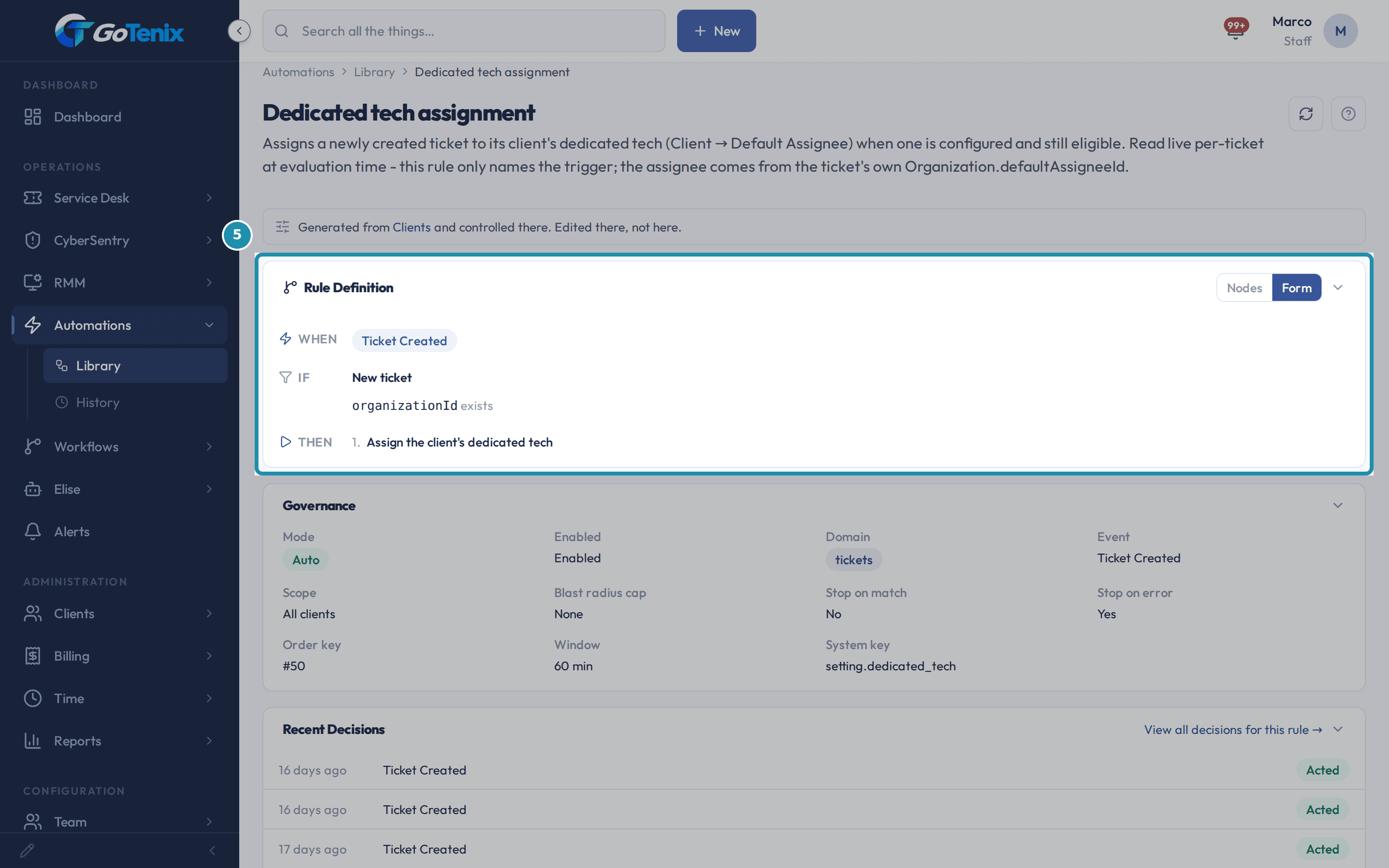
Click the rule and read the line under its name. Read the rule itself.
WHEN a ticket is created. IF the new ticket has a client. THEN assign the client's dedicated tech. The rule names the trigger and nothing else, because the tech's name is read from the client when a ticket lands rather than copied in here.
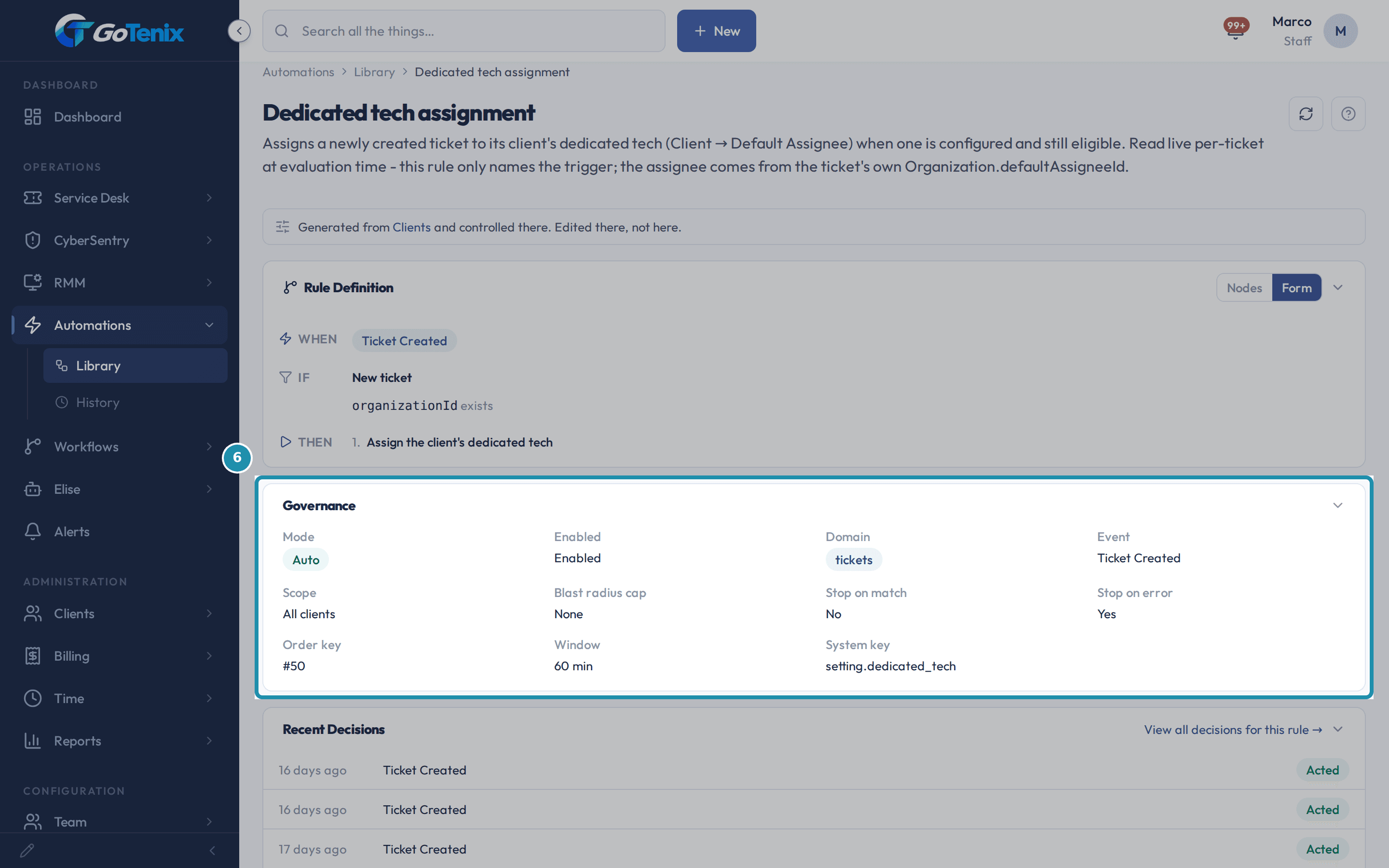
Read the rule itself. Read Governance on the same page.
Mode is Auto, so the rule acts rather than watches. Enabled reads Enabled. Scope is All clients, because one rule covers every client instead of one rule for each.
Read Governance on the same page. Create a ticket for that client the ordinary way.
Fill in the contact, subject, priority, board and description, then click Create Ticket.
The ticket opens with a tech already on it.
Assigned To reads the person you named on the client in step 2. Nobody chose them on this screen and nobody claimed the ticket off a queue.
The thread says it out loud.
A line above the first message reads "Ticket assigned to" and the tech's name, with the time. That is what the tech sees without opening anything else.
Open History in the right column of the ticket.
The newest row is named by what acted, not by who was signed in. It reads "Dedicated tech (Client default assignee)", with a system tag and the time. That is the setting from step 1, quoted on the record.
Click that row.
It opens the change itself: Assigned To, and the tech's name. The reason and the change are one entry, so nobody has to line up two logs to see why a value is what it is.
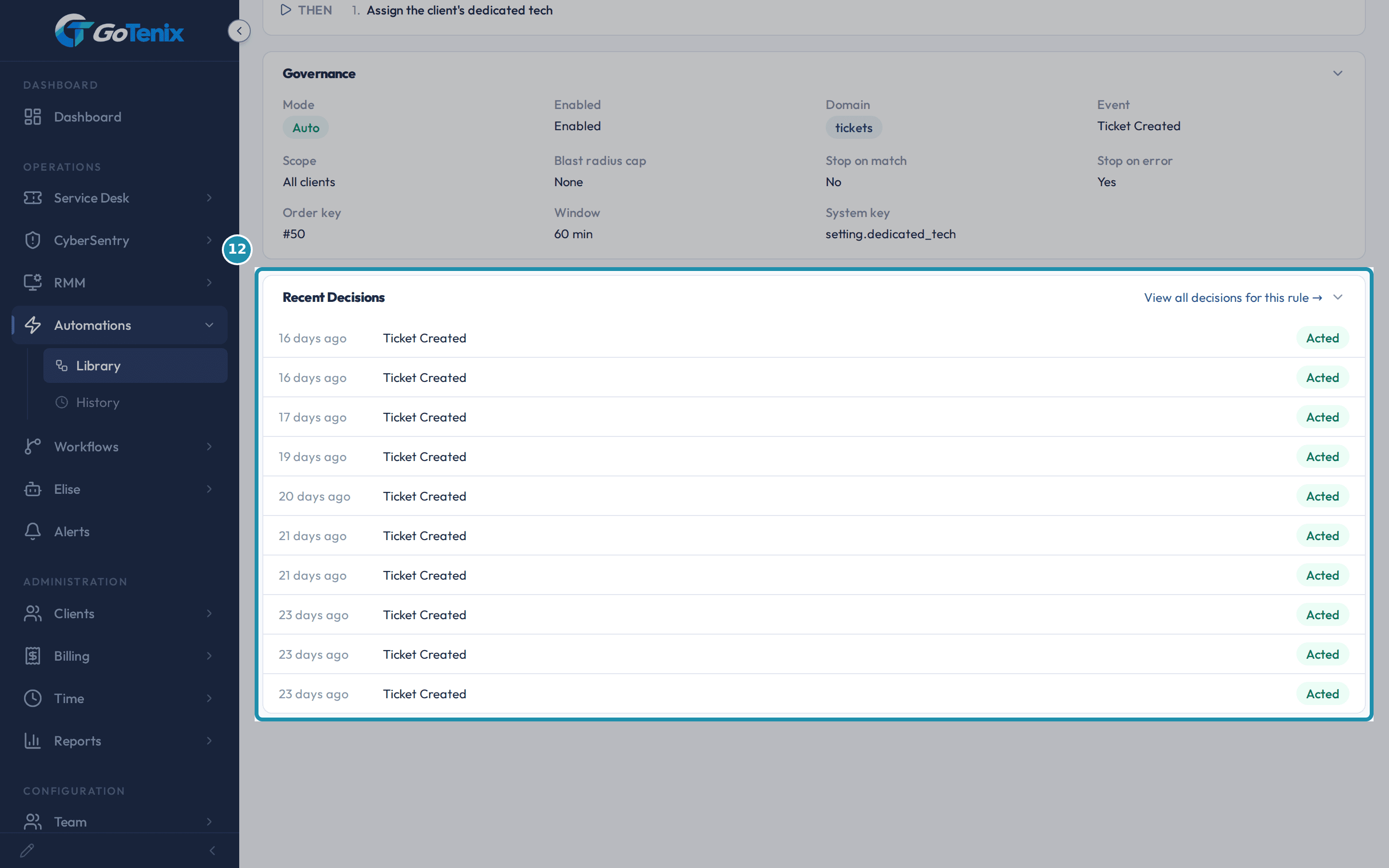
Go back to the rule and read Recent Decisions.
The newest row is the one you just caused: Ticket Created, Acted. The ticket says which setting acted on it. The rule says that it acted. One event, from both ends.
Go back to the rule and read Recent Decisions. Ask Elise the same question in plain words.
Open Elise on the ticket and type: "Why was this ticket assigned to Jordan?" Her "Explain why something happened (diagnostic)" ability reads the cause the ticket already carries and the setting that controls it. She answers with the setting, its current value, where to change it and the event she found. If the cause was never recorded, she says so and names what is missing.
Ask her about other records, not just tickets.
Try: "Why did this invoice generate?" or "Why did this ticket close by itself?" She can explain tickets, invoices, clients, users, devices, knowledge base entries, vault entries, procedures, network devices, documents, domains and expirations. To ask, you need view access to Settings and view access to the record itself.
Ask her to find a control, or change a safe one.
Ask: "Which setting controls ticket auto-close?" She tells you what controls it, what it is set to now and where to change it, and she never changes anything while looking. To change one, tell her the new value. She asks for your one-tap approval first. She declines settings that are sensitive, owner-level or high risk, which you change on their own Settings page.
Ask her to hand you the evidence.
Ask: "Export the engine decisions as a CSV." She gives you a download link, and the link checks your own access when you click it. You need view access to Reports and to Automations to ask for the engine decisions.
The pages behind each click
What you will have
- A client whose new tickets land on one named tech, with nobody sorting a queue to make it happen.
- The rule behind that setting, open on screen, with its trigger, its condition and its action.
- A ticket whose history names the setting that assigned it, beside the change it made.
- A way to answer "why did this happen" on a record without asking whoever was on shift, by reading the record or by asking Elise.
- Questions you can put to Elise about tickets, invoices, settings and exports, and who is allowed to ask.
Why it works this way: Why did the system do that on one ticket?
The setting is not a hidden flag that only one piece of code reads. Automations, then Library, lists the rules that act on their own, whether a setting drives them or you wrote them yourself, so there is one place to look.
The rule holds the trigger, not the answer. It says a ticket was created; the tech's name is read from the client when the ticket lands. That is why a thousand clients with a dedicated tech do not mean a thousand rules to maintain.
The history row is named by what acted, not by who was signed in. When a setting made the change, the row carries the setting's name instead of a person's, so nobody has to work out whether a human or the platform moved the record.
Elise is the last rung, not a separate story. She reads the cause the record already carries first, and only reasons from your settings when nothing was recorded. Try it on whatever you run today: take one value nobody typed and ask the record what set it.
Other ways to do this: Why did the system do that on one ticket?
Start from the rule instead of the record
Open Automations, then Library, pick an area in the left rail, and click any row tagged Setting. The line under the rule's name links to the page that controls it.
Change it back from the client
Open the client, click Edit, then Settings, and set Default Ticket Assignee back to "None (use board notification rules)". The field's own note says that leaving it unassigned lets the pod waterfall pick the tech instead. The rule is shared by every client and stays where it is; with the field empty it has nothing to do for that client.
If it did not work: Why did the system do that on one ticket?
- The ticket came in unassigned: check that the ticket's client is the client you set the field on, and that the field still names a person.
- The row names a person instead of a setting: then a person made that change, which is exactly what the row is telling you.
- Elise says she cannot explain it: you need view access to Settings and to that kind of record before she can read its trail.
Questions this page answers
What does Default Ticket Assignee do?
It is on Edit > Settings for the client. Pick a tech there. Every new ticket for that client then locks to that tech right away. It skips the normal pod pick, but the ticket is still scheduled and tracked like any other. Picking a tech also keeps one shared automation rule current. It is called "Dedicated tech assignment", and you can read it under Automations. It is tagged Setting, with a note that it is generated from Clients and controlled there. When the rule fires, the ticket's own history shows a row for "Dedicated tech (Client default assignee)". Clear the field to stop the lock on that client's future tickets. The rule itself is shared by every client and stays in place. It just has nothing to do once the field is empty.
Was this helpful?