How to create a ticket in GoTenix
Log a client's problem from one screen: pick the contact, set the priority and board, and GoTenix routes it to the client's dedicated tech if there is one, can email the contact that it was logged and starts your timer. Also covers every other way a ticket can be created, Elise included.
See it
Browse
On this page
How to do it
Open Service Desk > All Tickets and click New Ticket.
All Tickets lists tickets across every board, open ones by default. New Ticket sits top right and opens a blank form. A ticket made here starts on status New. One that arrives by email or the client portal starts on AI Triage instead.
Search for the contact and select them.
There is no separate client dropdown. The Contact field searches your portal contacts by name or email, and picking a result sets the ticket's client for you, since each contact belongs to one client. Two letters are enough to start the search. A contact marked Inactive shows an Inactive badge.
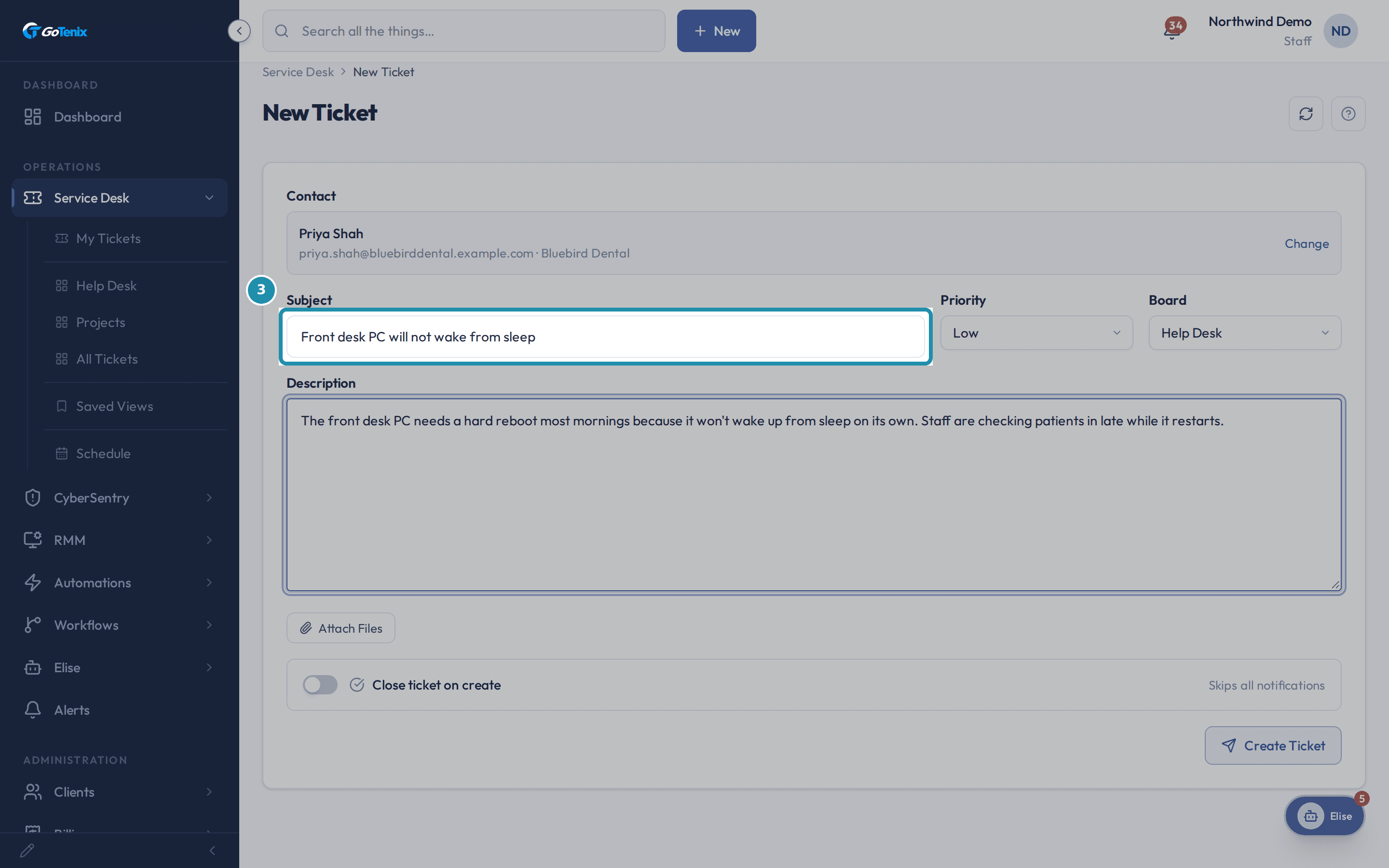
Search for the contact and select them. Type the Subject and Description.
Subject is the one-line summary techs scan in the ticket list. Description becomes the ticket's first message and goes to the contact in the ticket logged email exactly as typed, so write it the way you want the client to read it. You can paste screenshots straight into Description or use Attach Files.
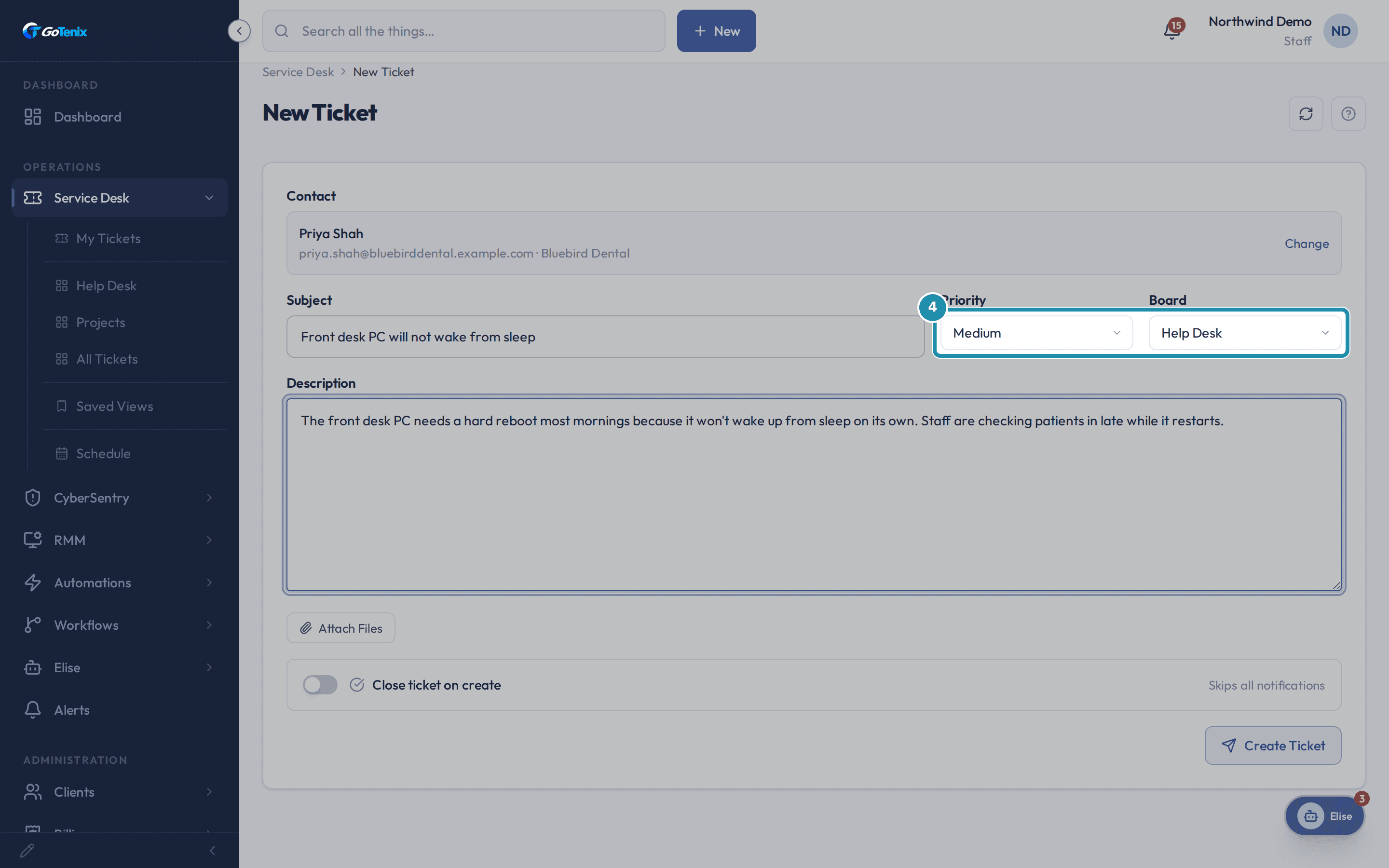
Type the Subject and Description. Set the Priority and confirm the Board.
Priority offers Low, Medium, High and Critical and starts on Low, and the Board starts on the board marked as the default. Raise the priority when the issue actually blocks work, since the priority sets the response and fix clocks shown on the ticket. A board that is marked internal shows (Internal) after its name.
Set the Priority and confirm the Board. Click Create Ticket.
The ticket saves as a numbered ticket with status New and your description posted as its first message. If the client has a Default Ticket Assignee, the ticket lands on that tech; if not, it is assigned to you. This form never runs pod dispatch. Unless you ticked Close ticket on create, the contact gets a ticket logged email (a client's notification settings can silence it), and staff notifications skip you because you made the ticket.
Click Create Ticket. Open the Elise widget in the corner and watch its running timer.
Opening a ticket starts a work timer for you in the background after a short pause. There is no separate stopwatch on the ticket page: the running timer and its Stop control live in the Elise widget in the bottom corner. Opening a different ticket moves the timer to that one, and a ticket in a status that blocks time tracking, such as Locked, refuses it.
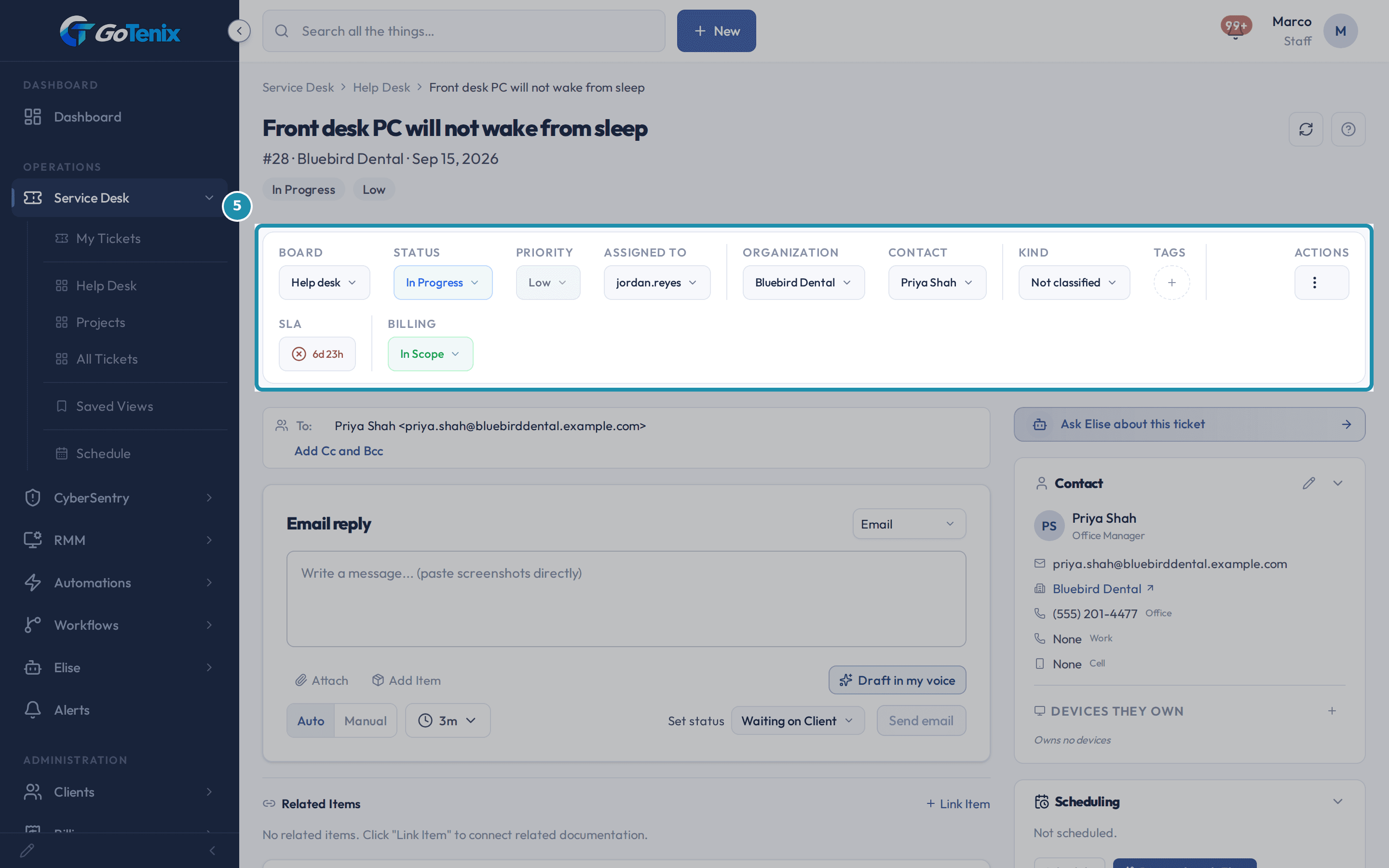
Return to All Tickets to see the new ticket at the top.
The list sorts by most recently created, so the new ticket appears first with the same priority, status, and assignee you just set.
Or skip the form and ask Elise to open the ticket.
Open the Elise chat and say who it is for, what is wrong and who should take it, for example "Open a ticket for Priya Shah at Bluebird Dental, front desk PC will not wake from sleep, High priority, assign Jordan." Elise makes Priya the ticket contact and Jordan the assignee. Opening a ticket and assigning it are small writes, so they run straight away unless an admin has tightened them. If Priya exists at more than one client Elise asks which one before she creates anything.
Ask Elise to find, count and change tickets too.
Before you log something, ask "Show me Bluebird Dental's recent tickets" to spot a duplicate, or "How many open tickets does Bluebird Dental have?" for a count by status. Ask "When is #21 due?" and she answers from its response and fix clocks, since tickets have no due date field of their own. To change a ticket say "Raise #21 to High" or "Move #21 to the Help Desk board" and she does it as you.
If nothing matches, click Add a contact.
Typing at least two letters with no match shows No contacts found and offers Add a contact. Click it and a panel opens right under the search box: a Full name field and an Email field, plus a Client box to search first, since this ticket was opened from Service Desk rather than from a client's own page. Opening the same door from inside a client's page skips the Client box and names that client for you.
Click Add contact and the new contact is selected right away.
Add contact writes the same record as Clients > the client > Users > Contacts > Add Contact, so it is the identical contact either way. The panel closes and the Contact field shows the new contact's name, email and client, exactly like picking an existing one in step 2, so you can carry on with Subject and Description without leaving the form.
Click Create Ticket with no contact chosen and it refuses.
Contact is required because a ticket has to name a person at a client, so the form stops with Please select a contact. The form checks the Contact first, then Subject, then Description, and each has its own message (Subject is required, Description is required). The fix is the Contact field from step 2, or the Add a contact door from step 10 if the search still finds nobody.
Turn on Close ticket on create.
Use it when you fixed the problem before you logged it. The toggle sits in its own box below Attach Files, and its hint says Skips all notifications. Turning it on opens the Add time modal right away, since a ticket cannot be closed on create without a time entry. Once a window is confirmed, an Edit time link appears beside the toggle's label and the button changes from Create Ticket to Create & Close.
The Add time modal asks for a Start and a Stop.
Start and Stop each take a date and a time, shown in your company's time zone, which the modal names under the two fields. Both start at the current moment, so the window is zero minutes until you move one of them, and the modal says Stop must be after start until the window is a real span. Edit time reopens this same modal later without retyping Subject or Description.
Set a Start and a Stop, then check the logged time before you confirm.
Minutes are never typed directly. They come from Stop minus Start, and a summary line under the fields shows the result, for example 45m logged. A window must be at least one minute and no longer than 960 minutes, 16 hours, or the modal refuses it with Time cannot be more than 960 minutes (16 hours). Description is optional.
Click Confirm, then Create & Close, and the ticket opens already closed.
Confirm saves the window on the form without creating anything yet, so Create & Close still has to be clicked. The finished ticket carries the Closed status, and its Time Entries card lists the exact window you declared, start to stop, instead of an inline minutes box. Because it was closed on creation, it skips the response clock, Ticket Rules and the ticket logged email.
What you will have
- Log a client's problem the moment they call, email, or walk up, with the contact, priority and board set on one screen.
- GoTenix records who reported it, starts its response clock, can send the contact a ticket logged email and starts a timer for you, so a new ticket never depends on a second step you might forget.
- Ask Elise to open, find, count and change tickets in plain words when you would rather not use the form.
Why it works this way: How to create a ticket in GoTenix
Most ways a ticket can be created, this form, email, the client portal, Elise or an automation, go through the same intake steps for rules, response clock and notifications, so your techs work an emailed ticket the same way as a portal one. The exceptions are a ticket closed on create and tickets that workflows or ThreatLocker pre-assign, which skip the rules step.
Opening a ticket page starts a timer for the tech who opened it, because logging time by hand is the step people forget. A status that blocks time tracking, such as Locked, refuses it, and a tech can have auto-start switched off.
A client's Default Ticket Assignee goes first. If the client has one, every new ticket for that client lands on that tech, ahead of every other assignment rule. If not, a ticket made on this form is assigned to you, the tech who created it, and it never runs pod dispatch. Tickets from email, the client portal and Elise go to the client's own pod instead, when dispatch is on and the client has an Owning Pod.
When you are a tech and the ticket you create ends up assigned to you, creating it counts as your first response, so its first-response clock is already met.
The billing status starts from the client's plan when the plan sets one, so nobody retypes it on each ticket, and the priority you pick sets the response and fix clocks.
Other ways to do this: How to create a ticket in GoTenix
Client Portal
The client opens Tickets > Get Support, fills in Subject and Description, and clicks Submit Ticket. The ticket starts on AI Triage.
The client emails the connected Help Desk mailbox. Ticket Rules match the sender's address and route the message into a ticket, applying defaults for board, priority, and tags. New email tickets start on AI Triage.
The + New button
The + New button in the top bar, on every admin page, has a New Ticket choice that opens the same form used in this article.
Elise chat
Ask Elise to open a ticket and name the client or the person it is for, for example "Open a ticket for Priya Shah at Bluebird Dental, front desk PC will not wake from sleep, High priority, assign Jordan." Priya becomes the contact and Jordan the assignee. If Priya exists at more than one client Elise asks which one, and if Jordan cannot be assigned the ticket is still created, unassigned and flagged for a person to triage.
Automations
A workflow or automation with a create ticket action opens a ticket whenever its trigger fires.
Device alerts (RMM)
Out of the box a Critical device alert opens a ticket on its own. Each severity can be changed at Settings > Administration > Alerts & Notifications, on the Device alert response card, where each band has an Open a ticket choice.
CyberSentry
An armed Response Rule's Open ticket action opens a ticket for a security finding.
Public support link
An end user with no GoTenix login opens the Get Support link from their device tray and submits the form. The request becomes a ticket without the person ever seeing the word ticket.
If it did not work: How to create a ticket in GoTenix
- If nobody matches what you typed, the list says No contacts found and offers Add a contact. That panel takes a Full name and an Email, plus a Client box to search first when the ticket was not opened from a client's own page (the Client box links to New client when nothing matches). It files the person under that client and selects them on this ticket right away, so you never leave the form.
- Add a contact writes the same record as Clients > the client > Users > Contacts > Add Contact, and it only shows when your permission group can edit clients.
- A contact marked Inactive, typically a former employee, still shows in the results with an Inactive badge. Check before you assign a ticket to them.
- If you click Cancel on the first Add time pop-up, before anything is confirmed, the Close ticket on create toggle turns back off. Cancel on a later Edit time reopen leaves an already confirmed window exactly as it was.
Questions this page answers
What is AI triage?
Tickets that come in by email or from the client portal land on the AI Triage status. That is a real column on the board, not a waiting room. The AI sets a priority from the impact and the urgency. It can also add tags, but that part is off until you turn it on. It does not pick a board or a tech. On client portal tickets it can also write a first note for the tech. The ticket leaves AI Triage when a tech claims it or replies to it. Tickets you raise yourself start at New instead. Turn any of this on or off at Settings > Service Desk > Intake AI.
How do I use the timer widget?
A timer starts automatically when you begin working a ticket and keeps running in the background as you move around the portal. The running timer and its Stop control live in the AI assistant widget, and stopping it logs the entry. On the ticket itself you can also log time by hand: type the minutes into the ticket's time bar, pick a date if the work belongs to another day, and click Log. If the entry is refused - the date sits in a closed accounting period or outside the re-attribution window - the reason shows inline in red so you can correct and retry.
How do I configure ticket boards?
Go to Settings → Service Desk → Ticket Boards to create, rename, reorder, or deactivate ticket boards. Two boards are seeded by default, Help Desk (the default board, where unassigned new tickets land) and Projects, but you can add custom boards to match your workflow. Tickets are assigned to a board when created or triaged.
Why does Create Ticket say "Please select a contact"?
A ticket has to name a person at a client. So Contact is required. The "Primary Contact" and "Contact Email" boxes on a new client do not make one. Those two boxes are just text on the client record. This picker looks for contact records. Use the Contact box at the top of this page. If the person is not there yet, press "Add a contact" inside it.
The contact box says "No contacts found". How do I add one?
Type at least two letters in Contact. If nothing matches, the list offers "Add a contact". Click it, then type the Full name and Email and click "Add contact". If you opened this page from a client, the panel names that client for you. If you did not, it gives you a Client box to search first. The contact is filed under that client and is selected on this ticket right away, so you can carry on and submit. This writes the same record as Clients > the client > Users > Contacts > Add Contact. Type two letters in that Client box and it offers "New client" too, so you can make one when none match. The button only shows when your permission group can edit clients.
What happens when I turn on "Close ticket on create"?
Turn on "Close ticket on create" and a pop-up opens. It asks for "Start" and "Stop", each a date, hour, and minute. The ticket's time entry becomes the time between them, so nothing is typed by hand. Click "Confirm" to save that window and keep the toggle on. Click "Cancel" to leave the toggle off. An "Edit time" link sits next to the toggle so you can open the pop-up again and fix a mistake. If Stop is not after Start, you will see "Stop must be after start." and the ticket cannot close until you fix it. The window also cannot pass 960 minutes (16 hours); go over and you will see "Time cannot be more than 960 minutes (16 hours)." Turning the toggle off clears the time you set.
Was this helpful?