How to put your brand on the portal
Make the portal, your emails and your invoice and quote PDFs carry your logo and your brand color. You upload a logo, an optional dark-background logo and a favicon, pick an accent color, and save, all on Settings > Company > Branding. A last section walks the Branding & notifications wizard lesson by lesson, which adds the support identity and the billing emails that go out on their own.
See it
Browse
On this page
How to do it
Look at the sign-in page before uploading anything.
Open the sign-in page before you change anything. The left panel shows the logo on file, or your company name in words if no logo is uploaded yet. That is the built-in fallback, not a broken image.
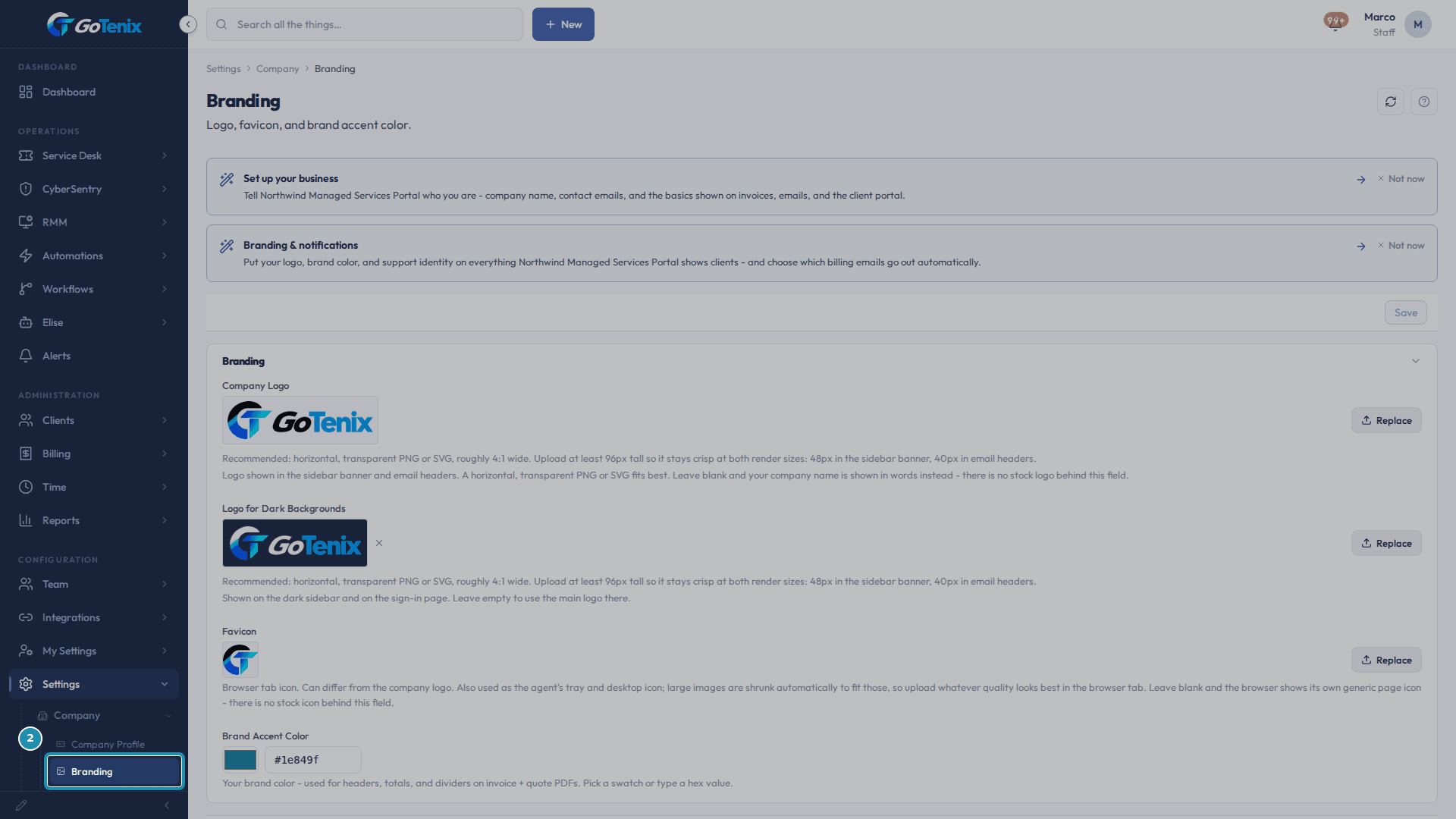
Look at the sign-in page before uploading anything. Open Settings > Company > Branding.
The page holds four fields: Company Logo, Logo for Dark Backgrounds, Favicon and Brand Accent Color. While the guided setups are still open, cards at the top ("Set up your business" and "Branding & notifications") offer a guided version, and "Not now" dismisses each one. The Branding & notifications guide covers the same fields.
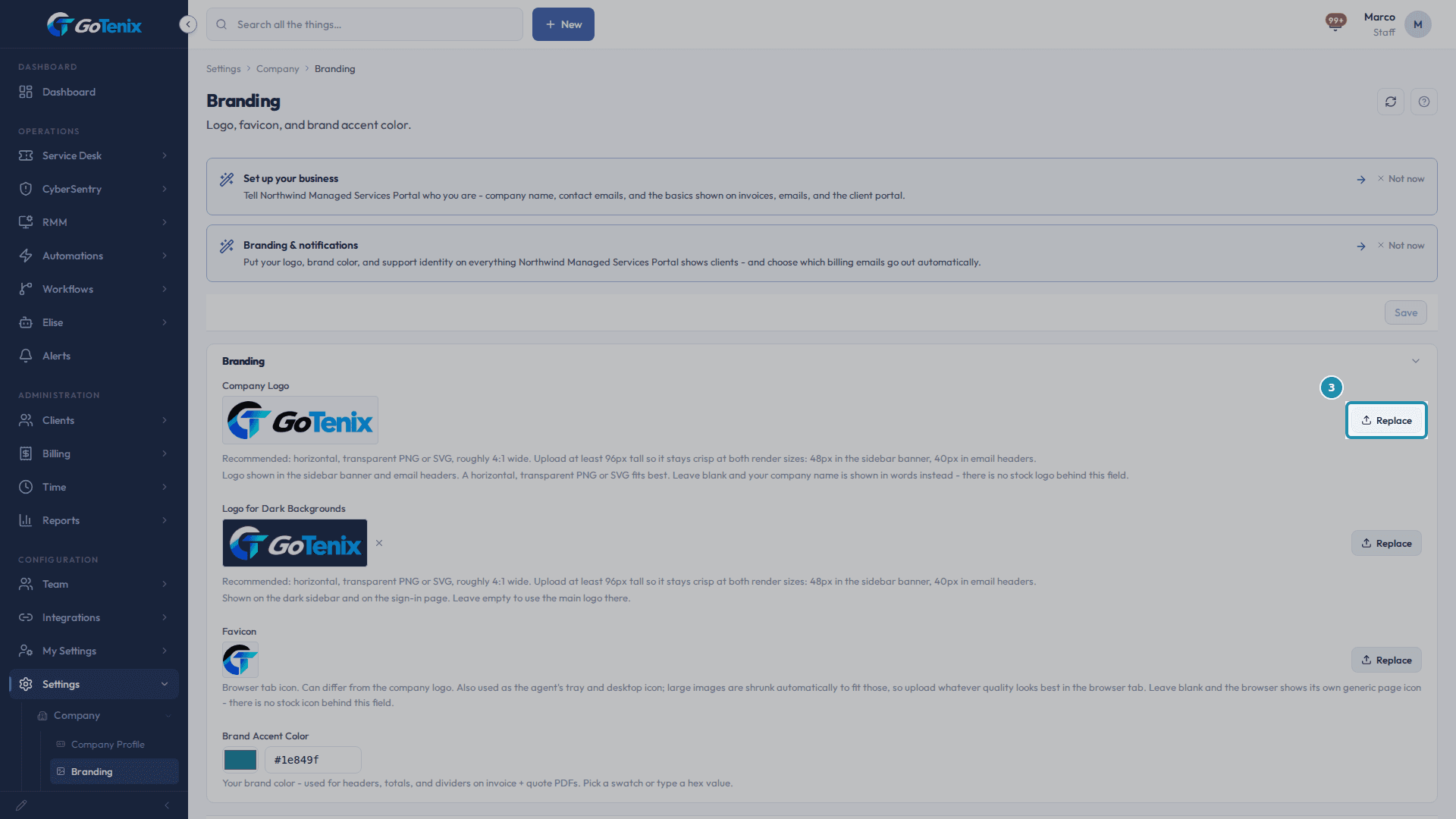
Open Settings > Company > Branding. Click Replace (or Upload file) on Company Logo and choose your logo.
The button reads Upload file until a logo exists, then Replace. Uploads are limited to 2 MB. The file uploads straight away and shows a preview, but nothing changes for the rest of the portal until you click Save at the end. PNG, JPEG and WebP uploads are trimmed of blank padding automatically; SVG files are cleaned and kept as they are.
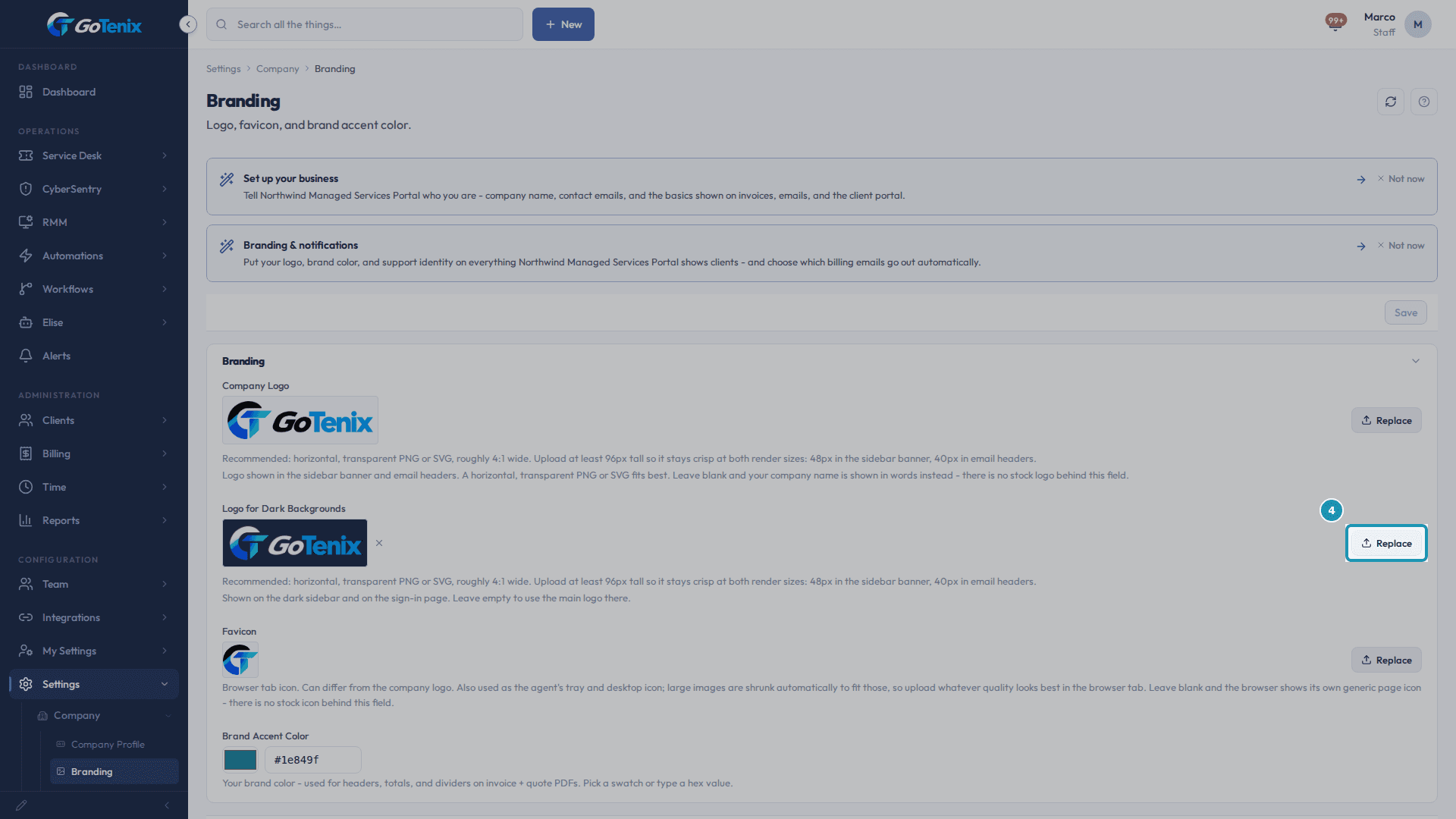
Click Replace (or Upload file) on Company Logo and choose your logo. Click Replace (or Upload file) on Logo for Dark Backgrounds if you have a dark-ground version.
This slot is optional. Leave it blank and the sidebar and sign-in page use the Company Logo. Upload a light-on-dark version and it replaces the Company Logo on those two surfaces only.
Note: If your Company Logo has a white or light background baked in, leaving this slot blank shows that background as a box on the dark sidebar. Upload a light-on-dark version here instead.Click Replace (or Upload file) on Logo for Dark Backgrounds if you have a dark-ground version. Set the Favicon, check the Brand Accent Color, then click Save.
The Favicon is the browser tab icon, and it can be a different mark from the logo. Brand Accent Color starts at #1e849f. Type a hex value or pick a swatch to change the color used on invoice and quote PDFs. Save writes all four fields at once.
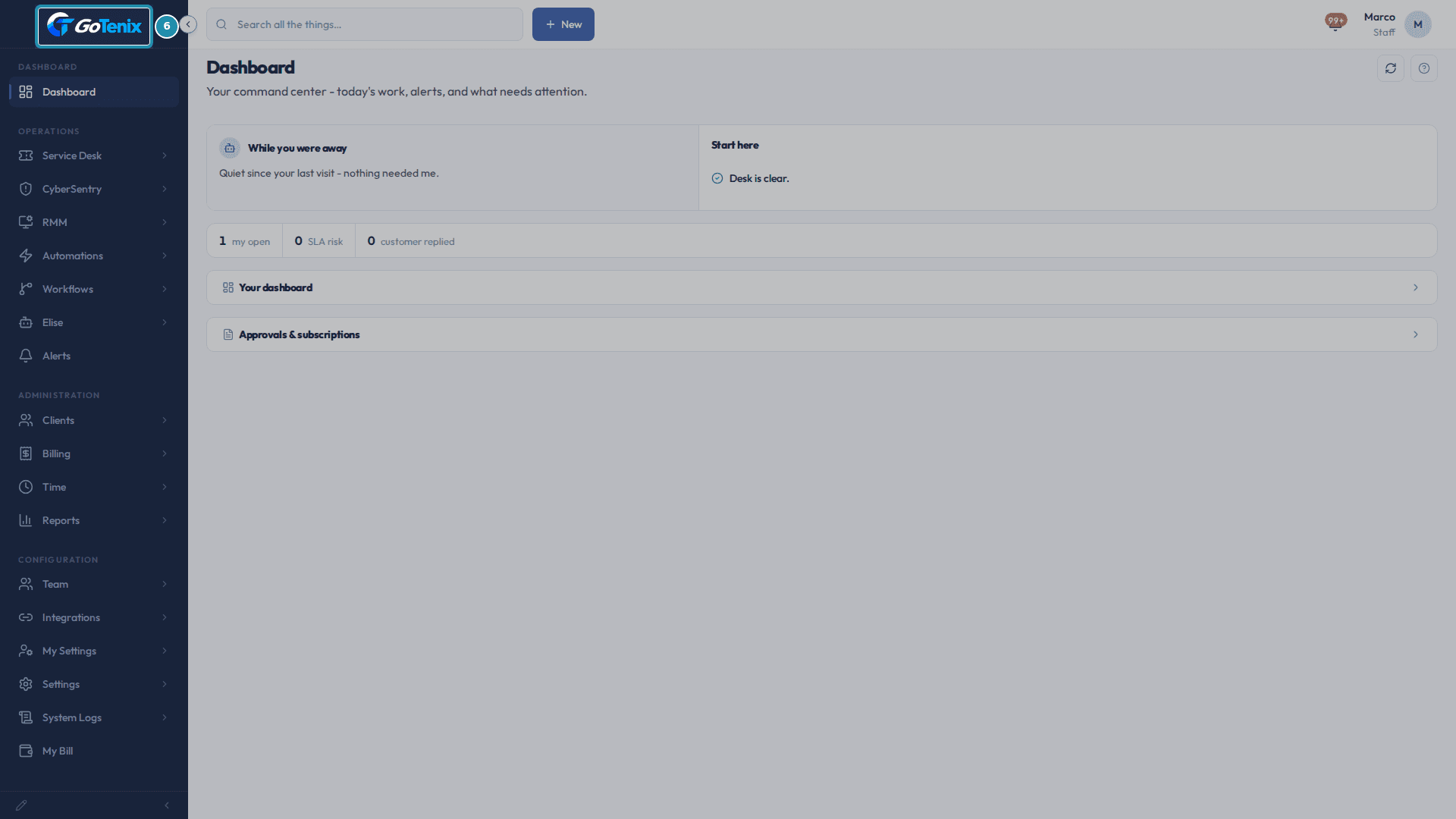
See the Company Logo land on the sidebar.
The brand card at the top of the sidebar now shows your logo: the Logo for Dark Backgrounds if you set one, otherwise the Company Logo.
See the Company Logo land on the sidebar. Sign out and look at the sign-in page again.
The left panel now shows your Logo for Dark Backgrounds, or your Company Logo if you left that slot blank. Sign back in to carry on.
Check the Favicon in the browser tab.
The browser tab now shows your favicon next to the portal name. The same file is used as the agent's tray and desktop icon on managed devices.
Open Settings > System > Setup Wizards and click Branding & notifications.
This is the guided version of the same branding fields, plus two billing email automations. It is under Company on the Guided setup page and has 7 lessons. Only a Super Admin or an Admin can open it. Read the introduction and click Start the lessons. If you have started before, the button reads "Continue: lesson" with the next lesson number. The lessons run identity first and automation second, so anything that sends on its own already looks like you.
Wizard lesson 1, Upload your logo & favicon: click Open Branding, upload both files there, then come back and click Got it.
The logo heads every branded email and the client portal. The favicon is the browser tab icon. Both are file uploads, so they live on the Branding page, and the wizard cannot save them for you.
Wizard lesson 2, Brand accent color: click Customize, type your hex value, then click Apply custom.
A hex value looks like #1e849f. The color is used for headers, totals and dividers on invoice and quote PDFs and as the accent in branded email. This lesson has no recommended value, so Apply recommended is switched off. It is the same color you set in step 5.
Wizard lesson 3, Support email: click Open Mail Connections and connect a mailbox to the Help Desk function.
The support address shows on the privacy policy, the terms, client pages and the footer of branded email. It is not a typed field. It comes from the mailbox you connect to the Help Desk function on the Mail Connections card, under Admin, then Integrations, then Mail, so the printed address is one clients can really reach. The Connect your mailboxes wizard walks it. Then click Got it.
Wizard lesson 4, Who gets billing notifications: read it, check the permission on Staff Roles, then click Got it.
Quote-response and invoice-approval notices go to every staff member who holds the Billing admin permission, the same permission that lets someone approve invoices. To change who hears about billing, grant or remove that permission on Team, then Staff Roles with Open Staff Roles. The notice list follows the permission, so there is no list to keep up.
Wizard lesson 5, Auto-send finalized invoices: click Apply recommended to turn it on.
When this is on, finalizing an invoice emails it at once, with the PDF attached, to the client's billing address and to any staff roles you choose. It is off by default on a fresh install. You can also turn it on, and pick the roles under Auto-Send Recipients, on Settings, then Billing & Pricing, then Invoice Settings (the setting is named Auto-Send Invoice on Finalize). Turn it on after the logo and brand color, so the first invoice that goes out on its own already looks like yours. The lesson shows Current and Recommended side by side, and Skip leaves it as it is.
Wizard lesson 6, Overdue invoices digest: click Apply recommended to turn it on.
The digest is one email that lists past-due invoices, instead of one reminder per invoice. How often it goes out, and to whom, follows the billing notification settings.
Wizard lesson 7, How this runs day to day: read it and click Got it.
A new logo or color shows on the next document, with nothing to re-run. With auto-send on, finalizing an invoice emails it at once; with it off, someone clicks Send. A check at 8 AM each morning marks invoices past their due date as Overdue, and the digest goes out on the schedule set under Settings, then Billing & Pricing. Your recurring part is the exceptions: a disputed invoice, a client who needs a different reminder rhythm, or a brand refresh. When the last lesson is done, the page says "All steps reviewed", and See what's next returns to the wizard list, where Branding & notifications shows Done.
What you will have
- See your own logo in the sidebar, on the sign-in page, in email headers and on invoice and quote PDFs.
- Upload a Company Logo, an optional Logo for Dark Backgrounds and a Favicon, set a Brand Accent Color, and save once.
- Know which screen each file controls, and which slot falls back to another when you leave it blank.
Why it works this way: How to put your brand on the portal
Two logo slots exist because light and dark backgrounds need different marks. Company Logo is the main one: it shows in email headers, on invoice and quote PDFs and on light backgrounds. Logo for Dark Backgrounds shows on the dark sidebar and on the sign-in page. Leave it blank and those two places use the Company Logo instead.
Logo sizing is printed on the page itself: a horizontal, transparent PNG or SVG, roughly 4:1 wide, at least 96px tall, because it renders 48px tall in the sidebar banner and 40px tall in email headers.
Company Logo and Brand Accent Color also work outside the portal. The accent color is used for headers, totals and dividers on invoice and quote PDFs, and it defaults to #1e849f until you change it.
The Favicon is the browser tab icon. It is also used as the agent's tray and desktop icon on managed devices, and large images are shrunk automatically to fit, so upload whatever looks best in the browser tab.
Other ways to do this: How to put your brand on the portal
The Branding & notifications guided setup
The card at the top of the Branding page covers your logo, brand color and support identity, and which billing emails go out automatically. It opens the Branding & notifications wizard, which steps 9 to 16 walk through.
Ask Elise
Ask "Where does my logo show up?" or "What does the Brand Accent Color change?" and Elise looks the setting up and explains it (settings.lookup, a read-only lookup). To change the accent color, say "Change my brand accent color to #0b5fff." Elise shows the current and new value and waits for your one-tap approval before it saves (settings.set, registered setting, low risk).
If it did not work: How to put your brand on the portal
- If you expected a branding step in the four-step first-time wizard (company info, modules, identity provider, Elise's voice): there is none. Branding lives on this page.
- If an upload is refused, check the file: uploads are capped at 2 MB and must be an image file.
- If your logo looks tiny, the source file is usually the cause. A logo that fills its own canvas edge to edge sits best in the fixed-height slot.
- If your logo is hard to see on the dark sidebar or the sign-in page, upload a light-on-dark version as the Logo for Dark Backgrounds instead of re-exporting the Company Logo.
Questions this page answers
Where do the logo and favicon appear?
Company Logo shows in email headers, on invoice and quote PDFs, and on the client sign-in screen. Those are white or light backgrounds. Logo for Dark Backgrounds is optional. Upload one only if your main logo is hard to see on a dark background. It shows on the dark sidebar. It also replaces your main logo on the sign-in page's dark left panel. Leave it blank and both places use your main logo instead. Favicon shows in the browser tab. It can differ from the logo. It is also used as the agent's tray and desktop icon. All three fall back to defaults when blank. All three update right away when you save - no redeploy needed.
What is the Company section for?
Settings → Company → Company Profile stores your MSP's core identity: company name, product name, contact phone, currency, and default timezone. The phone prints on invoice and quote PDFs. Your logo, favicon, and brand accent color live on the Branding page, and the support address now derives from your connected Help Desk mailbox rather than a typed setting.
What does Assistant Name change?
Every place the AI speaks - chat widget, generated ticket replies, briefing emails, agenda intros - uses this name. Default "Elise". White-label MSPs swap to their preferred brand name (some use a tech alias, others use a department name). Change takes effect on the next AI invocation; no rebuild.
Was this helpful?