How to set who gets told about a device alert
Choose, for each severity, who is told about a device alert and whether it opens a ticket, give one client its own answers, and switch the billing, expiry, operations and security checks on or off, all under Settings > System > Alerts & Notifications.
See it
Browse
On this page
How to do it
Open Settings > System > Alerts & Notifications.
One page, five cards: Device alert response at the top, then Billing, Expirations, Operations and Security, each with its own Save Changes.
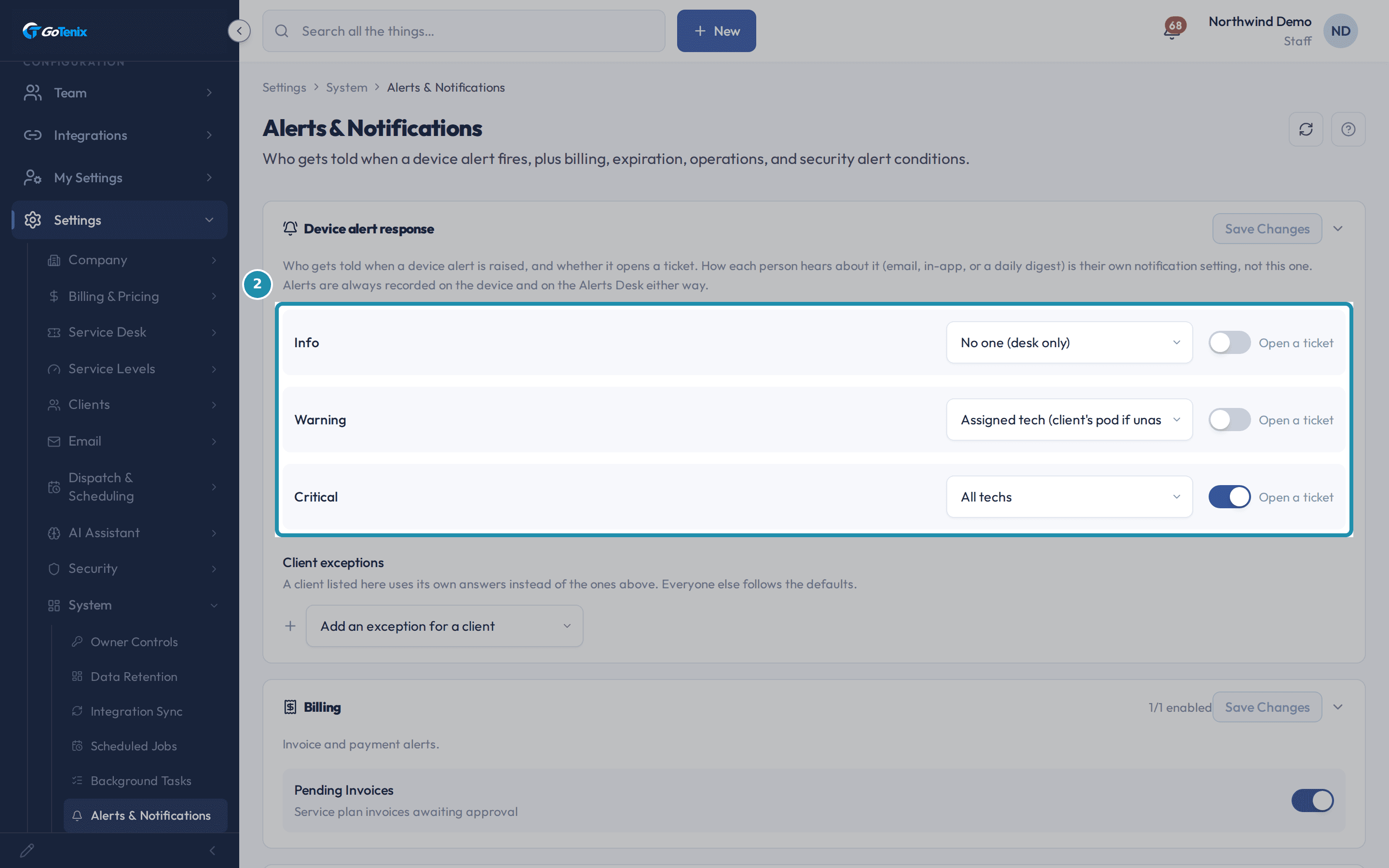
Open Settings > System > Alerts & Notifications. Read the three severity rows on Device alert response.
Each row answers two questions: who is told, and does it open a ticket (the Open a ticket toggle). The shipped defaults are Info: No one (desk only), no ticket. Warning: Assigned tech (client's pod if unassigned), no ticket. Critical: All techs, and Open a ticket is on. The audience list also offers Client's pod, Co-managed IT contacts and Client primary contact.
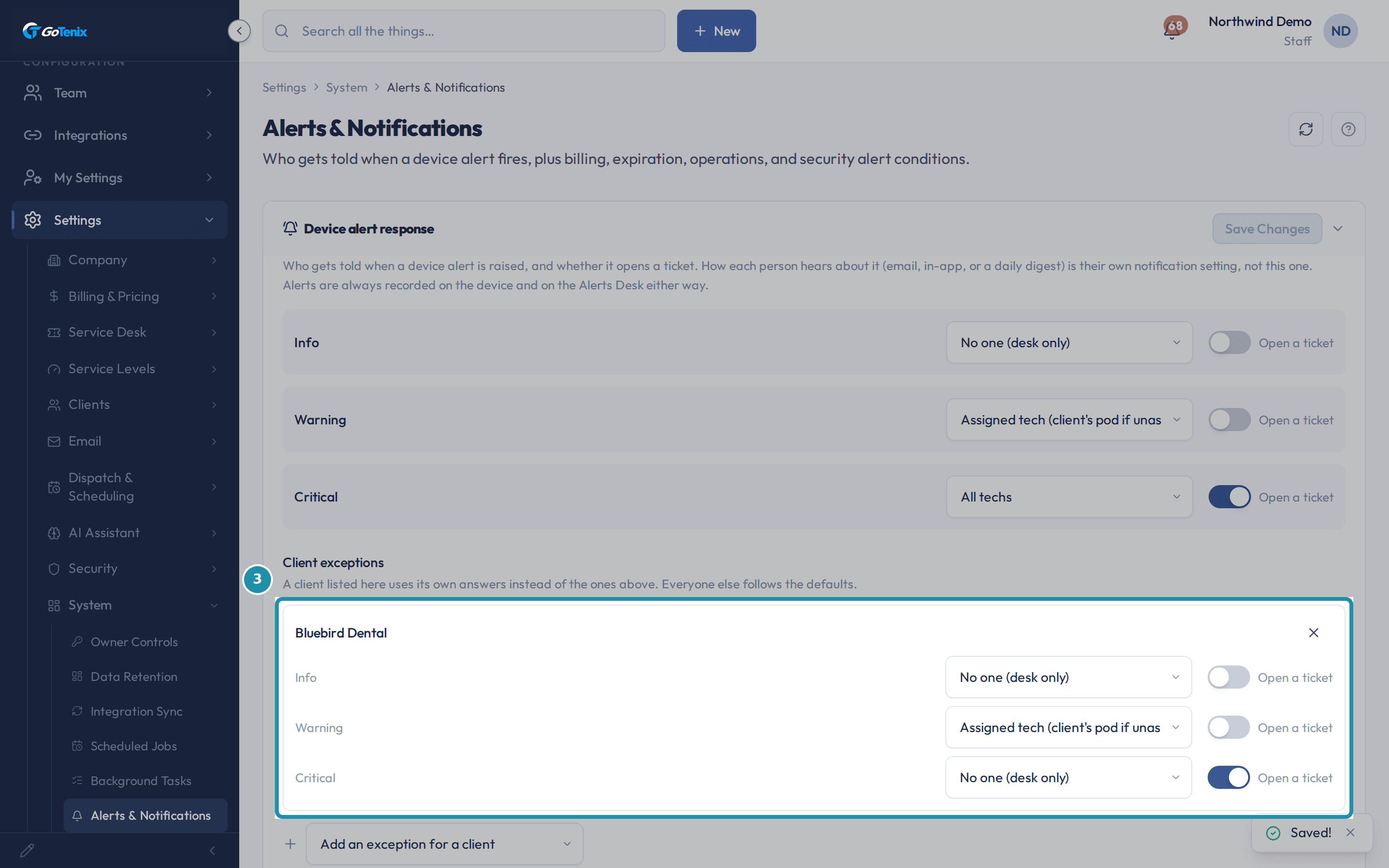
Read the three severity rows on Device alert response. Add a client exception and give it its own answers.
Pick a client under Add an exception for a client. The new card starts as a copy of the defaults, so change only the band that differs, for example set Critical to No one (desk only) while Open a ticket stays on. A client listed here uses its own answers, and everyone else keeps following the defaults.
Add a client exception and give it its own answers. Find the same setting again on the Automations ledger.
Open Automations > Library and filter to Devices. Each severity that does something is listed as a locked system rule named Device alert response, triggered by Device Alert Raised, plus one that settles the ticket when the alert clears. A severity set to No one with no ticket does nothing, so it gets no rule. The setting itself stays on this page.
Scroll to the four check groups below Device alert response.
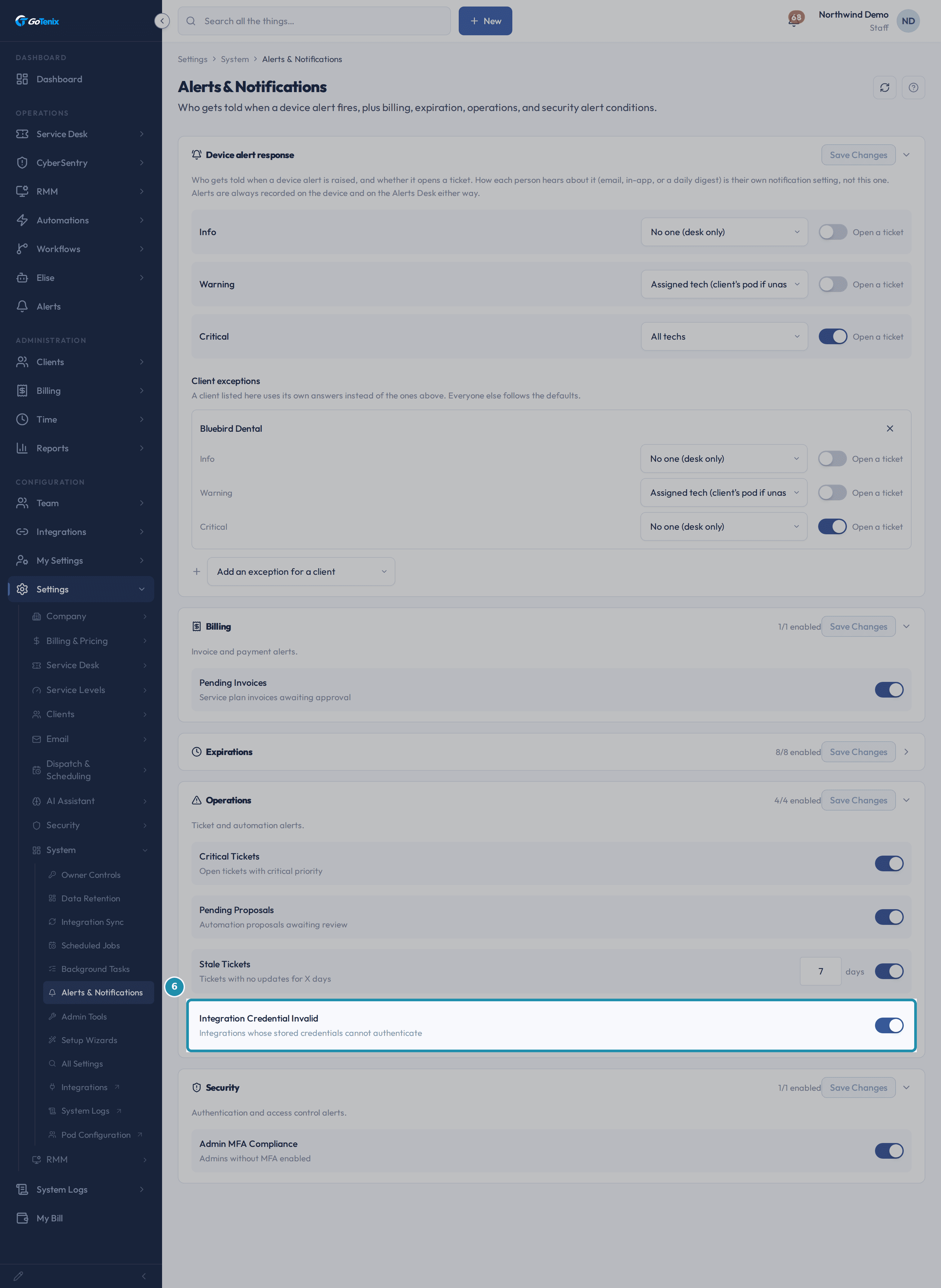
Billing holds Pending Invoices. Operations holds Critical Tickets, Pending Proposals, Stale Tickets (7 days to start with) and Integration Credential Invalid. Security holds Admin MFA Compliance. Expirations holds SSL Certificate Expiry, Domain Expiry, License Expiry, Warranty Expiry, Contract Expiry, Subscription Expiry, Domain SSL Expiry and Domain Registration Expiry, each starting at 30 days. Each card has its own Save Changes.
Read the Operations group's Integration Credential Invalid check.
This check asks whether a saved integration login still works. It can fire for three reasons: a saved secret the portal can no longer read, a vendor that turned down the saved key with a 401 or 403, or a Microsoft app that needs new permissions or logged an error. Each alert names its reason and the fix: enter a new secret, reconnect, or approve new permissions. It stays quiet for an integration nobody set up or one you turned off on purpose. Microsoft can raise more than one alert at once, since it uses three separate apps.
Read the Operations group's Integration Credential Invalid check. Know what happens to the ticket once the alert behind it clears.
It depends on why it cleared. If the portal's own automatic remediation ran and the condition then cleared, the ticket closes with a note naming the repair. If the condition simply went away on its own, the ticket stays open for a human, with a note saying so. Either way the alert stays visible as auto-resolved, with its reason, and one alert opens at most one ticket however many times it re-trips.
Know that mute works, even though it is not on this page.
Mute lives on the alert row, on the device's Alerts tab. Muting silences that condition on that device, and the mute carries forward if the condition clears and later comes back. There is no snooze: acknowledging an alert on the Alerts Desk is how a row leaves the working view.
Ask Elise about these settings.
Elise can explain a setting. For example, "Why did we get another breach alert for the same ticket?" returns the setting that controls it, its current value and where to change it. She can explain why something happened to a record: "Why did this ticket get a breach alert?" works when you can view Settings and can view that record. She can change one registered setting at a time after you approve it, for example "Warn me 2 hours before an SLA response deadline", which sets SLA warning threshold (minutes to breach) to 120 once you tap approve. The Device alert response card and the check toggles on this page are not registered settings, so Elise does not change who is told from chat. She explains them and points you here.
What you will have
- Decide, for Info, Warning and Critical device alerts, who is told and whether a ticket opens.
- Know the shipped defaults: Info stays quiet, Warning tells the assigned tech, Critical tells all techs and opens a ticket.
- Give one client its own answers without changing anything for everyone else.
- Find the same setting on the Automations ledger as locked system rules.
- Turn the billing, expiration, operations and security checks on or off, and set the day threshold where one applies.
- Know what happens to a ticket when its alert clears, and how mute works.
- Know what Elise can explain, what she can change after your approval, and what stays on this page.
Why it works this way: How to set who gets told about a device alert
This card decides two things only: who is told, and whether a ticket opens. It does not pick a channel. Each person hears about it by whatever they chose in their own notification settings, including a daily digest, so the choice lives in one place.
Info is quiet on purpose. Every alert is recorded on the device and on the Alerts Desk either way, so the shipped defaults only tell a person when the signal is worth interrupting someone.
The Billing, Expirations, Operations and Security checks run once a day. Each one is an on/off toggle, plus a day threshold where it applies, and there is no per-check recipient picker. When an enabled check finds something, the daily check notifies every Admin and Super Admin account, and each of them can turn a group off, or add email, in their own notification settings.
Mute lives on the alert row, on the device's Alerts tab, because it is a judgement about one machine. It is checked at the moment someone would have been told or a ticket opened, and it carries forward if the condition clears and comes back.
If it did not work: How to set who gets told about a device alert
- If a card's Save Changes button stays disabled, nothing on that card has changed yet. It lights up once a value differs from what is saved.
- If Add an exception for a client is empty, every client already has an exception row. Remove one first to add a different client.
- If a severity is missing from the Devices filter on the Automations ledger, that severity is set to No one with no ticket. Nothing is created for a severity that does nothing.
Questions this page answers
What does Device alert response decide?
Two things, per severity band: who gets told when a device alert is raised, and whether that alert opens a ticket. Nothing else. What COUNTS as an alert is a monitoring threshold on the RMM policy, not here, and how each person hears about it is their own notification setting. Detection there, response here, delivery in each person's preferences.
Why is there no email or in-app choice on this card?
Because that choice already has a home, and it belongs to the person receiving the alert rather than to the person configuring it. This card names the audience; each of those people then gets it by whatever channel they have chosen on their own notification preferences, including a daily digest instead of one message per alert. Putting a channel column here would mean two places decide the same thing, and they would disagree the first time somebody changed one of them.
What are the shipped defaults?
Info tells no one: it is recorded on the device and on the Alerts Desk, and that is where it should be read. Warning tells the client's assigned tech, falling back to the client's pod when that client has no dedicated tech. Critical tells all techs and opens a ticket. Alerts are quiet by default on purpose, so turning an audience ON is a decision somebody makes, not one they inherit.
What does each audience mean?
"Assigned tech" is the client's dedicated tech, and falls back to their pod if they have none. "Client's pod" is every assignable member of that pod. "All techs" is every staff member on this instance, which is the widest audience there is. "Co-managed IT contacts" is the client's own elevated portal users, and only reaches co-managed clients. "Client primary contact" is the address on the client record. A client contact who is told about an alert gets a link to the device on their own portal, never to an admin page they cannot open.
When should I add a client exception?
When one client genuinely needs a different answer, for instance a co-managed client whose own IT wants the warnings, or a noisy site where critical should stop opening tickets while it is being rebuilt. An exception starts as a copy of the defaults, so you only change the row that actually differs. Everyone not listed follows the defaults, and always will.
Where do these settings show up as automations?
On the Automations ledger, as locked system rules named "Device alert response". Each active severity band has one, plus one that settles the ticket when an alert clears. They are read-only there and link back to this card, because this card is where the setting lives. A band set to no one and no ticket has no rule at all, since it does nothing.
How do Alert rules work?
Each alert is a rule with an on/off toggle and, where applicable, a threshold (for example days before expiry). There is no per-alert recipient picker, when an enabled condition trips, the daily alert check notifies your Admin and Super Admin accounts. Security, Billing, Operations, and Expirations are independent groups, each edited in its own section with its own Save.
What does this alert check?
The Integration Credential Invalid alert checks whether a saved integration login still works. It can fire for three reasons. A saved secret the portal can no longer read. A vendor that turned down the saved key with a 401 or 403 error. A Microsoft app that needs new permissions, or that logged an error. Each alert says which reason it is, and what to do about it. Fixing each reason means a different step. Type in a new secret. Reconnect. Or approve new permissions. The alert stays quiet if you never set up that integration, or if you turned it off on purpose. Nothing here fixes itself. A turned-down key stops showing once a sync runs after the fix. The other reasons stop once you fix them. Microsoft can raise more than one alert at once, since it uses three separate apps.
What happens to the ticket when the alert clears?
It depends on WHY it cleared, and the alert row records that. If our own automatic remediation ran and the condition then cleared, the ticket closes with a note naming the repair that ran. If the condition simply went away on its own, the ticket stays open with a note saying so, because nobody has confirmed the machine is actually fixed. Either way the alert stays visible as auto-resolved, with its reason. One alert opens at most one ticket, however many times it re-trips.
Does mute still work?
Yes, and it is checked at the moment somebody would have been told. Mute on an alert silences that condition on that device, and carries forward when it resolves and comes back. It lives on the alert row itself, on the device's Alerts tab, because it is a judgement about one machine rather than a policy for the fleet. There is no snooze: acknowledging an alert on the Alerts Desk is how a row leaves the working view.
Was this helpful?