How to set up an RMM policy
Set the rules for every computer you manage in one place: which patches install and when, which repairs run before a ticket opens, when people get restarted and which commands automation may run, then give the policy to a client or ask Elise to.
See it
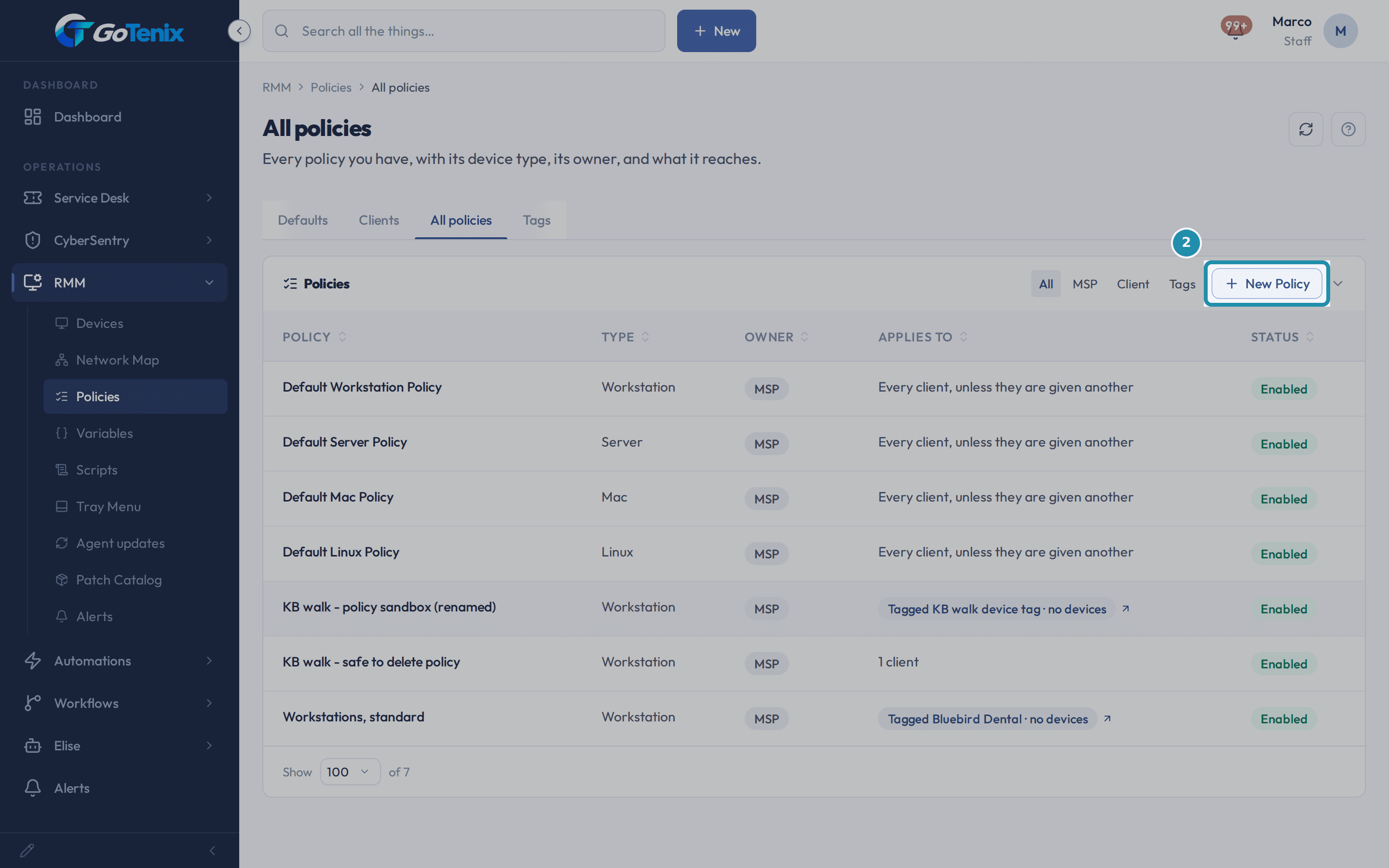 2. Click New Policy on the All policies tab and fill in the form.
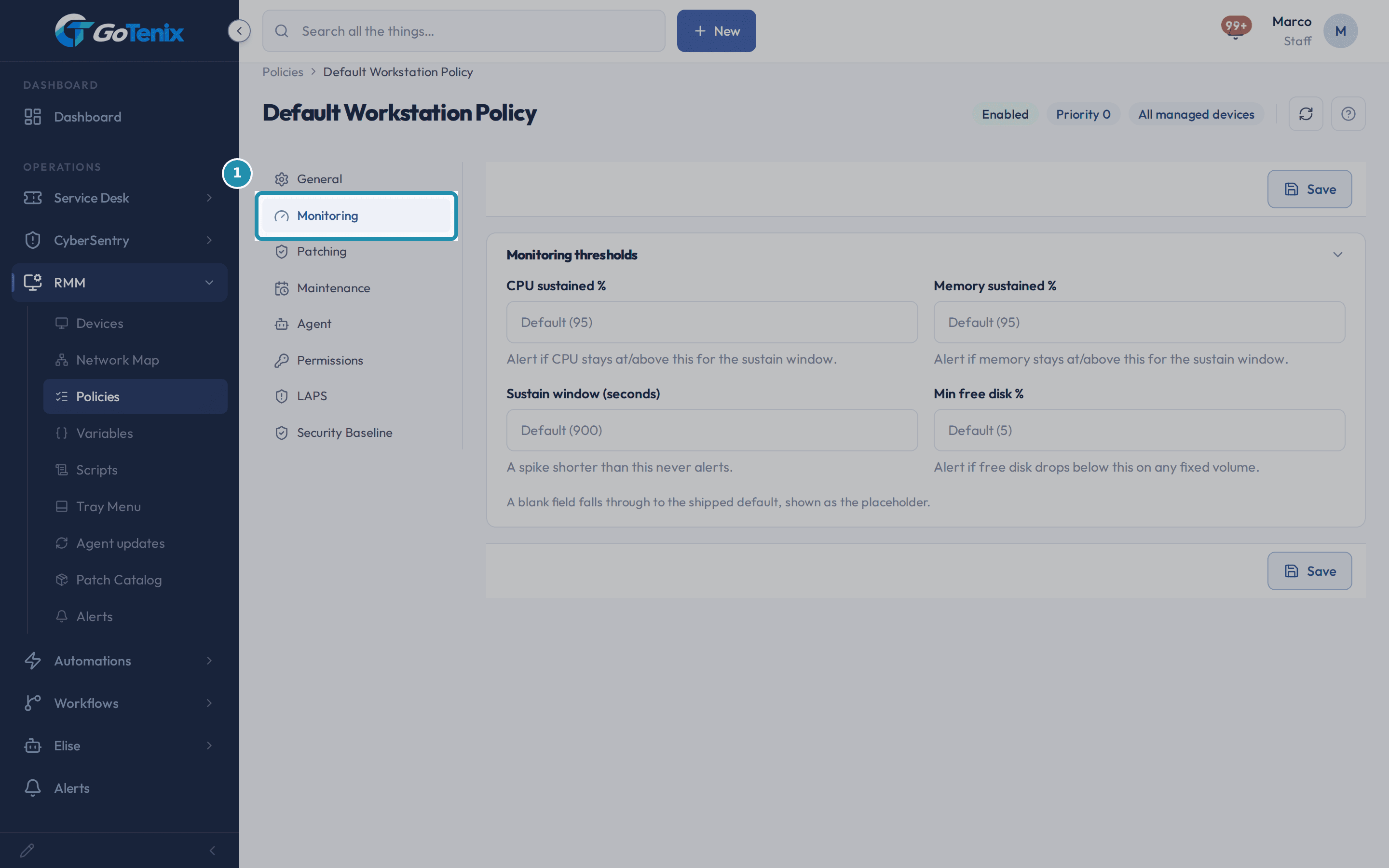 4. Set a monitoring threshold.
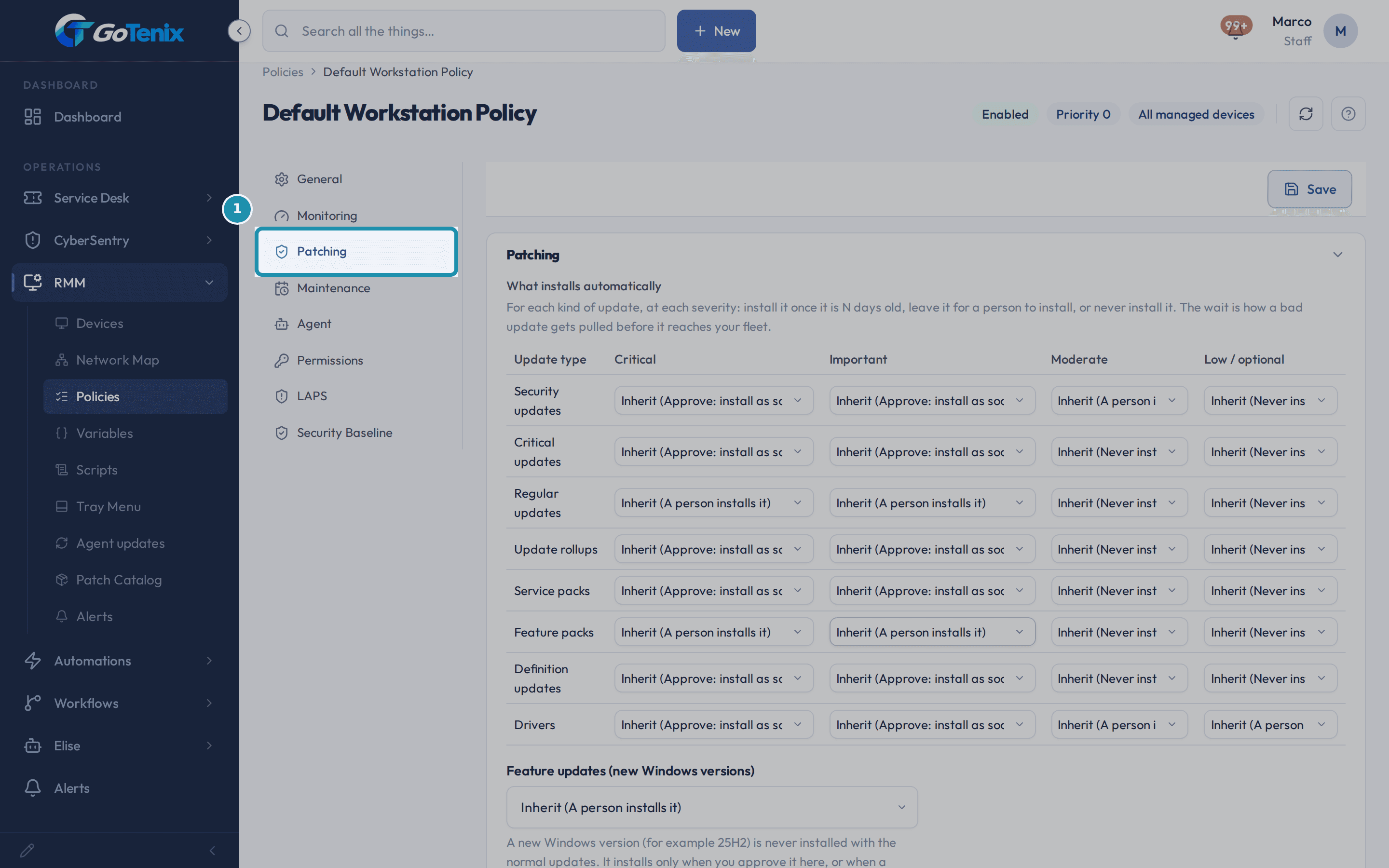 5. Open Patching and decide what installs on its own.
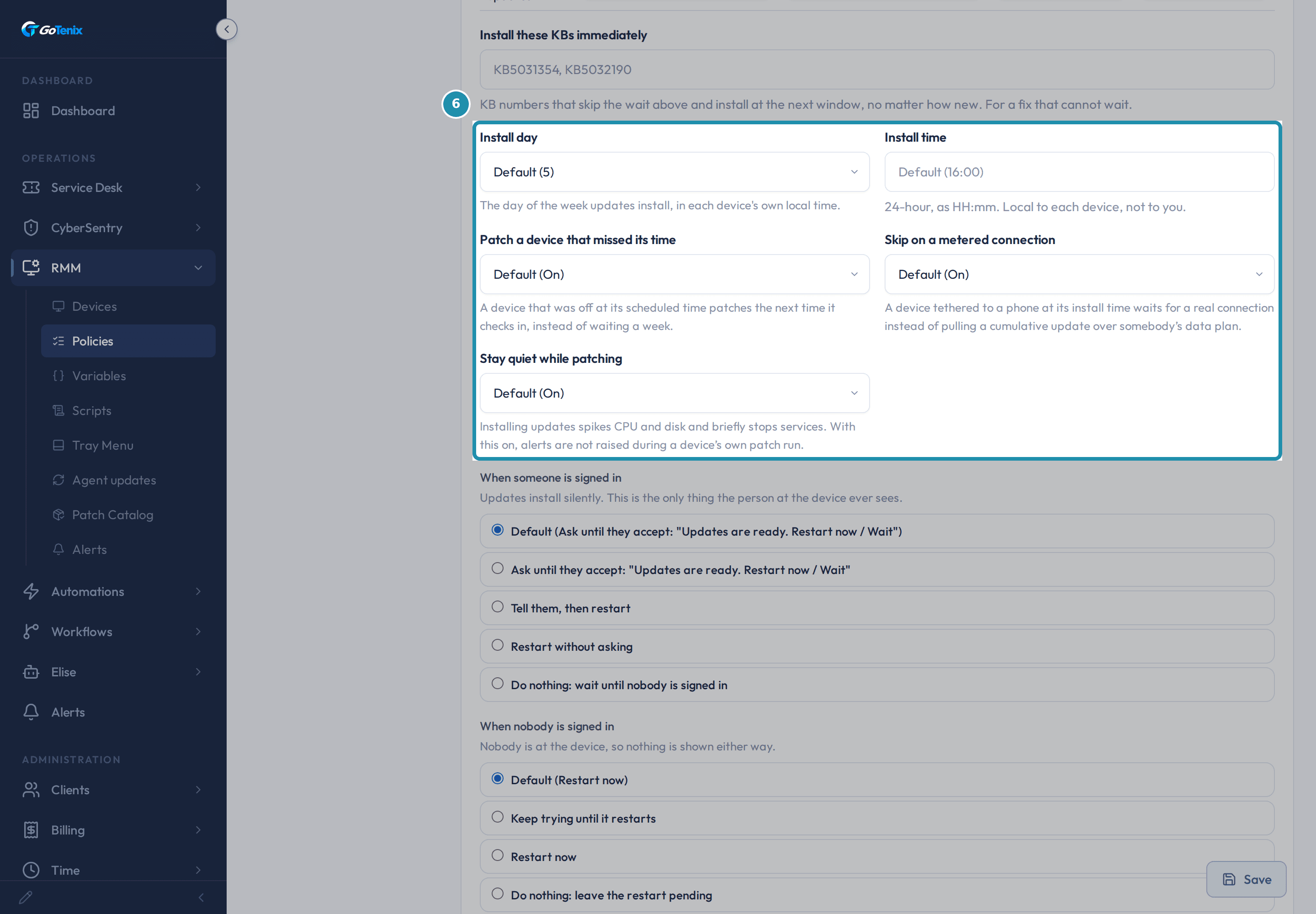 6. Read the install schedule.
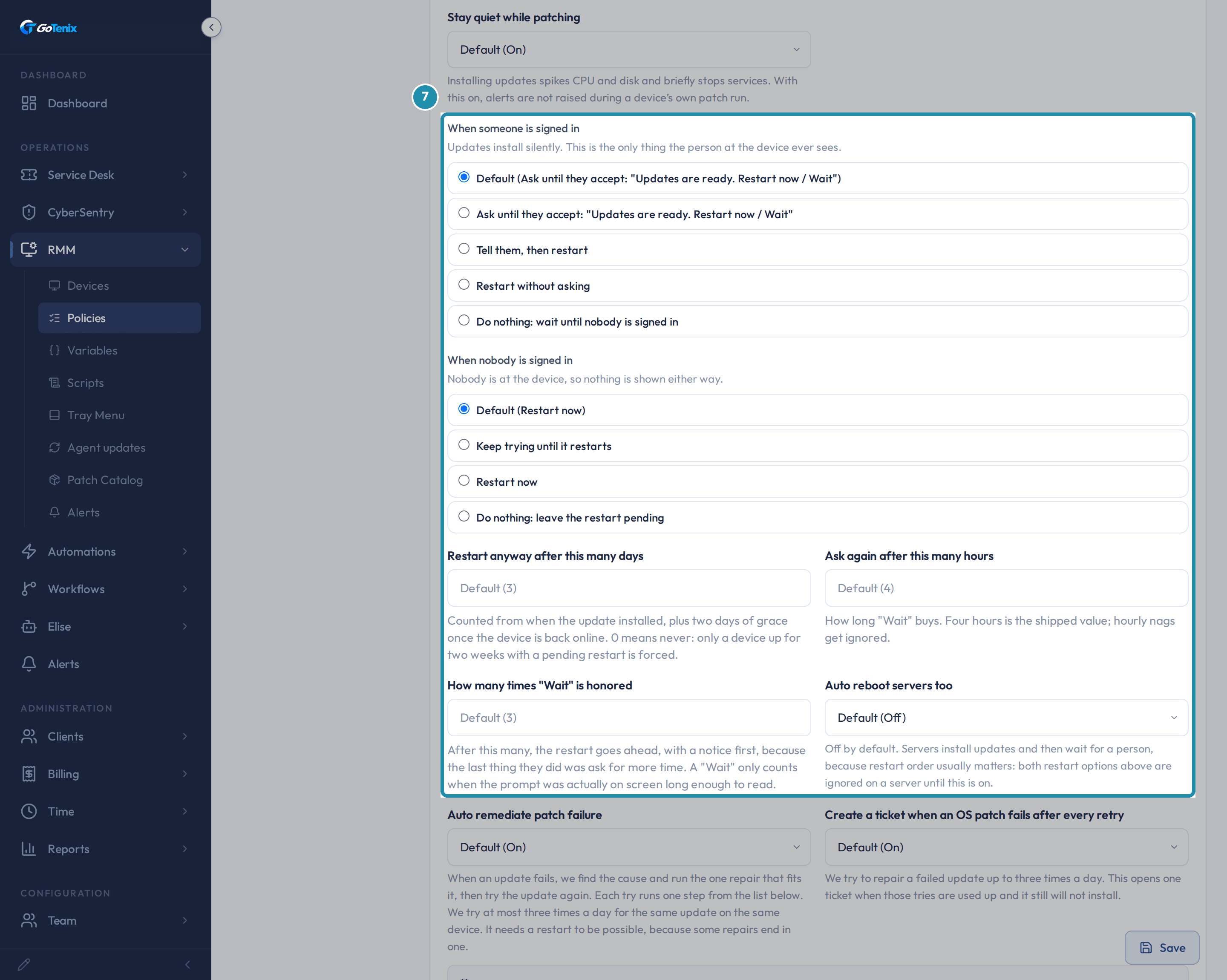 7. Read the two restart choices.
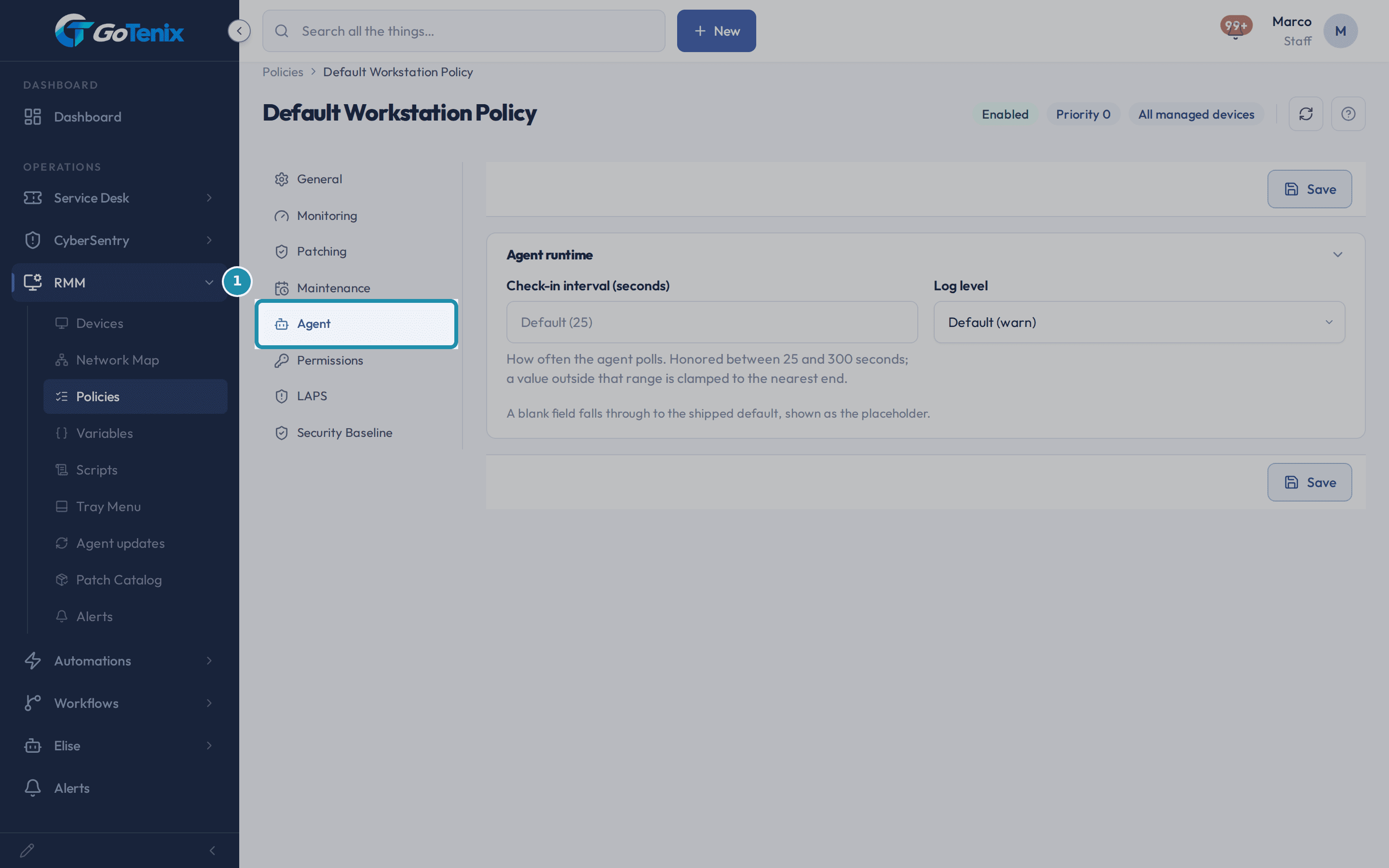 12. Open the Agent tab.
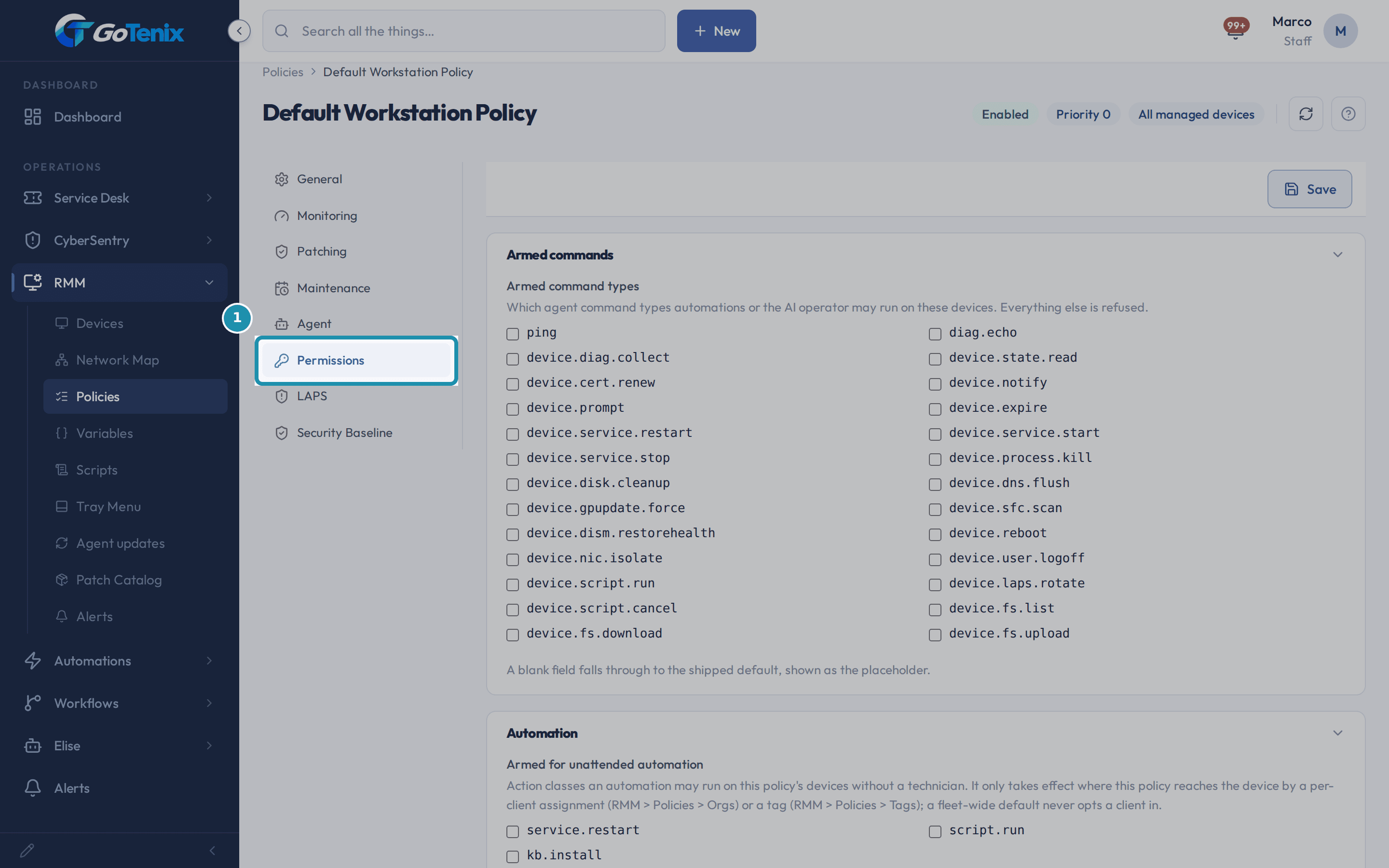 13. Open Permissions and arm commands.
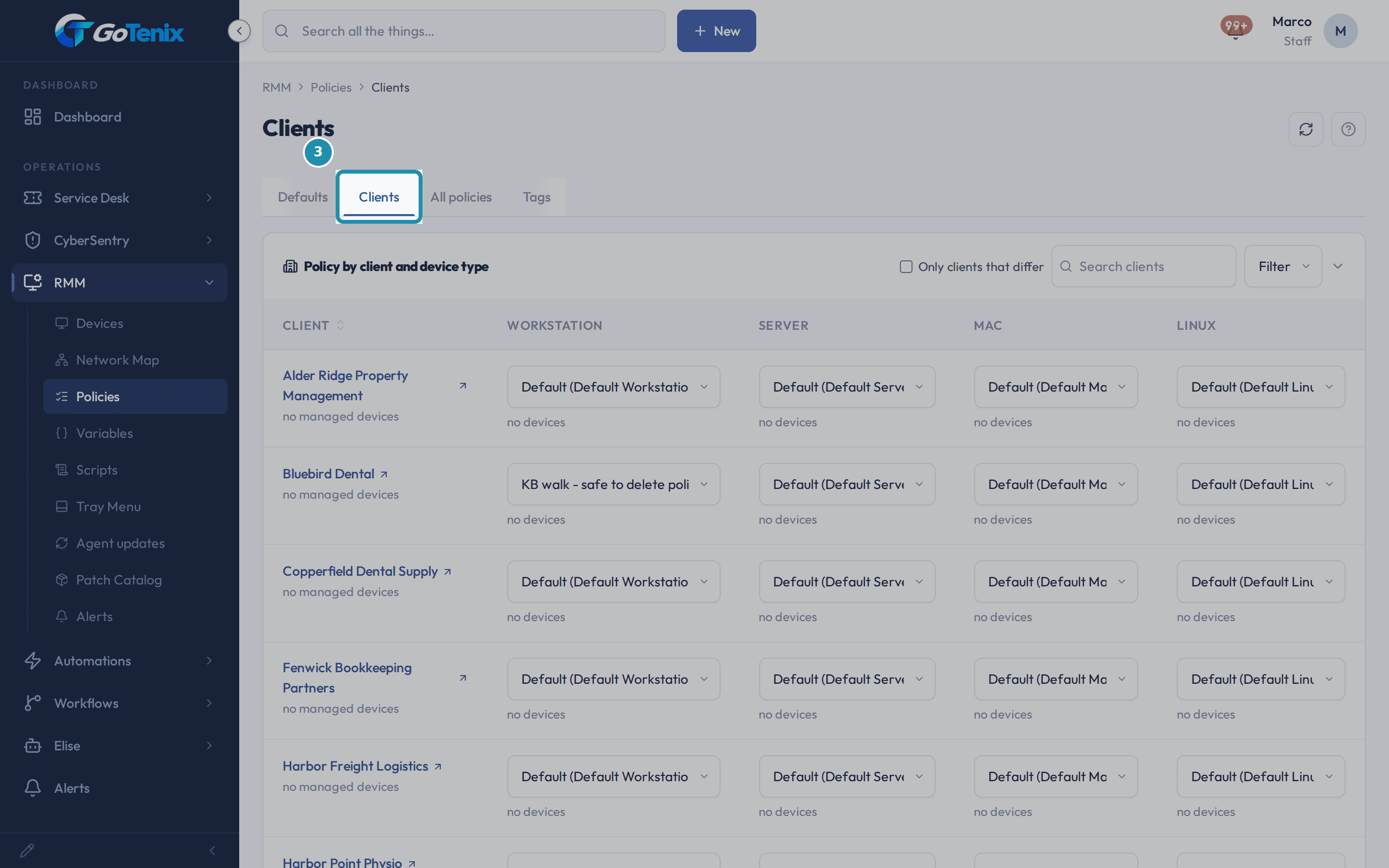 14. Give the policy to a client on the Clients tab.
Browse
On this page
How to do it
Open RMM > Policies.
The menu item lands on the Defaults tab. Four policies ship with every instance, one per device type: Default Workstation Policy, Default Server Policy, Default Mac Policy and Default Linux Policy. A laptop or desktop follows the first, a server the second, a Mac the third and a Linux box the fourth, with nothing set up by anyone. Each row shows Devices on it and Clients on it. The line under the table says every client falls back to these, and that to change one you open it and edit it.
Open RMM > Policies. Click New Policy on the All policies tab and fill in the form.
Name it, then read what Applies to holds. Type is a dropdown of Workstation, Server, Mac and Linux, with the line "Set once, when the policy is made" beside it, so a workstation policy cannot be quietly retargeted at servers later. Owner reads MSP and is not editable here. Tag is a picker that starts empty: "No tag picked yet. Until you pick one, this policy covers every managed device." Leave it empty unless a few machines need something different from the rest of their client. Priority starts at 0 and is "Only used when two tag policies land on the same device. The higher number wins." Also assigned links to the Clients tab, where you give the policy to a client.
Click New Policy on the All policies tab and fill in the form. Press Create policy.
The policy saves and opens on its own page, on the Monitoring tab. The heading is the name you typed, with chips for Enabled, the Priority and what it reaches, such as All managed devices. The tab rail down the left reads General, Monitoring, Patching, Maintenance, Agent, Permissions, LAPS and Security Baseline. Nothing on them has to be filled in for the policy to work: every field falls through to the shipped default until you set it, and the placeholder in each field is that default.
Set a monitoring threshold.
Four fields govern the alerts this policy raises: CPU sustained %, Memory sustained %, Sustain window (seconds) and Min free disk %. Set the ones you care about and leave the rest blank, and each blank one shows its shipped default as the placeholder, such as Default (95) for memory. The sustain window is the important one: "A spike shorter than this never alerts." Which severities notify someone or open a ticket is not set here, it is one instance-wide decision under Settings > Alerts & Notifications.
Set a monitoring threshold. Open Patching and decide what installs on its own.
The table at the top has every kind of update down the side and the severity across the top: Critical, Important, Moderate and Low / optional. Each cell is a dropdown, and a cell you leave alone reads Inherit with the shipped answer in brackets. A cell can be set to Install right away, Install after 3, 7, 14 or 30 days, A person installs it, or Never install. The wait is how a bad update gets pulled before it reaches your fleet, so you can install security fixes at once and hold everything else for a week. Below the table, Install these KBs immediately takes KB numbers that skip the wait for a fix that cannot wait.
Open Patching and decide what installs on its own. Read the install schedule.
Install day and Install time show their defaults, and both hints say whose clock it is: each device's own local time, not yours. A fleet spread over several time zones patches at the same local hour. Patch a device that missed its time ships On, so a device that was off at its slot patches at its next check-in instead of waiting a week. Skip on a metered connection ships On, so a laptop tethered to a phone waits for a real connection. Stay quiet while patching ships On too, so alerts are not raised during a device's own patch run.
Read the install schedule. Read the two restart choices.
They are two different situations, and the device itself reports which one it is in. When someone is signed in offers five choices, with the shipped one selected: ask until they accept ("Updates are ready. Restart now / Wait"), tell them then restart, restart without asking, or do nothing until nobody is signed in. When nobody is signed in offers four: the shipped Restart now, Keep trying until it restarts, Restart now, and Do nothing: leave the restart pending. Updates install silently, and the restart prompt is the only thing the person at the device ever sees.
Read the two restart choices. Set how long a restart can wait.
Restart anyway after this many days counts from when the update installed, plus two days of grace once the device is back online, and 0 means never. Ask again after this many hours is how long Wait buys, because hourly nags get ignored. How many times "Wait" is honored decides when the restart goes ahead, with a notice first. Auto reboot servers too ships Off on purpose: servers install updates and then wait for a person, because restart order usually matters, and both restart choices above are ignored on a server until it is turned on.
See what happens when an update will not install.
Auto remediate patch failure and Create a ticket when an OS patch fails after every retry both ship On. With remediation on, a failed update is diagnosed and the one repair that fits the cause runs, then the update is tried again, at most three times a day for that update on that device. Open "What we try before opening a ticket" to read the list of repairs in the product's own words: restart Windows Update services, clear the update cache, a full component reset, DISM RestoreHealth, SFC scannow, reclaim system-drive space, winget source checks, and restarts that finish updates. A step that restarts the device runs only when this policy allows a restart.
Read the outcome when the tries run out.
When every try is used up and the update still fails, an alert is raised either way. A ticket opens too only because the ticket dropdown is on. Set it to Off and nothing else changes: the alert is still raised and the device still shows the problem, you just do not get a ticket. The Next three install times box shows the fleet's next patch runs in your own time zone, with a note that each device uses its own local clock.
Scroll to Software patching (third-party apps).
"When the app is open" has four choices, shipped on Leave it open and try again next time: ask them ("Close and update / Wait"), close the app and update anyway, or leave it open and try again. Most app updates cannot replace a file the app is still using, and this is the only thing about app patching the person at the device ever sees. Approve apps by class, Update every installed app, not just the catalog and Try apps whose version we cannot read all ship Off. Update every installed app ignores your catalog and the approvals, so turn it on only when you mean it. Create a ticket when third-party updates are broken on a device ships Off, and opens one ticket for the whole device, never one per app.
Open the Agent tab.
It holds two fields: Check-in interval (seconds) and Log level. The interval hint names the real bounds, honored between 25 and 300 seconds, with a value outside that range clamped to the nearest end. Log level reads Default (warn) with error, warn, info and debug behind it. A blank field falls through to the shipped default.
Open the Agent tab. Open Permissions and arm commands.
Armed command types is a checklist of the agent commands an automation or the AI operator may run on a device under this policy, from plain reads up to restarting a device, running a script and moving files. Every one is unchecked on a new policy, and the hint is exact: "Everything else is refused." Arm only what you want automation to be able to do. Armed for unattended automation is a second, stricter list for actions an automation may run without a technician, and it only takes effect where the policy reaches the device through a client assignment or a tag.
Open Permissions and arm commands. Give the policy to a client on the Clients tab.
The All policies list shows every policy with its device type, its owner and what it reaches, and a new policy reads "No client and no tag yet" until you point it at something. The Clients tab has one row per client and one dropdown per device type, and every dropdown already names a policy. The dropdown offers only policies of that type that are not tag-scoped. Picking one takes effect at once with no Save, and the All policies row changes to show how many clients use it.
Give the policy to a client on the Clients tab. Read the same assignment on the client's own record.
Open the client, then Devices, then the Agent setup drawer above the device roster, which holds Policies for this client. It has one dropdown per kind of machine, with the line "One policy per kind of machine. Blank means the default we set for every client." These are the same rows as the Clients tab, reached from the client, and changing one here changes the other. The client's RMM tab is a different door: it holds the client's network mapping exclusion and its variables, not a policy assignment.
Ask Elise to do the lookups and the changes.
Find: "List the devices for Acme Dental" returns each device's name, type, OS, last seen and online status. Add up: "Show RMM health for every client over the last 90 days" returns each client's device count, offline devices, patch compliance, pending reboots, open alerts and automated repair results. Report: "Diagnose the front desk laptop and tell me what looks wrong" reads its recent errors and health issues and suggests next steps, and it never runs anything on the computer. Change: "Give Acme Dental the Front desk laptops policy for workstations" shows a card and waits for your approval before it changes the client's assignment, and it can clear the assignment too. Change: "Push Google.Chrome to all of Acme Dental's devices" shows how many devices it reaches and waits for your approval, and a push over 250 devices is refused whole rather than done in part. Deleting a device is gated: Elise files it in Review > Gated Actions for someone else who holds that permission to release.
Open RMM > Devices to see where a real machine lands.
The roster is every enrolled endpoint across every client, sorted A to Z by device name, with a Roster tab and an Unapproved tab, a Client filter, a Status select and a Filters button. Once a machine enrolls, its own page names the one policy governing it and says why, and each setting on that page shows a chip for where its value came from.
Click Install agent and pick the client.
Add a device asks for the client first, then shows that client's three installers: EXE installer, MSI installer and Linux installer, each with a Download button and a caret that opens its instructions and command. Under them sit a quick troubleshooting panel and the client's install key with a copy button and a Manage keys link. Manage keys opens that client's Devices tab, where the Agent setup drawer holds regenerating the key, named keys for a rollout or a contractor, and the revoked-key history. Treat the install key like a password, because it is what a real installer embeds. Download the installer and run it on the endpoint, and the device enrolls under that client.
Check Settings > RMM > Device Approval.
This is one decision for every client, not something a policy sets. Automatic approves every device the moment it enrolls and is the shipped row. Automatic above a confidence approves a device only at or above a score, and Manual leaves every device waiting for a tech. Clicking a row saves it right away. Approval matters because it turns on the stronger doors on a device: remote control, script runs and the terminal. Before a device is approved it only reports what it sees, and each of those doors can be turned off later on that one device's page.
Open the middle row's details to see where the score lives.
Show details on "Automatic above a confidence" opens the only place the number can be typed: Approve at or above, with a percent sign and its own Save. To stop approving on a score, pick the Manual row instead. The panel explains what the score is made of: reaching the internet from the same address as devices already approved for that client, being joined to the same domain those devices report, and being signed in as a person who works for that client. It also lists a Microsoft Entra device identity that the agent does not report yet, so that factor never counts either way. A device below the threshold waits on the Unapproved tab of the Devices page.
What you will have
- Control what installs on its own, and when, for every managed computer, with a wait of days so a bad update is pulled before it reaches your clients.
- Let a failed update repair itself first, from a fixed list of repairs, and open a ticket only if you want one.
- Decide when a person at the computer is asked to restart, and keep servers waiting for a human.
- Arm only the agent commands you are happy for automation to run, because everything not armed is refused.
- Give a policy to one client for one device type, and see the same assignment on the client's own record.
- Ask Elise to find devices, report on fleet health, diagnose a machine, assign a policy or push an app, with approval on the changes.
- Find where a real machine enrolls and the one fleet-wide decision that governs whether it is approved.
Why it works this way: How to set up an RMM policy
A device follows exactly one policy, never a blend. A policy that targets a tag the device carries wins first, then the policy its client was given for that device type, then the default for that type. Whichever policy wins supplies every field, and a field it does not set falls through to the shipped default.
A failed update is diagnosed first. For most causes one repair from a fixed list runs and the update is tried again, up to three times a day for that update on that device.
A ticket opens only after every try is used up and the update still will not install, and only if the policy's ticket dropdown is on. Turning it off does not hide the problem: the alert and the device still show it.
Device approval is one decision for the whole fleet, not a per-policy setting.
The monitoring thresholds a policy sets are deliberately conservative. Which severities notify someone or open a ticket is its own decision, made once for every device alert.
Other ways to do this: How to set up an RMM policy
The RMM setup wizard
The Devices page offers a one-time setup line for RMM: install the agent, then settle the same handful of fleet-wide decisions in a single guided pass.
A tag instead of a client
Pick a tag in the policy's Tag field, then tag the machines - either on each device's own page, or with Add devices next to the tag on the policy's General tab. RMM > Policies > Tags lists every tag-scoped policy together.
Editing a default instead of making a new policy
Open the default policy by its name on the Defaults tab and edit any tab in it. The change reaches every machine still on that default.
Automations reacting to a policy’s alerts
Turning on either ticket dropdown on the Patching tab materializes two real rows in Automations, named after this policy: one for the first time a device hits the problem, one for a later run that finds it still broken with no ticket open. Switch it back off and both rows disappear.
If it did not work: How to set up an RMM policy
- If a device is not following the policy you expected, work the order: a tag policy on that machine wins first, then the policy its client was given for that device type, then the default for that type. The device's own page names the policy it got and says why.
- If the Clients dropdown does not offer the policy you just made, check its Type. A dropdown only offers policies written for that kind of machine, and a policy's type is set once, when the policy is made.
- If a policy shows no devices under its tag or its client, the policy is real but is not reaching anything yet. Nothing is wrong: enroll a device for that client, or tag a machine, and the count moves.
- If a setting on a device is not what the policy says, look at the chip next to it on the device's Policy tab. It names where that value came from: the shipped default, the policy governing the device, or Corrected, when the policy's own values did not add up and a safe combination had to be used.
- If a device turns out to have scripts or the terminal available sooner than expected, check Settings > RMM > Device Approval. Automatic approves on enrollment with nothing to wait on, and it is the shipped row.
Questions this page answers
What installs on its own?
The table at the top of Patching decides what installs on its own. Each row is a kind of update. Each column is how serious the problem is: Critical, Important, Moderate or Low / optional. A cell can say Install right away, Install after 3 days, A person installs it or Never install. A cell you leave alone says Inherit and shows in brackets what it will do. The table is also the on switch for the weekly install time.
Why would I make it wait days after an update is released?
So a bad update does not reach your fleet on day one - if Microsoft pulls it, you were behind it. Each cell in the table carries its own wait, so you can install security fixes immediately and hold everything else for a week. Preview builds are never installed automatically at any setting. If one fix cannot wait, put its KB number in the immediate-install list and it skips both the wait and the table.
When do updates actually install?
On the day and time you set, in each device’s own local time - so a fleet spread across time zones all patches at the same local hour. The next three dates are shown under the fields. A device has four hours from that time to check in; one that was off patches at its next check-in instead of waiting a week. Maintenance windows are not used for this.
Why does a device stop alerting while it is patching?
Installing updates spikes CPU and disk and briefly stops services. Paging on all three every Friday teaches people to ignore the pager, so with "Stay quiet while patching" on (the default) alerts are not raised during a device’s own patch run. Turn it off if you want to see exactly what a patch run does to a machine. Alerts that were already open are unaffected.
What does the person at the device see?
Nothing while updates install - that happens silently. The only thing they ever see is the restart, and only if an update needs one: "Updates are ready. Restart now / Wait". That is why the install time is seeded at 4pm on a Friday: the restart lands while people are still at their desks. Wait postpones it for four hours, up to three times; after that it restarts with a notice first. If nobody answers, it simply asks again - silence is not taken as permission to restart.
When will a device restart on its own?
You choose it twice, because the two situations are different. With someone signed in: ask until they accept (the default), tell them and restart, restart without asking, or do nothing. With nobody signed in: keep trying until it restarts, restart now (the default), or do nothing. The device itself reports which situation it is in - nothing is guessed. Servers are separate and off entirely by default: they install and then wait for a person, because restart order usually matters. A device that installed updates and still has not restarted after three days, plus two days of grace once it is back online, gets a final 15-minute countdown it cannot postpone; set that to 0 to switch it off.
What does "Create a ticket when an OS patch fails after every retry" do?
When a Windows update will not install, we diagnose it and run a repair, then try the update again. We do that up to three times in a day for that one update on that one machine. If it still will not install, the device gets an alert either way. This is a dropdown with three choices: Default, On, and Off - it decides whether a ticket opens too. It reads Default (On) out of the box, which is how the portal has always worked. Set it to Off and nothing else changes: the alert is still raised and the device still shows the problem, you just do not get a ticket. One ticket per failing update per machine, not one per try. If that ticket is closed and the update fails again the next night, a new one opens, because the machine is still broken. Set it to On (or leave it on the Default that already means On) and two rows show up in Automations, named after this policy. One is for the first time an update gives up. The other is for a later night when the same update fails again and no ticket is open for it. They both log each run.
What happens to an app someone has open when its update is due?
It depends on the choice under "When the app is open". The shipped one is "Leave it open and try again next time". It skips that app for now and tries again at the next slot. Nobody is cut off and no ticket is raised. "Close the app and update anyway" shuts the app down first. If it will not close, we skip it rather than update under it. The third choice asks the person, with a Close and update button and a Wait button. If they pick Wait, or say nothing at all, we run nothing that slot. We ask again at the next one. Every other app still updates.
Why is "Create a ticket when third-party updates are broken on a device" off?
Because most app problems are not worth a ticket. An app we cannot match simply reads as "Not managed" on that device and nothing happens at all. This is a dropdown with three choices: Default, On, and Off. The only thing it covers is the update tool on the machine being broken, which stops every app update there. That already shows as a condition on the device, on the client overview and on the dashboard. So a ticket is a choice, not a need, and it reads Default (Off) out of the box. Set it to On if you want one anyway. You get one ticket for the whole device, never one for each app. It closes out on its own when the tool starts working again. Set it to On and two rows show up in Automations, named after this policy. One is for the first time we find the tool broken. The other is for a later run that finds it still broken with no ticket open. They both log each run.
What do the Agent settings control?
The Agent tab controls two things: the check-in interval, which sets how often the agent phones home, and the log level, which controls how verbose its diagnostics are. The update ring (canary, early, or stable) still exists in the system and shows read-only on the device's Monitoring tab, but it is not editable here or anywhere else on this tenant; it is a platform decision made per instance, not a policy field you set. Leave a field blank to inherit the default.
How do I install the agent on a device?
Click "Install agent" on this roster (or New, then Device, in the header). Pick the client the device belongs to and its three installer rows appear: EXE installer, MSI installer, and Linux installer, each with a Download button at the right and a caret at the left that opens that installer's instructions and command. Download the one you want and run it on the endpoint; the device enrolls under that client and appears in this roster within a minute. A machine already in the roster with no agent of ours has "Install agent" in its row menu, the three dots at the right of its row, which opens the same box with that machine's client already picked. The line under the rows shows the client's install key with a copy button, and "Manage keys" opens the client's Devices tab, where regenerating the key, named keys for a rollout or contractor, and the revoked-keys history live.
What is the Device Approval page for?
It sets who approves a new device. Three rows sit here, and one of them is in effect. Automatic approves every device that enrolls. The middle row approves a device only at or above a score. Manual waits for a tech. Click a row and it saves right away.
Which row is on when we start?
Automatic. Every device that enrolls is approved as soon as it is set up. Nothing waits in a queue. You can pick a different row at any time.
What does approving a device turn on?
Approving turns on remote control, script runs, and the terminal. Before that, a device only reports what it sees. You can turn each of those off later on the device page.
How do I approve only above a score?
Pick the middle row. Then click Show details on that row. A field named "Approve at or above" opens under it. Type a whole number from 1 to 100 and click Save. No other row has that field. A device below your number waits on the Unapproved tab.
How do I choose which devices a policy applies to?
The "Applies to" group has four parts: Type, Owner, Tag, and Also assigned. Type is set once, when you create the policy, and cannot change after that. Owner is always MSP for now. Tag is optional - leave it empty unless a few machines need something different from the rest of their client. Also assigned links to the Clients tab, where you give this policy to a client for its device type. A device uses the policy its client is assigned for its type. With no client assignment, it uses the MSP default for that type. A tag always wins over both.
How do monitoring thresholds work?
A threshold only fires an alert after it stays past the limit for the whole sustain window - one short spike never pages. A blank field uses the shipped default for that field, shown as the placeholder. Defaults are set on the safe side.
What do I fill in here, and what happens next?
Give it a name and pick the type of machine. The type is set once and cannot change later, so pick the right one now. Leave the tag empty unless a few machines need something different. Press "Create policy" and it opens. You set the monitoring, patching, agent and permission rules after that. Each one has its own tab.
Was this helpful?