How to manage RMM policies beyond the basics
Give one client a different policy for one kind of machine, add a tag exception for a few devices, set maintenance windows and arm only the commands you trust, or ask Elise to assign a policy or push an app.
See it
Browse
On this page
How to do it
Open RMM > Policies.
This lands on the Defaults tab: one row per device type, each pointing at the policy every client falls back to until somebody says otherwise. The Devices on it and Clients on it columns show how many devices and clients each default reaches. A default exists and is ready the moment a device shows up.
Open RMM > Policies. Click a default policy's name, such as Default Workstation Policy, to change what it does.
The name is a link, not a label. Opening it lands on that policy's own editor, with every tab (General, Monitoring, Patching and the rest) open for editing. There is no separate edit-the-default screen: a default is a policy like any other, just one the Defaults tab points at automatically.
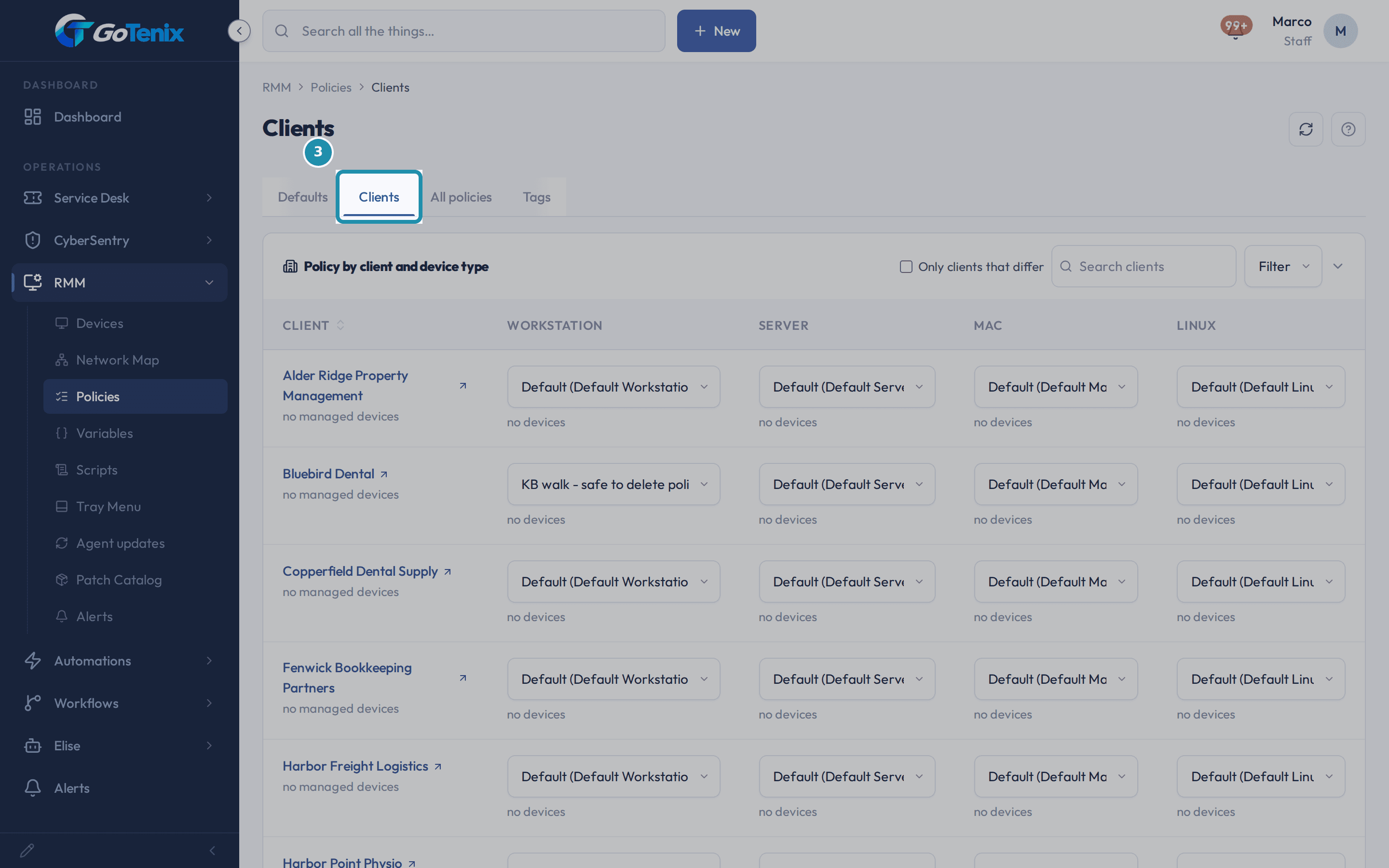
Click the Clients tab.
It has one row per client and one dropdown per device type. Every dropdown already reads a name, such as Default (Default Workstation Policy), because nobody has given that client anything different yet.
Click the Clients tab. Read one client's dropdown, such as its Server cell.
A blank assignment reads Default (Default Server Policy), with the number of devices underneath. The box always names a policy, and when nobody has overridden it, the policy it names is the default for that type. Picking a different policy from the same dropdown gives that one client and type something else, effective immediately.
Click the All policies tab and read the Owner column.
Owner reads MSP for every policy your own team made, and your team edits it. The column is already on screen for a client-owned policy, whose row would say the client's name instead.
Click New Policy, name it and pick its type.
Type shows the line "Set once, when the policy is made", the only point in a policy's life where its device type is choosable. Typing a new tag name into the tag picker offers a Create option that makes the tag on the spot, with "No devices carry this tag yet" underneath. That Create row needs a permission of its own, Tag Defaults create, and without it the picker offers only tags that already exist. The Priority hint, "Only used when two tag policies land on the same device. The higher number wins.", is the same rule the Tags tab uses to settle a tie.
Open the new policy's General tab and its Actions menu.
General holds Name, the tag it targets with an Add devices door, Priority and Status, with one Save for all of them. Actions, next to Save, shows Delete policy as its only item. Deleting a policy hands every device it governed to whatever is next: another tag policy first, then the client's assignment for that device type, then the default for that type.
Rename the policy and click Save.
The page heading updates at once and a "Policy saved." toast confirms it. The same General tab is the retarget door: picking a different tag moves the policy to different machines without touching anything else. Delete is permanent, but devices on a deleted policy fall back to a lower-priority or default policy, they are never left with nothing.
Click Add devices next to the policy's tag.
This is the second way a tag policy reaches machines. Instead of tagging devices one at a time on their own pages, Add devices opens a search over every device and applies the tag to whichever ones you pick.
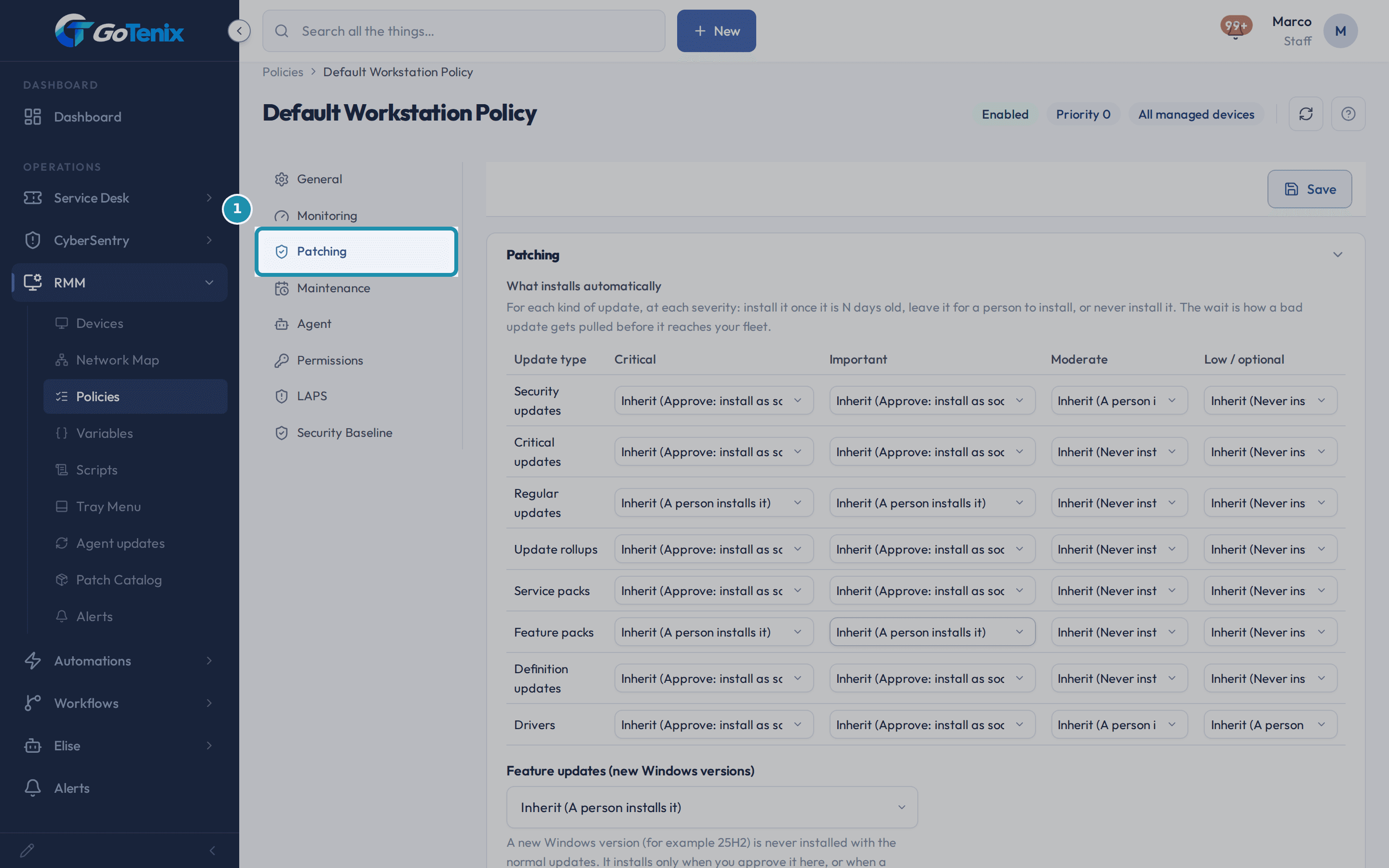
Open the Patching tab and find Skip on a metered connection.
It sits under the OS-patching schedule, next to Install day and Install time, which run on each device's own local time, not yours. On is the shipped default, so a laptop tethered to a phone at its install time waits for a real connection instead of pulling a Windows update over somebody's data plan.
Open the Patching tab and find Skip on a metered connection. Scroll to Software patching (third-party apps) and find Scan time.
Third-party patching is its own card, separate from OS updates, with its own schedule. Scan time runs in each device's own local time, not yours, the same rule the OS side uses. The Next three install times box shows the schedule in your own time zone for reference.
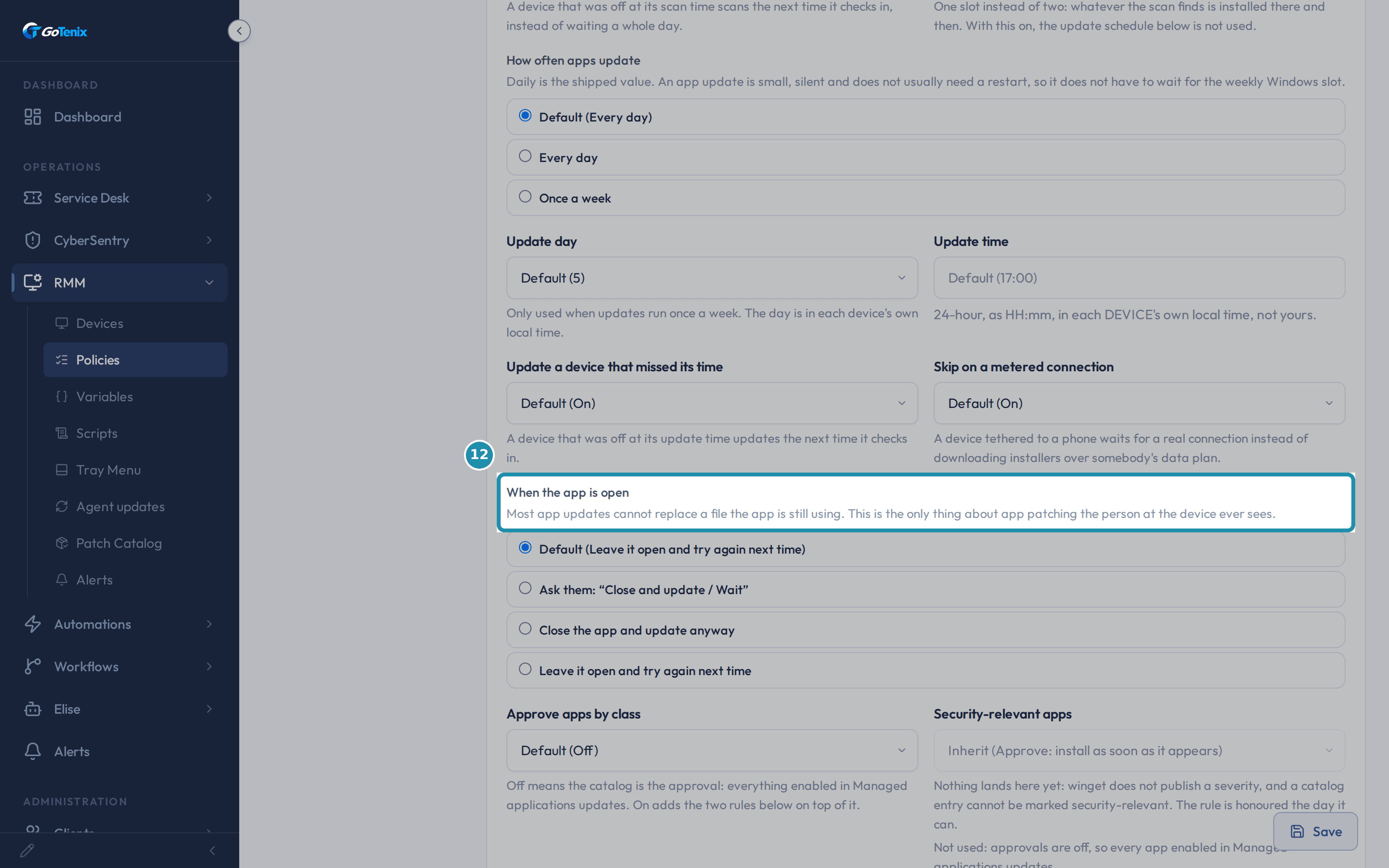
Read the "When the app is open" setting.
It has four choices, and the shipped one is to leave the app open and try again next time. None of them is a restart: the card hint says an app update is small, silent and does not usually need a restart. Below it, Approve apps by class adds approval rules on top of the catalog, and Update every installed app, not just the catalog ignores your catalog and approvals, so leave it off unless you mean it.
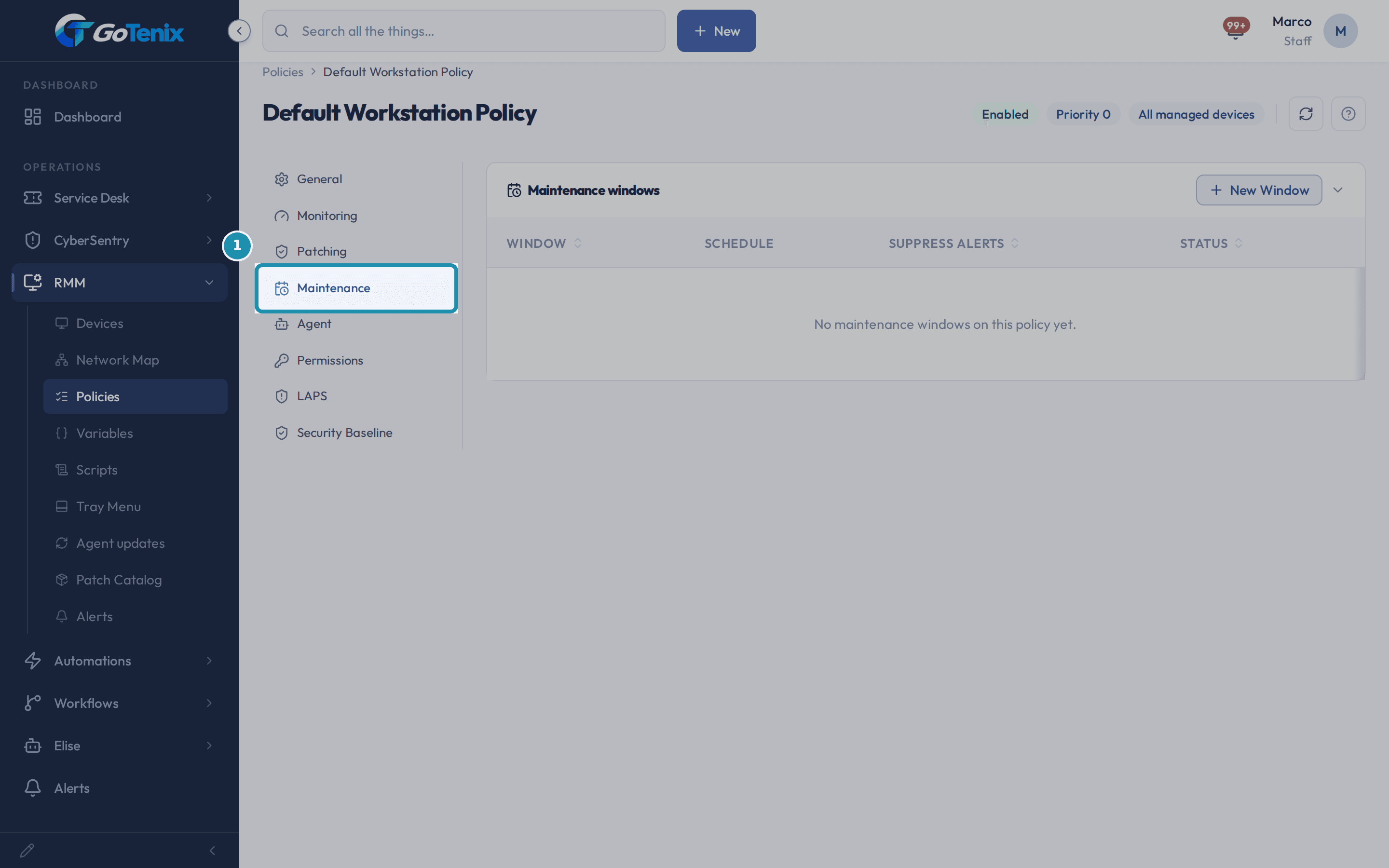
Read the "When the app is open" setting. Open the Maintenance tab, click New Window, fill it in and click Save window.
Give the window a name, a day, a start hour and a duration, and leave Suppress alerts on Yes if planned work should not page anyone. The saved window appears in the list with its schedule, such as Sunday at 02:00 for 3h, its Suppress alerts setting and its status. A maintenance window is only a schedule and an alert switch: it does not run anything by itself.
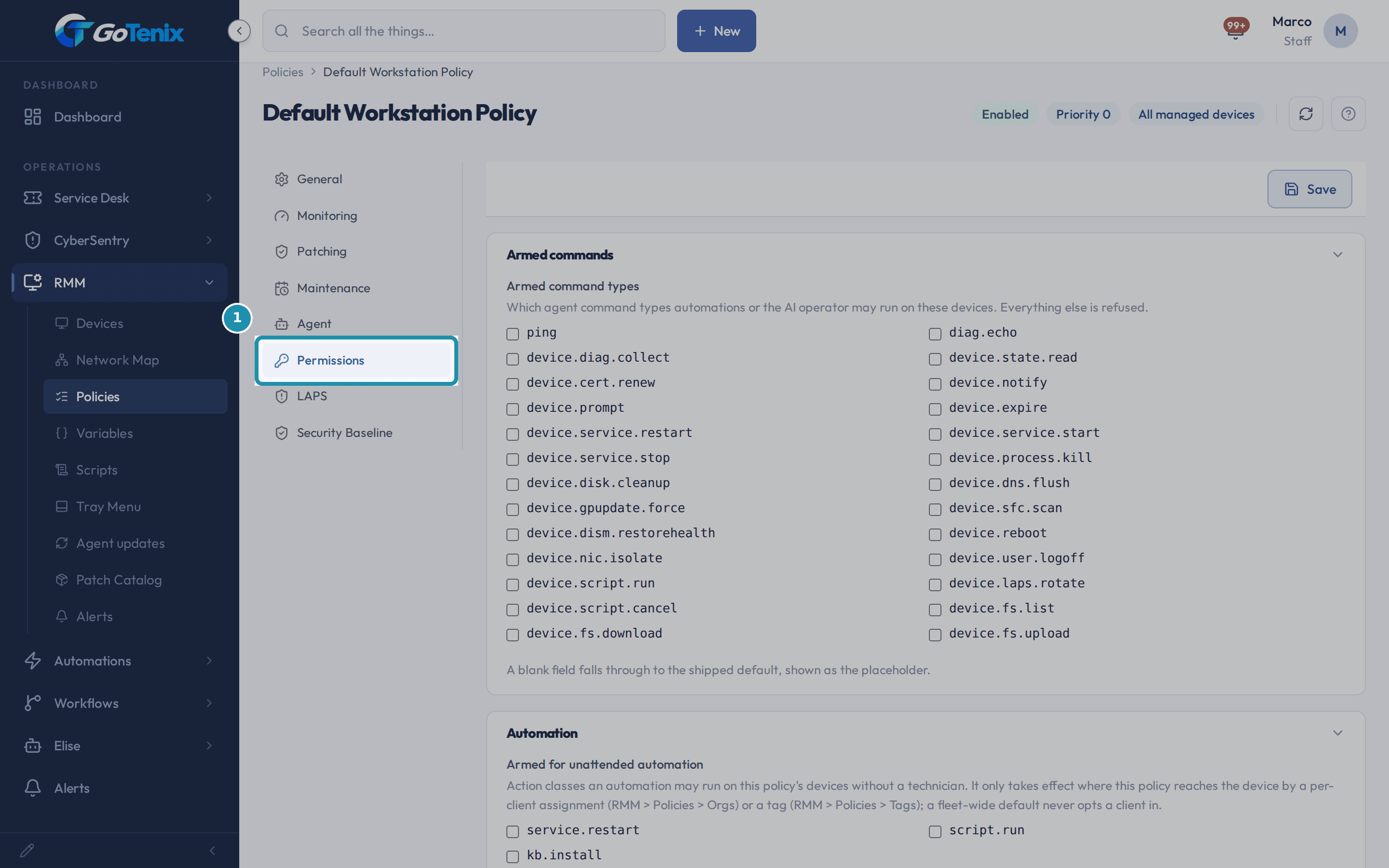
Open the Maintenance tab, click New Window, fill it in and click Save window. Open the Permissions tab and read Armed command types.
It is a checklist of the commands an automation or the AI operator may send to a device under this policy, from plain reads up to restarting a device, running a script and moving files. Every one is unchecked on a new policy, and the hint is exact: "Everything else is refused." Below it, Armed for unattended automation is a second, stricter list for actions an automation may run without a technician, and it takes effect only where the policy reaches the device through a client assignment or a tag, never from a fleet-wide default alone.
Open the Permissions tab and read Armed command types. Click the Tags tab to see every tag-scoped policy together.
Each tag policy shows its device type, its status and the devices carrying its tag. The page hint states the tie-break plainly: "When two tag policies land on one device, the higher priority wins." Set that Priority number on each policy's General tab.
Ask Elise to assign a policy or push an app.
Change: "Give Acme Dental the Front desk laptops policy for workstations" shows a card with the before and after and waits for your approval, and the change can be undone by clearing the cell, which falls back to the default. Change: "Push 7zip.7zip to everything on the Front desk tag" shows how many devices it reaches and waits for your approval before queuing the install. A push that reaches more than 250 devices is refused whole, so split it by client or tag. Find: "List the devices for Acme Dental" returns each device's name, type, OS, last seen and online status. Add up: "Show RMM health for every client over the last 30 days" returns offline devices, patch compliance, pending reboots and open alerts for each client. Cancelling a script run that is still going is also a card you approve, and stopping a destructive script needs the delete right on device execution. Deleting a device is gated: Elise files it in Review > Gated Actions for someone else who holds that permission to release.
What you will have
- Change what a default policy does for every client at once.
- Give one client a different policy for one kind of machine, and know that a blank cell is a dropdown already showing the default.
- Reach a few machines inside a client with a tag policy, and know which policy wins when a machine carries two tags.
- Keep updates off a metered connection, and know every patch and app-update time runs on each device's own clock.
- Suppress alerts during planned work with a maintenance window.
- Arm only the commands an automation or the AI operator may run, and keep the stricter unattended list for a per-client override.
- Ask Elise to give a client a policy or push an app to a client, a tag or a policy, with your approval on each change.
Why it works this way: How to manage RMM policies beyond the basics
A "blank" cell on the Clients tab is not empty: it is a dropdown already showing Default (policy name). Blank means nobody has picked something different for that client, not that nothing is set.
A policy's device type is offered only once, at creation, because changing it later would quietly move every device the policy governs onto rules written for a different kind of machine. Making a second policy is the only door.
Delete lives inside the Actions menu next to Save, not as its own button, because removing a policy is far rarer than editing one.
Other ways to do this: How to manage RMM policies beyond the basics
The Set up RMM wizard
The Devices page offers a one-time setup line for RMM that walks the same handful of fleet-wide decisions (approval, patch day, tray branding) in one guided pass instead of tab by tab.
A client's own Devices tab
The same four device-type rows shown on the Clients tab also sit in the Agent setup drawer on that one client's Devices tab, so a tech already looking at a client can set the policy without a trip back to RMM > Policies.
If it did not work: How to manage RMM policies beyond the basics
- If a client's cell on the Clients tab will not change, check that a policy of the matching device type exists and is enabled: a disabled or missing policy cannot be picked.
- If a tag policy does not seem to reach a machine, check the tag's device count on the Tags or General tab first: a tag with no devices carrying it means the policy is real but not reaching anything yet.
- If a command an automation tries to run is refused, check the Permissions tab first: an unarmed command type is refused for every device under that policy, no matter what asks for it.
Questions this page answers
What does a new computer get?
One of the four policies on this tab, based on what kind of machine it is. A laptop or desktop gets Default Workstation Policy. A server gets Default Server Policy. A Mac gets Default Mac Policy. A Linux box gets Default Linux Policy. You do not have to set anything up for that to happen.
How do I change what a default does?
Click its name. That opens the policy, and every tab in it is yours to edit. The change reaches every machine on that policy. If you want the change for one customer only, do not edit the default. Make a new policy and give it to them on the Clients tab.
How do I give one customer a different policy?
Find their row, find the column for the kind of machine, and pick the policy. It takes effect right away. You can do the same thing from that customer's own Devices tab, where the same four rows sit under the page title. They are the same rows either way.
What does a blank box mean?
It means that customer gets our default for that kind of machine, and the box says which policy that is. Blank is the normal state. Set it back to the default line any time to undo a change.
What is the Owner column?
Who the policy belongs to. Today every policy says MSP, which means your team made it and your team edits it. Later a co-managed customer will be able to write their own, and those will say their name here.
Why can I not change a policy's type?
A policy is for one kind of machine, and you pick that when you make it. If the type could change later, every computer on the policy would quietly move to rules written for something else. To get the same settings for another kind of machine, make a second policy.
Which policy does a computer end up with?
We check three things in order. A tag policy on that machine wins first. If there is none, the policy set for its customer and its kind of machine. If there is none of that either, our default for that kind of machine. Only one policy applies, never a mix.
How do I rename, retarget, or delete a policy?
The General tab holds the policy's name, its Applies to group (Type, Owner, Tag, Also assigned), priority, and enabled status. Edit any field and Save. Delete lives in the Actions menu. Deleting a policy does not leave devices unmanaged. Each device falls back to the next winner in order: a tag, then the client's own assignment for that type, then the MSP default for that type.
What happens if a laptop is tethered to a phone at its install time?
With "Skip on a metered connection" on (the default) it does not download anything - a cumulative update over somebody’s data plan is a real cost. It patches at its next scheduled time, or at its next check-in if "Patch a device that missed its time" is on.
The scan and update times: whose 5pm is that?
The clock on each device. A machine scans and updates at that hour where it sits. So a fleet spread over four time zones all patch at 5pm local. If a device has not told us its time zone, we use the one set for its client. If that is missing too, we use the default for your portal, and we log it. A machine patched on a guessed clock is worth knowing about. Dates in the rest of the portal use your own time zone. The patch times do not.
Can an app update restart a computer?
Only by the same rules Windows updates use. That is why this card has no restart settings of its own. Most app updates need no restart at all. When one does ask for one, it joins the same queue a Windows update would. The person is asked, or told, or the machine just restarts. It follows the two restart choices on the OS patching card. The limit on how often they can wait, the deadline, and the rule that servers only restart if you opt them in: all of it applies. There is no second way to restart a machine, and no separate countdown for apps.
What are maintenance windows for?
A maintenance window is a scheduled period when disruptive work (like patch reboots) may run for the devices under this policy. Suppress alerts during the window so planned reboots do not page anyone.
What are armed command types?
These are the specific agent commands that automations and the AI operator are allowed to run on devices under this policy. Anything not armed here is refused, no matter what asks for it - the policy is the guardrail.
What is an RMM policy?
A policy is a set of rules. It sets monitoring thresholds, patching, agent settings, and which commands are armed. It governs your managed devices. Each device follows exactly one policy. First choice: a policy that targets a tag the device carries. Next: the policy assigned to its client for that device type. Last: the MSP default for that type.
Which policy applies when more than one could match this device?
A device is governed by exactly one policy at a time, chosen in order: a policy targeting a tag the device carries wins first (if two tag policies match, priority breaks the tie, then id). Otherwise, the policy assigned to the device's client for that device type applies. If neither exists, the MSP default policy for that type applies. Whichever policy wins supplies every field for the device; fields it does not set fall through to the shipped default.
Make a policy for some of a client's devices
Two steps, both on the policy. First, on "Applies to", pick or make a tag in the Tag box - making a new tag needs the tag defaults permission. Second, once the policy is saved, click "Add devices" next to the tag and pick the machines. That puts the tag on them for you, so you never open each device by hand. The count under the tag is how many devices carry it today. A policy on a tag with no devices is not doing anything yet.
Was this helpful?