How to review tickets before they close and control how new tickets get made
Decide who may close a Resolved ticket and when a Resolved ticket closes on its own, flag low-scoring work, and shape how inbound email becomes a ticket, with Elise ready to draft the closing message.
See it
Browse
On this page
How to do it
Open Settings > Service Desk > Ticket Review and read the Ticket Review toggle.
Ticket Review is off until you turn it on. When it is on, a ticket needs supervisor approval to move from Resolved to Closed, instead of the assigned tech closing it directly. Save the page after you change it.
Set Auto-close timeout (days).
Once Ticket Review is on, tickets left in Resolved this many days, with no reviewer action, are moved to Closed. The field starts at 7. Set it to blank to never auto-close this way.
Read Closer Permission Groups.
Check a staff permission group and its members can close a Resolved ticket. Owners always bypass the list. The groups are pulled from Team > Staff Roles, and none is checked until you check one.
Read Pod Leaders Can Close.
On by default. When on, a member marked Can review tickets on the ticket's owning pod can close it, even without a Closer Permission Groups grant.
Read Pod Leaders Can Close. Scroll to Managed elsewhere and read the Elise Auto-Close row.
Under Managed elsewhere, Ticket Review shows Elise Auto-Close and Elise Auto-Close Minimum Score as read-only values, each with an Edit in AI Assistant > Actions & Automation link. The editable controls are on that page.
Follow that link to AI Assistant > Actions & Automation and open the Auto-Close card.
Elise Auto-Close is off by default. When it is on, Elise closes high-confidence Resolved tickets without human review, based on the ITSM evaluation score. Elise Auto-Close Minimum Score, 4 by default, is the lowest overall score (1 to 5) she will auto-close; below it the ticket waits for a human reviewer.
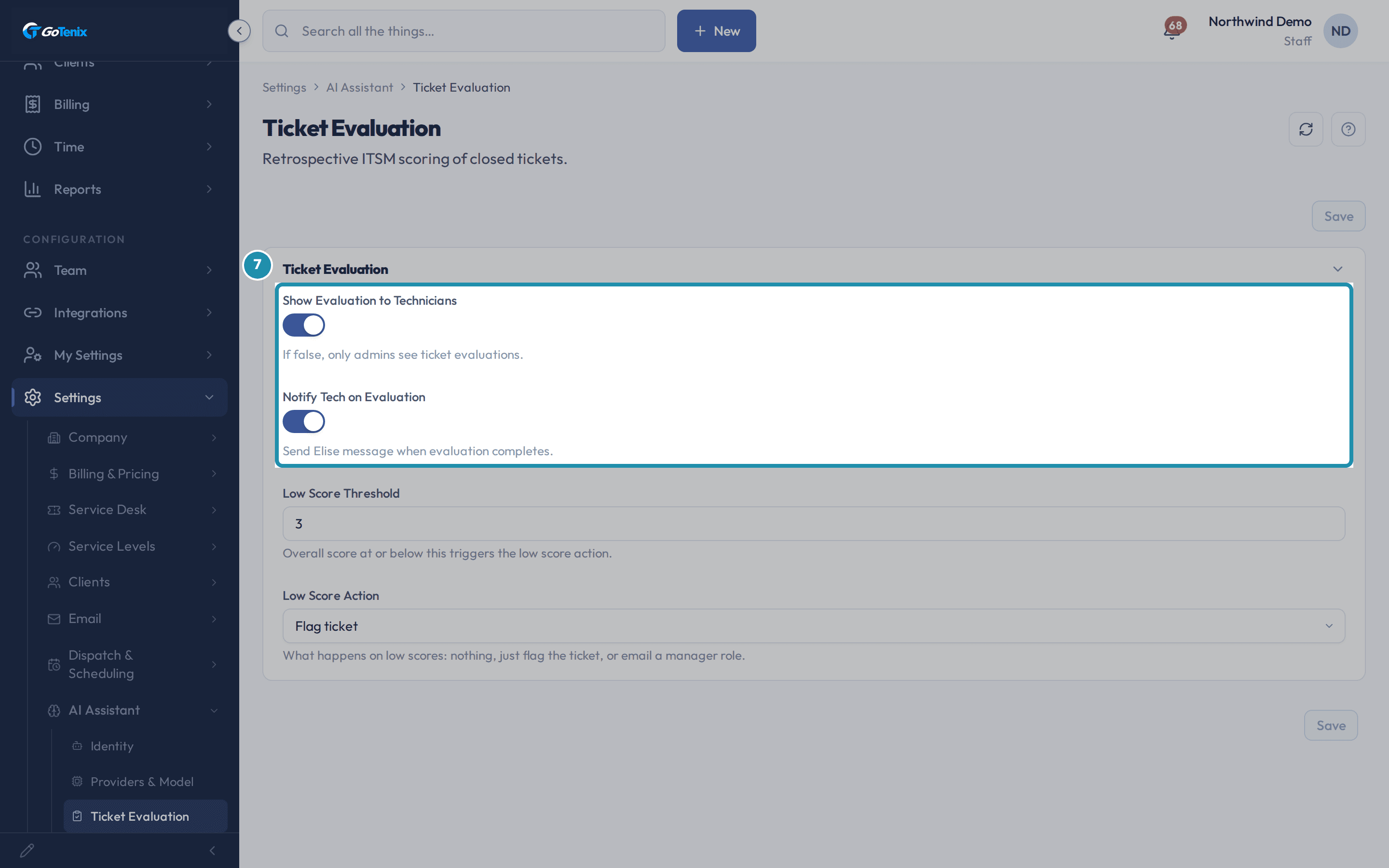
Open AI Assistant > Ticket Evaluation and read Show Evaluation to Technicians and Notify Tech on Evaluation.
Both are on by default. Show Evaluation to Technicians puts the evaluation on a ticket for its assigned tech as well as admins; turned off, only admins see it. Notify Tech on Evaluation sends the tech an Elise message when the evaluation completes.
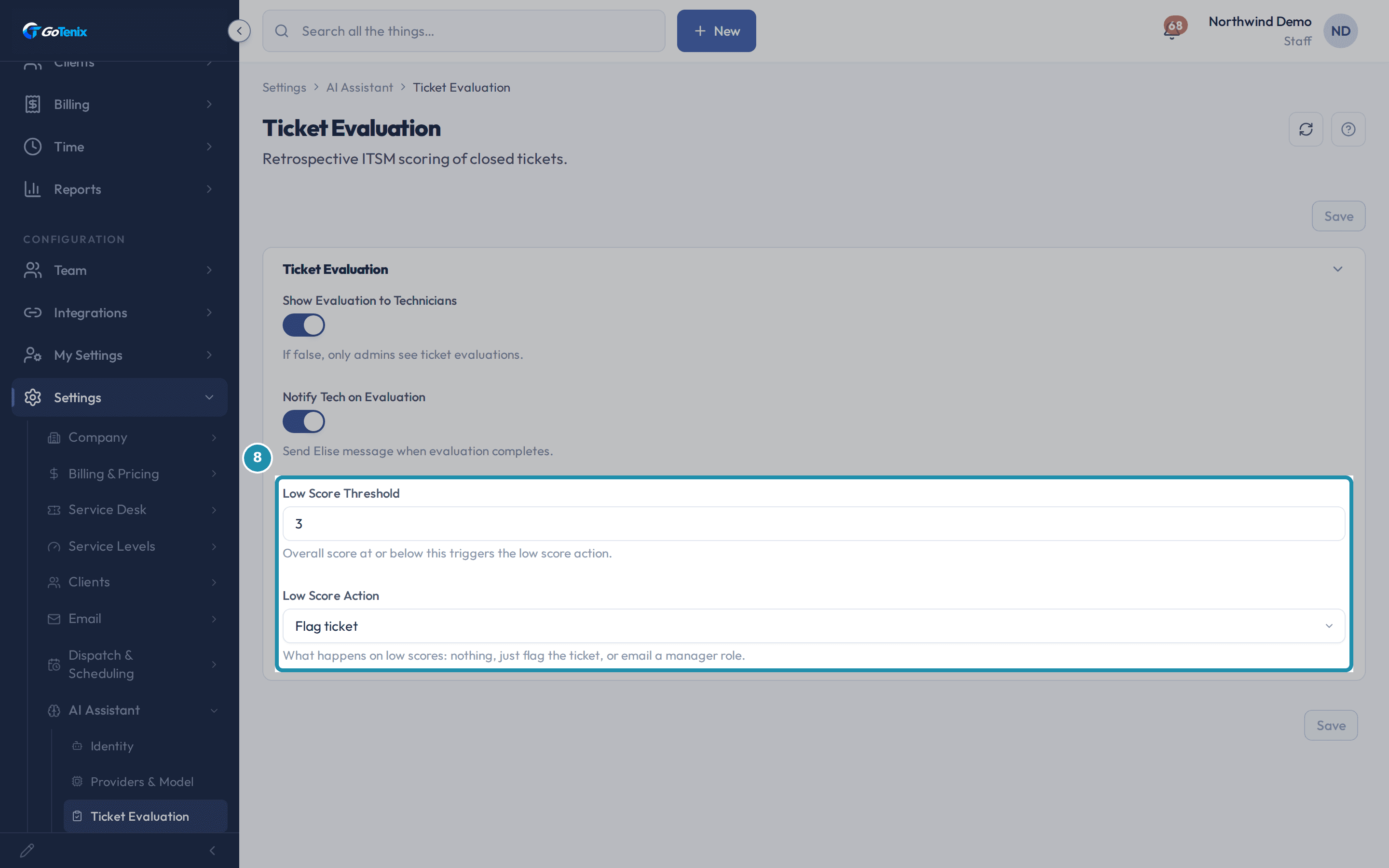
Open AI Assistant > Ticket Evaluation and read Show Evaluation to Technicians and Notify Tech on Evaluation. Read Low Score Threshold and Low Score Action.
An overall score at or below Low Score Threshold, 3 by default, triggers Low Score Action: No action, Flag ticket (the default), or Notify manager, which reveals a Notify Manager Role field once picked.
Read Low Score Threshold and Low Score Action. Open Settings > Service Desk > Ticket Rules and read how an inbound email becomes a ticket.
Ticket Rules lists the path every inbound email takes. One, forward unwrap: a staff-forwarded email gets its wrapper peeled off so the original sender becomes the contact. Two, parsing rules run in sort order, vendor rules first and then yours; a rule can override the sender, organization, board or priority, or route to a dedicated handler, and a rule with Stop on match halts the rest. Three, the client's Default Ticket Assignee becomes the starting assignment. Four, the ticket is created. Five, an optional AI triage pass adds required-skill tags and a priority. Six, dispatch may re-route by skill match and pod load. Below the list sits the built-in system rule Skip bounces and system email, numbered 999 so it runs last.
Expand Skip bounces and system email to see how a system rule is locked.
A notice at the top of its editor says: "System rule. Only Active and Order can be changed - everything else is a locked template." Your own rules are fully editable.
Click Add Rule, then turn on Stop processing further rules on match when this rule should be the last word.
A new parsing rule starts with a Name, a Description and an Active toggle, then a Matching section: Client, Channel, From, To, Subject contains and Body contains, and the page says a rule runs when the email matches every field you fill in, and that a blank field is ignored. Client and Channel apply on every ticket create, not just email: a rule scoped to a client does not run when the email is parsed, and only its board, assignee and tag effects apply when the ticket is created. Stop processing further rules on match halts every rule below this one once it matches. It is a good fit for a specific alert rule, so the generic catch-all rules do not process the same email again.
Save the rule, then reopen it to add an extractor.
Extractors are added on a saved rule: reopen it to see User Matching, Company Matching and Asset Matching, each with its own Add. An extractor captures the value between a Start Tag and an End Tag, from the Source (Body or Subject), and looks it up against a Match Field, for example email on a user. The page says tags work best as plain labels: use a label such as "Email:" as the Start Tag and leave the End Tag blank to capture to the end of that line. It also warns against markers shaped like an HTML tag, because they get removed when the message is cleaned.
Know what changes elsewhere once Ticket Review is on.
The ticket reply composer's Close on send switch reads Resolve on send, because a tech cannot close a ticket directly once review is required. Turn Ticket Review off to bring back Close on send.
Ask Elise to draft the closing message, or to explain a close.
Say "Draft the closure message for ticket 1234" and Elise writes a customer-facing closing message in your voice; she only drafts it, and you review, edit and send it. Ask "Why did ticket 1234 close by itself?" (needs Settings view access, and you must be able to open that ticket) and she looks at the ticket's history and the settings that can close a ticket, and answers with what she finds, or says plainly what was never recorded. Ask "Who is allowed to close a Resolved ticket?" and she reads the current review settings and where to change them. If Ticket Review is on and you tell Elise to close a ticket you may not close, she refuses and, where she can, names who can. She does not create or edit ticket rules: you write those on the Ticket Rules page.
What you will have
- Turn on Ticket Review so only the people you choose can close a Resolved ticket.
- Set how many days a Resolved ticket waits before it closes itself.
- See where Elise Auto-Close is edited, and what a low evaluation score can trigger.
- Read the six-step path an inbound email takes to become a ticket.
- Add a rule with a Stop on match flag and an extractor that pulls a value out of the email.
- Ask Elise to draft the closing message, explain why a ticket closed, or find who can close one.
Why it works this way: How to review tickets before they close and control how new tickets get made
Elise Auto-Close and its minimum score are edited on AI Assistant > Actions & Automation. Ticket Review shows their current values read-only, under Managed elsewhere, with a link to the page that saves them.
The evaluation fields that decide who sees a score and what a low score does (Show Evaluation to Technicians, Notify Tech on Evaluation, Low Score Threshold, Low Score Action) are on a different page: AI Assistant > Ticket Evaluation.
Turning on Ticket Review changes wording elsewhere: the ticket reply composer's Close on send switch reads Resolve on send.
If it did not work: How to review tickets before they close and control how new tickets get made
- If a field on Ticket Review, Ticket Rules or Ticket Evaluation will not save, confirm your account has edit access to Settings; a view-only account can read these pages but not save changes.
- If a rule cannot be changed, check whether it is the built-in system rule; only its Active toggle and its order can change.
Questions this page answers
My "Close on send" button says "Resolve on send" now - why?
When Ticket Review is enabled, "Close on send" is misleading because the tech can't actually close - the reply hands the ticket to a reviewer instead. The label and the underlying transition both swap to Resolved so the action matches the result. Turn off Ticket Review to restore the old "Close on send" behavior.
Should techs see their own evaluations?
When "Show Evaluation to Technicians" is ON, the evaluation card renders on the closed ticket for the assigned tech (in addition to admins). When OFF, only admins see it. Pair with "Notify Tech on Evaluation" to push an Elise message instead - useful for teams where the eval is a coaching tool, not a graded report.
What are email parsing rules?
Settings → Service Desk → Ticket Rules control how inbound emails become tickets. Each rule matches on sender, recipient, subject, or body text (literal contains, or exact and by-domain for the sender), then applies ticket defaults like priority, board, and auto-tagging. Rules run in sort order and every matching rule applies, unless a rule has Stop on match, which halts the rest.
What is an email parsing rule?
A rule that matches inbound email (by from / to / subject / body / attachment) and turns it into a ticket with your defaults applied. Use it to fan-out monitoring alerts to the right board, auto-assign known-sender requests, or strip pre/post markers from forwarded mail before saving the ticket body.
What do Extractors do?
Extractors pull structured fields out of the email - most commonly the original sender of a forwarded message. Configure start-tag / end-tag / regex to define what to grab, then map to USER / ASSET / COMPANY so the ticket attaches to the right entity instead of the forwarding inbox.
What is the Ticket Evaluation page for?
This page controls the AI review the assistant runs on every closed ticket. It sets whether techs can see their own scores, and what happens when a ticket scores low.
How do I get notified when a ticket scores low?
Go to Settings → AI Assistant → Ticket Evaluation. Set Low Score Threshold to the score that counts as low. Set Low Score Action to Notify manager. Choose the role in Notify Manager Role. Then save. Setting Low Score Action to Flag ticket instead just marks the ticket, with no notification. No action does neither.
Was this helpful?