How to set up a response rule in CyberSentry
Build a CyberSentry response rule that watches for one signal and answers it your way, whether that is a notification, a ticket or locking the account, test it against a client's history, then switch it on in Monitor so you see what it would do before it ever acts.
See it
Browse
On this page
How to do it
Open CyberSentry > Response Rules.
The page ships with ready-made rules, several marked Mirrors built-in detector - monitor only. Those track one of CyberSentry's own detectors for comparison and cannot be armed Live until that detector is retired. Above the table sits one row you cannot delete: the Confidence Engine, marked Auto, with a Monitor, Disabled or Live badge and its own On switch. It scores every finding from 0 to 100. The rules below it are the specific IF/THEN responses you write.
Open an existing rule and look at its TRIGGERS card.
Open the ready-made MFA method changed rule. TRIGGERS holds an ordered sequence of steps that must happen in order within the match window. This rule has one step, Event type is MFA method changed. A caution box explains that a one-step rule fires on every match with no corroboration. That is fine for a rare, strong signal and noisy for a broad one. A second step, such as a following inbox rule or MFA change, makes the rule confirm before it fires.
Open an existing rule and look at its TRIGGERS card. Look at the same rule's ACTIONS card.
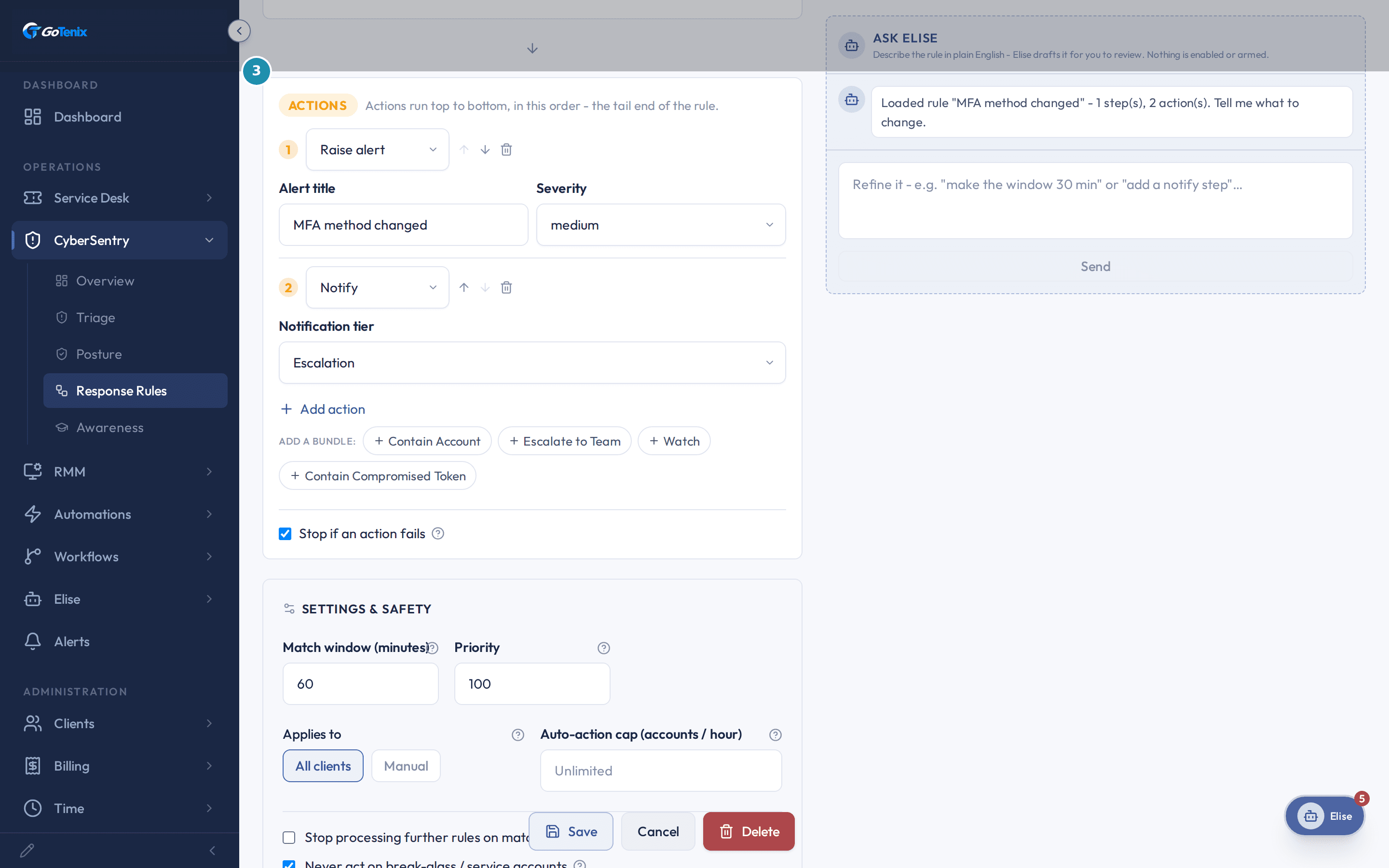
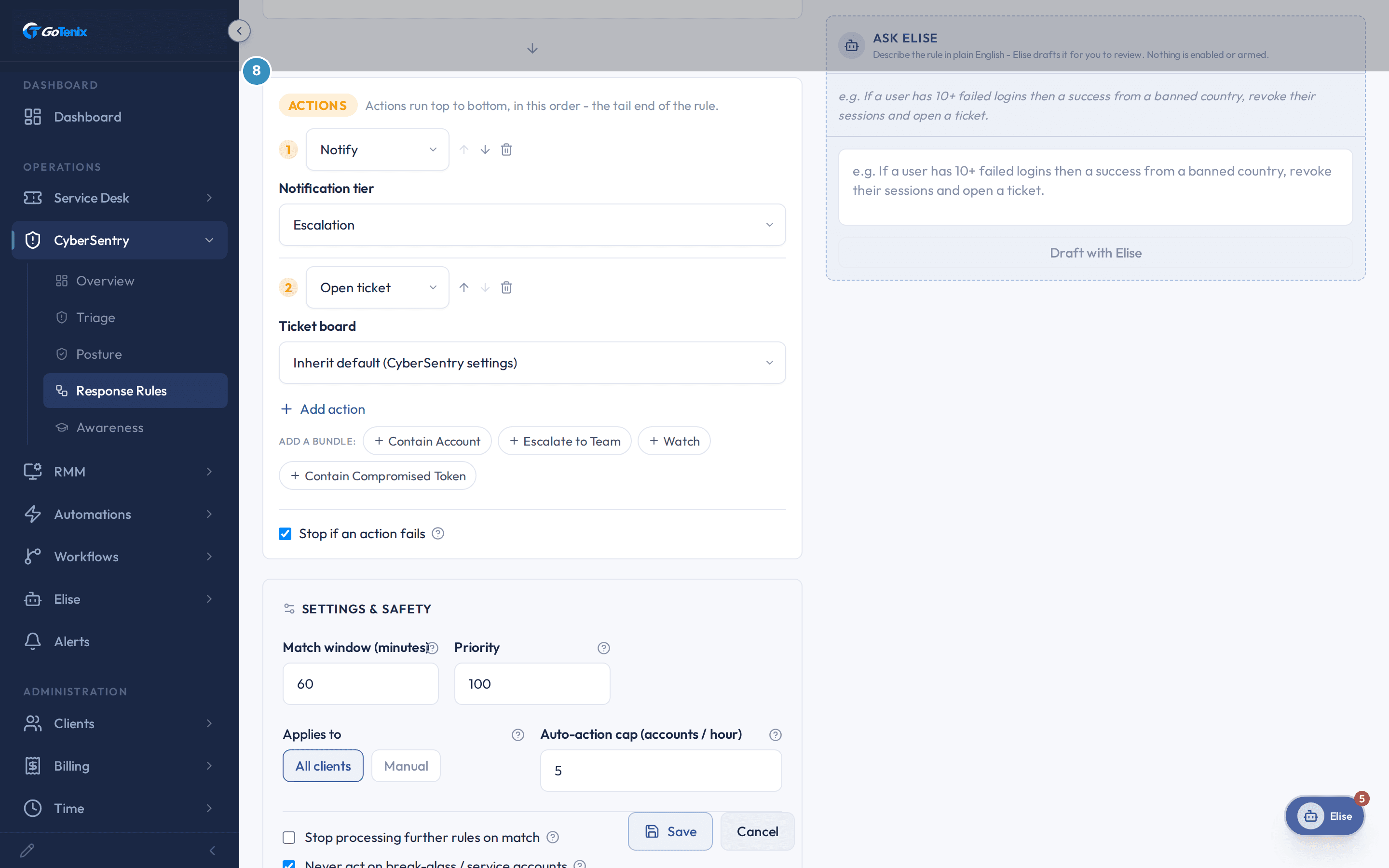
ACTIONS run top to bottom, in order. This rule has Raise alert (title MFA method changed, severity medium), then Notify (tier Escalation). Add action builds the list one action at a time. Four bundles sit below it for common sets: Contain Account, Escalate to Team, Watch and Contain Compromised Token. Stop if an action fails, when checked, halts the rest of the list the moment one action errors.
Look at the same rule's ACTIONS card. Look at the same rule's SETTINGS & SAFETY card.
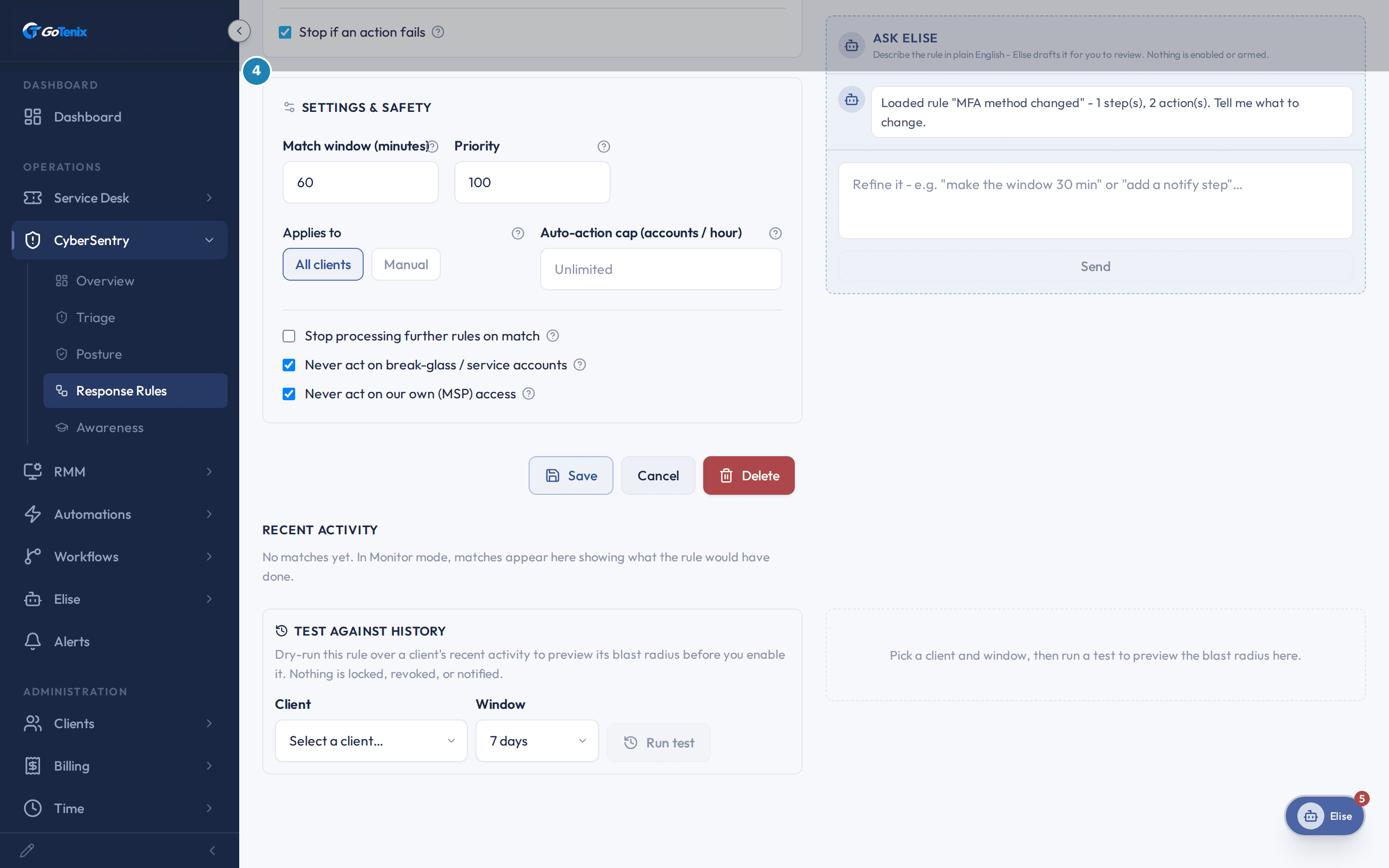
Every rule has the same safety card. Match window and Priority sit on top. Below them are Applies to (All clients or Manual) and the Auto-action cap. Then three checkboxes: Stop processing further rules on match, Never act on break-glass / service accounts and Never act on our own (MSP) access. The last two start checked. Under the card, Recent activity shows what the rule has matched and Test against history lets you replay it.
Look at the same rule's SETTINGS & SAFETY card. Open the Confidence Engine's own page.
Click the Confidence Engine row. The page has a Promote to Live button and Auto Response Thresholds, the glass box for how a signal becomes a confidence percentage and what that percentage fires. Confidence Bands map a confidence to a response and are evaluated highest first. Factor Weights are the weights that add up to the percentage. When you have not customized them, the page says the seeded defaults are in effect. Would-Have-Fired Observations below list what each band would have done over 7, 30 or 90 days, so you can judge the bands before promoting anything.
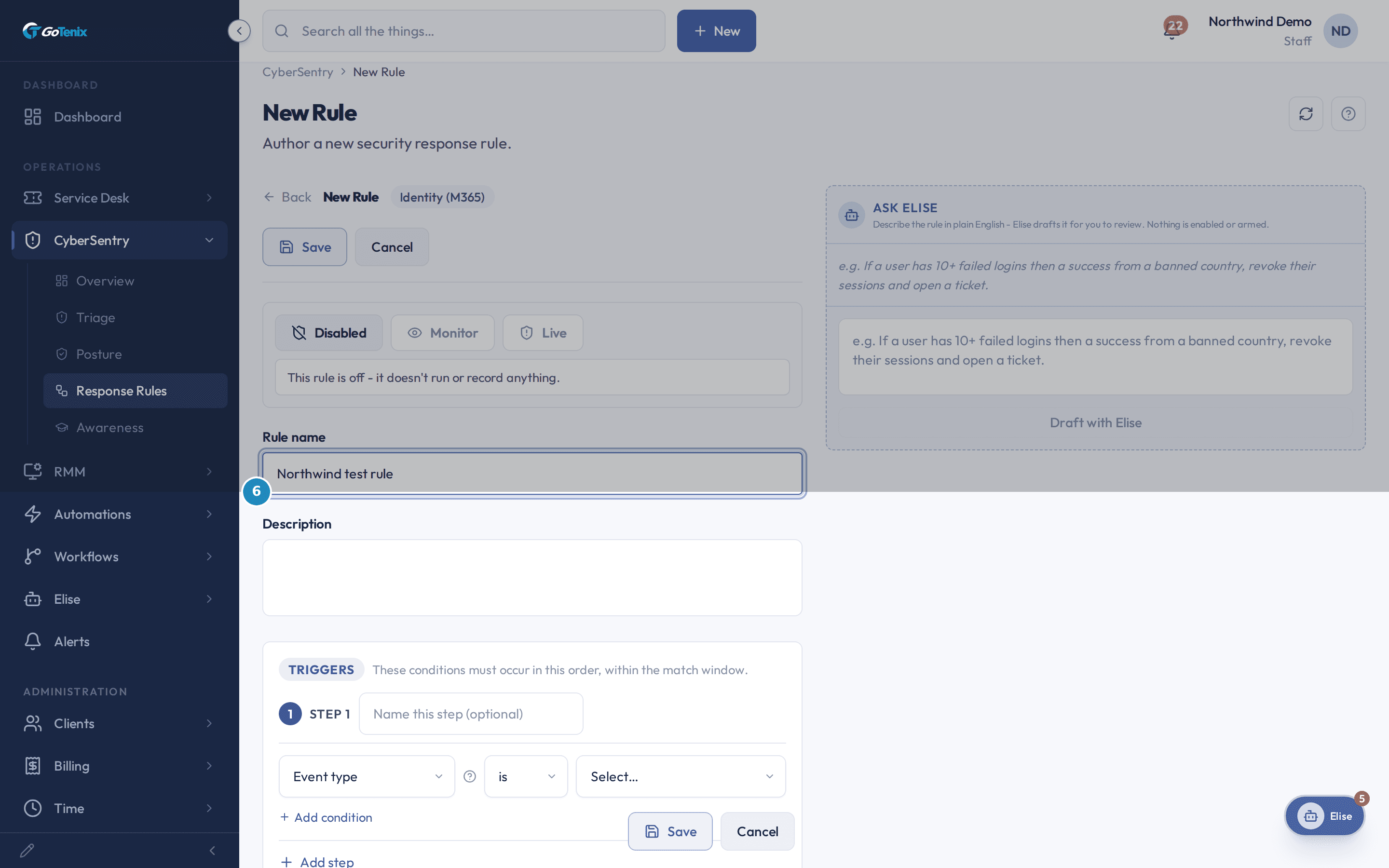
Back on Response Rules, click New Rule and name it Northwind test rule.
A new rule opens on Disabled, "This rule is off - it doesn't run or record anything," with Monitor and Live as the other two choices. Start from a template if one fits, such as Token theft - session fork, which starts in Monitor. The Ask Elise panel beside the form drafts a rule from plain English, for example "If a user has 10+ failed logins then a success from a banned country, revoke their sessions and open a ticket." Press Draft with Elise, review the draft and click Apply to builder. Nothing is enabled or armed by the draft.
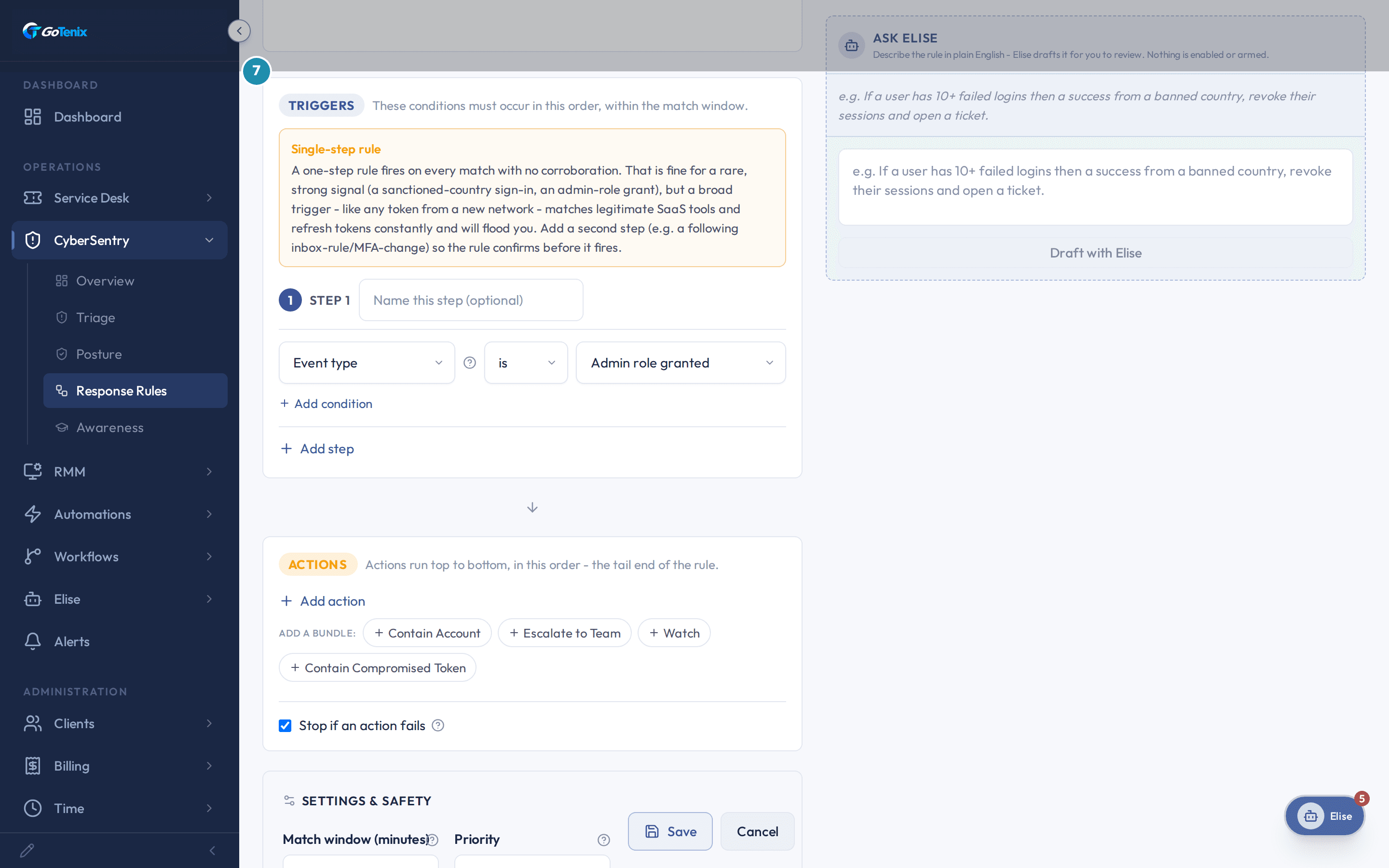
Back on Response Rules, click New Rule and name it Northwind test rule. Set Step 1's event type to Admin role granted.
The Event type dropdown lists the events CyberSentry watches, such as sign-ins, admin role grants, OAuth app consents and MFA method changes, each with is, is not, is any of or is none of and a value picker. Admin role granted is a rare, strong signal, the kind the single-step caution box says is safe to fire on without a second confirming step. A step can hold several conditions with Add condition, matched with Match ALL or Match ANY once there are two. Fields include country, from a high-risk country, from a Tor exit node, from a known-attacker IP, from a trusted IP, from an unmanaged device and targets a sensitive app.
Set Step 1's event type to Admin role granted. Add a Notify action and an Open ticket action.
Each action row has a type dropdown: Lock account, Unlock account, Revoke sessions, Offboard, Open ticket, Notify, Raise alert, Set severity and Suppress. Add action appends a row that starts as Lock account, so change its type. Here the first action is Notify with a Notification tier (Escalation or Critical), and the second is Open ticket with a Ticket board, left on Inherit default (CyberSentry settings).
Add a Notify action and an Open ticket action. To contain the account instead of only notifying, add a bundle.
Contain Account revokes all active sessions, then locks the account. Contain Compromised Token follows Microsoft's token-theft order: revoke sessions, lock the account, open a ticket, then send a critical notification. Escalate to Team opens a high-priority ticket and sends a critical alert. Watch raises the severity to high and notifies the team without locking anything. A bundle drops in as an editable action list, so change any step. The two containing bundles stop if a step fails, so a half-finished containment is not reported as done. Keep Never act on break-glass / service accounts checked on any rule that locks.
Scope the rule to one client and set its priority.
Switch Applies to from All clients to Manual and pick clients with Add client, which opens a searchable list. Your own organization is in the list, marked (your organization), so it is not mistaken for a client. A lower Priority number runs first when several rules match the same event. This rule uses 50 against the default 100. Match window stays at 60 minutes and Auto-action cap at 5.
Run Test against history before you enable it.
Pick a client the rule is scoped to, leave the window at 7 days and press Run test. The result shows how many accounts the rule would have acted on, how many events were scanned and what the guards blocked: your own MSP access, break-glass accounts and the blast-radius cap. Nothing is locked, revoked or notified. Use it to size the auto-action cap and catch surprises before the rule ever goes Live. The client needs a connected Microsoft 365 tenant to replay.
Pick Monitor, click Save and meet the break-glass warning.
Monitor is the second button at the top of the form. On Save, if any client in the rule's scope has no break-glass account, a "Clients without a break-glass account" dialog lists them: "If this rule auto-acts, it could lock their administrator and leave no way back in. Set a break-glass account on each client's edit screen first." The choices are Save anyway and Cancel. A Monitor rule cannot lock anyone, so Save anyway is safe. Before you arm a rule that locks, set the account under Break-Glass Accounts on each client's edit screen.
Warning: This is a save-time check on the client, not the rule's own break-glass checkbox: it fires because Bluebird Dental itself has no break-glass account set on its edit screen, regardless of how this rule's guards are configured.See the saved rule in the Response Rules table.
The new row shows its source, Single-step, Monitor (dry run), Enabled, its scope and its priority. Open it later and Recent activity lists each match with what the rule would have run.
Arm it Live when you trust it.
Choose Live in the rule form. The form warns that an armed rule runs its actions with no human approval, and Save stays off until you tick I understand this rule will act on accounts automatically. The Confidence Engine has its own Promote to Live button. A rule marked Mirrors built-in detector - monitor only cannot be armed.
What you will have
- Find the ready-made rules and the always-on Confidence Engine row above them.
- Open an existing rule to see the shape every rule shares: an ordered TRIGGERS sequence, an ordered ACTIONS list and a SETTINGS & SAFETY card.
- Build a new rule: name it, pick one trigger and add the actions you want.
- Choose a response that notifies and opens a ticket, or one that revokes sessions and locks the account.
- Scope the rule to one client and give it a priority.
- Test the rule against a client's history, save it and switch it to Monitor.
- Know what it takes to arm the rule Live.
Why it works this way: How to set up a response rule in CyberSentry
A new rule opens Disabled. Monitor evaluates every match and records what the rule would have done, and no account is touched. Only a deliberate switch to Live lets a rule act.
What a rule does on a match is your call. A new rule starts with no actions, and you choose the actions, their order and whether a failed step stops the rest. Templates and ready-made rules are starting points you can change.
The match window (60 minutes by default) only matters once a rule has more than one trigger step. It is how far apart the steps can happen and still count as one sequence.
The auto-action cap (5 accounts per hour on a new rule) is the most distinct accounts a Live rule will act on in a rolling hour, so a misfiring rule cannot lock out a whole client at once. Leave it blank for no cap.
Never act on break-glass / service accounts and Never act on our own (MSP) access both start checked. The first skips each client's designated emergency-admin accounts and the second skips your own team's logins into the client.
Stop processing further rules on match starts unchecked. When checked and the rule fires for an account, lower-priority rules skip that same account.
A rule has to be armed to send a real notification or open a real ticket. Triage never sends a notification, and it opens a ticket only when its verdict on an open alert is escalate. Besides that, only an armed Response Rule or the Confidence Engine promoted to Live can.
A Live rule skips a match whose newest event is too old (the limit is tunable), so replayed history is recorded as would-have-run and not acted on.
Other ways to do this: How to set up a response rule in CyberSentry
Start from a template or a ready-made rule
On a new rule, pick a template under Start from a template, or open a ready-made rule such as Admin role granted (detector parity) and use its TRIGGERS, ACTIONS and SETTINGS & SAFETY as a filled-in example.
Ask Elise
On the New Rule page, describe the rule in plain English in the Ask Elise panel and press Draft with Elise. The draft arrives with nothing enabled or armed, so review it, click Apply to builder, then Save.
If it did not work: How to set up a response rule in CyberSentry
- If Test against history reads "This client has no connected Microsoft 365 tenant to replay," the picked client has no Microsoft 365 connection. Pick a client that has one.
- If Save warns about clients without a break-glass account, set one under Break-Glass Accounts on the named client's edit screen, or choose Save anyway for a rule that stays in Monitor.
- If Draft with Elise says she is unavailable, AI is not configured or this period's AI budget is used up. Build the rule by hand.
- To see what Monitor, Live and the Confidence Engine's Auto row each do, read CyberSentry at a glance.
Questions this page answers
How do the WHEN steps and THEN effects work?
WHEN is an ordered sequence: Step 1 must happen, then Step 2, and so on, all within the match window and all for the SAME account. Each step is one or more conditions (field → operator → value). THEN is an ordered list of effects that run top to bottom when the sequence matches. Order matters on both sides - the steps are a timeline, and the effects run in the order you list them.
What are effects, and what are the seeded templates?
Effects are the THEN side - ordered bundles of actions (revoke sessions, lock account, open ticket, notify). Four templates ship seeded: Contain Account, Escalate to Team, Watch, and Contain Compromised Token (which follows Microsoft's token-theft containment order: revoke → disable → ticket → notify). You can clone and edit them, or compose your own from the action palette. Note: you cannot revoke a single LIVE access token - the closest is revoking sessions plus CAE.
How do I limit a rule to certain clients?
Set "Applies to" to "Manual" and pick the clients you want. The list also has your own organization, shown as "(your organization)". It is there because CyberSentry watches your tenant too, so you can scope a rule to it like any client. "All clients" runs the rule everywhere CyberSentry watches. Scope also filters the backtest list, so you can only test a rule against a client it would run on.
What does priority do?
When several rules could match the same event, lower priority numbers run first. Combined with "stop processing further rules on match", priority lets you put a decisive containment rule ahead of softer watch/notify rules.
What is the match window?
How far apart the steps can be in time and still count as one sequence. With a 60-minute window, "10 failed logins" in Step 1 and "a foreign success" in Step 2 only match if they happen within 60 minutes of each other. A wider window catches slower attacks but can be noisier.
What is the "auto-action cap (accounts / hour)"?
A safety limit: the most DISTINCT accounts a Live rule will act on in a rolling one-hour window. If a rule misfires (say a bad detector run), the cap stops it from locking your entire client at once, once it has acted on that many accounts in the hour, further matches are blocked and recorded instead. Leave it blank for no cap. It only applies in Live mode; Monitor never acts, so the cap does nothing there.
What does "exclude break-glass accounts" do?
When on (the default), the rule will never act on the client's designated emergency-admin ("break-glass") accounts, their MSP service accounts, or accounts on the location-exception list. This is the guarantee that a locking rule can never lock you out of a tenant during an incident. Break-glass accounts are set on the client's edit screen. Keep this on unless you have a very specific reason not to.
What does "exclude MSP access" do?
When on (the default), the rule skips your own team's access to the client - logins from your techs (via GDAP/B2B) or your service accounts. It stops a rule from acting on you when you are legitimately working in the client's tenant.
What does "stop processing further rules on match" do?
Rules run in priority order. When a rule with this on fires for an account, lower-priority rules skip that same account for this run - useful when a broad "contain" rule should short-circuit narrower ones. It is per-account, so other accounts still flow through every rule.
What does "Ask Elise" do?
Describe the rule you want in plain English and Elise drafts it for you to review - grounded in the real fields/effects and Microsoft's token-theft playbook, so it only uses things that exist and it flags anything it could not map. Every draft comes back inert (Monitor + disabled + guards on); Elise never saves or arms a rule - you review, tweak, and save it yourself.
How do I test a rule before enabling it?
Use "Test against history" in the builder: pick a client and a window (7/14/30 days) and Elise replays that client's real recent activity through the rule - without locking, revoking, or notifying anything. You get the blast radius (which accounts it would have acted on) and what the guards would have blocked, so you can size the auto-action cap and catch surprises before arming.
Was this helpful?