How to set up pods and staff so dispatch works
Add a tech, build a Specialty pod around a skill and turn on Elise Dispatch Mode, so new tickets from the portal or email go to the client's own pod first and your Specialty pod catches the ones its skills fit when that pod has no one to pick.
See it
Browse
On this page
How to do it
Open Team > Staff and click Add Staff.
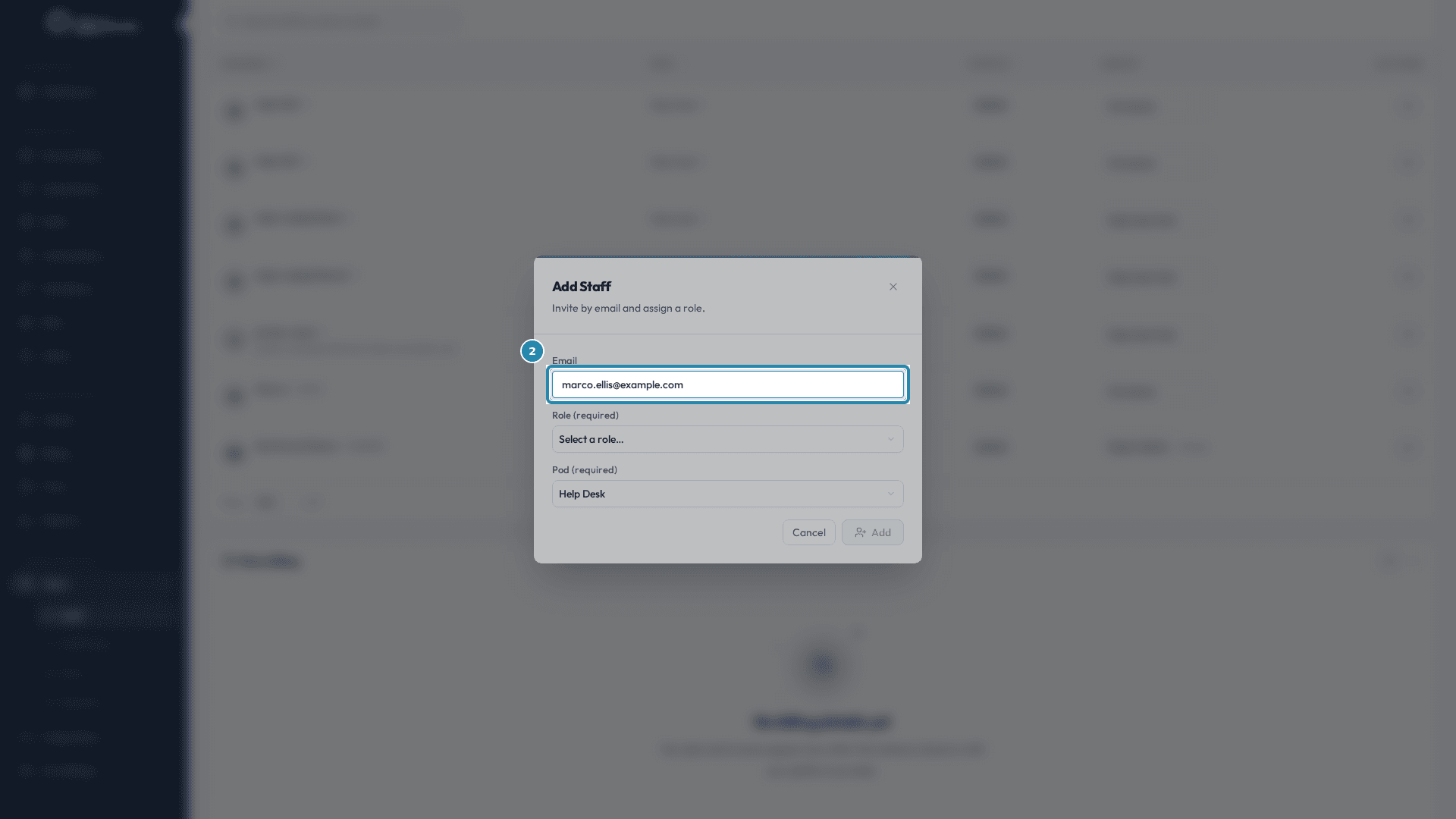
Add Staff asks for an email address and a Role (required). With more than one pod, it also asks for a Pod (required), the pod the new tech joins. Add a second tech, such as marco.ellis, and give him a place in a pod.
Open Team > Staff and click Add Staff. Type the new tech's email address, choose a Role and check the Pod.
An email on its own is not enough. The Role field, labeled Role (required), opens on "Select a role...". Add stays greyed out until a group is chosen and, when you have more than one pod, a Pod is chosen too. Whatever you pick is the group the account is created with.
Type the new tech's email address, choose a Role and check the Pod. Back on the Staff list, change a tech's Group when their job changes.
The Group column on the Staff list sets what each person can do (a person can also have No group). The Pod column shows where they sit. Team also holds Staff Roles, next to Staff, for the groups themselves.
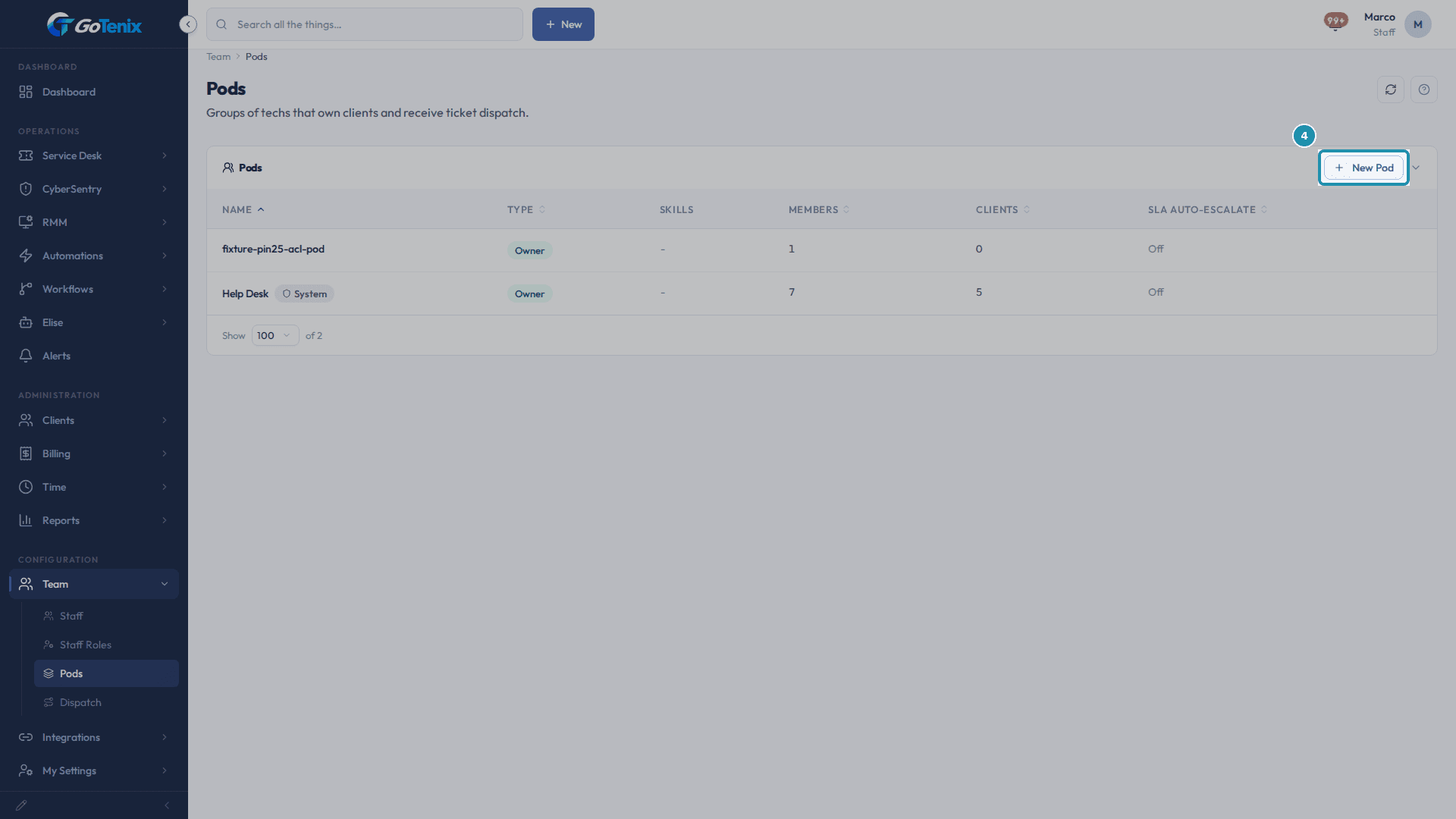
Open Team > Pods and click New Pod.
The list shows each pod with its type, skills, members, clients and SLA auto-escalate setting. The starter pod carries a System badge. New Pod opens a short form in place of the list, with a Back to Pods link. It builds a second pod, one that owns no clients and steps in on skill.
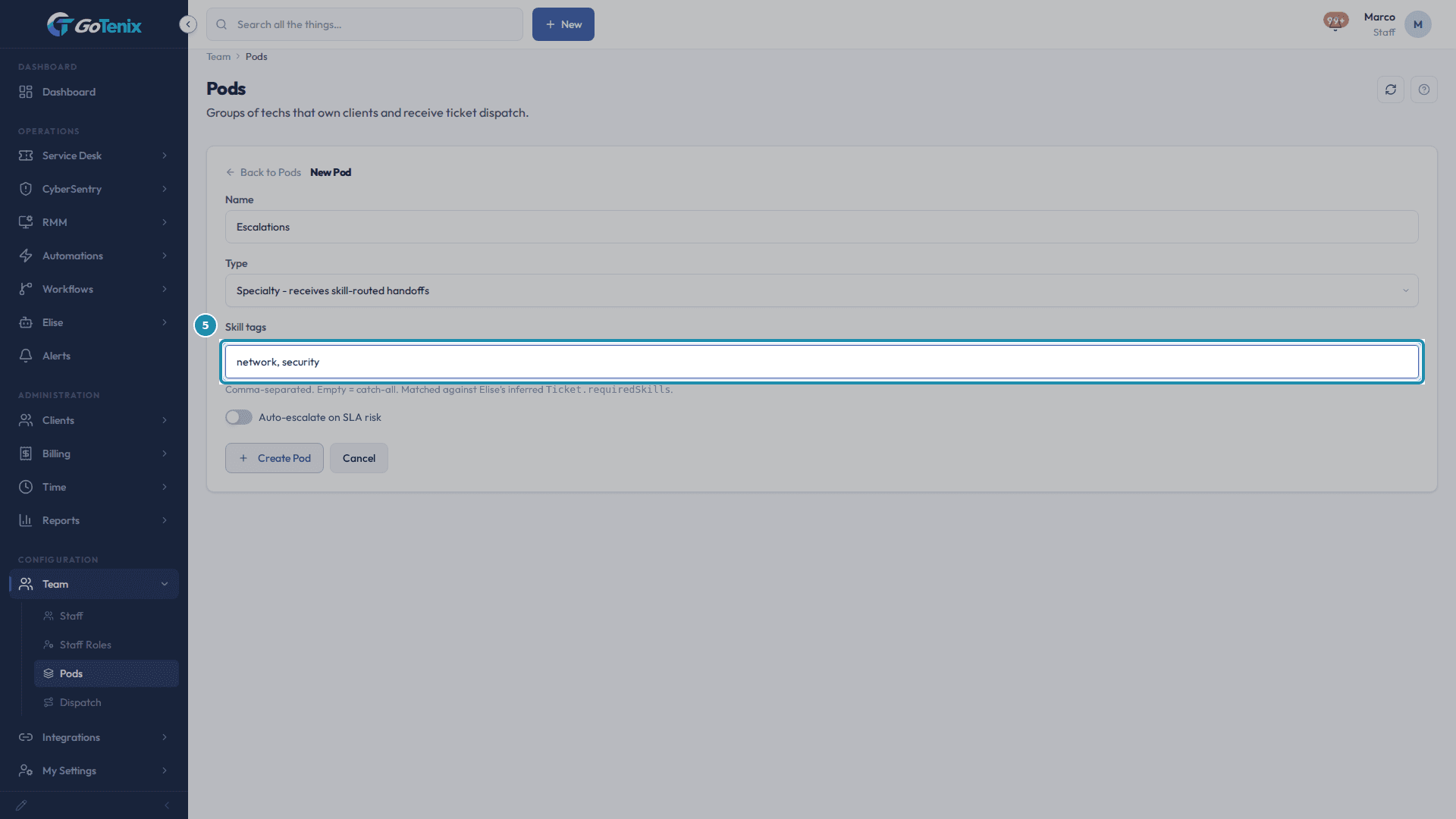
Open Team > Pods and click New Pod. Name the pod, set its Type to Specialty and fill in Skill tags.
Owner pods own clients and are the default routing target. A Specialty pod owns no clients and only receives skill-routed handoffs. Skill tags are comma-separated, such as network, security, and are matched against the skills Elise infers for a ticket. A pod with no tags is a catch-all.
Name the pod, set its Type to Specialty and fill in Skill tags. Back on the Pods list, confirm Escalations was created.
Escalations shows as Specialty with its network and security skill chips, 0 members and 0 clients. A Specialty pod owns no clients by design.
Open Escalations > Members and pick marco.ellis to add.
A tech can belong to more than one pod, so joining Escalations does not pull him out of Help Desk.
Click Add and confirm the tech is now a member.
The Members count reads 1. Tier is optional. Can triage makes the member a pod dispatcher, with the pod's triage and dispatch queues set up in their command center. Can review lets them review and close resolved tickets on this pod when ticket review is on.
Open Settings > AI Assistant > Actions & Automation and set Elise Dispatch Mode.
Off means no auto-dispatch. Preview records who Elise would pick, with no calendar writes and nothing assigned, so you can grade the picks. On dispatches live. Each pod also has an Auto-Dispatch toggle: on, Elise picks who and books the slot on the tech's calendar. Off, the pod still gets the plain pick but nothing is booked.
Know where a new unassigned ticket goes.
With Dispatch Mode On, a ticket that arrives through the client portal, email, the public ticket form or the agent is dispatched when nobody is assigned yet. In the plain waterfall the client's own pod gets the first try: its lowest tier first, skill-matched techs preferred, least loaded tech picked. A Specialty pod is tried only if the client's pod has nobody to pick, and only when the ticket's skills match the pod's tags. If nobody is picked, the ticket is flagged for a person to triage.
Know what outranks the pods.
A client's Default Ticket Assignee wins over every pod. A ticket someone creates from the admin screen goes to the client's Default Ticket Assignee first, and to whoever created it only if it is still unassigned, so dispatch does not run on it. With Dispatch Mode Off nothing dispatches. To try it on a ticket you already have, open it and press Dispatch with Elise.
Ask Elise instead of opening the pages.
Ask "how many open tickets does Bluebird Dental have, by status" and Elise counts them. Tell her "assign ticket 25 to Marco" and she reassigns it. Tell her "offboard Marco" and she clears his staff status, his pod memberships and his default-assignee spots, then lists the open tickets still assigned to him so you can hand them off.
What you will have
- Add a new tech and give them a permission group.
- Create a Specialty pod with skill tags.
- Add a tech to that pod as a member.
- Turn on Elise Dispatch Mode so new tickets can route on their own.
- Know where an unassigned ticket goes, and what outranks the pods.
Why it works this way: How to set up pods and staff so dispatch works
With exactly one pod, a new hire joins it automatically. Once you have two or more pods, you must choose a pod when you add staff.
A new client starts in the starter pod, the one carrying the System badge. A client's own pod gets the first try at its tickets, so a new Specialty pod does not catch tickets just by existing.
A client's Default Ticket Assignee outranks every pod. A ticket held by that tech stays with them.
Tier is optional on a pod member. Leave it blank and the pod stays flat, so the least-loaded tech is picked. Type a number and dispatch tries the lowest tier first, then climbs.
Pods answer who gets a ticket: members, tiers and client ownership. Dispatch holds how long a ticket takes, tag estimates and preview grading, which an operations manager tunes occasionally.
Elise Dispatch Mode is changed on Settings > AI Assistant > Actions & Automation. Other pages that show it link back there.
If it did not work: How to set up pods and staff so dispatch works
- If a client's tickets keep landing on the same tech whatever pod or skill tag is set, check that client's Default Ticket Assignee. It outranks every pod until it is cleared.
- If Dispatch Mode is Off, nothing dispatches on its own. A ticket created from the admin screen goes to the client's Default Ticket Assignee, or to whoever created it if there is none.
- If a pod's Delete pod button is shown but disabled, at least one client still points at that pod as its owner and has to move first.
- Settings > Administration > Pod Configuration and Settings > Dispatch & Scheduling > Pod Scheduling Rules explain rather than do: a pod's members, boards, tiers and hours belong to the pod itself, under Team > Pods.
Questions this page answers
What is a pod?
A pod is a group of techs that owns clients and receives ticket dispatch. Clients map to one owning pod; when a ticket arrives, the dispatch engine picks a free tech inside that pod (or hands off to a specialty pod if the ticket needs a specific skill). Boards stay as work-types (Help Desk, Projects, etc.) - pods are orthogonal and layer on top as a view filter.
What is the difference between Owner and Specialty pods?
Owner pods own clients and are the default routing target. Specialty pods do NOT own clients - they receive skill-routed handoffs (e.g., "network", "firewall", "m365"). If a ticket needs a skill your owning pod does not carry, the dispatcher hands it off to the first specialty pod whose skillTags match.
What are skill tags used for?
Skill tags describe what the pod can handle. Empty = catch-all (any ticket). Narrow tags (e.g., "firewall, networking") make the pod specialty-shaped - tickets whose requiredSkills match will route here. Elise infers requiredSkills from the ticket subject/body during triage.
What is the "System" badge?
The seeded starter pod (Help Desk on an MSP install) carries the System badge so single-pod shops never see pod complexity. You can rename it, change its skills, and add or remove members, but it can never be deleted, no matter how many other pods you create, its Configuration tab shows no delete button at all. Creating a second pod is an explicit admin action.
What does "Auto-escalate on SLA risk" do?
When ON, Elise can escalate a ticket (tier climb, cross-pod handoff, or management surface) without waiting for a human when the SLA timer is at risk. When OFF (default), Elise proposes the escalation as a Tier 2 action card on the Command Center and waits for approval.
Why can't I delete this pod?
Three reasons a pod can't be deleted: (1) It is the seeded System pod. It is protected and can never be deleted, on its Config tab the Delete pod button does not appear at all. (2) It is the last remaining pod, and you must always keep at least one. (3) Clients still point at this pod as their owner. Here the Delete pod button is shown but disabled, with a tooltip telling you how many clients still point at it. To clear it, either reassign each client to a different pod from that client's detail page (its owning-pod field), or open this pod's Clients tab and remove the client there, removing a client from the pod drops that client to default ticket routing rather than moving it to a specific pod. Once no clients point at this pod, delete it here.
What is the Pod Configuration link for?
This doorway explains that a pod is a team object with its own members, boards, and tiers, so you configure it in the Team area. Settings only holds the tenant-wide dispatch defaults that pods build on.
How do I create or configure a pod?
Click "Open Pods" on this page, or go straight to Team → Pods. Pick the pod to configure, or create a new one. Open its Configuration. Then manage its members, board assignments, and tier coverage.
What are Pod Scheduling Rules?
This doorway explains that scheduling rules, hours, tiers, and how dispatch loads a pod belong to each pod. They live on the pod itself, not on a global Settings page. The tenant-wide dispatch defaults nearby are only the starting point each pod builds on.
How do I set a pod's hours and tier coverage?
Click "Open Pods" on this page, or go straight to Team → Pods. Pick the pod. Open its Configuration. Set its members, boards, tier coverage, and operating hours.
What does Dispatch Mode (off / preview / on) do?
Off = no auto-dispatch; you schedule manually. Preview = Elise records who + when she WOULD schedule (no calendar writes) so you can review her picks on the Preview page - the safe on-ramp. On = Elise dispatches live, per pod, only for pods whose Auto-Dispatch toggle is on. This row only shows the value. It is not editable here. Click its Edit link, or go to Settings > AI Assistant > Actions & Automation, to change it.
Why is Dispatch separate from Pods?
Different audiences and frequencies. Pods is the daily-driver surface - techs and managers check member lists, client assignments, and tier waterfalls often. Dispatch is slower-cadence config the operations manager tunes occasionally. Co-locating them would clutter the daily view with knobs that almost no one touches day-to-day.
When should I turn Auto-Dispatch off?
Auto-Dispatch routes new tickets through pod skill-tag rules and auto-assigns. It is controlled by Elise Dispatch Mode (Off / Preview / On) on Settings → AI Assistant → Actions & Automation, plus each pod's own Auto-Dispatch toggle, not on this page. Set it to Off (or leave pods' toggles off) while you're configuring or tuning pods, otherwise creation runs the matcher before your rules are ready and tickets get assigned to the wrong techs. Existing assignments and explicit reassignments are unaffected.
How does the tier-based permission system work?
Permissions use a tier system: None (no access), View (read-only), Edit (create/modify), and Admin (full control including delete). Tiers cascade - setting a parent section to "View" caps all child sections at "View" or lower. Defaults are defined per Permission Group and can be overridden per user.
How do permission groups work?
Permission groups define what admin users can access in the portal. Built-in groups include Full Admin (unrestricted), Service Manager, Senior Tech, Help Desk Tech, Account Manager, Billing Admin, and Viewer (read-only, and the safest group to start someone on). No group is assigned for you: Add Staff asks you to choose one, and Add stays disabled until you do. You can create custom groups and set a tier for each section: none, view, edit, or admin. Closing or reopening a time period needs its own permission, "Close Period", listed under Time in the tree: Owner and Full Admin have it, a group that already held Time admin got it automatically when this shipped, and you can remove it from a group without touching the rest of Time. Manage groups in Team > Staff Roles, and assign a group to a staff member from the Group column on the Team page.
How do I add a team member?
Go to Team > Staff and click "Add Staff". Enter the person's email address, choose the permission group that sets their access, and pick a pod if your instance has more than one, then click Add. The group is required: Add stays disabled until you choose one, and the group you choose is the group they are created with. They are added as staff and sent a sign-in link. You can change their access later from the Group column on the Staff list. Until they sign in for the first time, their Status says "Invited, pending", with who invited them, when, and when the link expires; "Cancel invite" there stops the link and turns the account off.
Was this helpful?