How to bill the right seat count and manage quotes
Give some users a different price on a plan line and leave spare seats and devices off the bill, so each client pays for exactly what they use. Then find, void or delete any quote, set its expiry and terms, and read a clear quote PDF.
See it
Browse
On this page
How to do it
Group your plans by type.
The Service Plans list groups every plan by type: Core, Core - Inactive, License and Add-On, plus any custom type such as Managed SaaS. Each client has one Core plan, and add-ons and licenses stack on top.
Add a pricing tier to a plan line.
Pricing Tiers gives one line a second named rate, such as Part-Time or VIP seat. Each tier has a Quantity Basis, a Price Diff of Absolute, Dollars off or Percent off, and a Value. Say a line's Base rate is $10.00 a unit and a VIP seat tier is Absolute at $15: those seats bill at $15 instead of the base. With 20 users and 3 on a Part-Time tier, the line bills 17 at the base rate and 3 at the tier's rate.
Assign users or devices to the tier.
On the client's Exemptions page, the Tier assignments card is where a specific user or device is moved onto a tier's rate. Assign to tier asks for the entity, from Microsoft 365 users, Google Workspace users or Devices, and the pricing tier. Anyone not assigned bills at the base rate. Removing an assignment bills the entity at the base rate again from the next invoice run.
Leave seats and devices off the bill with exemptions.
On the same Exemptions page, License seat exemptions excludes seats you own but should not bill the client for, such as your admin's own licensed seat. Exclude seats asks for a count and a reason, and excluded seats are subtracted from that license's automated billing count. Device billing exemptions marks spares, lab machines and internal endpoints so they are subtracted from the client's device count. Removing an exemption makes the entity billable again at the next billing run.
Search or filter the Quotes list.
The Status list narrows the table to Draft, Sent, Accepted, Rejected, Converted or Voided, and All statuses shows every one. The search box matches a quote number, a title or a client.
Search or filter the Quotes list. Delete or void a quote from its Actions menu.
Before a quote is decided, Delete sits in the same menu as Void. Delete removes the quote outright and cannot be undone. Once the client accepts it or it converts to an invoice, Delete is gone: Use Void to withdraw it while keeping the record. Void withdraws the offer, so its accept links stop working and it cannot be edited or sent again. Voiding a converted quote does not affect the invoice it became.
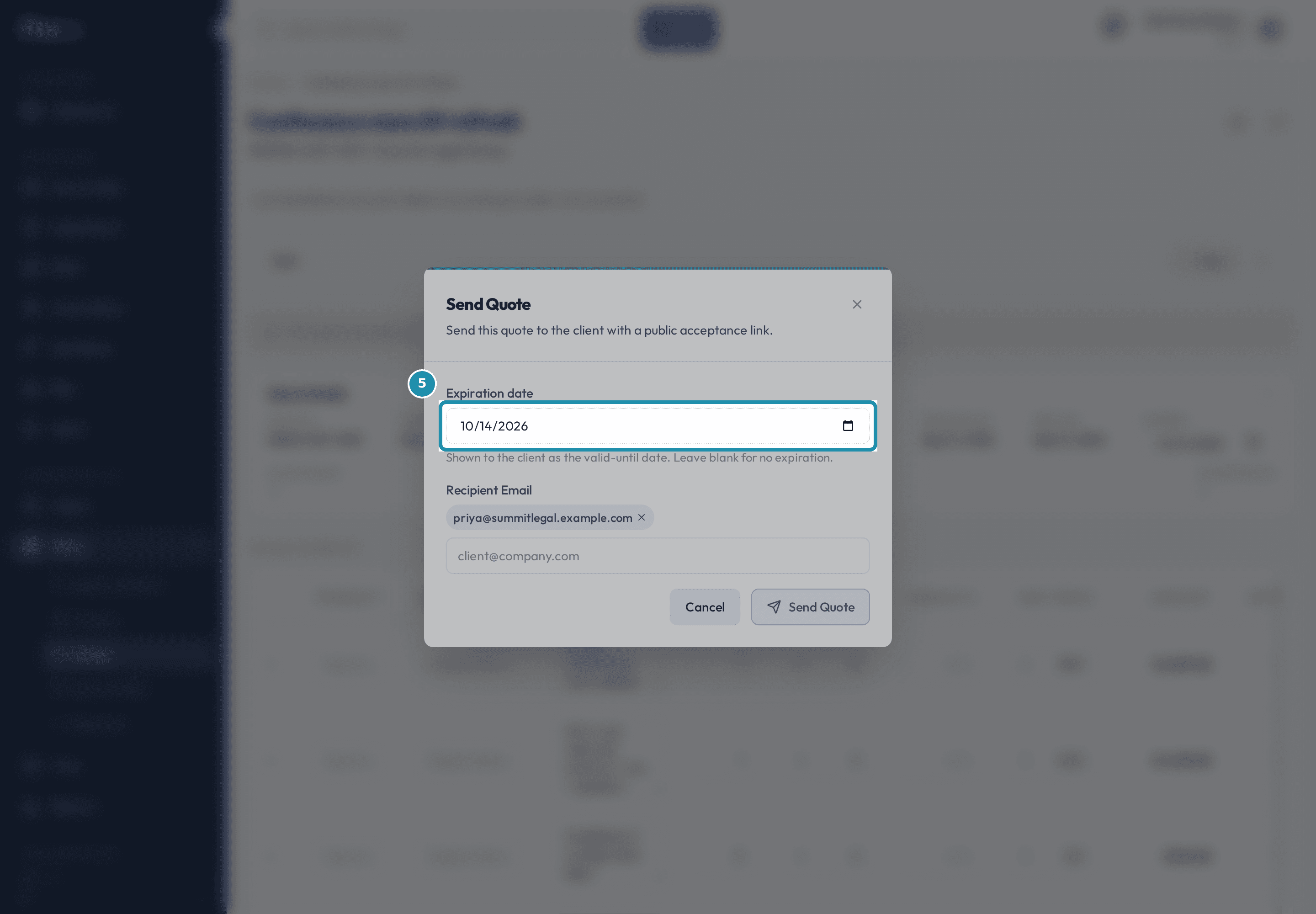
Warning: Delete cannot be undone, and it disappears from the menu once a client accepts the quote or it converts to an invoice.Set the quote's expiry in the Send dialog.
Send's Expiration date field is the valid-until date the client sees. Leave it blank for no expiration. A new quote starts with it filled in from the creation date plus the Quote Link Expiration (days) setting. The same date shows as Expires in Quote Details. The accept link has its own cutoff, set by that same setting.
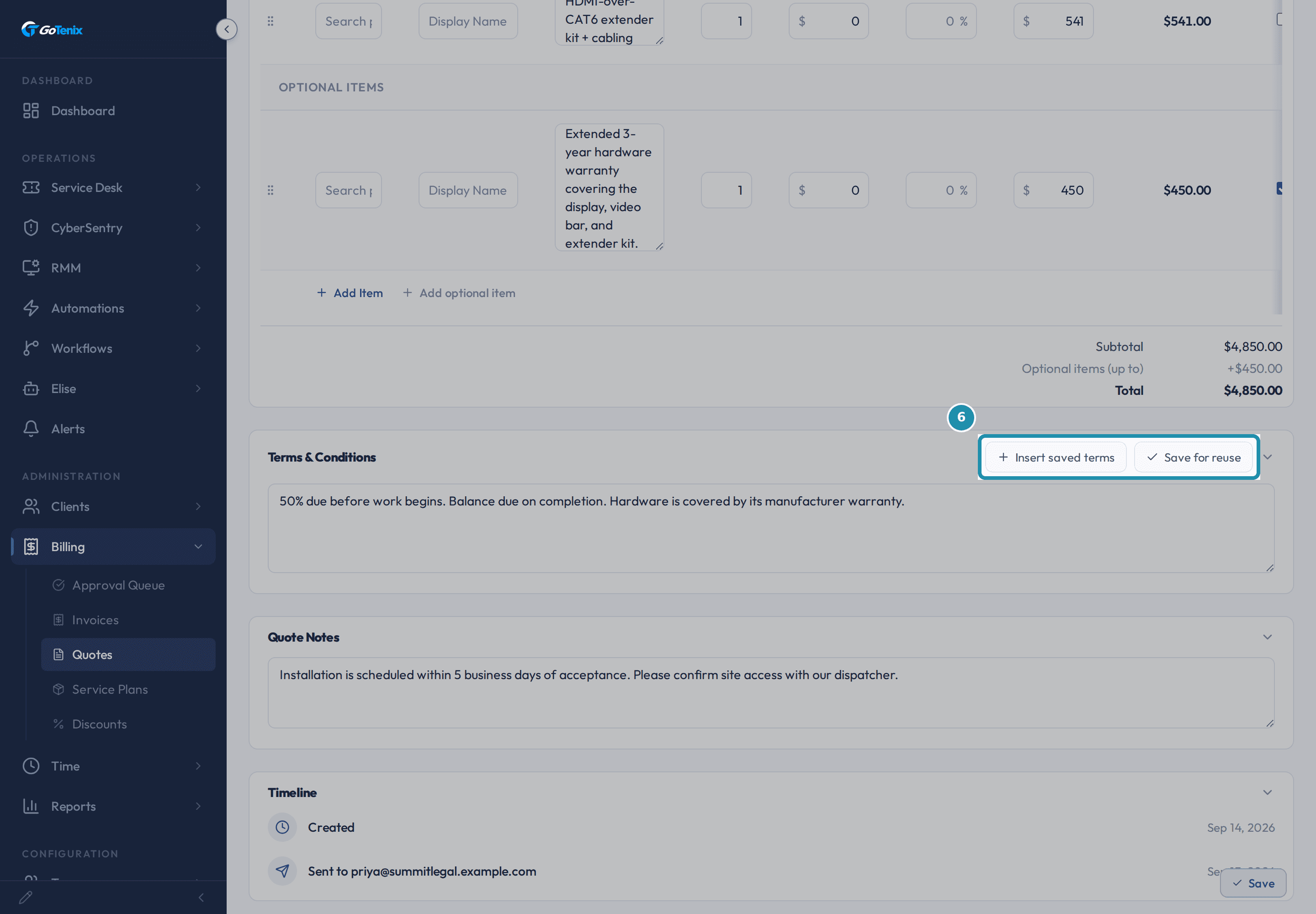
Set the quote's expiry in the Send dialog. Insert or save reusable Terms & Conditions.
Insert saved terms drops a saved block of text into this quote. Save for reuse adds the terms on screen to the library, for every future quote. Editing the library later never changes quotes that already used it. Deleting a saved entry removes it for everyone, and terms already inserted into quotes are not affected.
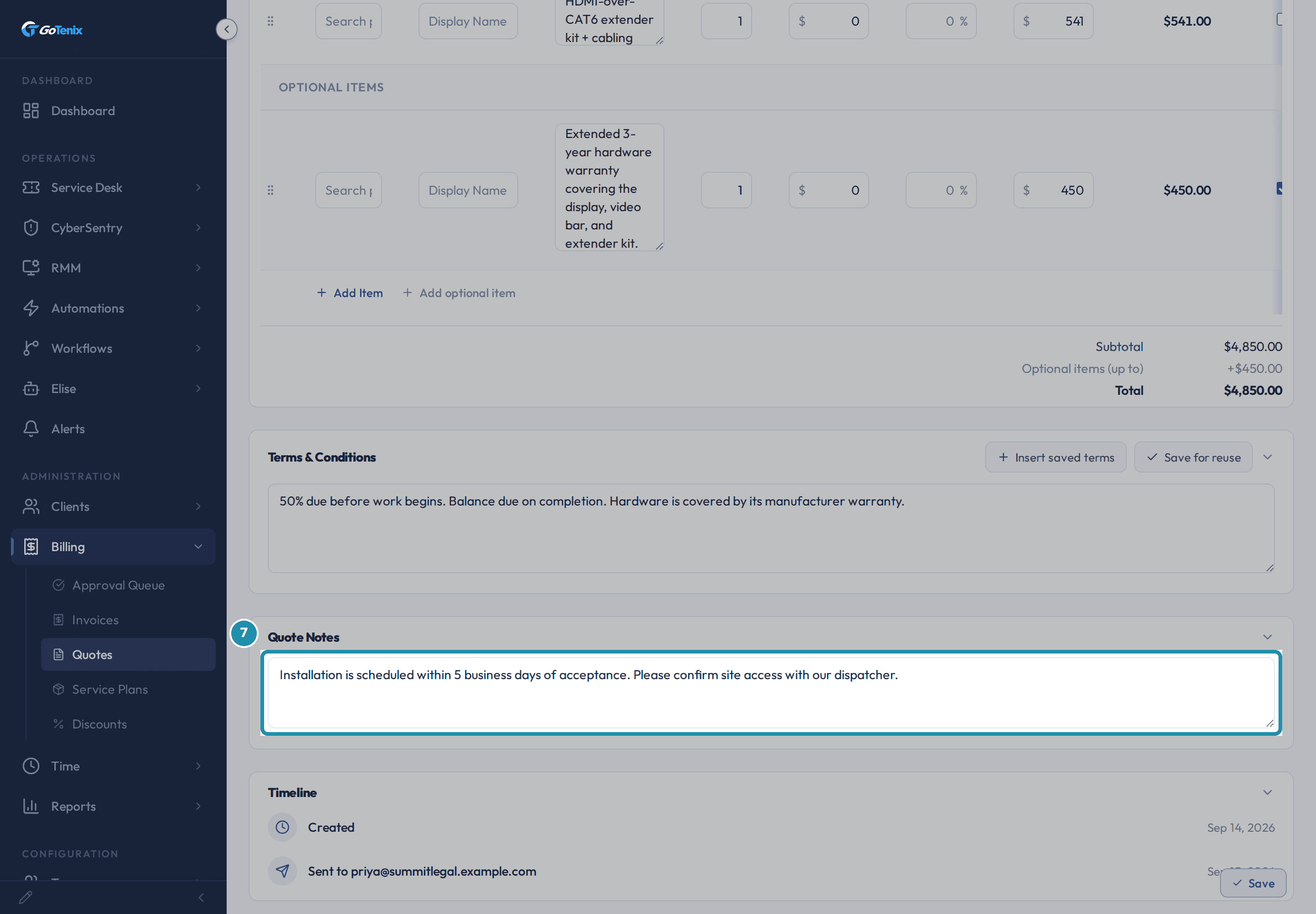
Insert or save reusable Terms & Conditions. Write the Quote Notes the client will read.
Quote Notes is shown to the client with the quote, so write it for them. Terms & Conditions sits right above it.
Write the Quote Notes the client will read. Open the quote's PDF and read its totals.
When a quote also has optional items, the main page's Subtotal reads Required Items Subtotal, so the committed price is never confused with the extras. It ends with an Acceptance Signature block and a line saying optional items begin on the following page. Optional additions start on their own page with a checkbox on each row, Check the items below you'd like to include, then sign below, their own subtotal and total, and a second signature block. The Optional additions page appears only on a quote that has optional lines and has not been decided yet.
What you will have
- Group your plans by type and know which one is the client's Core plan.
- Add a pricing tier to a plan line and assign users or devices to it.
- Leave a seat or a device out of a client's bill with an exemption, and know when to use a tier instead.
- Filter the Quotes list by status and search it by quote number, title or client.
- Know when Delete is offered on a quote and when Void takes its place.
- Set a quote's Expires date and know what controls its accept link.
- Insert saved Terms & Conditions and save new terms for reuse.
- Read a quote PDF's Required Items totals and its Optional additions page.
Why it works this way: How to bill the right seat count and manage quotes
A tier and an exemption do different jobs. A tier is for something that still counts, at another price: a part-time user, a service account, a non-profit rate. An exemption is for something that should not count at all: your own admin seat, an internal mailbox, a spare or lab device. Exemptions come off the automated count, so the client is not billed for them.
The Expires date is what the client sees as the valid-until date on the quote and its PDF. It does not control when the accept link stops working. That is the Quote Link Expiration (days) setting, 7 by default and the same for every quote. After it passes the link still opens, marked expired, but cannot be accepted or declined, and re-sending issues a fresh link.
Delete only exists before a quote is decided. Once a client accepts a quote or it converts to an invoice, Delete disappears and Void is the way to withdraw it. Void keeps the record, and voiding a converted quote leaves the invoice it became untouched.
Other ways to do this: How to bill the right seat count and manage quotes
Ask Elise
To find quotes, ask her to "show every Sent quote and when it expires" or "list Bluebird Dental's quotes". To change them, ask her to "move the expiration on quote Q-2026-09-005 to October 31", or to update its terms or notes, or "email quote Q-2026-09-005 to Priya". Those ask you to confirm first. For pricing, ask her to "put Jordan on the VIP seat tier" or "move Jordan to the Part-Time tier", and she does those straight away. Taking Jordan off a tier, which bills the base rate again, and deleting a quote are filed for someone who holds that permission to release with a typed reason.
If it did not work: How to bill the right seat count and manage quotes
- If Delete is missing from a quote's menu, the quote has been accepted or converted. Void it instead to withdraw the offer and keep the record.
- If a quote's PDF has no Optional additions page, the quote has no line marked optional, or it has already been decided. Add one with Add optional item and open the PDF again.
- If a new tier never shows on a client's Tier assignments card, check the client is subscribed to the plan the tier was added to. The card says This client's assigned plan doesn't have any pricing tiers when it is not.
- If the License seat exemptions or Device billing exemptions card has nothing to mark, that client has no Microsoft license SKUs or devices synced yet. Exemptions apply to synced data.
Questions this page answers
How do I search or filter the Quotes list?
The search box matches the quote number, its title, the contact name or the client name. The Status list narrows to Draft, Sent, Accepted, Rejected, Converted or Voided. All statuses shows every one of them. Both settings live in the web address, so you can bookmark a filtered view. Export CSV gives you whatever is on screen.
Should I void a quote or delete it?
Delete wipes the quote. It is offered only while nothing came of it, so on a Draft, a Sent or a Rejected quote. Once a client accepts one, or it becomes an invoice, Delete is gone. Use Void in the quote's actions menu instead. Void withdraws the offer and keeps the record. Its accept links stop working, its QuickBooks copy is removed, and it cannot be edited or sent again. It still shows under the Voided filter. Void is offered on a Sent, Accepted or Converted quote. Voiding a converted quote never touches the invoice it became. Handle that invoice on its own.
How does a quote's expiration date work?
The Expires field on a quote is what the client sees. You can also set it in the Send dialog. It prints on the PDF and shows on the accept page as Valid until that date. Leave it blank and no date is shown. It does not control the link. The accept link always stops working a set number of days after you send it. That number lives at Settings > Billing & Pricing > Invoice Settings, in the quote link expiration setting. It starts at 7 days. An expired quote is not declined and not hidden. The client can still read it. They see a banner saying the quote has expired, and the buttons are switched off. The quote itself stays in Sent status. To offer it again, extend the date and send it again.
What is the saved terms library on a quote?
The Terms & Conditions card has two links. Insert saved terms drops a saved block of terms into this quote. Save for reuse adds the text you have now to the library. The library is shared across your whole instance. Inserting makes a copy. If the quote already has terms, the saved text is added below them. Editing or deleting saved terms later never changes a quote that already used them. There is no default set, so a new quote starts with no terms.
Do clients see the Notes on a quote?
Yes. The Quote Notes card and the Terms & Conditions card both reach the client. Both show on the accept page and both print on the PDF. On the accept page the notes come first. On the PDF the terms print under the totals and the notes print last. Use notes for anything you want the client to read with the pricing. A quote has no private note field, so do not put team-only remarks here.
How is the quote PDF laid out?
Required lines print first. Under them comes a subtotal, then sales tax, then a total. When the quote also has optional items, those two labels read Required Items Subtotal and Required Items Total instead. Terms print under the totals, above the signature line. Optional items then start on a new page. That page is headed Optional additions. It ends with its own subtotal, tax and total. It lists what is on offer, not what the client picked. That only exists once they accept. Notes print last, just above the footer.
How do service plans work?
A service plan is a pricing template made of lines. When an accounting system is connected, each line points at a product there. When none is connected, a name and a price are enough. Put a plan on a client and their bill is worked out from that plan's lines. A line can count synced users or devices, a manual number, tagged things, Microsoft licences, or a flat price band by client size. Plans are grouped into types. You get Core, License and Add-On out of the box, and you can add your own. A client can only have one plan of the rollup target type, which is Core to start with.
How do pricing tiers work?
A tier is a second rate on a plan line. Open the plan, find the line, and add a tier under Pricing Tiers. Give it a name and a rate. Then open the client's Exemptions page and use the Tier assignments card. Assign a user or a device to that tier. Anything you do not assign bills at the base rate.
How do billing exemptions work?
Your billing counts come from synced user and device data. An exemption takes something out of that count. Open the client's Exemptions page and mark the user or device exempt. You can do the same from the Users tab. Use it for admin, internal and service accounts. That page can also exclude seats on a Microsoft licence, such as your own. An exemption belongs to one client and applies to every plan.
When do I exempt something instead of putting it in a tier?
Use a tier when the thing still counts, but at a different rate. Use an exemption when it should not count at all. That covers an internal mailbox, a spare device, or a seat you keep for yourself. Exempt things and excluded seats come out of the base count. Tiered things stay in it.
Was this helpful?