How to reply to a ticket and set its status
Answer a client, set the ticket's next status and log your time in one click, with Elise ready to draft the reply in your voice. The reply, the time and the status change are all recorded on the ticket.
See it
Browse
On this page
How to do it
Open Service Desk > All Tickets and click the ticket you want to answer.
All Tickets lists open work across every board, newest first. This example is ticket #27, Priya Shah's report for Bluebird Dental, still on status New. Click the ticket's row to open it; the reply and the status change land on this ticket.
Look at the reply composer's mode dropdown, next to the "Email reply" title.
The dropdown reads Internal Note, Public Note, Email, or Escalate, and the composer opens on Email. Email sends the reply to the contact by mail and shows it in the client portal. Public Note posts to the client portal only and sends no mail. Internal Note is for staff only, so the contact never sees it and gets no notification. Escalate turns what you write into the escalation reason and sends the ticket back through dispatch. The card title, the To line and the send button all say which mode is armed before you type a word.
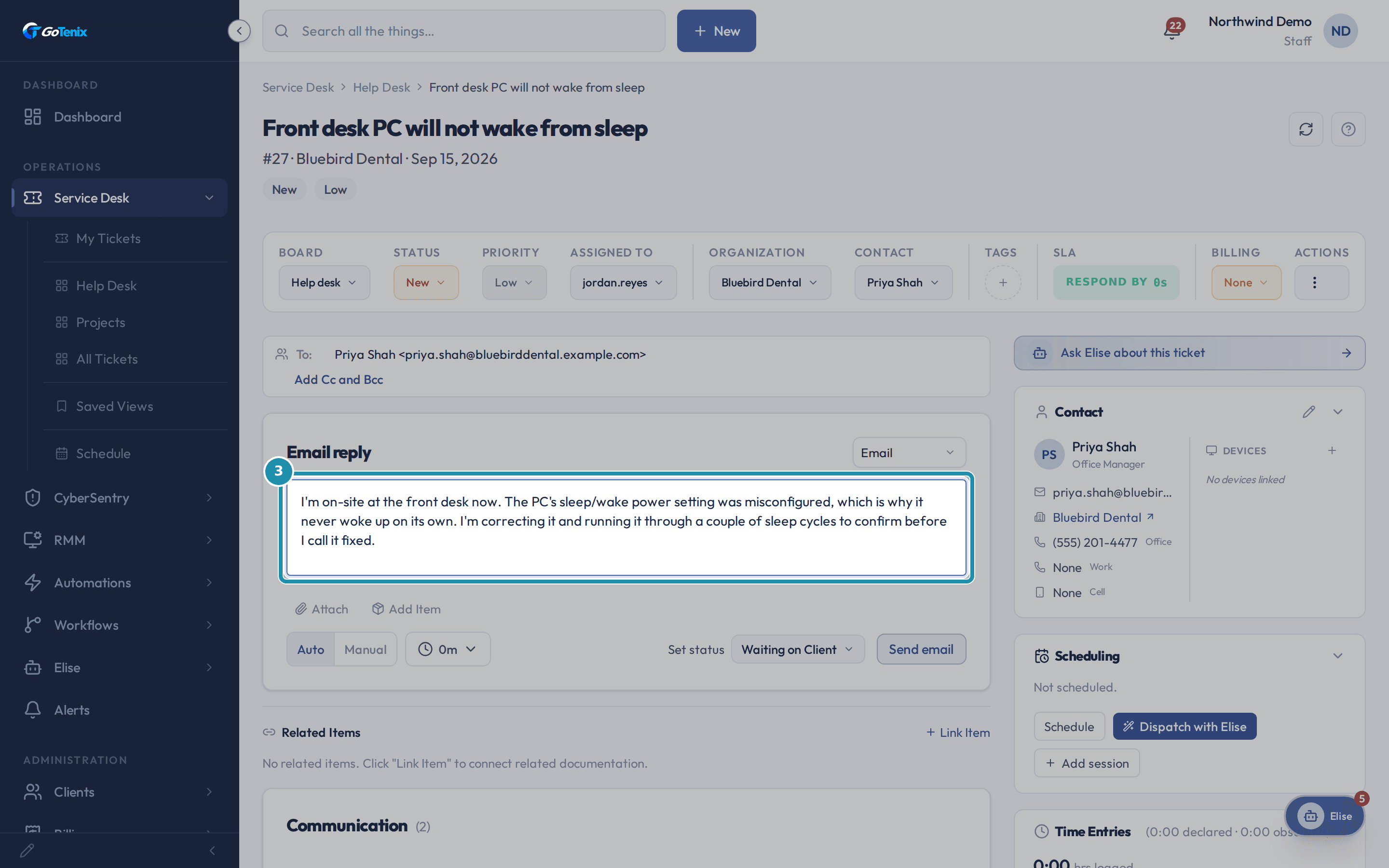
Look at the reply composer's mode dropdown, next to the "Email reply" title. Write the reply, or tap Draft in my voice.
With an empty box, Draft in my voice writes a full reply from the ticket thread in your own voice and puts it in the box. Nothing is sent. If you jot a short note instead, more than ten and fewer than 200 characters, Expand with Elise turns it into a polished reply, and Undo puts your note back. Either way you read it, edit it and send it yourself. Tell Elise "Sign me off as Cheers, Dan" and later drafts use it. Here the reply was typed by hand: it says what you are doing and what still needs confirming, since the ticket is not fixed yet.
Write the reply, or tap Draft in my voice. Open Set status and pick In Progress.
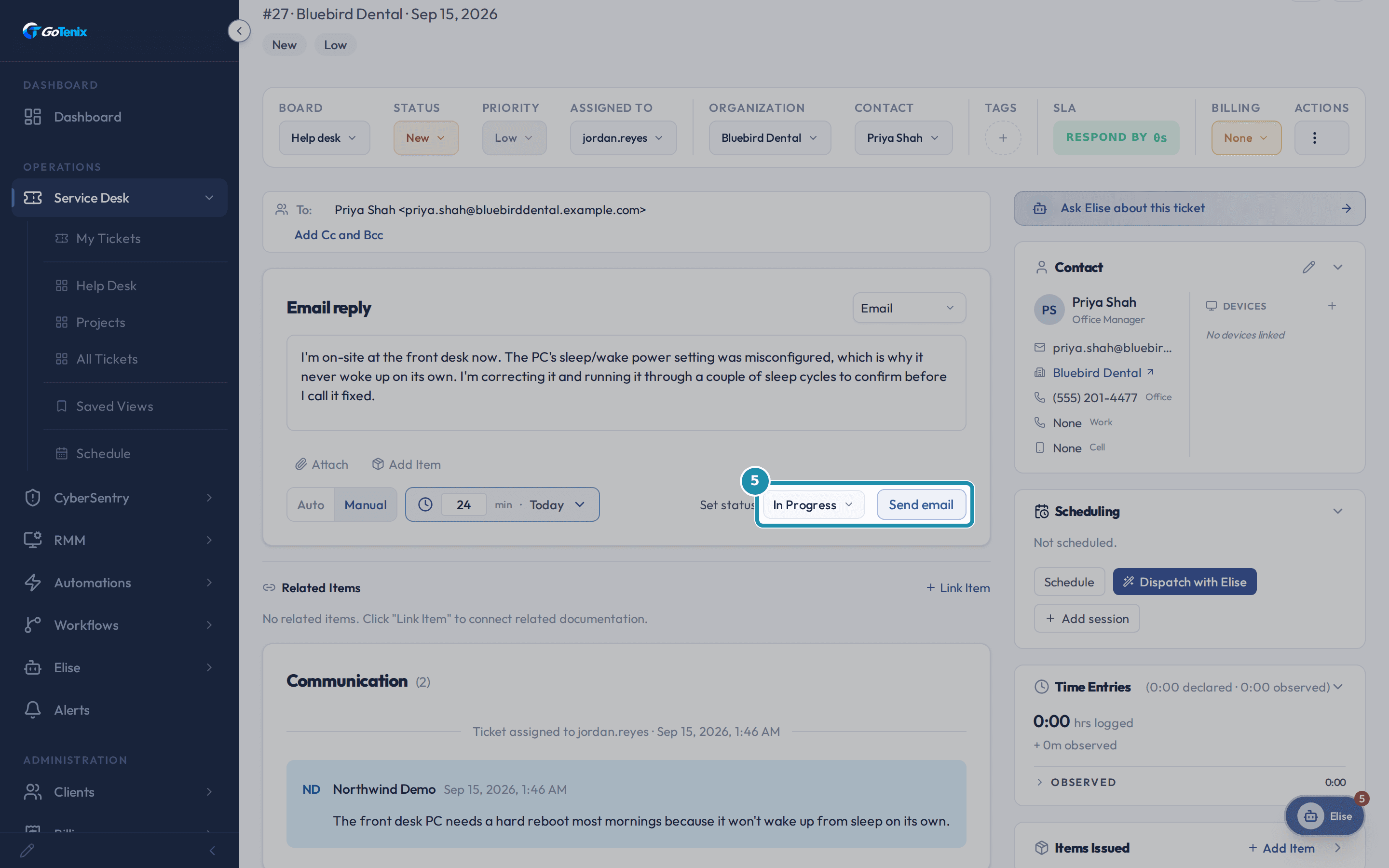
Set status sits beside the send button. On an Email reply it starts on Waiting on Client, since the ball is usually in the client's court. On a note it starts on In Progress when the ticket is still New or AI Triage, and otherwise on Keep current. Here you are still doing the work, so open the dropdown and pick In Progress. The menu offers only the moves your status workflow allows from the ticket's current status, and Keep current leaves the status alone.
Click Send email.
Send email posts the reply to the thread, mails it to Priya Shah, and moves the ticket to In Progress in the same click. The button's label always matches the reply mode chosen above, so an Internal Note shows Add internal note here instead. This screenshot also shows the time control switched from Auto to Manual with 24 minutes entered for the on-site work. Sending the reply banks that time.
Click Send email. See the reply on the ticket's timeline and the time it logged.
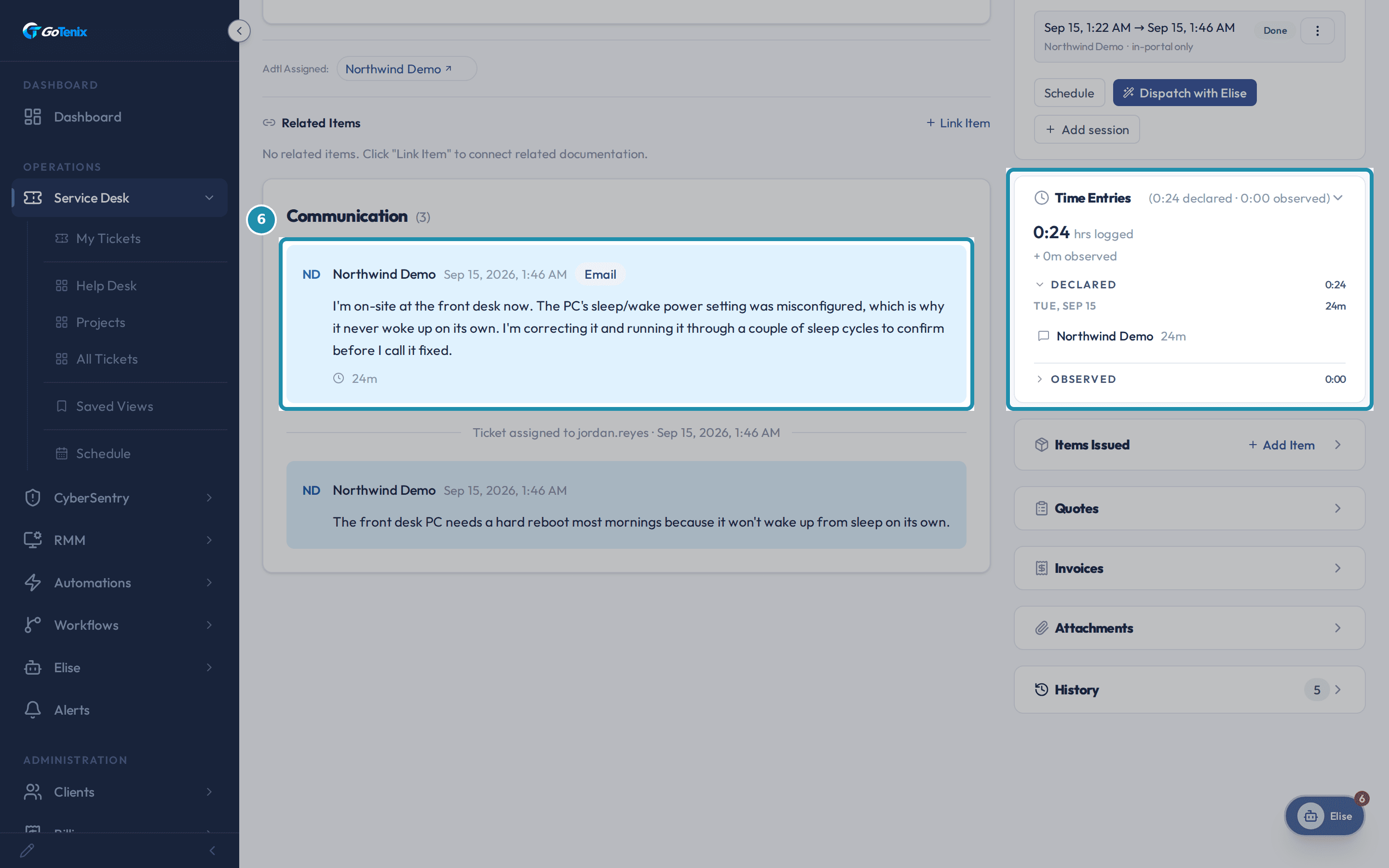
The reply lands at the top of Communication, tagged Email, with the time it logged shown next to it, and the Time Entries card shows the same block: 24 minutes. Because the time control was on Manual, sending the reply banked the minutes you typed. With Auto, the same card shows the time GoTenix tracked while you worked the ticket instead.
See the reply on the ticket's timeline and the time it logged. Open the ticket's History card and find the status change.
History is the card in the right-hand column of the ticket page. It lists a Status changed row with the old status, the new status and who made the change, and a Reply created row for the reply itself. A status change gets a row whichever way it was made: a reply, the toolbar or Elise.
On their side, the client sees the new status and your reply.
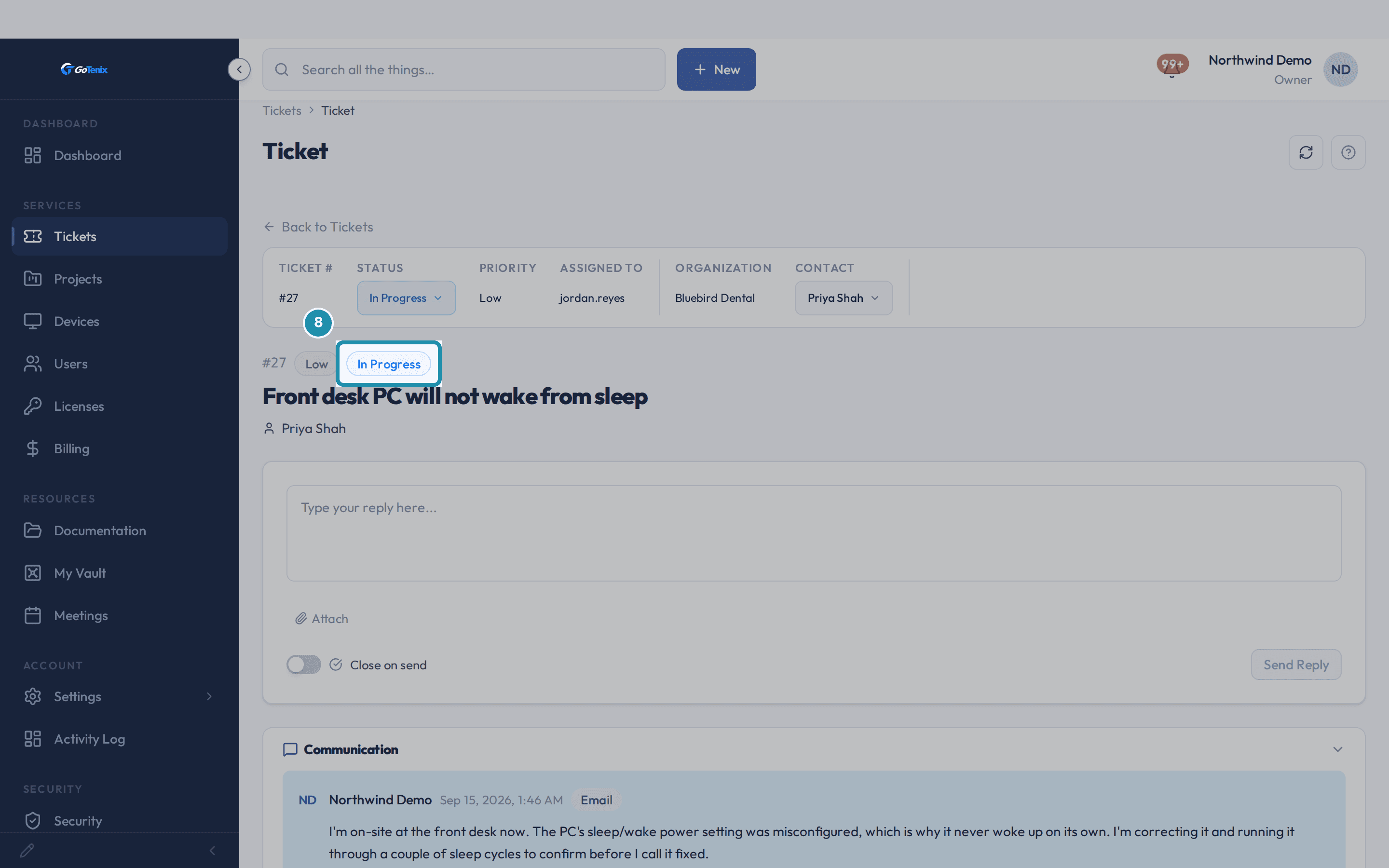
The ticket in the client portal shows the status pill reading In Progress and the reply in the thread, tagged Email, in your own words. The client never sees an Internal Note, only Email and Public Note replies, and only statuses that are set to show to clients.
On their side, the client sees the new status and your reply. Pick Closed from the status pill with a reply still typed, and read the warning.
The status pill in the ticket's toolbar changes the status and nothing else. If text is still sitting in the reply box when you pick a closed status, it warns that the reply will not be sent and offers Cancel or Discard reply and close. Only Send & Close in the reply box sends what you typed.
What you will have
- Answer the client and move the ticket to its next status in one click, instead of writing a reply and changing status as two separate steps.
- Let Elise draft the reply in your voice, then read it, edit it and send it yourself.
- Leave a record behind: a timestamped reply, a status change and the time it took, all attached to the same ticket.
Why it works this way: How to reply to a ticket and set its status
A reply banks the time loaded in the composer's time control when it is sent. Auto uses the time GoTenix tracked while you worked the ticket, and Manual takes minutes you type for on-site work, so sending a reply can log time without a separate timer step.
Each status has a setting for whether the client can see it. A status hidden from clients never shows in their portal, so the client only ever sees the statuses you chose to show.
Internal Note and Email are two different doors on the same composer. An internal note never leaves your team, and an email lands in the contact's inbox and in the client portal. The card title, the To line and the send button change to say which one is armed before you click.
A status change made from a reply, the ticket toolbar or Elise is recorded on the ticket's History with the old status, the new status and who made it, so there is one place to see who moved a ticket and when.
Other ways to do this: How to reply to a ticket and set its status
Ticket toolbar Status field
Open the ticket and use the STATUS dropdown in the toolbar at the top of the page, separate from the reply composer. It changes the status alone, with no reply attached.
Client Portal
The client opens the ticket and writes in the reply box at the bottom, then clicks Send Reply. There is no internal note choice and no status picker, only a Close on send toggle.
Email reply from the tech's own mailbox
A tech replies from their company email account to the ticket's notification thread instead of opening the portal. A tech answering the thread by email is recorded as a public staff reply on the ticket, the same as the composer's Email option, and it counts as the first response when none was recorded yet.
Elise
Ask "Draft a reply to Priya on #27 saying I'm on site" and Elise writes the draft in your voice and hands it back as text. She does not post it, so you read it, edit it and send it yourself. "Add an internal note to #27: PC power plan reset" and "Change #27 to In Progress" are small writes that run straight away unless an admin has tightened them. "Send Priya a reply on #27" shows you a card first, and nothing goes to the client until you approve it.
Automations
A workflow or automation rule with an action that sets a ticket's status moves the status on its own when its trigger fires, through the same status workflow the composer uses. Automations move status. They do not write a free text reply the way a person does.
Bulk actions on the list
Select several tickets in All Tickets and use Change Status on the bar that appears. Every selected ticket moves to the new status at once, with no reply attached to any of them.
If it did not work: How to reply to a ticket and set its status
- If the contact has no email on file, the board's client notify setting is off, or the ticket's status is set to skip notifications, Send email still posts the reply and still changes the status. Only the email itself is skipped.
- If the ticket is on a status marked to block public replies, such as Locked, Email and Public Note are refused. Only an Internal Note can be added until the ticket is unlocked.
Questions this page answers
What are the reply types?
There are four. Internal Note is seen by your team only. Public Note shows to the client in the portal, but sends no email. Email sends the reply to the client and shows it in the portal. Escalate flags the ticket, keeps your text as the reason, and hands the ticket to a new tech. You cannot log time on an Escalate reply.
What do the ticket statuses mean?
Your instance ships with ten. New: it just came in. AI Triage: it came in by email or from the portal and the AI has sorted it. In Progress: a tech is on it. Waiting on Client: the tech needs an answer. Customer Reply: the client wrote back. Waiting on Equipment: it is held for parts. On Hold: it is parked for some other reason. Resolved: the fix is in. Closed: it is done. Locked: it is closed and shut to edits. Add or rename statuses at Settings > Service Desk > Status Workflow.
How do I log time on a ticket?
There are two doors. A timer starts on its own when you open a ticket. You can stop it from the chat widget in the corner. The other door is the time control in the reply box. Auto uses the slices the timer caught. Manual lets you type the minutes, with a date and a window if you want one. Time is logged per tech and feeds both reports and billing. The Time Entries card only edits or deletes time that is already there.
How do SLA settings work?
Configure SLA response and resolution targets per priority level in Settings → Service Levels → SLA Policies. SLA timers are tracked on tickets and violations are flagged.
What can I do on a ticket page?
The top of the page holds the ticket facts. You get the number, board, status, priority, SLA, client, contact and assigned tech. Below that is the thread of replies. You can send a reply and log time. You can attach product items for billing. You can change the status, priority or board. You can hand the ticket to another tech. You can also ask the AI assistant about the ticket. If you close the ticket from the Status field with a reply still typed, the portal asks first. Only Send & Close sends that text.
Was this helpful?