How to set staff devices, permission groups and Elise dispatch tuning
Give each tech desktop toasts on their own computers, control what every staff group can do, see your own platform plan and card, and teach Elise's dispatch how long work takes with a preview you grade before she books anything.
See it
Browse
On this page
How to do it
Open Team > Staff, click the row menu next to a staff member, and choose Devices.
Devices sits in the same menu as Block user and Remove from team, and, for the owner only, Promote to Super Admin (team-members.tsx:968-971). Your own row offers only Devices.
Add the computers this person works on.
The card reads "Assign the computers this person works on. Once a device is here, they can turn on desktop toasts per event from their own notification preferences. Nothing is sent until they do." Search by computer, client or logged-in user and click Add. A device whose logged-in user matches this person is floated to the top with a Suggested tag, and nothing is assigned until you click Add. Remove takes a device off the list.
Know which devices the card will accept.
A device can be added only if it is approved, belongs to your own organization, and is not already on another staff member's list. Otherwise the portal says "That device is not approved yet, so it cannot receive toasts", "That device belongs to a client, not your own organization, so it cannot be assigned here", or "That device is already assigned to another staff member".
Find the Plan & billing card under the staff list.
Only people whose permission group can view your platform billing see it, and the same card is also under My Bill in the sidebar. It shows your Plan with its band and monthly rate, any discount, Billable seats with an "As of" date, Next invoice, and Card on file with the brand, last four digits and expiry. Below that are Outstanding invoices with View invoice and PDF links, Recent payments, and Invoices & billing history. A "Payment overdue" badge appears when a balance is overdue, and "N to approve" appears when a price notice is waiting for your Approve.
Use the Billing actions menu to manage the card.
Billing actions holds Add card (Replace card once one is on file), Remove card, Refresh from management and Pay now. Removing a card warns "Future invoices can't be charged automatically until a new card is added." The card form is served by the payment processor and says "Card details go straight to the payment processor. This portal never sees or stores them." Invoices & billing history opens in a new tab, so allow pop-ups for this site.
Know who does not see it.
If your permission group cannot view platform billing, the Staff page simply ends after the staff table, with no Plan & billing card and no My Bill item. An admin who can edit Staff Roles can change that for a group.
Open Team > Staff Roles to see the built-in permission groups.
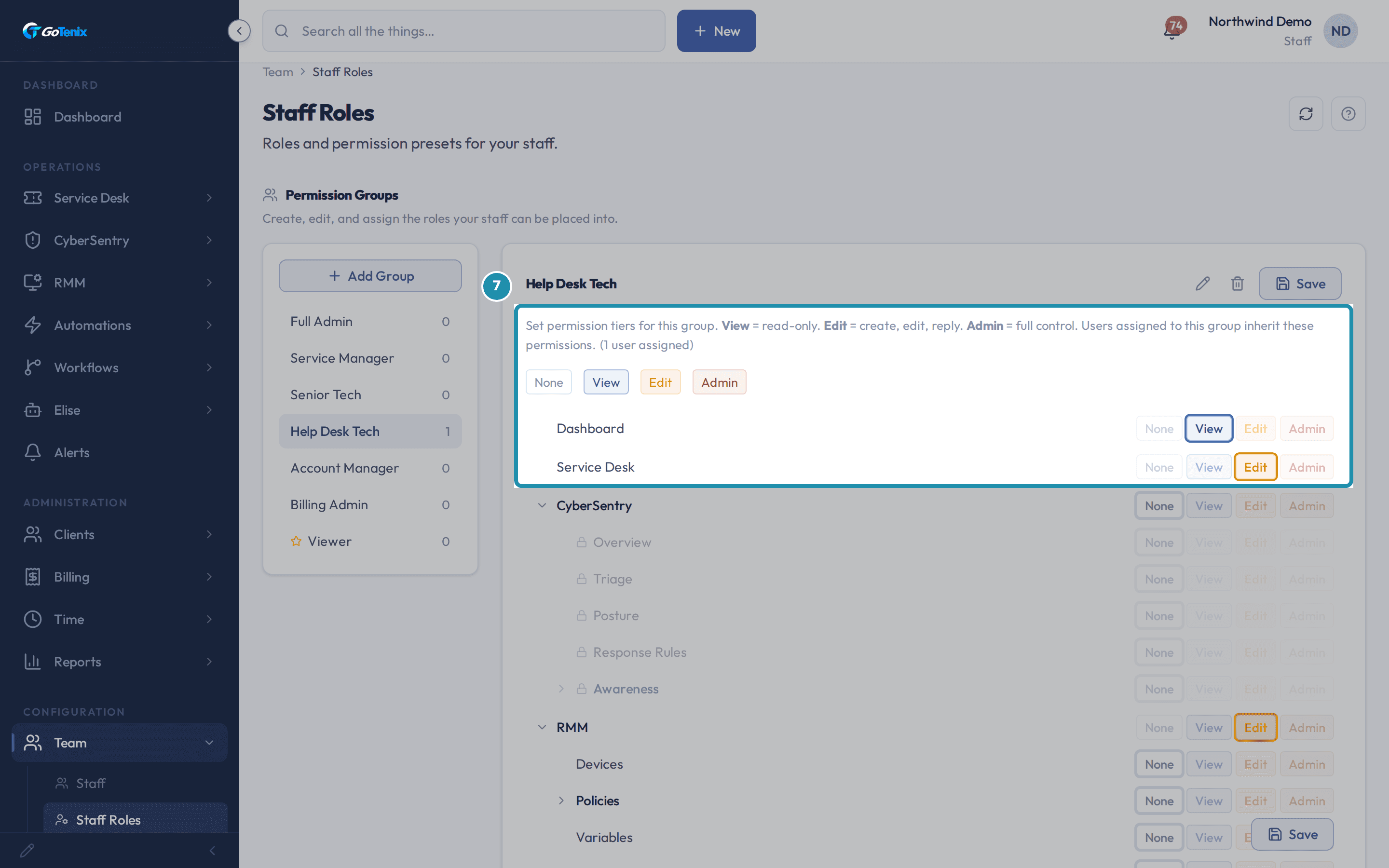
Full Admin, Service Manager, Senior Tech, Help Desk Tech, Account Manager, Billing Admin and Viewer are created for every instance. Service Manager, for example, "Runs day-to-day operations: ticket flow, client relationships, pod assignments, staff scheduling. Sees billing without editing it." Add Group starts a custom group.
Open Team > Staff Roles to see the built-in permission groups. Click a group to edit it, and set a tier on a section.
The tiers are None, View, Edit and Admin. View is read-only, Edit means create, edit and reply, and Admin is full control, and users in the group inherit them. Help Desk Tech is set to View on Dashboard and Edit on Service Desk. Change a tier and click Save, and everyone in that group gets the change.
Click a group to edit it, and set a tier on a section. See why a group may not have Staff Roles in its menu.
Staff Roles needs admin access to Team. Full Admin and Service Manager have it, while Senior Tech, Help Desk Tech, Account Manager and Billing Admin can only view Team, so the row is hidden and typing the address does not get them in.
Open Team > Dispatch > Tag Estimates.
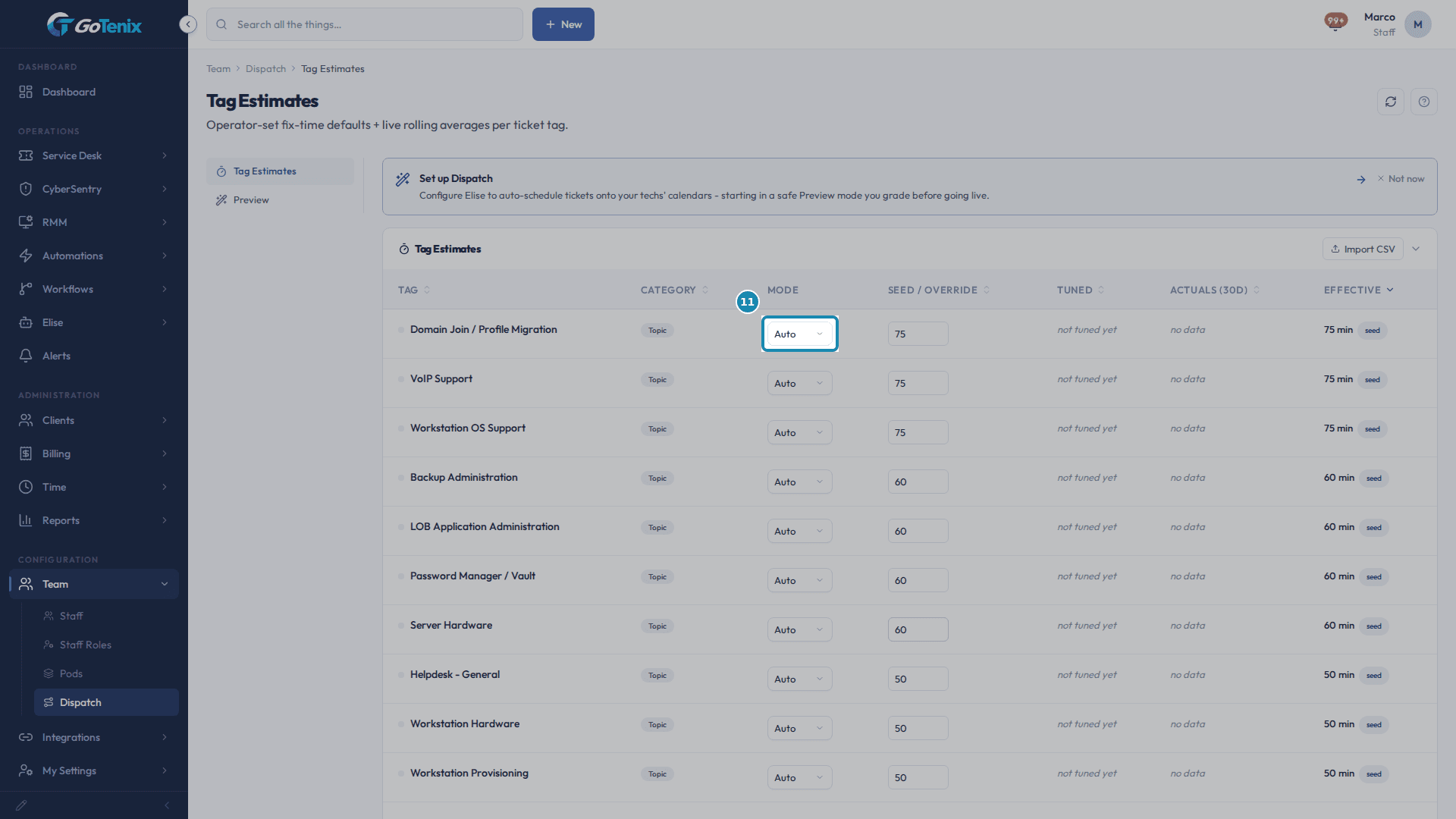
Every tag that can go on a ticket has one row with Tag, Category, Mode, Seed / Override, Tuned, Actuals (30d) and Effective. Seed / Override is the fix-time you set, Tuned is learned from your own resolved tickets, Actuals is the live 30-day median for comparison only, and Effective is what dispatch uses right now. A ticket takes the largest Effective value across its tags.
Choose a Mode for a tag: Auto, Manual or Rolling.
Auto uses Tuned when it is confident, then Seed / Override, then the category default. Manual uses Seed / Override, and with none set it behaves exactly like Auto. Rolling uses Tuned only, so below the confidence bar the tag is not used at all and Seed / Override is ignored.
Choose a Mode for a tag: Auto, Manual or Rolling. Let Auto-Tune keep the estimates honest.
Auto-Tune Dispatch Times is on by default. Each week it learns every tag's fix-time from actual time entries and applies it, using the days set in Auto-Tune Window (days), which starts at 90. Both settings are in Settings > Dispatch & Scheduling > Dispatch Tuning, under Timing & Estimates. If you turn it off, the page says the last learned Tuned value keeps being used but will not update as your tickets change.
Import a set of estimates at once with Import CSV.
The file needs two columns, tag and minutes, and may add a third column, mode. A header row is skipped. Each row creates the tag in the Topic category or matches an existing one by its canonical name, so "Printer Issues" and "printers" land on the same row. A mode is changed only when the file names one, so a re-import never un-pins a Manual tag.
Read the confidence labels.
Confidence comes from the number of samples behind a tag's Tuned value: High is 20 or more, Medium is 5 or more, and Low is under 5. Dispatch trusts the Tuned value only at Medium or better. Below that, Auto falls back to Seed / Override and then the category default, and Rolling skips the tag.
Set Dispatch Mode and open Team > Dispatch > Preview.
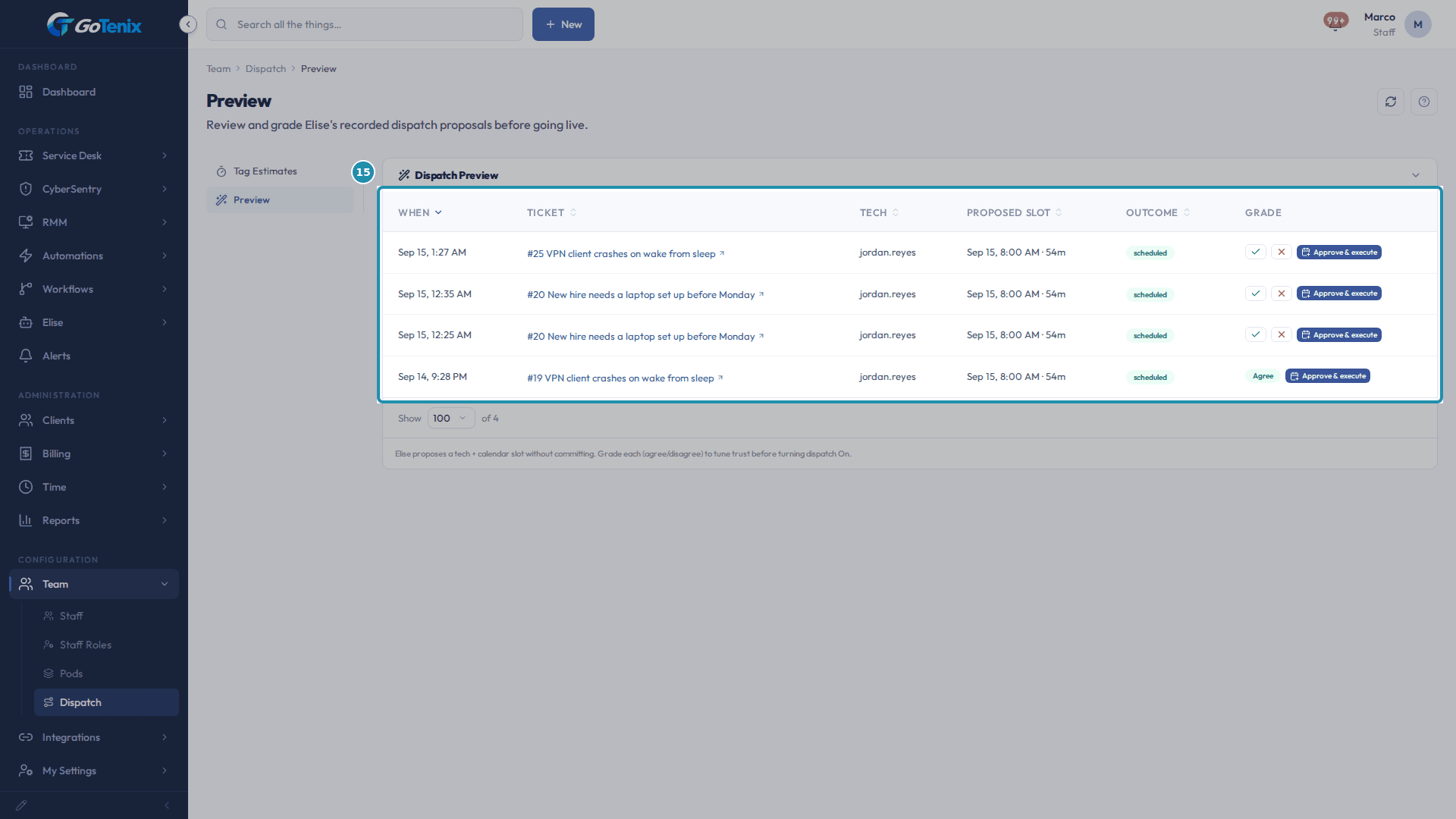
Elise Dispatch Mode is Off, Preview (record + grade) or On (live). On works per pod, and only for pods whose Auto-Dispatch toggle is on. In Preview, Elise records which tech and calendar slot she would have chosen without writing to any calendar. The Preview page lists each proposal with When, Ticket, Tech, Proposed slot, Outcome and Grade.
Set Dispatch Mode and open Team > Dispatch > Preview. Grade a proposal with Agree or Disagree.
Grading is your feedback, to build trust before you turn dispatch On, and it does not book anything. A proposal with a slot also has Approve & execute, which turns that one preview into a real calendar booking for that ticket.
Know where the old Dispatch Board went.
Team > Dispatch holds Tag Estimates and Preview only, and opening it lands on Tag Estimates. The day timeline of every pod and each tech moved to Service Desk > Schedule, and the old Board address forwards there.
See what Elise dispatch can do for your team.
To pick who, she can balance by each tech's load or by open tickets, and to pick when, she finds a free slot on that tech's calendar for the padded estimate. If no single working window fits, she splits the work across several slots. She stays inside each tech's working hours, from their own override, then their pods, then the company default, and she skips holidays. When a ticket closes, the portal compares the planned block with the time actually logged and feeds that back into the tag estimates each week. If a tech is marked out of office, their not-started tickets in that window can be unscheduled, while tickets already in progress are surfaced, not moved.
Let Elise handle staff changes from chat.
Ask "reset MFA for Casey Brooks, they lost their phone" and she clears that person's authenticator secret and backup codes so they re-enroll, forced at next sign-in when MFA enforcement is on. Ask "offboard Casey Brooks" and she removes their staff status and clears their pod memberships, default assignees, ticket rules, recurring tickets and board watchers, then reports the open tickets still assigned to them. Both are shown to you for one tap of confirmation first, and both need edit access to Team. She will not offboard you or the owner, and only the owner can offboard a Super Admin.
What you will have
- Assign a tech's own computers on their Devices card.
- Read the Plan & billing card and know who can see it.
- Open Staff Roles, see the built-in permission groups, and set a tier on a section.
- Tune Tag Estimates: the fix-time defaults and modes that dispatch reads.
- Grade Elise's recorded dispatch proposals on the Preview board.
- Know what Elise dispatch can do for your team, and what she can do for staff from chat.
Why it works this way: How to set staff devices, permission groups and Elise dispatch tuning
Device assignment is admin only on purpose. If a tech could assign themselves any approved device, a toast carrying a ticket subject could land on a computer that is not theirs.
The Plan & billing card is your own account with your platform provider, not your client billing. It sits under the staff list because the platform bills by billable seat, and Staff is where seats are added and removed.
A permission group's tier on a section caps every page under it. Help Desk Tech has View on Team, so Staff Roles, which needs admin access to Team, never appears in its sidebar.
Tag Estimates and Preview live under Team > Dispatch because they tune the dispatcher that Team > Pods hands tickets to. Tag Estimates sets how long a ticket with a given tag is expected to take, and Preview shows what Elise would have booked before you let her book it.
If it did not work: How to set staff devices, permission groups and Elise dispatch tuning
- If the Devices search says "No approved devices match.", the computer you want is not approved yet, already belongs to another staff member, or is a client's device.
- If the Plan & billing card is missing, your permission group cannot view platform billing. Ask someone who can edit Staff Roles.
- If Staff Roles is missing from your Team menu, your permission group has View or lower on Team.
- If a Tag Estimates row reads "not tuned yet", the weekly re-tune has not learned a value for that tag, so check Auto-Tune Dispatch Times is on and that tickets with the tag are being resolved with time logged.
Questions this page answers
What does the Devices card on a staff member do?
It records which computers belong to that person, so the portal knows where to put a desktop toast for them. A tech can have one device or five. Adding a device does not start sending anything: it only makes the Desktop toast column appear on that person's own notification preferences, where they choose which events are worth interrupting them for.
What does the "Suggested" tag on a device mean?
Our agent reports which user is logged in on each computer. When that login resolves to exactly one active person in the same client, and that person is the one whose record you are looking at, we float the device to the top of the list and tag it. It is a shortcut for finding the machine in a long fleet list, nothing more: the assignment only happens when you click Add. A device that starts reporting a different login user never reassigns itself.
Why can I not add a particular device?
Three reasons cover almost every case. The device has to be approved, because an unapproved device is telemetry-only and takes no commands. It has to be live, so a machine superseded by a reinstall is hidden and its replacement is offered instead. And it can only belong to one person: a device already on another staff member's list is not offered, so remove it there first. The list also shows only what the agent is on, so a phone or a computer without our agent will never appear.
What happens when I remove a device from a tech?
Toasts stop going to that machine immediately. Nothing else changes: the device keeps its enrollment, its history and its monitoring, and the person keeps every other way they hear about things. If they have no devices left, the Desktop toast column simply disappears from their notification preferences and their existing choices are remembered for the next device.
What is the "Plan & billing" card?
It is your OWN account with your platform provider - the plan you are on, what your next invoice looks like, and the card it will be charged to. It is not your client billing; that lives under Billing, where you invoice your own clients. This card is here because the platform bills per billable seat, and the Team page's staff list is where seats are added and removed.
What is the Staff Roles page for?
This page is where you create, edit, and assign the permission groups your staff can join. It controls what each admin user can see and do across the portal.
How do Admin Permission Groups work?
Admin Permission Groups (built-in ones include Full Admin, Service Manager, Senior Tech, Help Desk Tech, Account Manager, Billing Admin, and Viewer, plus any custom groups) control what admin users can see and do. Each group sets a permission tier for every section of the nav tree. Assign a group to an admin user to grant them that access. Create custom groups in Team > Staff Roles to tailor access beyond the built-in presets.
How do I create a custom permission group?
Go to Team → Staff Roles and start a new group. For each nav section, set the access tier: None, View, Edit, or Admin. A parent section's tier caps every child section under it. Save the group. Then assign staff to it from their user record, or from the Group column on the Staff list.
Why can't I find Staff Roles in my nav?
Staff Roles needs admin access to the Team area. The Owner, Full Admin, and Service Manager groups have it. Senior Tech, Help Desk Tech, Account Manager, Billing Admin, and Viewer get view access, so the row is hidden. Typing the web address does not help. The page is refused the same way.
What is Tag Estimates?
One row for each tag that can go on a ticket. Each row holds four numbers. "Seed / Override" is the time you set. "Tuned" is the time we learned from your own closed tickets. "Actuals (30d)" is the live 30 day median, shown so you can compare. "Effective" is the time dispatch uses right now. When a ticket needs a time, dispatch reads the tags on it and takes the largest "Effective" value.
Auto vs Manual vs Rolling - what should I pick?
Pick "Auto" for almost every tag. "Auto" uses "Tuned" once there are enough closed tickets. If there are not, it uses your "Seed / Override". If that is blank, it uses the category default. "Manual" pins the tag to your "Seed / Override". Leave that blank and "Manual" acts just like "Auto". "Rolling" uses "Tuned" and nothing else. Below the confidence bar it drops the tag, and "Effective" reads "not used".
Are the rolling averages per-client or tenant-wide?
Tenant-wide. The Tag Estimates page aggregates across every client in your tenant database so a universal tag like "printer" reflects all your tickets, not one client's slice. When the dispatcher resolves an estimate for an actual ticket, it reads that same tenant-wide tuned value, so the effective number you see here is the number dispatch uses.
What is the Preview board?
When Dispatch Mode is set to "Preview", Elise records what she WOULD dispatch, which tech and which calendar slot, without automatically writing to anyone's calendar. You review each recorded decision and grade it Agree or Disagree. When a pick found a usable slot, an "Approve & execute" button lets you promote that one preview into a real calendar booking on the spot. It's the trust-building on-ramp: run preview for a week, confirm Elise's picks match what you'd do, then flip a pod to live dispatch with confidence.
What do Agree / Disagree do?
They're your feedback on Elise's recorded pick - whether the tech + slot she chose is what you'd have done. Grading doesn't change the ticket (preview never touches calendars); it builds the track record you use to decide when to go live. Disagreements are the signal to check your tier fill targets, overflow margin, or tag estimates.
What does the Dispatch board show?
There is no board here. Team > Dispatch holds two pages only, Tag Estimates and Preview, and opening it takes you straight to Tag Estimates. The day-at-a-glance timeline of every pod, each tech in it, and the tickets scheduled on their calendars moved to Service Desk > Schedule. The old /admin/team/dispatch/board address still works; it just forwards you there.
Where is my card stored? Does this portal see the number?
No. When you add or replace a card, the form you type into is served directly by the payment processor, and the number goes straight to them. This portal never receives, sees or stores it - the only thing that comes back is the brand and the last four digits, for display. Use "Replace card" to switch to a different card; the new one takes over automatically and the old one stops being used.
Why does "Invoices & billing history" open somewhere else?
Because your platform invoices are your provider's records, not this instance's. This portal holds a small display copy - your recent charges and anything still outstanding - but the full history, with the invoices themselves, lives on your provider's portal. The link mints a single-use, ten-minute pass for that page, which is why it opens in a new tab and why a stale link stops working. Click it again to get a fresh one.
Was this helpful?