Install the agent and manage one client's devices from its Devices tab
Put the agent on a client's machines with an install key or a silent MSI push, choose the policy each kind of machine gets, and watch their roster and health from one tab, using the same components as the fleet-wide RMM pages.
See it
Browse
On this page
How to do it
Open a client's record and click the Devices tab.
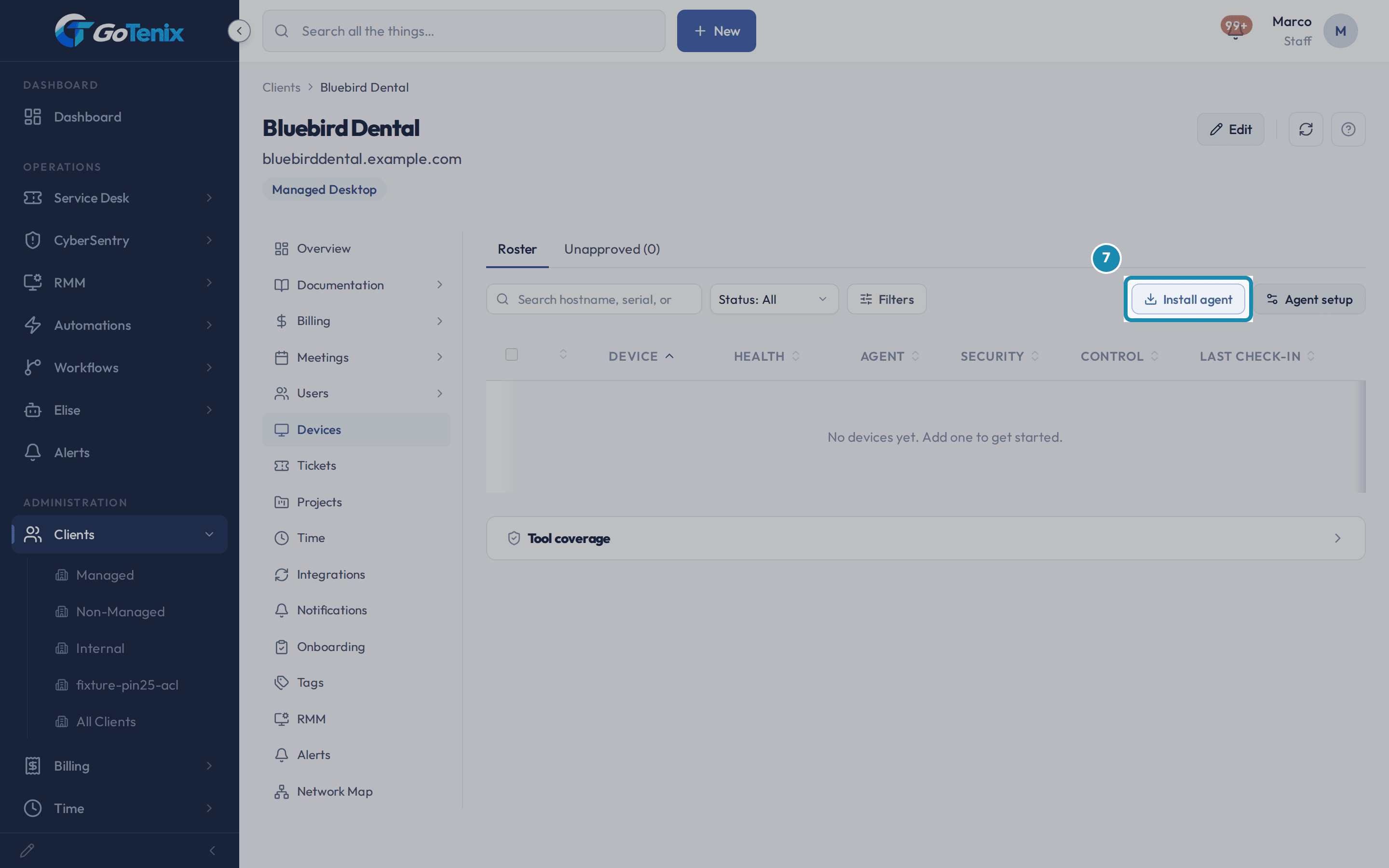
The roster fills the tab: this client's slice of the one device roster, with its Unapproved tab. On the bar above it, Install agent starts an install and Agent setup opens a drawer with the Install Keys card, the One-time install link (advanced) and Policies for this client. Tool coverage sits folded below the roster.
Open Agent setup and click Generate default install key.
The card then shows the default key with a copy button and Regenerate. The default key can only be regenerated, not revoked. Under it are the EXE installer, MSI installer and Linux installer rows, each with a Download button, and a Quick troubleshooting tips panel. Add named key mints another key with its own Revoke button, the one to use when a push might leak the key, such as a GPO or Intune rollout.
Open Agent setup and click Generate default install key. Push the MSI silently with your own tool.
Run the portal's own command as SYSTEM or elevated on each machine: msiexec with /qn and ENROLLURL set to your link. The copy button gives you the exact command. Quote the link. The install waits up to 90 seconds for the device to connect. If it does not connect, msiexec reports failure code 1603, but the service stays installed and keeps trying. Check the result on the roster's red Install issues button, which opens Installs that need attention.
Use the one-time link for a single install.
Open One-time install link (advanced) and click Generate agent installer. It is a self-expiring, single-use link, good for 24 hours, for a one-off field install. Most deployments use the install key from step 2 instead.
Choose the policy each kind of machine gets.
Policies for this client shows one picker per kind of machine: Workstation, Server, Mac and Linux, with how many devices each covers. A blank picker means the default policy set for every client. The Every client link opens the same assignment across all clients, RMM > Policies > Clients. A client that needs different values gets its own named policy and an assignment here.
Read the roster and act on it.
The columns are Device, Health, Agent, Security, Control and Last check-in. The Status select holds All, Needs attention, Offline and Online, and the Filters button holds the rest. The Health icons show waiting updates, open alerts and an agent that is behind. Tick boxes to pick machines and use Move to another client or Remove for all of them at once. Each row has a three-dot menu with Open and Edit device, and Run script when you are allowed to run code on a device. Tool coverage lists which RMM, antivirus and remote-access tools are missing on each machine. It depends on a connected RMM integration.
Click Install agent to open the Install agent dialog.
It is the same dialog RMM > Devices opens, already scoped to this client: the same EXE, MSI and Linux rows, the same Quick troubleshooting tips and the same Install key field.
Click Install agent to open the Install agent dialog. Ask Elise about this client's devices.
Find: "Which of Bluebird Dental's devices are offline?" Elise reads the client's device list with each machine's type, OS and online status. Add up: "How many workstations does Bluebird Dental have?" Report: "Give me Bluebird Dental's RMM health for the last 30 days." She returns device counts, offline devices, patch compliance, open device alerts and agent versions. Diagnose: "What is wrong with the front desk PC?" She reads its recent errors and suggests next steps without running anything on it. Change: "Put Bluebird Dental's workstations on the Healthcare policy." Elise shows the change before and after and asks for one tap to approve. It needs permission to edit RMM. Push: "Push 7-Zip from the patch catalog to all of Bluebird Dental's devices." She asks for one tap, and refuses the whole push if it would reach more than 250 devices. It needs permission to run actions on devices. Look up: "What is the warranty on the front desk PC?" She reads the warranty already stored for the device. Assign: "Assign the front desk PC to Priya Shah." She sets the device's user without a pause unless your admin has tightened that. It needs permission to edit RMM.
What you will have
- Generate this client's install key and download the EXE, MSI or Linux installer.
- Push the MSI silently through GPO, Intune, PDQ or any RMM tool.
- Use a one-time link for a single field install.
- Pick the policy each kind of machine gets for this client only: Workstation, Server, Mac and Linux.
- Read the roster, find machines that need attention or are offline, and act on them.
- Ask Elise about this client's devices, from a device list to a policy change.
Why it works this way: Install the agent and manage one client's devices from its Devices tab
This tab is not a separate device system. The install keys, the policies and the roster are the same components RMM > Devices renders, scoped to this client. A key generated or a policy set here is the same record the fleet-wide grid shows.
The roster fills the tab. The bar above it holds Install agent and Agent setup. The Install Keys card, the one-time install link and this client's policies are in the Agent setup drawer.
Other ways to do this: Install the agent and manage one client's devices from its Devices tab
From RMM > Devices, filtered to one client
Open RMM, then Devices, and set the Client filter to this client.
If it did not work: Install the agent and manage one client's devices from its Devices tab
- No Generate default install key or Generate agent installer button, only quiet cards: either the account viewing this tab does not carry this client's edit tier, or this instance has not had its device-agent plane provisioned yet.
- No Devices tab in the client's tab strip: this tab shows only on an instance set up for the MSP module.
- Looking for the Install Keys card on the page itself: it is in the Agent setup drawer, opened from the bar above the roster.
Questions this page answers
How is this different from the RMM Devices page?
This is the same door as RMM > Devices, already set to this client. The same "Install agent" flow. The same "Install Keys" card, found in the "Agent setup" drawer on this tab's bar. The same commands. Open Help on RMM > Devices for the full FAQ: the enrol URL, the MSI switches, a silent push, and exit codes. Everything there applies here too.
Was this helpful?