How the client portal works for your clients
Your clients sign in with a one-time link, raise and close their own tickets, read their plans, invoices and quotes, share a password safely and finish security trainings, all from one portal on your records.
See it
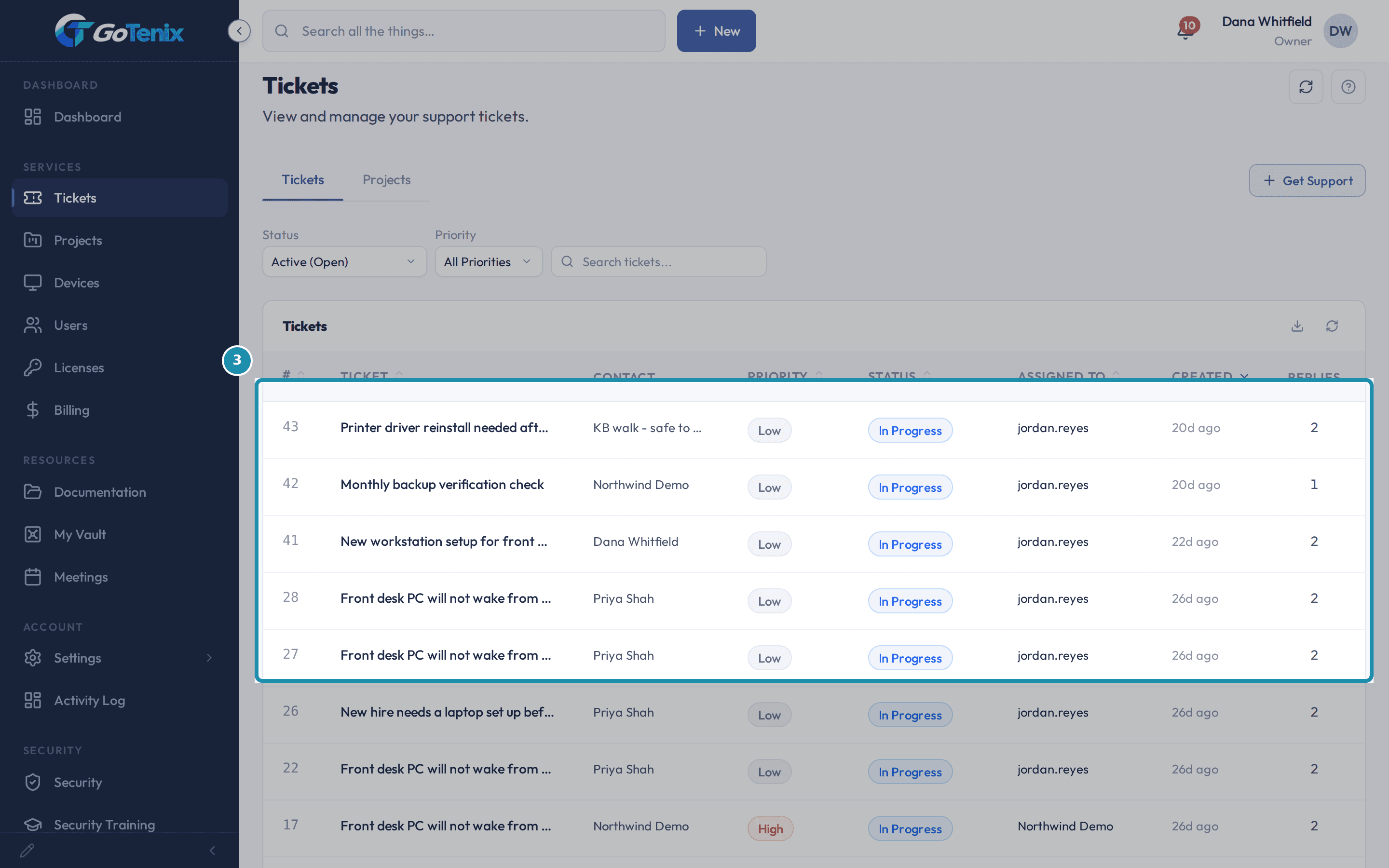 3. Open Tickets to see everything your company has raised.
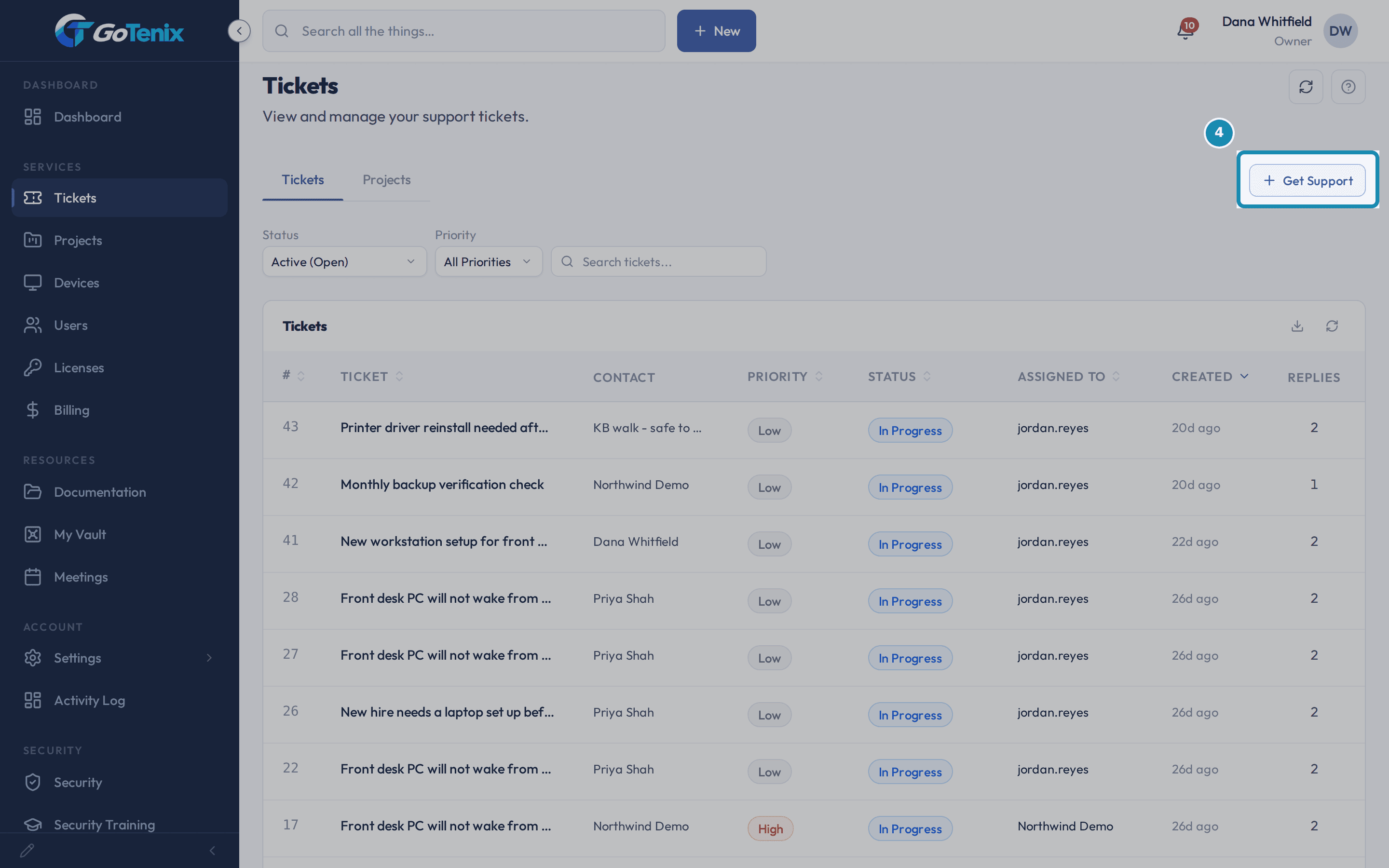 4. Press Get Support and say what is wrong.
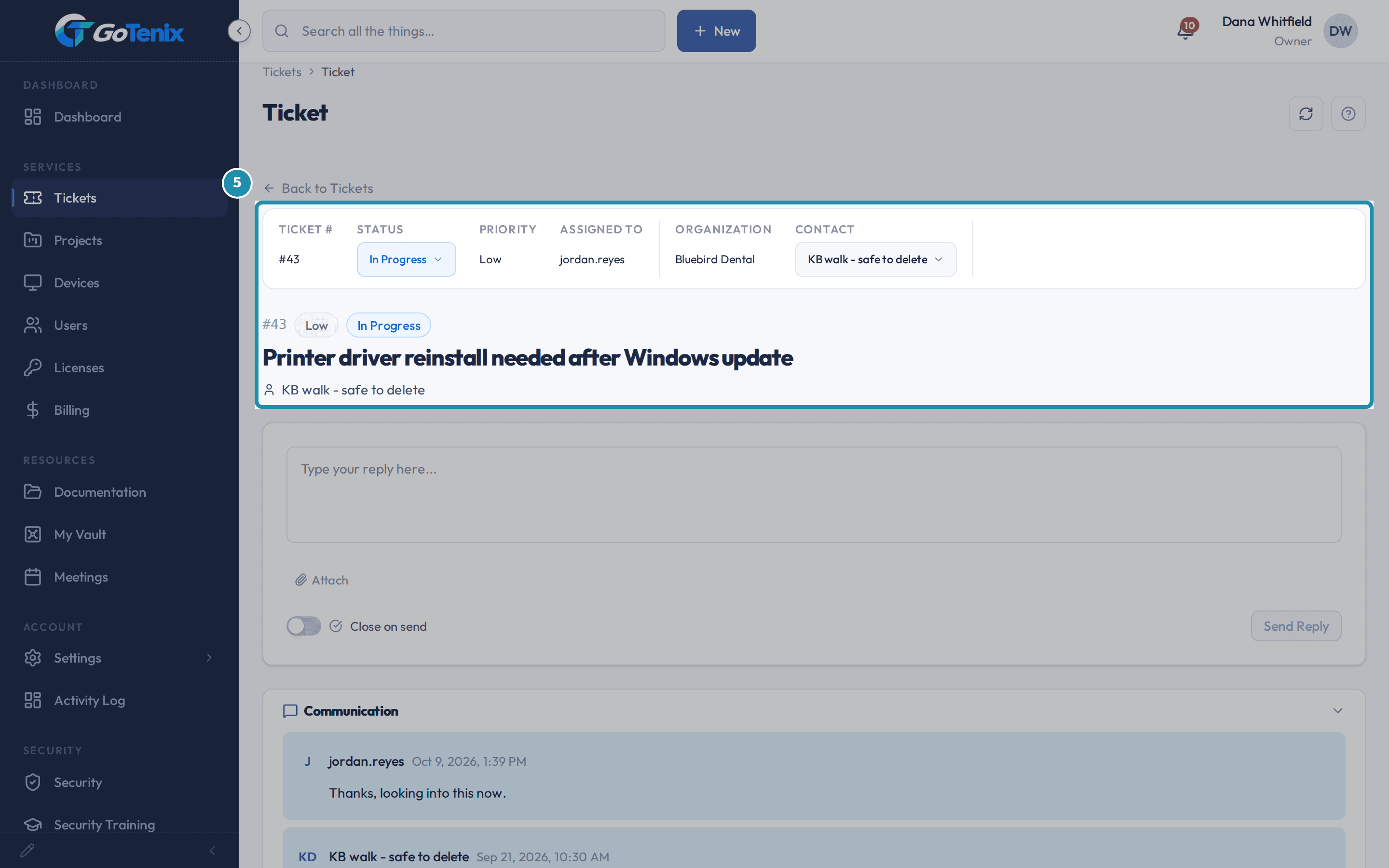 5. Read the ticket's own page.
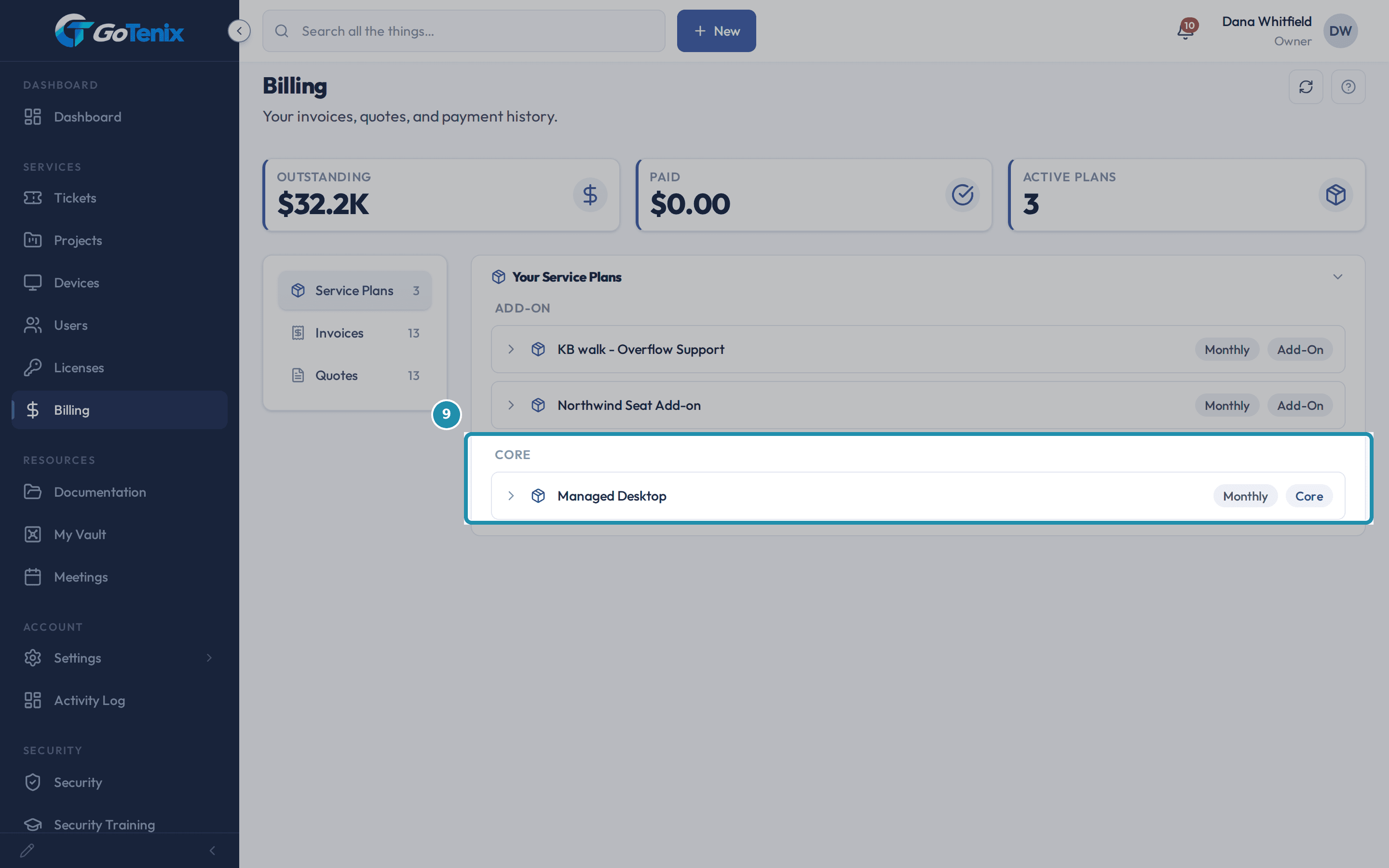 9. Open Billing and click a service plan to see what it costs.
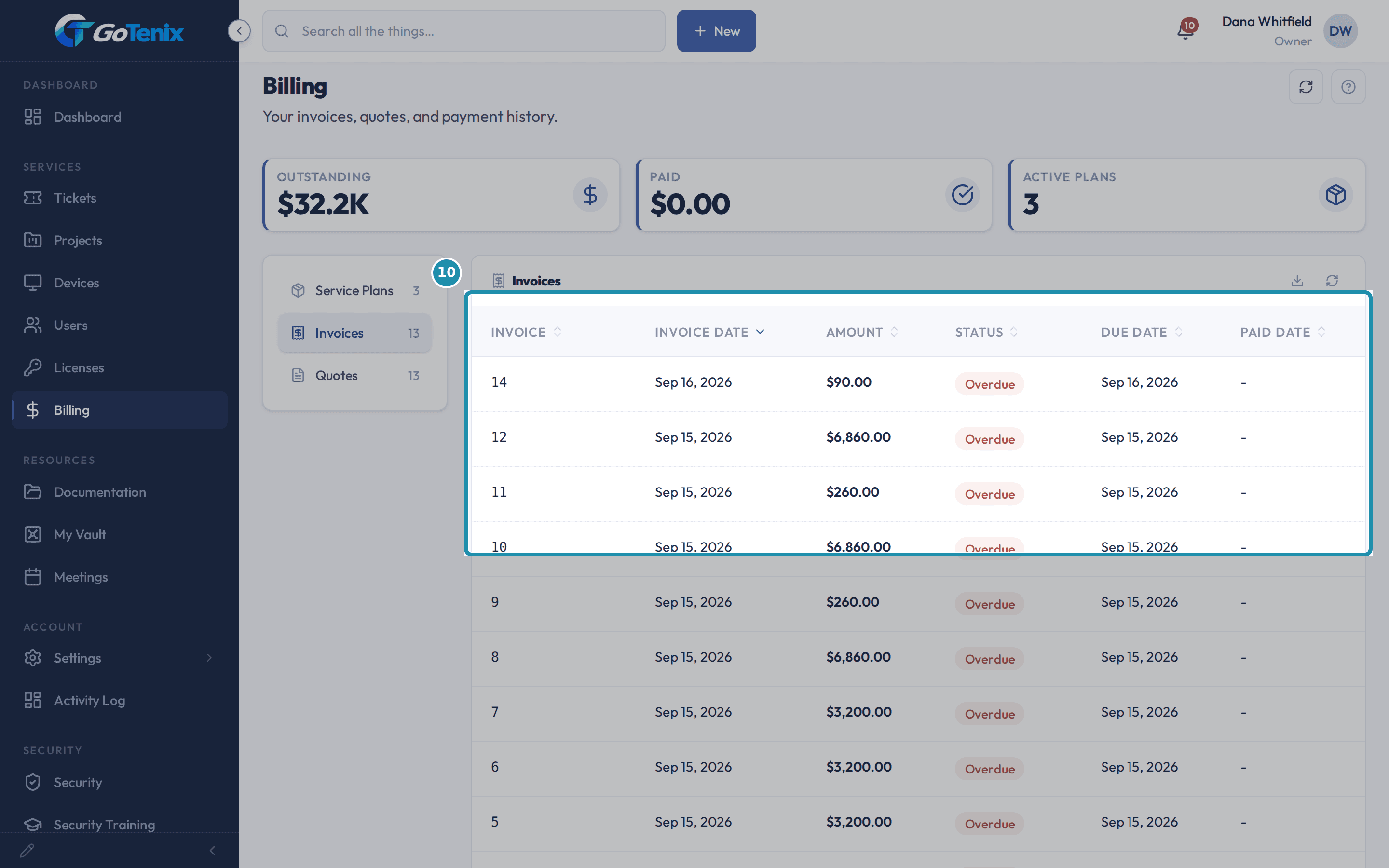 10. Switch to Invoices and click one to see its lines.
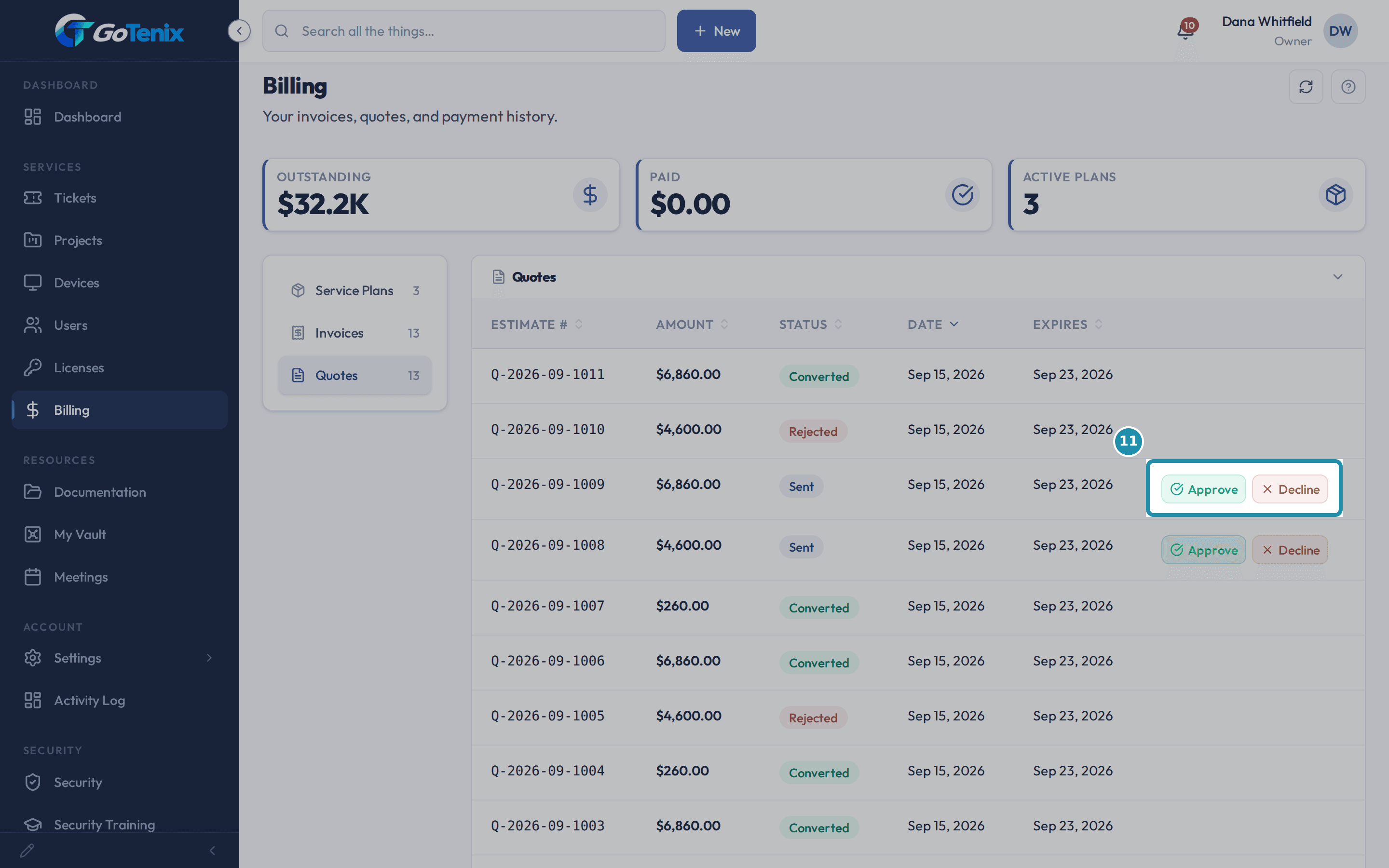 11. Switch to Quotes to see what is waiting on a decision.
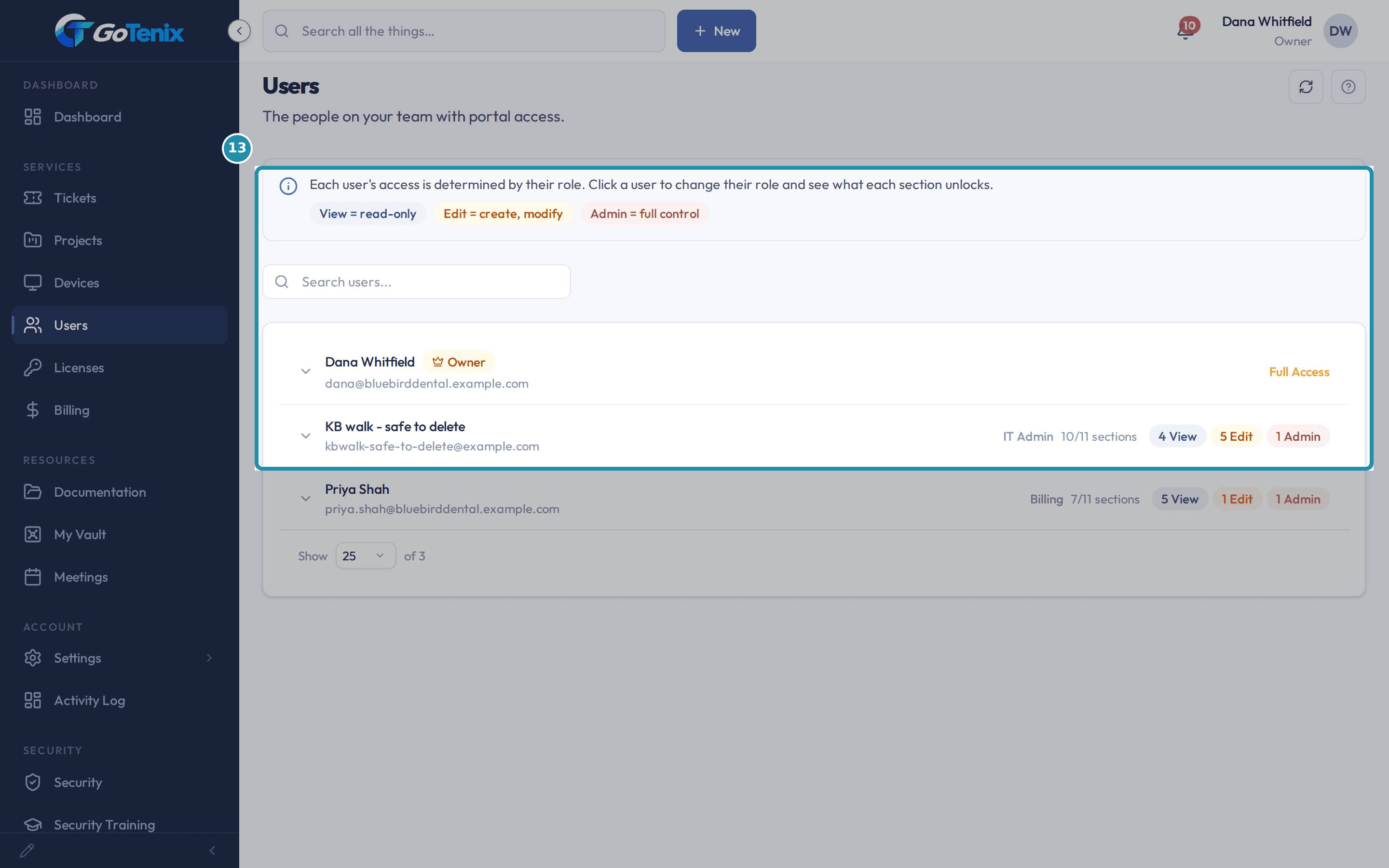 13. Open Users to see who on your team can see what.
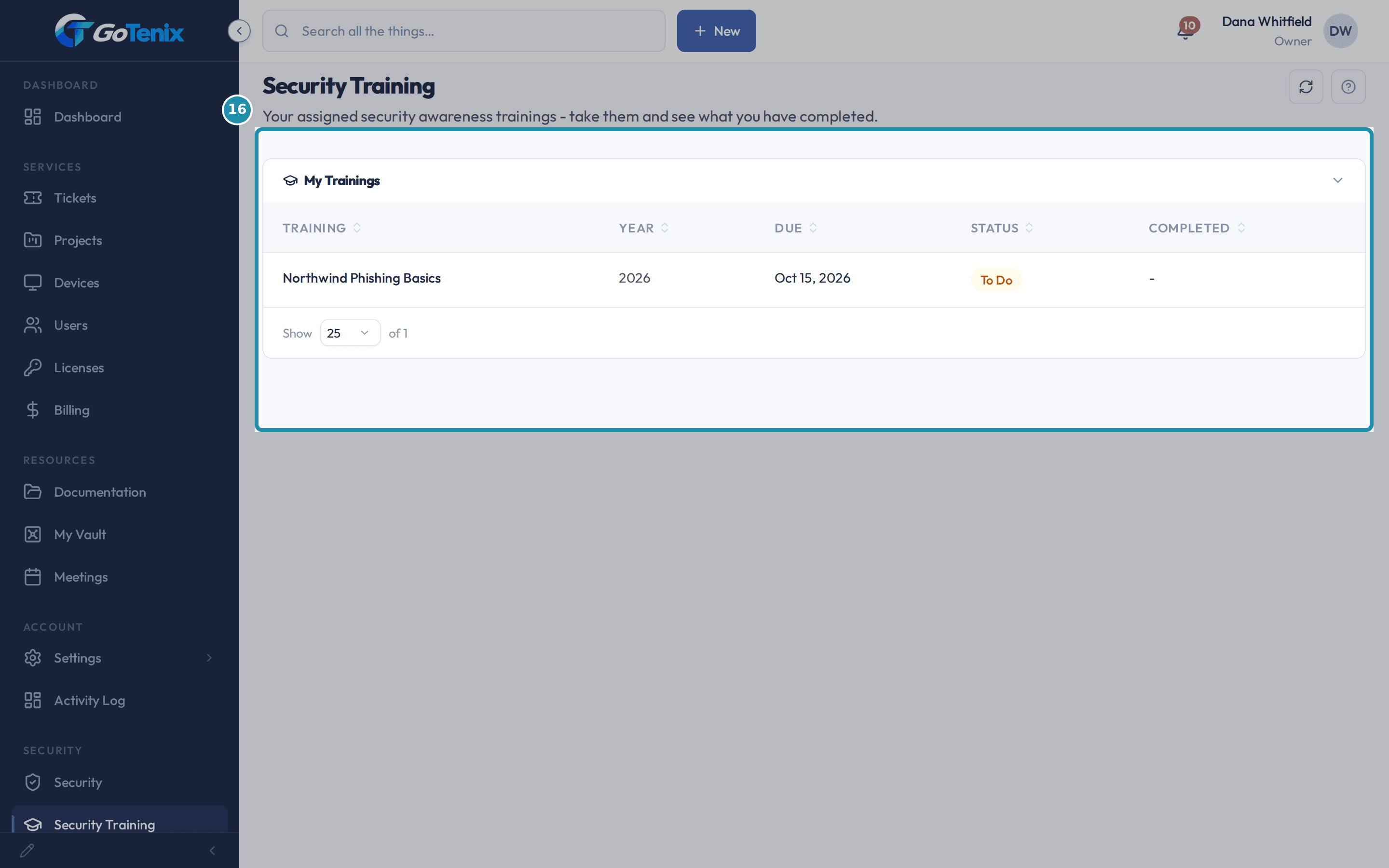 16. Finish an assigned training from Security Training.
Browse
On this page
How to do it
Go to your IT provider's portal address, type your work email, and press Email me a sign-in link.
There is no password field. A one-time link arrives in your inbox; open it and press Continue. If your company signs in with Microsoft 365 or Google, use the two buttons above the field instead and skip the mail.
Look at what you land on.
Roles that include the Dashboard land there: it shows how many devices are being monitored for you, what is outstanding on invoices, how your IT provider is tracking against the response targets in your agreement, and your open tickets. The basic User and Billing roles land on Tickets instead.
Look at what you land on. Open Tickets to see everything your company has raised.
The list opens on Active (Open) so finished work stays out of the way; switch Status to All to see closed tickets too. Priority and the search box narrow it further, and the Replies column tells you how much conversation a ticket already carries. A basic User or Billing login sees only the tickets they raised themselves.
Open Tickets to see everything your company has raised. Press Get Support and say what is wrong.
Two fields in plain English: a short Subject and a Description. Say what stopped working, what you already tried, and any error message word for word, so your IT provider does not have to ask. Then press Submit Ticket.
Press Get Support and say what is wrong. Read the ticket's own page.
It opens with a number. The strip across the top gives the number to quote on the phone, the status, how urgent it is, who at your IT provider has it, and which contact it is filed under. The status is the stage your IT provider's team has the ticket at, so it changes as they work.
Read the ticket's own page. Read and write on the conversation.
Under Communication the newest message sits at the top and older ones follow below it, down to the message you sent in. Notes your IT provider writes for themselves do not appear here. Write in the reply box and press Send Reply; Attach adds a file. Your reply lands on the ticket for the person working it. If the ticket was waiting on you (Waiting on Client) it moves back to active work; on a closed or resolved ticket a reply leaves the status as it is.
When you are done with it, turn on Close on send.
The send button changes to read Send & Close, and pressing it asks Send and close this ticket? before anything goes. Cancel leaves everything as it was. Where your IT provider reviews work before it closes, the switch reads Resolve on send instead. The User and Billing roles do not get this switch.
Warning: Closing a ticket stops work on it. If you are not sure the problem is fixed, send an ordinary reply instead and let your IT provider close it.Too quick? Press Reopen ticket.
A closed or resolved ticket keeps its reply box, and a reply there leaves it closed. The Reopen ticket button beside the box opens it again after you confirm. The confirmation says you do not need to write a reply first, and the ticket goes back to your IT provider as open work.
Open Billing and click a service plan to see what it costs.
Billing is there for roles that include it; the basic User role does not have it. Each plan shows its billing frequency and its type. Clicking one opens the period it is billing, the next bill date, the rate for each line, the count it is charged on and the amount. A plan that has not started yet shows the date it starts.
Open Billing and click a service plan to see what it costs. Switch to Invoices and click one to see its lines.
The list shows your invoices with their status and dates. Opening one shows the line items behind the number, and Print or Download PDF gives you a copy to file or forward to whoever pays.
Switch to Invoices and click one to see its lines. Switch to Quotes to see what is waiting on a decision.
The quotes your IT provider has sent you are listed with number, amount, status and expiry date. A quote marked Sent shows Approve and Decline buttons in its row to the account owner and the Primary Contact. Approve opens a review of the line items, optional items and terms before you commit; Decline asks you to confirm, and a declined quote is final. Other roles see the list without the buttons.
Switch to Quotes to see what is waiting on a decision. If your IT provider takes cards on file, a My Payment row appears in the left menu.
The page is where your company saves a card with your IT provider, so card details do not need to be sent by email or read out over the phone. It shows the brand, last four digits and expiry of each saved card, and Remove takes one off after you confirm. The row only appears once your IT provider has switched client card capture on. By default the account owner, the Primary Contact and the Billing role can add or remove a card.
Open Users to see who on your team can see what.
Clicking a person opens their role and its effect: every section of the portal with View, Edit, Admin or Personal beside it, so you never have to guess what a role unlocks. The account owner shows as Full Access. The Users page is there for the Primary Contact and IT Admin roles by default.
Open Users to see who on your team can see what. To give someone outside the portal a password, open the entry in Documentation and press New link.
You choose how long the link lives (1 hour, 1 day, 7 days or 30 days), you can cap how many times it opens, and you can require a passphrase of 8 or more characters. The note field is for you, so the list says later who the link was for. Sharing needs edit access to Documentation, which the IT Admin and Primary Contact roles have by default.
Copy the link straight away, and revoke it when it is no longer needed.
The link is shown once, at the moment you create it. After that the list shows the state of it: active, how many times it has been opened, and when it expires. Revoke link on the row stops it on the spot. Expired and revoked links stay in the list as history.
Note: Revoking is immediate. Anyone still holding the link stops being able to open it, so create a fresh one rather than trying to restore it.Finish an assigned training from Security Training.
Click the row to open it, read the lessons, then read the knowledge check at the end. The correct answer is marked on the questions as a study aid, and nothing is graded. Tick I have read this training and understood it, then press Confirm Training Record. The row moves to Completed with the date.
Finish an assigned training from Security Training.
What you will have
- Sign in without a password.
- Raise a ticket, write back on it, close it yourself, and reopen it if you were too quick.
- Find what you owe, what your service plans cost, and which quotes are waiting.
- Know what the card-on-file page is and when it appears.
- See who on your team can see what, share a password outside the portal safely, and finish a security training.
Why it works this way: How the client portal works for your clients
There is no password to sign in with in this portal. Signing in mails you a one-time link, so there is nothing for anyone at your company to forget, reuse or leak, and nothing for your IT provider to reset.
The portal is your IT provider's own records, shown to you directly. The ticket you raise here is the same ticket their techs work, the invoice you open is the same invoice their accounting raised, and the password you read is the one they maintain. Nothing here is a copy that can drift.
What you can see and do is decided by one role on your record, not by a page-by-page permission list. Your Users page prints that role's whole effect in one grid, so nobody has to guess who can do what.
Other ways to do this: How the client portal works for your clients
The rest of the left menu
Projects lists larger pieces of work with their sub-tasks, Devices shows the machines being monitored for you, Licenses tracks the software you pay for per person, Meetings holds your reviews with their action items, Security shows what has been watched and handled, and Activity Log records what has happened on your account. Which of these a login sees depends on its role.
Raising a ticket by email instead
Send an email to the support address your IT provider gave you. It becomes a ticket, and it turns up in this same Tickets list with your message as the first entry in the conversation.
If it did not work: How the client portal works for your clients
- If the sign-in link does not arrive, check that you typed the address your IT provider set you up with, and look in junk mail. The link is one-time and time-limited, so an old one from a previous attempt will not work.
- If there is no Close on send switch in your reply box, your role does not include closing. The User and Billing roles do not get it; ask whoever holds Owner, Primary Contact or IT Admin at your company, or ask your IT provider to change your role.
- If a section this page shows is missing from your left menu, your role does not include it. Open Users, click yourself, and read the Access by section grid to see what your role covers.
Questions this page answers
How do I complete a training?
Click the training row to open it. Read the lessons, then read the check at the end. The right answer is shown for each question, so it is there to help you, not to test you. Tick the box to say you have read and understood it. Then press Confirm Training Record. We record it once and move the row to Completed.
Was this helpful?