How to work your ticket list: My Tickets, boards, filters and saved views
Start the day on one worklist, see what needs a person right now, and filter any board down to exactly the tickets you want. Save that view for yourself or your team and pin it to the nav.
See it
Browse
On this page
How to do it
Open Service Desk. It lands on the My Tickets tab.
The number on the tab is every open ticket assigned to you or where you are a CC tech, including project sub-tickets on any board and tickets carried over under your name from an older import. Closed tickets drop out of the count, and the badge hides at zero.
Open Service Desk. It lands on the My Tickets tab. My Tickets has two sections. The first is Tickets, your own top level work.
These are the tickets assigned to you, or where you are a CC tech, that are not part of a project. How many rows there are is read from the table's own footer, and the tab badge is the separate open count for the tab. Sort by clicking a column header, and the list starts with the most recently touched. My Tickets refreshes itself every 30 seconds while you are on it, and pauses while the tab is hidden or your cursor is in a text box.
Scroll down to the second section, Project Tickets.
Project work is assigned at the sub-ticket level, so a project's sub-tickets show here even though the project itself lives on a Projects board.
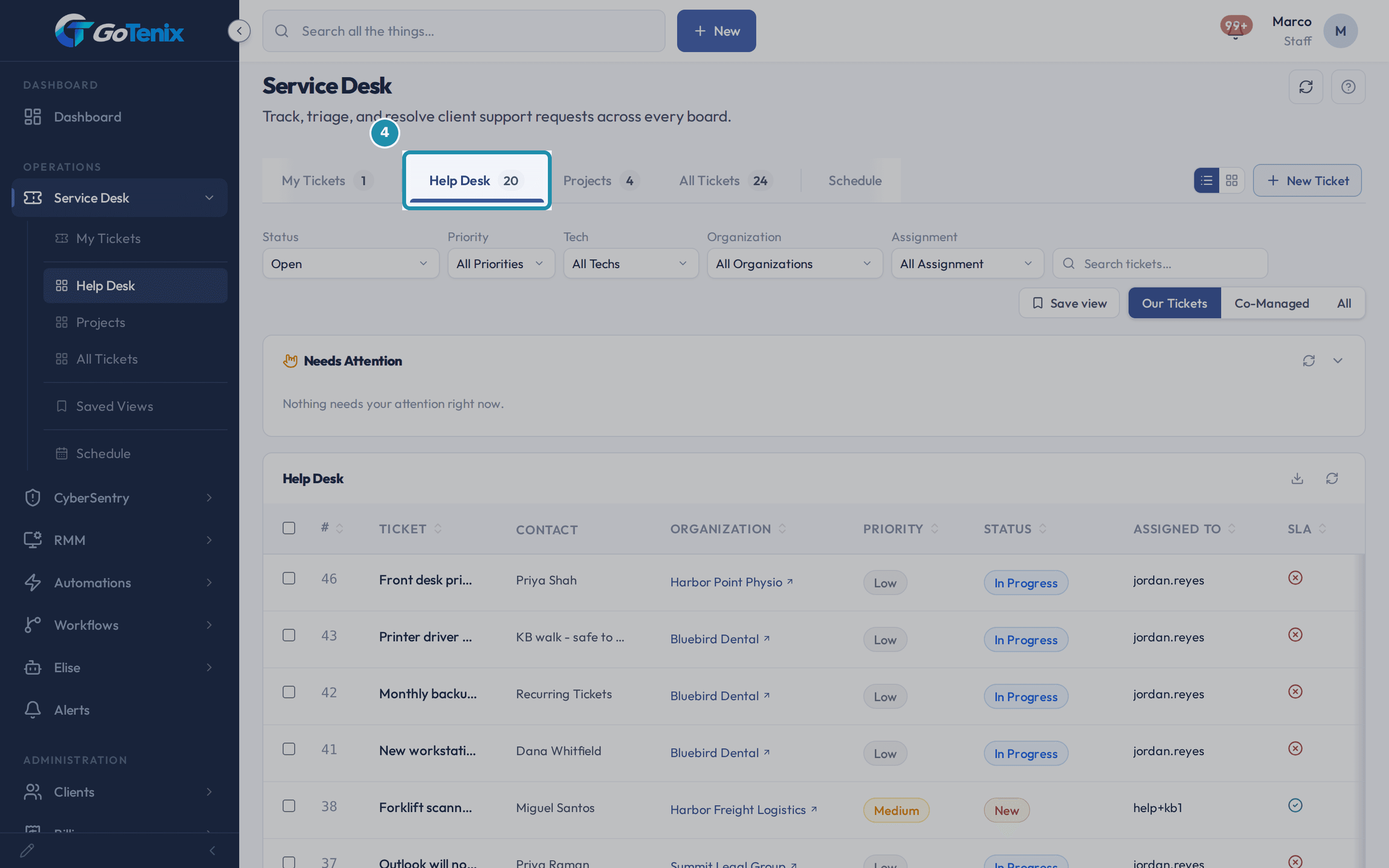
Click a board tab, such as Help Desk, to see that board's own tickets.
Each active board gets its own tab, managed at Settings > Service Desk > Ticket Boards. The last tab, All Tickets, shows every board at once, and the Schedule tab next to them shows one day of every pod's calendar. Board tabs can switch between a list and a kanban board.
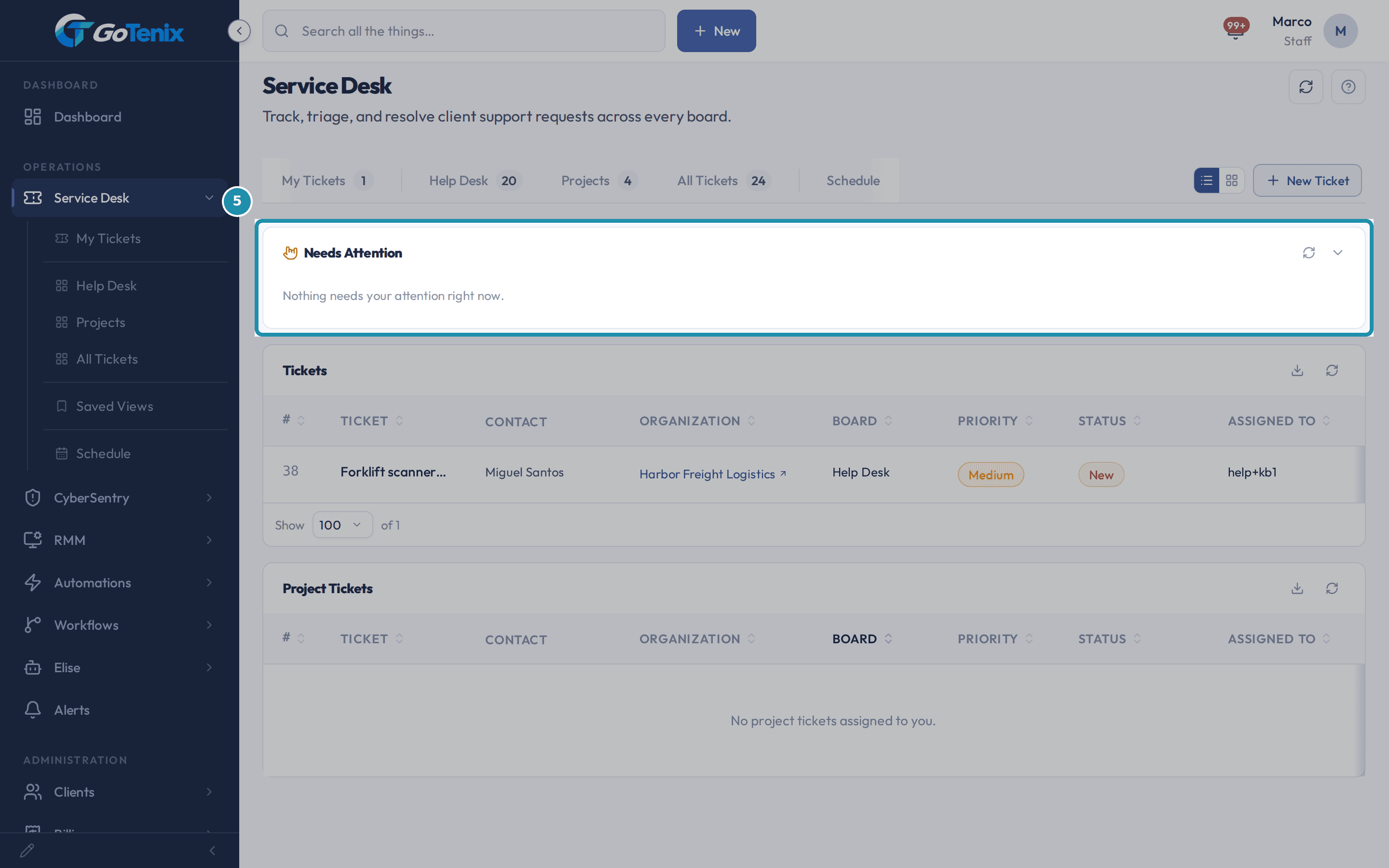
Click a board tab, such as Help Desk, to see that board's own tickets. Needs Attention sits above every board's ticket list, including My Tickets.
It is a short queue of open tickets that need a person now: Escalated, Failed to dispatch, Awaiting reply (assigned, but nobody has answered yet) and Unclaimed. The same feed shows on the dashboard and refreshes on its own every 30 seconds. You choose which reasons you see at My Settings > Display, and quieting one only changes your own view.
Needs Attention sits above every board's ticket list, including My Tickets. Click Claim on an unclaimed row to take it.
Claiming assigns the ticket to you and moves it to In Progress. By default it also opens the ticket. Turn that off at My Settings > Display if you would rather stay on the list and claim several rows in a row. The unclaimed pile is pod based, so you only see it for the pods you belong to.
Or ask Elise instead of filtering.
Open the Elise chat and ask in plain words. "Show me Bluebird Dental's recent tickets" lists them, and "How many open tickets do we have, by status and by client?" gives one count that adds up. "When is #27 due?" answers from the ticket's response and fix clocks, since tickets have no due date field. "Move #27 to Waiting on Client" and "Assign #27 to Carlos" change the ticket as you, and "Draft a closure summary for #27" writes the message in your voice without closing anything. Changes run straight away unless an admin has tightened them.
On a board tab, use the filter bar to narrow the list.
Status, Priority, Tech, Organization and Assignment each open a dropdown, and the search box finds a ticket by number, subject or client name. Status starts on Open and groups its options under Open, Resolved, Closed and Locked. Assignment offers All Assignment, Unassigned and Awaiting First Reply. Our Tickets, Co-Managed and All sit to the right as a separate toggle, and chips under the bar echo any filter you changed. My Tickets has no filter bar.
Set the filters you want, then click Save view.
Save view sits in the filter bar, next to the Our Tickets, Co-Managed and All toggle. It captures the board, the status, priority, tech, organization and assignment filters, the search text, the sort and the list or board layout as one bundle. Good candidates are views like Waiting on client, or High priority tickets that nobody has claimed.
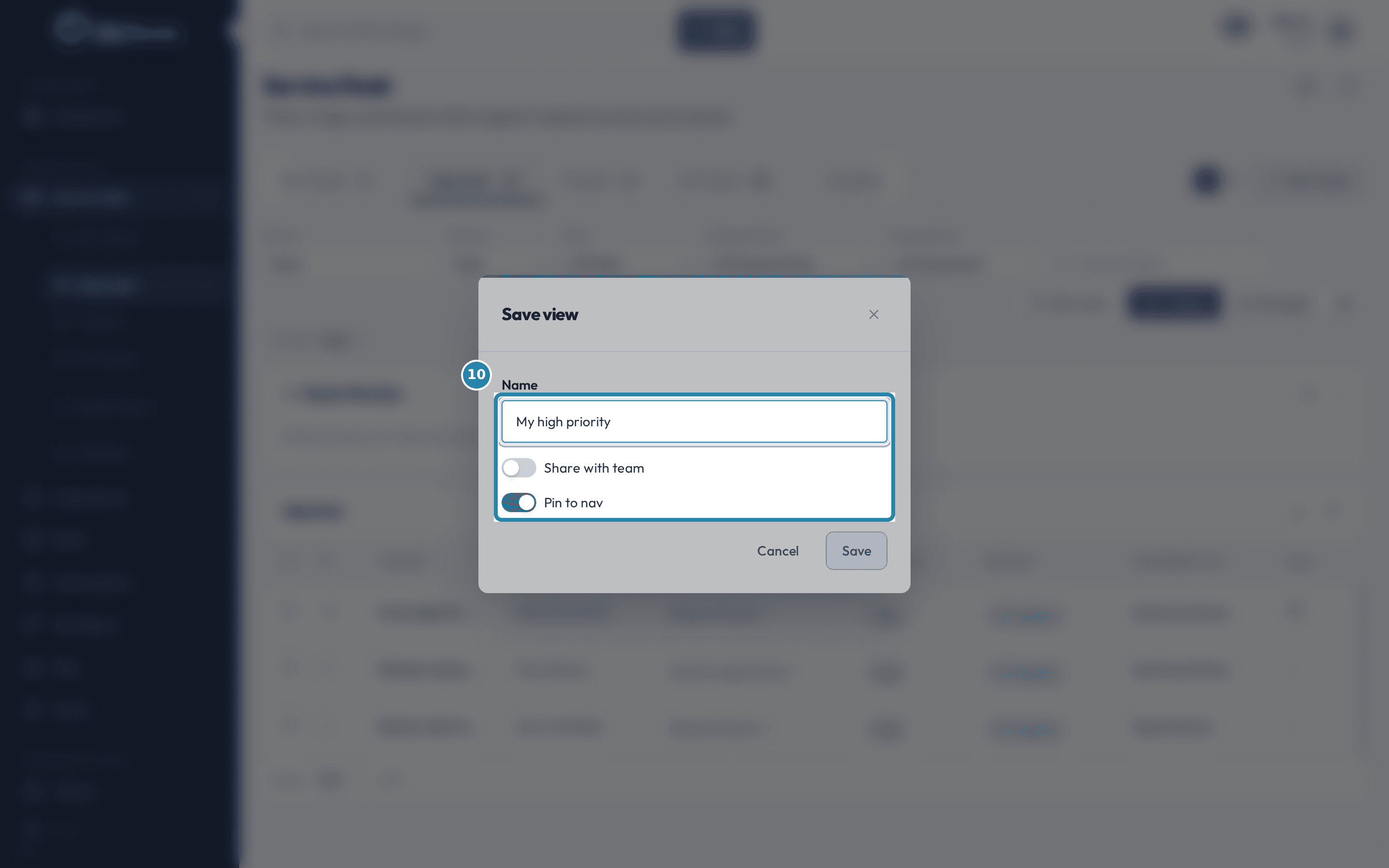
Name the view, then decide whether to share it and pin it.
Share with team makes it visible to teammates too, labeled with your name. Pin to nav adds it under Service Desk in the left nav, up to six pinned views per person, and the pinned row shows a live count of the tickets in the view. Click Save and the board reloads with the view applied.
Name the view, then decide whether to share it and pin it. Change a filter after applying a view, and a small dot appears on its name.
The dot means the list on screen no longer matches what was saved. It appears as soon as you add or change a filter on top of an applied view.
Click the view's name to choose Update or Save as new.
Update overwrites the view you own with what is on screen. Save as new view keeps the original and creates another one from the current filters. Do neither and nothing is saved, so the view opens the same way next time.
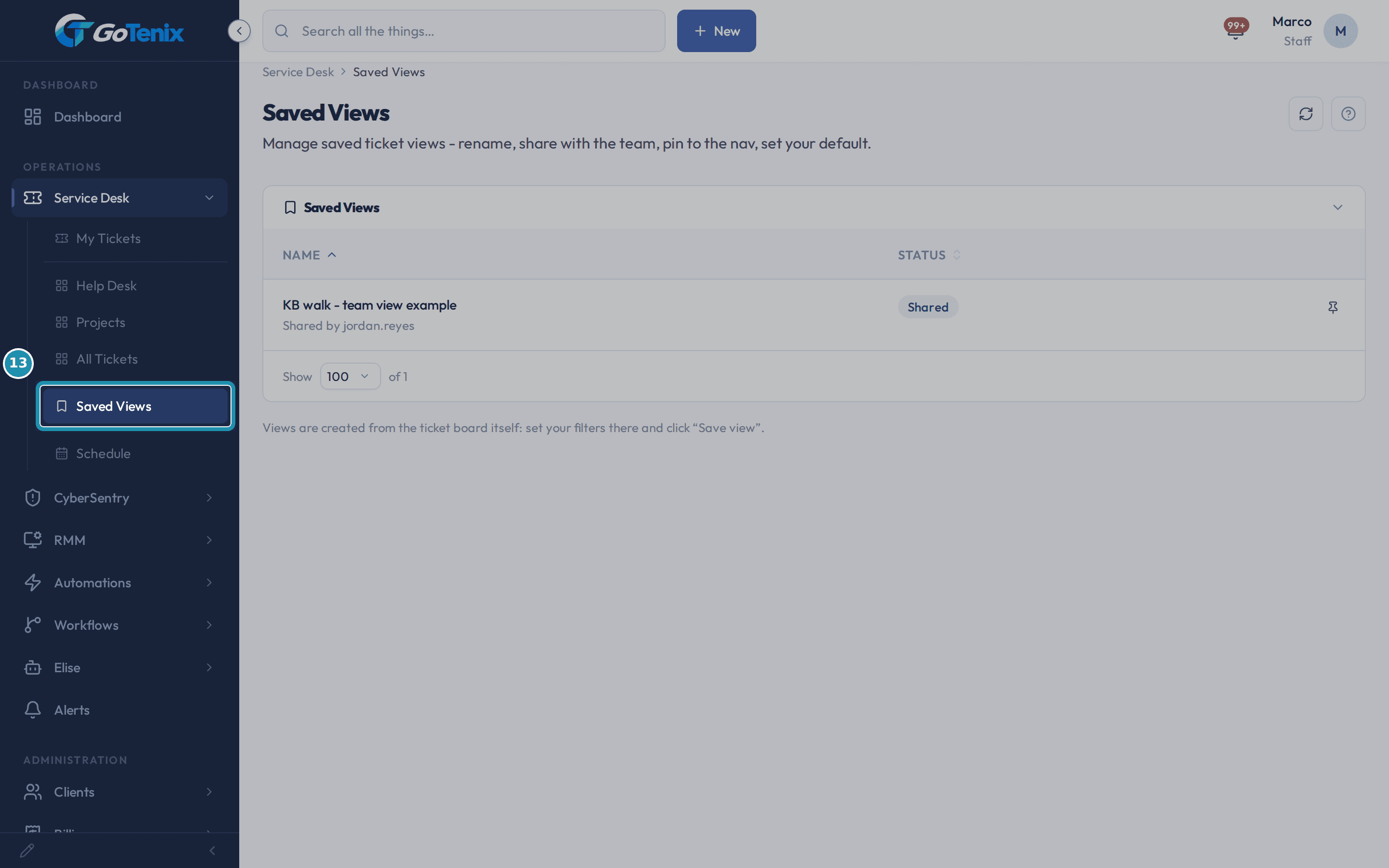
Open Service Desk > Saved Views to manage every view.
This page lists the views you own plus the ones teammates shared with the team, each with a Status column (Shared, Default, Pinned). Click a name to open the board with that view applied. You do not build a view here, that happens on the board itself.
Open Service Desk > Saved Views to manage every view. Click the pin icon on a row to pin or unpin it.
A pinned view shows under Service Desk in the left nav. The same button then reads Unpin from nav, and clicking it removes the pin. You can pin up to six views, and a seventh asks you to unpin one first.
Click the star to set a view as your default.
Your default view opens when you go to Service Desk with no filters in the address. It is yours alone, and only a view you own can be your default. Click the star again to clear it.
A view shared by a teammate only offers Pin, nothing else.
A row captioned Shared by a teammate has just the pin icon. Rename, share, default and delete are for views you own, which also have a pencil that opens a form for the name, sharing, default and pin together. Deleting one you own also removes it for everyone it was shared with, and the confirmation says so first.
A pod leader sees a Mine / Pod switch on Needs Attention. Pod is the default.
The switch only shows for pod leaders. Pod widens the Escalated and Awaiting reply rows to every member of the pods you lead, and Mine narrows them back to tickets assigned to you or where you are a CC tech. Unclaimed does not change with the switch, because it already covers every pod you belong to.
Sort the Status column, and read the order tickets fall into.
Statuses are grouped first and each keeps its own order inside its group. The groups run Open, then Resolved, then Closed, then Locked. The Status filter dropdown groups its options under the same four headings, so a sorted list reads the same work to done to locked flow everywhere the Status column or the Status filter appears.
What you will have
- Know what My Tickets, the board tabs and Needs Attention each show, so you start the day on the work that needs you.
- Filter a board down to the tickets you want and claim unclaimed work from the shared Needs Attention queue.
- Save your filters as a named view, share it with the team, pin it to the nav, make it your own default, and tell your views apart from ones a teammate shared.
- Ask Elise to find, count and change tickets when a sentence is quicker than a filter.
Why it works this way: How to work your ticket list: My Tickets, boards, filters and saved views
My Tickets has no filter bar of its own, since it is your fixed worklist rather than a search page, but its column headers still sort.
The unclaimed pile on Needs Attention is pod based, so two techs in different pods can see different Unclaimed rows on the same board.
A saved view stores the list's filters, search, sort, board and list or board layout as one bundle at the moment you save it. It is not a live query, so changing a filter afterward does not change the saved view until you say so.
A saved view can only be renamed, shared, made your default or deleted by the person who owns it. Anyone it is listed for can still open it and pin it to their own nav.
Other ways to do this: How to work your ticket list: My Tickets, boards, filters and saved views
Pin while you save
Turn on Pin to nav in the Save view window instead of pinning it later from the Saved Views page.
Open a pinned view from the nav
Click its name under Service Desk in the left nav. The pinned row shows a live count of the tickets in that view.
Ask Elise
Ask "Show me Bluebird Dental's recent tickets" or "How many open tickets do we have, by status and by client?" and she answers in the chat, no filters to set.
If it did not work: How to work your ticket list: My Tickets, boards, filters and saved views
- If a saved view is missing after you sign back in, ask whoever owns it whether they deleted it. Deleting a shared view removes it for everyone it was shared with.
- If a board tab you expect is missing, ask an admin to check whether that board is restricted to certain roles or pods.
- If Needs Attention looks empty but you know of unclaimed work, check that you are in the same pod as that work. The unclaimed pile only shows for pods you belong to, and the card says so when you are not in a pod yet.
Questions this page answers
What are ticket boards?
Tickets sit on boards, such as Help Desk or NOC. You can add your own boards. Manage them at Settings > Service Desk > Ticket Boards. Each active board gets its own tab on the Service Desk. My Tickets is the first tab and holds your own work. The last tab, All Tickets, shows every board at once.
What does the number on the My Tickets tab count?
Every open ticket that is yours. That means tickets assigned to you, and tickets where you are a CC tech. It also picks up tickets that carry your name from an older import. Project sub-tickets count too, on every board. Closed tickets drop out of the count. The badge hides when the count is zero.
How is My Tickets laid out?
My Tickets is the first tab on the Service Desk. It shows open work that is yours. That means work assigned to you, or where you are a CC tech. It has two parts, Tickets and Project Tickets. Project work is assigned on the sub-ticket, so sub-tickets show there. Each part sorts and pages on its own. Both start with the most recently touched first. There is no filter bar here. It is your worklist, not a search page. Most column headers still sort.
Does My Tickets refresh on its own?
Yes. It refreshes when you come back to the tab. It also refreshes every 30 seconds while you are on it. So tickets sent to you show up with no reload. The refresh stops while the tab is hidden. It also skips while your cursor is in a text box. That way it never cuts off your typing.
What is the Needs Attention card?
It is a short list of open tickets that need a person now. Each row says why. The reasons are Escalated, Failed to dispatch, Awaiting reply and Unclaimed. The list refreshes every 30 seconds. The same feed shows on the dashboard and here. You pick which reasons you see at My Settings > Display. Project tickets never show up on it.
How do I claim a ticket?
An unclaimed ticket has no tech on it. Unclaimed tickets show in the Needs Attention card on the Service Desk and on the dashboard. Click Claim on a row to take it. Claiming opens the ticket by default. Turn "Opening a claimed ticket" off at My Settings > Display. Then you stay on the list and can grab several in a row. The unclaimed pile is pod based. You see the pile for the pods you are in.
How do I filter tickets?
Each board tab has a filter bar. You can filter by status, priority, tech, organization and assignment. There is also a toggle for Our Tickets, Co-Managed or All. The search box finds a ticket by number, subject or client name. Most column headers sort. The SLA column does not. My Tickets has no filter bar. It is your fixed worklist, but its column headers still sort.
How do saved views work?
A saved view is a named bundle of the list's filters, sort, board and view mode. Set the list up the way you like it. Then click "Save view" in the filter bar. Give it a name. You can share it with the team. You can also pin it to the left nav, up to six pins. Manage them under Service Desk, on the Saved Views page. There you can rename, delete, pin, unpin, share, or set one as your default.
What does the dot on an applied saved view mean?
It means you changed the filters after you applied the view. The list no longer matches what was saved. Click the view's name in the filter bar. You get two choices. Update the view with what is on screen, which works on your own views. Or save what is on screen as a new view.
What is the Saved Views page for?
A saved view is the ticket board set up the way you like it: which board, which status, which tech, which client, the sort, the search. This page manages the views you own plus the ones teammates shared with the team. You do not build a view here. You build it on the board itself.
How do I make a new saved view?
Go to Service Desk and set the filters you want. Then click "Save view" in the filter bar. Give it a name. Turn on "Share with team" if the rest of the team should see it. Turn on "Pin to nav" to put it in the left nav. Click Save. The board reloads with that view applied.
How do I pin a view to the nav?
Two ways, and both do the same thing. On this page, click the pin button on the view's row, or click the pencil to edit it and turn on "Pin to nav", then click "Save changes". A pinned view shows in the left nav under Service Desk and gets a "Pinned" badge here. You can pin up to six. Pin a seventh and the page tells you to unpin one first. To remove one, click the same button, now labelled "Unpin from nav".
What does the default view do?
Click the star on a row, "Set as my default view", and Service Desk opens on that view when you go there with no filters in the address. It is yours alone. Only views you own can be your default. Click the star again, "Clear default", to go back to the plain board.
The board says a view name with a dot next to it. What is that?
The dot means you changed a filter after the view was applied. So what you see is no longer what the view says. Click the name. Pick the update option to save the change into the view, or "Save as new view" to keep both. Do neither and nothing is saved. The view is the same next time you open it.
What does the Mine and Pod toggle on Needs Attention do?
It shows for pod leaders only. It sets the reach of the Escalated and Awaiting reply rows. Mine shows tickets assigned to you, or where you are a CC tech. Pod adds the same rows for each member of the pods you lead. Pod is a leader's default. It lets you watch the whole team. The Unclaimed rows stay pod wide either way.
How are ticket statuses ordered on the board and the list?
Groups come first, then each status in its own order. The groups run Open, then Resolved, then Closed, then Locked. The status filter groups them the same way. The Status column sorts the same way too. So a sorted list reads the same work to done to locked flow you see everywhere else.
Was this helpful?