How to talk to Elise and see what she can do
Ask Elise in plain words to find a ticket, add up time, pull a client report, or make a small change. You can also teach her a preference, rename her, and see what she is allowed to do and what she costs.
See it
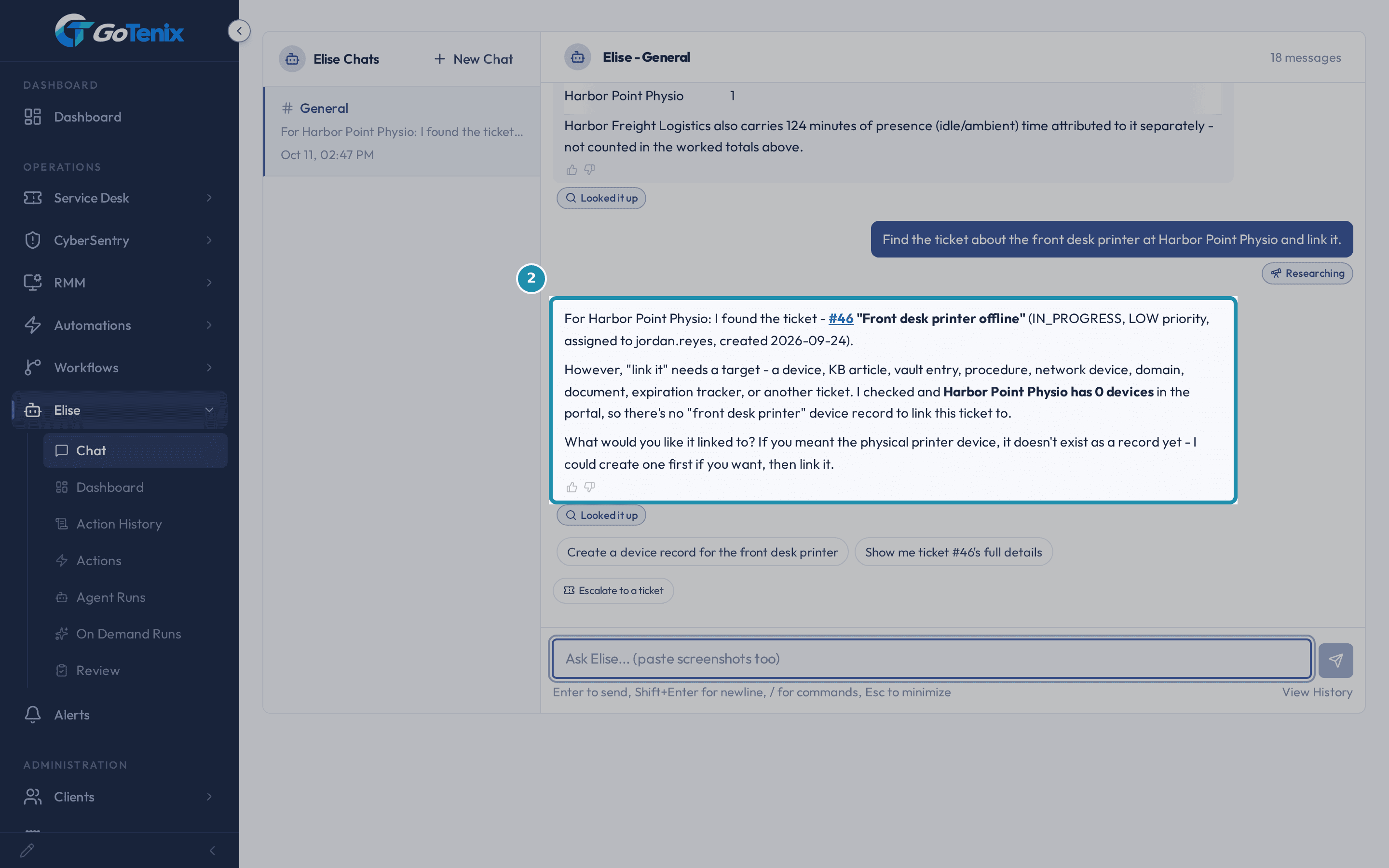 2. Ask Elise to find things in plain words.
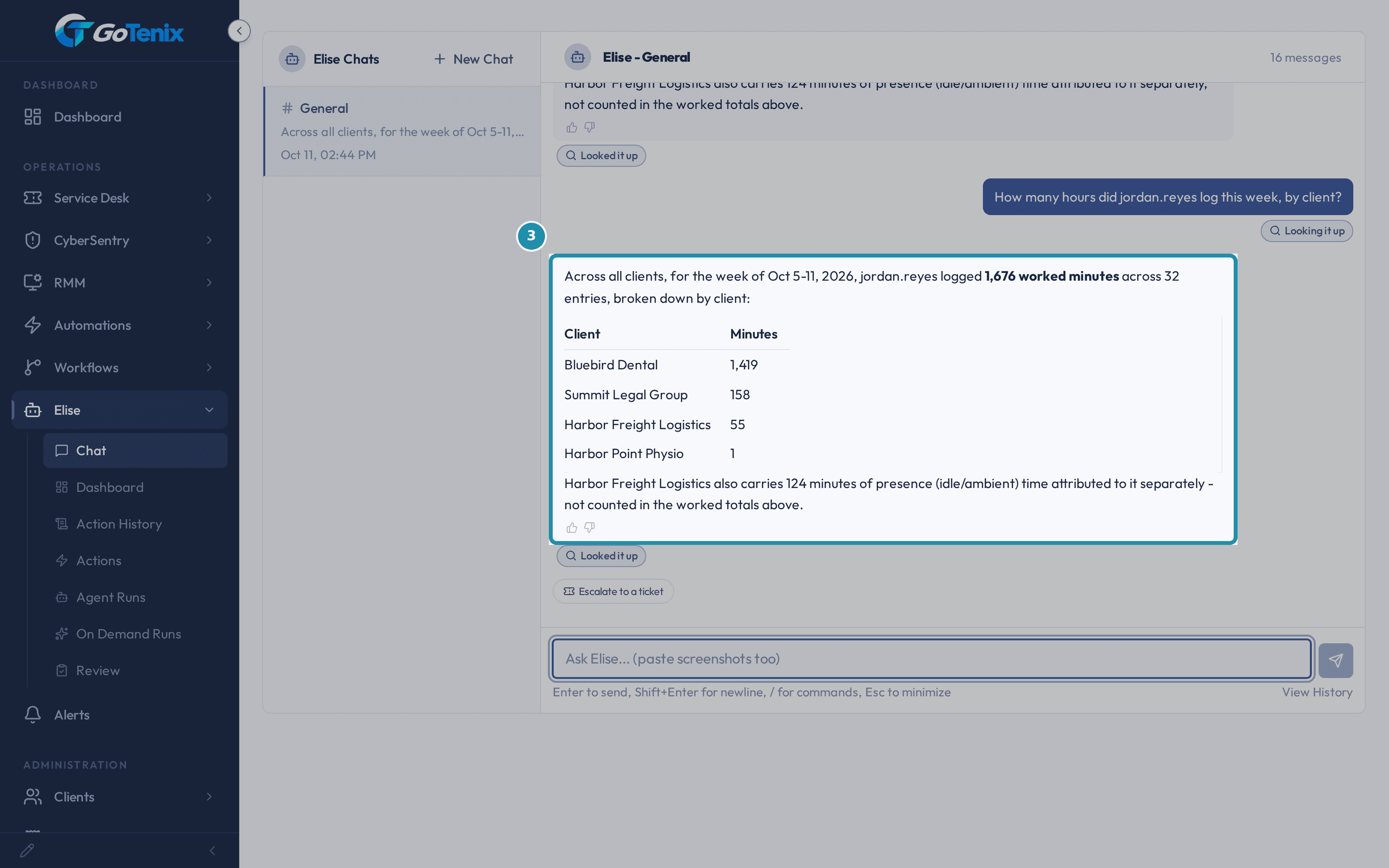 3. Ask Elise to add up time.
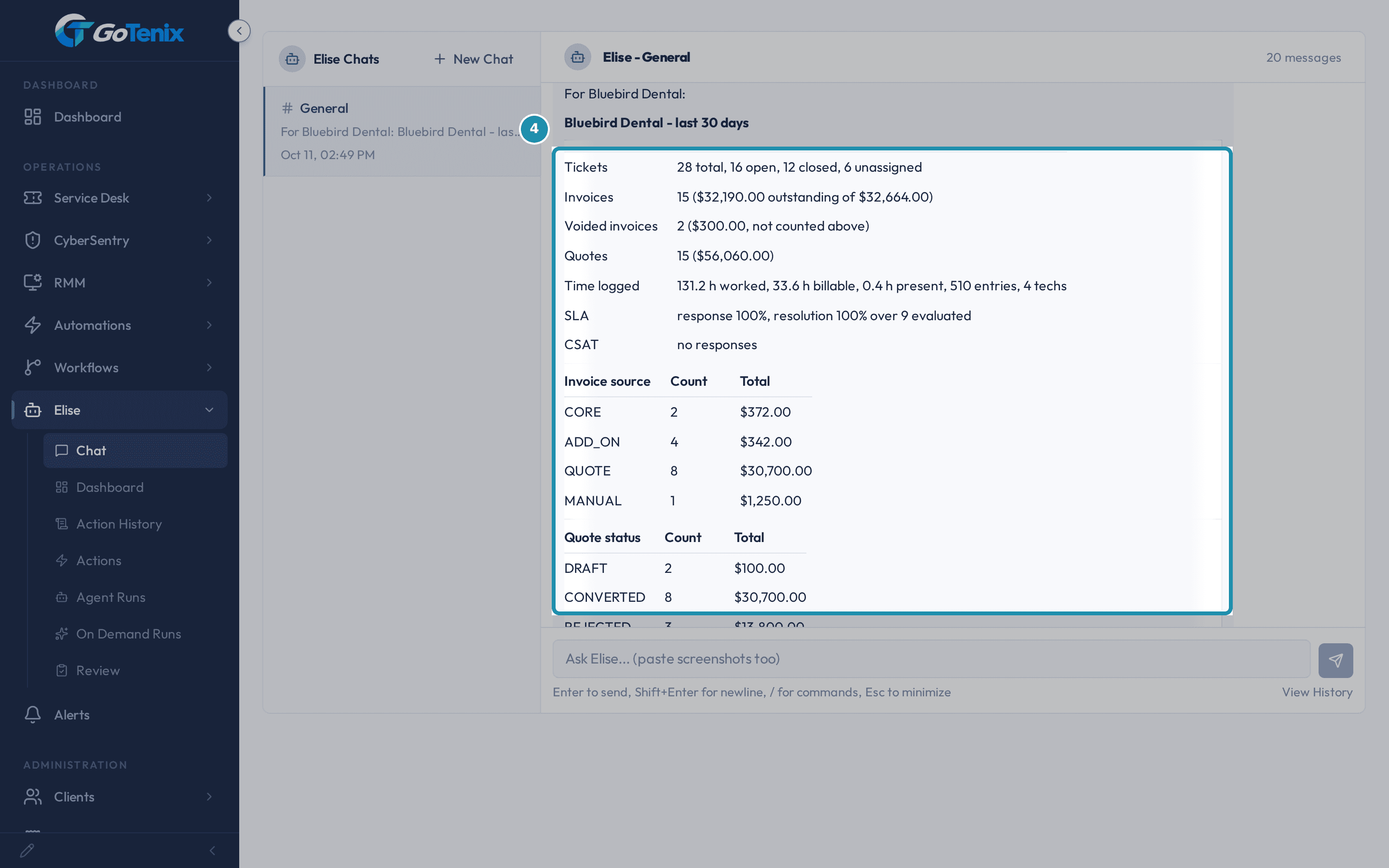 4. Ask Elise for a client report.
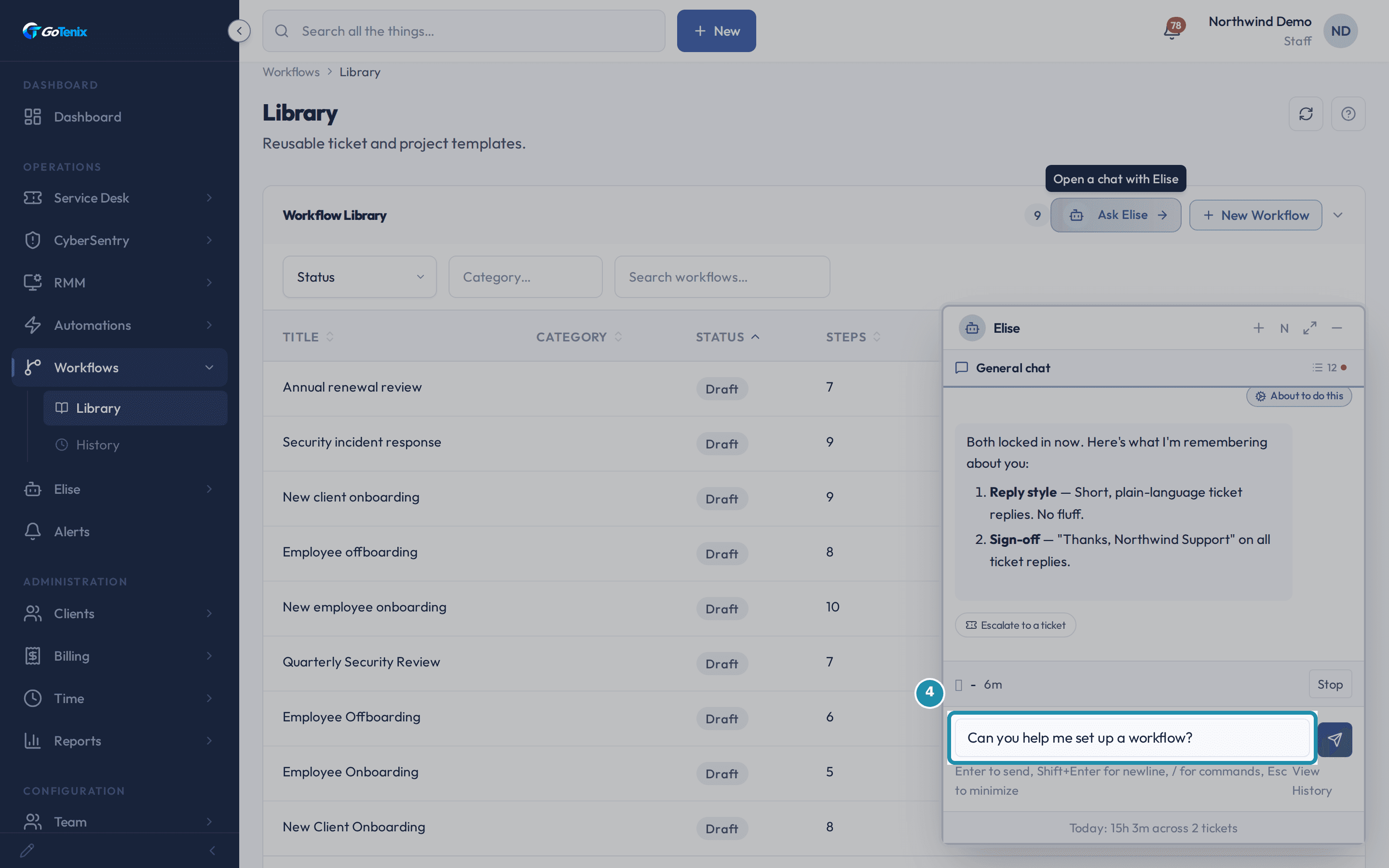 7. On a different page, click Ask Elise.
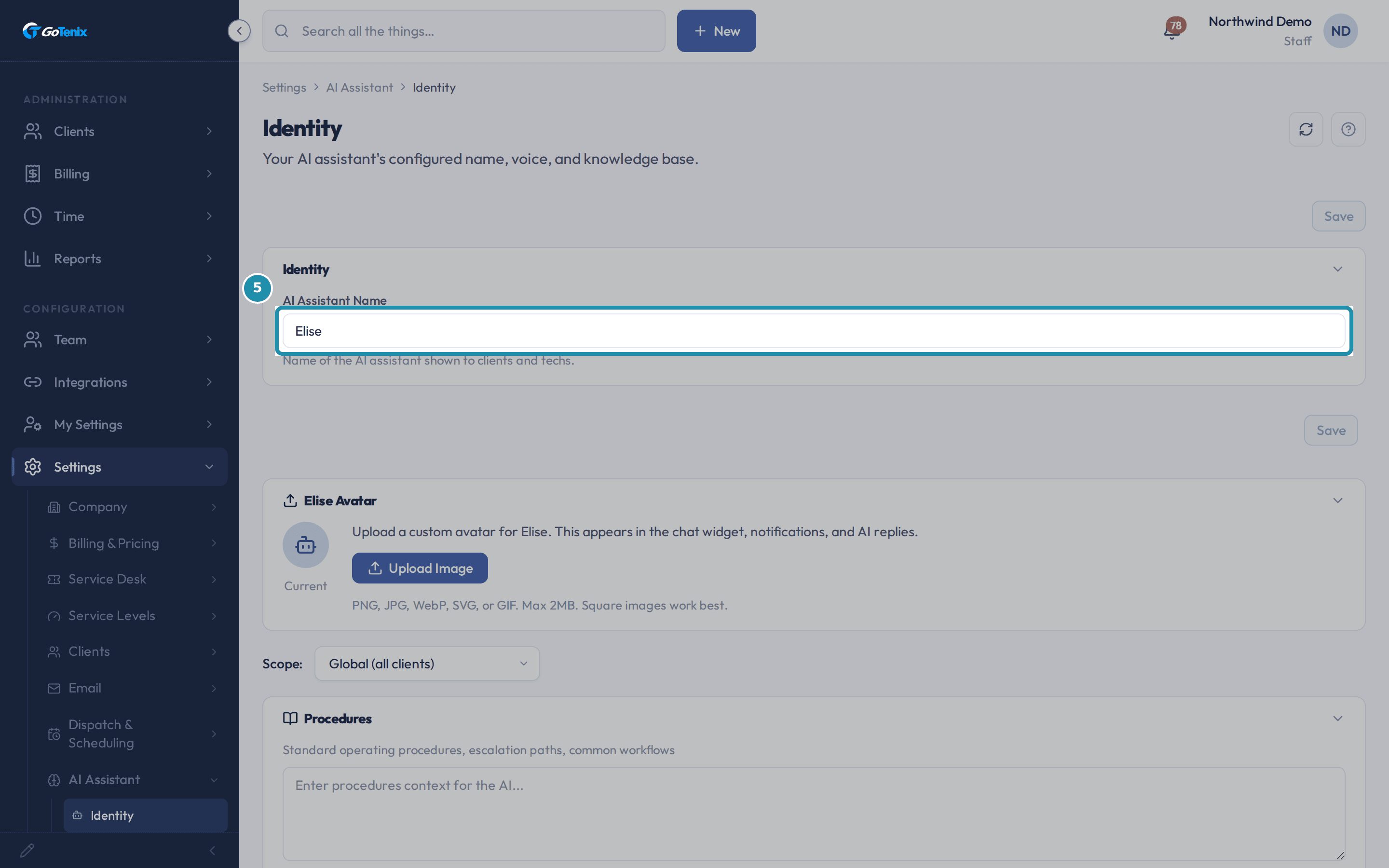 8. Go to Settings > AI Assistant > Identity to change the name.
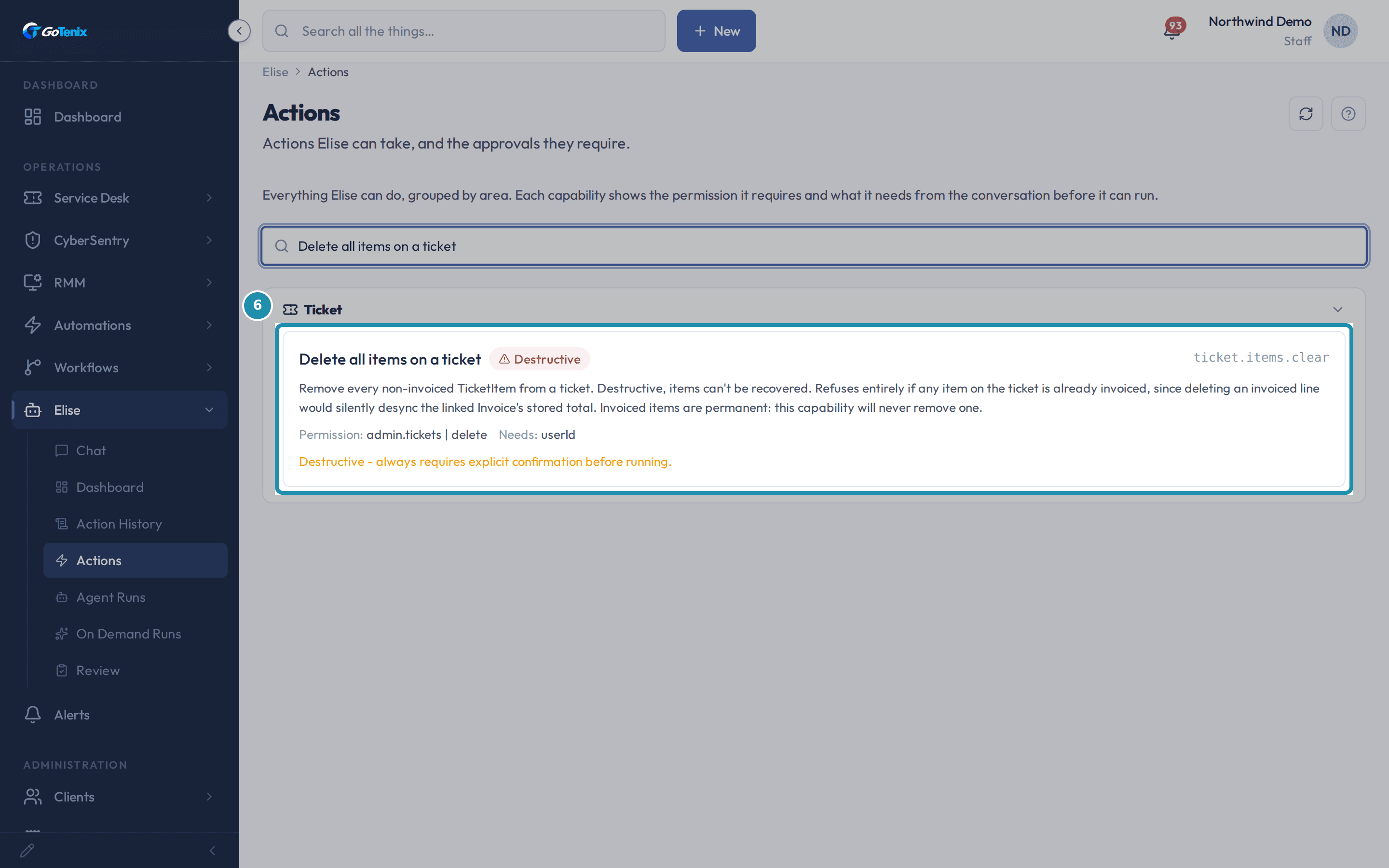 9. Open Elise > Actions and search for a destructive capability.
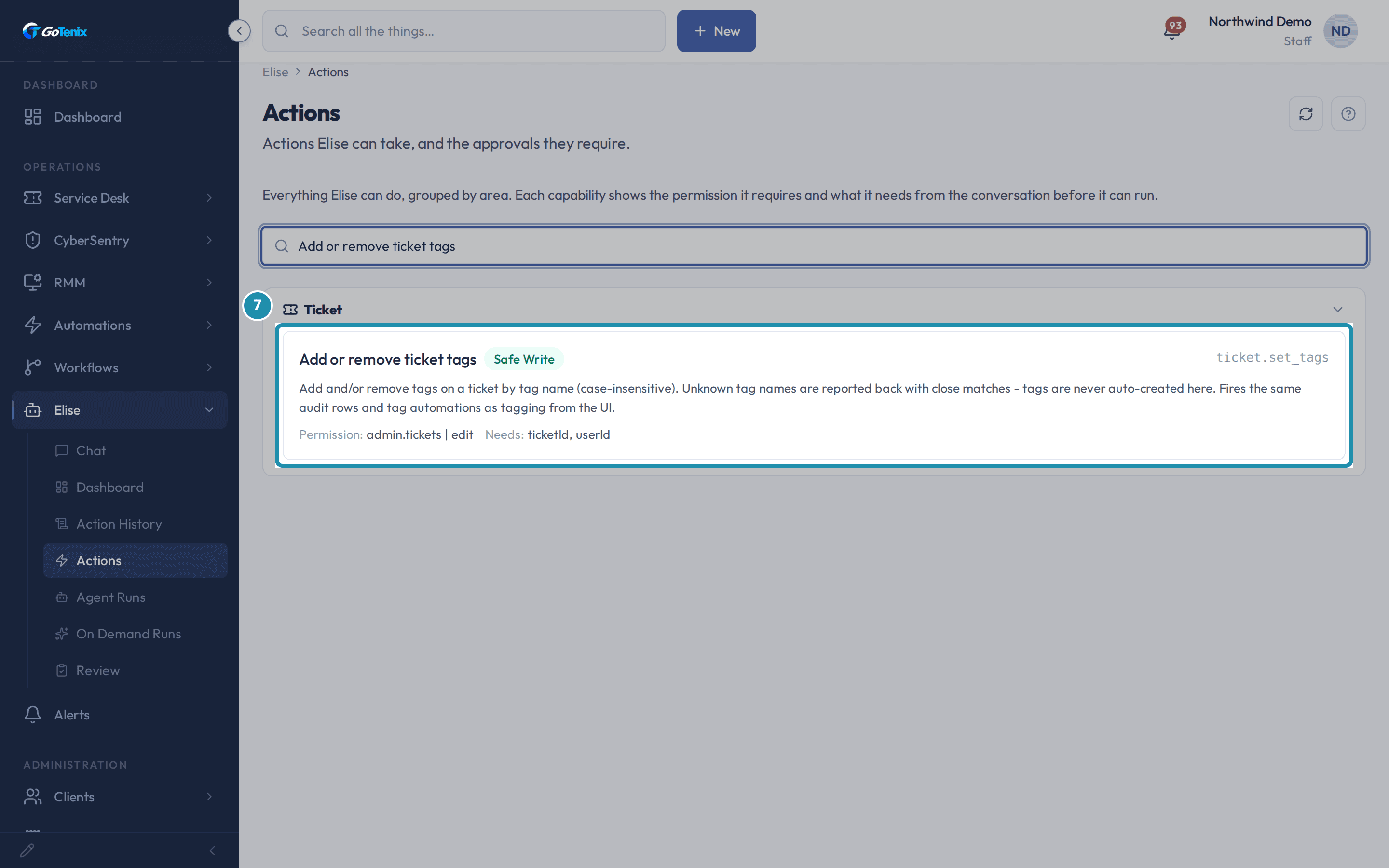 10. Search for a Safe Write capability to compare.
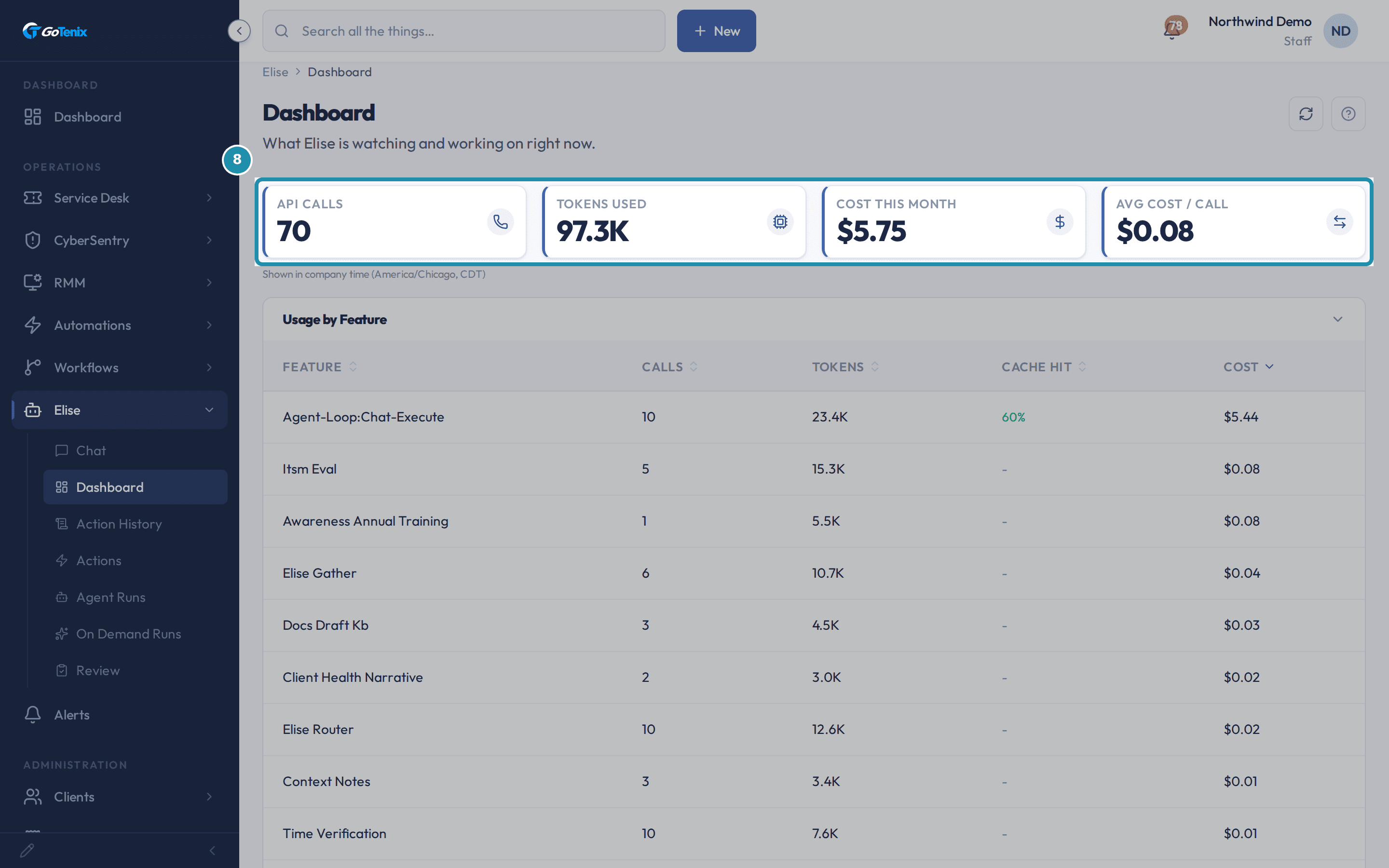 11. Open Elise > Dashboard to see this month's usage.
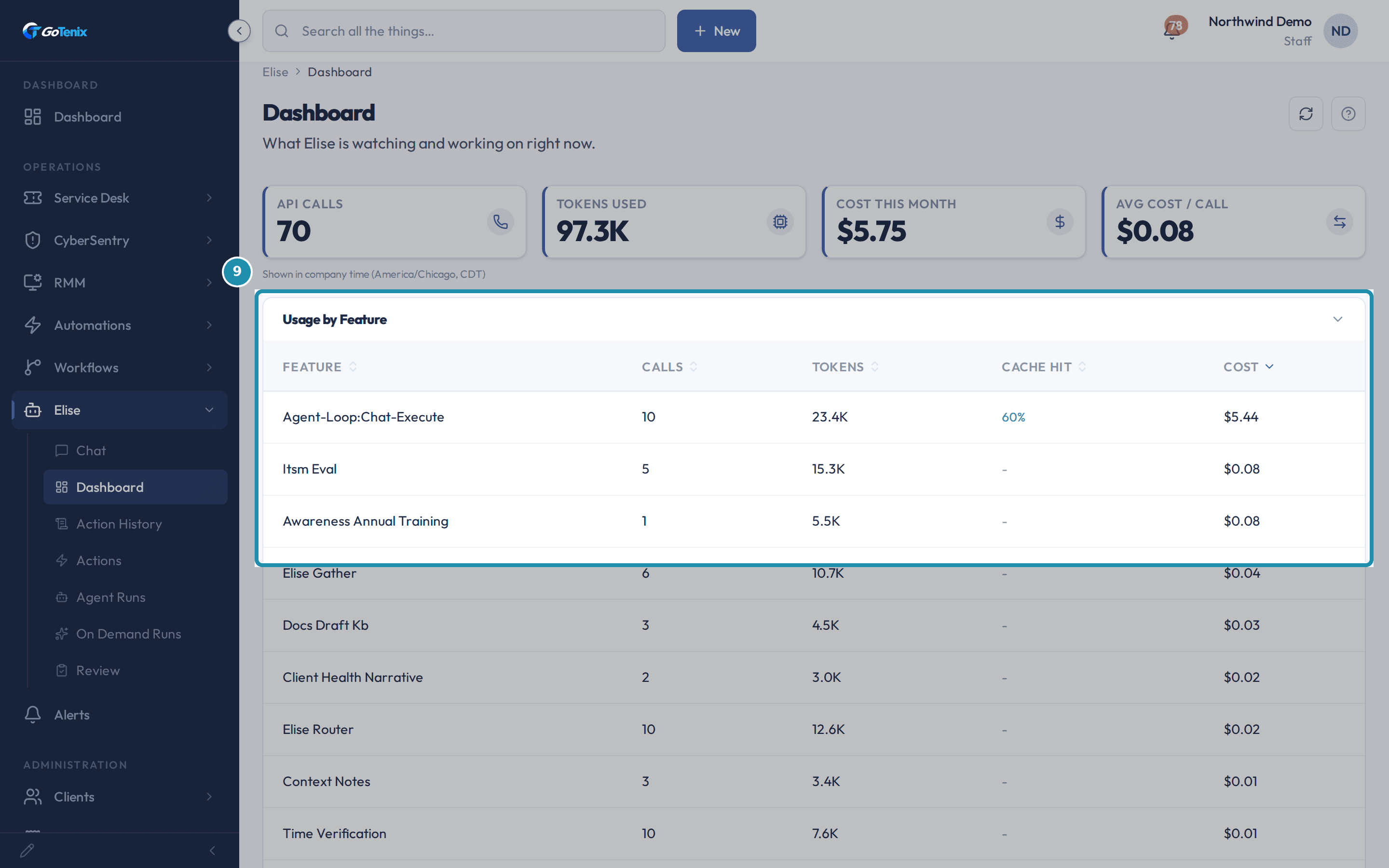 12. Scroll to Usage by Feature for the breakdown.
Browse
On this page
How to do it
Open Elise in the left sidebar.
Elise's own pages are not a strip of tabs across the top - they are the sub-items listed under Elise in the sidebar: Chat, Dashboard, Action History, Actions, Agent Runs, On Demand Runs, and Review. Opening Elise lands on Chat.
Open Elise in the left sidebar. Ask Elise to find things in plain words.
Try "Find the ticket about the front desk printer at Bluebird Dental and link it." Or try "Why did ticket #24 close by itself?" Elise searches ticket subjects and descriptions, so use words the ticket would hold. Swap in your own client names.
Ask Elise to find things in plain words. Ask Elise to add up time.
Try "How many hours did we log for Bluebird Dental last month?" Or try "Where did the team's time go this week?" Elise answers from the time you have already logged.
Ask Elise to add up time. Ask Elise for a client report.
Try "Give me a monthly review for Bluebird Dental." Or try "Prepare a briefing for Bluebird Dental's quarterly review." Both read your own client data and change nothing.
Note: Elise only does what your own permissions allow, and the same limits apply to her as to you.Ask Elise for a client report. Ask Elise to change or draft something.
Try "Create a ticket for Bob at Bluebird Dental about a slow laptop." Or try "Draft the closing summary for ticket #24." You can also say "Start a timer on ticket #24" or "Draft a reply to ticket #24." She drafts the reply in your voice; you review it and send it.
Ask Elise to remember a preference and to use a sign-off.
When you ask Elise to remember something, she saves it right away. Remembering is a Safe Write, so it runs without a Confirm click unless an admin has tightened it in Settings. Ask for a sign-off the same way and she uses it on your ticket replies. A saved preference carries into every chat thread and into the floating widget on other pages.
On a different page, click Ask Elise.
The button appears in card and page headers away from Elise's own section - here, the Workflow Library. It opens the same floating chat, pre-filled with a starter question for the page you clicked it from, and keeps whatever Elise already remembers about you.
On a different page, click Ask Elise. Go to Settings > AI Assistant > Identity to change the name.
The AI Assistant Name field is the one place the name is set. The new name flows into the chat widget, the sidebar's pages, and anything Elise generates; the sidebar's own AI Assistant label stays fixed.
Go to Settings > AI Assistant > Identity to change the name. Open Elise > Actions and search for a destructive capability.
Every capability lists its authority level next to its name. A Destructive one, like deleting every item on a ticket, never runs from the chat. It is filed in Review > Gated Actions, where a second person who holds that permission releases it.
Open Elise > Actions and search for a destructive capability. Search for a Safe Write capability to compare.
Add or remove ticket tags carries a Safe Write badge instead: by default it runs on its own, with no extra confirmation, unless an admin tightens it in Settings. Every one of Elise's capabilities is catalogued this way, with its permission and what it needs from the conversation, searchable from the box at the top.
Note: This is the same capability behind a tag request typed in Chat; it never creates a tag that does not already exist.Search for a Safe Write capability to compare. Open Elise > Dashboard to see this month's usage.
Four figures cover the current calendar month: API calls, tokens used, cost, and average cost per call. The figures are read-only and reset with the calendar month.
Open Elise > Dashboard to see this month's usage. Scroll to Usage by Feature for the breakdown.
Each feature (chat, ticket triage, awareness training, KB drafting, and more) gets its own row: calls, tokens, a cache hit rate, and cost. A feature with no cache hits at all shows a dash instead of 0%.
Scroll to Usage by Feature for the breakdown.
What you will have
- Plain-word asks answered from your own data: find a ticket, add up time, pull a client report, or make a small change.
- A personal preference Elise remembers across every chat, plus a sign-off she uses.
- Elise opened from a page other than her own, with a prompt already written for that page.
- The assistant renamed from Settings.
- One destructive action and one safe action compared side by side in the Actions catalogue.
- This month's API calls, tokens, and cost, broken down by feature.
Why it works this way: How to talk to Elise and see what she can do
Elise's own tabs live in the left sidebar under Elise, not in a strip across the top of the page - the sidebar is the only place to switch between Chat, Dashboard, Action History, Actions, Agent Runs, On Demand Runs, and Review.
A personal memory and a voice preference are saved by asking in plain language; neither has a settings page of its own.
The Ask Elise button seen on other pages opens the same floating widget as the sidebar's Chat, pre-filled with a starter question for wherever you clicked it from.
Other ways to do this: How to talk to Elise and see what she can do
Ticket-scoped chat
Open a ticket and use its own Ask Elise (about this ticket) button, or its thread in the Chat rail.
If it did not work: How to talk to Elise and see what she can do
- If a capability's tier is not what you expected, its card in Actions names the exact permission and context it needs; a missing one is why it refuses rather than runs.
- If you want Elise to send a client's plan agreement, she can, but it is a Destructive action. It never runs from the chat. It is filed in Review > Gated Actions, and a second person who holds the permission releases it. You can also use Send as quote in the subscription editor.
Questions this page answers
How does Elise know which client or ticket I mean?
If you opened chat from a ticket or client detail page, Elise already has that context. Otherwise type the name and Elise will resolve it via search. You can also paste a ticket number (#1234) or a client name to ground the conversation.
Does Elise remember things across chats?
Yes. Elise keeps two kinds of memory that persist across all your chat threads: personal memories tied to you (your preferences and working style) and client memories tied to the client the chat is currently bound to. Just tell Elise to remember a fact, ask her to list what she's remembering, or tell her to forget one. Each kind is capped at 50 active memories to keep her focused, so once you hit 50 a new memory is politely declined with a prompt to forget one first, you choose what to drop. Nothing ages out or is discarded automatically, and forgetting is reversible.
Can Elise write replies in my voice?
Yes, Elise reads your voice blueprint (greeting, sign-off, tone notes, and sample phrases) when drafting ticket replies, closure summaries, or client emails. If you switch on auto-learn, Elise adds your sent replies to your sample phrases (kept to the most recent 50) so it sounds more like you over time. There's no settings page for the blueprint: just ask the assistant to update your greeting, sign-off, or tone and it takes effect on the spot.
How do I change the AI assistant name?
Go to Settings → AI Assistant → Identity and update the Assistant Name. The new name flows into the assistant's chat widget, its generated replies, and the page titles and tab descriptions that reference it. The left sidebar section keeps its fixed AI Assistant label.
What are action tiers and why does Elise sometimes ask first?
Each capability has a tier. Read runs with no confirmation. Draft returns text for you to review. Safe Write runs without asking, unless an admin tightens it in Settings. Sensitive Write asks for one Confirm click in the chat. Some Sensitive Write actions cannot be undone, such as voiding an invoice. They still take one Confirm click. Destructive never runs from the chat. It is filed in Review > Gated Actions, and a second person who holds the permission releases it. Higher tiers ask more so a misclick or a misunderstanding cannot take an action you cannot undo. No tier asks twice.
What is the Actions reference page for?
A catalogue of every capability Elise can invoke, grouped by category. Each entry shows its name, a description, its authority level (Read, Draft, Safe Write, Sensitive Write, or Destructive), the permission it requires, and the context it needs (a ticket, a client, or a user). Search the top box to filter across every action. Useful for checking what Elise can touch and why a capability isn't available in a given context.
What are the action tiers?
Every action carries one authority level. Read runs immediately (nothing changes). Safe Write runs on its own (Elise writes; an admin can tighten it). Sensitive Write proposes via chat and waits for your one Confirm click. Draft prepares an artifact for you to apply by hand. Destructive never runs from the chat. It is filed in Review > Gated Actions, and a second person who holds the permission releases it. These map to the badges on this page, the cards in Chat, and the queue in Review > Gated Actions.
What can I ask Elise to do?
Elise can look things up, make routine changes herself, prepare drafts, and propose changes that wait for your click. Each action wears a badge on the Elise > Actions page. Read runs at once, Safe Write she does on her own, Sensitive Write waits for your Confirm, and Draft is prepared for you to apply. Destructive never runs from chat. A Destructive action, such as sending a client's plan agreement, is filed in Review > Gated Actions for a second person to release.
What does the Elise Dashboard show?
The dashboard summarises this month's AI usage and cost: total API calls, tokens used, cost this month, and average cost per call across the top. Below, two tables break the spend down by feature (Ticket Triage, Documentation, Script Proposals, and so on, each with a cache hit rate) and by client, so you can see where the assistant's usage and cost are going. It covers the current calendar month only, and the figures are read-only.
What does AI token usage tell me?
Token usage tracks the input + output tokens spent per Claude call, broken down by rung (chat, draft, classify, etc.). Spikes usually mean either a long-running agent loop or an unusually large context payload. Per-rung cost is calculated from the active provider's rate table.
What is the Elise page?
Your AI assistant's home page opens on Chat. Its pages sit in a group on the left sidebar: Chat, Dashboard (this month's usage and cost), Action History, Actions, Agent Runs, On Demand Runs, and Review. Voice, tone, prompts, and model choices moved to Settings → AI Assistant.
How much is Elise costing in API tokens?
Visit /admin/elise/dashboard for this month's token usage and cost. Per-feature breakdown shows which capabilities (triage, KB drafts, draft replies) consume the most. Cache hit rate per feature is also shown - high hit rates mean prompt caching is keeping cost down. The dashboard covers the current calendar month only; there is no daily or weekly view and no projected cost.
Was this helpful?