How to set invoice rules, sales tax, plans, legal documents and profitability
Settings > Billing & Pricing is where you decide how invoices are approved, sent and numbered, how sales tax is applied, how plans prorate, what agreements carry, and which clients are profitable, and where Elise can set up plans, add their price lines, start subscriptions and approve invoices for you.
See it
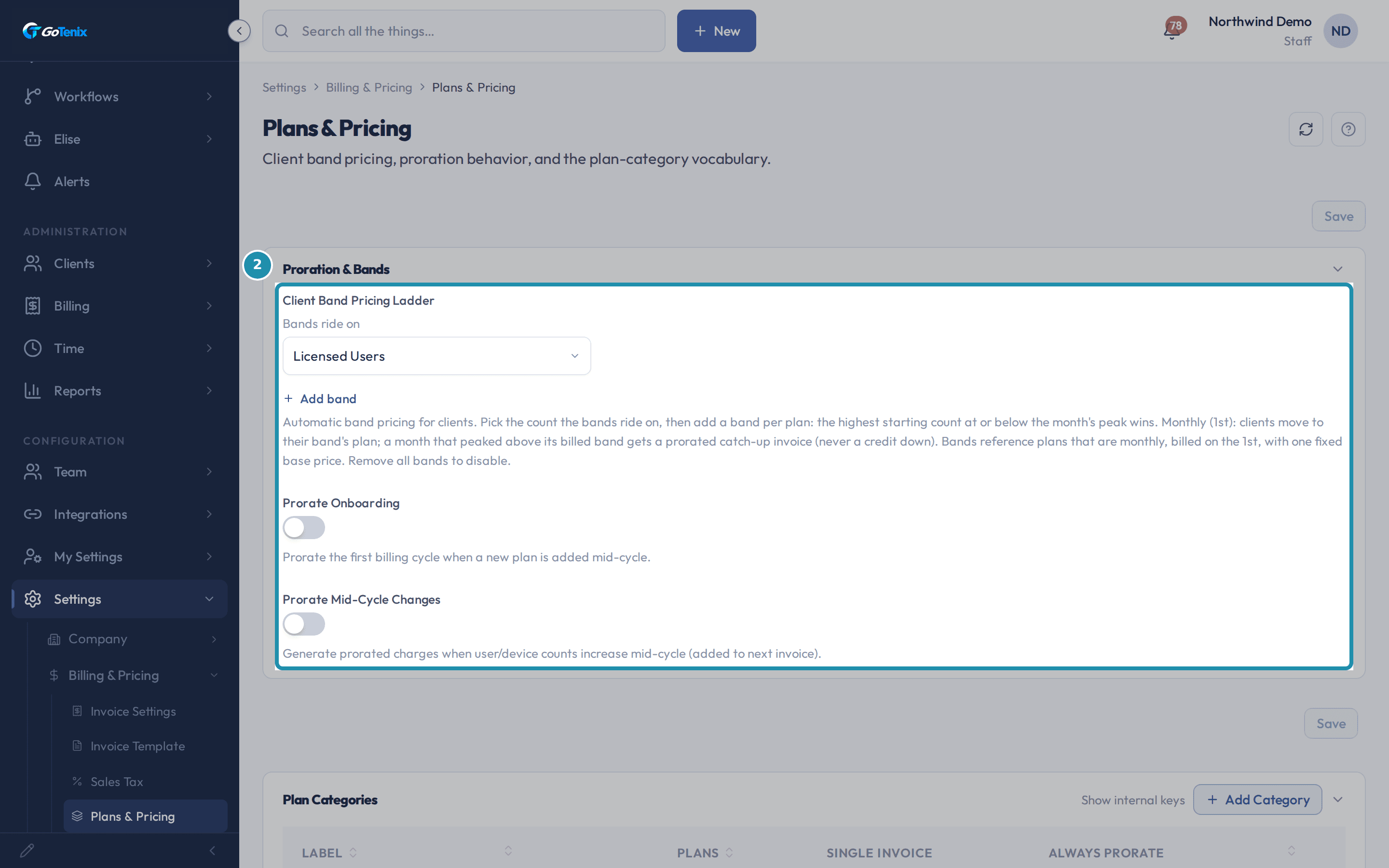 7. Open Plans & Pricing and look at the Proration & Bands panel.
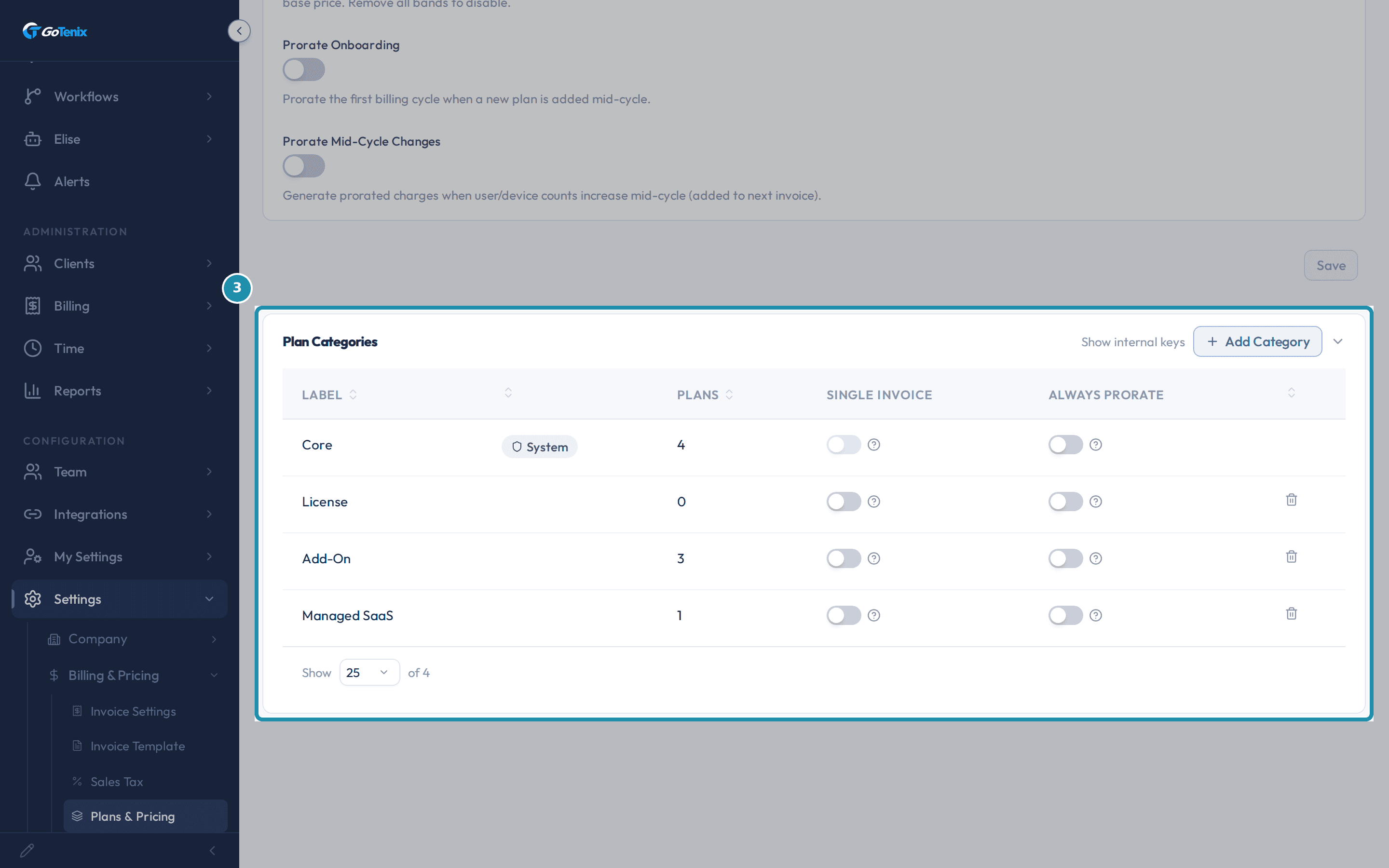 8. Scroll down to Plan Categories.
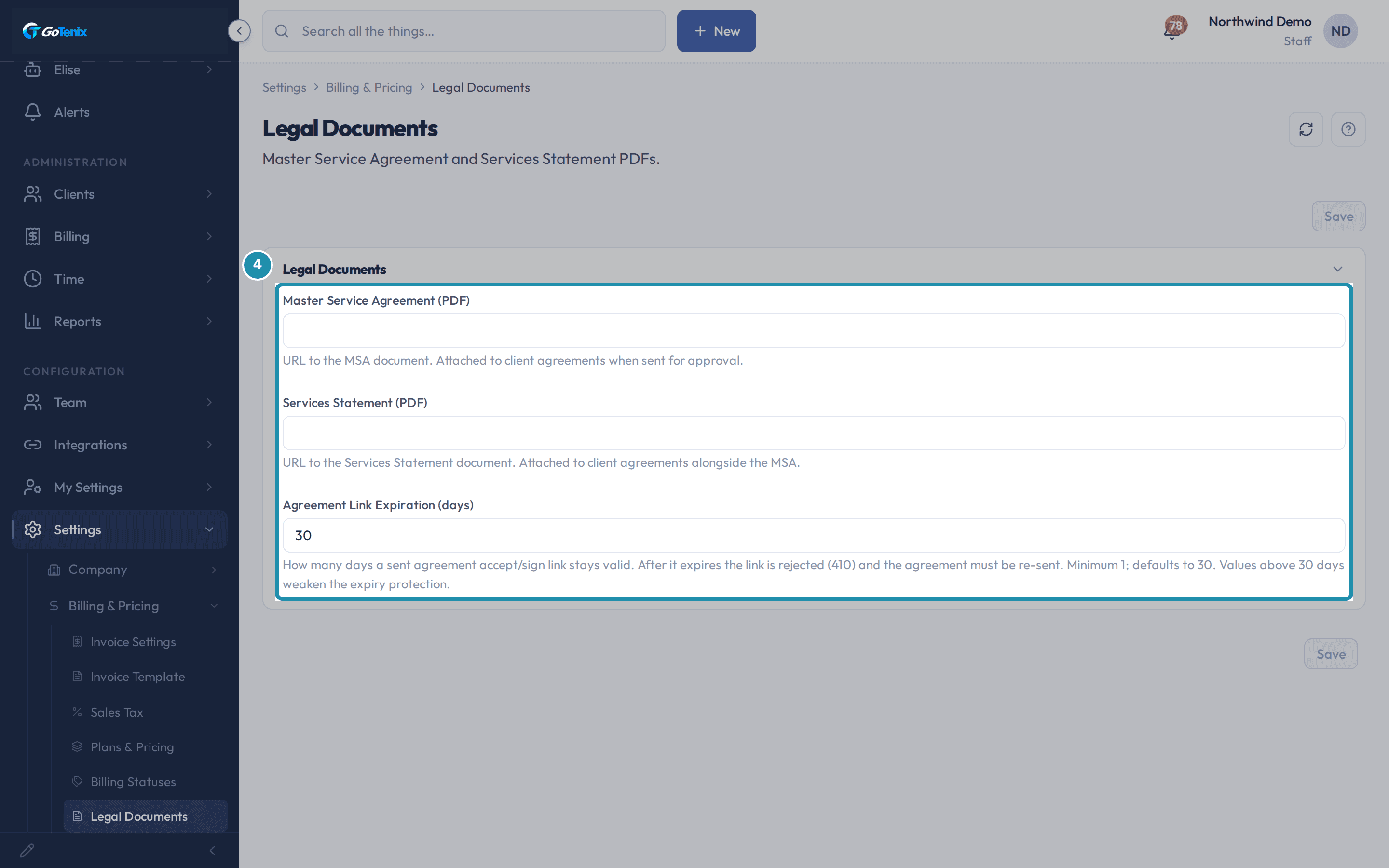 9. Open Legal Documents and set the two PDF links and Agreement Link Expiration.
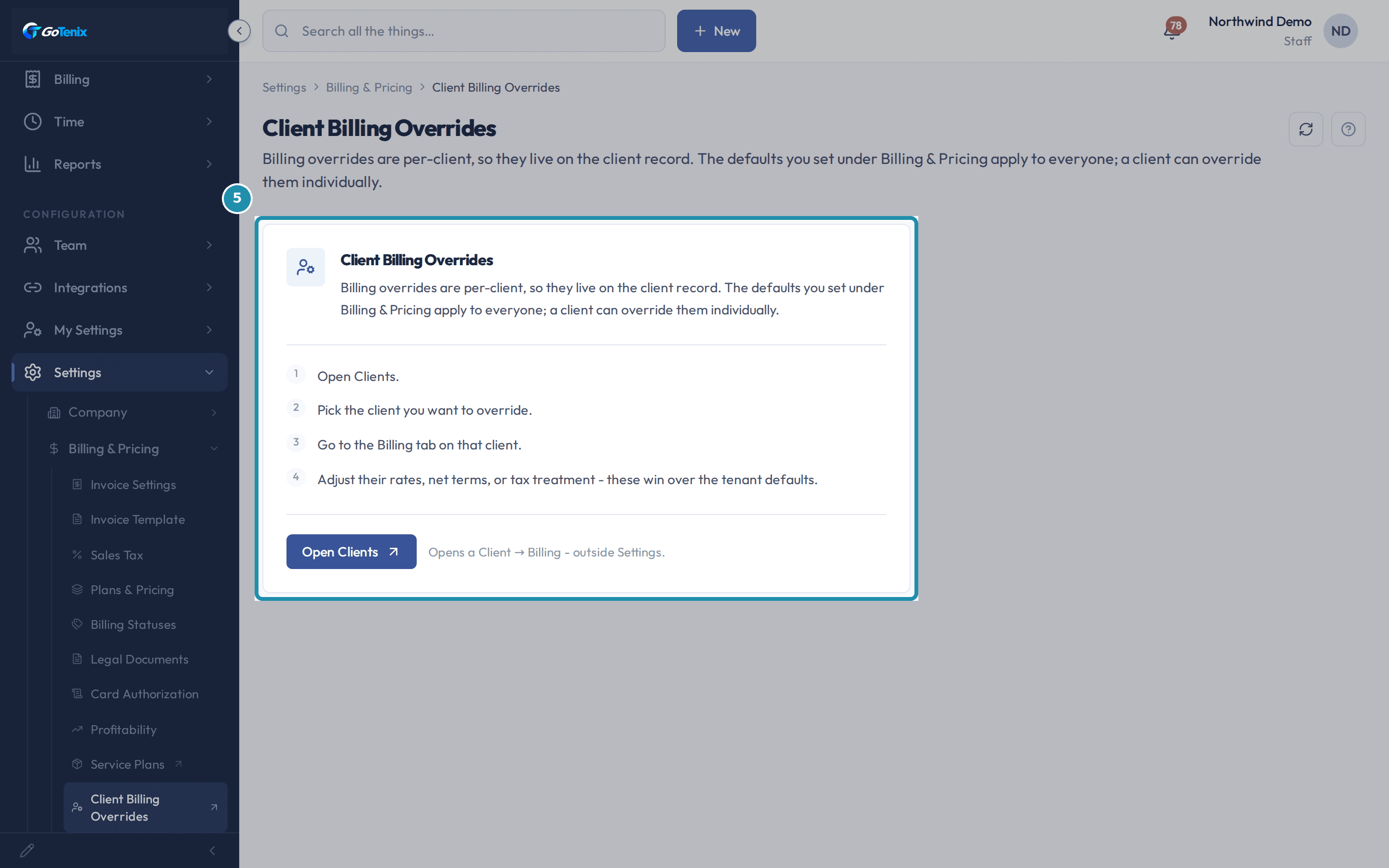 10. Open Client Billing Overrides.
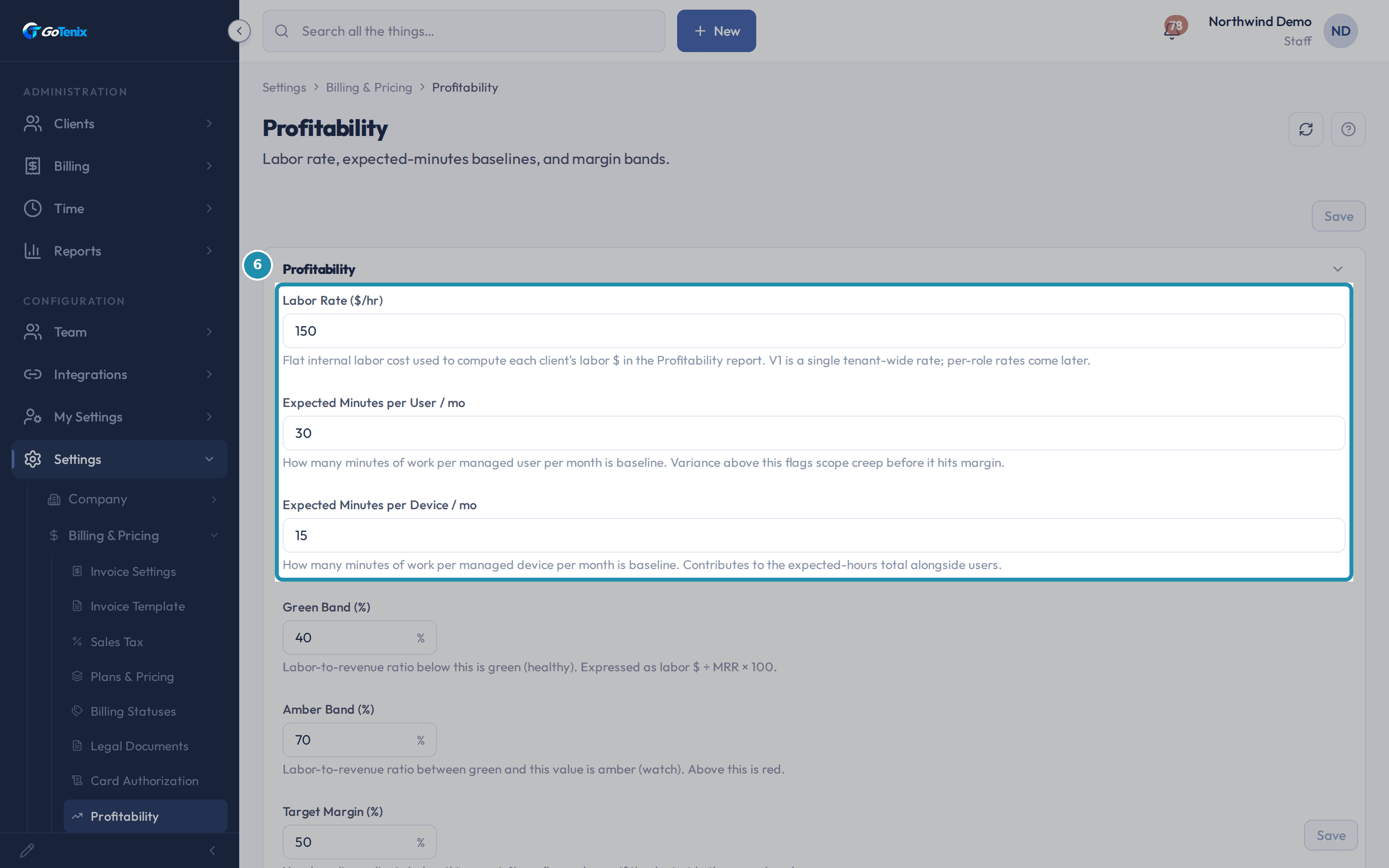 11. Open Profitability and set Labor Rate and the two Expected Minutes fields.
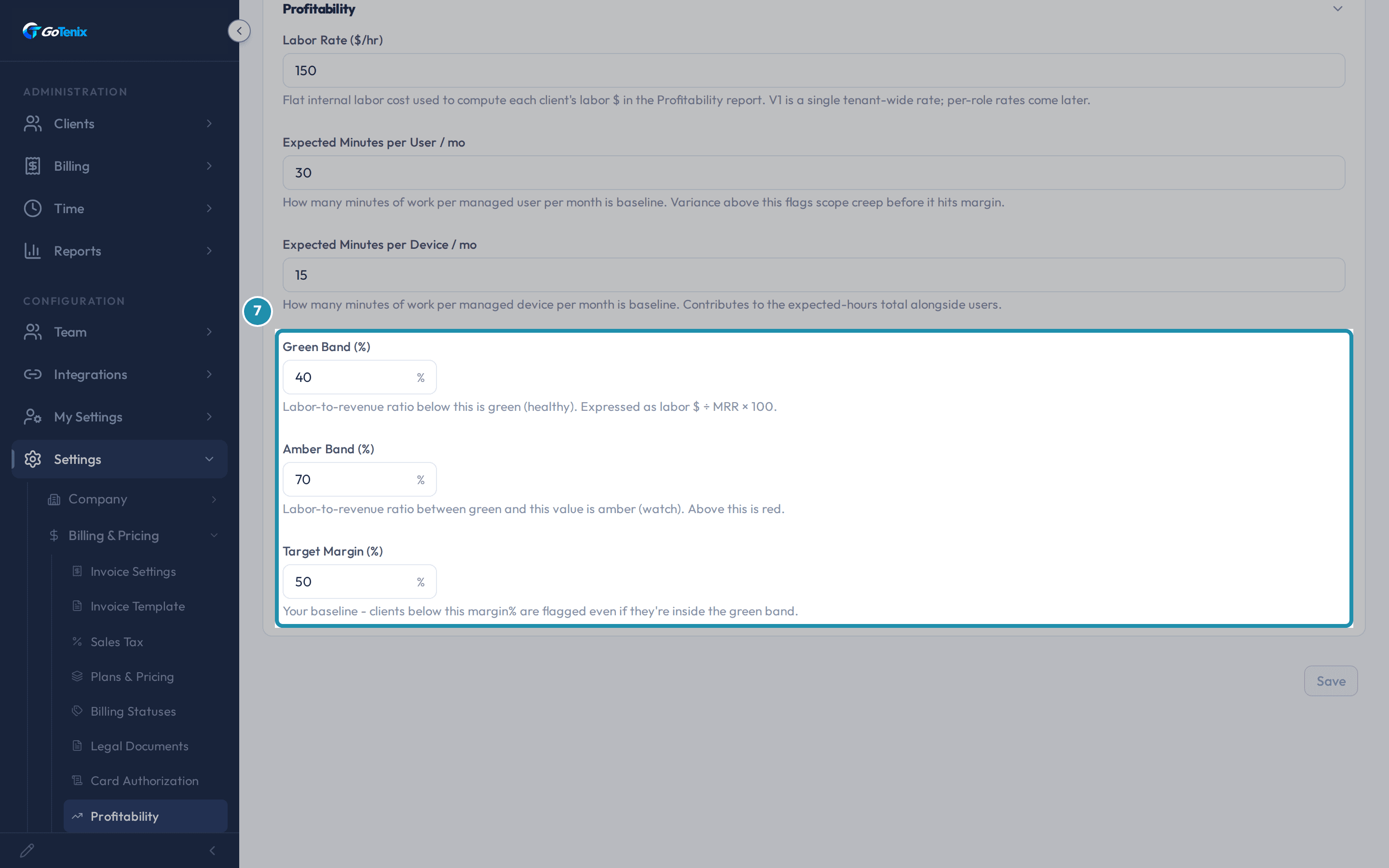 12. Scroll down to Green Band, Amber Band and Target Margin.
Browse
On this page
How to do it
Open Settings > Billing & Pricing > Invoice Settings and start with Approval & Sending.
Auto-Approve Generated Invoices is off by default. Off, generated subscription invoices land in Pending Approval first for a tech to review. On, they go straight to Outstanding and are sent to the customer. Auto-Create Invoice on Quote Accept is on by default and creates an Outstanding invoice when a client accepts a quote, and the tech still reviews and presses Send. Auto-Send Invoice on Finalize is off by default and, when on, emails the finalized invoice with its PDF to the roles in Auto-Send Recipients (roles), plus the client's designated billing email.
Set Overdue Reminders.
Send Overdue Invoices Digest is off by default. When on, a recurring digest of past-due invoices goes to the roles you pick under Overdue Digest Recipients (roles) and to the client's designated billing email, instead of one email per invoice. Overdue Digest Frequency starts at Weekly. Staff roles get the full overdue worklist grouped by client, and client roles get only their own organization's overdue invoices.
Set Billing Rules.
Discount True Value Pricing is on by default and shows the plan's list price plus a discount line when a subscription has a lower price override. Minimum Billable Time (minutes) defaults to 5 and leaves out per-technician time under that many minutes on a ticket, and 0 bills all time. Quote Link Expiration (days) defaults to 7. After it a quote link still opens but is marked expired and can no longer be accepted or declined.
Set Numbering & Terms.
Invoice Net Terms is Due on Receipt, or Net 15, 30, 45 or 60 days after the invoice date, and it starts at Due on Receipt. Invoice Number Prefix is optional, for example "INV-". Invoice Starting Number is where numbering begins, and new invoices count up from the higher of that number or the last existing invoice number.
Open Settings > Billing & Pricing > Sales Tax and enter the Default Sales Tax Rate.
Type the percent, such as 8.25 or 8.25%, or the decimal 0.0825. The rate is stored as the decimal and shown again as a percent. A client's own rate, set on that client's Billing > Tax tab, is used instead of this default whenever it is above zero.
Open Settings > Billing & Pricing > Sales Tax and enter the Default Sales Tax Rate. Know what the rate does to an invoice, and when QuickBooks takes over.
Without QuickBooks connected, a generated subscription invoice gets a Sales Tax line equal to its taxable amount times the rate, rounded to the cent. A client marked tax exempt gets no Sales Tax line. With QuickBooks connected, QuickBooks computes tax from its own tax codes, connecting sets this rate and every client rate to 0, and the field is read-only. A Default Tax Code and a Tax-Exempt Code picker appear next to it, and each client's own code is set on that client's Billing > Tax tab.
Open Plans & Pricing and look at the Proration & Bands panel.
The Client Band Pricing Ladder lets bands ride on a count you pick, such as Licensed Users or Workstations. Add band adds a band per plan, and the highest starting count at or below the month's peak wins on the 1st of the month. Prorate Onboarding prorates the first billing cycle when a new plan is added mid-cycle. Prorate Mid-Cycle Changes generates prorated charges when user or device counts increase mid-cycle, added to the next invoice. Both toggles are off by default.
Open Plans & Pricing and look at the Proration & Bands panel. Scroll down to Plan Categories.
Each row is a category your plans group into, with a Plans count, a Single invoice switch and an Always prorate switch. Click a category's name to rename it, and Add Category creates a new one. Single invoice combines every subscription in that category into one invoice per client for each period two or more of them are due. Two Microsoft 365 subscriptions due for August, for example, become one August invoice even if they bill on different days. Always prorate bills mid-cycle changes on that category's plans as a partial charge right away.
Scroll down to Plan Categories. Open Legal Documents and set the two PDF links and Agreement Link Expiration.
Paste the link to your Master Service Agreement into Master Service Agreement (PDF) and the link to your Services Statement into Services Statement (PDF). They are attached to client agreements when you send them. Agreement Link Expiration (days) sets how long a sent accept or sign link stays valid, and it starts at 30. Connect the billing mailbox too, because if none is connected the send stops and tells you.
Note: A client who can't open an agreement link you sent has almost always hit this expiration - after the set number of days the link is rejected and the agreement must be re-sent. Values above 30 days weaken that protection, so the page warns you when you raise it.Open Legal Documents and set the two PDF links and Agreement Link Expiration. Open Client Billing Overrides.
This page has no billing fields. It explains that overrides are per client and live on the client record, and the Open Clients button takes you to Clients. Pick the client, open their Billing tab, and adjust their rates, net terms or tax treatment there. Your defaults from the pages above apply to everyone until a client's own setting wins.
Open Client Billing Overrides. Open Profitability and set Labor Rate and the two Expected Minutes fields.
Labor Rate ($/hr) is the flat internal labor cost the Profitability report uses to work out each client's labor dollars. It starts at 150 and is one rate for the whole company. Expected Minutes per User / mo and Expected Minutes per Device / mo start at 30 and 15 and are the baseline workload per managed user and device each month. Work above that flags scope creep before it reaches margin.
Open Profitability and set Labor Rate and the two Expected Minutes fields. Scroll down to Green Band, Amber Band and Target Margin.
These set the colors the Profitability report gives each client. Green Band (%) is the labor-to-revenue ratio below which a client reads healthy, labor dollars divided by MRR times 100, and it starts at 40. Amber Band (%) starts at 70 and is the ratio between green and amber, with anything above it red. Target Margin (%) starts at 50.
Note: Green Band and Target Margin are two separate checks. A client can sit inside the healthy green band and still fall below Target Margin - the report flags that client either way, because Target Margin is your floor even when the ratio looks fine.Scroll down to Green Band, Amber Band and Target Margin. Let Elise set up plans, add price lines and approve invoices.
Find: ask "what service plans do we have" and she reads back the plans you built yourself, and "how many subscribers does the Managed Desktop plan have" reads that plan's subscription count, with no confirmation because these only read. Change: "create a service plan called Managed Desktop" makes the plan, then "add a price line for workstation support to the Managed Desktop plan" adds a line to it, each shown to you for one tap of confirmation before it runs. "Assign the Managed Desktop plan to Harbor Point Physio" and "change the Managed Desktop plan's billing cycle to quarterly" are also one tap each, and a plan synced from a distributor is refused. "Generate the invoice for Harbor Point Physio's Managed Desktop subscription" and "approve the pending invoices for Harbor Point" are one tap too, and approving numbers the invoice, moves its subscription's billing forward and queues it for QuickBooks. "Recompute the tax on quote 1042" runs without a pause unless an admin has tightened it, and sends the quote to your connected accounting provider, which returns the tax. Cancelling a subscription and regenerating an invoice are gated actions, so Elise files them for someone who holds the billing delete permission to release. Each of these needs the matching Billing permission on your account.
What you will have
- Set Invoice Settings: approval, sending, overdue reminders, billing rules, numbering and terms.
- Enter the Default Sales Tax Rate and know when it applies and when QuickBooks takes over.
- Find Plans & Pricing and know what the Client Band Pricing Ladder, the two proration toggles, and the Plan Categories switches do.
- Set the Master Service Agreement, Services Statement and Agreement Link Expiration.
- Know Client Billing Overrides is a doorway to a client's own Billing tab.
- Set the labor rate, workload baselines and margin bands on Profitability.
- Know what Elise can do with plans, price lines, subscriptions, invoices and estimate tax, and who has to confirm or release it.
Why it works this way: How to set invoice rules, sales tax, plans, legal documents and profitability
Sales tax behaves differently depending on whether QuickBooks is connected. Without it, a Sales Tax line is added to generated subscription invoices from your rates. With QuickBooks connected, QuickBooks owns tax: connecting sets this rate and every client rate to 0, and the field becomes read-only until QuickBooks is disconnected.
Auto-Approve Generated Invoices starts off. Until you turn it on, every automatically generated subscription invoice lands in Pending Approval and waits for a person, or for Elise with your one-tap confirmation, to approve it.
Client Billing Overrides has no controls of its own. A billing override belongs to one client, so the controls live on that client's Billing tab.
If it did not work: How to set invoice rules, sales tax, plans, legal documents and profitability
- If Default Sales Tax Rate will not save, check whether QuickBooks is connected. The field is read-only while it is.
- If generated invoices are not going out, check Auto-Approve Generated Invoices. While it is off they wait in Pending Approval.
- If a client says a sent agreement link no longer opens, check Agreement Link Expiration (days) on Legal Documents. The link is rejected once that many days pass.
- If sending an agreement stops, connect the billing mailbox first.
Questions this page answers
What does the Invoicing tab control?
This tab sets up the auto-generated invoice. It picks the starting number, the prefix, and the net terms. Net terms set the due date. They also print as the PDF terms label. This tab also holds the minimum billable minutes. Plus approval, auto-send, overdue-digest, and quote-link expiration. Two things moved out: profitability baselines and the master-agreement document links. Both now live under Billing & Pricing. Profitability has its own page. So does Legal Documents.
How do I enter the tax rate, and what does it store?
Type the percent. 8.25, 8.25%, and 0.0825 are all accepted and normalize on save to the stored decimal 0.0825, which is what the pricing engine multiplies the line subtotal by. The field then redisplays the percent form (8.25 with a % suffix), not the raw decimal. If you type 0.0825 it is read as the decimal already, so you get 8.25%, not 0.000825.
How does a per-client tax rate override the system default?
Tax runs one of two regimes, never both. Without an accounting provider connected, it's the local regime: this page shows the Default Sales Tax Rate, and a client's own rate (set on the client's Billing > Tax tab) wins over it when populated, falling back to this default when null or 0. With QuickBooks connected, QuickBooks owns tax instead: connecting automatically sets this default and every per-client rate to 0 (the change is recorded in the audit log), and the rate then shows here read-only until QuickBooks is disconnected. The Default and Exempt tax CODE pickers appear alongside it, with each client's own default tax code set on their Billing > Tax tab and synced both ways with the QuickBooks customer. If a rate still ends up armed while connected (for example via a direct database change), invoices still generate without it, the pricing engine logs a warning on each billing run, the next accounting sync sweeps it back to 0, and the API accepts a write of 0 to clear it immediately.
What is the Legal Documents page for?
This page stores two PDF files: your Master Service Agreement and your Services Statement. Every agreement you send attaches both. Here you also set how many days the link stays valid.
How do I set my agreement documents?
Go to Settings → Billing & Pricing → Legal Documents. Paste your Master Service Agreement PDF link into Master Service Agreement (PDF). Paste your Services Statement PDF link into Services Statement (PDF). Set Agreement Link Expiration (days) to how many days a sent link should stay valid. The default is 30 days. Then save. New agreements you send after this attach both files and use the new expiration.
Why can't a client open the agreement link I sent?
Sent agreement links expire. They stay valid for the number of days set in Agreement Link Expiration (days) here. The default is 30 days. After that, the link stops working and you must resend the agreement. Raising this above 30 days weakens that protection, so the page warns you when you do.
Why does sending an agreement fail?
Connect the billing mailbox before sending agreements. If no billing mailbox is connected, the send stops and tells you.
What are Client Billing Overrides?
This doorway explains that billing overrides belong to one client. They live on that client's own record, not here. Your tenant-wide defaults apply to every client until one client's own override wins.
How do I override billing for one client?
Click "Open Clients" on this page, or go straight to Clients. Pick the client. Open their Billing tab. Adjust their rates, net terms, or tax treatment. These settings win over your tenant defaults.
What is the Profitability page for?
This page sets the numbers behind your Profitability report. It holds your labor rate, and how much work you expect from each user and device every month. It also sets the green, amber, and red bands that show client margin health.
How do I tune the margin bands?
Go to Settings → Billing & Pricing → Profitability. Set Labor Rate ($/hr) to what your labor costs per hour. Set Expected Minutes per User / mo and Expected Minutes per Device / mo to your normal workload. Set Green Band (%) and Amber Band (%): below Green is healthy, between Green and Amber is watch, and above Amber is red. Set Target Margin (%) to your margin goal. Then save.
Why is a client flagged even though it's inside the green band?
Green Band and Target Margin (%) are two separate checks. A client can sit inside the healthy green band and still fall below your Target Margin. The Profitability report flags that client either way, because Target Margin is your floor even when the ratio looks fine.
Was this helpful?