When the client has to pick
Let a client choose between two quotes from one link
Give a client a real choice: build a Budget and a Premium quote, send both from one email link, and the client picks one, accepts it and the other closes by itself, with the invoice created for you, and Elise can create the quote, add the comparison, send the pair and chase it.
See it
Browse
On this page
How to do it
Open a quote and find Compare in its actions menu.
The three dots beside Save list Send, Compare, Mark Accepted, Mark Rejected, Print, Download PDF and Delete. Compare is the door into a comparison quote.
Open a quote and find Compare in its actions menu. Name the second quote.
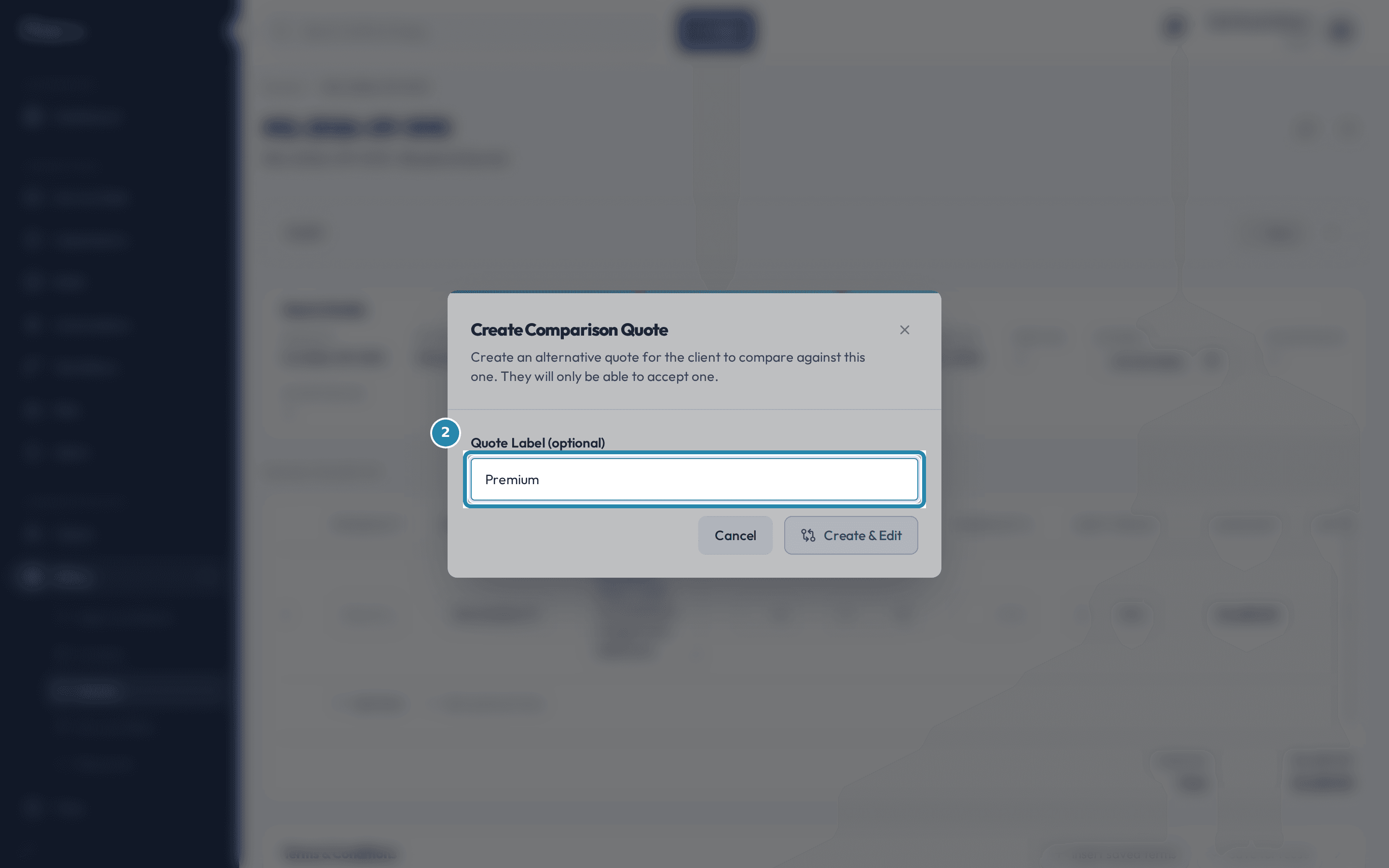
Compare opens Create Comparison Quote: Create an alternative quote for the client to compare against this one. They will only be able to accept one. Type a Quote Label such as Budget Option or Premium Package, then select Create & Edit.
Name the second quote. Price the second quote.
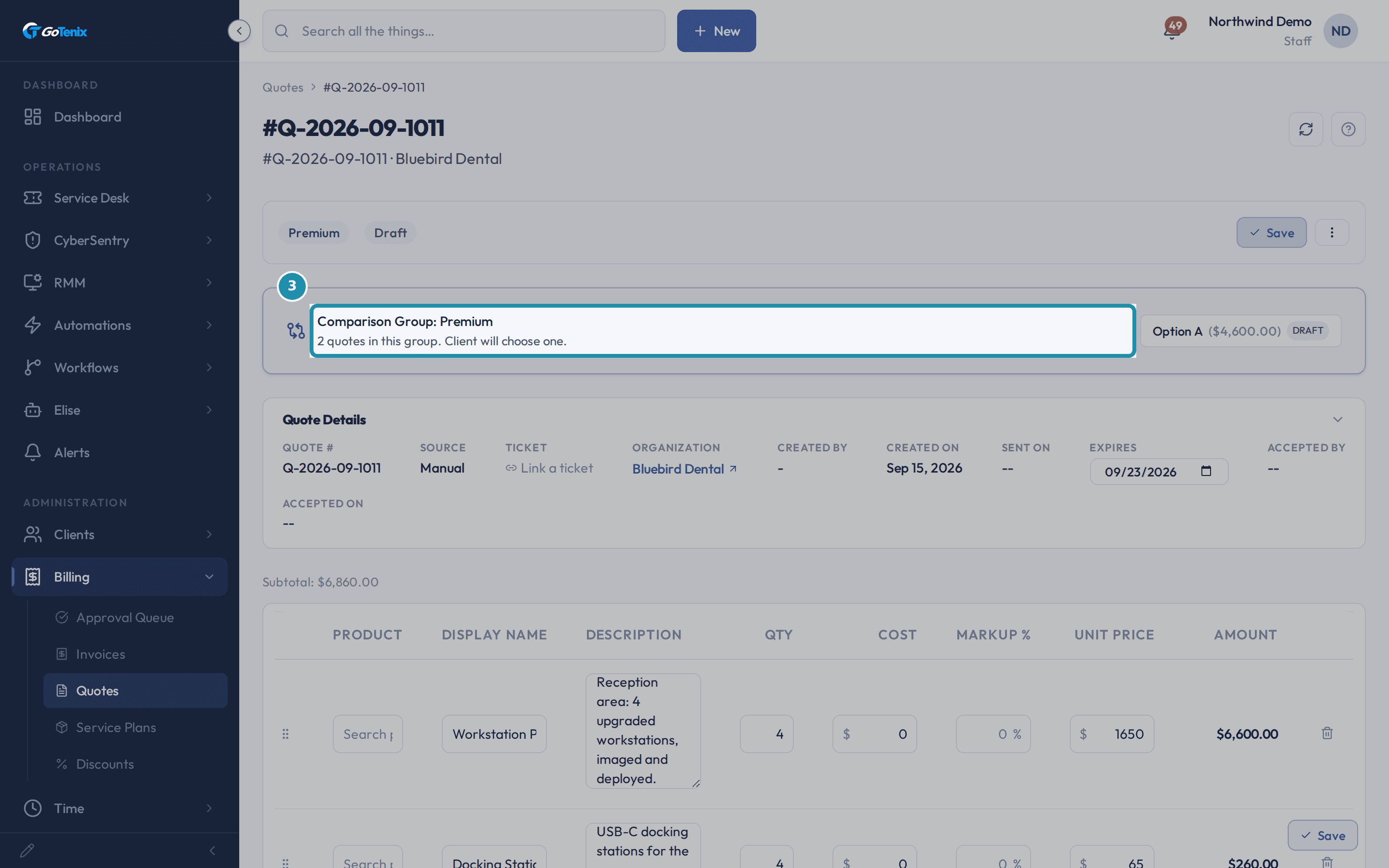
Both quotes now show a Comparison Group banner that links to the other one with its total and status. Edit the second quote's lines as you would any quote.
Note: Add optional item is not offered on a quote in a comparison group.Price the second quote. Send both quotes in one email.
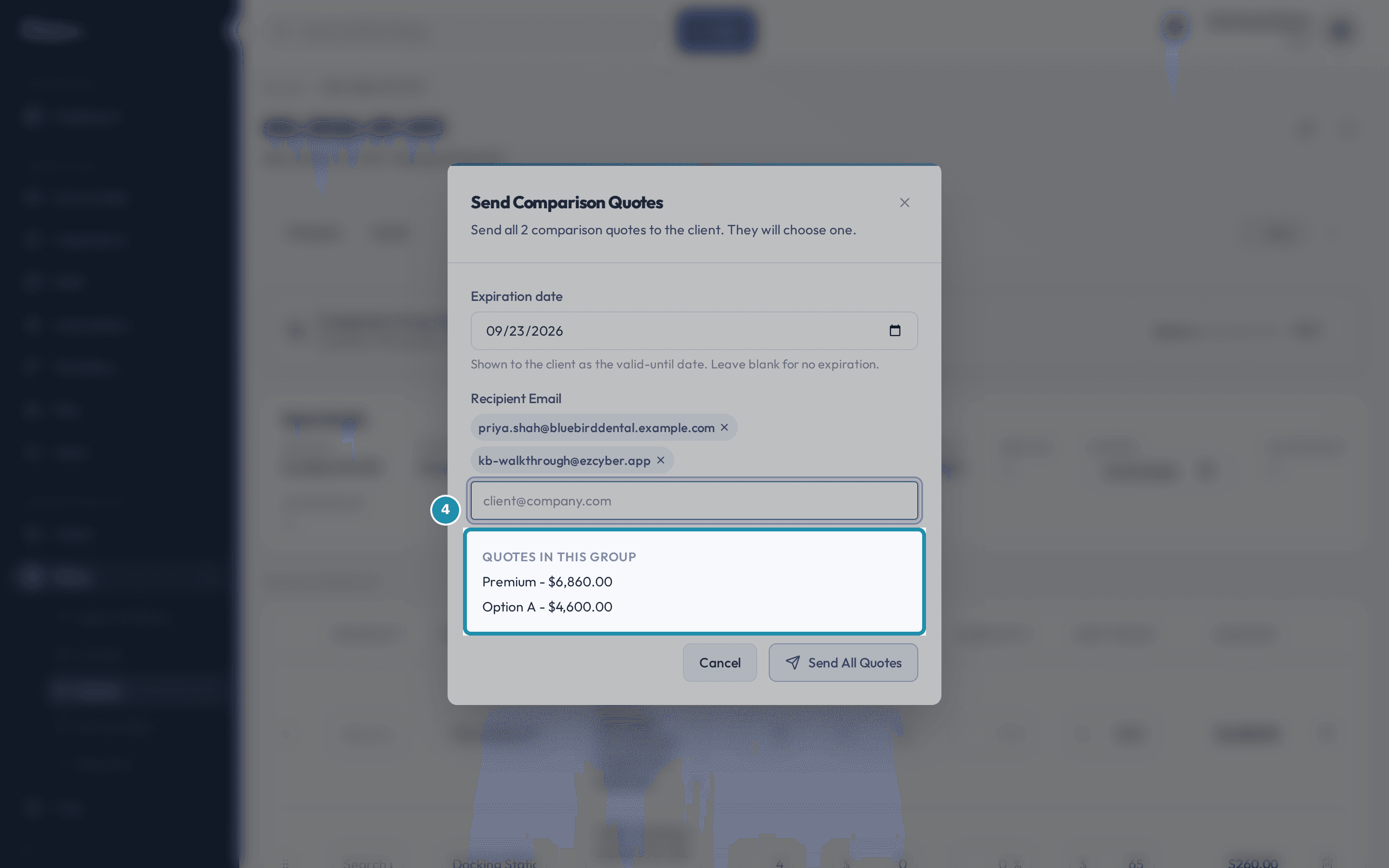
On a comparison quote, Send opens Send Comparison Quotes: Send all 2 comparison quotes to the client. They will choose one. Set the Expiration date, which the client sees as the valid-until date, add the Recipient Email, check the Quotes in this group list, and select Send All Quotes.
Note: Quotes go out from the mailbox connected at Admin > Integrations > Mail.Send both quotes in one email. Open the client's link and see both quotes as cards.
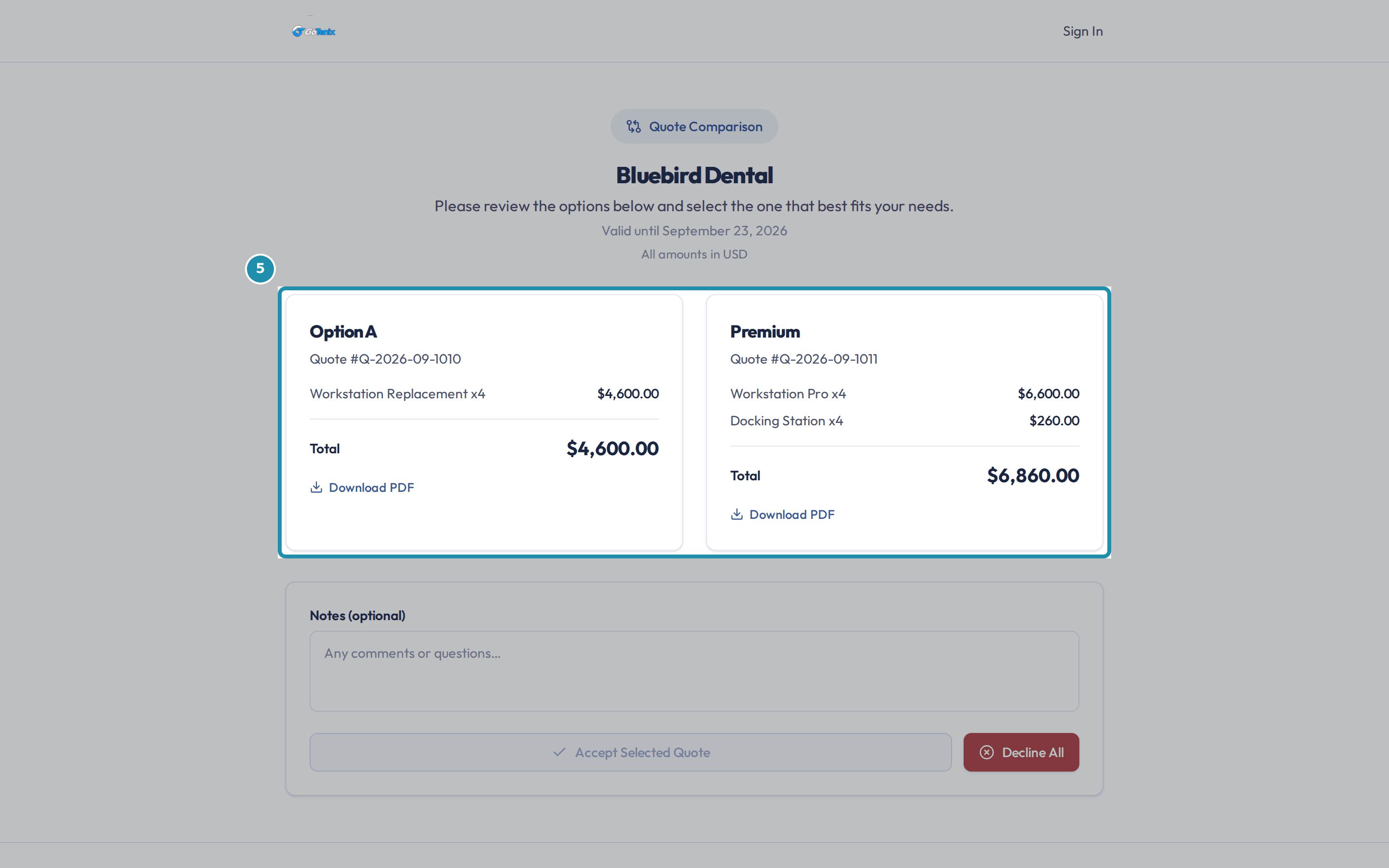
The public page shows a Quote Comparison badge, the client's name, and the quotes side by side as cards. Each card has its own lines, total and Download PDF link. Accept Selected Quote stays grey until a card is picked, and Decline All turns the whole choice down.
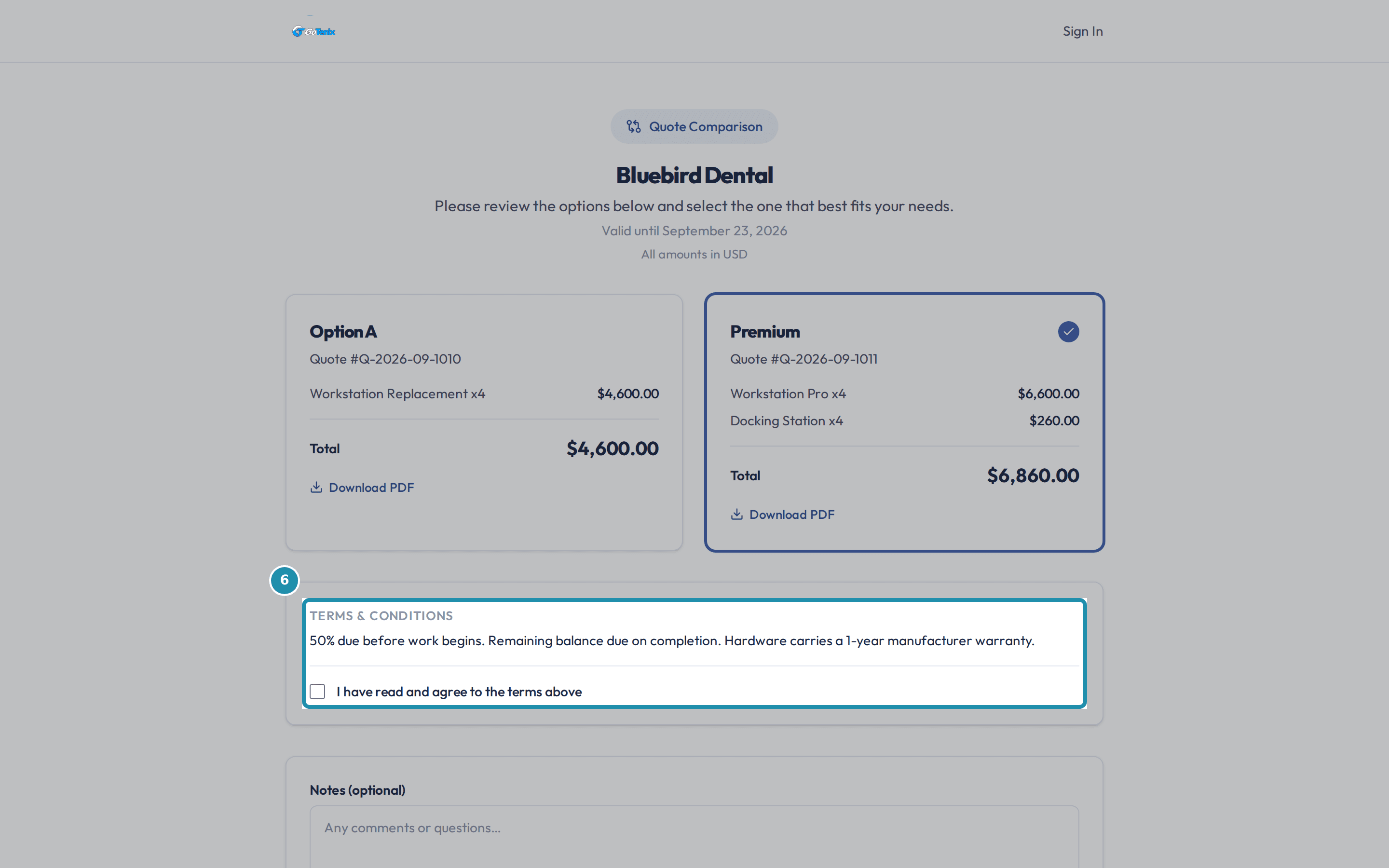
Open the client's link and see both quotes as cards. The client picks a card and agrees to the terms.
The chosen card is outlined with a checkmark. A Terms & Conditions block appears with I have read and agree to the terms above, and the client ticks it before accepting.
The client picks a card and agrees to the terms. See what the accept did for you.
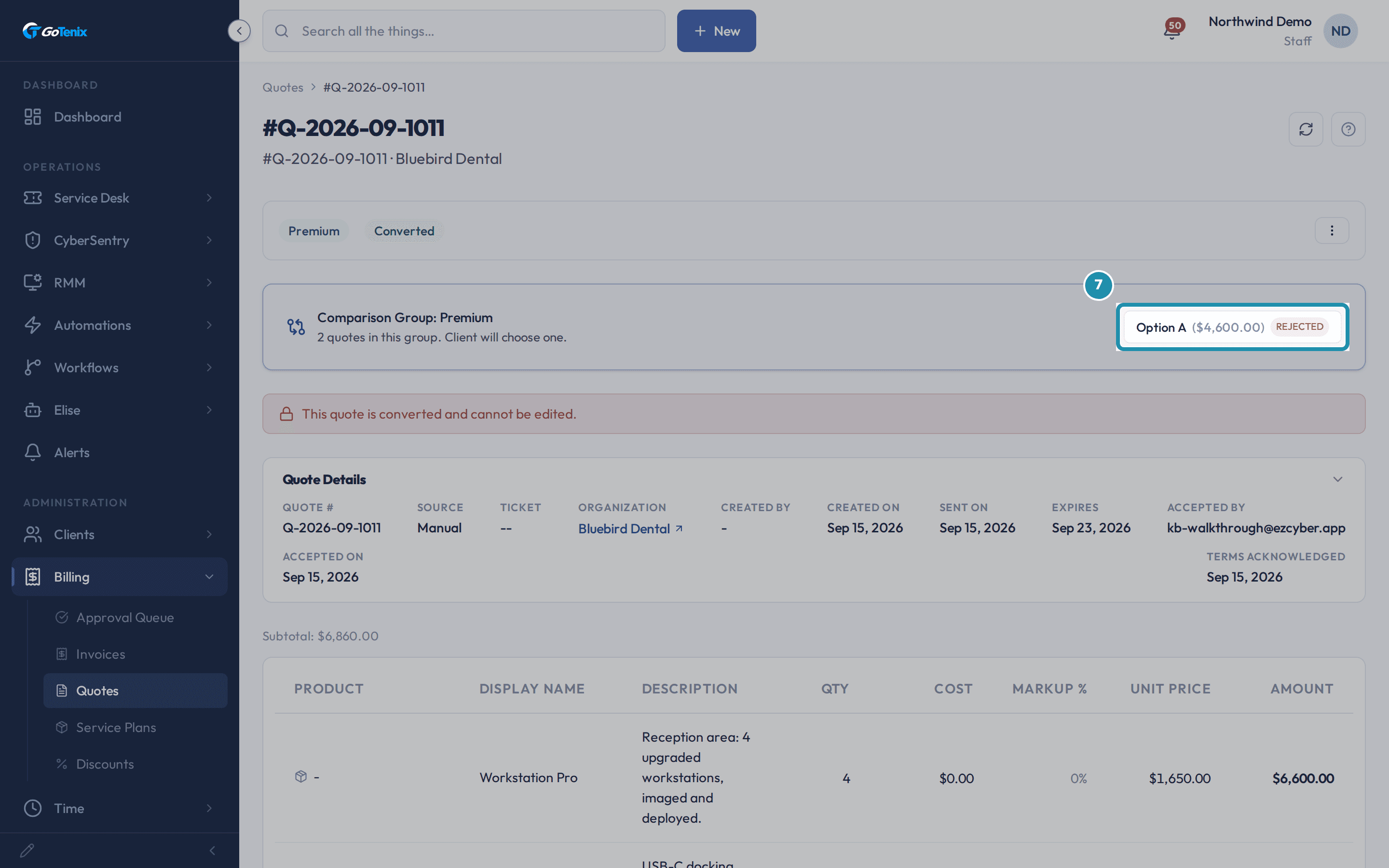
The accepted quote shows Converted, the other quote in the Comparison Group panel shows Rejected, and the accepted quote is locked: This quote is converted and cannot be edited. Auto-Create Invoice on Quote Accept is on by default and creates an Outstanding invoice from the accepted quote. You still review it and press Send.
See what the accept did for you. Know the difference from an optional line.
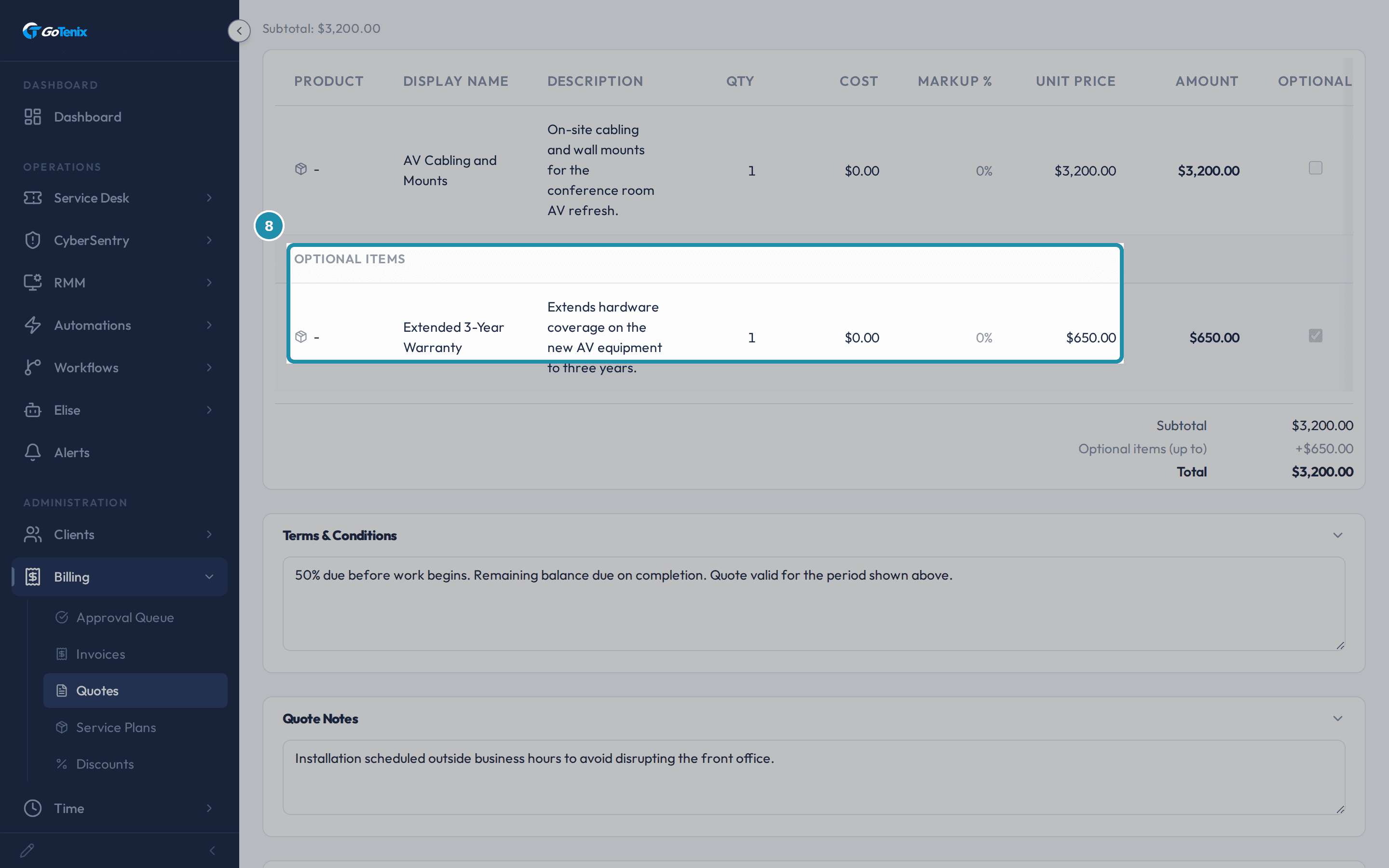
An optional item sits in its own Optional items section with a tick-box column, and the client ticks the extras they want on one ordinary quote. It is not a choice between quotes.
Know the difference from an optional line.
The pages behind each click
What you will have
- Turn one quote into two full, separately priced quotes with Compare.
- Send both from one email link, so the client sees them side by side and picks one.
- See the other quote close by itself when the client accepts, and the accepted one become an invoice without a click when Auto-Create Invoice on Quote Accept is on.
- Connect a mailbox first at Admin > Integrations > Mail. Quotes go out from it.
- Ask Elise to create the quote, add the comparison quote, send the pair, chase it and convert the accepted quote.
Why it works this way: Let a client choose between two quotes from one link
A comparison quote is several complete quotes that share one group. The client's link shows them as cards, and accepting one rejects the others still waiting on an answer.
Name your first quote before you press Compare. The original shows to the client under its own title, or as Option A if it has none, so a title like Budget reads better than Option A.
The client can also choose Decline All. That rejects every quote in the group at once.
An optional line and a comparison quote are different tools. A quote in a comparison group cannot carry optional lines.
Other ways to do this: Let a client choose between two quotes from one link
Ask Elise to start and send it
Ask Elise "create a quote for Bluebird Dental with four Workstation Replacement at $1,150", then "make a Premium comparison version of that quote". The Premium quote starts empty, so you price it in the editor. Then ask "send both quotes to [email protected]" and she sends the whole group under one link. She asks you to confirm before anything is created or sent.
Chase and finish with Elise
Ask "which quotes for Bluebird Dental are still waiting on an answer?" to find them, and "convert the accepted quote to an invoice" if Auto-Create Invoice on Quote Accept is off.
More than two choices
Run Compare again from either quote to add a third quote to the same group.
Record a yes given by phone or email
Mark Accepted in the actions menu records an acceptance on a comparison quote. With Auto-Create Invoice on Quote Accept on, the invoice is created the same way. With it off, use Convert to Invoice.
If it did not work: Let a client choose between two quotes from one link
- If Compare is not in the actions menu, the quote is no longer Draft or Sent. If Compare says optional line items are not supported on a comparison-group quote, remove the optional lines first.
- If no invoice appeared after an acceptance, check the setting Auto-Create Invoice on Quote Accept, or use Convert to Invoice.
- If a new quote you added to a group sent earlier is not on the client's link, send the group again. A draft quote stays hidden from the client until it is sent.
Questions this page answers
What is a comparison quote?
A comparison quote gives the client a choice. You send two or more quotes together and the client picks one. Open a quote that is still Draft or Sent, then click Compare in its actions menu. Give the new one a label, such as Budget Option. A quote with optional lines cannot be compared. When the client accepts one quote, the rest are declined.
Can I add optional items when I accept a quote?
Some quotes come with extra items you can choose. They show as check boxes under the items you must take. Tick one and the total goes up right away, so the total always shows what you agree to. If tax applies, the tax on your picks is worked out when you are invoiced. A short note on the page says so. Only the items you tick are added to the quote.
How do I respond to a quote?
When your IT provider sends you a quote, it shows up in Billing under Quotes with its number, total, status, and expiry date. If you are the Owner or the Primary Contact, each sent quote has Approve and Decline buttons. Approve opens a review page. It shows the line items and the total, any optional items as checkboxes that update the total as you tick them, and, if the quote has Terms & Conditions, the terms plus a box you must tick before Approve turns on. Decline just asks you to confirm. If the quote offers several options, accepting one declines the rest. A sent service agreement works the same way. It shows on the Service Plans tab with Approve and Decline buttons.
What does the client see when they accept a quote?
They see the required lines and the total first. That is the same on the public link and in the portal. If the quote has optional items, they tick the ones they want. The total updates before they commit. If the quote has terms, they must tick a box saying they have read and agree to them. The Accept Quote button stays off until they do. That tick gets its own time stamp. You can see it on the quote, in the Quote Details card, on a row called Terms acknowledged. It sits beside Accepted by and Accepted On.
What do draft, sent and accepted mean?
A draft is yours to edit. Send emails it to the client with a link they can accept from. Most sends go out right away. If the mail queue cannot get it out at once, this page says so instead of claiming it was sent, and Logs > Email Log shows how it ends. A sent quote can still be edited, but the client only sees your changes after you save and send it again. An accepted quote is locked, and Convert to Invoice takes the place of Save. Mark Accepted and Mark Rejected are for a yes or a no the client gave you outside the portal. A rejected quote reopens when you edit and resend it.
Was this helpful?