How to set your profile photo, two-factor authentication, toasts and navigation
Keep your own account working the way you do: edit your contact details and photo, turn on two-factor sign-in, choose how you hear about events (bell, email or desktop toast), set your AI Assistant Avatar, and reorder or hide your own sidebar. Every setting here changes things for you only.
See it
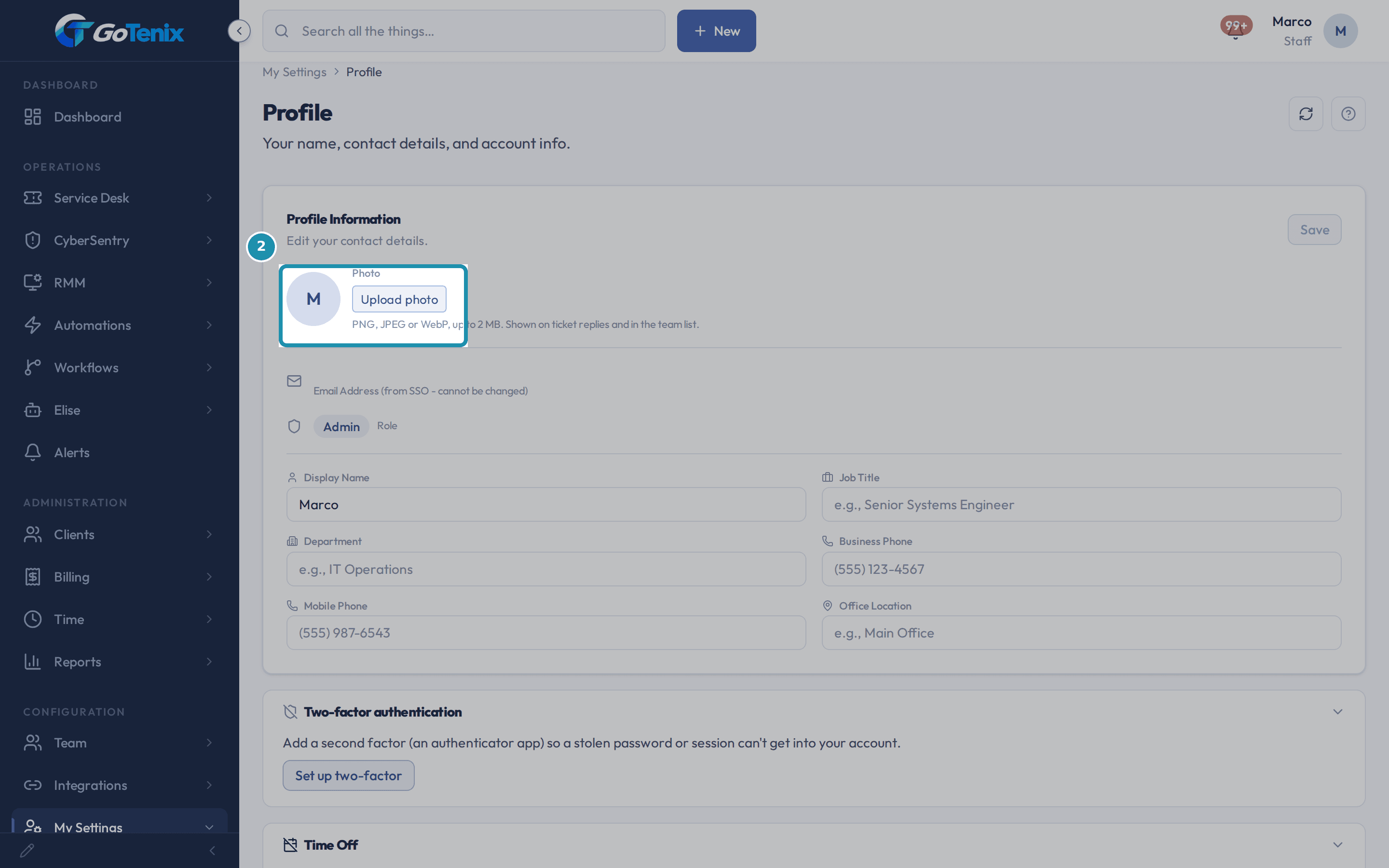 2. Look at the Photo control at the top of the same card.
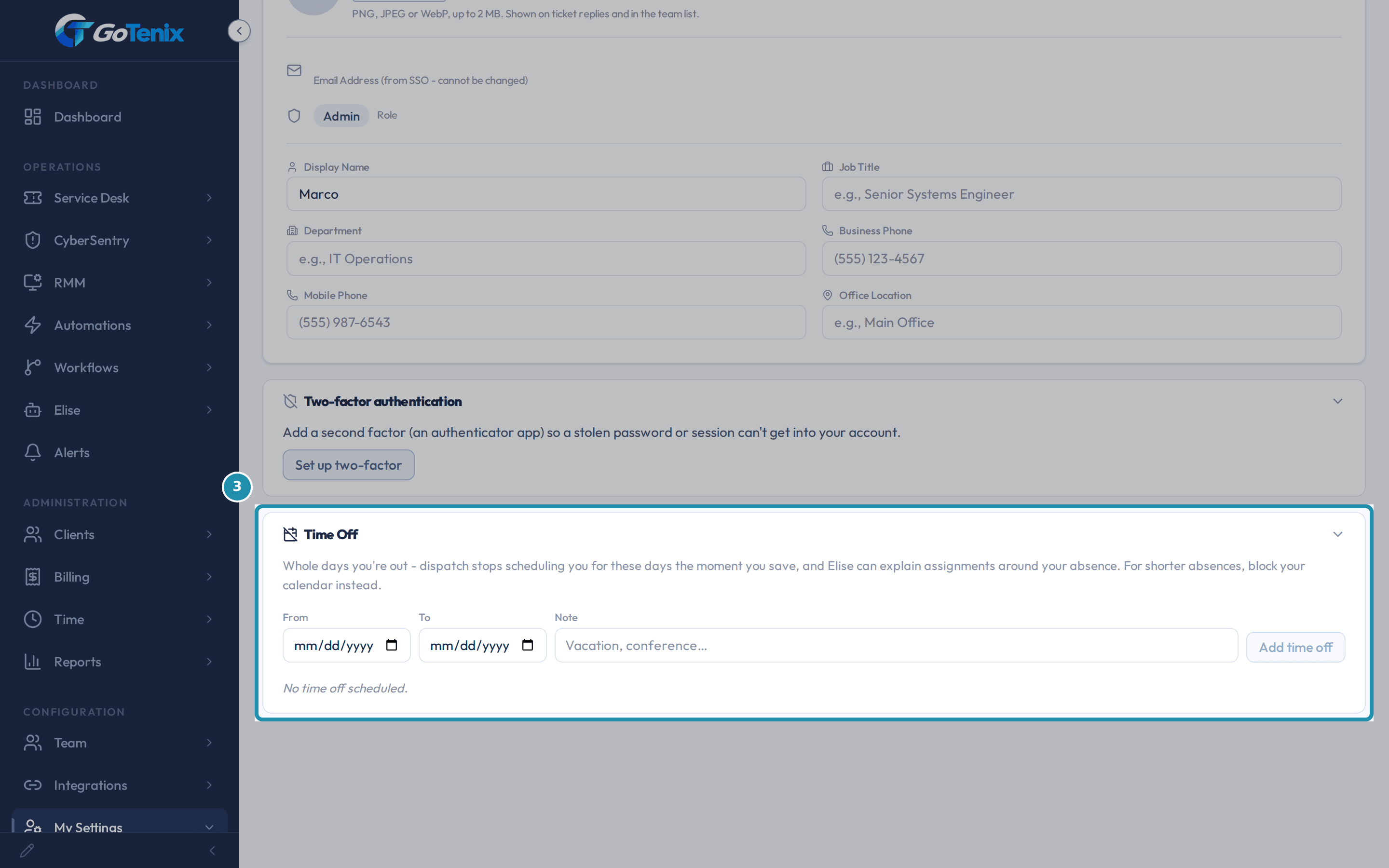 3. Open the Time Off card, further down the same page.
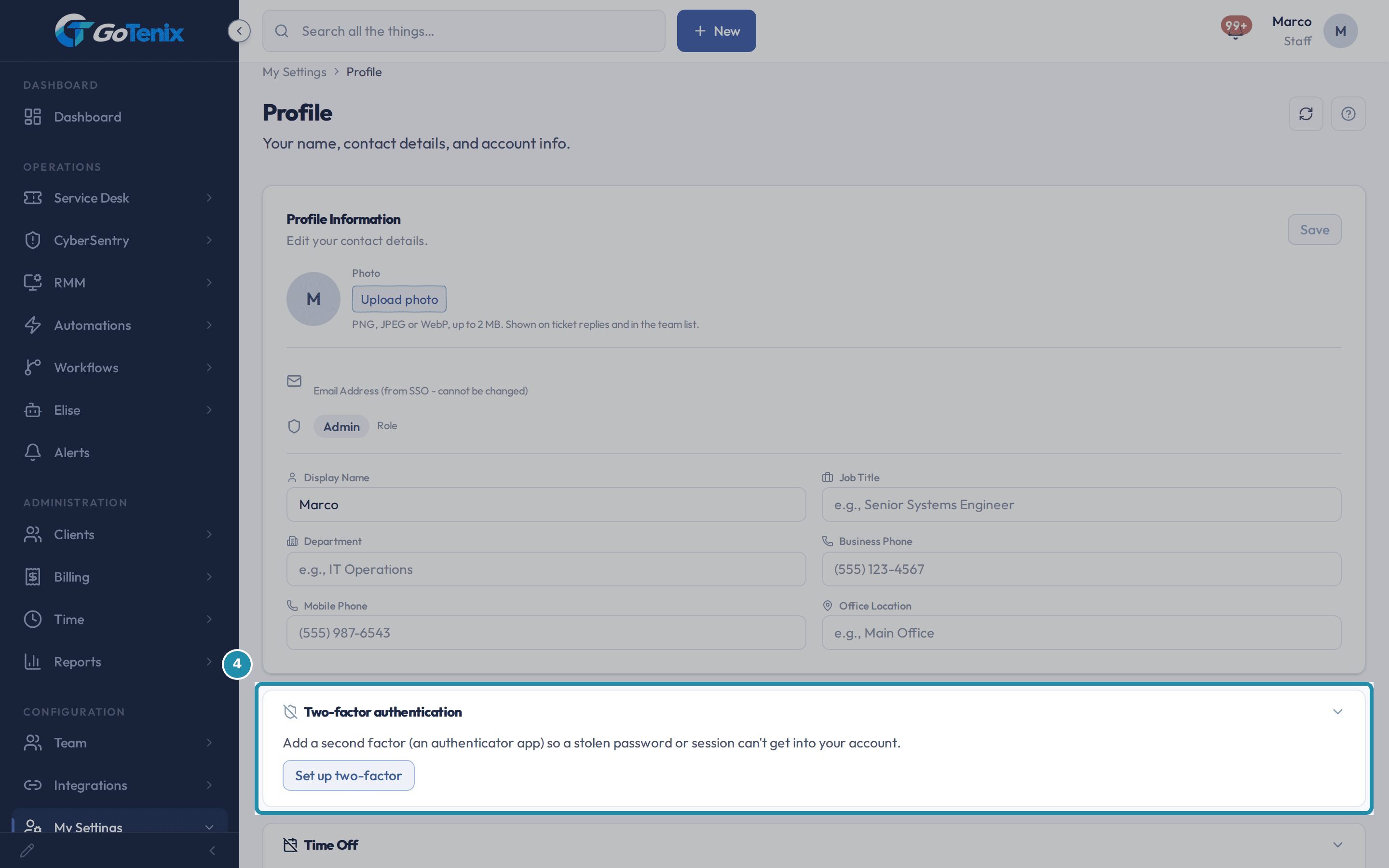 4. Open the Two-factor authentication card.
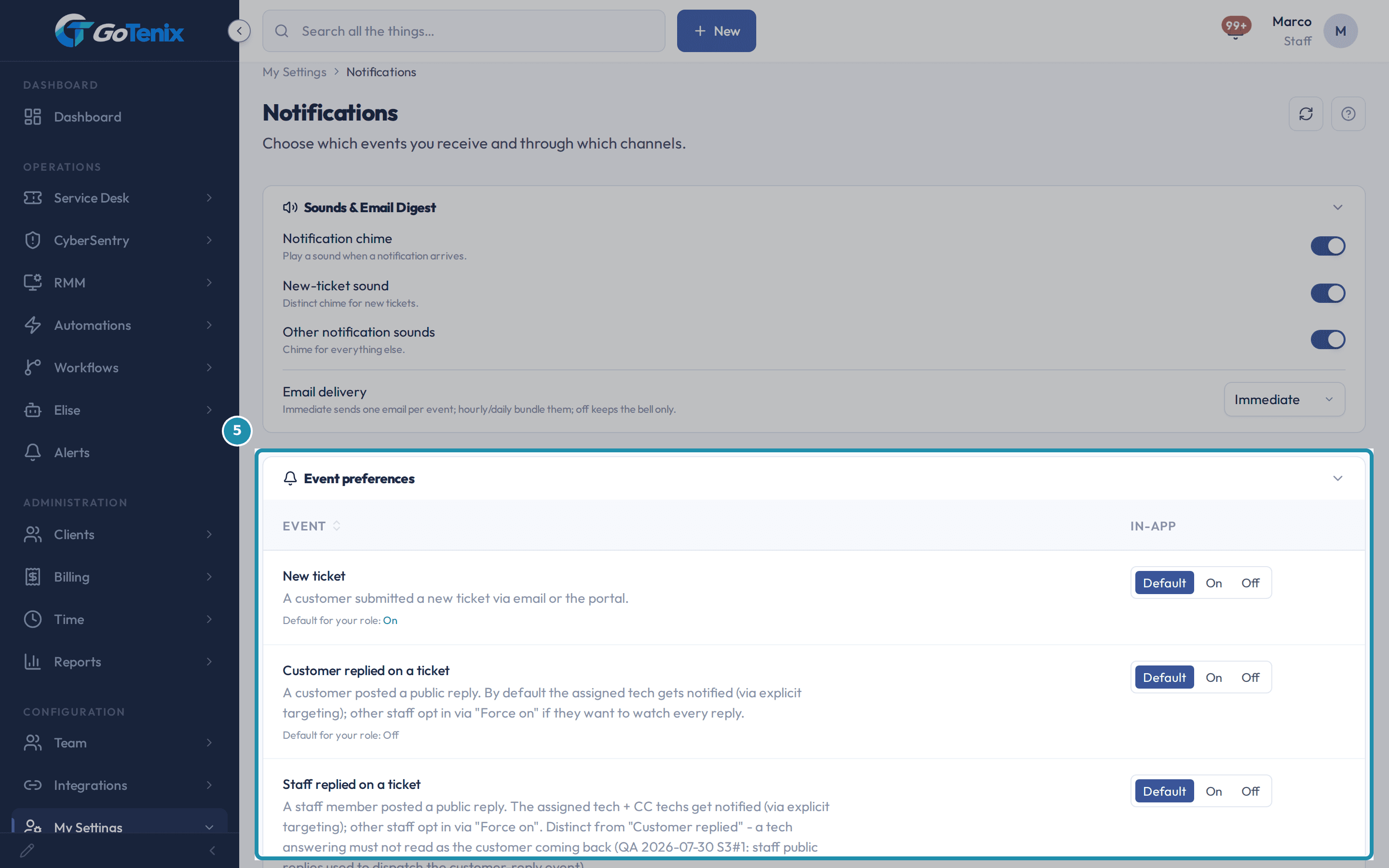 5. Open My Settings > Notifications and look at Event preferences.
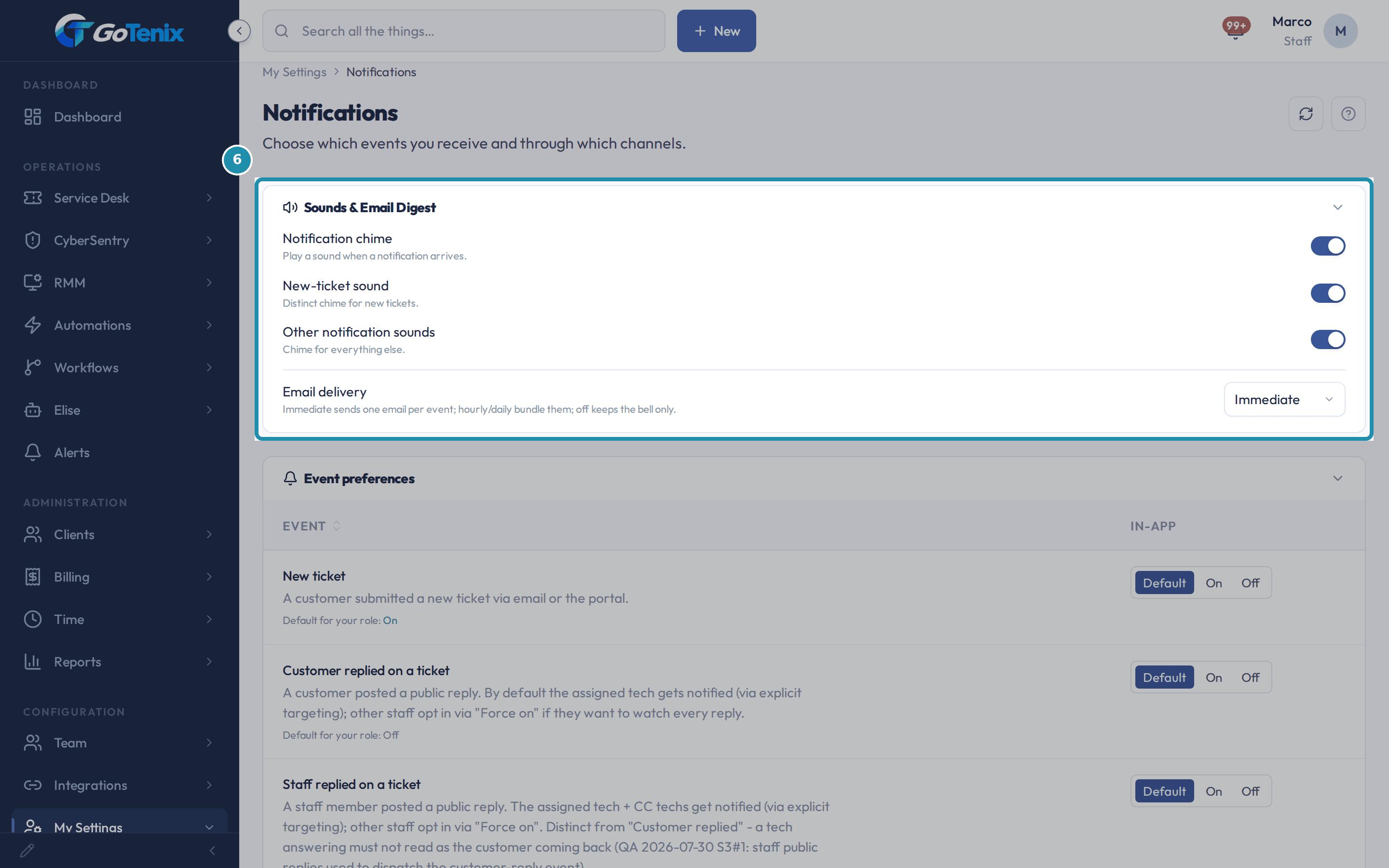 6. Open Sounds & Email Digest at the top of the same page.
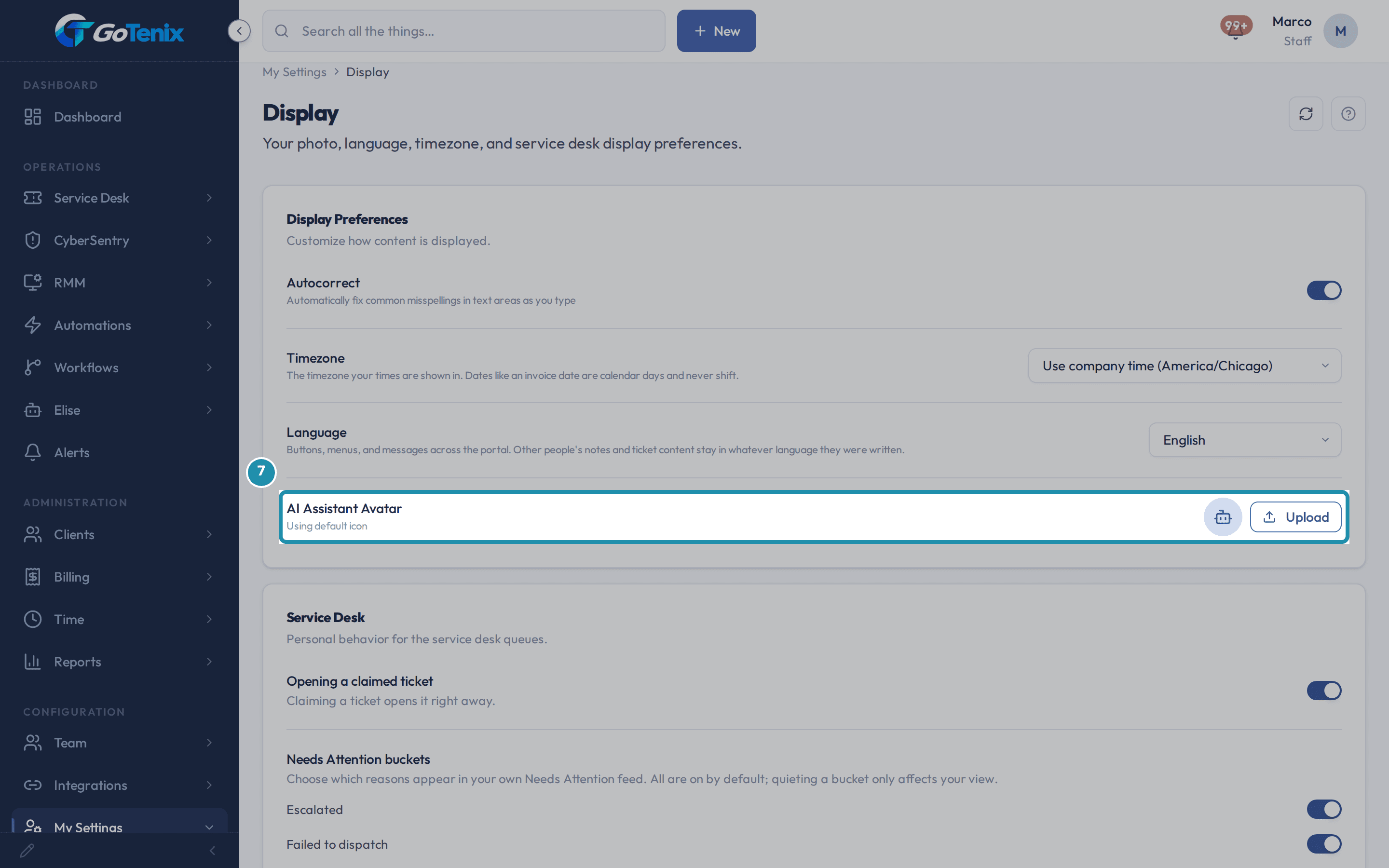 7. Open My Settings > Display and find the AI Assistant Avatar row.
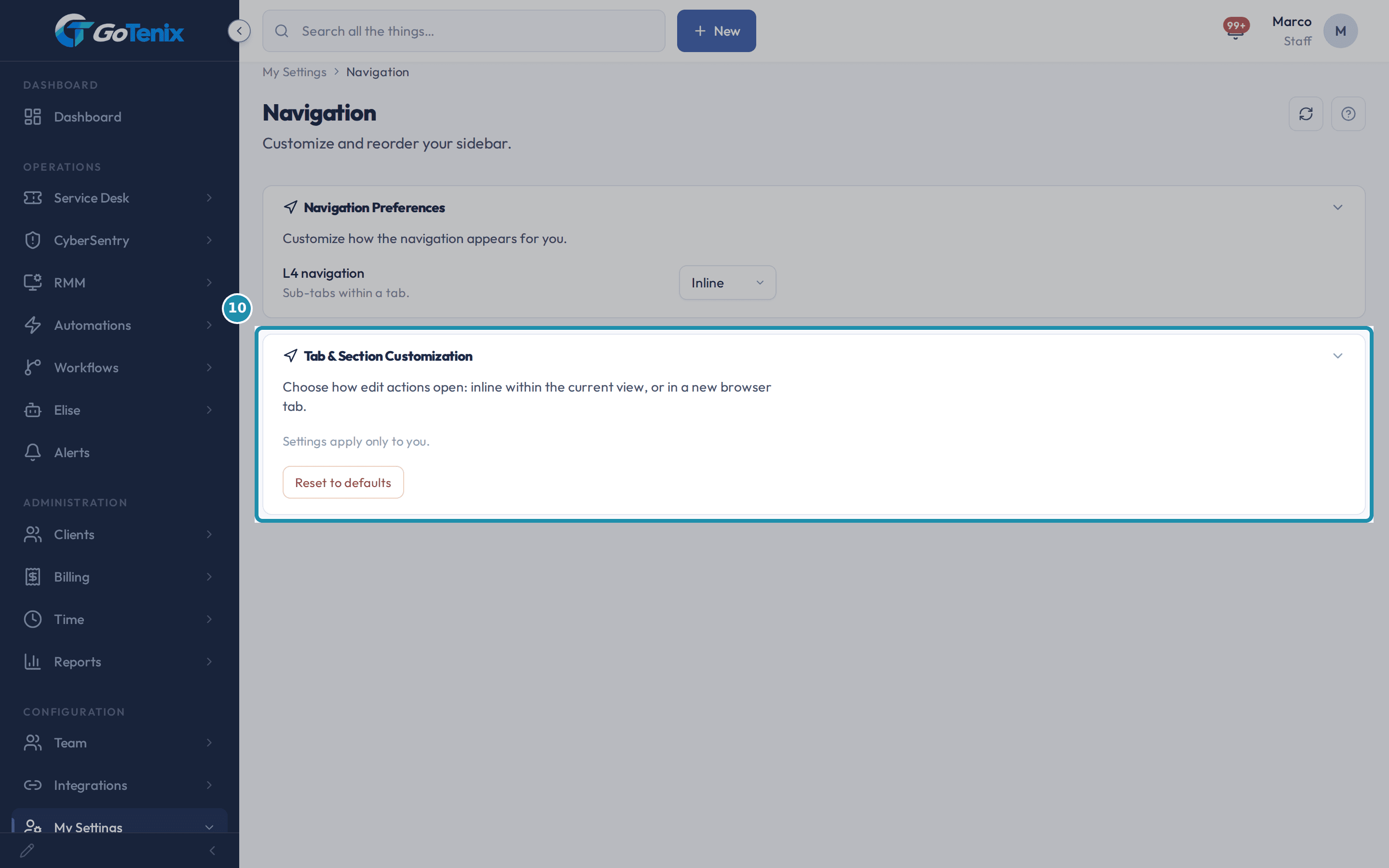 10. Open My Settings > Navigation to clear a saved layout from the settings page.
Browse
On this page
How to do it
Open My Settings > Profile.
The Profile Information card holds Display Name, Job Title, Department, Business Phone, Mobile Phone and Office Location. Save stays greyed out until you change something. Your sign-in email and your Role badge are shown for reference and cannot be edited here. If your account is linked to Microsoft 365, a Sync to Microsoft 365 switch also appears, switched on to begin with. With it on, saving also sends the same edit to your Microsoft 365 directory profile, and any warning from that push shows under the card.
Open My Settings > Profile. Look at the Photo control at the top of the same card.
Click Upload photo and pick a PNG, JPEG or WebP up to 2 MB. It saves as soon as you choose the file, so there is no Save step for the photo. The hint under the button says where it shows: on ticket replies and in the team list. Until you upload one you see your initials, or your Microsoft 365 directory photo when the directory has one for you. An uploaded photo wins: directory sync neither replaces nor clears it. Remove clears it and you are back on your initials. If your account is linked to Microsoft 365, the directory photo can return on a later sync. An admin with edit access to Team can also set or clear your photo from your staff record.
Look at the Photo control at the top of the same card. Open the Time Off card, further down the same page.
Time Off is for whole days. Pick a From date, an optional To date (leave it empty for a single day) and an optional note, then click Add time off. The card says dispatch stops scheduling you for those days the moment you save, and Elise can explain assignments around your absence. For a shorter absence, block your calendar instead. Past entries are dimmed and marked past, and the bin icon on a row removes it.
Open the Time Off card, further down the same page. Open the Two-factor authentication card.
Click Set up two-factor. Scan the QR code with an authenticator app, or type the key shown under it into the app by hand. Enter the 6-digit code the app gives you and click Verify & turn on. Two-factor then turns on and shows 10 backup codes, each good once if you lose your device, with a Copy codes button. Save them somewhere safe. After that the card reads how many backup codes remain. To turn it off, enter a current authenticator or backup code and click Turn off, so a stolen session alone cannot remove it. If your organization requires two-factor, you are sent to a setup screen at sign-in until you finish it.
Open the Two-factor authentication card. Open My Settings > Notifications and look at Event preferences.
Each event has a Default, On and Off choice for every channel that is set up on your instance. Default follows your role, and the line under each event says what that is (Default for your role: On or Off). On forces the event for you and Off silences it. Desktop toast is the balloon our agent shows on a computer assigned to you. It is never switched on by your role, so it stays off for every event until you set it to On, and events that cannot toast show a dash in that column. The Desktop toast column only appears once an approved computer is assigned to your staff record. Until then a line under the table reads "Assign a device on your staff record to receive desktop toasts".
Open My Settings > Notifications and look at Event preferences. Open Sounds & Email Digest at the top of the same page.
Three switches control the chime: Notification chime, New-ticket sound and Other notification sounds. Email delivery decides how email is sent: Immediate sends one email per event, Hourly digest and Daily digest bundle them, and Off (bell only) keeps the in-app bell and nothing else. A toast ignores this setting. It is sent straight away to each computer assigned to you, and an identical toast to the same computer within 10 minutes is skipped. No more than 6 toasts an hour go to one computer, so a noisy rule cannot bury your screen.
Open Sounds & Email Digest at the top of the same page. Open My Settings > Display and find the AI Assistant Avatar row.
This sets the icon your assistant shows in chat on your own screen only. Click Upload and pick a PNG, JPEG, WebP or GIF up to 2 MB. The line under the name says what you are using: Using default icon, Using system default or Custom avatar (overrides system default). Once you have uploaded one, a Reset button takes you back to the system default or the plain icon.
Open My Settings > Display and find the AI Assistant Avatar row. Click the pencil icon at the bottom of the sidebar to customize your own navigation.
The pencil is desktop chrome and only shows with the sidebar expanded, not when it is collapsed to icons. Its tooltip reads "Customize sidebar". In edit mode every item grows an up and a down arrow, which move it within its own section, and an eye icon that hides it. Save, Cancel and, once you have a saved layout, Reset to Default appear in a bar at the top of the page. Save keeps your changes and Cancel backs out untouched. Changes apply only to your own account.
Hide an item and find it again in the Hidden list.
Clicking an item's eye icon takes it out of its section and drops it into a list under the heading Hidden at the bottom of the sidebar. Each hidden item keeps a crossed-eye button, tooltip "Show item", that puts it straight back where it came from. Nothing is saved until you click Save, so Cancel restores every item you hid in that pass.
Open My Settings > Navigation to clear a saved layout from the settings page.
The Navigation page carries two cards. Navigation Preferences holds L4 navigation, set to Inline or New Tab. It chooses whether edit actions on a sub-tab open in place or in a new browser tab. Tab & Section Customization holds a Reset to defaults button that clears the hides and reorders you saved and puts your sidebar back to the standard layout. It asks "Reset navigation preferences to defaults?" first and reloads the page afterwards. The sidebar's own Reset to Default does the same with no question and no reload.
Open My Settings > Navigation to clear a saved layout from the settings page.
What you will have
- Update your contact details and photo, and keep your Microsoft 365 profile in step when your account is linked to it.
- Turn on two-factor sign-in for your own account and keep backup codes for the day you lose your phone.
- Choose, event by event, whether you hear about it in the bell, by email or as a desktop toast.
- Set your own AI Assistant Avatar, shown on your screen only.
- Hide, show and reorder your own sidebar.
- Put a saved sidebar layout back to the standard one, from the sidebar or from My Settings.
Why it works this way: How to set your profile photo, two-factor authentication, toasts and navigation
Desktop toast is opt-in. It stays off for every event until you set it to On, and its column only appears on your Notifications page once an approved computer from your own company is assigned to your staff record. Someone with edit access to Team makes that assignment, not you.
A toast never waits for the email digest. The digest only batches email, so a toast is queued for your computer straight away and shows when its agent next checks in.
The AI Assistant Avatar is personal. It is the icon your assistant shows in chat on your own screen. Everyone else keeps seeing the system default or the plain icon unless they upload their own.
If it did not work: How to set your profile photo, two-factor authentication, toasts and navigation
- If Sync to Microsoft 365 never appears on the Profile page, your account is not linked to Microsoft 365, so edits stay in the portal.
- If Desktop toast never appears on your Notifications page, ask someone with edit access to Team to assign an approved company computer to your staff record. The column is left out, not shown greyed out, until then.
- If the pencil icon is missing from the bottom of the sidebar, expand the sidebar and use a desktop-size window. Sidebar customization is desktop-only and is hidden while the sidebar is collapsed.
- If you lose your phone and your backup codes, ask an admin with edit access to Team to reset your two-factor, from the Team page or by asking Elise to reset the MFA for a staff member. Elise asks for approval first. She will not reset your own, which you turn off on this page with a current code. After a reset you set two-factor up again from this page.
Questions this page answers
How do I edit my profile?
Go to My Settings > Profile. You can update your display name, job title, department, phone numbers, and office location. Click Save to persist changes. If "Sync to Microsoft 365" is checked, your changes will also update your M365 directory profile.
How do I update my contact details?
Go to My Settings → Profile. Update your display name, job title, department, phone numbers, or office location. Then click Save. If "Sync to Microsoft 365" is on, the same change also updates your M365 directory profile.
Where does my photo come from if I never upload one?
Microsoft 365. If your account has a directory photo, the identity sync pulls it and uses it, and it refreshes on a later sync when you change it in Microsoft. Remove it in Microsoft 365 and the next sync removes it here too, back to your initials. Uploading a photo here stops all of that: your own pick wins permanently, and the sync will neither overwrite nor clear it. Remove the uploaded photo and the Microsoft photo comes back on the next sync. If neither exists you get your initials, and that is not an error.
Who can see my photo?
Anyone signed in who can already see your name. That includes the customer reading a ticket you replied to, because putting a face on a reply is the point. It is not published: the image is served through the same signed-in file door as every other upload, so a link on its own does nothing for someone who is not logged in. An admin can also set or clear the photo on a staff record from the Team side, and that is recorded in the audit log with their name.
What does the Time Off card do?
It records whole days you are out. The moment you save a date range, dispatch stops scheduling you for those days and can explain why a ticket went to someone else. For a shorter absence, block your calendar instead - Time Off is for full days only.
What does the Two-factor authentication card do?
It turns on a second sign-in step for your own account, so a stolen password alone cannot get in. Click "Set up two-factor", scan the code with an authenticator app (or type in the key by hand), then enter the 6-digit code it shows you to turn it on. You get 10 backup codes when it turns on - each works once if you lose your device. Turning it off asks for a current code first.
What is the Desktop toast channel?
A balloon in the corner of your screen, shown by our agent on the computers assigned to you. It is the most interrupting channel we have, so it is off for every event until you turn it on: unlike email and the bell, it is never switched on by your role or by being the assigned tech. Set an event to Force on and you will start seeing it on every device on your list.
How do toasts behave compared with email?
They are always immediate. The digest setting above batches email into an hourly or daily send, which makes sense for an inbox; a toast an hour late is worse than no toast, so toasts ignore it. They also do not queue up: your machine has a short cooldown on repeats and a cap of a few toasts an hour, so a noisy rule cannot bury your screen. If a computer is switched off, its toast waits for the machine to check in and expires with the rest of the queue rather than arriving days later.
What does the AI Assistant Avatar card do?
It sets a picture just for you: the icon your assistant shows in chat, on your own screen only. Other staff keep seeing the company default or the plain icon unless they upload their own. Upload a PNG, JPG, WebP, SVG, or GIF up to 2MB, or click Remove to go back to the default.
Was this helpful?