How to add your first client and invite your team
Get a client, its people and your own team into the portal in one sitting. You create the client, add a contact, give that person portal access, then add a staff member with a permission group. Elise can also create clients and invite client portal users for you after you approve.
See it
Browse
On this page
How to do it
Go to Clients and click "+ New Client".
The Clients list opens on the Managed tab, with Managed, Non-Managed, Internal and All Clients tabs. A list with no clients reads "No clients yet - your first one brings tickets, devices, and billing into the portal." New Client sits at the top right next to Show Inactive.
Go to Clients and click "+ New Client". Fill in the client's basics and billing address, then click Create Client.
Company Name and Domain are required, and so are the billing email, street address, city, state and ZIP (marked with an asterisk). Primary Contact, Contact Email and Phone are optional notes on the client record, not a contact and not a login. Client Type (Managed or Non-Managed) and Identity Provider are on the form too. Country defaults to "Use instance default".
Open the new client and look at what it started with.
A new client starts with the Onboarding status, lands on the client board for its type, and joins your instance's default pod, so dispatch works from its first ticket. Edit > Settings holds Status, Client Board, Identity Provider, Portal Access, Co-Managed IT, Default Ticket Assignee and Owning Pod.
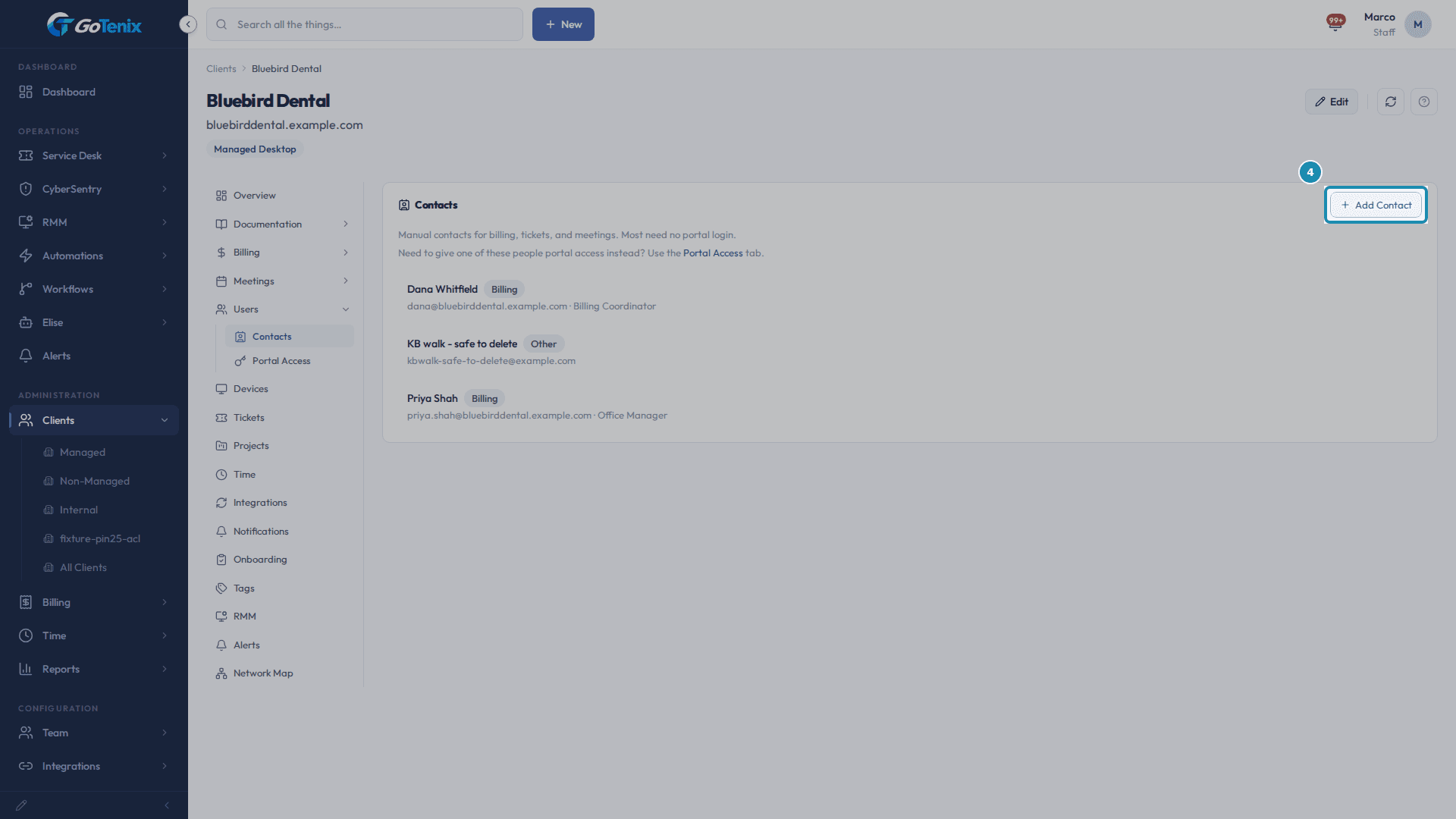
Open Users > Contacts, then click "+ Add Contact".
The Contacts tab reads "Manual contacts for billing, tickets, and meetings. Most need no portal login." and points to the Portal Access tab for anyone who needs a login.
Open Users > Contacts, then click "+ Add Contact". Fill in a name and email, pick a type, then click Create Contact.
Name and Email are required. Type is Billing, Owner (Designated) Contact, Technical or Other. The form says it directly: "Type is a label on the record. It grants nothing." Job Title and Phone are optional.
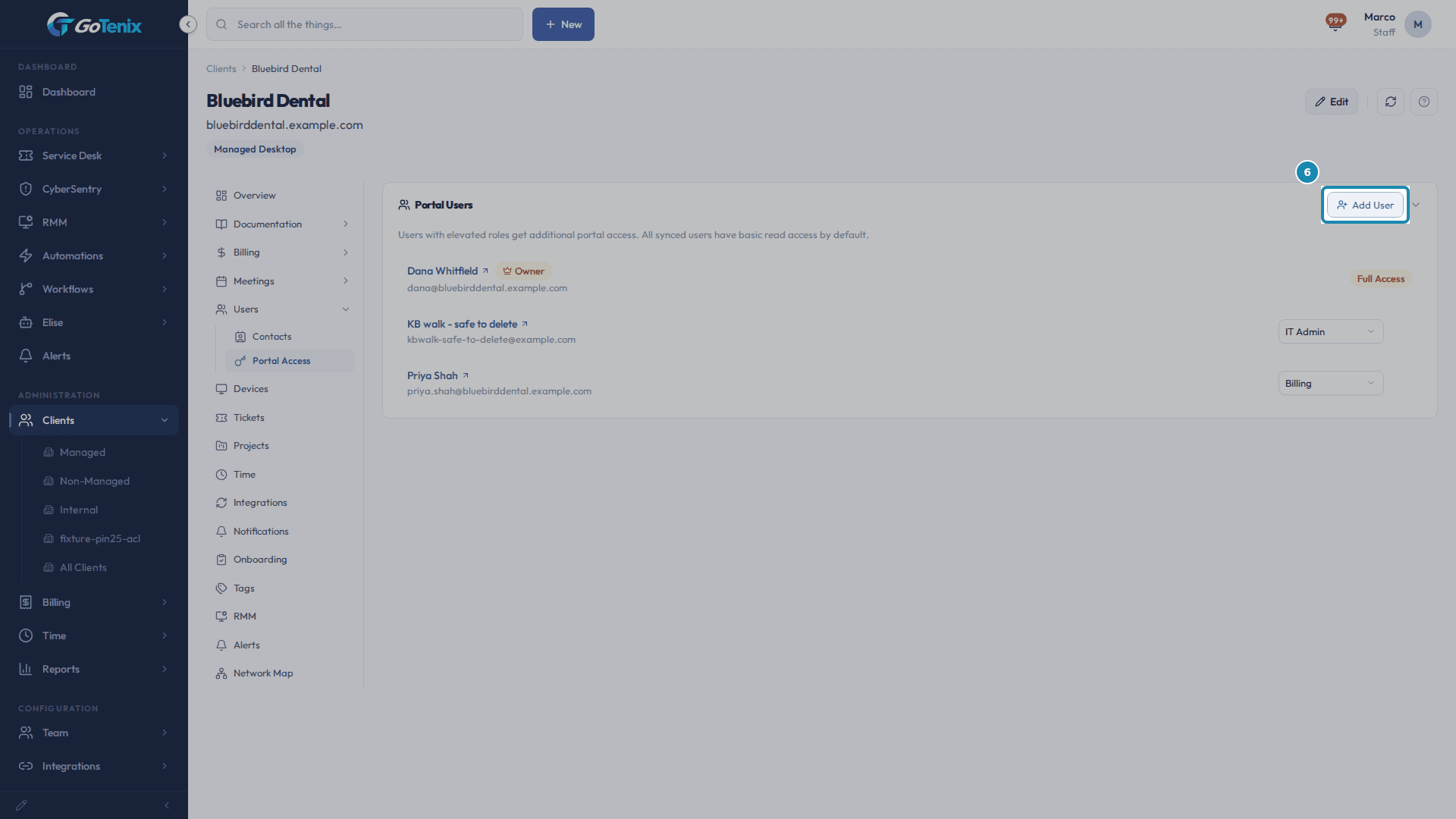
Open Users > Portal Access, click "+ Add User", search the name, then click the result to give access.
Portal Access reads "Users with elevated roles get additional portal access. All synced users have basic read access by default." The search finds existing portal users and manual contacts, and a contact shows a Contact badge.
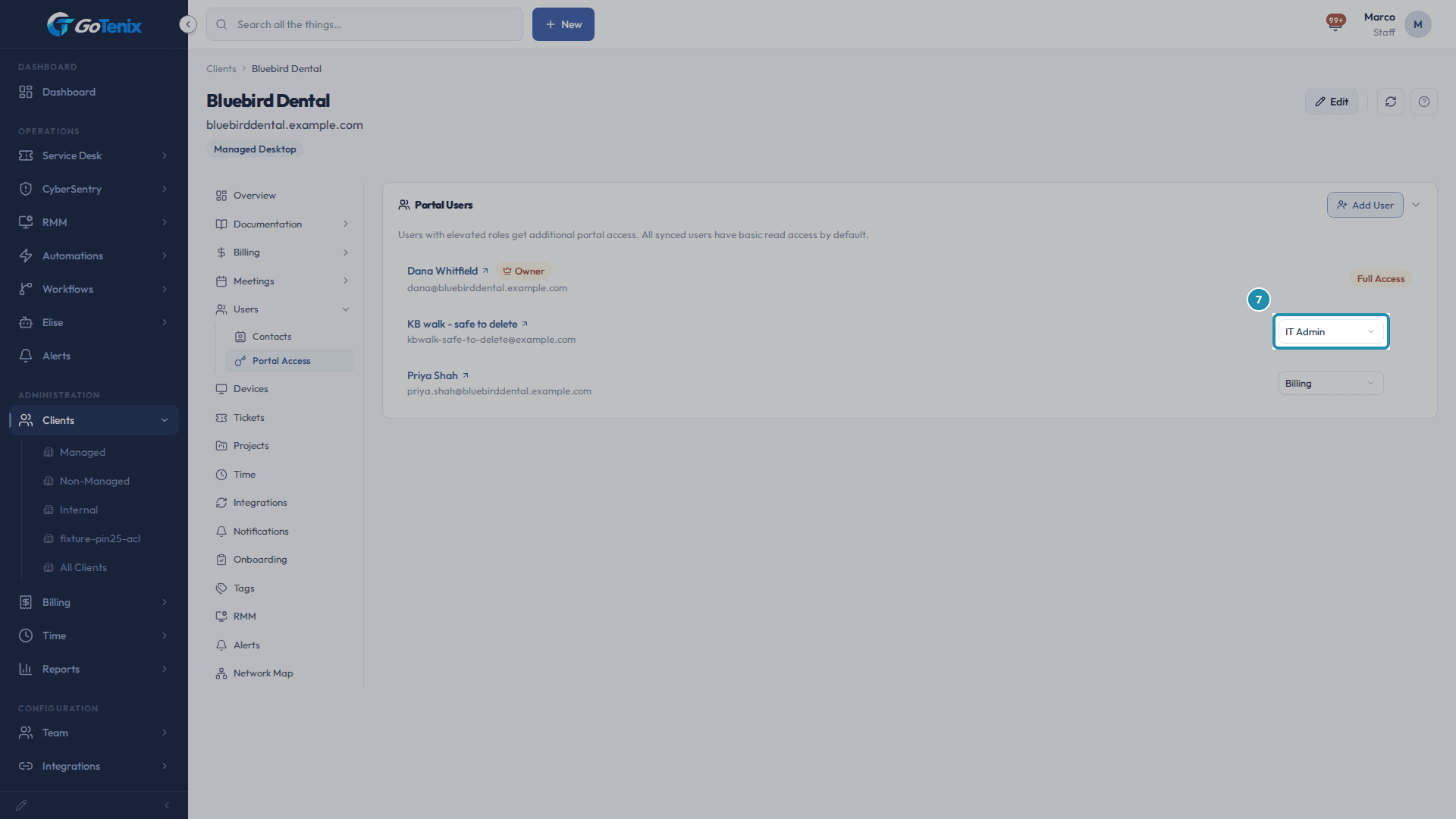
Open Users > Portal Access, click "+ Add User", search the name, then click the result to give access. Check the person is listed, and change their role from the row any time.
Each person on Portal Access has a role dropdown on their row (Primary Contact, IT Admin or Billing), except the client's owner, whose row shows the Owner and Full Access badges instead. Their contact record (Users > Contacts) and their portal login (Users > Portal Access) are two separate records for the same person.
Check the person is listed, and change their role from the row any time. Go to Team > Staff, click "Add Staff", enter an email, pick a Role, then click Add.
The dialog says "Invite by email and assign a role." It asks for an Email and a Role (required), and a Pod (required) when your instance has more than one pod. The Role field starts on "Select a role...", so you choose the permission group on purpose. The built-in groups are Full Admin, Service Manager, Senior Tech, Help Desk Tech, Account Manager, Billing Admin and Viewer. You can change the group later from the Group column on the Staff list.
Check the new team member on the Staff list.
The new person appears with the status "Invited, pending" until they sign in for the first time. If the invite email cannot be sent, the page shows an "Invite link ready" panel with a Copy button, and the link is valid for 7 days.
What you will have
- Create a client and see what it starts with: an Onboarding status, a client board and your default pod, so dispatch works from its first ticket.
- Add a contact, and know that a contact is a record, not a sign-in.
- Give a person portal access from the Portal Access tab, with a role you can change any time.
- Add a staff member, pick their permission group, and see their invite status.
Why it works this way: How to add your first client and invite your team
A contact and a portal login are different things. The Contacts tab says so itself: "Manual contacts for billing, tickets, and meetings. Most need no portal login." Give a contact a login from the Portal Access tab, with the Primary Contact, IT Admin or Billing role.
The client's portal owner is whoever is named under Edit > Primary Contact on the client. That person carries the Owner and Full Access badges on Portal Access. The Type picker on a contact (Billing, Owner (Designated) Contact, Technical, Other) is only a label and grants nothing.
Staff rights come from the permission group you choose. The built-in groups are Full Admin, Service Manager, Senior Tech, Help Desk Tech, Account Manager, Billing Admin and Viewer, and you can change a person's group any time from the Group column on Team > Staff.
Other ways to do this: How to add your first client and invite your team
Ask Elise to set up the client
Say "Create a client called Bluebird Dental with the domain bluebirddental.example.com" and Elise prepares it, then waits for your one-tap approval before it creates it (client.create). Once the client exists, "Give Dana Whitfield billing access on Bluebird Dental" adds a portal user (client.portal_users.add, also after approval). "Invite Dana Whitfield as a new Billing user at Bluebird Dental" creates a new client portal user the same way (user.invite, after approval).
Ask Elise for a picture of the client
"Give me a rundown for Bluebird Dental" returns a computed block of facts: tickets by status and priority, invoices and quotes, over a window you choose (client.rundown, read-only). "Who has portal access at Bluebird Dental?" lists them (client.portal_users.list).
Ask Elise to manage your team
Elise can change a client user's role (user.update_role), reset a team member's MFA when they lose a device (team.reset_mfa), or offboard a staff member (team.offboard). Each one waits for your one-tap approval. Resetting MFA and offboarding cannot be undone by Elise afterwards. Adding a staff member stays on Team > Staff, and a manual Contact is added on the client's Contacts tab.
Sync people from Microsoft 365 or Google Workspace
Connect the client's directory and its users sync in with basic read access, which the Portal Access tab states. A synced user still needs a Portal Access grant to hold the Primary Contact, IT Admin or Billing role.
If it did not work: How to add your first client and invite your team
- If a contact says they cannot sign in, check Users > Portal Access on their client. A name that only appears on Users > Contacts was never given a login.
- If a new staff member cannot see a page you expected, check their permission group in the Group column on Team > Staff.
- If you picked the wrong permission group, change it from the Group dropdown on their Staff row.
Questions this page answers
What is a Managed client, and what is a Non-Managed one?
Managed clients are the ones you run day to day across the systems you have linked. Non-Managed clients are invoice only. You pick from the Client Type list on the new client form. That list shows only when the MSP module is on. Without it, every new client is Managed. Your pick puts the client on the board of the same name. Internal is a third type, but you cannot pick it. It is the one record for your own company. Boards live at Settings > Clients > Client Boards. You can add and rename boards there. Take care: matching goes by name. Rename the Managed board and new managed clients fall to the default board instead.
How do I manage who can sign in from a client?
Open the client, go to Users, then Portal Access. The Portal Users card lists everyone who can sign in. Each row has a picker with three roles: Primary Contact, IT Admin and Billing. Your own client groups sit in the same picker under those. A new person starts on Billing. What a person can see comes from their role or group. There is no per person grid here. The client owner has no picker at all. They carry an Owner badge and a Full Access badge and always keep everything. To take access away, use Remove. That person drops back to plain user access. A person you added who has not signed in yet shows "Invited, pending" with who invited them and when; "Cancel invite" on that row turns their account off.
What can each client portal role do?
There are four. User works their own tickets and can read docs, their own vault and training. Billing adds invoices, devices, licenses, meetings and the payment card page. IT Admin runs the place day to day. It can read invoices but not pay them, and it can edit people rather than fully manage them. Primary Contact is the same again, plus full control of people and client settings. The client owner sits above all four. They keep full access and carry an Owner badge.
How do permission groups work?
Permission groups define what admin users can access in the portal. Built-in groups include Full Admin (unrestricted), Service Manager, Senior Tech, Help Desk Tech, Account Manager, Billing Admin, and Viewer (read-only, and the safest group to start someone on). No group is assigned for you: Add Staff asks you to choose one, and Add stays disabled until you do. You can create custom groups and set a tier for each section: none, view, edit, or admin. Closing or reopening a time period needs its own permission, "Close Period", listed under Time in the tree: Owner and Full Admin have it, a group that already held Time admin got it automatically when this shipped, and you can remove it from a group without touching the rest of Time. Manage groups in Team > Staff Roles, and assign a group to a staff member from the Group column on the Team page.
Do people added here get a portal login?
Contacts are the people on file for this client. Most never get a login. The client's portal owner is the person you name with "Edit" on the client, under "Primary Contact". That person carries the "Owner" and "Full Access" badges on "Portal Access" and keeps every right. The "Type" picker on this tab is only a label on the record. That includes "Owner (Designated) Contact". It grants nothing. Anyone else gets a login only when you invite them on "Portal Access".
How do I add a team member?
Go to Team > Staff and click "Add Staff". Enter the person's email address, choose the permission group that sets their access, and pick a pod if your instance has more than one, then click Add. The group is required: Add stays disabled until you choose one, and the group you choose is the group they are created with. They are added as staff and sent a sign-in link. You can change their access later from the Group column on the Staff list. Until they sign in for the first time, their Status says "Invited, pending", with who invited them, when, and when the link expires; "Cancel invite" there stops the link and turns the account off.
Was this helpful?