When you decide who gets to see a shared credential
Choose which passwords and documents each client can see
Decide for every vault entry, knowledge base article, procedure, network record, domain and expiration whether it is yours alone, shared with the whole client, or shared with one named person, and read every row's exposure at a glance from the vault list.
See it
Browse
On this page
How to do it
Open Microsoft 365 Global Admin and turn on MSP Only.
The row reads MSP Only: never shared with the client, and the sharing toggle under it greys out. It cannot be switched on while MSP Only stays on.
Note: Turning MSP Only on clears Visible to all client users and removes anyone already named under Visible to specific users.Open Microsoft 365 Global Admin and turn on MSP Only. Open Guest WiFi and turn on Visible to all client users.
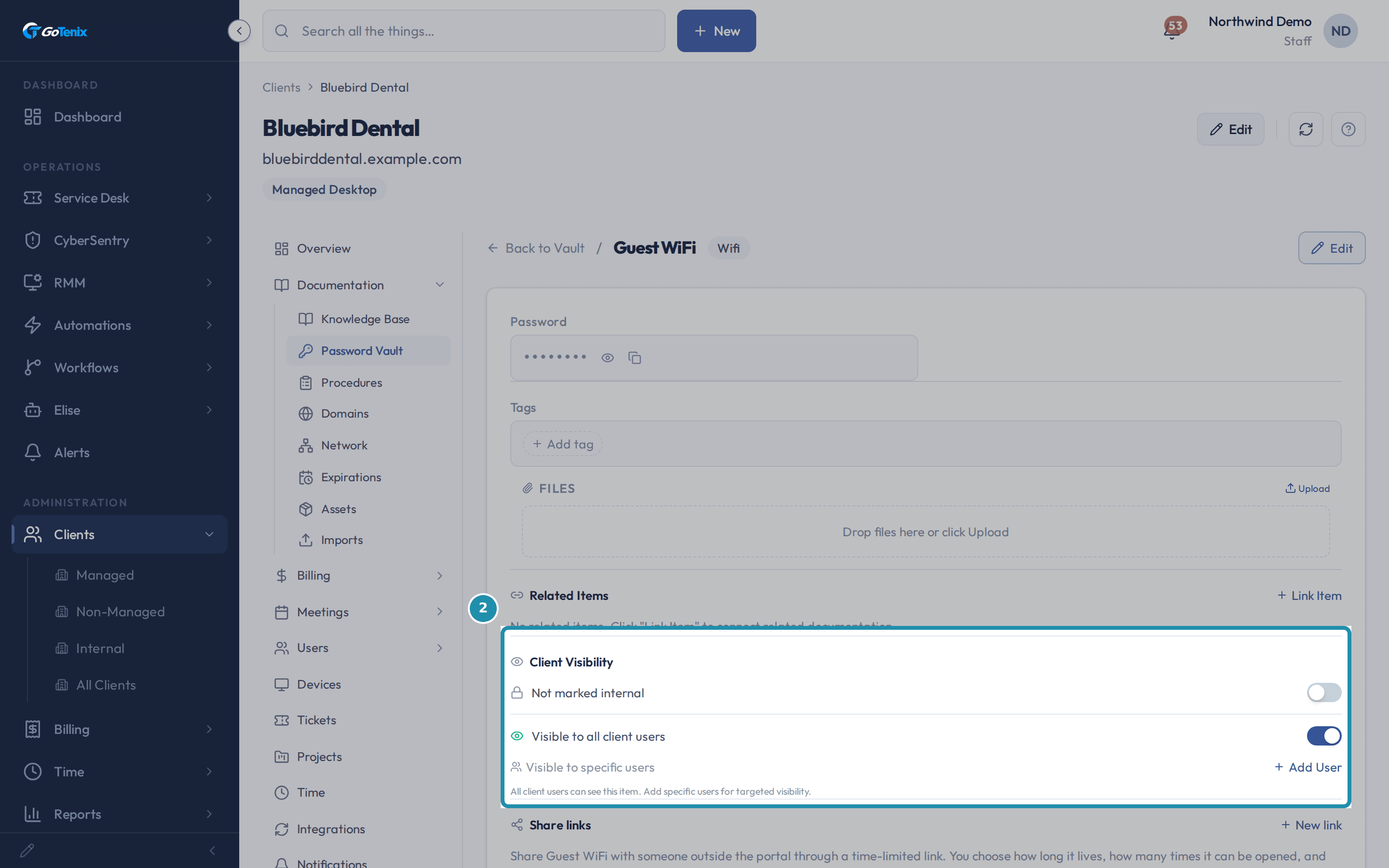
Before, the first row read Not marked internal. The sharing toggle now reads Visible to all client users with a green eye, and the hint says All client users can see this item. Add specific users for targeted visibility.
Open Guest WiFi and turn on Visible to all client users. Open Practice Owner Personal Banking and leave it hidden.
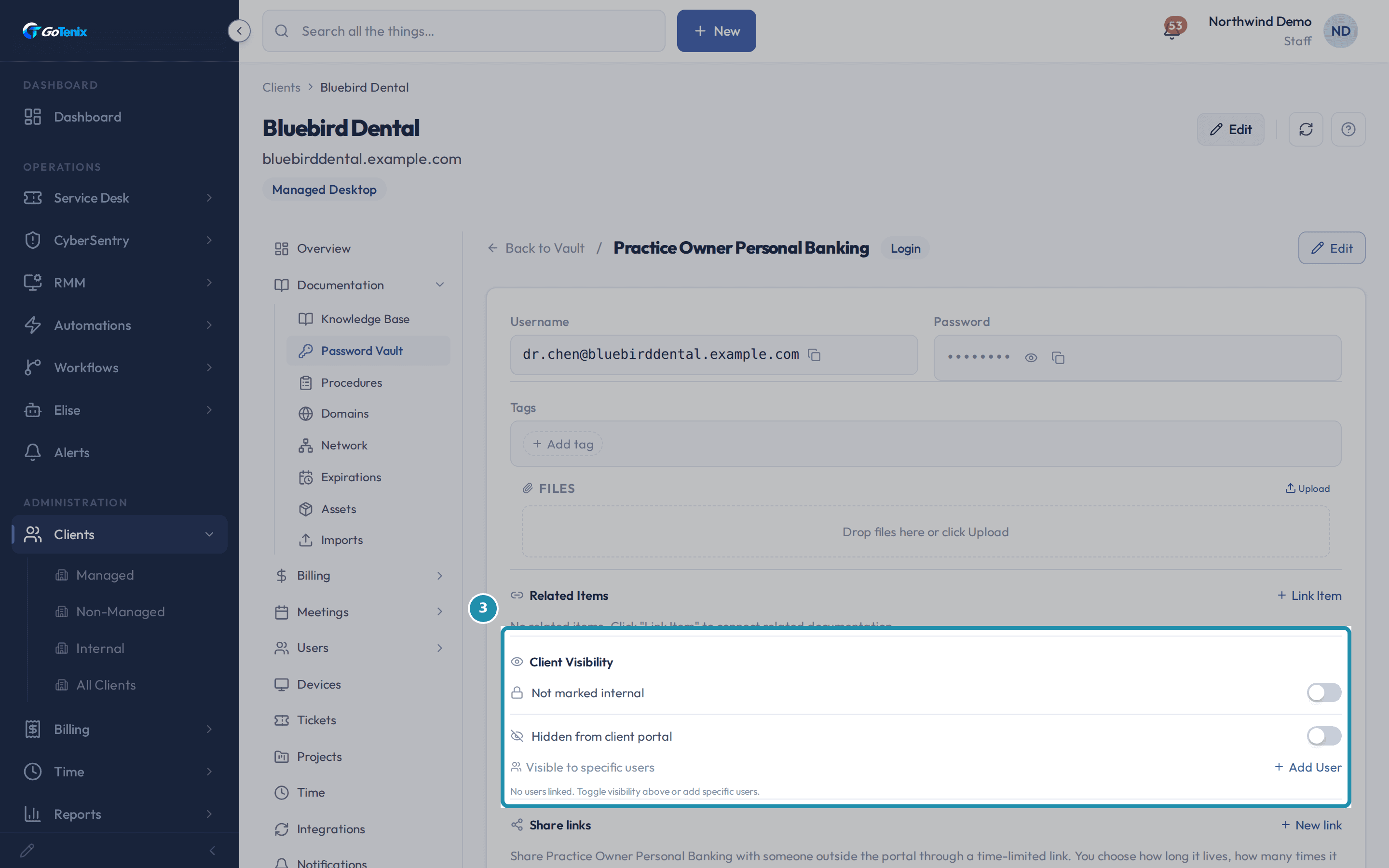
The sharing toggle reads Hidden from client portal and no client sees the entry. Under it, Visible to specific users has an Add User button for sharing with one person.
Open Practice Owner Personal Banking and leave it hidden. Share with one person: select Add User and search by name.
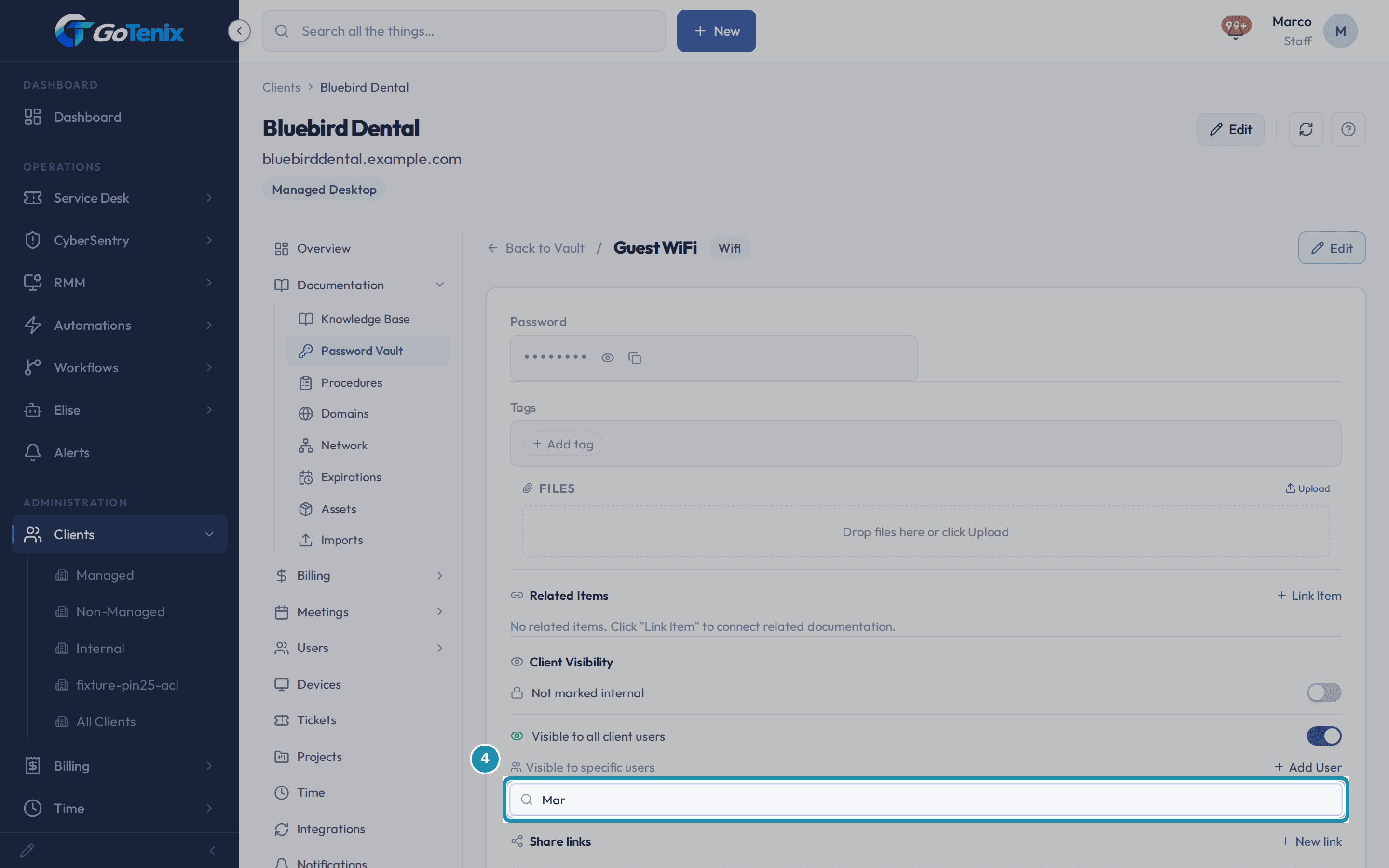
The search box reads Search M365 users and starts after two letters. Pick the person and their name is listed under Visible to specific users, with a remove button next to it. That person sees the entry in their own Password Vault even while the sharing toggle still reads Hidden from client portal. Someone who has never signed in to the portal gets the message This user has no portal account yet, so they can't be granted access.
Share with one person: select Add User and search by name. Back on the vault list, read the lock icon and the Shared chip on each row.
An amber closed lock is MSP Only. An open grey lock with no chip is hidden. An open grey lock with a Shared chip is visible to all client users. Select the lock to switch MSP Only on or off without opening the entry.
Sign in as a client contact and open Documentation, then Password Vault.
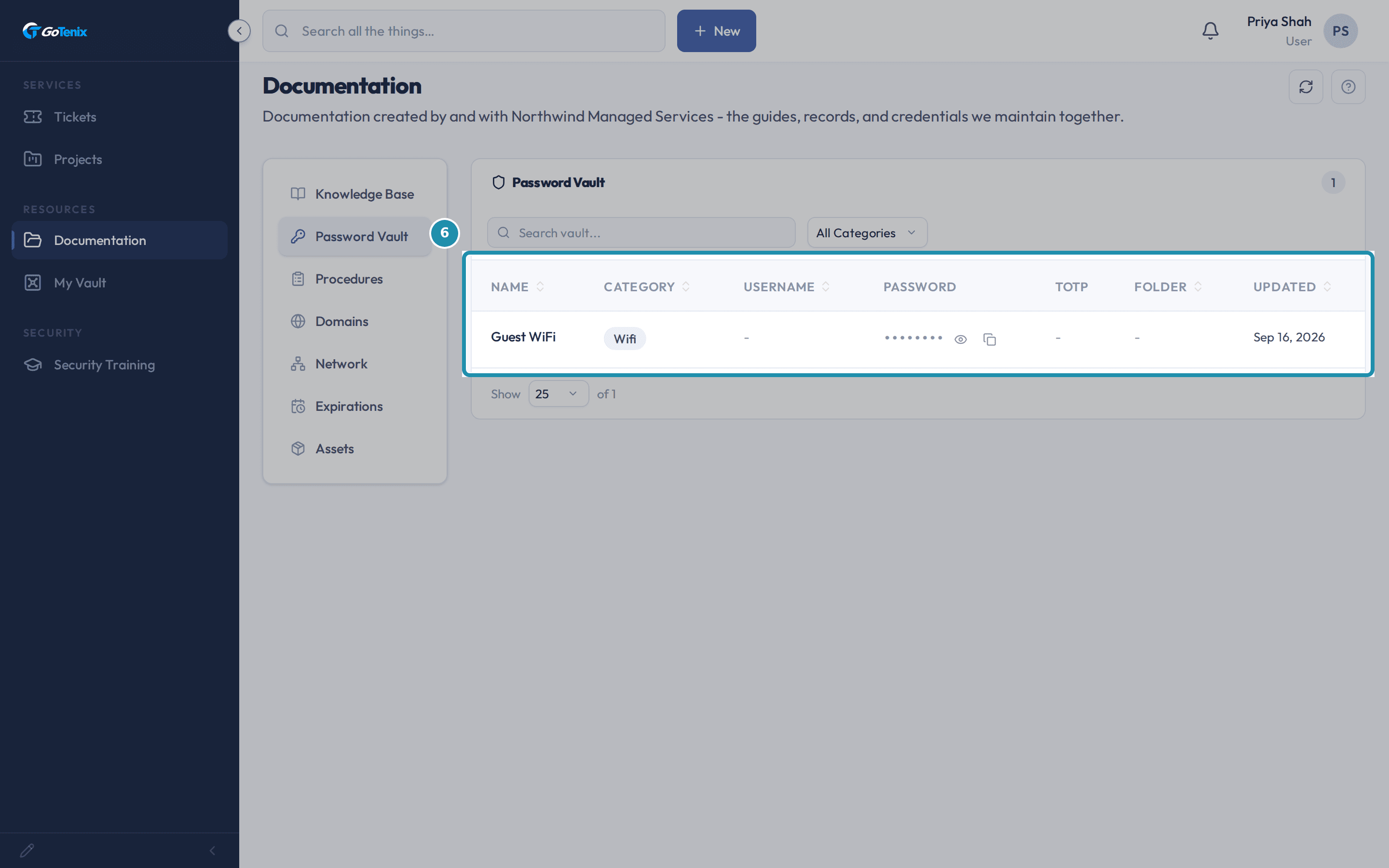
Documentation sits under Resources in the client's sidebar. Guest WiFi is the only entry listed. Microsoft 365 Global Admin (MSP Only) and Practice Owner Personal Banking (hidden, nobody named) never appear.
Sign in as a client contact and open Documentation, then Password Vault. Share only what that person should hold.
A contact who can see an entry can reveal its password with the eye icon in their own vault. Anything you would not hand them across the desk stays on MSP Only.
The pages behind each click
What you will have
- Keep a credential to your own techs with MSP Only, so it never reaches the client.
- Share a credential with everyone at the client with Visible to all client users.
- Share with one named person with Visible to specific users, without opening it up to the whole company.
- Read who can see every row from the lock icon and the Shared chip on the vault list, and flip MSP Only from the lock itself.
- Check what a client contact sees in their own Password Vault: only what you shared with them.
- Use the same panel on knowledge base articles, procedures, network records, domains and expirations.
Why it works this way: Choose which passwords and documents each client can see
MSP Only always wins. Turning it on clears Visible to all client users and removes anyone already named under Visible to specific users, and it greys out the sharing toggle so it cannot be switched back on by accident.
Visible to specific users works on its own. Naming someone there shares with that person alone, even while the toggle above still reads Hidden from client portal.
The vault list tells you the exposure of every row. A busy tech reads the lock and the Shared chip instead of opening each entry.
Elise can list a client's vault entries. From the client page, ask her "list the vault entries for Bluebird Dental" and she names each entry with its category and username. Ask her to open an entry and, after your Confirm click, she names it and links to it on the vault page. She never shows a password, for any role: ask for one and she says "This is sensitive data; open it on the vault page." To read a password, open the entry in the vault and reveal it there.
Other ways to do this: Choose which passwords and documents each client can see
Any documentation type, not only the vault
The same Client Visibility panel sits on Knowledge Base articles, Procedures, Network records, Domains and Expirations.
Ask Elise to find an entry
Ask "which vault entries does Bluebird Dental have?" and she lists them by name, category and username. Open the entry from the vault to read or share it. Elise never shows a password, so reveal it on the vault page.
If it did not work: Choose which passwords and documents each client can see
- If Add User finds nobody, type at least two letters. It searches the client's synced Microsoft 365 users.
- If a person is found but cannot be added, they have no portal account yet. Once they sign in to the portal you can add them.
- If an entry still will not show for a client, open it and check MSP Only first. It always wins over the other two.
Questions this page answers
What is on this page?
These are the notes your IT provider keeps with you and for you. They can be how-to articles, passwords held on your behalf, steps to follow, or network and domain records. You only see what your provider marked as visible to your company, or linked to you. Your own private space is My Vault. Nothing you put there is shared with your provider.
Was this helpful?