What to know before you connect QuickBooks, IT Glue or Pax8
Know what each connection needs before you start: QuickBooks wants the right company and a clean client match, IT Glue can bring in a whole account's passwords in one file, and Pax8 decides how plans land on invoices.
See it
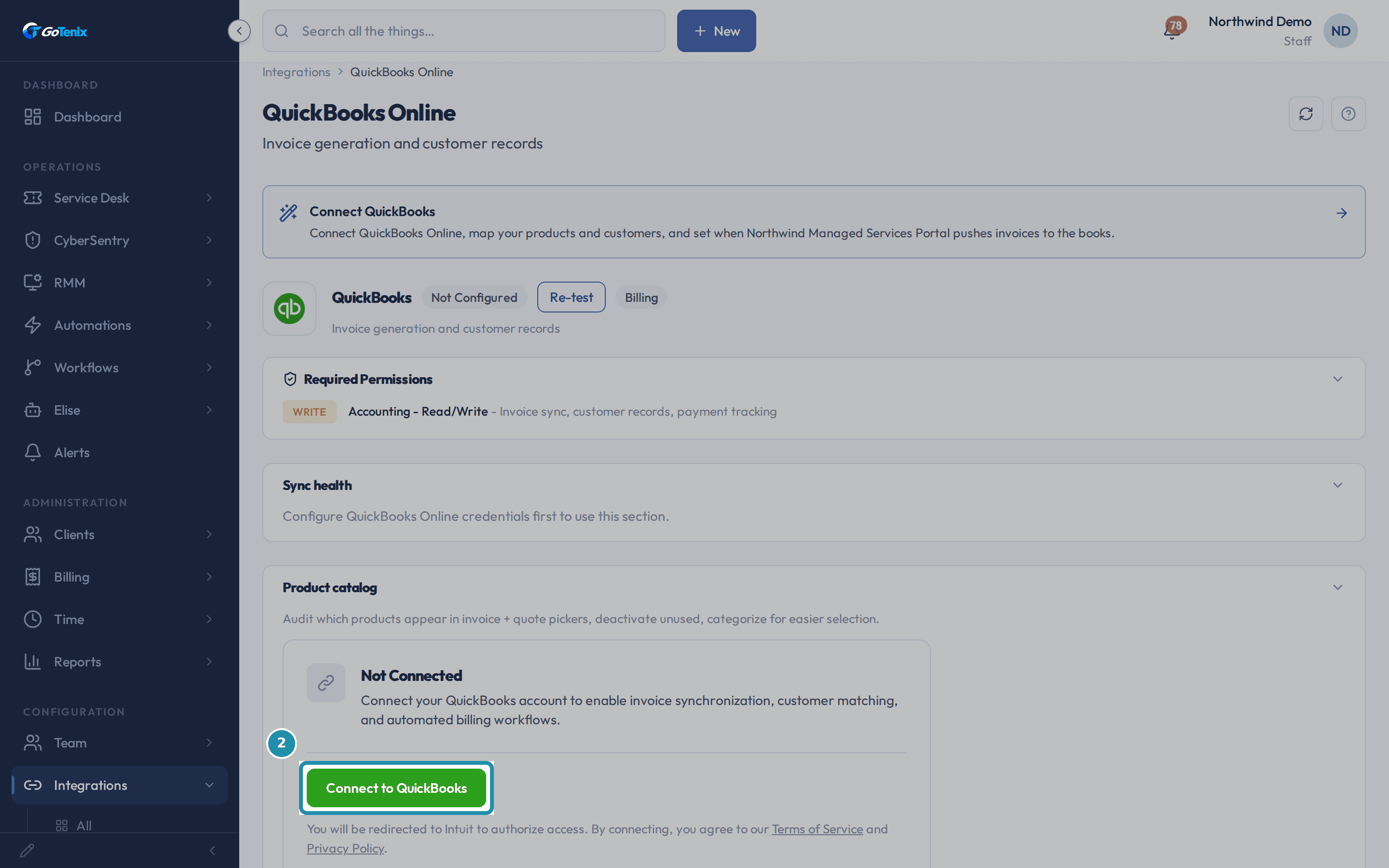 2. Click the QuickBooks Online card to open its detail page, then find Connect to QuickBooks.
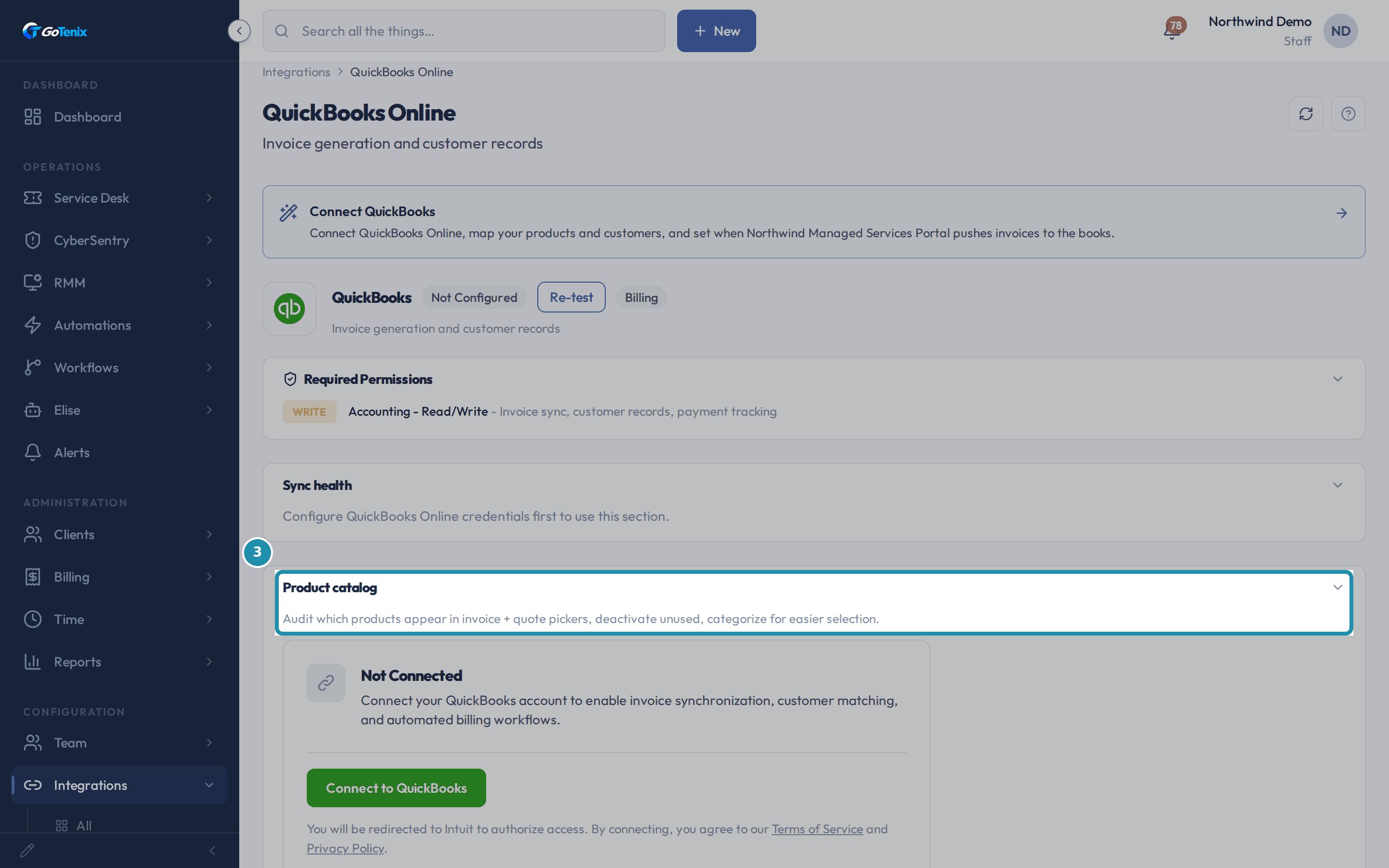 3. Note the Product catalog card on the same page.
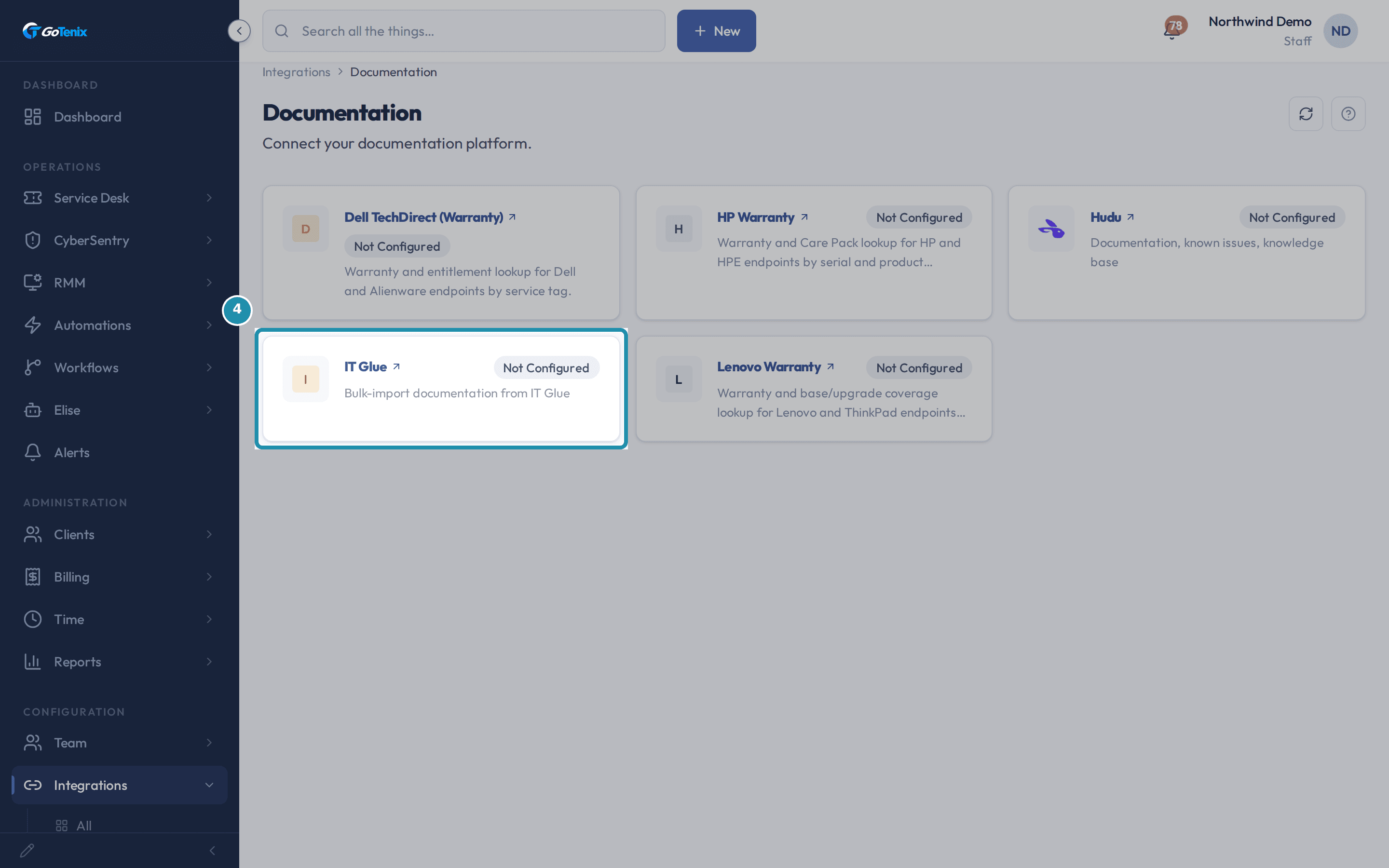 4. Back on Integrations, open the Documentation tab and find IT Glue.
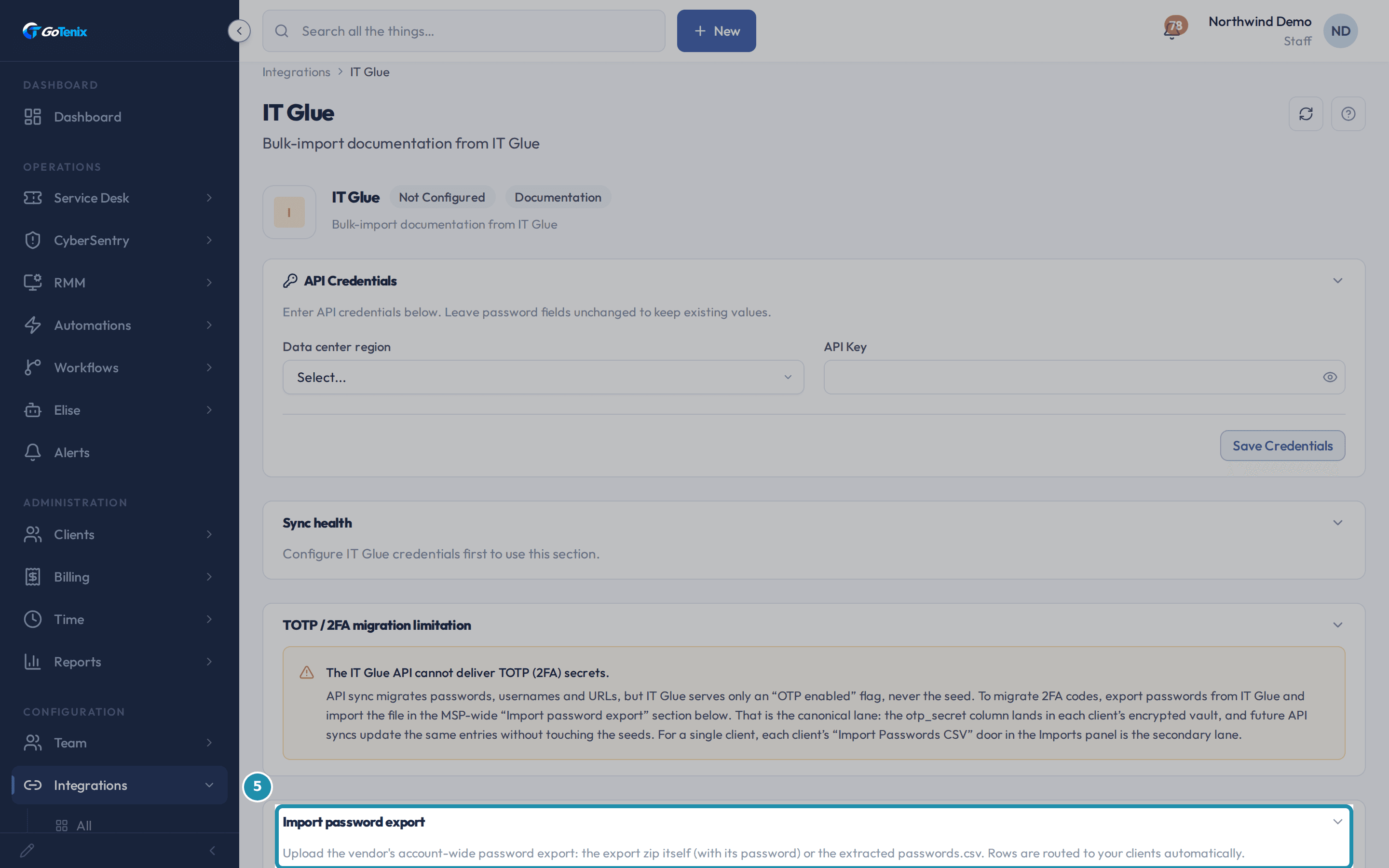 5. Click into IT Glue and find Import password export.
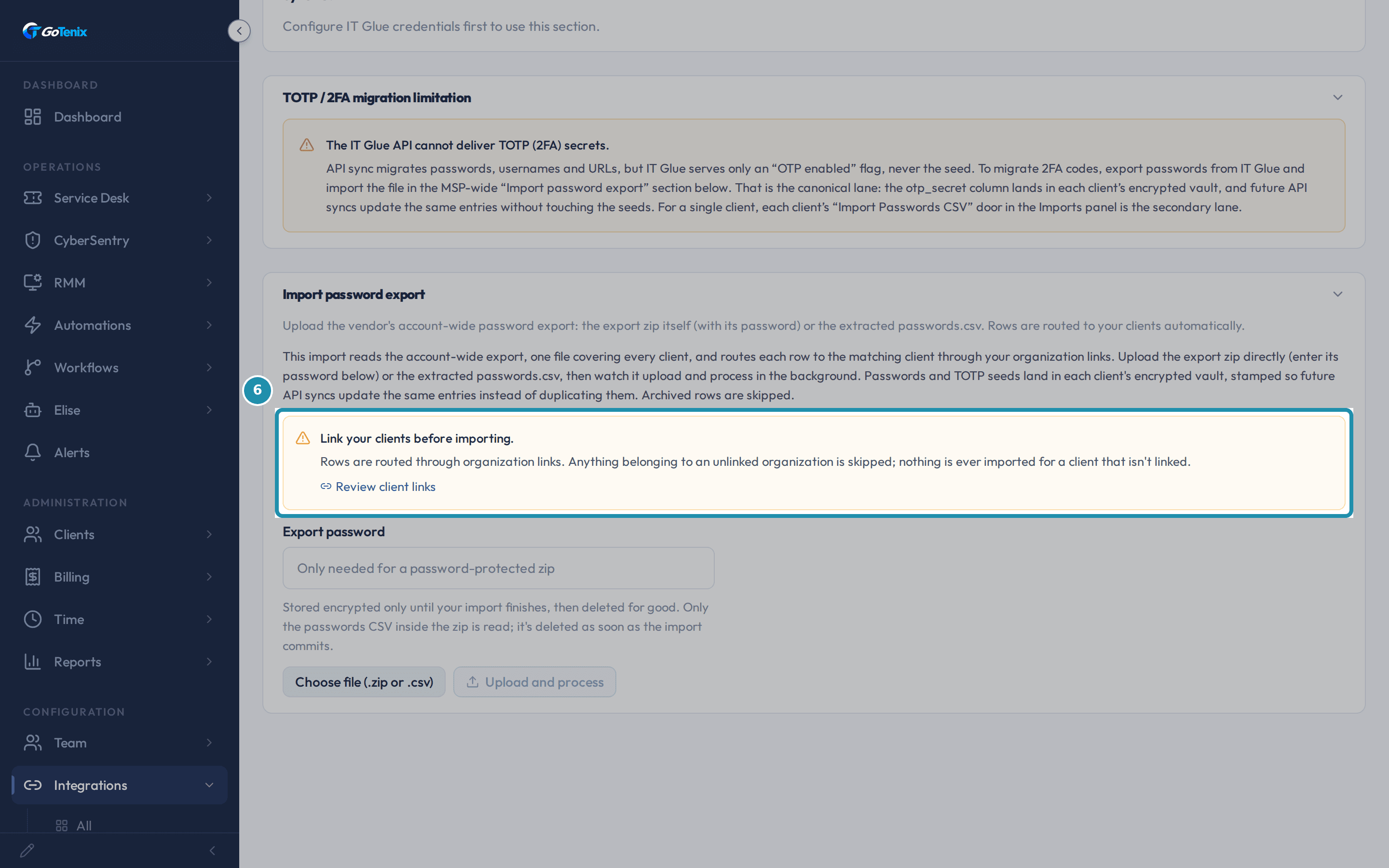 6. Read the Link your clients before importing notice before choosing a file.
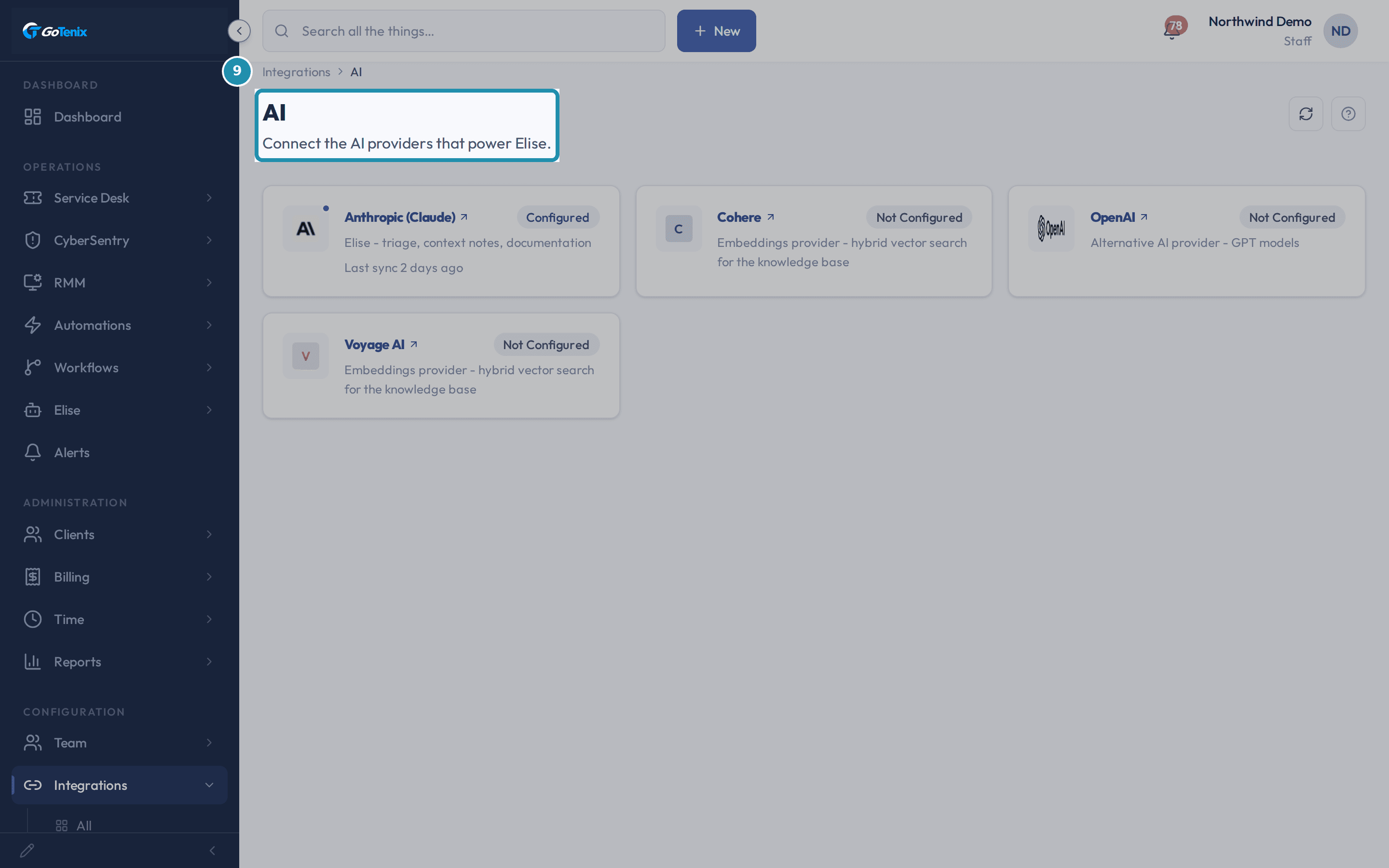 9. Open Integrations, then AI.
Browse
On this page
How to do it
Open Integrations, then Billing.
The Billing tab filters the marketplace to accounting and billing platforms: Pax8, QuickBooks Online, and Stripe. All three read Not Configured on an instance with nothing connected yet.
Open Integrations, then Billing. Click the QuickBooks Online card to open its detail page, then find Connect to QuickBooks.
Connect to QuickBooks starts a sign-in with Intuit, QuickBooks' own login, never a password typed into the portal. If your sign-in covers more than one company, Intuit shows its own company picker, and the company you pick is the one invoices push to and payments come back from. There is no company switcher in the portal. Connecting again to a different company file clears the tax-code, customer and open-invoice links that pointed into the old file, and pauses customer auto-creation until you re-match your clients and resume.
Click the QuickBooks Online card to open its detail page, then find Connect to QuickBooks. Note the Product catalog card on the same page.
Two things to do before the first invoice push. Curate this Product catalog so billed line items map to real QuickBooks items. Then match each portal client to its QuickBooks customer from Integrations, then Matching. An unmatched client's invoice fails to push instead of landing on the wrong customer.
Note the Product catalog card on the same page. Back on Integrations, open the Documentation tab and find IT Glue.
IT Glue works like this: save its API key on its own card, then pull a client's documentation in from Clients, then the client, then Documentation, then Imports, using Import from IT Glue. That panel also offers a CSV import. IT Glue brings in a company's documents, passwords, configurations, custom assets and domains. Running an import again is safe. Each record is matched by the vendor's own record id and updated, so a re-pull does not duplicate anything.
Back on Integrations, open the Documentation tab and find IT Glue. Click into IT Glue and find Import password export.
This is a separate door from the API credentials above it. It imports the vendor's account-wide password export, one file covering every client. Upload the export zip with its password, or the extracted passwords.csv. TOTP (2FA) seeds import too, which the IT Glue API never delivers. The card above this one explains why and points here as the main way to bring them in.
Click into IT Glue and find Import password export. Read the Link your clients before importing notice before choosing a file.
Every row in the export is routed to a client through your organization links. Anything belonging to an unlinked organization is skipped, and nothing is imported for a client that is not linked. After you upload, a preview lists the unlinked organizations and how many rows each would skip. Review client links jumps to the Matching page to fix that first.
Warning: Upload and process starts the import. The file is analyzed first, and nothing is written to a vault until you confirm the preview.Read the Link your clients before importing notice before choosing a file. Know what happens on a second import of the same export.
Each row is stamped with its source record id, so importing the same export twice updates the same vault entries instead of creating duplicates. The periodic API sync recognizes the same stamp, so both stay in step, and it leaves an entry a person deleted deleted. Archived rows in the export are skipped, and the uploaded file is deleted as soon as the import commits.
Know what the analyzing step and a password-protected zip mean.
Large exports are read in the background. An Analyzing your export step comes first, then a preview to confirm before anything is written. Once you confirm, it commits client by client and shows each one landing. If a zip needs a password, the page asks for it and Retry with password lets you enter it again. You can cancel any time before it imports, and nothing reaches a vault.
Open Integrations, then AI.
This tab connects AI providers: Anthropic (Claude), OpenAI as an alternative, and Cohere and Voyage AI, which upgrade knowledge-base search to hybrid vector retrieval. It does not choose which model powers which feature. The portal maps each AI task to a tier and each tier resolves to the best available model, so a model retirement is handled for you. To override the model for one feature, go to Settings, then AI Assistant.
Open Integrations, then AI. Open the Pax8 detail page and find Invoice grouping under Pricing & Plan Type.
This setting decides how a client's Pax8 subscriptions land on invoices. Roll up to Core puts the Pax8 lines on the client's Core rollup invoice, and a client with no Core plan gets one invoice per Pax8 plan. Combine all invoices into one puts every Pax8 plan due in the same period on one Pax8 invoice. Bill all plans separately gives one invoice per plan. It applies from the next billing run and never touches an invoice that already exists.
What you will have
- Connect QuickBooks to the right company and set it up so your first invoice pushes cleanly.
- Bring a whole IT Glue account's passwords, 2FA seeds included, into the right client vaults from one file.
- Know how an IT Glue documentation import works before you start one.
- See what the AI tab connects and where model choices live.
- Choose how Pax8 subscriptions land on your invoices.
Why it works this way: What to know before you connect QuickBooks, IT Glue or Pax8
IT Glue has two doors. An API key gives ongoing sync, and the password export file brings in the 2FA seeds the API can never deliver. The password export card shows before IT Glue is connected.
Pax8's pricing card shows before you connect. QuickBooks' Product catalog card reads Not Connected until QuickBooks is connected. The sections that need live credentials fill in once you have saved them.
Other ways to do this: What to know before you connect QuickBooks, IT Glue or Pax8
Import passwords for one client
Open the client, then its Imports panel, and use Import Passwords CSV.
If it did not work: What to know before you connect QuickBooks, IT Glue or Pax8
- If a card on a provider's page reads Configure <provider> credentials first to use this section, that section (Sync health, Synced Client Plans, Needs Attention & Coverage) fills in once real API credentials are saved. The password export and pricing cards above it do not need them.
Questions this page answers
How do I connect QuickBooks?
Click Connect on the QuickBooks card and complete the OAuth flow in the popup. The portal stores the connection's tokens encrypted and refreshes them automatically as they are used. If the connection goes dead (revoked, or the refresh token expired), the card stops showing Connected and prompts you to re-authorize; reconnect from the same card to restore it.
What happens when I click Connect on this page?
It starts an OAuth sign-in with Intuit (QuickBooks' own login, not a portal password). Sign in with an admin account on the QuickBooks Online company you want to connect. If that login has access to more than one company, Intuit shows a company picker, choose carefully: the company you pick becomes the ONE company this connection pushes invoices to and pulls payments from, and switching to a different company later means disconnecting and reconnecting from scratch, there is no in-portal company switcher.
What do I need before connecting QuickBooks?
You need an active QuickBooks ONLINE subscription. QuickBooks Desktop is not supported. You also need an admin-level login on that company. After you connect, do two things before your first invoice pushes. First, curate the Product Catalog card on this page. That maps your billed line items to real QuickBooks items. Second, use Client Matching, also linked from this page, to link each portal client to its QuickBooks customer. An unmatched client's invoice fails to push. It never goes to the wrong customer by mistake.
How does importing from a docs provider work?
Configure the provider with an API key, then go to Clients > [client] > Documentation > Imports to pull articles, passwords, procedures, and assets into the portal. Re-running the import is idempotent, existing entries are matched and updated by their external ID, so a re-pull updates the same entries instead of creating duplicates.
What does "Import password export" do?
It imports the vendor's account-wide password export - one file covering every client - in a single pass. Each row is routed to the matching client through your organization links, and passwords land in that client's encrypted vault. TOTP (2FA) seeds import too, which the API sync can never deliver. Upload the vendor's export zip directly and enter its password, or upload an already-extracted passwords.csv. The file uploads with a progress bar, then a background job parses it and shows you a routing preview - nothing imports until you confirm it.
Why do I need to link clients before importing?
Rows are routed through organization links, and only linked organizations import - anything belonging to an unlinked or ambiguously-linked organization is skipped, never ingested. The preview lists exactly which organizations are unlinked and how many rows would be skipped, before you confirm the import. Link them on the Matching page, then start the import over with the same file; already-imported rows update in place rather than duplicating.
What happens if I import the same export twice?
Each row is stamped with its source record id, so a re-import updates the same vault entries instead of creating duplicates - and the periodic API sync recognizes the same stamp, keeping everything converged. Entries a technician deleted stay deleted (the import never resurrects them), archived rows in the export are always skipped, and the uploaded file itself is purged from storage as soon as the import commits.
Why does the import show an "analyzing" step, and what if it fails partway?
Large exports are parsed and matched in the background rather than tying up your browser - you'll see an "analyzing" progress state, then a routing preview to confirm before anything writes to the vault. Once you confirm, it commits client by client and you can watch each one land. If the export was password-protected and the password was missing or wrong, the import stops and asks you to re-enter it without re-uploading the file. You can cancel an import any time before it starts committing.
How does the portal choose which AI model each feature uses?
The portal maps each AI task to a tier, standard for quality work, fast for cheap classification, reasoning for the hardest calls, plus an embedding tier for search, and each tier resolves to the best available model automatically, so a model retirement is handled for you. You don't pick models on this tab; this is where you connect and configure your AI providers. If you want to override the model for a specific feature, that control lives under Settings → AI Assistant. Defaults are sensible, only override when you have a reason.
Pax8: what does the Invoice grouping setting do?
It decides how a client's Pax8 subscriptions land on invoices when billing runs. Roll up to Core merges the Pax8 lines onto the client's Core rollup invoice (the Core invoice's billing window captures them), so they get one invoice for everything; a client with no Core plan simply gets one invoice per Pax8 plan instead. Combine all invoices into one keeps Pax8 on its own invoice but puts every Pax8 plan for that client that is due in the same billing period on a single invoice, named after the Pax8 plan type (Software Licensing by default); plans due in different months get their own combined invoice for their month. Bill all plans separately issues one invoice per Pax8 plan. Changing the setting applies from the next billing run onward and never touches invoices that already exist.
Was this helpful?