How to manage a service plan from its detail page
Change what a plan includes, how it bills and who is on it, safely, by editing a copy first.
See it
Browse
On this page
How to do it
Open a plan from Billing > Service Plans and read its status next to its name.
The badge reads Active, Deactivated or Expired. Click the plan name to rename it; the new name is kept when you press Save Plan.
Open Plan Details on the left side bar: name, type and description.
The page shows one section at a time, listed down the left side bar, and Plan Details opens first. Plan Name and Description are text fields. Type is a dropdown of plan types, such as Core, License and Add-On, plus any custom type your portal has added. Under the description sit Expires On and Auto-renew on expiry: when a date is set, the plan flips to Expired on that day unless auto-renew is on, and the auto-renew switch stays off-limits until a date is set. An expired plan can no longer be added to clients.
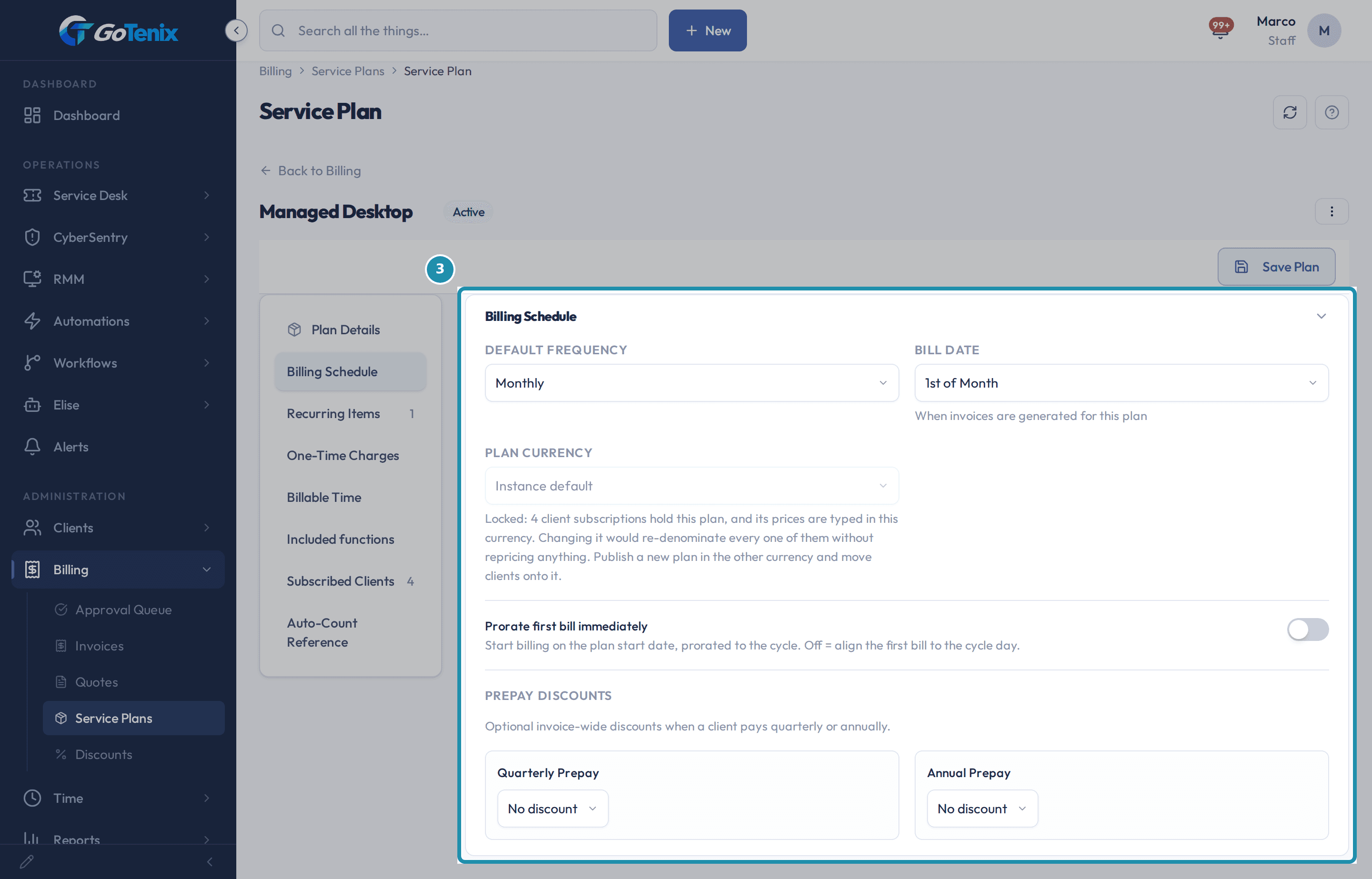
Open Plan Details on the left side bar: name, type and description. Pick Billing Schedule on the left side bar: frequency, bill date, currency and prorating.
Default Frequency is Monthly, Quarterly or Annual. Bill Date is 1st of Month, Mid Month (15th) or End of Month, and says when invoices are generated for the plan. Plan Currency is the currency the plan's prices are typed in; it locks once a client subscription holds the plan, and the locked field explains how many. Prorate first bill immediately controls whether a new subscriber's first bill starts on the plan start date, prorated to the cycle, or aligns to the cycle day.
Pick Billing Schedule on the left side bar: frequency, bill date, currency and prorating. Look at Prepay Discounts, at the bottom of Billing Schedule: a lower price for paying ahead.
Quarterly Prepay and Annual Prepay each take No discount, a percent off or an amount off the invoice when a client pays quarterly or annually.
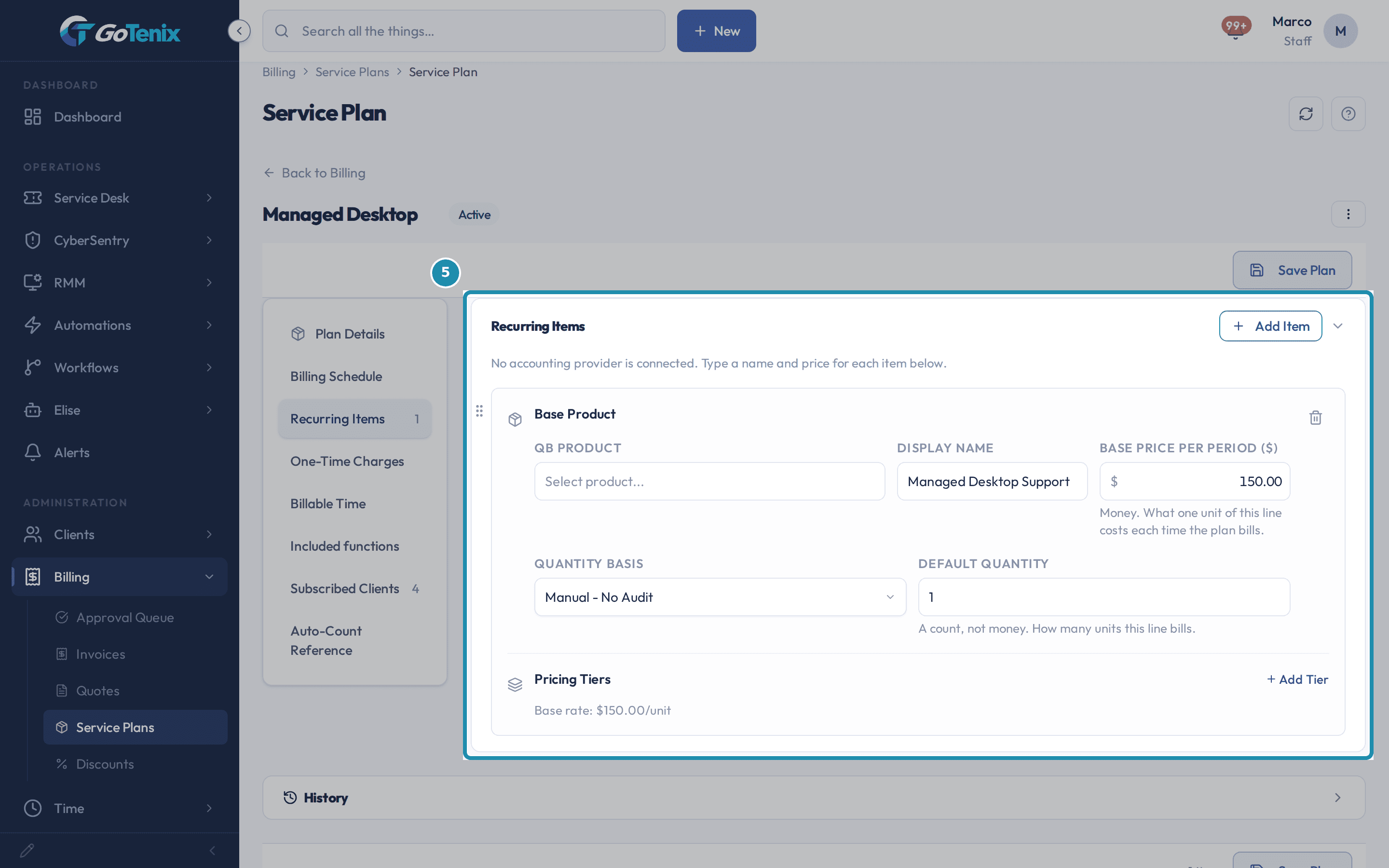
Pick Recurring Items on the left side bar: the plan's priced lines.
Each Base Product line has a name, a Base price per period and a Quantity Basis that decides what it bills for. The choices include licensed, total or unlicensed users, all devices, workstations or servers, manual counts with or without an audit, counts of tagged entities, a count of Microsoft 365 licenses per SKU, and Band, a flat price by client size. Default quantity is a count, not money. Add Item adds a line; One-Time Charges below it, such as onboarding or setup fees, apply to the first invoice only.
Pick Recurring Items on the left side bar: the plan's priced lines. Look at Pricing Tiers, under each line in Recurring Items, which give a line a second rate.
Under each line, Add Tier opens another named rate for the same line, either an absolute price or an amount or percent off the base rate, for a different kind of client or seat on the same plan. The line shows its Base rate until you add one.
Pick Billable Time on the left side bar: turn a plan into billable labor.
Billable Time shows on the side bar for Core plans only. Default Billable Time makes every new ticket for clients on this plan default to billable labor (Out of Scope). The billing status can still be changed on individual tickets, and the Default Billing Status you pick sets the rate.
Pick Auto-Count Reference on the left side bar and find Tag-Billed Lines (Plan Template): lines that bill themselves.
Pick a universal tag, and every client on this plan is counted against the entities carrying it. Add a template line and every client on this plan will auto-generate a matching invoice line each cycle. Each line takes an internal name, the tag, the kind of entity, a unit price, an optional minimum and an optional included count, and you can count all tagged entities or only those active within the last 30 days.
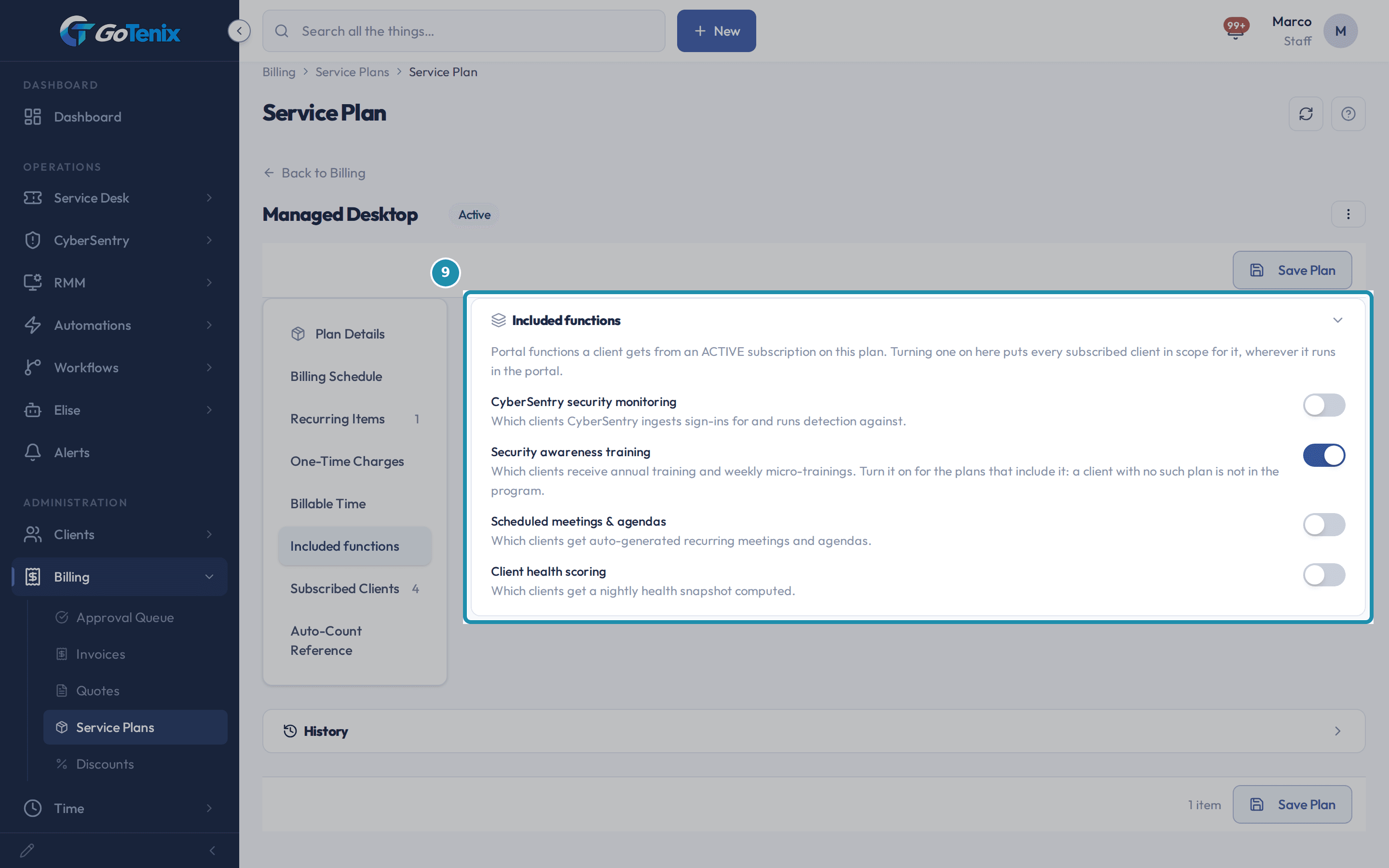
Pick Included functions on the left side bar and see which are on.
Turning one on puts every client with an active subscription to this plan in scope for it, wherever that function runs in the portal. The four are CyberSentry security monitoring, Security awareness training (annual training and weekly micro-trainings), Scheduled meetings & agendas (auto-generated recurring meetings and agendas), and Client health scoring (a nightly health snapshot). It is not a setting anyone touches on the client's own record.
Pick Included functions on the left side bar and see which are on. Pick Subscribed Clients on the left side bar to see who is on the plan.
The section lists the clients subscribed to the plan, and is the place on the detail page that shows who is billed from it. It shows once the plan is saved.
Click Duplicate plan to get a safe copy to edit.
The actions menu next to Save Plan also holds Deactivate plan and Delete plan. Duplicate plan copies the name with (Copy) added, the fields, the lines, the pricing tiers, the bands and the tag-billed template lines. It never copies subscribed clients or discounts, never copies an expiry date, and the copy starts Active. A plan managed by the Pax8 integration cannot be duplicated.
Rename the copy and add a description, then press Save Plan.
Plan Name and Description are typed like any other text field. Renaming a plan does not change any client already subscribed to it.
Pick Included functions, turn on Scheduled meetings & agendas, then save.
Clicking the switch turns it on in the page, and it stays on if you pick another section, but the change is not stored until Save Plan is clicked. A Saved! message confirms it landed.
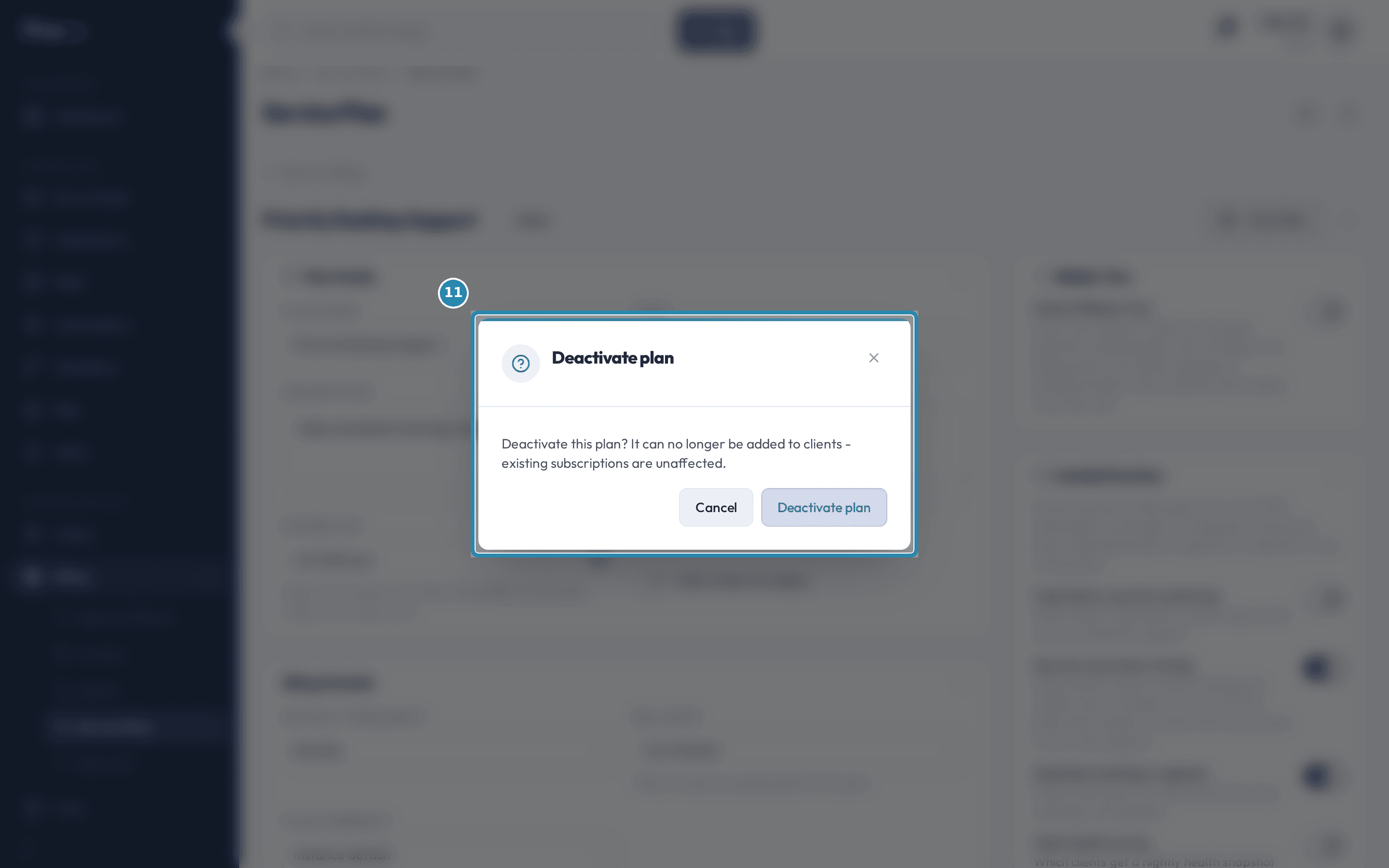
Click Deactivate plan and confirm.
The menu's Deactivate plan opens one confirmation: "Deactivate this plan? It can no longer be added to clients - existing subscriptions are unaffected." Confirming does not touch any client already on the plan.
Note: Deactivating does not delete anything. Only Delete plan removes a plan, and it cannot be undone: plans with active subscriptions cannot be deleted.Click Deactivate plan and confirm. See the plan marked Deactivated, and find Reactivate plan in the same menu.
The status badge reads Deactivated, and the menu's Deactivate plan item is replaced by Reactivate plan. Reactivating needs no confirmation and also clears any expiry date the plan had.
What you will have
- Read a service plan's status, type and description at a glance.
- Know what Billing Schedule, Prepay Discounts, Recurring Items, Pricing Tiers, Billable Time and Tag-Billed Lines each control.
- Set an expiry date on a plan, and know how auto-renew and Reactivate treat it.
- See which portal functions a plan turns on, and which clients are subscribed to it.
- Duplicate a plan to get a safe copy to edit.
- Rename a plan, add a description, turn on an included function, and save.
- Deactivate a plan you are done selling, and reactivate it later.
Why it works this way: How to manage a service plan from its detail page
One Save Plan button, in the bar at the top and at the bottom of the page, commits every field change on the page at once. Typing in a field or toggling a switch does nothing on its own until Save Plan is clicked. Deactivate plan and Reactivate plan are separate: they act the moment you confirm.
Deactivating a plan only stops it from being added to clients. The confirmation says existing subscriptions are unaffected.
Reactivating a plan needs no confirmation, and it also clears any expiry date the plan had, so a plan just brought back does not immediately expire again.
Plan Currency locks once any client subscription holds the plan, because changing it would re-denominate every subscriber's price without repricing anything.
If it did not work: How to manage a service plan from its detail page
- If Deactivate plan does not appear in the menu, the plan is already Deactivated or Expired. Look for Reactivate plan instead.
- If Plan Currency will not change, a client subscription already holds this plan. Publish a new plan in the other currency and move clients onto it instead.
- If Delete plan is refused, the plan still has active subscriptions. Deactivate it instead.
- If a typed change disappears after leaving the page, it was never saved. Click Save Plan before navigating away.
Was this helpful?