How to build an automation rule that acts on its own
Build a rule that acts on its own when a ticket, client, invoice or device event matches, try it in Monitor first, then switch it Live, or describe it to Elise and review her draft.
See it
Browse
On this page
How to do it
Open Automations, then Library, and click New Automation.
The Library lists every rule that acts on its own, your team's and the platform's built-in ones side by side, grouped by area such as Tickets, Clients, Billing and Devices.
Pick the Domain, then the event in the When field.
Domain decides which events and actions exist. Tickets covers events such as Email Received and Ticket Created. Clients, Billing and, on an MSP instance, Devices have their own events and actions. Where it is offered, the list also has Security (CyberSentry), which opens the CyberSentry rule editor instead. If you start from a domain's own page, such as Ticket Rules, the Domain shows as a label you cannot change, such as Domain: Tickets, and Ask Elise drafts in that domain. For this example choose Tickets and Ticket Created.
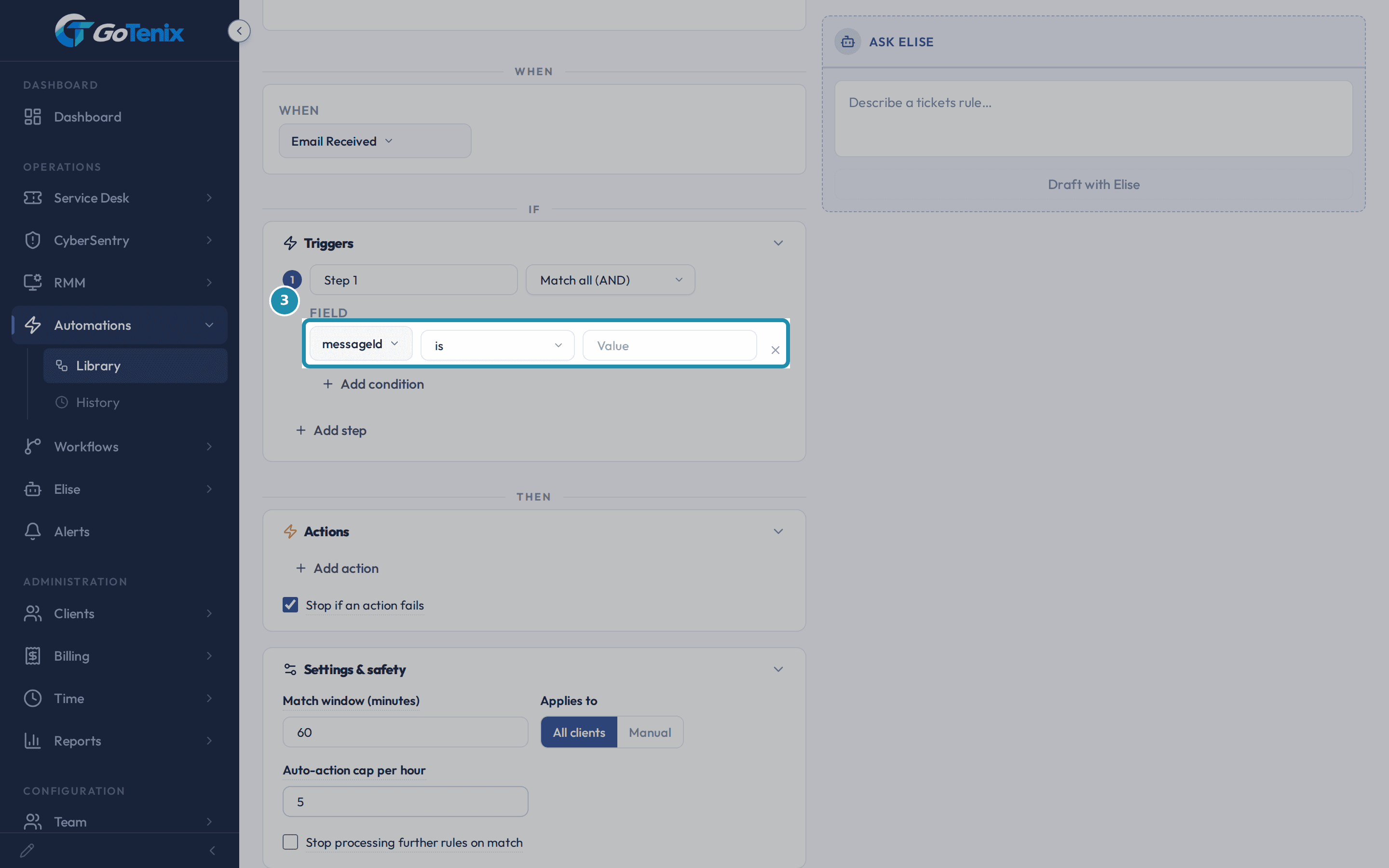
Pick the Domain, then the event in the When field. Add the first condition: priority is HIGH.
Click Add condition, then set the Field to priority, leave the operator on is, and set the value to HIGH.
Add the first condition: priority is HIGH. Add a second condition: subject contains VPN.
Click Add condition again, set the Field to subject, change the operator to contains, and type VPN into the value box. Both conditions must match, since the step is set to Match all (AND).
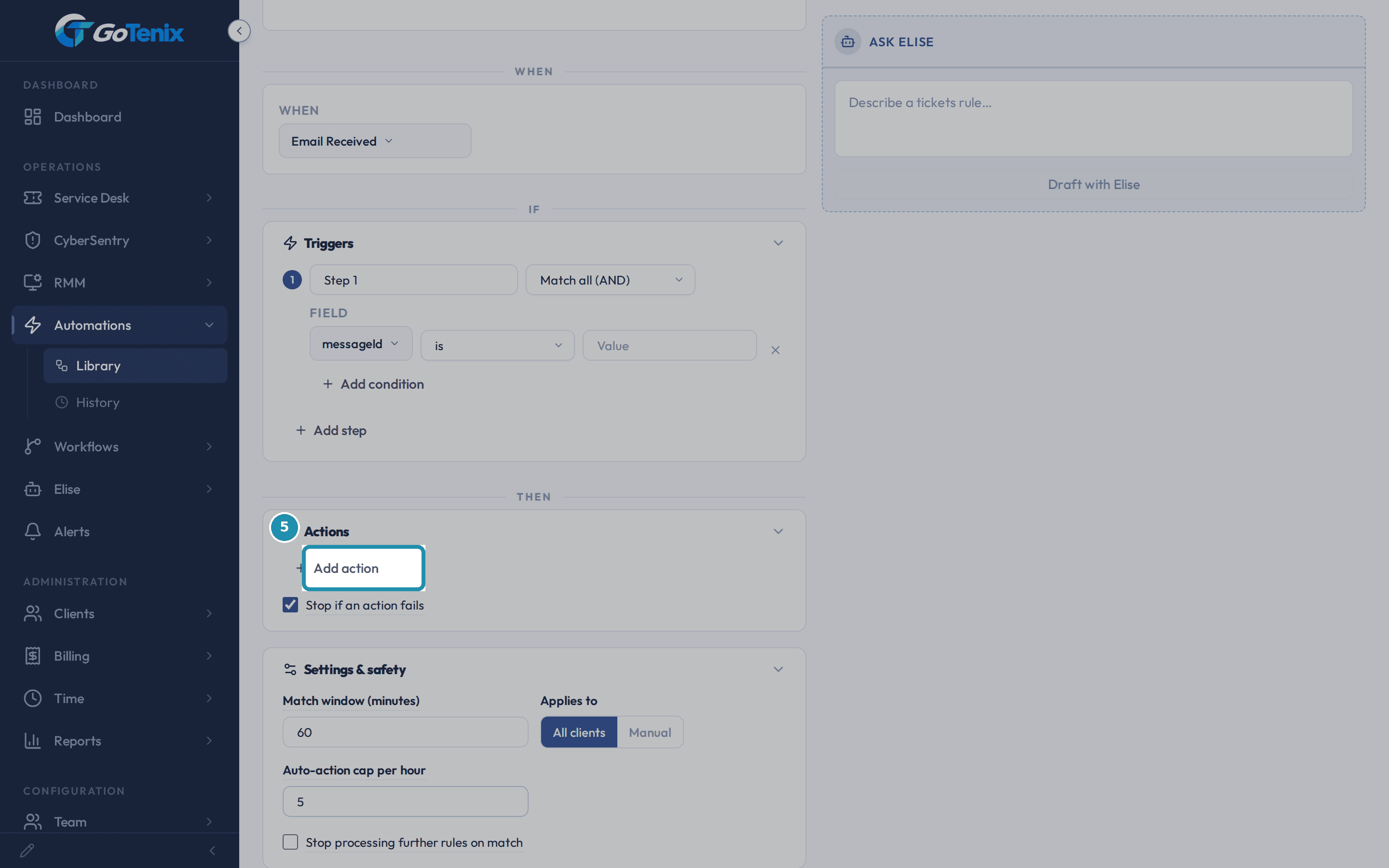
Add the action: Notify the team.
Click Add action and pick Notify the team. Type who to tell as staff names or email addresses, separated by commas, and write the message. Other actions on a ticket rule include Assign the ticket, Set the ticket status, Move the ticket to a board and Call a webhook.
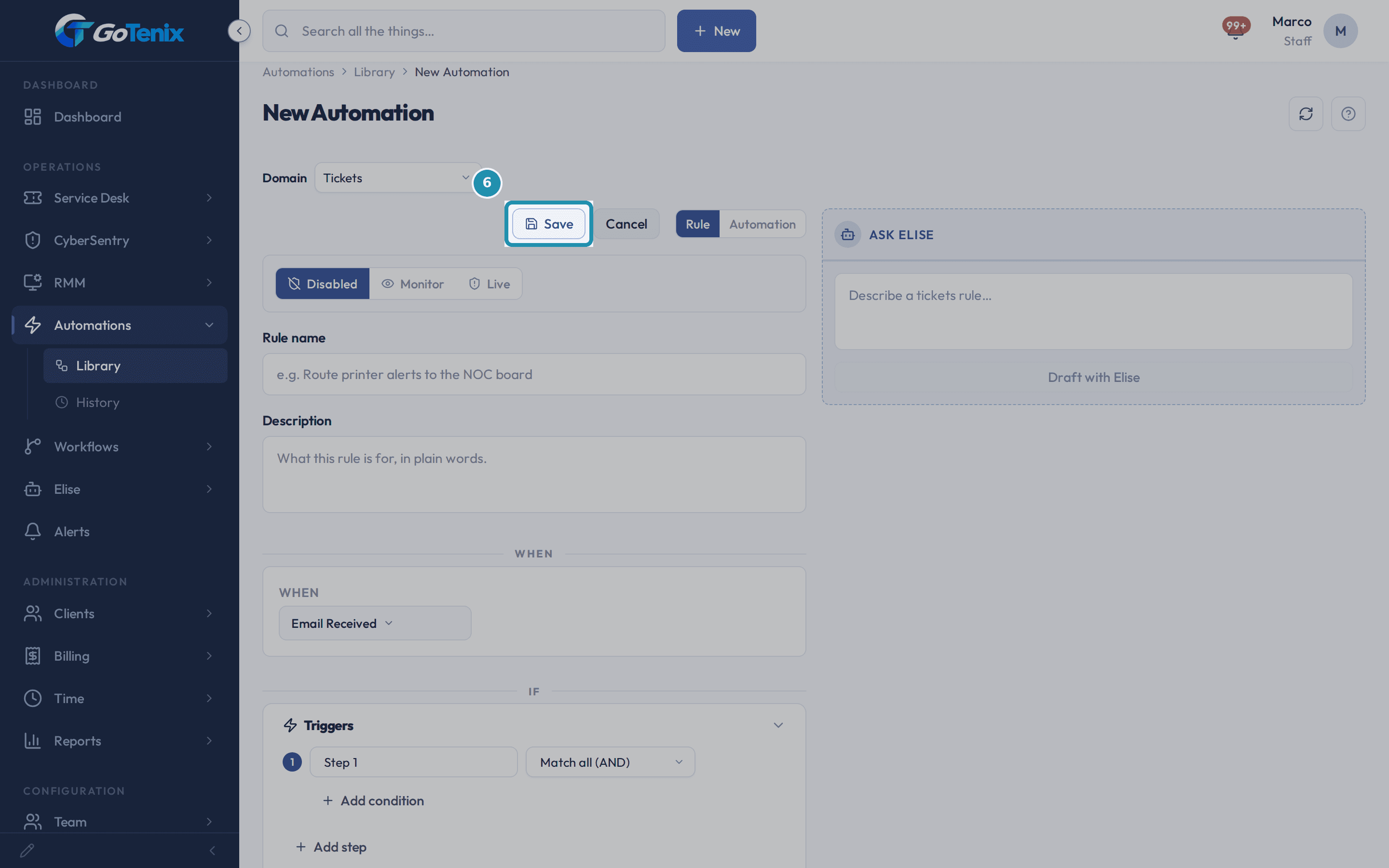
Add the action: Notify the team. Name the rule for what it does, then click Save.
Something like Tell the on-call tech about urgent VPN tickets. The rule saves in Disabled mode, a draft that does not run or record anything until you switch it to Monitor or Live.
Name the rule for what it does, then click Save. Find the rule in the Library, Disabled.
It lands under Unfiled until you move it to a folder. The status toggle is off, so the rule takes no action yet.
Open the row's menu and click Edit.
The three-dot menu at the end of the row opens the rule editor for a rule you own.
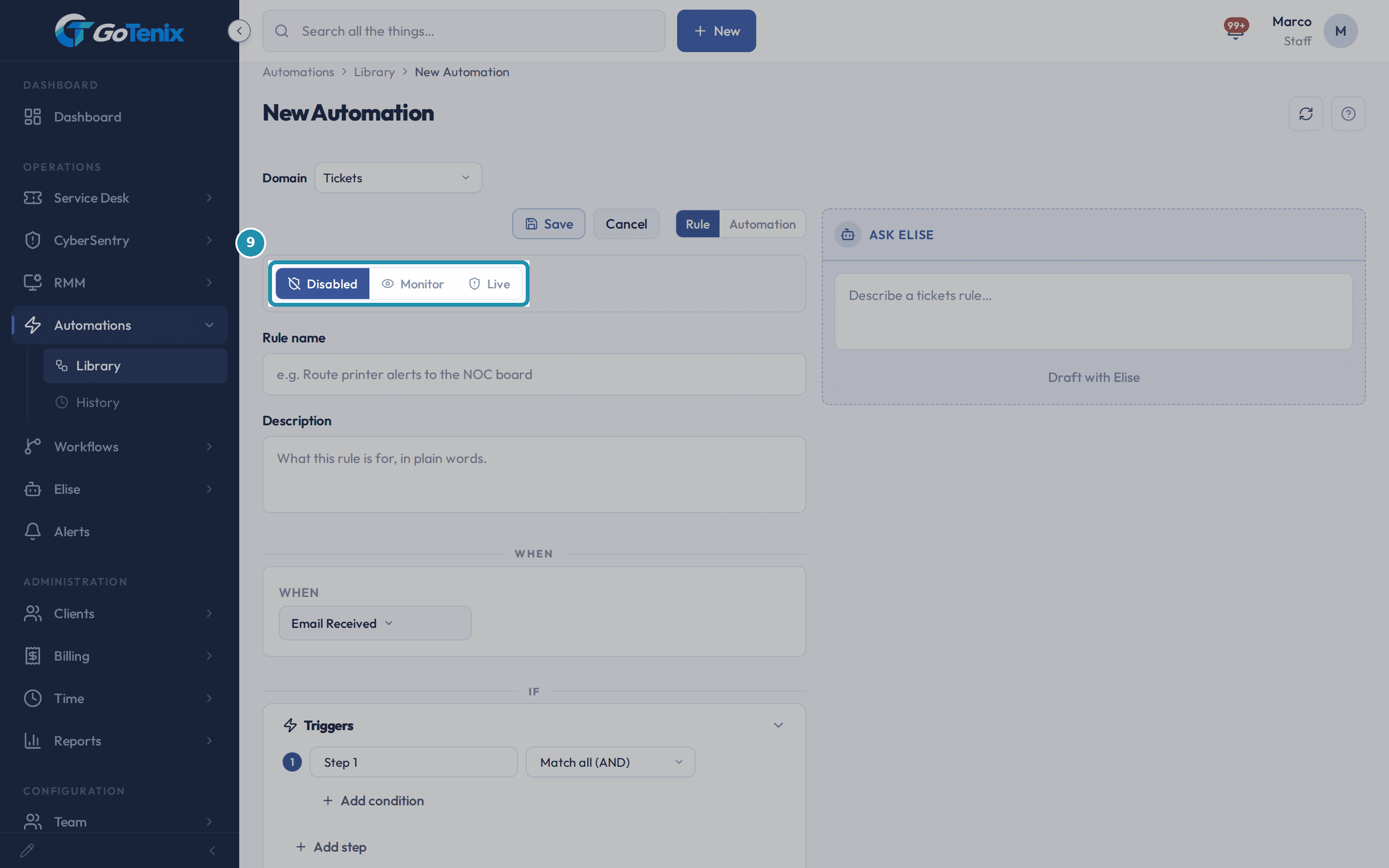
Try it in Monitor, then switch it Live when the matches look right.
The rule opens filled in with everything you set. Choose Monitor to record each match without acting. When you are happy, choose Live. The editor lists the actions it will run for real and asks you to confirm.
Try it in Monitor, then switch it Live when the matches look right. Open a system rule, such as Auto-Reply Suppression, to see its read-only page.
It shows the trigger, conditions, actions and recent decisions, and a click on a decision shows what the engine read and why it chose that. System rules have no edit door, so the switch on the row is the only control.
Open an older automation to see the canvas editor.
Rows that were built as automations rather than rules open the canvas instead of the rule editor. You add trigger and action nodes and join them. A rule you build fresh in the rule editor never opens on the canvas.
What you will have
- A rule that waits for an event, checks your conditions and then acts on its own.
- More than 25 actions to pick from across tickets, clients, billing, workflows and (on an MSP instance) devices: assign a ticket, set its status, notify the team, call a webhook, change a client's status or plan, open a ticket for a device alert, run a repair or a workflow.
- A safe first run: the rule saves Disabled, then Monitor records what it would do before you let it act.
- A draft from Elise: describe the rule in one sentence and review what she builds.
- The read-only page a locked system rule opens, and the separate canvas editor for older automations.
Why it works this way: How to build an automation rule that acts on its own
A new rule saves as Disabled and does nothing. Monitor records every match without running the actions. Live, Notify and Ticket make it act for real, so the editor asks you to confirm first.
Elise's draft is never armed. Anything she drafts arrives Disabled or in Monitor for you to review, and nothing is enabled until you switch it on.
The Rule and Automation buttons above the form flip between two views of the same draft, a form and a linear card stack.
System rules, such as the platform's built-in email safeguards, have no edit door. They open a read-only page instead.
Other ways to do this: How to build an automation rule that acts on its own
Ask Elise in the rule editor
Type the rule in plain English in the Ask Elise panel on the right of the editor and click Draft with Elise, for example "When a new ticket mentions VPN, notify the on-call tech and assign it to Jordan." Elise fills in the editor and says nothing is enabled or armed; you review it, fix it by hand and save.
Ask Elise in chat
Say what you want in the main Elise chat. For "when X happens, do Y" requests Elise opens the rule editor with your request preloaded instead of building it in chat. You can also ask which workflows you have ("Which workflows do we have?") or for a workflow's run history ("Show me the runs of the onboarding workflow"), and ask her to rename or refile an older automation. She never turns one on for you.
More than tickets
Start from Automations and switch the Domain to build rules for other areas. A Clients rule can set the client status. A Billing rule can change the service plan, which changes what that client is invoiced. A Devices rule, on an MSP instance, can open a ticket for a device alert, run a repair on the device, show a message on it or notify the people who watch it. A Workflows rule can run a workflow.
If it did not work: How to build an automation rule that acts on its own
- If Save lists problems instead of saving, fix each line it names. The rule has not been saved yet.
- If Save asks you to reload first, someone else changed the rule while you had it open. Reload, then redo your change on the newer version.
- If Live, Notify or Ticket is greyed out, your role lacks the permission to make a rule act for real. The editor names the permission. The rule can still run in Monitor.
- If Edit is missing from a rule's menu, it is a system rule and is not yours to change. Its row opens the read-only page instead.
- If a row opens a node canvas instead of the rule editor, that row is an automation built before the rule editor existed, not one of your rules.
Questions this page answers
What happens when I click New Automation?
The rule editor opens with nothing filled in. Pick the trigger. Add the conditions and the actions. Set the governance switches: stop on match, stop on error, and blast radius. Choose Disabled, Monitor or Live. The Ask Elise panel can draft a rule from a plain sentence, and you fix it up by hand.
What can I change on an automation?
This is the same rule editor you used to make the rule. It opens filled in with the trigger, conditions, actions and governance. Only your own rules open here. A system rule is locked, so it opens the read-only detail instead. To make a rule act, pick Live, Notify or Ticket. The editor asks you to confirm first. Save applies right away. If the rule changed while you had it open, Save asks you to reload first. That way you never write over the newer one. Every rule shows the Disabled and Monitor buttons. A normal rule also shows Live. An alert rule shows Notify and Ticket instead of Live. The When, If and Then parts work as described on the New Automation page.
What is this page?
This is the read-only detail for a rule. It gives the trigger, conditions, actions, governance and recent decisions. Click a decision to see what the engine read and why it chose that. A system rule has no edit door, so the switch on the row is the only control. Your own rules are edited from the row menu.
How does the canvas editor work?
The canvas is one of two editors, and most rules are built in the rule editor, which is the New Automation form. A rule that is an Automation opens in the canvas from its name or from Edit in the row menu. Add a trigger from the palette, then conditions and effects, join them, and set up each node. Save keeps your work, and the Enabled button in the top bar turns the automation on. If your account can only look, the canvas shows View only in the top bar. You can read every node, but the palette, node settings, Undo, Redo, Delete and Save are gone.
Was this helpful?