How to see who a ticket goes to and why
See which tech a ticket went to and the reason in one plain sentence, lock a client to a dedicated tech so their tickets go straight to that person, and learn the order dispatch tries before it hands a ticket to a person. Also covers reassigning by hand and moving a ticket to another client.
See it
Browse
On this page
How to do it
Open a ticket that dispatch has already assigned and find its History card.
Ticket #25 came in through the client portal with nobody named to take it, and dispatch picked a tech the moment it landed. Assigned To on the ticket toolbar shows who has it. The reason is on the History card, in the right-hand column of the ticket page.
Open History and expand the row that reads Autonomous dispatch, to the tech's name, Dispatched.
The row names what acted (Autonomous dispatch) and who it picked in one line, with no digging needed. Expand it for the detail of the pick: the pod it came from, the tier, the tech's current load, how many candidates it considered and any skills the ticket needed. When several members qualify, the one with the fewest open tickets gets it.
Open Settings > System > Setup Wizards > Set up Dispatch and read the first lesson.
The lesson Prerequisite: pods + members says dispatch can only assign a ticket to a tech who is a member of the client's owning pod, that tiers (T1, T2, T3) set the escalation order inside that pod, and that the pod's own Auto-Dispatch switch is the last gate for whether Elise books the calendar herself. Techs join a pod and get a tier at Team > Pods, and Auto-Dispatch is set in the pod's settings.
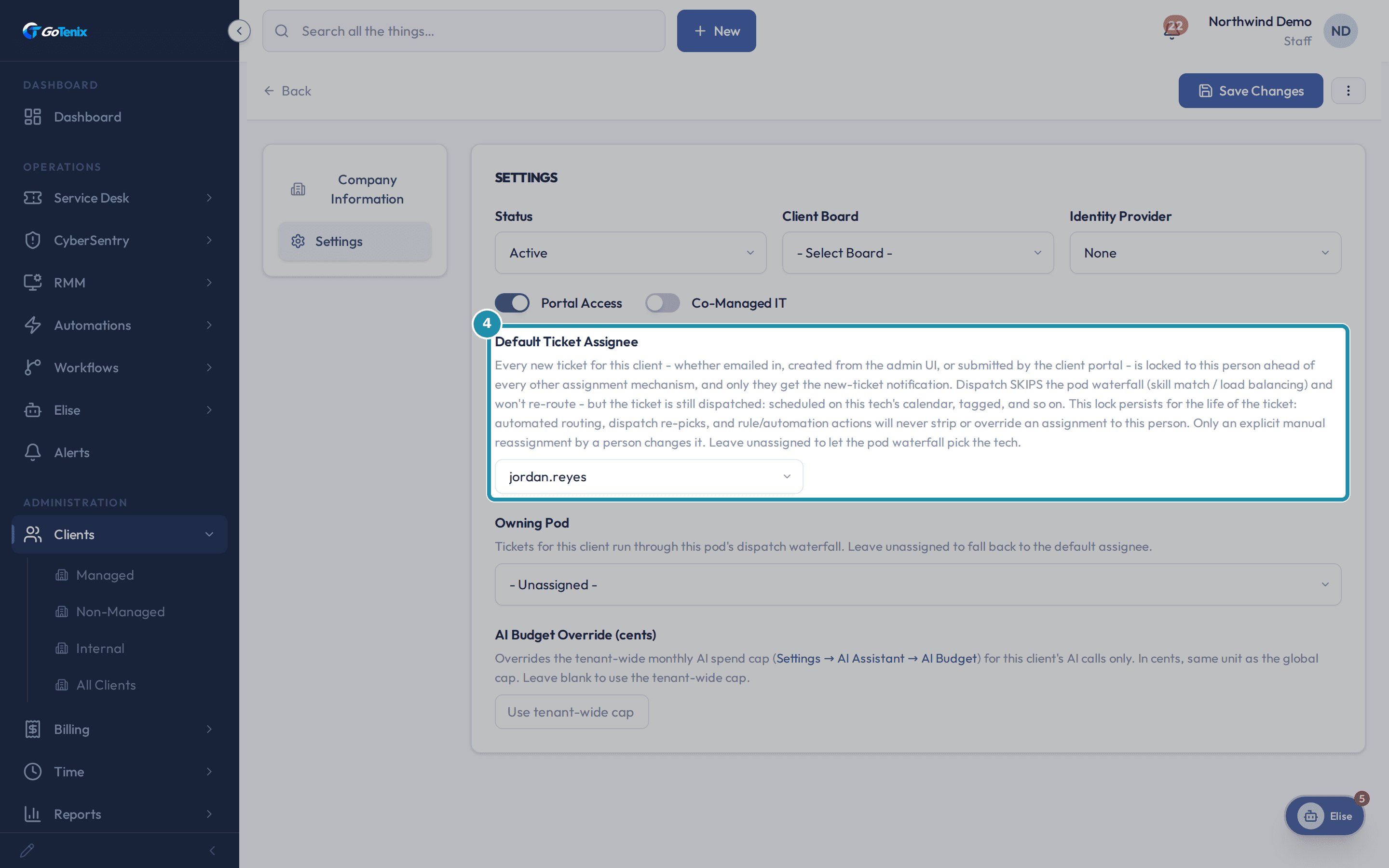
Open Settings > System > Setup Wizards > Set up Dispatch and read the first lesson. Open Clients > a client > Settings and set Default Ticket Assignee.
This is the dedicated tech door. Its own hint says every new ticket for this client, whether emailed in, created from the admin UI or submitted by the client portal, is locked to this person ahead of every other assignment mechanism, and that automated routing, dispatch re-picks and rule or automation actions will never strip or override it. Only an explicit manual reassignment by a person changes it. Pick the tech and save. Owning Pod is a separate setting, used for tickets that have no dedicated tech.
Note: Default Ticket Assignee locks every new ticket for this client to that person, ahead of dispatch and Ticket Rules, until a human reassigns it by hand.Open Clients > a client > Settings and set Default Ticket Assignee. Create a new ticket for that client and open its History.
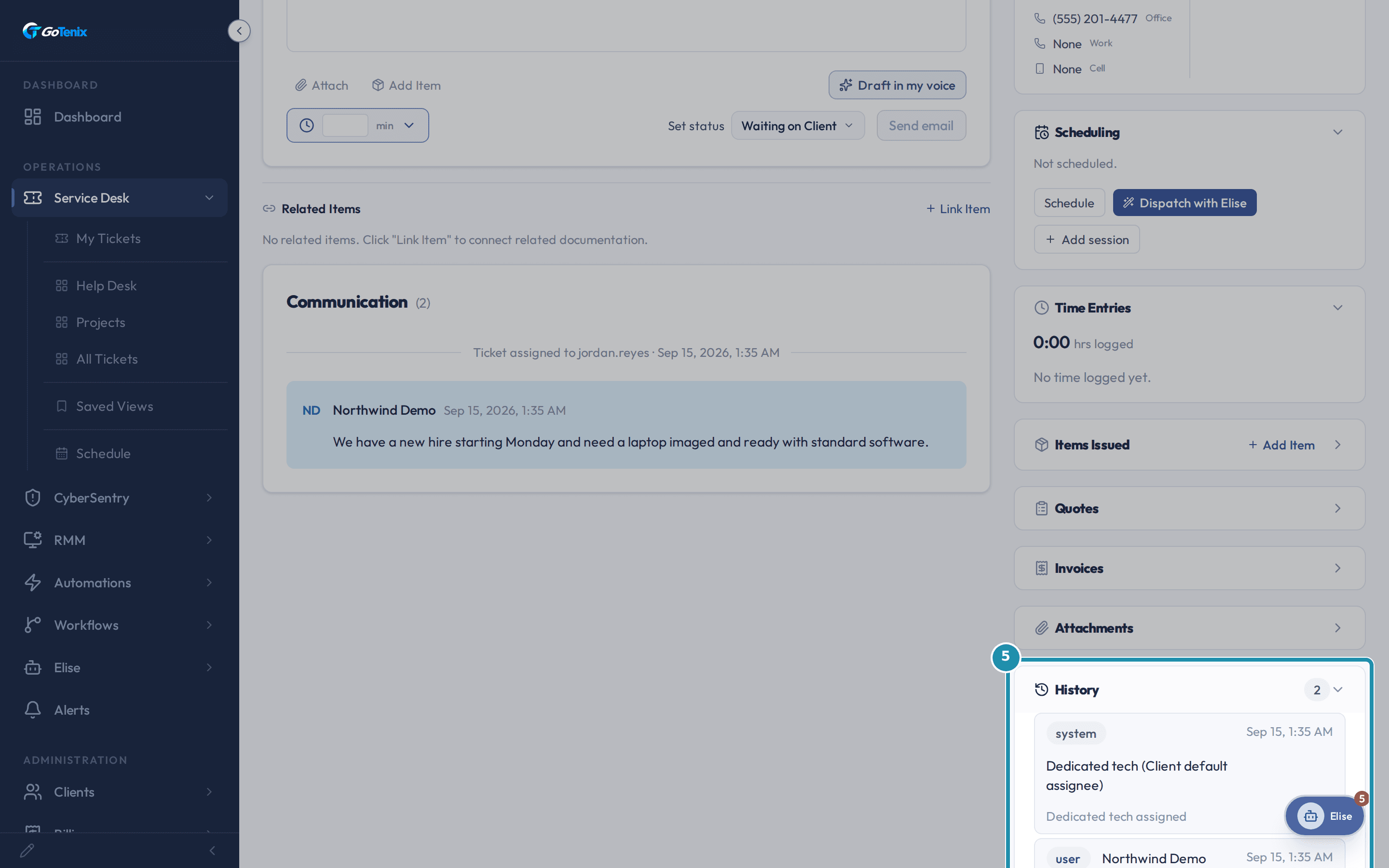
The ticket is assigned to the dedicated tech the moment it is created, before the page finishes loading. History reads Dedicated tech (Client default assignee), Dedicated tech assigned instead of an Autonomous dispatch row. No pod, tiers or candidates appear, because none of that ran. The dedicated tech rule caught the ticket first.
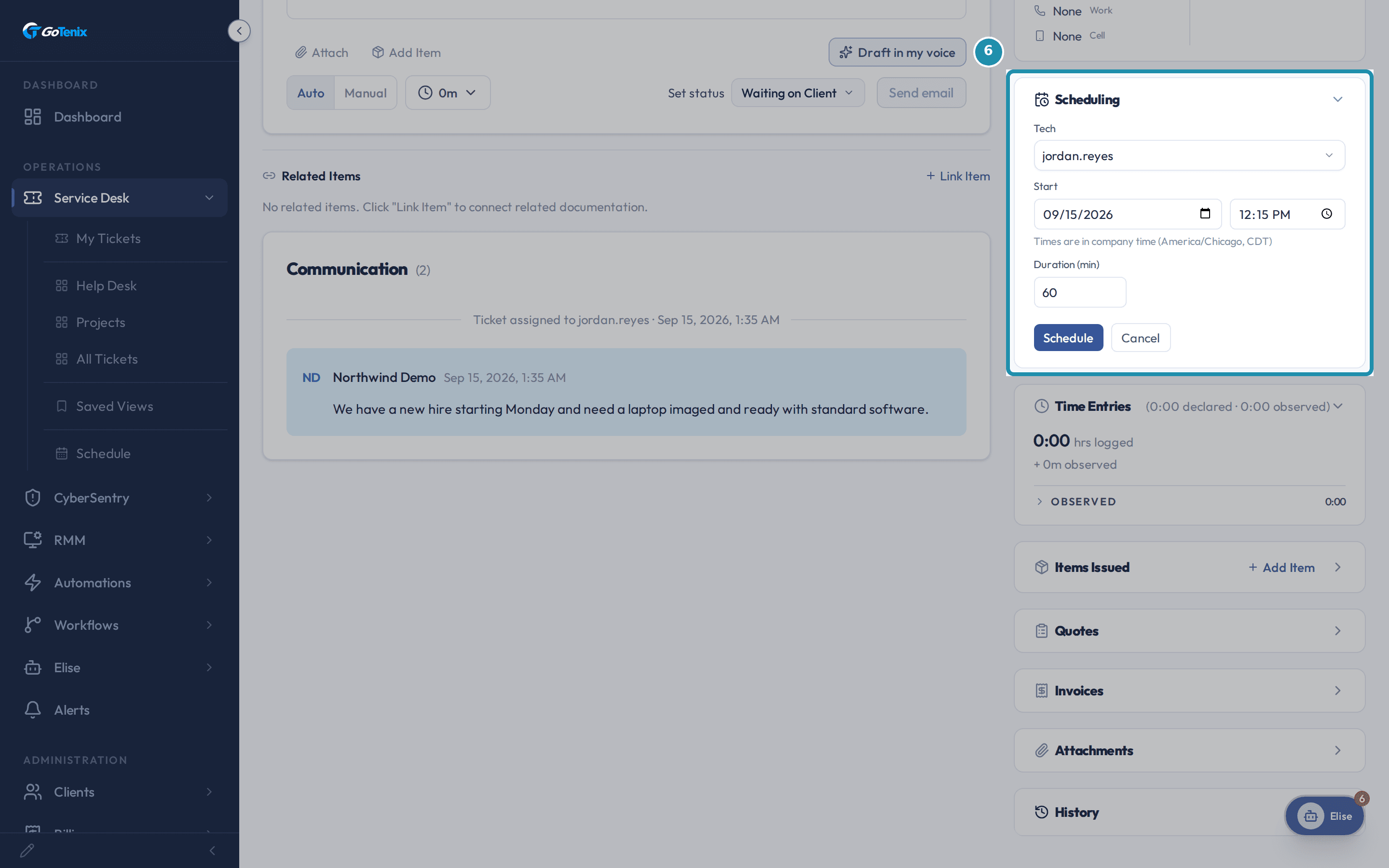
Create a new ticket for that client and open its History. Open Scheduling on the ticket and click Schedule.
The Scheduling card books the ticket yourself or hands it to Elise. Schedule opens a form with Tech set to the ticket's assignee and Duration (min) set from the ticket's estimate, or 60 when it has none. Add session books another block on the same ticket, and Share with client sends the booked time to the ticket's contacts. On a ticket with no booking, Dispatch with Elise picks who and when in one click, or tells you why she could not place it.
Open Scheduling on the ticket and click Schedule. Reassign a dispatched ticket by hand: open Assigned To and pick a different tech.
Picking a tech from the Assigned To list moves the ticket immediately, and Assigned To now shows the new name. The list holds eligible staff and elevated co-managed contacts of that client. A person's reassignment always stands, even on a ticket that a dedicated tech holds.
Open History again and expand the new Reassigned row.
The row is named by the person who did it, badged user rather than system, with no Autonomous dispatch label: a person made this choice, so there is no automated cause to explain. Expanded, it shows what changed, before and after, and who the ticket was assigned to before. Reassigning also clears the dispatch explanation, because a reason only shows while the automated pick is still the ticket's assignee.
Move a ticket to a different client: click the Organization field on the ticket toolbar and search for the new client.
Say a printer ticket was logged under the wrong client and already has a reply and some logged time on it. Clicking Organization opens a search box right in the toolbar. Type part of the correct client's name and pick it. Picking a contact who belongs to a different client in the Contact field moves the ticket to that client too.
Pick it, and the whole ticket moves in one step.
Organization now shows the new client, and the replies, files and time entries move with the ticket, so the Communication and Time Entries cards still show everything that was on it. Invoices and quotes linked to the ticket do not move, because each belongs to its own client. Only one thing blocks a move: time already invoiced on a live invoice. Void that invoice first, then move the ticket. Time locked by a closed period, a manager lock or a consolidation still moves with the ticket.
Note: Only closed and billed work blocks a move: a time entry that is already on a live invoice. To move a ticket with billed time on it, void the invoice first, then move it.
What you will have
- See which tech a ticket landed on and read the reason recorded for it, in one sentence.
- Give one client a dedicated tech so every new ticket for that client goes straight to that person, ahead of every other assignment rule.
- Know the order dispatch tries when there is no dedicated tech: the client's own pod first, one tier at a time, a Specialty pod only when the owning pod has nobody, and then a person.
- Reassign by hand, move a ticket to another client, or ask Elise, and see what each leaves on the ticket's History.
Why it works this way: How to see who a ticket goes to and why
The reason behind an assignment lives on the ticket's History card as one plain sentence, such as Autonomous dispatch, to a tech, Dispatched.
A client's Default Ticket Assignee outranks every other assignment. Dispatch, Ticket Rules, board routing, escalation and Elise's assign all leave a ticket alone while that tech holds it. Only a person reassigning by hand changes it.
With no dedicated tech, dispatch tries the client's own pod one tier at a time, starting at the lowest. At each tier it takes an eligible member with a matching skill when the ticket needs one, and otherwise the member with the fewest open tickets. A tier with nobody sends it up to the next tier. A Specialty pod is tried only when the owning pod has no eligible member at all and the ticket needs a skill that pod covers. After that the ticket goes to a person.
Other ways to do this: How to see who a ticket goes to and why
Auto-dispatch (the pod waterfall)
With Dispatch Mode On and a client's Owning Pod set, a ticket that arrives by email, the client portal, the public support form, the device agent or Elise is dispatched the moment it is created, as long as nobody has it yet. Every pick leaves an Autonomous dispatch row on the ticket's History. Tickets made on the admin New Ticket form, recurring tickets and workflow tickets do not run dispatch.
Dedicated tech
Set a client's Default Ticket Assignee (Clients > that client > Settings). Every new ticket for that client, whether emailed in, created on the admin screen or submitted through the client portal, goes to that person ahead of dispatch and Ticket Rules, and stays theirs for the life of the ticket.
Manual assign on the ticket
Open Assigned To on the ticket toolbar and pick a tech. The list holds eligible staff and elevated co-managed contacts of that client. History shows a Reassigned row in your name with no automated cause, because a person did it.
Bulk assign on the list
Select several tickets on All Tickets and use Reassign on the bar that appears. Every selected ticket moves to the new tech, one History row per ticket.
Dispatch with Elise
On a ticket with no booking, click Dispatch with Elise in the Scheduling card. She picks who and when and books it in one click, or tells you why she could not place it.
Elise chat
Ask "Why did #25 go to Jordan?" and Elise explains it from the ticket's recorded History. This one needs Settings view access, so a tech without it gets a refusal. Ask "Assign #25 to Carlos" and she reassigns it as you, with your name shown under hers on History, unless the ticket is held by its client's dedicated tech, in which case she says so and leaves it. Assigning is a small write, so it runs straight away unless an admin has tightened it.
Ticket Rules and automations
A Ticket Rule or automation that assigns, unassigns or re-routes a ticket can do it on its own trigger, but it never takes a ticket away from its client's dedicated tech.
If it did not work: How to see who a ticket goes to and why
- If the client has no Owning Pod and no Default Ticket Assignee, dispatch has no pod to try and leaves the ticket for a person to claim or assign. Set an Owning Pod on the client, or a ticket level pod. A Failed to dispatch row on Needs Attention gives the reason in words: no owning pod, no eligible technician, or no free slot.
- If Dispatch Mode is Off, nothing is dispatched. A ticket made on the admin New Ticket form still goes to its client's dedicated tech or else to the tech who created it, and an email or client portal ticket with no dedicated tech stays unassigned until someone claims it. In Preview, dispatch records what it would have done and assigns nothing.
- Members who are inactive, blacklisted or on the PASSIVE tier are never candidates, so a tier with only those members counts as empty and dispatch moves up to the next tier.
- If the ticket needs a skill and nobody at the tier matches it, dispatch still picks the least loaded eligible member of that tier instead of leaving the ticket unassigned.
- If Dispatch Mode is On for a pod whose own Auto-Dispatch switch is off, that pod still gets the plain pod pick. Only a pod with both switches on lets Elise book the tech's real calendar herself.
- If a move to another client is refused, it is because the ticket carries time already invoiced on a live invoice. Void that invoice first, then move the ticket.
Questions this page answers
What is Dispatch?
Dispatch is where you tune how tickets get auto-routed and time-estimated. Pods (one level over) decide WHO works on a ticket; Dispatch decides HOW the system estimates effort, blocks calendar slots, and prioritizes work. It has two surfaces: Tag Estimates (the fix-time estimate strategy for each ticket tag) and Preview (review and grade the assistant's would-be dispatch picks before going live). The engine's own knobs, Dispatch Mode, default estimates, and the scheduling-window tuning, live in Settings → Dispatch & Scheduling. The day-timeline board of what each tech is scheduled to work now lives under Service Desk > Schedule.
What are Pod Scheduling Rules?
This doorway explains that scheduling rules, hours, tiers, and how dispatch loads a pod belong to each pod. They live on the pod itself, not on a global Settings page. The tenant-wide dispatch defaults nearby are only the starting point each pod builds on.
What does Dispatch Mode (off / preview / on) do?
Off = no auto-dispatch; you schedule manually. Preview = Elise records who + when she WOULD schedule (no calendar writes) so you can review her picks on the Preview page - the safe on-ramp. On = Elise dispatches live, per pod, only for pods whose Auto-Dispatch toggle is on. This row only shows the value. It is not editable here. Click its Edit link, or go to Settings > AI Assistant > Actions & Automation, to change it.
How do I create or configure a pod?
Click "Open Pods" on this page, or go straight to Team → Pods. Pick the pod to configure, or create a new one. Open its Configuration. Then manage its members, board assignments, and tier coverage.
What is on the Dispatch Settings page?
This page holds every knob for the dispatch engine. It covers the default ticket estimate and auto-tune, plus the quick-fix threshold and handling. It also covers the calendar reconcile interval and scheduling-window tuning (slot granularity, tier fill and overflow). Dispatch Rules also has Dispatch Unapproved Senders. Turn it on and tickets from unapproved senders can be dispatched to the default pod. The Dispatch Rules page also shows the master Dispatch Mode (off, preview, on). That row is a read-only mirror here, though. Click its Edit link, or go to Settings > AI Assistant > Actions & Automation, to change it. Techs get booked into the company's default working window: Business Hours (Service Levels → Business Hours & Holidays). The SLA clock uses that same value. Calendar Sync shows it too, with a link. The "Set up Dispatch" wizard writes these same settings with recommended values. This page is where you adjust them afterward.
Can I move a ticket to a different client?
Yes. In the ticket toolbar, click the Organization field and search for the new client. You can also pick a contact at another client instead. The whole ticket moves in one step, with no confirm box. Replies, files, and time entries move with it. Only billed time blocks a move. That means a time entry locked by an invoice that is still live. Time locked by a roll up, a closed period, or a manager still moves. To move a ticket with billed time, void the invoice first.
Was this helpful?