How to close a ticket and approve the article it drafts
Ask Elise to draft your closing message in your own voice, send it with Send & Close, then approve the knowledge base article Elise drafts from the fix.
See it
Browse
On this page
How to do it
Ask Elise for the closing message.
Open the ticket, open Elise and say "draft the closing summary for this ticket". She writes two to four sentences for the client, in your voice, signed as you, and shows them in the chat. Add a hint if you like, such as "fixed by rebooting the DC". She does not close the ticket or send anything. Copy the draft into the reply box, change what you like, and send it yourself. The Draft in my voice button in the reply box also drafts a reply.
Check the closing reply.
Say what you did and that it works, in plain words. A reply of 300 characters or more, with a real description of the fix, is what lets a knowledge base draft follow. A one line "fixed it" will not.
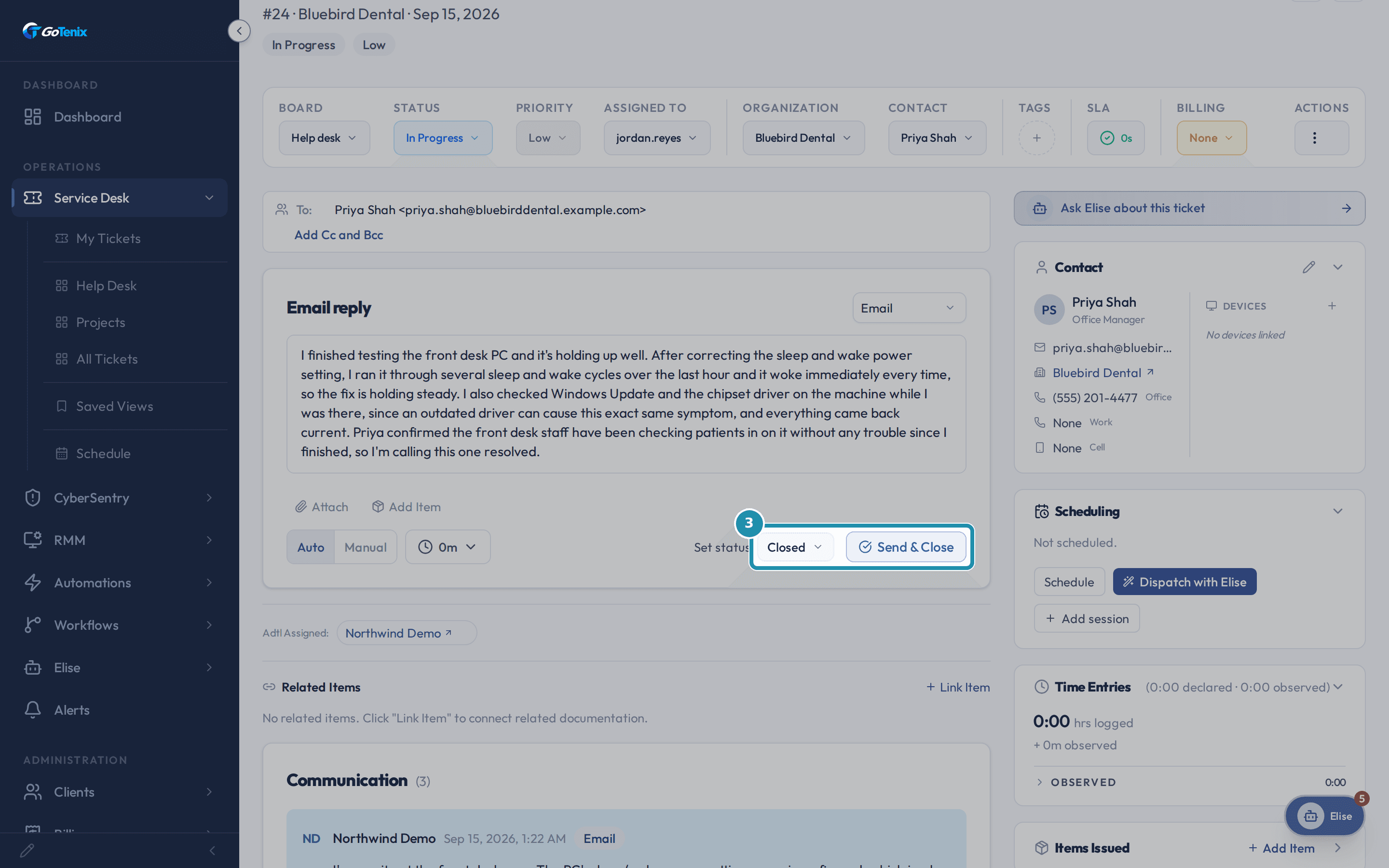
Check the closing reply. Set status to Closed and click Send & Close.
Pick Closed in Set status and the send button changes to Send & Close. One click sends the reply to the client and closes the ticket.
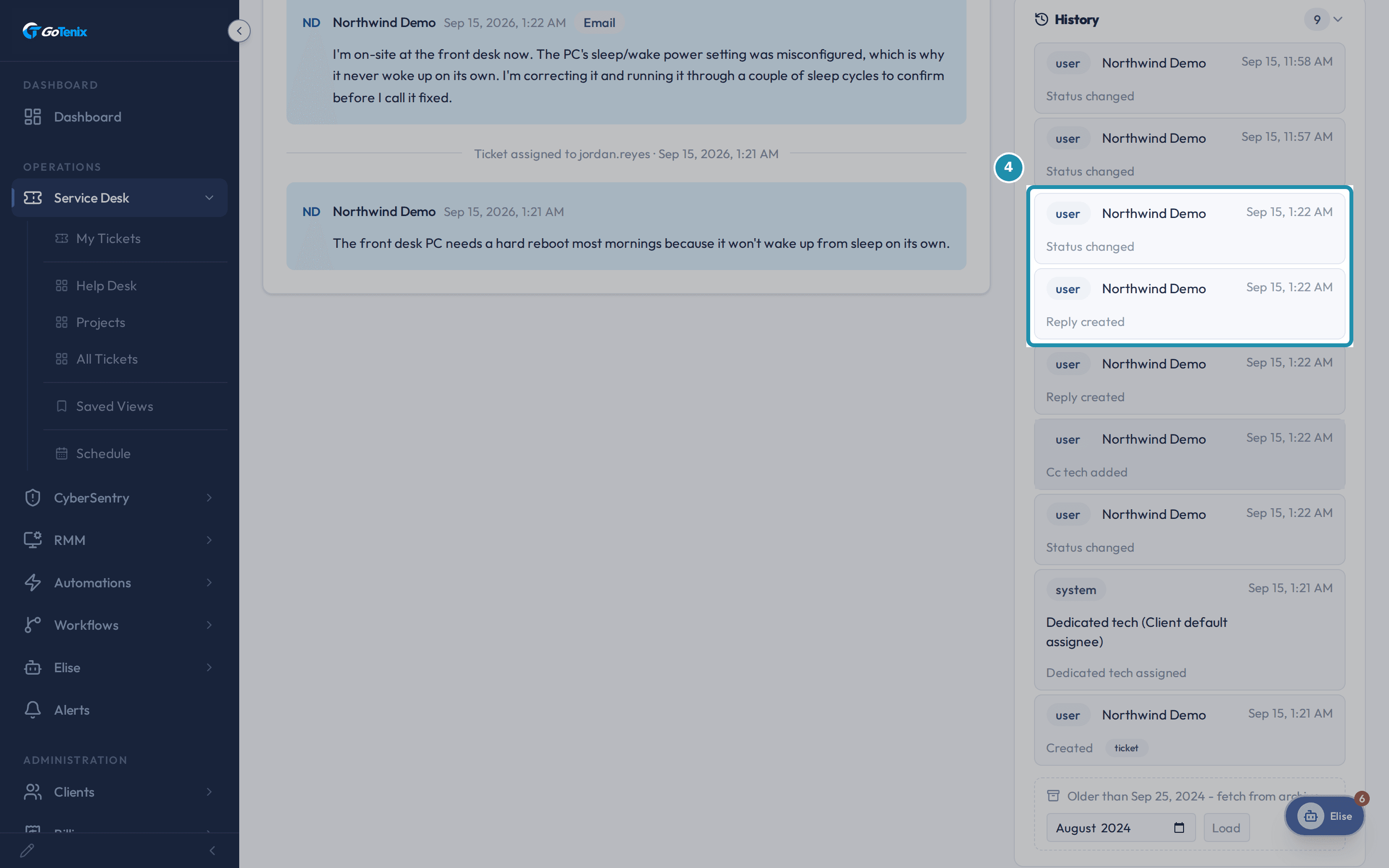
Set status to Closed and click Send & Close. Check the ticket's History.
The History card lists the rows that one click wrote, including Status changed and Reply created.
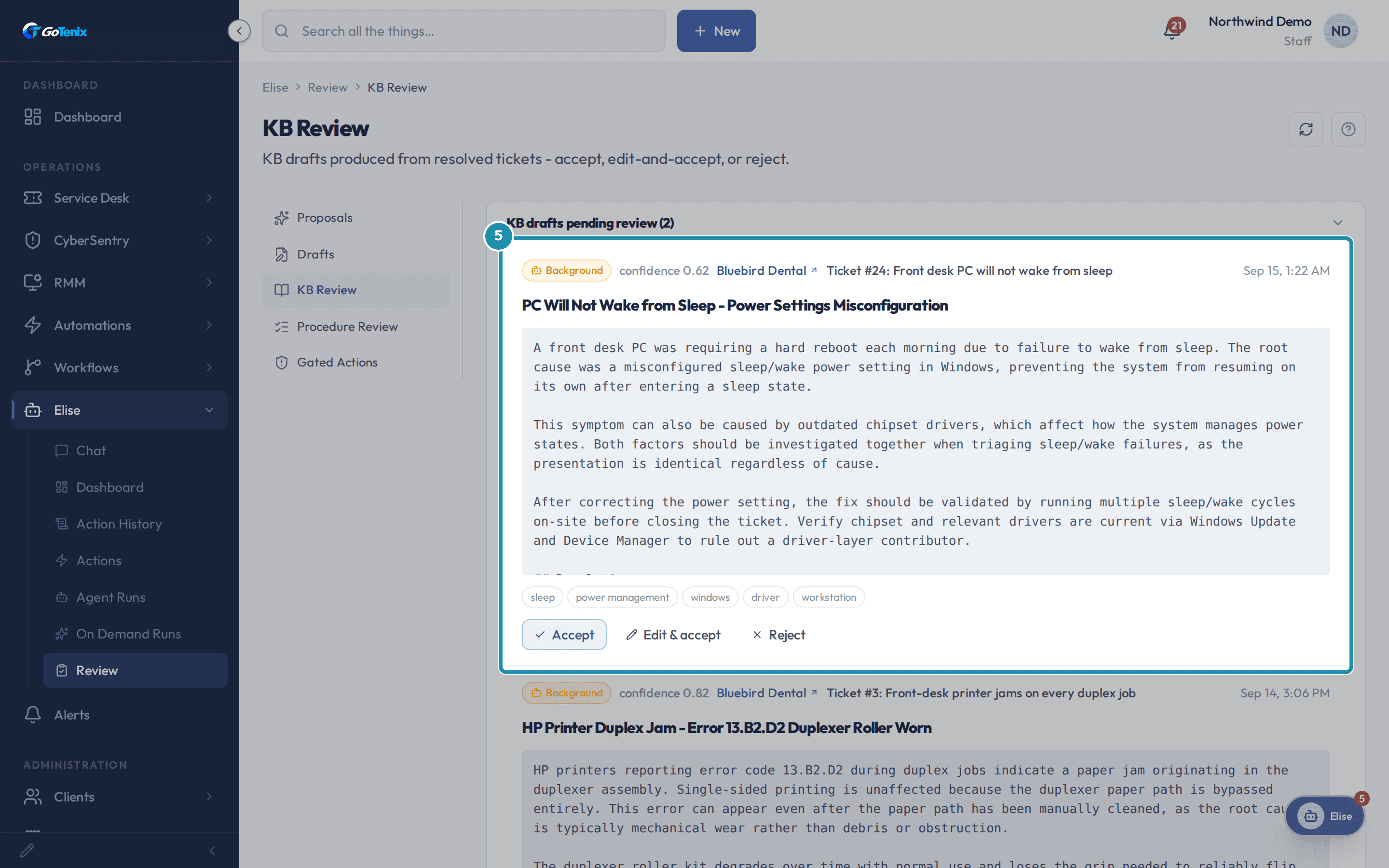
Check the ticket's History. Watch for the ready notice, then open Elise, Review, KB Review.
When the draft is ready, you get a bell notification titled KB draft ready, with the ticket number, and Elise tells you in chat. The notice links to the review queue. Each draft shows its confidence, the client, the source ticket, a proposed title, the drafted article and its tags. Confidence is the model's own guess at how useful the fix is. Choose Accept, Edit & accept or Reject. The same drafts also show in each client's Knowledge Base list with a Draft / proposed badge, so you can review them where the articles live. KB Review is the queue across all clients.
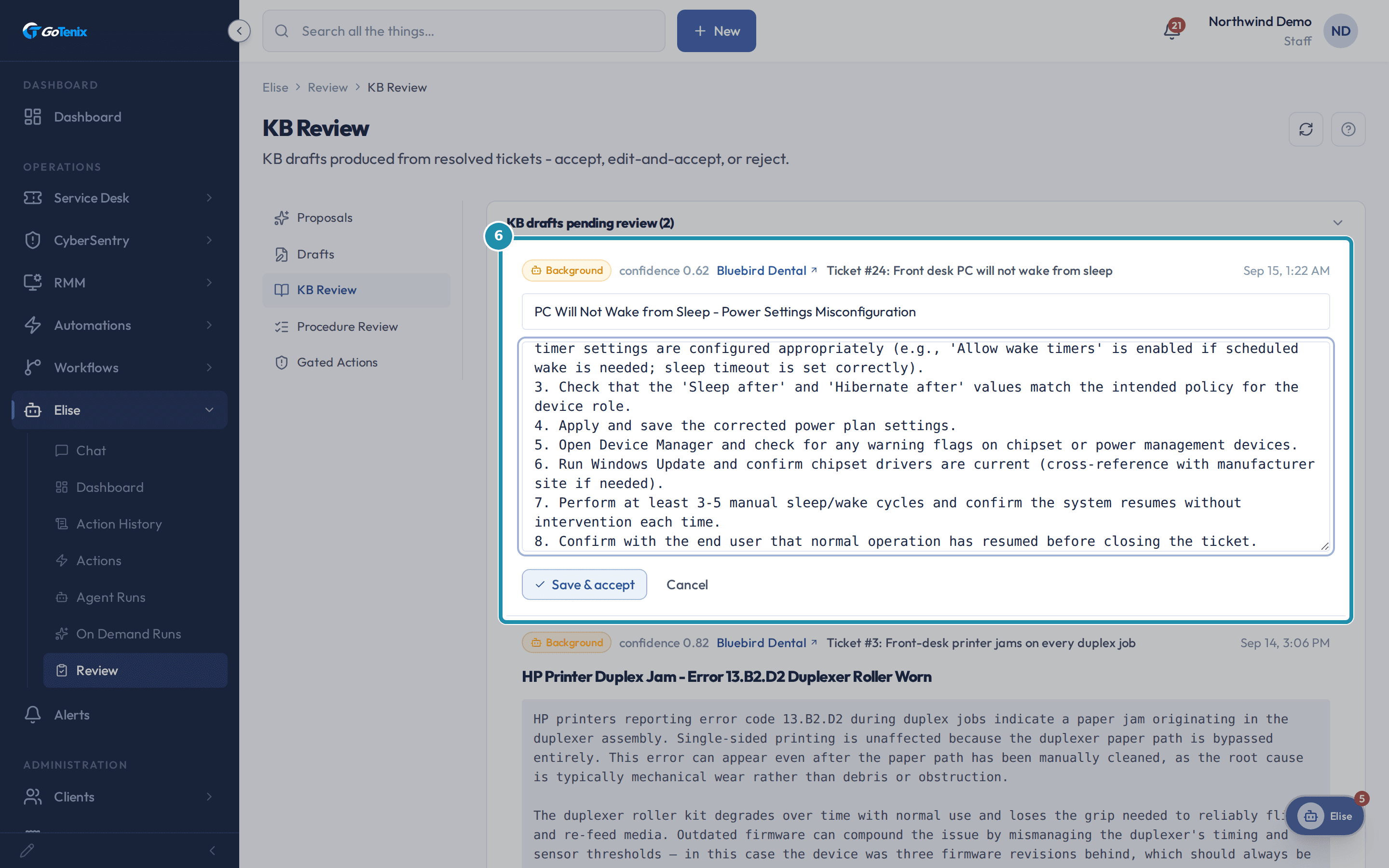
Watch for the ready notice, then open Elise, Review, KB Review. Edit and accept, or accept as written.
Edit & accept makes the title, body and tags editable. Save & accept publishes the article. An edited draft is recorded as Edited and Accepted, and an untouched one as Accepted. The article is saved as Approved right away, with no separate publish step. Reject keeps it out of the knowledge base.
Edit and accept, or accept as written. Find the article.
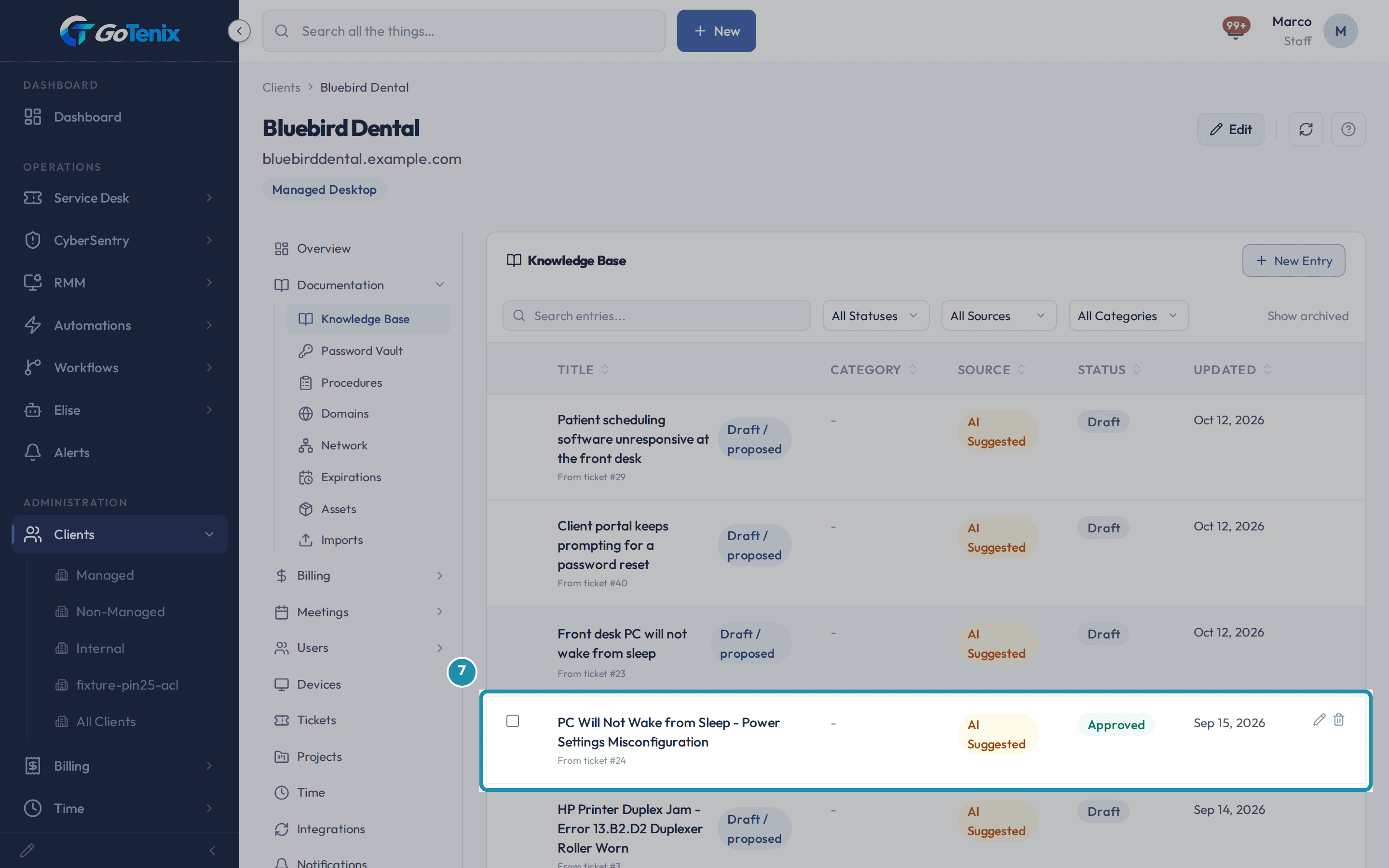
The article lands on the client's page under Documentation, then Knowledge Base, marked AI Suggested and Approved, with From ticket and the ticket number under its title. Until someone decides, the draft sits in the same list as a Draft / proposed row.
Find the article. Check Client Visibility.
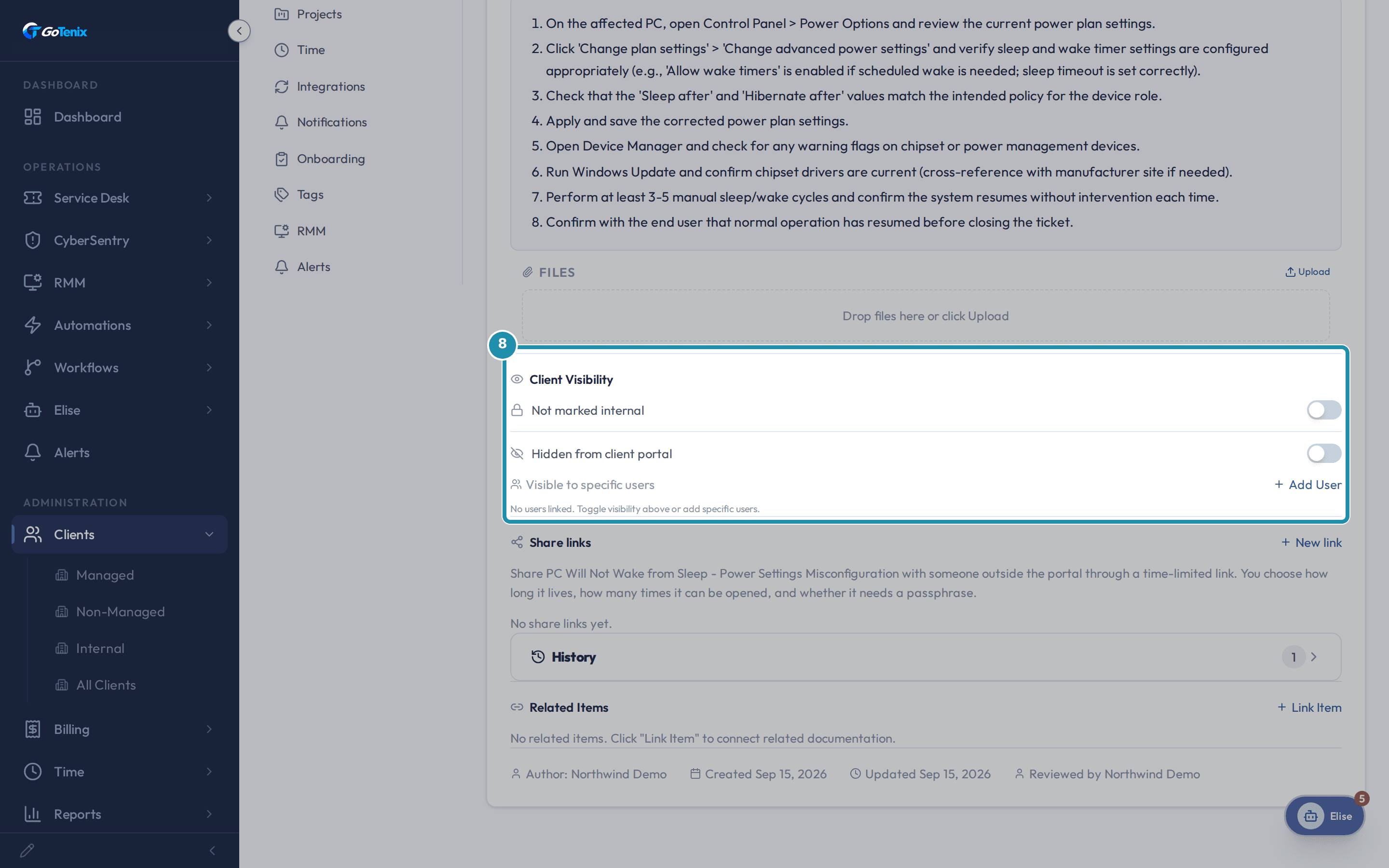
Open the article and look at Client Visibility. A new article starts hidden from the client portal and not marked internal. Use the two switches to share it with the client or to mark it MSP Only, or use Visible to specific users and Add User to share it with just the people you pick.
Check Client Visibility.
What you will have
- Get a closing message drafted in your voice instead of writing it from scratch.
- Close the ticket and send that message in one click.
- Review the knowledge base article Elise drafts from the fix, then accept it, edit it, or turn it down.
- Check who can see the article once it is published.
Why it works this way: How to close a ticket and approve the article it drafts
A close only drafts an article when the ticket has at least two replies, a closing reply of 300 characters or more, and nothing that marks it as a throwaway, such as duplicate, spam, user error or no action. A ticket merged into another, or one that already has an article or a pending or rejected draft, produces nothing.
A fix that reads as an ordered sequence of three or more steps, or a ticket about onboarding, offboarding, migration or similar setup work, goes to Procedure Review instead of KB Review. One close makes one draft, never both.
The draft comes from your closing reply and the thread. A fuller closing reply makes a better article.
Other ways to do this: How to close a ticket and approve the article it drafts
Elise, for the rest
Ask "close ticket 1234" or "change ticket 1234 to Closed". Elise closes the ticket but does not send your drafted message, and closing also triggers the client's satisfaction survey email, so send your closing reply from the reply box with Send & Close first. A close with no real closing reply will not draft an article. Later ask "draft a KB article from ticket 1234" to send a draft to KB Review without waiting for a close, or "show the approved KB entries for Bluebird Dental" to see what is approved.
The Status field in the toolbar
Set Status to Closed in the ticket toolbar. This changes the status and nothing else, so text typed in the reply box is dropped. Only Send & Close sends it.
Procedure Review
A close whose fix reads as an ordered sequence, or whose ticket is about onboarding, offboarding, migration or setup, drafts a procedure instead. Review it on Elise, Review, Procedure Review.
New Entry
On Documentation, Knowledge Base, click New Entry and write the article by hand.
If it did not work: How to close a ticket and approve the article it drafts
- If no draft appears, check the three tests: at least two replies, a closing reply of 300 characters or more, and no throwaway words such as duplicate, spam, user error or no action. The AI can also judge that a fix is not worth an article, and then no draft is made.
- If the ticket was merged into another, or already has an article or a pending or rejected draft, no new draft is made.
- If the fix reads as an ordered sequence, look in Procedure Review instead of KB Review.
- If no AI is connected, the close still completes and there is no draft to review.
Questions this page answers
What is KB Review?
Resolved tickets generate KB draft entries - Elise pulls the question, the resolution steps, and the affected systems into a draft KB article. KB Review is where you Accept, Edit & accept, or Reject each draft before it joins the searchable KB. The same drafts also show in each client's Knowledge Base list with a Draft / proposed badge, so you can review them where the articles live. KB Review is the queue across all clients.
What do the draft statuses mean?
Pending - fresh draft, never reviewed. Edited and Accepted - you made changes before publishing. Accepted - went in as-written. Rejected - dropped, won't generate again for similar tickets. Statuses feed back into the rejection corpus so Elise learns the team's editorial preferences.
Why did a close land here instead of KB Review?
Each ticket close makes ONE decision: knowledge-base article, procedure, or nothing. A resolution that is a repeatable ordered sequence becomes a procedure; a one-off diagnosis with a non-obvious fix becomes a KB article. You will never get both queues nagging you about the same ticket, and a close only ever costs one draft.
What is Ticket Review?
Configured on Settings → Service Desk → Ticket Review. When ON, RESOLVED tickets need a designated reviewer to close them, the tech-side close button becomes "Resolve" instead. Reviewers are members of the Closer Permission Groups plus, optionally, the ticket's pod leaders (the Pod Leaders Can Close toggle). Use it as a coaching loop so a senior tech vets work before it leaves the queue.
Was this helpful?