How to document a client from one tab
Keep everything about a client in one place: knowledge articles, a masked password vault, runbooks, domains and renewals, network details and IT Glue imports. Elise drafts articles and procedures from tickets, finds domains, and adds expirations, networks and assets.
See it
Browse
On this page
How to do it
Open Bluebird Dental's Documentation tab.
Documentation opens on Knowledge Base. The menu under it lists eight sections: Knowledge Base, Password Vault, Procedures, Domains, Network, Expirations, Assets and Imports. Each has its own button to add a row, and Knowledge Base also has an Ask Elise button at the top.
Open Bluebird Dental's Documentation tab. Add a Knowledge Base entry for the front desk PC.
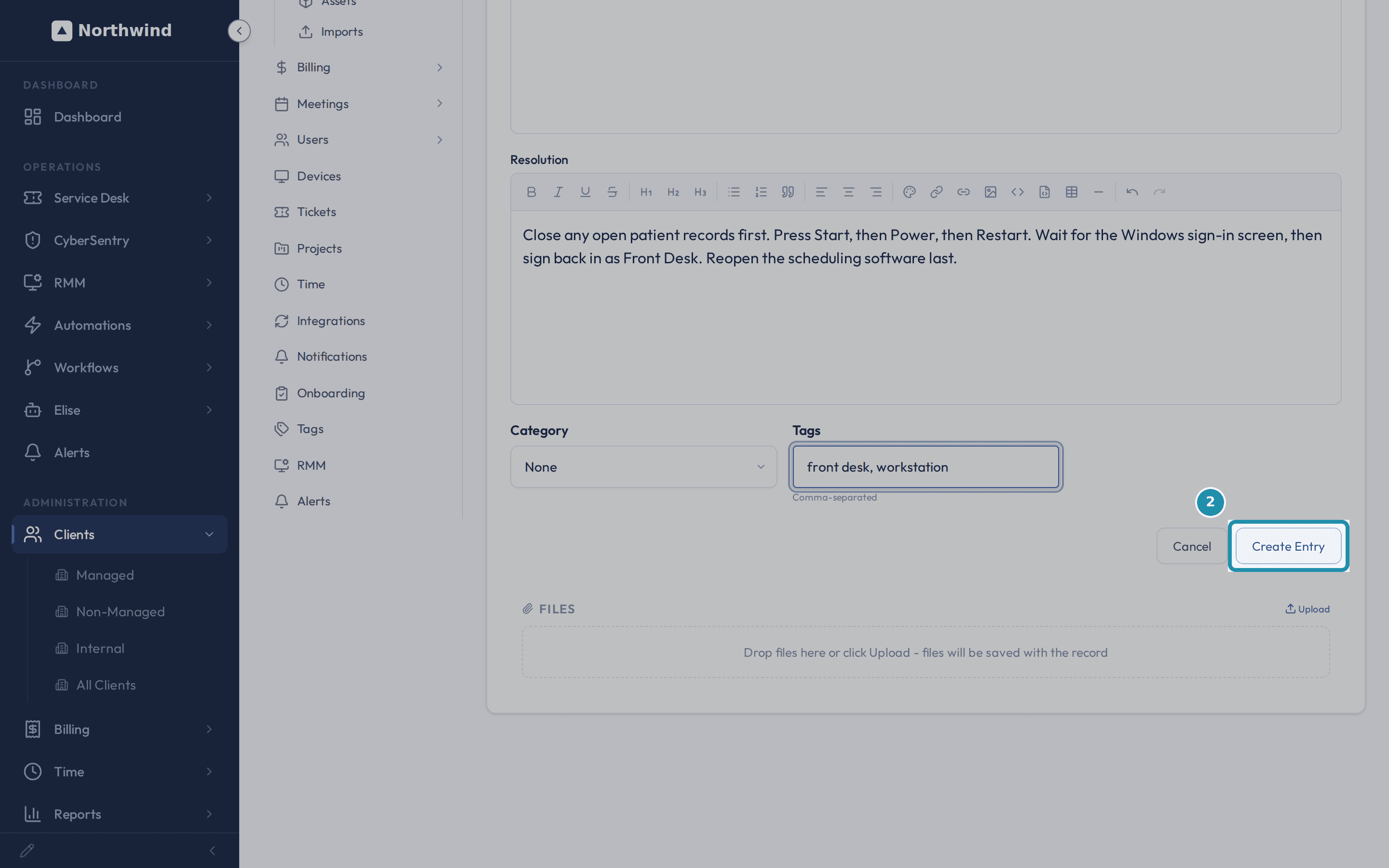
New Entry opens a form with a required Title, a rich-text Content box with a formatting toolbar, an optional Resolution box in the same editor, a Category list and Tags. Here the Title is Front desk PC restart steps, Content explains the hang, Resolution walks through the restart, and Tags are front desk and workstation.
Add a Knowledge Base entry for the front desk PC. Set who can see it from Client Visibility.
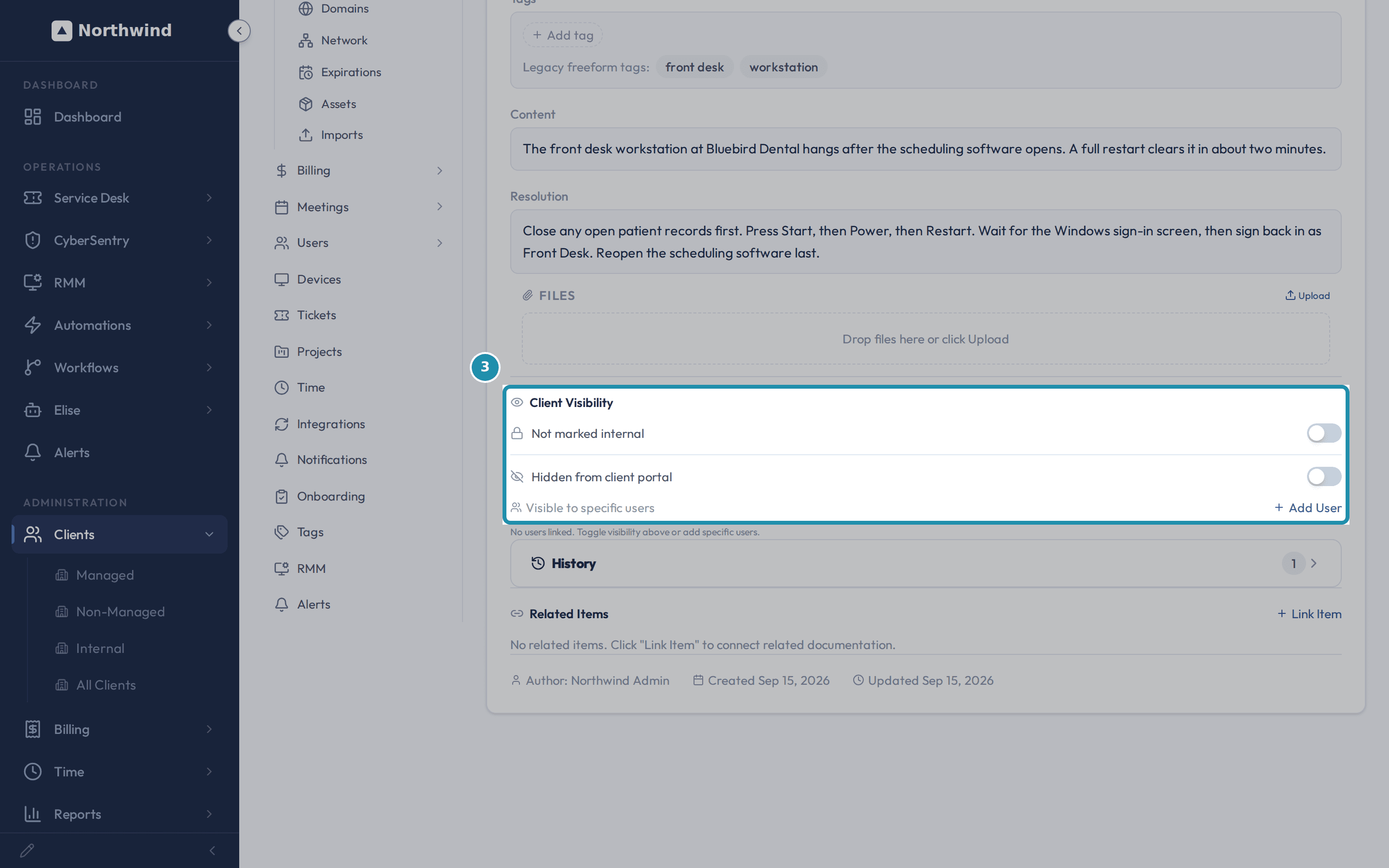
The saved article shows a Client Visibility panel. The first switch reads Not marked internal, the Hidden from client portal switch is next, and Visible to specific users has an Add User button. Both switches are off here, so every Bluebird Dental portal user can see the article. That suits a restart guide the client's own staff would want to read.
Set who can see it from Client Visibility. Add a Password Vault entry for the guest Wifi.
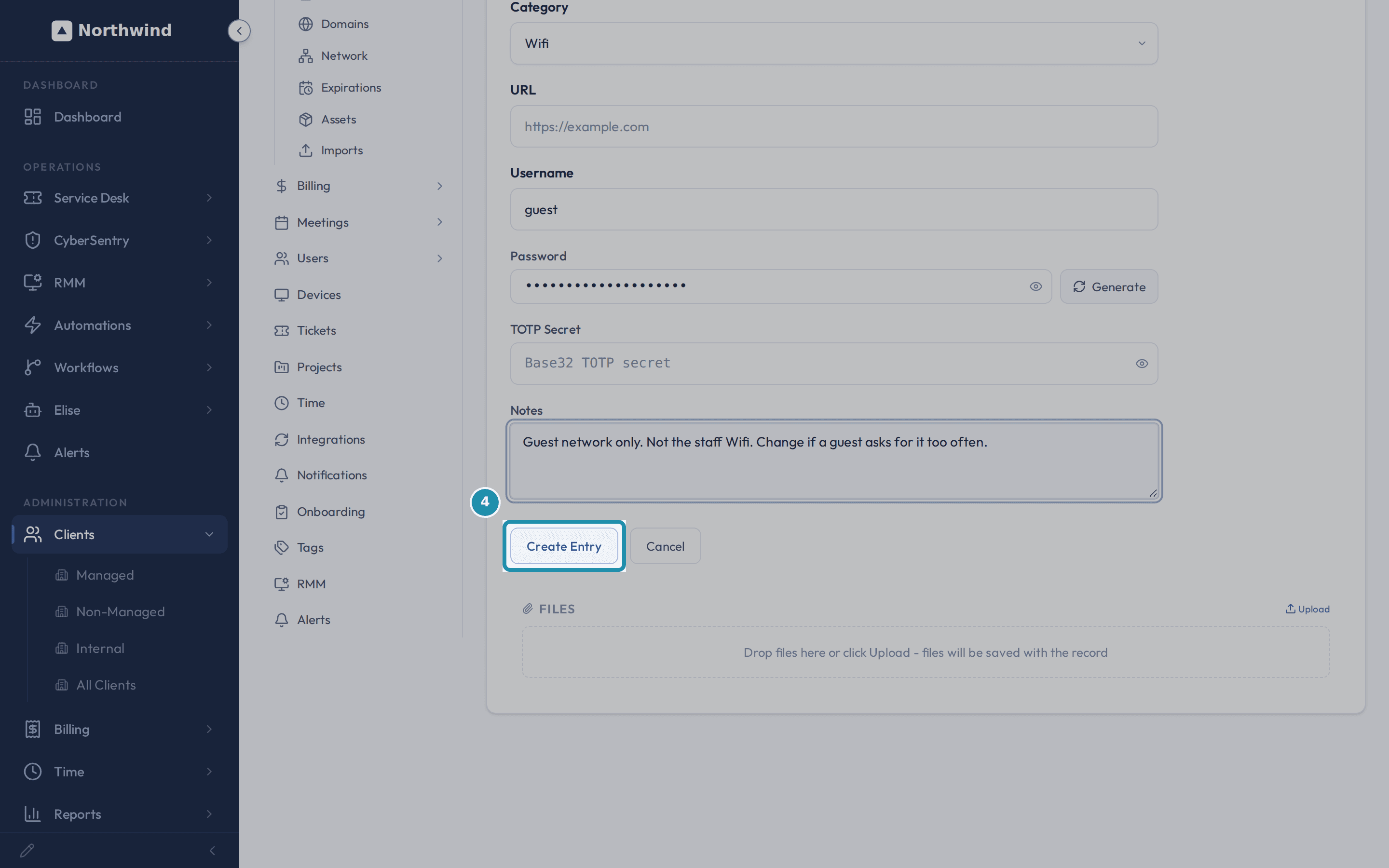
New Entry asks for a Name, a Category (Login, Wifi, Api Key, Certificate, License Key, MFA or Other), a URL, a Username, a Password with a Generate button, a TOTP Secret for one-time codes and Notes. This one is named Bluebird Dental guest Wifi, with category Wifi and username guest. The note says it is the guest network only, not the staff Wifi.
Add a Password Vault entry for the guest Wifi. Reveal the password to check it.
The eye icon on an entry opens a pop-up that spells the password out one character per colored, numbered cell, with Letters, Numbers and Symbols called out underneath. A countdown hides the window by itself, and Copy password puts the value on the clipboard without showing it in a field. Each reveal is logged against the entry with who looked and when.
Note: Never paste a revealed password into a screenshot, a chat message or a ticket.Write a Procedure for onboarding a new hire's laptop.
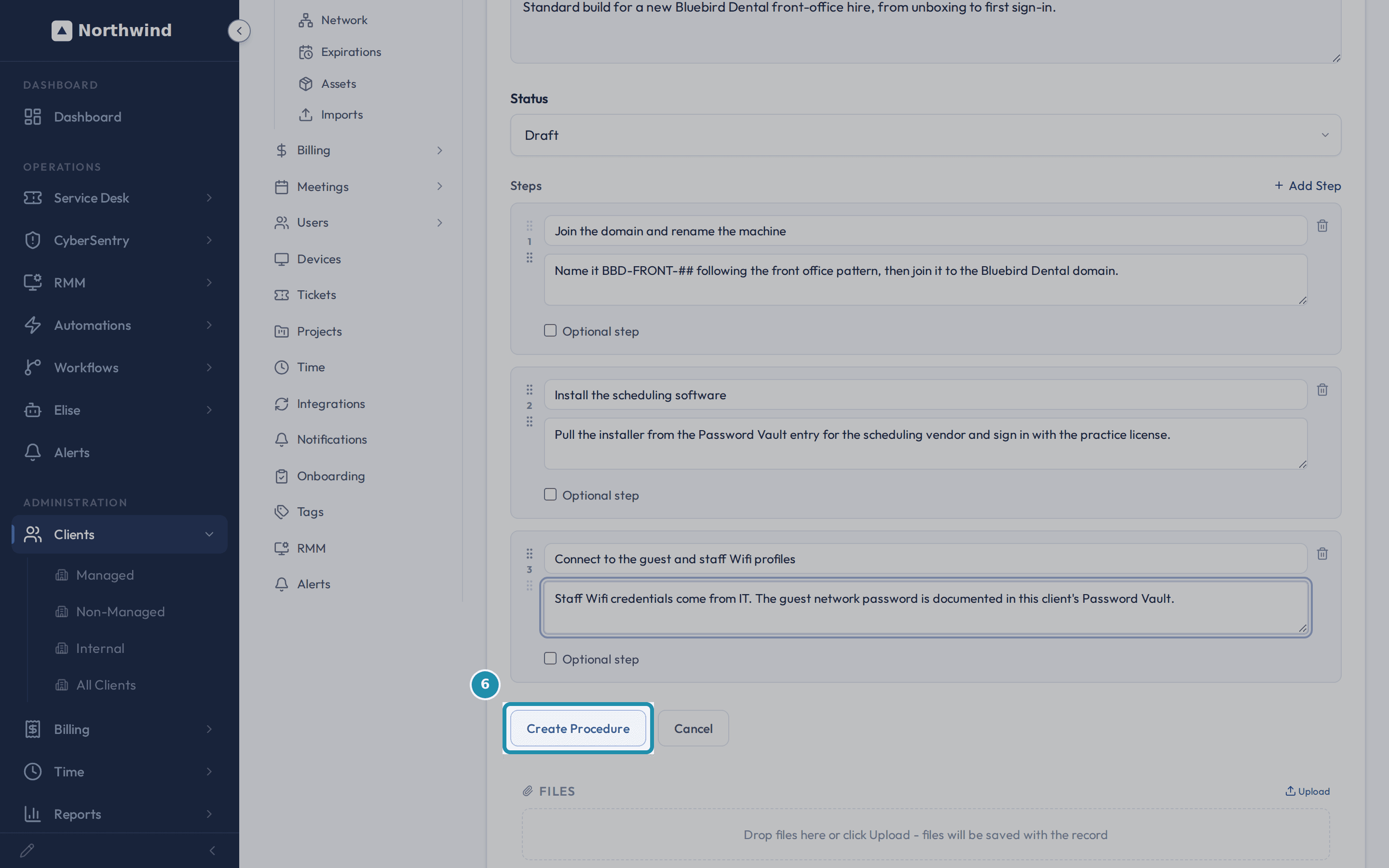
New Procedure asks for a Title, an optional Description, a Status (Draft by default) and a Steps list built with Add Step. Each step has its own title, a content box and an Optional step checkbox. "New hire laptop setup" has three ordered steps: join the domain and rename the machine, install the scheduling software, and connect to the guest and staff Wifi profiles. The last step points back at the vault entry from step 4.
Write a Procedure for onboarding a new hire's laptop. Fill in the domain's registrar and expiry dates.
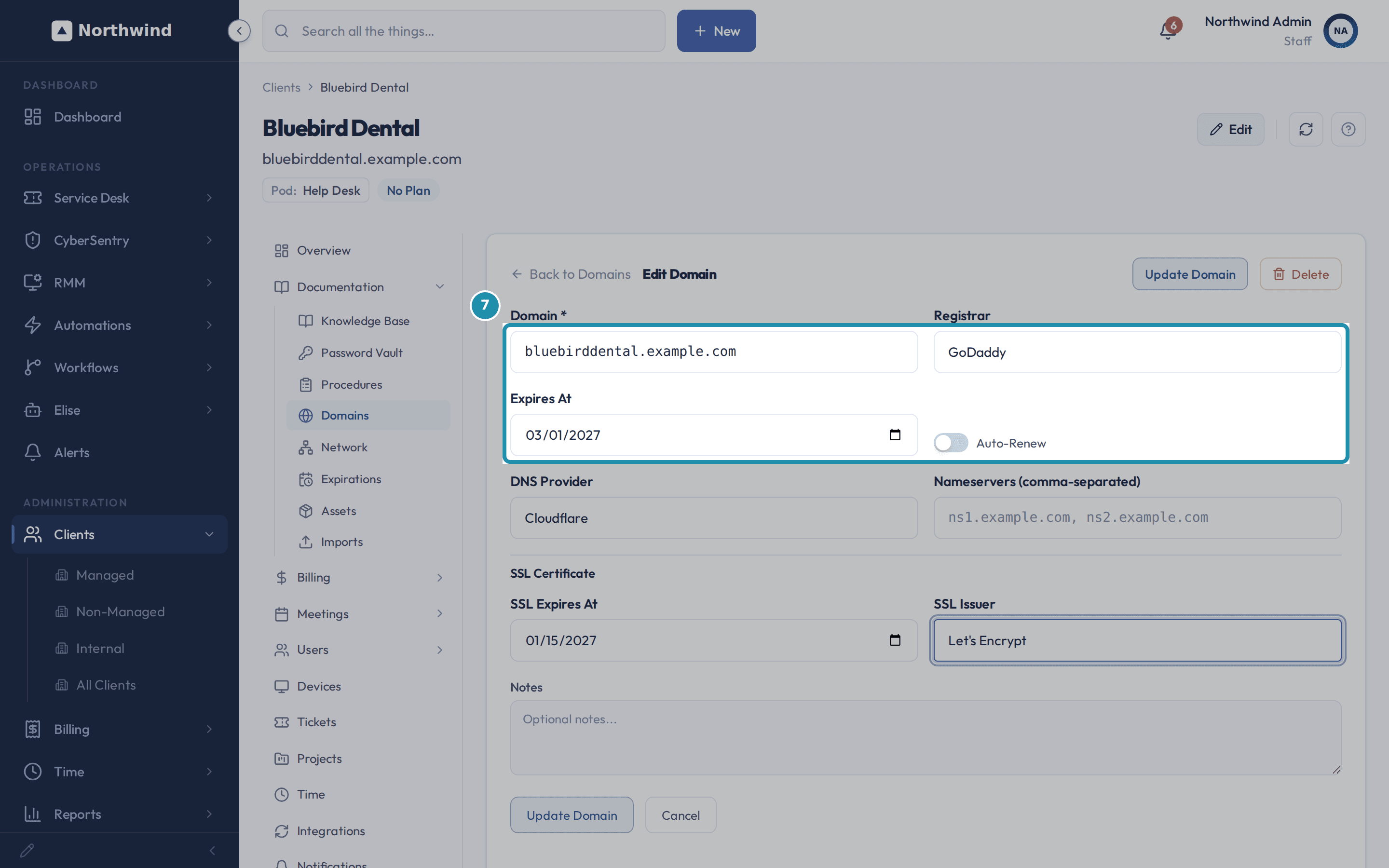
Domains lists the client's domain. Open it to edit Registrar, Expires At with an Auto-Renew switch, DNS Provider, Nameservers and an SSL Certificate block with SSL Expires At and SSL Issuer. Here: GoDaddy, March 1, 2027, Cloudflare and Let's Encrypt, with Auto-Renew off. The Auto-Discover button on the Domains list can find a client's verified domains for you instead.
Fill in the domain's registrar and expiry dates. Check the dates on the Domains list.
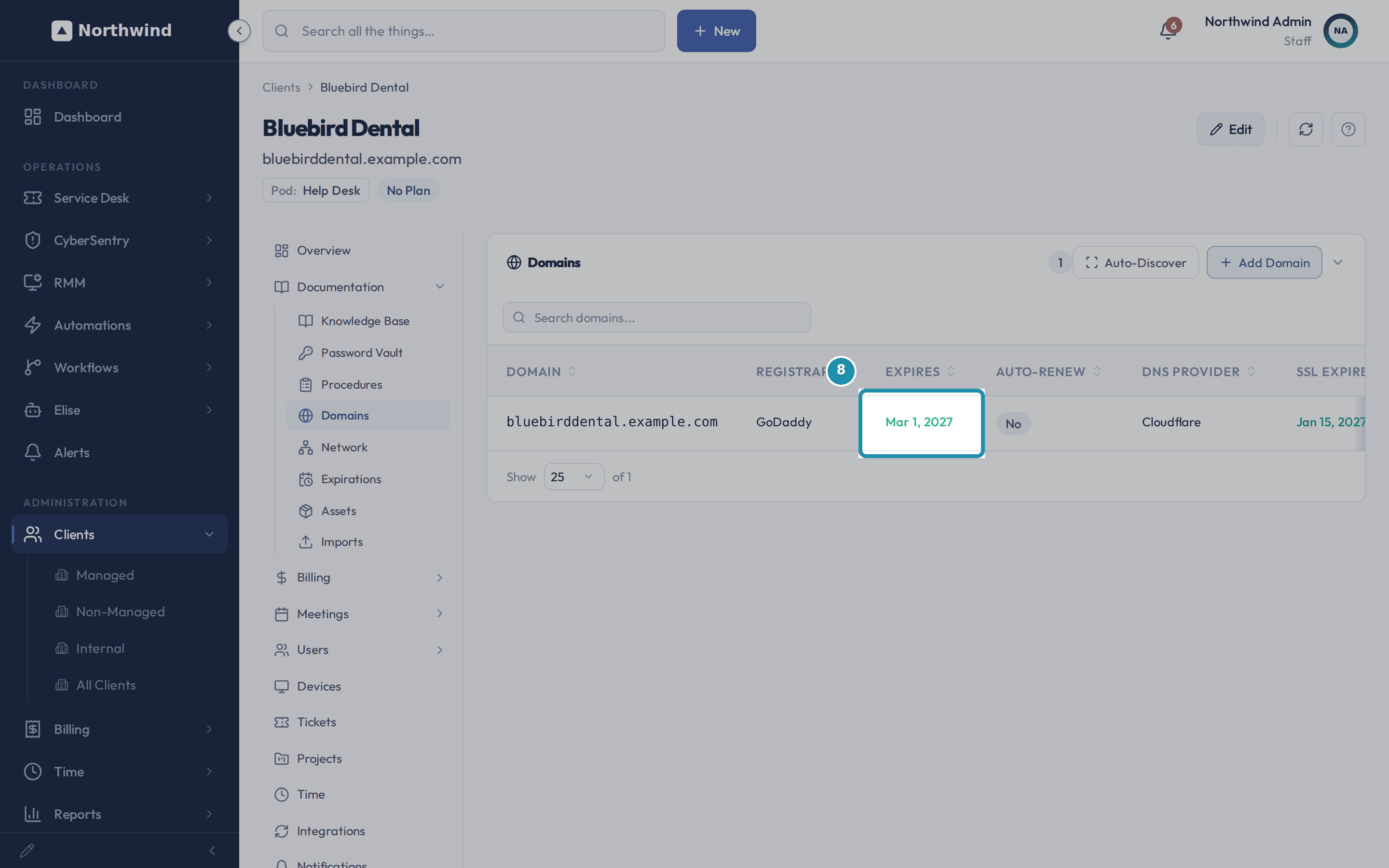
The Expires column reads Mar 1, 2027 in green, with the SSL date beside it. Once a registration or certificate date is inside the alert window (30 days by default) or already past, or the registry reports a hold, the domain also shows on the Alerts Desk under Expirations. You add nothing for that.
Check the dates on the Domains list. Track anything else that runs out on Expirations.
Expirations is a list you keep by hand for warranties, SSL certificates, licenses, contracts, domains and subscriptions. New Expiration asks for a Name, a Type, an Expires At date and Alert Days Before, which starts at 30. If you add a row with Type Domain and the domain's name in its Name, the Alerts Desk shows that row instead of a second one for the same domain.
Document the office network.
Network opens with the Configurations card for devices such as firewalls and switches. Below it, a left side bar lists Networks / Subnets, IP Addresses and VLANs, and shows one of them at a time. It opens on Networks / Subnets. Click New Network and it asks for a Name, a Subnet / CIDR, a Gateway, a VLAN, a Location and a Description. Name and Subnet / CIDR are required. Here: Front office LAN, 10.42.0.0/24, gateway 10.42.0.1, location Bluebird Dental - main office.
Use Assets for gear nobody monitors.
Assets holds records for things that deserve a record but not monitoring, such as a spare switch, a rack, an application, a backup system or a vendor. New Asset asks for a Name, a Type and Notes. Elise can add one too: "Add a backup system asset for Bluebird Dental".
Bring in what you already have.
Imports offers Import from IT Glue, Import Passwords CSV and Import CSV. An IT Glue import pulls a company's articles, passwords, procedures, assets and expirations in one pass. Every run is listed with its Source, Target, Status, Rows, When and By.
What you will have
- See every section under a client's Documentation tab and what each is for.
- Add a Knowledge Base article and choose who at the client can read it.
- Add a Password Vault entry and reveal it the masked, self-hiding way.
- Write a Procedure with ordered steps for a job that repeats.
- Record a domain's registrar and expiry, and see when it reaches the Alerts Desk.
- Track any other renewal on Expirations.
- Document a subnet on the Network section.
- Ask Elise to draft articles and procedures from tickets, find domains and add records for you.
Why it works this way: How to document a client from one tab
Client Visibility is three controls on an article or vault entry. The first switch reads Not marked internal. Turn it on and it reads MSP Only: never shared with the client. The Hidden from client portal switch is off by default, and while it is off all client users can see the item. Visible to specific users, with Add User, narrows it to named people.
Domains and Expirations are two lists. Dates you type on a Domains row reach the Alerts Desk, under Expirations, once the registration or certificate date is inside the alert window (30 days by default) or already past, or when the registry reports a hold. The Expirations list on this tab is one you keep by hand for anything else that runs out.
The Password Vault reveal window never puts a secret in a normal text field. It spells the password out one character per colored, numbered cell, so a zero and a letter O cannot be mixed up, and a countdown hides the window by itself.
Elise can do much of this typing for you, each time with your own access. From a resolved ticket, "Draft a KB article from this ticket" or "Draft a procedure from this ticket" files a draft in the review queue for the ticket's client. Nothing goes live until a person reviews it. "Find Bluebird Dental's domains" looks up the verified domains in their Microsoft 365 tenant and the primary domain, adds the missing ones and looks up their registrar, DNS and SSL dates. "Add a domain renewal for bluebirddental.example.com expiring March 1, 2027" adds an Expirations row, and "Add a network called Front office LAN, 10.42.0.0/24, gateway 10.42.0.1" adds a network. "What is expiring for Bluebird Dental, soonest first?" and "List Bluebird Dental's networks" read back what you have. Creating a record happens straight away, and you can edit or delete it from its tab.
Other ways to do this: How to document a client from one tab
Visible to specific users
On an article or vault entry's Client Visibility panel, leave Hidden from client portal off and use Add User under Visible to specific users to name certain people.
Share links
Open a saved article or vault entry and use New link under Share links. You choose how long the link works, how many times it can be opened and whether it needs a passphrase.
Bulk import
From Documentation > Imports, use Import from IT Glue or a CSV import instead of typing each row.
If it did not work: How to document a client from one tab
- If a new network will not save, check that Name and Subnet / CIDR are both filled in. Both are required.
- If a domain's renewal does not show as a countdown on Expirations, that list is kept by hand. Add a row for it there. A domain close to expiring still shows on the Alerts Desk under Expirations.
- If a vault entry or article seems to have disappeared, turn on Show archived above its list.
- If the client's portal users cannot see an article they should, check that Hidden from client portal is off and that the first switch reads Not marked internal.
Questions this page answers
What is the Password Vault section for?
It keeps this client's shared logins in one place. You can store a login, a wifi key, an API key, a certificate, a license key or an MFA seed. The list shows Name, Category, Username, Folder and Updated. The Password column holds buttons, not the secret. Click "New Entry" to add a row.
How do I read a password, and is that recorded?
Find the row and click the eye button in the Password column. Its tip reads "Reveal". A window opens with the password spelled out. Under it a line counts down: Hides automatically in 30s, then 29s, and the window shuts at zero. "Copy password" puts the secret on your clipboard instead. Every reveal is logged with who looked, which entry, and when.
The vault list is empty. Is that a problem?
No. An empty vault means nothing is stored for this client yet, and the list says so. A failed load reads as a warning instead, so an empty list always means empty. Click "Show archived" to bring back entries that were archived and not deleted.
How does the Password Vault work?
Password Vault is a section on a client's Documentation tab. It holds that client's logins. An entry takes a name, a category, a web address, a user name and a password. The categories are Login, Wifi, Api Key, Certificate, License Key, MFA and Other. Use the eye on a row to reveal the password in a large pop up. It shows one character per cell, in colour, with a number under each one. That way you cannot mix up a zero and a letter O. The pop up hides itself after 30 seconds. The copy icon copies the password without showing it. Use the entry name to open the whole record.
How are vault passwords protected?
Each secret field is encrypted on its own with AES-256-GCM. The password, the code secret and the notes each get their own key parts. The key for a client is worked out from one master key kept just for the vault. That master key is held apart from every other secret. User names are not encrypted. Every reveal and every copy is stamped with who did it and when.
I deleted a vault entry. Can I get it back?
Yes. Delete only archives the entry. Nothing is destroyed. Turn on Show archived above the vault list to see it. Archived rows carry an Archived badge. Use the restore arrow at the end of the row. You can also open the entry and use the Restore button in the banner at the top. Neither one asks you to confirm. An archived entry is read only. You still see its name, category, web address, user name and dates. The password and the code stay hidden. You cannot reveal or copy them until you restore it. This door is for staff. Clients never see archived items.
What is the Procedures list for?
Procedures are runbooks for jobs you do again and again, such as restarting a firewall or checking a backup. A procedure has a Title, a Description and a Status. Under those you build the steps. Add Step gives you a step title and a detail box. You can mark a step optional, move it up or down, or remove it. The list shows how many steps each one has. Clients can read procedures but never edit them.
Why will my new network not save?
The "Subnet / CIDR *" box has to hold a subnet written in CIDR form, like 192.168.1.0/24. Anything else is turned down and the form tells you so. A name is required too. Later, an IP you add to that network must sit inside the subnet, or it is turned down the same way.
What does the Domains section hold?
Domains is a section on a client's Documentation tab. A row holds the domain, the registrar, the expiry date and whether it renews itself. It also holds the DNS provider, the name servers, the SSL expiry date and the SSL issuer. Lookup fills some of that in from public records. Auto-Discover finds domains the portal already knows about. Dates go red or amber as they get close. Every night the portal also reads the expiry date and the SSL expiry date again for each active domain. You do not have to press Lookup. If a date cannot be read, the cell shows Unknown. Hover the date to see when it was last checked, or why it could not be read. A domain or certificate that is close to expiring, already expired, or on hold at the registry shows on the Alerts Desk, under Expirations. These rows do not add anything to the Expirations list on this tab. This section is hidden when the MSP module is off.
How does the Expirations list work?
Expirations is a list you keep by hand. Nothing feeds it for you. Add a row with a name, a type, a date and notes. The types are SSL Certificate, Warranty, License, Domain, Contract, Subscription and Other. Alert Days Before sets how early you get warned. It starts at 30. A date turns red inside 30 days, or once it is past. It turns amber inside 90 days. Further out it stays green. Each row shows a state: Expired, Expiring Soon or Active. Use Acknowledge once you have dealt with one. That state then wins over the rest.
What are Assets?
Assets is a section on a client's Documentation tab. Use it for gear you do not monitor, such as a rack, a monitor or a spare switch. A row ships with three fields: Name, Type and Notes. An admin can add more fields to the section. Rows take tags, files and links. You can archive a row and restore it later, the same as the other doc sections.
Does the article editor do rich text?
Yes. The toolbar has bold, italic, underline and strike through. It has headings, lists, quotes, code, tables, colour and alignment. You can add links and images. Paste an image or drag one in and it uploads by itself. There is also a picker that links the article to another record in the portal.
How do I attach a file to a doc?
Most doc types have a Files panel. Drop files on it, or use Upload. On a new record the files wait until you save, then they upload. Vault entries, articles, procedures, domains and asset style docs all have the panel. Expirations and network configurations only get it on their own edit page. Files are a staff panel. Clients never see it.
What is the Knowledge Base?
Knowledge Base is a section on a client's Documentation tab. It holds write ups for that client. Think network notes, or how you set something up. A new article asks for a Title and Content. You can add a Resolution, a Category, a Folder and Tags. Both text boxes take rich text. Articles are searchable. To let the client read one, open it. Find the Client Visibility panel. Turn on Visible to all client users. Or name people under Visible to specific users. MSP Only (internal) keeps an article away from every client.
Can I share a vault entry with a client?
Yes. Open the entry and find the Client Visibility panel. It has three controls. MSP Only (internal) hides the entry from every client. That one wins over the rest. The sharing switch reads Visible to all client users or Hidden from client portal. Visible to specific users lets you name people instead. The vault list also has a lock icon per row for MSP Only, and a Shared chip. One thing you cannot do is open what a client keeps in their own My Vault. Staff are shut out of it.
Was this helpful?
Keep digging
- How to finish setting up a client: co-managed access, contract terms, cancelling a plan and a few extras
- What projects, training, licenses, meetings and devices show in the client portal
- Install the agent and manage one client's devices from its Devices tab
- Give one client its own script values on its RMM tab