How to run security awareness training for each client
Generate each client's annual security awareness training in the privacy and security law of US, Canadian, UK and EU clients (other countries get ISO 27001, SOC 2 and NIST CSF), assign it, track completion and export the audit record, or ask Elise.
See it
Browse
On this page
How to do it
Open CyberSentry > Awareness > Security Awareness Training and press New Training.
The list shows each training's Title, Client, Year, Frameworks, Status, Completions and Updated.
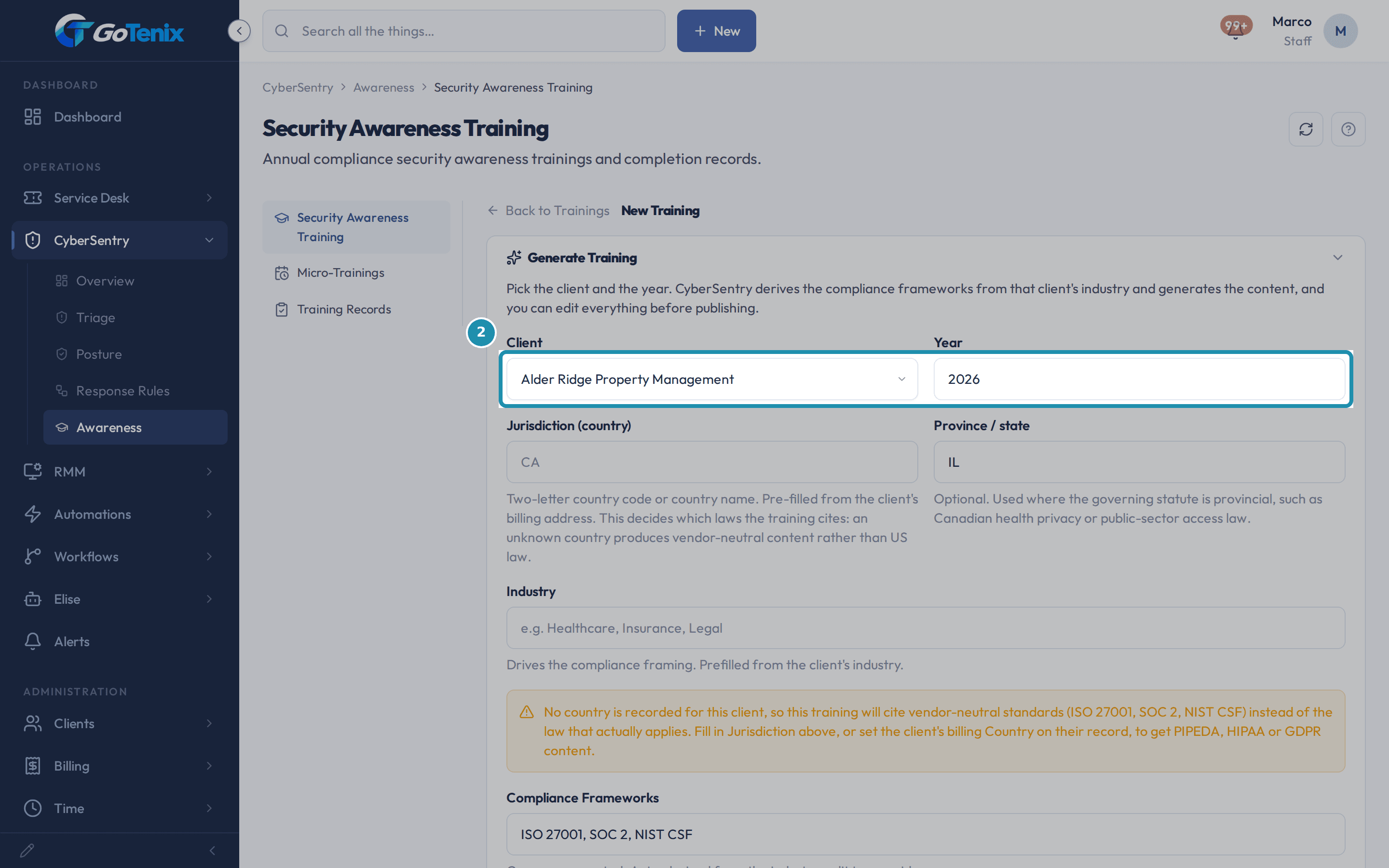
Open CyberSentry > Awareness > Security Awareness Training and press New Training. Pick a client and a year.
The picker lists only clients whose service plan includes Security awareness training. Industry, Jurisdiction (country) and Province / state fill in from the client's own record, and Compliance Frameworks are worked out from them. You can edit every field before you generate.
Pick a client and a year. Check the laws it will cite.
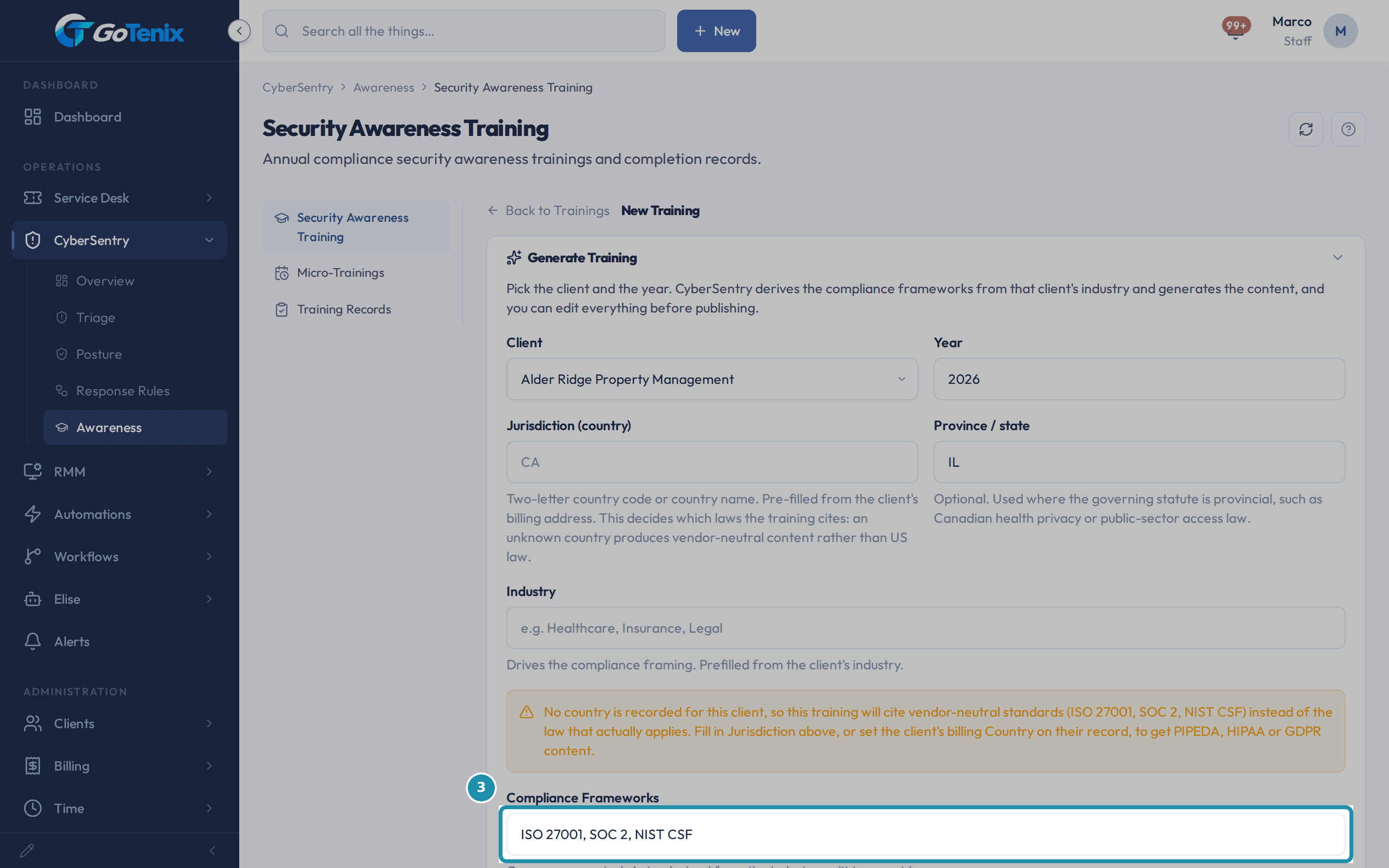
Country comes first, then industry, then province or state where the governing law is provincial. An Ontario clinic gets PHIPA and PIPEDA. A UK client gets UK GDPR and the Data Protection Act. EU clients get GDPR, with NIS2 and DORA where they apply. Any other country, such as Australia, gets the general frameworks. If a fact is missing, an amber line above Compliance Frameworks names it and the field that fixes it: Jurisdiction here, or the client's billing Country on their record. A Default Client Country under Settings > Company > Company Profile covers clients you have not filled in.
Check the laws it will cite. Press Generate Training and let the AI write it.
The status reads Writing… and the page updates itself in one to three minutes, so you can leave and come back. A second Generate for the same client and year is refused, so nothing is written or paid for twice. If the status ends as Generation failed, open the training to see why, then Regenerate or Delete it.
Review the draft.
You get six to eight lessons and a knowledge check, with the client, year and industry shown beside the status. The knowledge check is a study aid, not a graded test. The training opens on Compliance Frameworks; the left side bar switches between Compliance Frameworks, Lessons, Knowledge Check (shown when the training has questions, or while you edit) and Training Records, one at a time.
Press Edit to make it yours.
The page becomes an editor: retitle the training, correct the jurisdiction and industry, change the framework list, rewrite or reorder lessons, and edit the knowledge check questions, answers and which answer is correct. Every lesson needs a title and body, and every question needs at least two options with one marked correct.
Save, and see your version on the detail page.
One Save commits all of it together. The training stays in Draft. If people had already confirmed an earlier version, the save tells you how many, and their records are kept.
Open the actions menu next to Edit.
It holds Publish, Regenerate lessons from current frameworks, Archive and Delete training. Regenerate re-authors every lesson and the knowledge check from the jurisdiction and frameworks the training now carries, takes a minute or two, and is the fix after you change those fields.
Know when to Archive instead of Delete.
Delete training removes the training and its pending assignments, and only works while nobody has completed it. Once one person has, Archive retires it, stops assignments and reminders, keeps every completion record and frees the client and year for a fresh training.
Click Publish.
The status flips to Published. Only a published training can be assigned, and from here the daily sweep enrolls everyone with portal access.
Choose Assign and set a due date.
It goes to everyone at the client who can sign in to the portal, and people who already hold it are skipped. The only option is an optional due date. Each person gets an in-app notice straight away, and the emailed copy goes out once a Training mailbox is connected under Settings > Email.
Warning: Someone who is only a contact on file cannot sign in, so they are not assigned. Give them access on the client's Portal Access tab first, and the next assign or morning sweep picks them up.Watch completion in Training Records.
The table lists each person with their email, due date, status and completion date. Before the first assign it reads Will Be Assigned To and shows who an assign would enroll. A daily reminder sweep nudges anyone still pending: every 7 days, every 2 days once the due date is within a week or past, every 14 days with no due date, up to 10 reminders each. Anyone who should no longer owe the training is deactivated rather than excused, and anything they already completed stays on record.
Watch completion in Training Records. Or ask Elise to do it.
In chat, try "Write the 2026 security awareness training for Acme Dental" and then "Assign it to everyone at Acme Dental, due November 30." Elise resolves the client's country and frameworks the way the form does, starts the same generator, and asks you to confirm each step. She refuses a second training for the same client and year, and tells you if the program is off.
Use Micro-Trainings for the weekly habit.
Every Monday the portal generates one short lesson plus a short quiz for each client industry, and one generic set. Your team can read them and take the quiz there. Generate This Week runs the job on demand and never regenerates a week and industry that already exists.
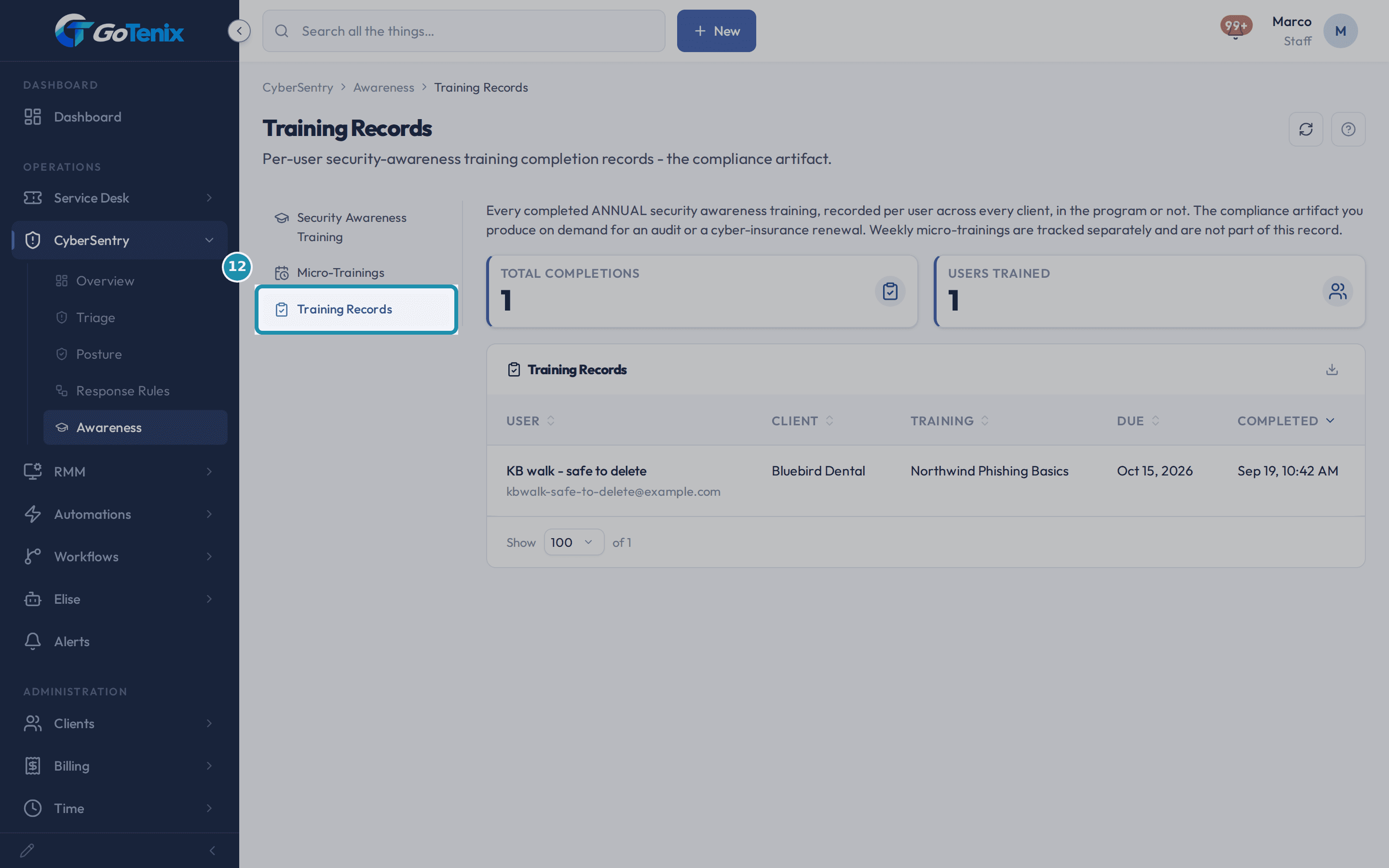
Export the fleet-wide Training Records for audits.
Training Records lists every completed annual training across all clients, newest first, with Total Completions and Users Trained at the top. Use Export for the full set as a CSV for an audit or a cyber-insurance renewal. Records are kept even after a client is offboarded.
What you will have
- An annual training for a client, written in that client's own rules when the client is in the US, Canada (with provinces), the UK or an EU country, such as PIPEDA and PHIPA for an Ontario clinic. Any other country gets ISO 27001, SOC 2 and NIST CSF.
- The training edited to fit, published and assigned to everyone at the client who can sign in, with a due date and automatic reminders.
- The same thing done by asking Elise: she can write and assign the training for you.
- Completion tracked per person, with a fleet-wide record you can export for an audit or a cyber-insurance renewal.
- A weekly Micro-Training for each client industry, generated for you every Monday.
Why it works this way: How to run security awareness training for each client
The country on the client's record decides which laws the training cites. Country-specific law text exists for the US, Canada (with provinces), the UK and EU member states. Any other country, or none recorded, gets the general frameworks (ISO 27001, SOC 2, NIST CSF), and the form warns you before you generate.
Editing the Jurisdiction, Province, Industry or Compliance Frameworks changes what is stored on the training, not the lessons already written. Regenerate lessons from current frameworks rewrites them, and it discards any lesson text you edited by hand, so it asks first.
Publishing is enough on its own: a daily sweep enrolls everyone at the client who can sign in to the portal and does not hold the training yet, so new hires are picked up the next morning. Assign by hand only to set a due date or to enroll people straight away.
There is no per-person opt-out. Delete training only works before anyone has completed it. After that, Archive retires the training and keeps every completion record.
Other ways to do this: How to run security awareness training for each client
Ask Elise
Say "Write the 2026 security awareness training for Acme Dental", review the preview and confirm. When it is published, say "Assign it to everyone at Acme Dental, due November 30."
If it did not work: How to run security awareness training for each client
- If the Client picker on New Training is empty, no service plan includes Security awareness training yet. Add it under Billing > Service Plans > the plan > Included functions.
- If Regenerate lessons from current frameworks seems like the fix for a training that reads oddly, use it only after changing Jurisdiction, Province, Industry or Compliance Frameworks, since it discards hand edits.
- If Delete training is refused, someone has already completed it. Use Archive instead.
- If an assignment does not reach someone, check that they have portal access under Clients > the client > Users > Portal Access.
Questions this page answers
I changed the frameworks. Why do the lessons still say the same thing?
Editing the frameworks changes the list stored on the training, not the words that were already written. The lessons were authored once, from whatever the frameworks were at that moment. To make the lessons match the new list, open the actions menu and choose Regenerate lessons from current frameworks: it re-authors every lesson and the knowledge check from the jurisdiction and frameworks the training now carries. It takes one to three minutes and it discards any lesson text you edited by hand, so it asks you to confirm first. The same applies after correcting the Jurisdiction or Industry: those change what SHOULD be cited, and Regenerate is what makes the lessons say it.
Can I edit the lesson text or the knowledge check?
Yes. Press Edit and the page becomes an editor: retitle the training, correct the jurisdiction (country, province or state, industry), change the framework list, rewrite any lesson's title or body, add, remove and reorder lessons, and edit the knowledge check (question text, the answer options, which option is correct, and adding or removing questions). One Save commits all of it. Every lesson needs a title and body and every question needs at least two options with one marked correct, so a half-finished edit is refused rather than shown to an employee as a blank lesson. You can edit at any status. If people have already confirmed their training record, the save tells you how many did: their records are kept and never rewritten, and nobody is asked to take it again.
How do I delete a training, and when should I archive instead?
Delete is in the actions menu and it removes the training outright, along with any assignments still pending on it. It only works while nobody has completed the training. Once even one person has confirmed their training record, delete is refused and you are told how many: those records are the compliance evidence you hand an auditor, so they are never destroyed. Archive is what you want in that case. Archiving retires the training, stops assignments and reminders, keeps every completion record, and frees the year up so you can author a fresh training for the same client. That is also the fix if you are told a training already exists for this client and year.
How do I assign this training to a client's employees?
Publish the training first - only a published training can be assigned (the assignment notice links to the employee's Security Training page, which lists published trainings). Then open the actions menu (next to Edit) and choose Assign. The training goes to everyone at the client who can SIGN IN to the portal: every active, non-internal person there who holds a portal role or is the client owner (the primary contact is one, so they are always included). Someone who is only a contact on file is NOT assigned, because they have no way to open a training and would sit as Pending forever - give them access on the client's Portal Access tab first, and the next assign picks them up. Beyond that there is no way to pick a subset, because annual awareness training is a requirement for the whole company; the only option in the dialog is a due date, and that date is the Due column in Training Records. Assigning is idempotent, so users who already hold an assignment are skipped and you can re-run it safely.
Do I have to assign every training manually?
No. The daily sweep tops up every PUBLISHED, client-scoped training of the current year: it re-assigns it to everyone at the client who can sign in to the portal, which creates rows only for people who do not already have one. So publishing is enough to get everyone with portal access enrolled, and anyone hired later is enrolled automatically on the next morning's sweep, with their own notification and reminders. The sweep never enrolls a contact-only person either - grant them portal access and the next morning picks them up. Assign by hand only when you want to set a due date or start immediately.
What are Micro-Trainings and who sees them?
Every Monday the weekly job generates one short lesson plus a 1-2 question quiz per distinct client industry (and one generic set). Right now they are an internal surface - your team can read them and take the quiz here; a client-facing door is a planned follow-on. Generate This Week re-runs the job on demand; it is idempotent, so an existing week/industry is never regenerated.
What is this page, and how do I export it?
Every annual-training completion across all clients, newest first - the compliance artifact. The tiles count the whole table; the list shows the most recent 500. Use Export on the list to download the full set as CSV for an audit or insurance renewal. Records are kept even after a client is offboarded or deactivated - they are historical evidence.
My clients are not in the United States. Will the training cite the right laws?
Yes, as long as the client record says where they are. Jurisdiction is the first thing the content engine looks at: Canada gets PIPEDA plus the provincial statutes that apply (Quebec Law 25, BC and Alberta PIPA, and the provincial health privacy acts such as Ontario PHIPA or Alberta HIA for clinics); the United Kingdom gets UK GDPR and the Data Protection Act; EU countries get GDPR, with NIS2 and DORA where they apply. An Ontario clinic with Jurisdiction Canada, Province Ontario and Industry Healthcare gets PHIPA and PIPEDA, and the lessons name and explain both. Set each client's billing country on their record, and set your Default Client Country under Settings > Company > Company Profile for everyone you have not filled in individually; when neither says anything, the country your billing Currency implies is used as a last hint. If nothing answers, the training falls back to vendor-neutral standards (ISO 27001, SOC 2, NIST CSF) rather than American law, and the New Training form SAYS SO in a warning line above the framework list, naming the field that fixes it. The same line appears when a province or an industry is missing or is not one the mapping knows. The jurisdiction and the framework list are both editable before you generate and correctable afterwards on the training itself, and what you leave in the framework field is exactly what gets stored, so you can add a framework the mapping does not know about or remove one that does not apply to this client.
Why does this training cite these particular laws?
Because of the Jurisdiction, Province / state and Industry recorded on it, shown beside the status at the top. The compliance frameworks come from the country first, then the industry, then the province or state where the governing statute is a provincial one. A Canadian law firm in Ontario gets PIPEDA and the Law Society Rules of Professional Conduct; an Ontario clinic gets PHIPA and PIPEDA; a US insurer gets GLBA, the NAIC Model Law and HIPAA. The lessons name each of those by name and explain what it actually requires, because a lesson that describes a duty without naming the law that imposes it is rejected and rewritten. If any of the three facts is missing, or is not one the mapping knows, the list widens to whatever is still certain: that country's general baseline, or vendor-neutral standards (ISO 27001, SOC 2, NIST CSF) when no country is recorded. Press Edit and a warning line above the framework list says WHICH fact is missing and which field fills it, so you are never left guessing why a training cites no statute. The jurisdiction is copied onto the training when you create it, taken from the client's billing country (or, if that is blank, your Default Client Country under Settings > Company > Company Profile), so the artifact keeps citing the law that applied for that year even if the client later moves. You can CORRECT it here at any time: press Edit and change Jurisdiction, Province / state or Industry, and the framework list re-derives as you do. Changing it does not rewrite the lessons on its own, so follow it with Regenerate lessons from current frameworks.
Can I excuse one employee from the annual training?
No, and that is deliberate: annual awareness training covers everyone at the client, so there is no per-person opt-out to get wrong or forget. If someone should no longer owe it, they should no longer be an active portal user at that client. Deactivating them (offboarding) drops their pending row out of the compliance pool automatically, and any training they already completed stays on the record as evidence.
What do the "Writing…" and "Generation failed" statuses mean?
Writing… means the AI is composing that training right now - it takes one to three minutes, the row updates itself when it lands, and the training cannot be published, assigned or edited until it does. Generation failed means the AI never produced lessons for it: the training is an empty shell, and it does not count as covering that client for the year, so you can start a fresh one for the same client without deleting it first. Open a failed training to see why it failed and to either regenerate or delete it.
What happens after I assign a training?
Assigning always works, and each newly-assigned user always gets an in-app notification - the program runs in-portal whether or not you use email. The EMAIL copy of that notice goes out once a Training mailbox is connected under Settings → Email; until one is, the email is held and nothing else changes. From then on the daily reminder sweep nudges anyone who has not completed it, starting one interval after assignment - every 7 days normally, every 2 days once the due date is within a week or overdue, every 14 days if there is no due date, with a hard cap of 10 reminders per assignment. Training Records on this page says which of the two things it is holding: BEFORE the first assign it reads Will Be Assigned To, the people an assign would enroll, because nobody owes the training yet; AFTER it tracks the real assigned pool (assigned / completed / pending / completion rate), with a Due column showing the deadline each person is working to and marking it once that day has passed. Someone who is offboarded before completing simply drops out of the pending pool, while completed records are kept.
I clicked Generate and nothing happened - is it working?
Yes. Writing a full annual training - six to eight lessons plus a knowledge check, tuned to that client’s jurisdiction and industry - takes the AI one to three minutes, so the training is created straight away and marked as being written while the work continues in the background. The page refreshes itself when the lessons land. You do not need to wait on it, and you should not click Generate again: a second click is refused precisely so you are never charged twice for the same training.
Was this helpful?