How to set Elise's identity, providers, privacy redaction and AI budget
Teach Elise your business, keep emails, phone numbers, SSNs and card numbers out of what is sent to the AI provider, and put a monthly dollar ceiling on AI spend, all under Settings > AI Assistant.
See it
Browse
On this page
How to do it
Open Settings, then AI Assistant, then Identity, and read the Procedures card under Business Context.
Business Context is five separate cards (Procedures, Tools & Software, Environments, Escalation, and General), each with its own text box, its own 2000-character counter and its own Save button. Each category has a Scope selector set to Global (all clients) by default; switch it to one client and that entry overrides the global one for that category only. When Elise works for your techs she is given all five categories. When the audience is a client, she is given only Environments and Procedures.
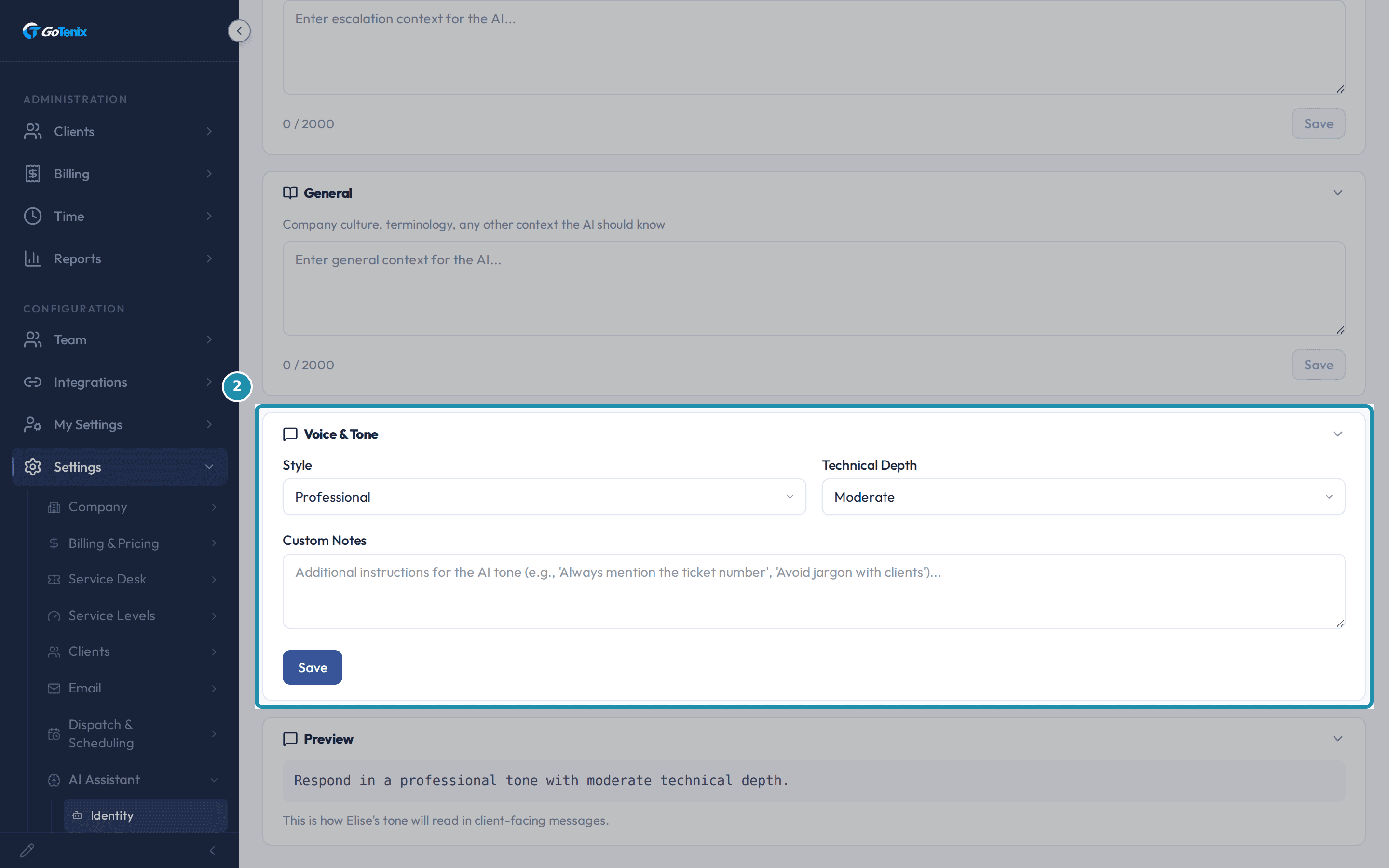
Open Settings, then AI Assistant, then Identity, and read the Procedures card under Business Context. Scroll down to the Voice & Tone card.
Style and Technical Depth are dropdowns (Professional and Moderate in the picture) and Custom Notes is free text. Together they build one tone line that is added to Elise's instructions, shown live in the Preview card just below: Respond in a professional tone with moderate technical depth. For a richer voice per person, such as a greeting, a sign-off and sample phrases, each tech can set a Voice Blueprint on their own user detail page; it layers on top of this global default.
Scroll down to the Voice & Tone card. Open Settings, then AI Assistant, then Providers & Model, and read a row on AI Model Assignments.
Every Elise feature (Ticket Triage, Priority Assessment, Documentation and the rest) gets its own row, with a model, a Recommended status and a plain-language Reason (Ticket Triage's is Client-facing, needs quality). Open a row's dropdown to send that one feature to a different model, for example a cheaper one for simple classification.
Pick a feature from the list below AI Model Assignments, then click Edit to change its prompt.
The lower half of Providers & Model is a prompt editor: a sidebar lists every feature by name, and picking one shows its current prompt and an Edit button. Edit turns the prompt into a text box with three buttons: Save, Cancel and Load Default. Load Default fills the box with the built-in prompt. One rule to know: if the text in the box matches the built-in default exactly, an amber note says "This matches the default exactly - Save will reset to default (delete any existing override). Use Cancel to keep your override." Saving then removes your custom prompt and the feature goes back to the default.
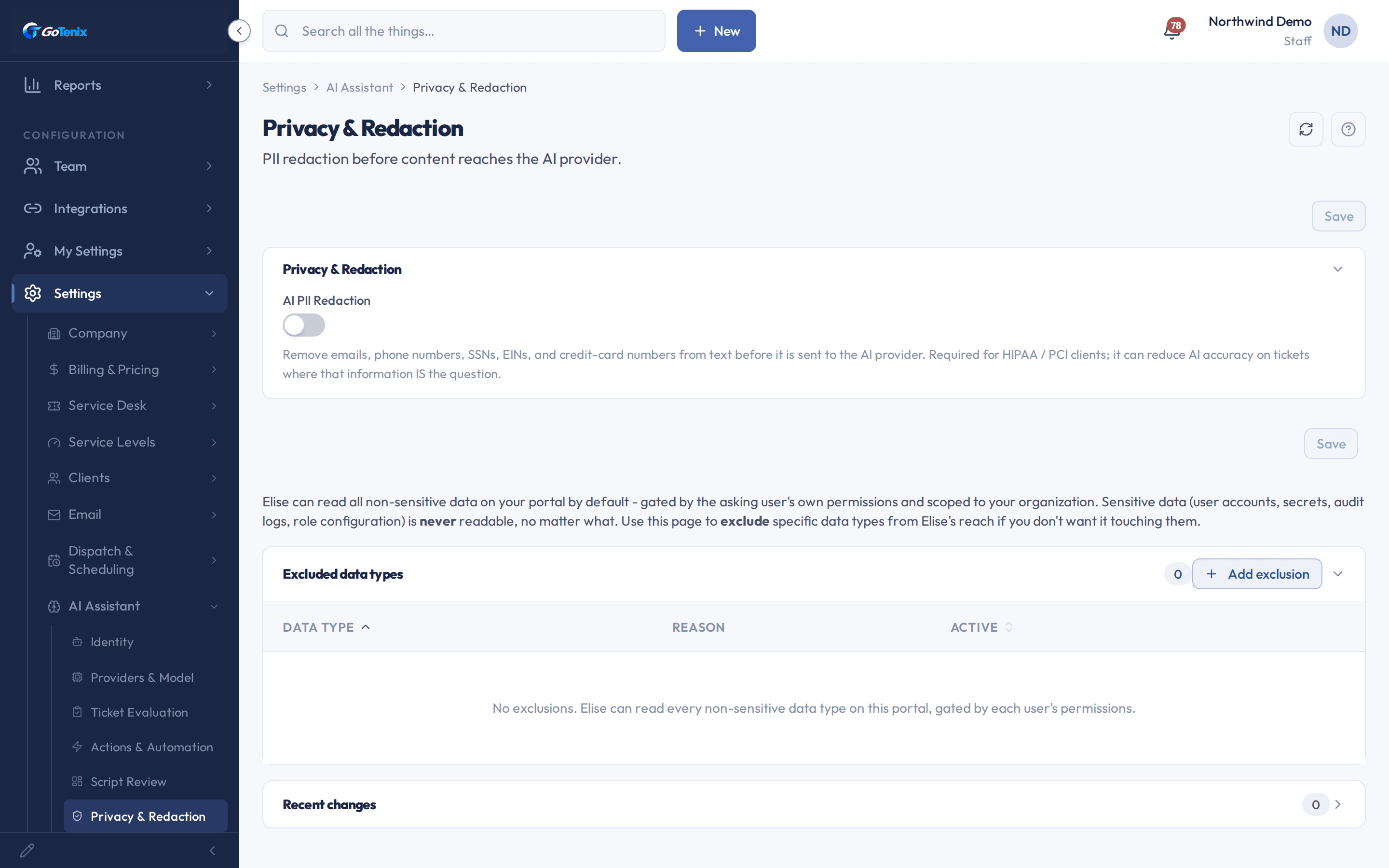
Open Settings, then AI Assistant, then Privacy & Redaction, and read the AI PII Redaction toggle.
When AI PII Redaction is on, emails, phone numbers, SSNs, EINs and credit-card numbers are removed from text before it is sent to the AI provider, and each one is replaced with a marker such as [redacted-email]. That covers the messages sent to the model and the results of tools Elise runs. It is off by default. The page labels it Required for HIPAA / PCI clients, and warns that it can reduce AI accuracy on tickets where that information is the question, for example when the email address is the problem. Once it is on, a second toggle appears, AI PII Redaction - IPs, to also strip IPv4 addresses; it starts off because IT tickets often need the IP. Redaction matches common formats, so a bare run of digits with no separators is left alone.
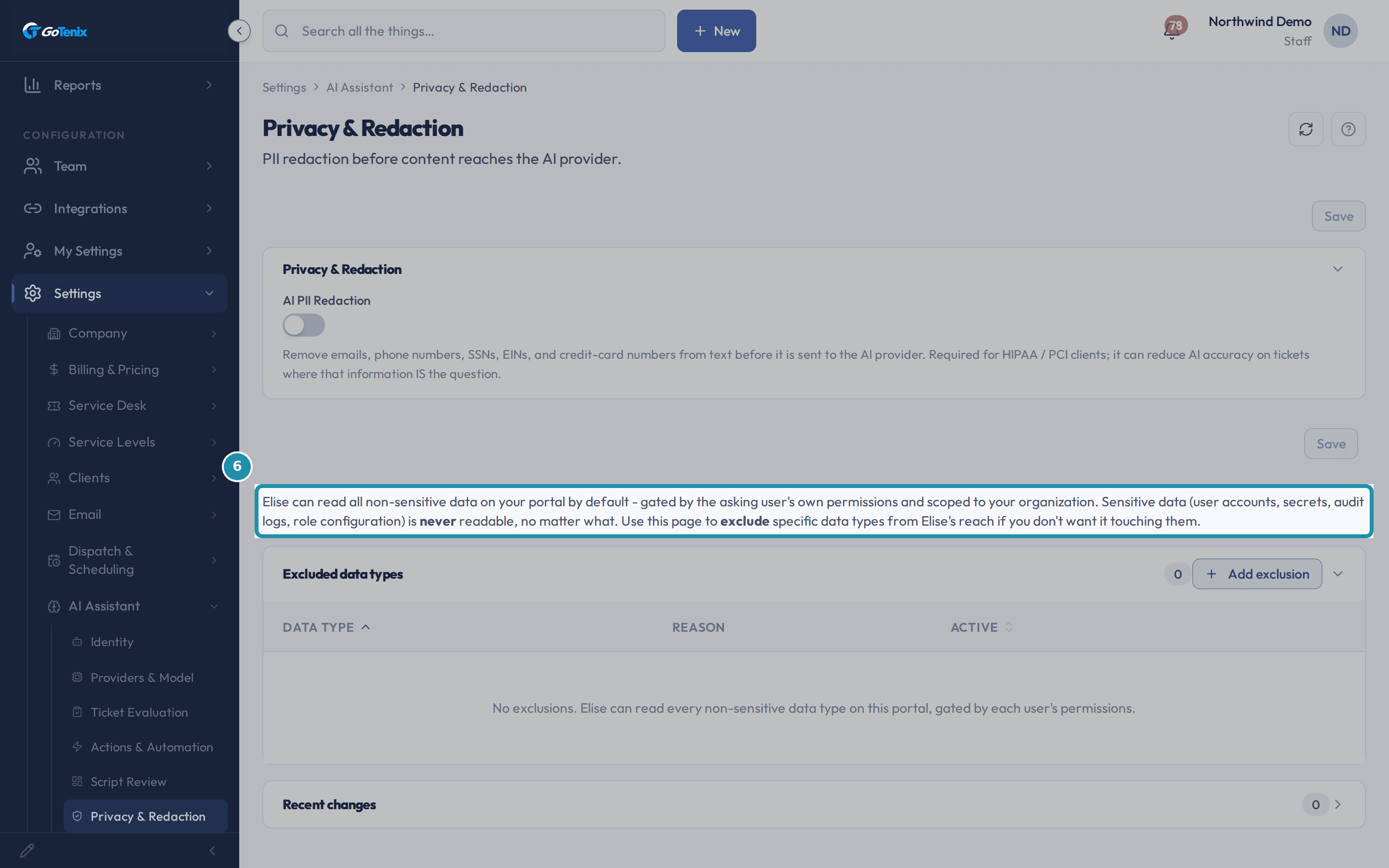
Open Settings, then AI Assistant, then Privacy & Redaction, and read the AI PII Redaction toggle. Read the paragraph under the toggle: what Elise can read on your portal by default.
The page says Elise can read all non-sensitive data on your portal by default, gated by the asking user's own permissions and scoped to your organization. It lists user accounts, secrets, audit logs and role configuration as never readable, no matter what. That fence is built into the product, not a setting on this page.
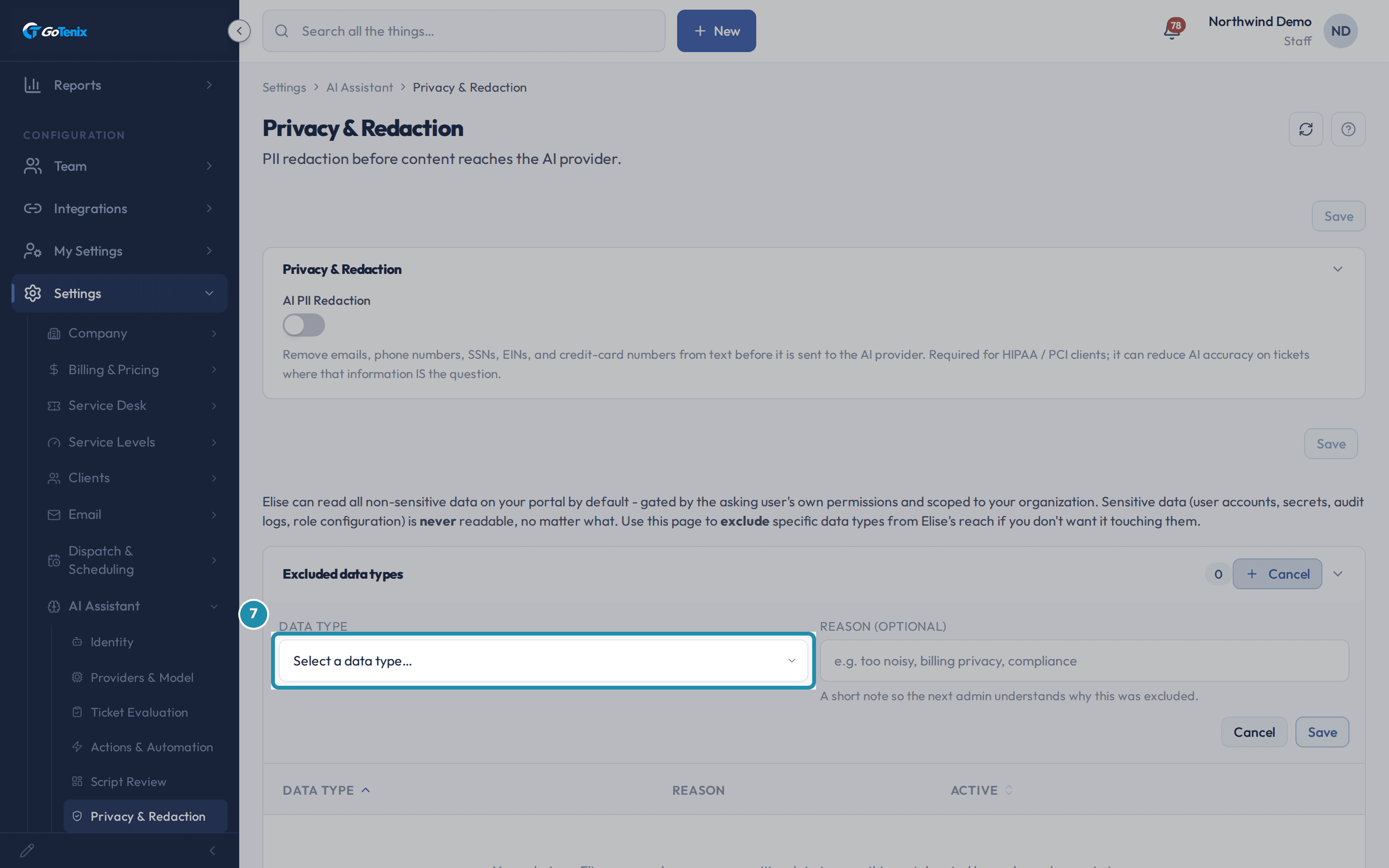
Read the paragraph under the toggle: what Elise can read on your portal by default. Click + Add exclusion, then open the Data Type dropdown.
Add exclusion opens a small form: Data Type is required, and Reason (optional) is a free-text note for the next admin, such as why it was excluded. Pick a data type and click Save, and the row appears in Excluded data types. Elise stops reading that data type; remove the row later to restore access. The built-in sensitive data types cannot be added here, so this control only narrows what is already allowed.
Click + Add exclusion, then open the Data Type dropdown. Open Settings, then AI Assistant, then AI Budget, and read Monthly AI Budget.
Monthly AI Budget is a hard cap on AI spend for the current month. On a paid instance the month is the UTC calendar month, and the cap counts all clients together. The helper text under the field gives the defaults: $300 a month, so a new instance is protected; raise it if you need more, or set $0 for unlimited. Once the cap is reached, AI calls stop with a clear message until the month rolls over or you raise the cap. To limit one client, open that client's edit form and use the client's AI Budget Override (cents) field; leave it blank and that client uses the tenant-wide cap.
Read the AI Budget Override toggle just below it.
AI Budget Override is off by default and should stay off in normal operation. Turned on, every AI call skips the monthly cap, with no ceiling at all. It is an emergency switch for a legitimate spend spike, and only the owner tier can change it.
Ask Elise to look up or change these settings for you.
With Settings view access, ask "What controls the monthly AI spend cap, and what is it set to right now?" or "Is AI PII redaction on?" and she answers from the settings map with the current values and where to change them. With Settings edit access, "Turn on AI PII redaction" is proposed as a change that shows the current and new value and waits for your approval before it runs. Budget changes are not made in chat: "Raise the AI budget to $500" is refused and she points you to the AI Budget page, because a wrong cap can switch off every AI feature mid-month. She never changes the owner-tier AI Budget Override.
What you will have
- Teach Elise your procedures, tools, environments, escalation paths and general context, globally or for one client.
- Set the voice Elise writes in and see the live Preview line it builds.
- Route each Elise feature to the model you want, and customize a feature's prompt safely.
- Turn on AI PII Redaction so emails, phone numbers, SSNs, EINs and card numbers are stripped before text reaches the AI provider, and know its trade-off.
- Block Elise from reading a data type you do not want her touching.
- Cap monthly AI spend, set a limit for one client, and know what $0 and the override do.
Why it works this way: How to set Elise's identity, providers, privacy redaction and AI budget
Ticket Evaluation and Actions & Automation sit in the same AI Assistant group but are not covered here. Their controls are on Settings > Service Desk's Ticket Review page, which mirrors them.
Elise's read access works as a default-allow list with a fence around sensitive data. The Privacy & Redaction page says user accounts, secrets, audit logs and role configuration are never readable, and that fence is not a setting you can change; an exclusion can only narrow what is already allowed.
Other ways to do this: How to set Elise's identity, providers, privacy redaction and AI budget
The Set up Elise wizard
Settings, then System, then Setup Wizards, then Set up Elise adds the provider key, the name, the default voice and your business context in five short lessons. The article on the Set up Elise wizard walks each one.
If it did not work: How to set Elise's identity, providers, privacy redaction and AI budget
- If Voice & Tone's Preview line does not change, confirm you clicked that card's own Save. Every card on Identity saves independently, including Procedures and the other Business Context categories.
- If AI calls stop working with no other explanation, check Monthly AI Budget first. When the cap is reached every AI feature stops with a message of its own until the month rolls over or you raise it.
Questions this page answers
What goes in Business Context?
Institutional knowledge the AI is fed on its calls, entered in five categories: Procedures, Tools, Environments, Escalation, and General. Each can be set globally or per client (a client entry overrides the global one for that category). Internal, tech-facing calls receive all five categories; client-facing replies receive only Environments and Procedures. Use it to teach the model about your MSP: your terminology, escalation paths, tools in use, and client quirks. Keep each category tight (the field caps at 2000 characters), since every word costs tokens on the calls that include it.
How does Voice & Tone affect outputs?
Voice & Tone sets three values: a style, a technical depth, and free-form notes. When tone injection is enabled, the portal prepends a tone line to the AI system prompt (a short line that asks for the tone and the technical depth you chose) followed by your notes verbatim, so this acts as the global tone default across AI outputs. Separately, for richer per-person voice (greeting, sign-off, sample phrases, tone notes), set a per-user Voice Blueprint on the user's detail page; AI drafting that is attributed to a specific tech loads that person's blueprint to shape how their drafts read. The blueprint layers per-person voice on top of the global tone default rather than replacing it.
How do I stop Elise from reading a specific data type?
Click Add exclusion, pick the data type you want to exclude (e.g. Notification, TimeEntry), and optionally jot down a reason for the next admin. Elise stops reading that data type immediately. Remove the exclusion any time to restore access. The exclusion only affects what Elise can read on this portal - other portals are unaffected.
What is the AI Budget page for?
This page sets a hard cap on how much your tenant can spend on AI each month. It also has an emergency override that can bypass that cap.
How do I raise or remove the monthly AI spend cap?
Go to Settings → AI Assistant → AI Budget. Edit Monthly AI Budget to the dollar amount you want. Set it to $0 for no limit. Then save. The default is $300 a month, so a new instance starts protected. You can also set separate limits per client.
Why did AI calls suddenly stop working?
Once Monthly AI Budget is reached for the month, AI calls stop with a clear message, until the cap resets or you raise it. AI Budget Override is an emergency switch that skips the cap entirely while it is on. Leave it off in normal use.
Was this helpful?