How to work a ticket with Elise, time tracking and billing
Ask Elise to find, add up, report on and change things on a ticket, then use the SLA chip, time entries and billing status to keep the work honest and billable.
See it
Browse
On this page
How to do it
Open Elise from the ticket with Ask Elise about this ticket.
Elise already has this ticket's context the moment she opens. You can paste a screenshot into her, and typing a slash shows quick commands such as setting the status or logging time. Under each answer, Add to Notes saves a summary as an internal note on the ticket and Prep KB drafts a KB article from the conversation.
Open Elise from the ticket with Ask Elise about this ticket. Ask her to find and add things up.
Try "Which tickets are open for Acme Dental?", "How many open tickets do we have for each client?" or "When is ticket 412 due?" She answers the last one from the ticket's SLA clocks, since tickets have no due date field. To add up time, try "How many hours did we log for Acme Dental this month?", "Where did Alice's time go yesterday?" or "Which client uses the most of our time?" For the big picture, "How are we doing on SLA?" gets you SLA attainment by priority and the clients with the most misses.
Ask her to change things.
Try "Log 20 minutes on this ticket for the printer fix", "Add the Network tag to this ticket", "Move this ticket to the Projects board", "Create a subtask to swap the router" or "Split the last two replies into their own ticket". Tags are matched by name, and she tells you which tag names do not exist rather than inventing them.
Ask her to write for you.
"Draft a reply in my voice" writes the reply from your own writing style and the ticket so far, and "Draft the closure summary for the client" writes the closing message. Neither one is sent or closes the ticket. You review, edit and post it yourself.
Know which actions wait for you.
Reads run straight away. Drafts show you a preview. Safe writes such as logging time or adding a tag run straight away unless an admin tightens them. Sensitive writes such as sending a public reply, splitting a ticket or changing the billing status need your confirm. Destructive actions such as merging tickets, deleting a reply or clearing a ticket's items never run from chat. Elise files them in Review > Gated Actions for someone who holds that permission to release.
Note: Admins can tighten or loosen most of these defaults under Settings > AI Assistant > Actions & Automation. Destructive actions cannot be loosened.Turn a short reply into a full one.
Type a rough line in the reply box and click Expand with Elise. She fills it out into a full, polite answer that keeps your meaning and tone. Click Undo if you prefer your short version.
Read the SLA chip.
Before anyone replies it is a live timer that moves from green to amber to red. After the first reply it becomes a check or an X: green for a fast first reply, blue for a solid one, amber for met but slow, and a red X for a missed SLA. A status that stops the SLA clock shows a Paused chip instead. Set the targets at Settings > Service Levels > SLA Policies.
Read each time entry's icon.
In the Time Entries card, a small icon sits on the far left of every entry. A chat bubble means the time came in on a reply. A pen means a tech typed it. A clock means the timer caught it. A down arrow means it synced in from another system. Hover it to see when the work happened.
Know what happens to a timer left running.
A timer that runs far past a working day is stopped for you. The real elapsed minutes are kept, the entry is flagged for confirmation, and billing skips it until a person confirms it or fixes the minutes. An abandoned tab can never silently become billable time, and your logged time is never trimmed.
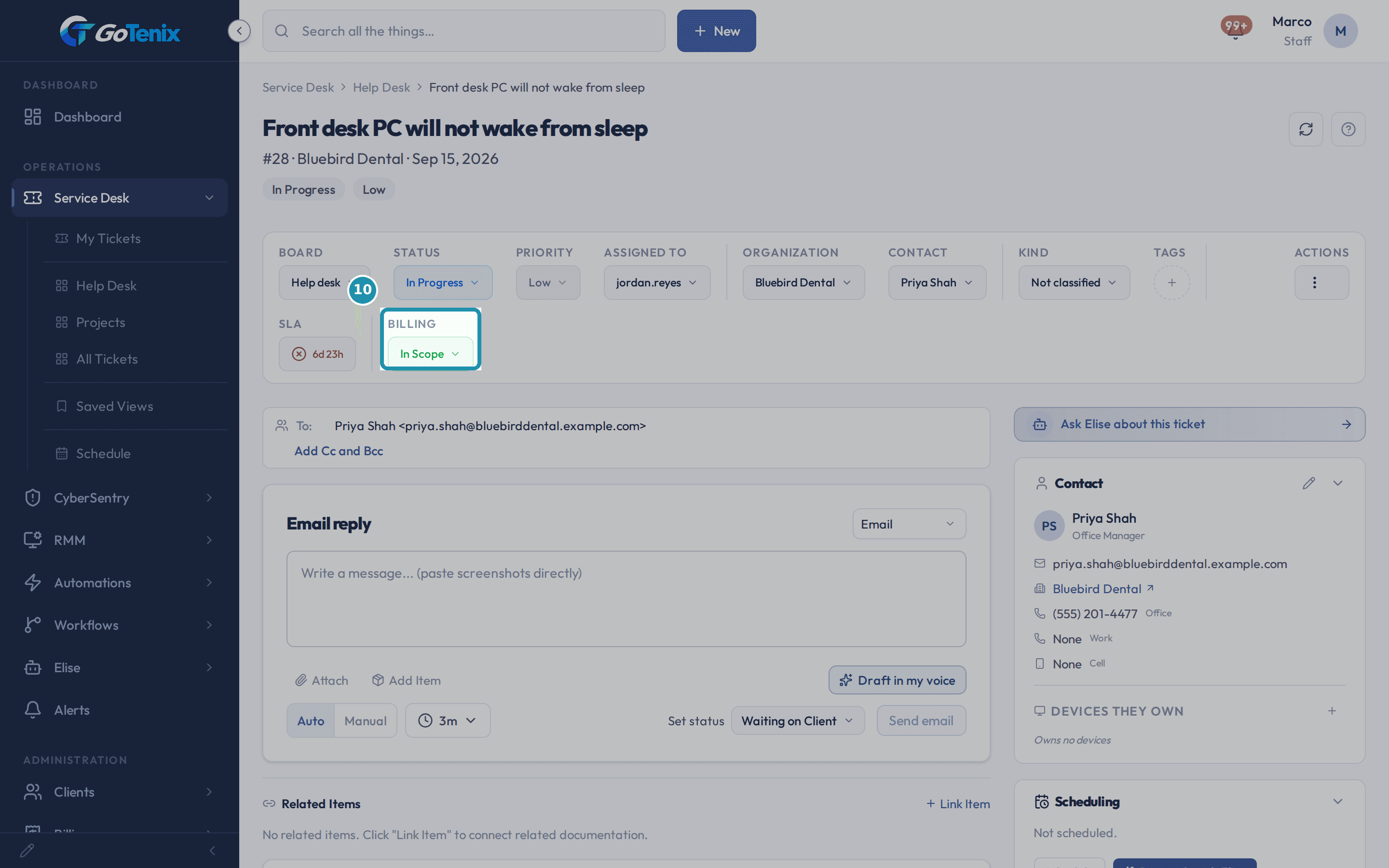
Set the billing status in the Billing field.
Pick any active billing status. The change saves at once with no confirm step, and the ticket's time is re-sorted to match. Time that is locked, invoiced or rolled up never moves. A status that is not wired to a QuickBooks item cannot be picked yet. In Scope means the plan covers the work: no invoice is made when the ticket closes, though the time still counts in reports.
Set the billing status in the Billing field. Read the rounding rule under a billable status.
Billable time rounds up for each tech on its own, in steps of the billing unit. With a 2 hour unit, two techs who each log 1 hour bill 4 hours, not 2. Tech time under the status's minimum is left out of billing.
Look for the already-invoiced warning when you log time.
If you log time into a month this client was already invoiced for, the entry saves but is not on the invoice that went out. The warning is your cue to add a line later or bill it next month. A manual time window that overlaps time you already logged gets a similar warning, as a check against a double entry.
Edit a reply after you send it.
Click the pencil on a reply. Staff can edit the text of any reply, including a client's own message, and flip it between internal and public with the Internal note toggle. If it already went out by email, that email stays sent and the flip only changes what the portal shows from now on. The history logs the edit and the reply carries an (edited) tag.
Know why a delete can be refused.
A ticket locks once its work has reached an invoice: an invoiced line item, or a locked time entry. Time can be locked by an invoice, a closed period or a manager. The portal says exactly how many of each. Void an unpaid invoice to free the ticket. A paid invoice can never be voided, so that ticket stays locked.
Warning: A ticket delete is permanent.Attach a quote you already wrote.
Open the ticket's Quotes card, click Attach Existing and pick a quote. The picker lists that client's quotes that are still a draft or already sent and not on a ticket yet. A quote already on another ticket, or one the client has answered or you voided, is left off. You can link those from the quote's own page.
What you will have
- Ask Elise on a ticket to draft replies in your voice, log time, add tags, split replies into a new ticket and change billing, in your own words.
- Know which of her actions run straight away, which wait for your click and which someone else must release.
- Read the SLA chip and each time entry's icon at a glance.
- Set a ticket's billing status and know what happens to its time.
- Edit a reply after sending it, and know exactly why a delete can be refused.
- Attach a quote you already wrote onto a ticket.
Why it works this way: How to work a ticket with Elise, time tracking and billing
Elise already has the ticket's context when you open her from it, so you can say "this ticket" and skip the number.
Changing the billing status re-sorts the ticket's existing time for you. Time that came from a real action follows the new status. Time the tracker caught on its own never bills unless a tech promotes it by hand.
A delete is refused only for invoiced items or locked time. Items and billable time that were never invoiced do not block it.
Elise has dozens of ticket actions and several time actions. Each one is tiered Read, Draft, Safe Write, Sensitive Write or Destructive, and the tier decides how much confirmation it needs.
Other ways to do this: How to work a ticket with Elise, time tracking and billing
Lock a time entry by hand
Open Time > My Time (or another tech's Today view with permission), open the kebab on any unlocked entry, and choose Lock entry.
If it did not work: How to work a ticket with Elise, time tracking and billing
- If a billing status is greyed out in the Billing field and marked (no QB item), it has no QuickBooks item mapped to it yet and cannot be picked.
- If Expand with Elise does not appear, write a short rough line in the reply box first.
- If Elise says an action is gated, ask her to file it and someone who holds that permission releases it in Review > Gated Actions.
Questions this page answers
What does the icon on the far left of a time entry show?
It tells you where the entry came from. Hover it to see when the work happened. A chat bubble means time that came in on a reply. A down arrow means time synced in from another system. A pen means a tech typed it. A clock means the tracker caught it. It always sits on the far left. That keeps it clear of the edit, delete and $ icons on the right.
What do the SLA badges mean?
The badge shows how much first reply time is left. Before anyone replies it is a live timer. It counts up and moves from green to amber to red. Once someone replies it turns into a check or an X. Green means a fast first reply. Blue means a solid one. Amber means it met the SLA but ran slow. A red X means the first reply missed the SLA. If the ticket sits on a status that stops the SLA clock, you get a "Paused" chip instead. Set the targets at Settings > Service Levels > SLA Policies.
Can I change the billing status on a ticket?
Yes. The ticket toolbar has a Billing field. Pick any active billing status there. You can pick In Scope again if the work turns out to be covered. The change saves at once. There is no confirm step. Time that came from a real action is re-sorted to match. That means time you typed, timer time, or a slice on a reply. Time the tracker caught on its own never bills by itself. It stays non-billable unless a tech promotes that slice with the $ icon on the Time Entries card. Entries that are locked, invoiced or rolled up never move.
How is billable time worked out for each tech?
Time rounds up for each tech on its own. The Billing Unit sets the size of the step. Say the unit is 2 hours. Tech A logs 1 hour. Tech B logs 1 hour. Each one rounds up to 2 hours. So the ticket bills 4 hours, not 2. This way each tech meets the smallest billing step.
What happens if a ticket is set to In Scope?
In Scope means the plan covers the work. No invoice is made when the ticket closes. The time is still logged for reports. In Scope is on every ticket, whatever the plan says.
What can the AI chat do on a ticket?
The chat sits in the corner of every page. Open it on a ticket and it already knows that ticket. You can paste a screenshot into it. Use "Add to Notes" to save a summary as an internal note. Use "Prep KB" to draft a KB article from the chat. Type a slash to see quick commands, like set the status or log time.
How do I turn a short reply into a full one?
The reply box has an expand button. Its label reads Expand with, then the name of your AI assistant. Write a short reply and click it. The AI fills it out into a full, polite answer. It keeps your meaning and your tone.
Can I edit a reply after I send it?
Yes. Staff can edit the text of any reply. That includes the first reply and a client's own message. The history logs the edit and the reply gets an edited tag. Nothing goes away quietly. You can also flip a reply between internal and public. If it already went out by email, that email stays sent. The flip only changes what shows in the portal from now on. Internal replies are never shown to the client.
Why can I not delete this ticket?
A ticket locks once its work has reached an invoice. That means an invoiced line item, or a locked time entry. Time can be locked by an invoice, a closed period, or a manager. If the invoice was never paid, void it. That frees the ticket. A paid invoice can never be voided. So a ticket with paid work stays locked for good. Line items and billable time that were never invoiced do not block a delete.
Why does a time entry ask me to confirm its minutes?
When a ticket closes, we check the minutes each tech typed. We compare them to the time the tracker saw on that ticket. If the largest entry looks high, we flag it. We never trim your minutes. A flagged entry is kept out of invoice totals until you confirm it. That way a bad number cannot bill on its own. Confirm it to bill it as is. Or edit the minutes if they were wrong.
Why did I get an already invoiced warning on my time?
You logged time into a month this client was already invoiced for. Nothing was blocked and the entry saved. But it is not on the invoice that went out. The warning is your cue to sort out the gap on purpose. Add a line later, or bill it next month. You get a like warning when a manual window overlaps time you already logged. Check that it is not a double entry.
Can I put a quote I already wrote onto a ticket?
Yes. Open the ticket's Quotes card and click Attach Existing. It lists that client's quotes that are still a draft or already sent and are not on a ticket yet. Pick one and it joins the card. Two kinds are left out of that list on purpose: a quote already sitting on another ticket, and one the client has answered or you voided. Neither is blocked, they are just not a one-click choice here. Link either from the quote's own page, on its Ticket row. You can also start a fresh one from this card with New Quote.
Was this helpful?