How to change a client user's portal role
Change what a client's person can do in their portal with one pick from the client record, add new people with an invite, ask Elise to do it for you, and find every change in the audit log.
See it
Browse
On this page
How to do it
Open the client record and go to Users > Portal Access.
Portal Access sits under Users, next to Contacts. Contacts are records for billing, tickets and meetings, and nobody signs in because they are listed there. Portal Access is the screen that grants a sign-in role.
Open the client record and go to Users > Portal Access. Find the person's row and read their current role.
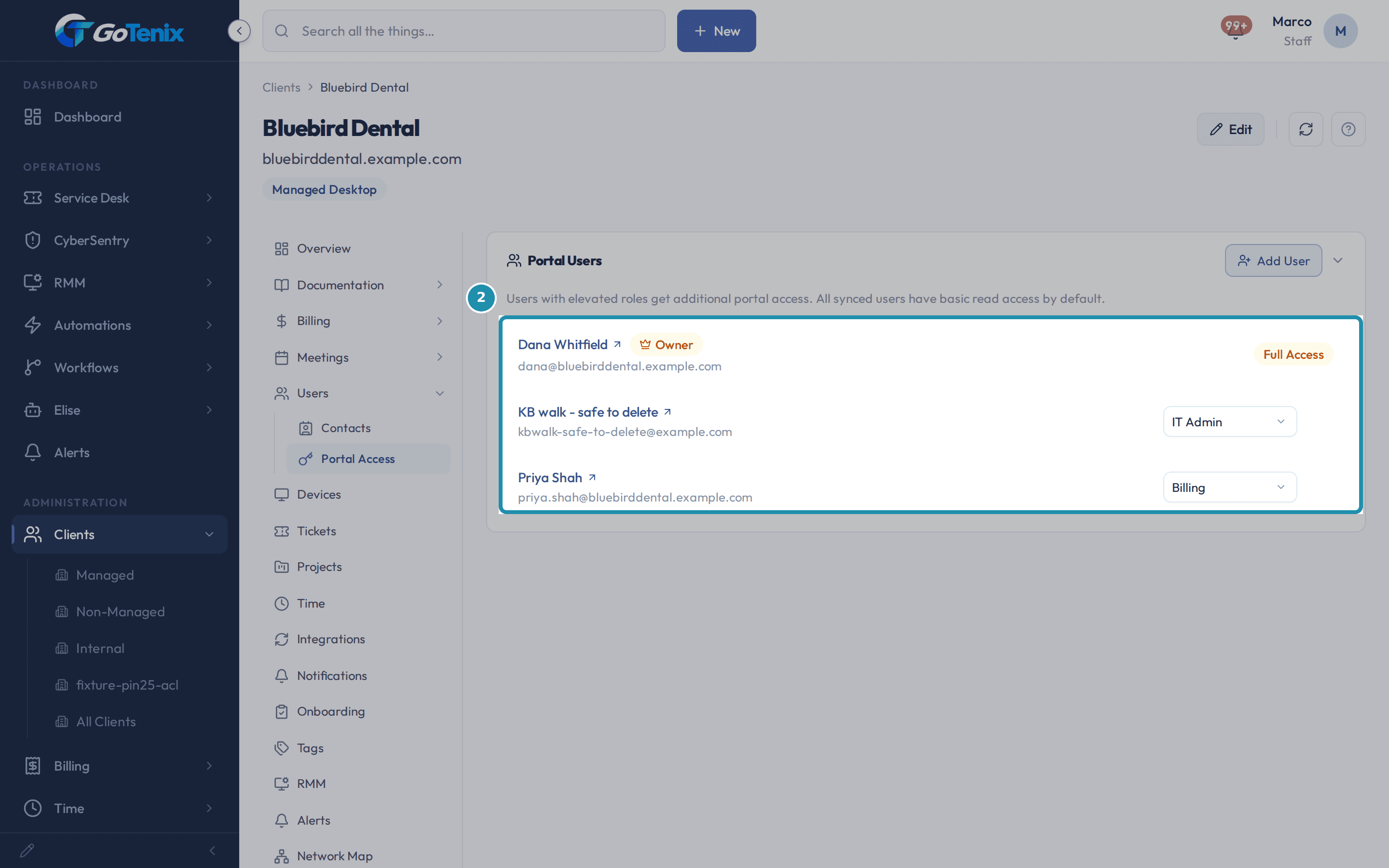
The Portal Users panel lists the client's owner first, with the Owner and Full Access badges. Below the owner is everyone else who holds an elevated role, each with a role dropdown.
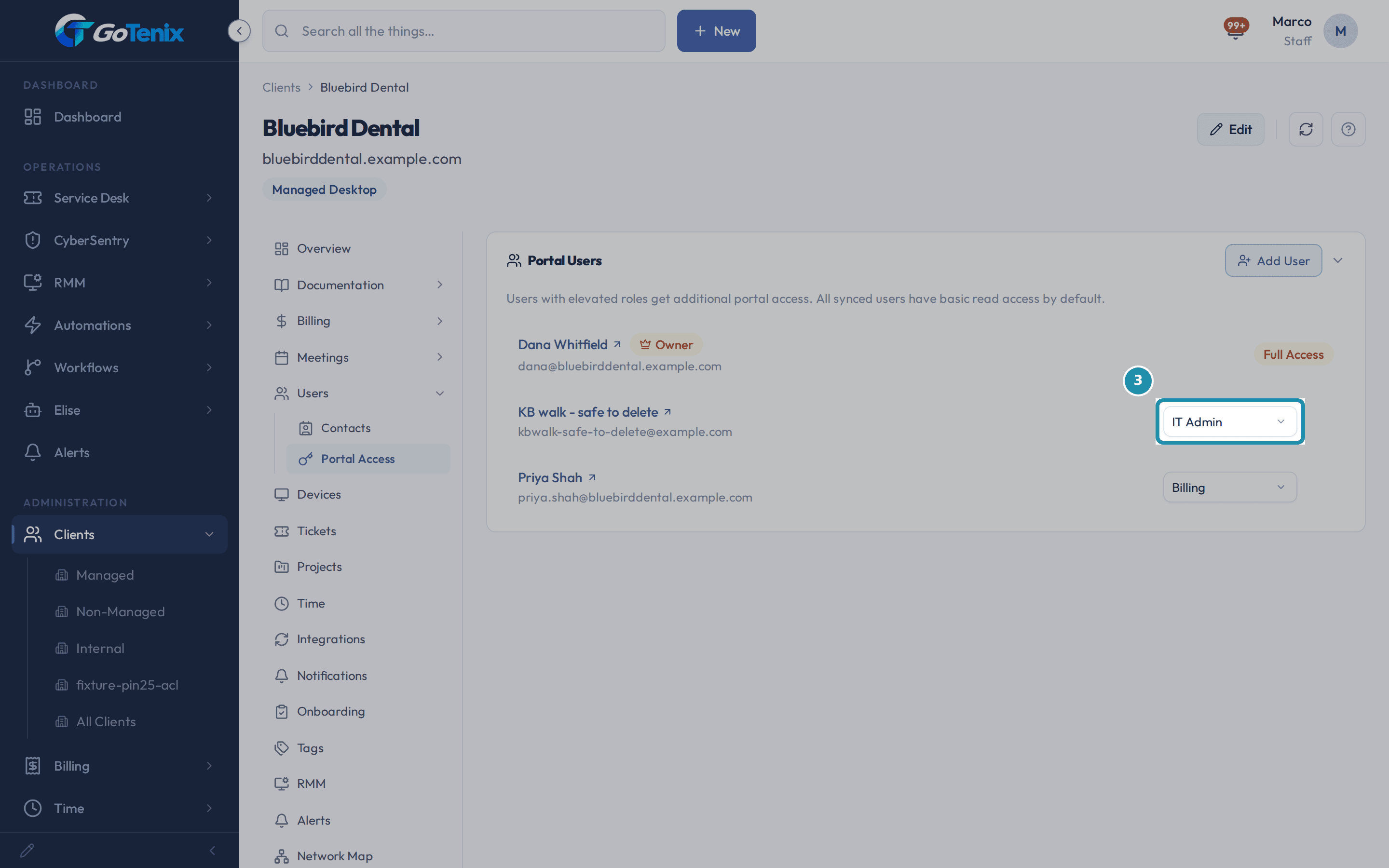
Find the person's row and read their current role. Open the dropdown and pick the new role.
The dropdown offers exactly three roles: Primary Contact, IT Admin and Billing. Picking one saves right away, with no Save button.
Note: Owner is not one of the choices. It belongs to whoever is named under Edit > Primary Contact on the client record, and that person's row shows a fixed Owner and Full Access badge instead of a dropdown.Open the dropdown and pick the new role. Add someone who is not on the list yet.
Use Add User above the list, search the person's name or email, and pick a role. A person who has never had an account is emailed an invite. People who already have an account are moved to the role you pick.
Or ask Elise to do it.
Ask "Who has portal access at Bluebird Dental?" and Elise lists everyone with an elevated role, owner included. Say "Move Priya Shah to IT Admin at Bluebird Dental" and she shows the old role and the new one for your one-tap approval before anything is saved. "Give [email protected] Billing access" works the same way, and Billing is the role she uses if you name none. "Draft an email to Bluebird Dental saying Priya now has IT Admin" gives you a draft to review and send yourself, because Elise drafts it and does not send it. Elise will not change the client's owner or a staff account. A request to remove someone's portal access is filed for a second person who holds that permission to release.
Open System Logs > Audit Log to see the change on record.
The newest entry is a role change. It names the person, who made the change and when, and expands to show the previous role and the new role. Changes made through Elise are written the same way.
What you will have
- See everyone with elevated access on a client's portal, plus the client's own owner.
- Move one person between Primary Contact, IT Admin and Billing in one pick.
- Add someone who is not on the list yet.
- Ask Elise to list, change or add portal roles, or to draft the email telling the client.
- Find the change in the audit log, with who made it and when.
Why it works this way: How to change a client user's portal role
A portal role lives on the person's own account, not on a Microsoft 365 group, so a change applies as soon as you pick it.
Each role is described on screen. Primary Contact is full portal access plus user management. IT Admin is full access except billing. Billing is access to billing and invoices.
The list only shows people with elevated access, plus the client's owner. Everyone else synced for the client has basic read access by default.
If it did not work: How to change a client user's portal role
- If the person is not listed, they have no elevated role yet. Use Add User above the list to give them one.
- To change who the client's owner is, use Edit > Primary Contact on the client record. It is not a role on this list.
Questions this page answers
How are portal user roles managed?
Portal user roles (Primary Contact, IT Admin, Billing, and User) are managed by admins on each client's Users tab, under Portal Access. M365 groups are no longer used for permission assignment. Admins set each user's role directly, and the role determines the access tier for every section.
Was this helpful?