How Client Boards, Client SLAs and Email Experience work
Group your clients into boards that decide who sees them and which reports and Elise actions cover them, then find where client SLAs and client email settings live, all under Settings > Clients.
See it
Browse
On this page
How to do it
Open Settings > Clients > Client Boards.
Client Boards lists your boards, each with its client count and a Default or Required badge where one applies. Add Board creates one, and you can drag rows to reorder them. Open a board to set its Board Name and Description. The Default Board switch decides where PSA-synced clients land out of the box.
On the Edit Client Board form, set Enabled functions.
Enabled functions opts this board's clients into specific portal functions: Profitability reporting (which clients appear in profitability and margin reporting), Onboarding tracking (which clients count toward first-run onboarding progress), Known-issues sync (which clients get known-issue detection and doc sync) and Elise client actions (which clients Elise operates over for its client-scoped tools). Once any board turns a function on, that function runs only for the boards that opted in. If none does, it covers its default clients: all clients for the first two, Managed clients for the last two.
On the Edit Client Board form, set Enabled functions. Find where the other functions moved.
Under the toggles the form says "Entitlement functions moved to service plans." The words service plans link to Billing > Service Plans. The functions a client gets because it pays for them, CyberSentry security monitoring, Security awareness training, Scheduled meetings & agendas and Client health scoring, are now set on the plan itself, under Included functions. Every client with an active subscription on that plan is in scope. If a board still carries one of these from before the move, the form lists it under Legacy plan-managed functions still on this board, with Remove from this board next to it. New ones can only be turned on on a plan.
Open Access to choose who sees the board.
Visible to roles offers Admin, Tech, Billing, Full Access and User, and Visible to pods lists your pods. Leave both empty to show the board to everyone who can see the section. Picking roles or pods narrows who sees this board.
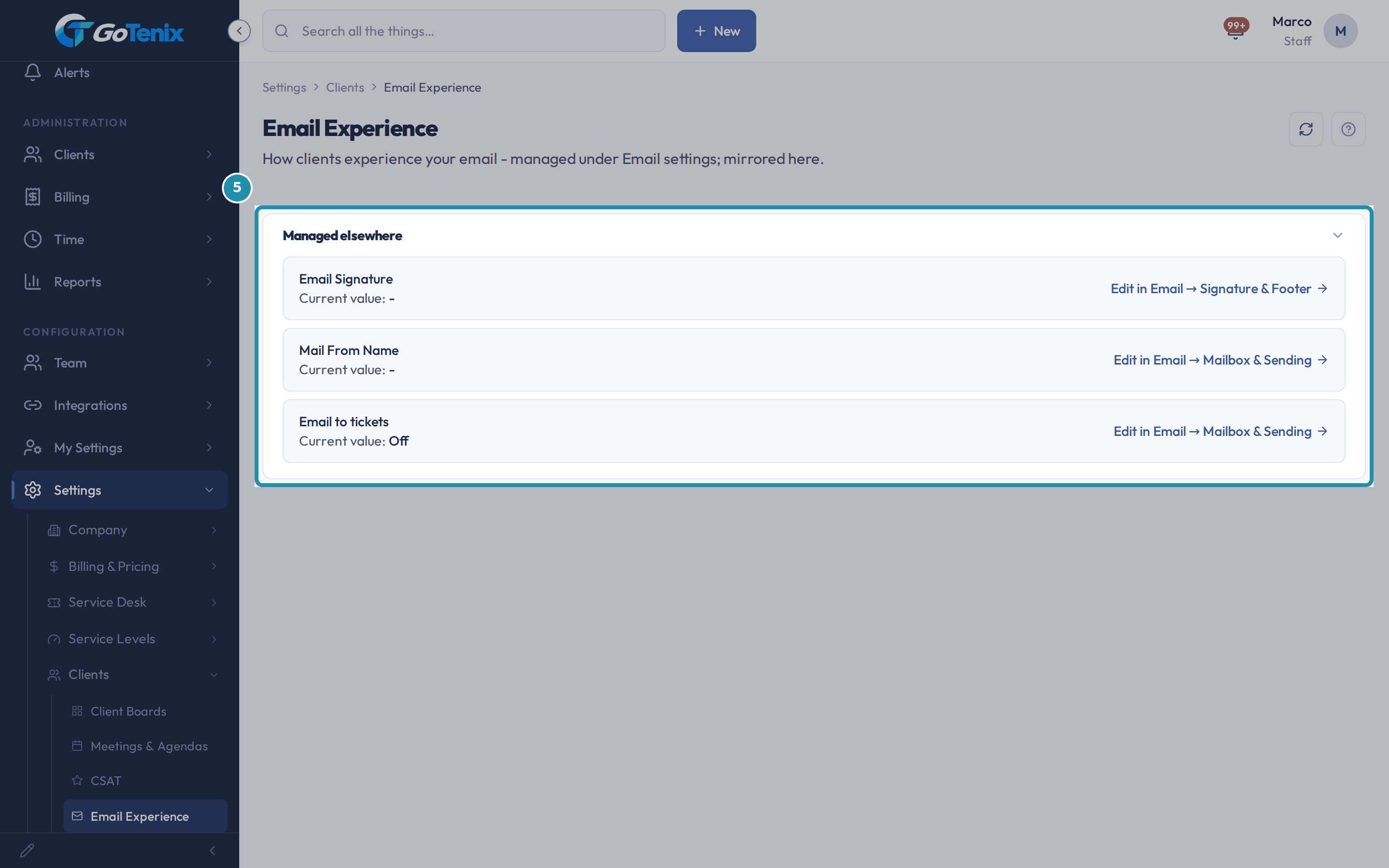
Open Settings > Clients > Email Experience.
Email Experience shows Email Signature, Mail From Name and Email to tickets as read-only copies of the live values. Each has an Edit in link. Email Signature opens Settings > Email > Signature & Footer, and Mail From Name and Email to tickets open Settings > Email > Mailbox & Sending. Nothing on this page itself can be changed. It is a finder, so a clients-minded admin can reach these settings without knowing they live under Email.
Open Settings > Clients > Email Experience. Open Settings > Clients > Client SLAs.
This page has no fields. A client's SLA is an entitlement of the plan they subscribe to, not a per-client setting. To change one, open Clients and pick the client, go to Billing, open their active Subscription, find the SLA Response Times section, and adjust the response targets and business hours for that plan. A subscription's SLA overrides win first, then the policy set assigned to the client's organization, then the tenant-wide default. The tenant-wide per-priority response and resolution targets are on Settings > Service Levels > SLA Display. SLA Policies holds the response quality bands, the timer thresholds and Breach Alerts.
Ask Elise about these settings.
Elise can explain a client's SLA. For example, "Why does this client have a different SLA?" returns the precedence above and where to change it, and it needs Settings view access. "Why did this client get that SLA response time?" asks her to explain why for the client record, which needs Settings view access and view access to the client. She can change one registered setting after you approve it, for example "Set the Mail From Name to Acme Support", which sets Mail From Name once you tap approve. Client boards and a subscription's SLA are records, not registered settings, so she does not change them from chat.
What you will have
- Create client boards and choose which portal functions each board's clients are in for: Profitability reporting, Onboarding tracking, Known-issues sync and Elise client actions.
- Limit who sees a board with Visible to roles and Visible to pods.
- Know that the plan-based functions moved to service plans, and where to set them.
- Know where a client's real SLA is set, and which targets apply when a plan sets none.
- Know where each Email Experience row is really changed.
- Ask Elise about a client's SLA and what she can and cannot change here.
Why it works this way: How Client Boards, Client SLAs and Email Experience work
Settings > Clients has five pages: Client Boards, Meetings & Agendas, CSAT, Email Experience and Client SLAs. This guide covers Client Boards, Email Experience and Client SLAs.
Visible to roles and Visible to pods combine with AND. A user needs a listed role and membership in a listed pod, and an empty list passes its own check. An internal Super Admin always sees every board.
If it did not work: How Client Boards, Client SLAs and Email Experience work
- If Update Board does nothing, scroll down. The button sits below Enabled functions and needs a real change first.
- If a client's SLA looks wrong, check the active Subscription on that client first. It overrides everything else.
Questions this page answers
How do I configure client boards?
Settings → Clients → Client Boards defines the client types (Managed, Co-Managed, Break-Fix, NOC-only…) used as L2 tabs on the Clients page and during onboarding. Each board has visibility rules (which roles + pods can see it) and behavior flags. Renames apply instantly across nav.
Visible-to-roles AND pods - how do they combine?
Empty list on both means visible to all. The two lists combine with AND, not OR: a user must pass BOTH checks. An empty list auto-passes its own check, so filling only roles gates purely by role and filling only pods gates purely by pod. Fill in both and a user sees the board only if they are in one of the listed roles AND a member of one of the listed pods. Use roles for company-wide tiers, pods for team-specific carve-outs, and set just one axis when you want that axis alone to decide.
What is the Email Experience page for?
This page is a finder, not a settings page. It shows read-only copies of your email signature, sending identity, and inbox settings, so you can find them without knowing they live under Settings → Email. Nothing here can be edited.
How do I change what is shown here?
You cannot edit anything on this page. Each row is a read-only copy with an "Edit in Email →" link. Click it to open the real setting on Settings → Email → Mailbox & Sending or Signature & Footer. Make your change there, and it shows back here right away.
What is the Client SLAs link for?
This doorway explains that there is no separate per-client SLA page. A client's SLA comes from the plan they subscribe to, so it lives on their subscription. The tenant-wide targets under SLA Policies are just the fallback for a plan that sets none of its own.
How do I set a custom SLA for one client?
Click "Open Clients" on this page, or go straight to Clients and pick the client. Go to Billing, then open their active Subscription. Find the SLA Response Times section on it. Adjust the response targets and business hours for that plan.
Was this helpful?