When the clock is running and the ticket is yours
How SLA works from the tech's seat
Know which tickets owe a first reply before anyone asks, read every SLA chip in plain words, and see what pauses the clock, what a missed target looks like and what Elise can tell you about due dates.
See it
Browse
On this page
How to do it
Read the three counts on your dashboard before you open anything.
They read my open, SLA risk and customer replied, and each is a link. SLA risk adds tickets whose first reply is already late to those due within the next hour, across the whole desk. It is the one number about promises rather than volume, so look at it first.
Work down the Start here list, which is already in the order to work.
Each row names the ticket, the client, who owns it and why it is listed, such as SLA breached 3 days ago or SLA breaches in 40 minutes. A row with the Unassigned chip needs an owner first, because nobody will answer it by accident.
Open Service Desk and read the Needs Attention card at the top.
Each row carries a chip saying why it is there. Awaiting reply means the ticket is assigned and the client has not heard from anyone yet, which is exactly what the response clock measures. Unclaimed means nobody owns it yet, and the row has a Claim button. The other reasons are Escalated and Failed to dispatch. An Awaiting reply row is a reply you owe. An Unclaimed row is a decision you owe.
Look down the SLA column on the ticket list.
A counting number means nobody has replied yet and the clock is running. A circled tick means somebody has, and its colour says how fast: green is within the Excellent time, blue within the Good time, amber is inside the target but slower than that. A red circled cross means the reply landed after the target. A grey Paused chip means the clock is stopped. A dash means the ticket has no response target, as project tickets do.
Open a ticket that is still counting and hover its SLA control.
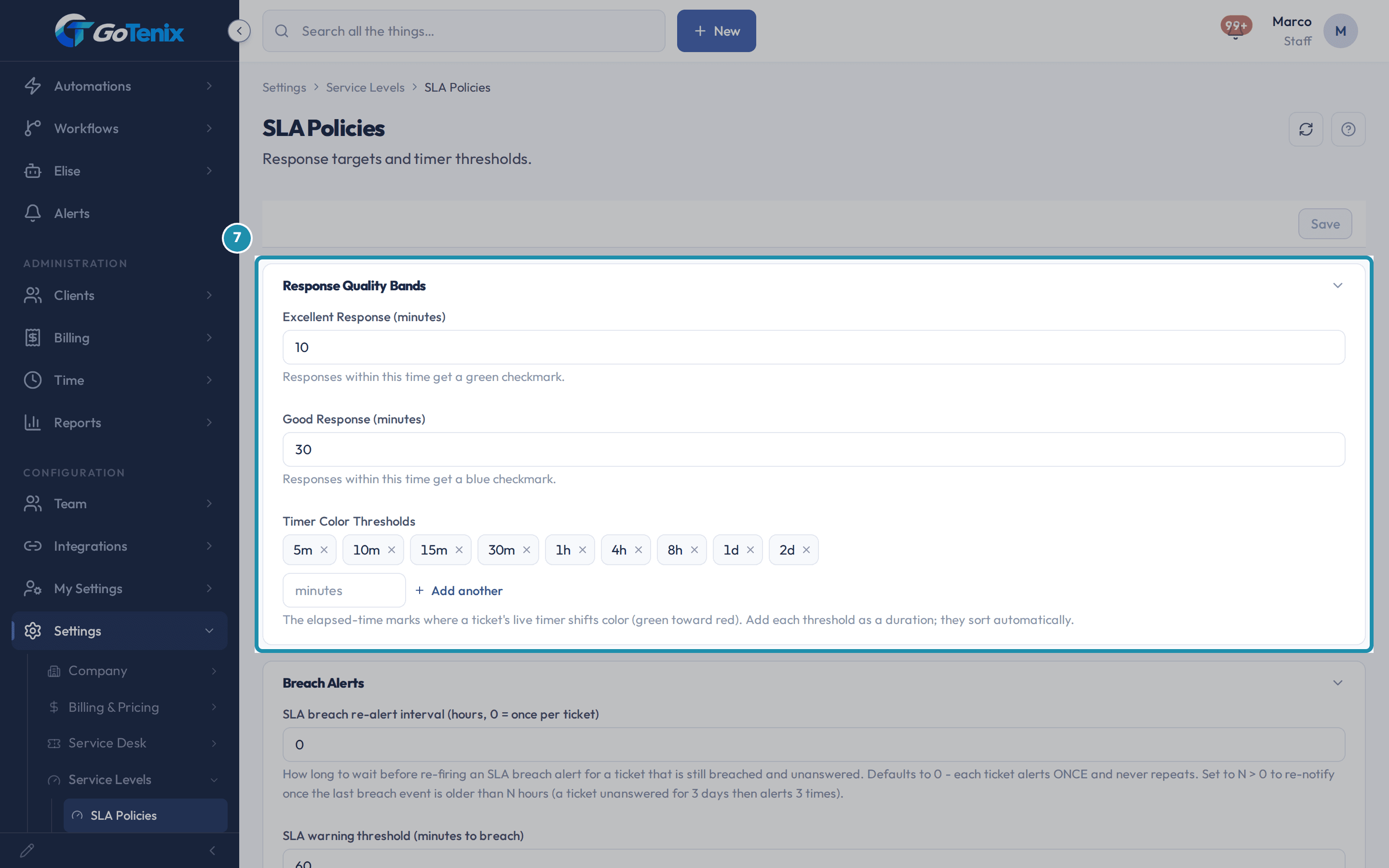
At the top of the ticket the control reads Respond by and the time the client has waited. Hovering it prints the deadline itself, in the form Waiting for first response - SLA due and the date and time. The deadline is the number to plan around. The count is how long the client has been waiting, and its colour moves along the Timer Color Thresholds set under Settings > Service Levels > SLA Policies.
To see where a deadline comes from, open Settings > Service Levels > SLA Display.
There is one card per priority. Each shows the Current Response Target, the Response Time and Unit, and Counting, which is either Business Hours with your window or Calendar Time (24/7). A resolution time is optional on each card, and leaving it at 0 sets no resolution target. The target is not something a tech works out. It comes from the priority on the ticket, so changing the priority moves the deadline.
Note: The hours the clock really runs on are set under Settings > Service Levels > Business Hours & Holidays.To see where a deadline comes from, open Settings > Service Levels > SLA Display. To change what the colours and ticks mean, open Settings > Service Levels > SLA Policies.
Excellent Response (minutes) and Good Response (minutes) grade the tick after a reply, 10 and 30 by default. Timer Color Thresholds are the elapsed-time marks where a waiting chip shifts from green toward red. Breach Alerts raises the approaching-breach warning when an unanswered ticket is within 60 minutes of its deadline by default, and by default each ticket alerts once and never repeats.
To change what the colours and ticks mean, open Settings > Service Levels > SLA Policies. Raise a ticket and keep it assigned to yourself, and the first-reply clock does not start.
Nobody is waiting on you to acknowledge your own ticket, so its SLA control shows a green tick reading 0s and the tooltip says Responded in 0s. This keeps logging your own work from dragging the desk's response figures down. It only applies while you are still the assignee. Assign it to someone else and the clock runs, because that person now owes the reply. In History, a row reads SLA self-acknowledged: creator took the assignment, so a manager can see why.
When the ball is in the client's court, set the status to Waiting on Client.
The SLA control turns grey and reads Paused, and its tooltip reads SLA paused since and the time, then countdown stopped. Waiting on Client, Waiting on Equipment, On Hold and Locked all stop the clock when they are set up as they come by default. When the status moves back, the time it sat paused is credited, so you get back the time you had. This is what the status is for, not a way of gaming the number.
If a ticket is past its target, reply first and read the control after.
A late ticket shows its count in red. Reply to the client and the counting chip becomes a red circled cross, and the tooltip reads Responded and how long after SLA. A missed target is recorded once, against that one reply, and it stops moving.
The pages behind each click
What you will have
- Open the day on the list of late and nearly late promises, ranked worst first.
- Read every state of the SLA chip, with the exact words on screen and what to do about it.
- Know the two honest ways a ticket leaves the response clock: somebody answers it, or the status pauses it.
- Ask Elise when a ticket is due, or how the whole desk is doing on SLA.
Why it works this way: How SLA works from the tech's seat
The clock on a ticket is about the first reply. Every state here answers one question: has a person answered this client yet.
The target counts the policy's own hours. A priority set to Business Hours counts only working time, so a ticket filed at twenty to five on a Friday gets the same working time to be answered in as one filed at nine on a Monday.
Nobody does the arithmetic. The target comes from the ticket's priority, the countdown is worked out when the page loads, and the reason a clock is stopped is recorded on the ticket.
Other ways to do this: How SLA works from the tech's seat
Sort the whole board by what is late
Open Service Desk, then All Tickets, and read the SLA column down the page. The counting chips are the only rows still owing a first reply.
Let the ticket escalate itself
A pod can escalate its own tickets when they get close to the deadline, using Auto-escalate on SLA risk on the pod's page under Team, then Pods.
Ask Elise
In Elise chat, ask "When is ticket #39 due?" and Elise answers from the SLA clock: which clock is running and how long is left or how far past. Ask "How are we doing on SLAs this quarter?" for first-response and resolution rates by month and priority. Ask "Which clients are we breaching SLA for?" to see the clients with the most misses. Ask Elise about one client for a rundown that includes their SLA.
If it did not work: How SLA works from the tech's seat
- The ticket shows no SLA control at all: it has no response target. Project tickets never carry one, and a board can be set to sit outside SLA.
- A paused ticket is still listed under Awaiting reply on Needs Attention: that list is about who holds the ticket, not whether its clock is running. The chip on the ticket is the authority on the clock.
- You replied and the tick is amber rather than green: amber means the reply landed inside the target but slower than the Good time. The red cross is the miss.
- You cannot find a resolution countdown: it only exists for a priority whose resolution time is set above 0.
Questions this page answers
How are SLA timers shown on tickets?
Each ticket shows a first reply timer. Its target comes from the ticket priority. Green means you are inside the target. Amber means the deadline is close. Red means it was missed. Once someone replies it turns into a check or an X. Set your targets at Settings > Service Levels > SLA Policies. Tune what each priority shows under SLA Display.
Was this helpful?