When you connect your shared mailboxes
How to connect shared mailboxes through one delegate account
Connect help@, billing@ and training@ through one signed-in account instead of signing in as each mailbox, see at a glance which functions are Ready or Held, and prove sending with one test email. A Cannot send badge tells you when Microsoft refuses a send.
See it
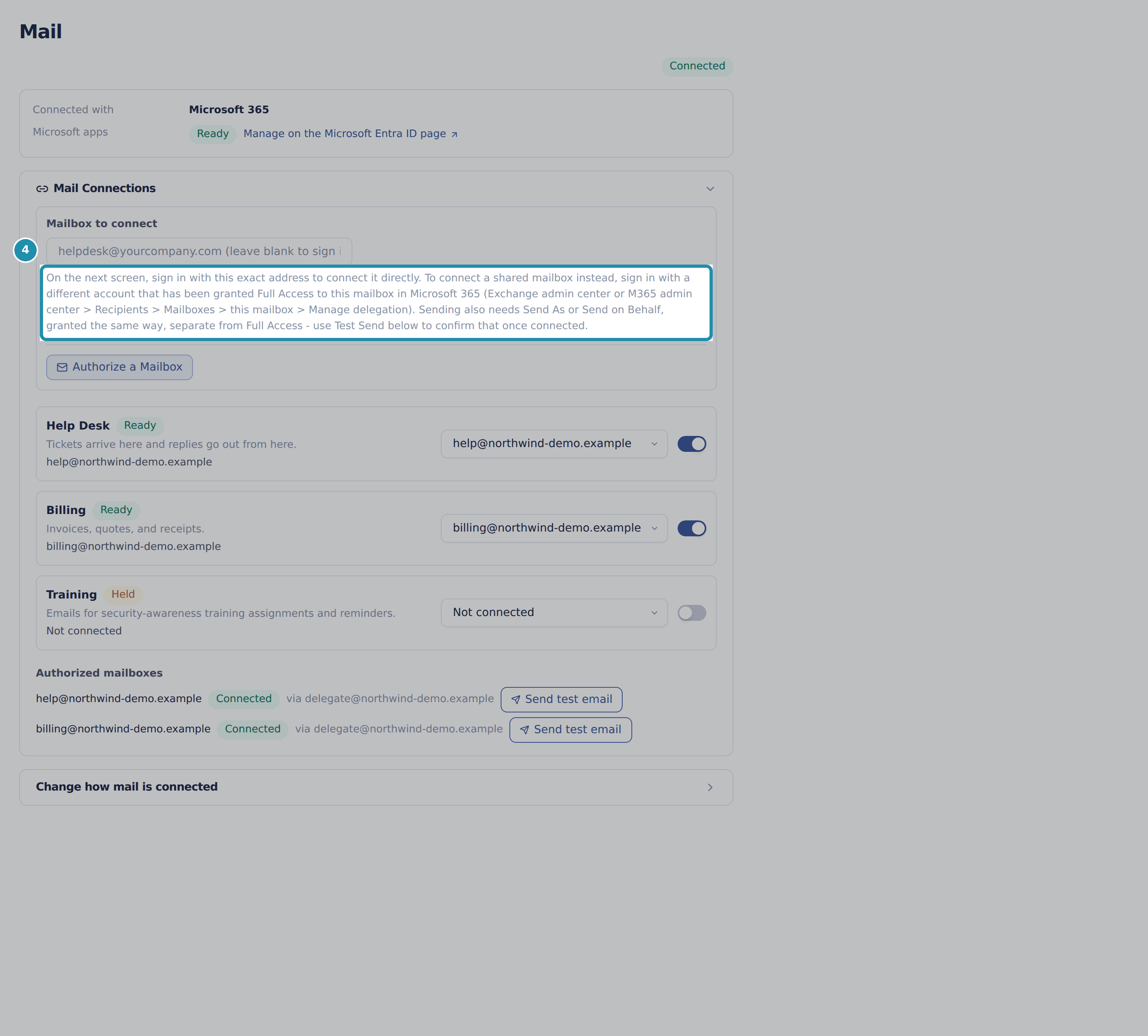 4. Read the note under the field before you go to Microsoft.
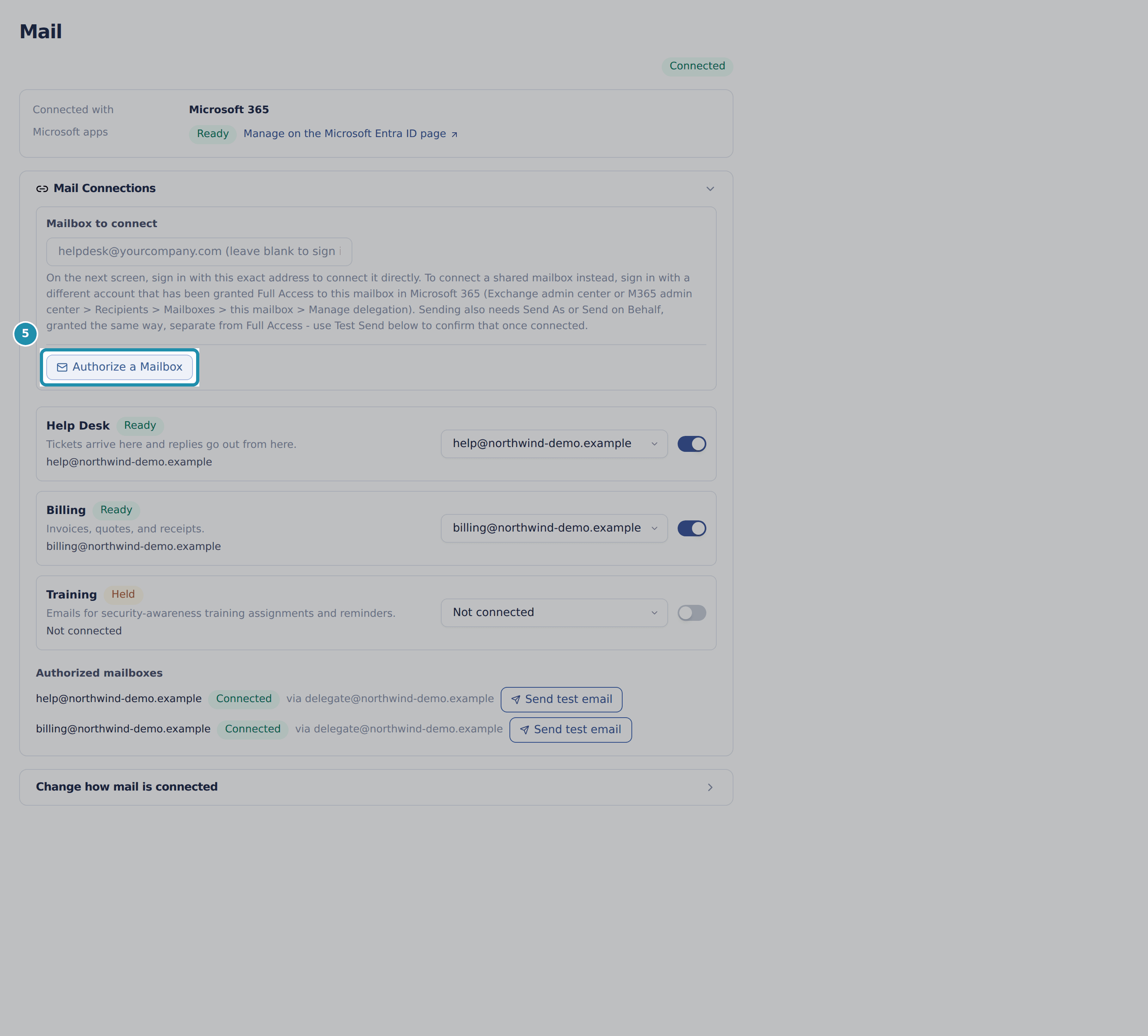 5. Press Authorize a Mailbox and sign in as the delegate account.
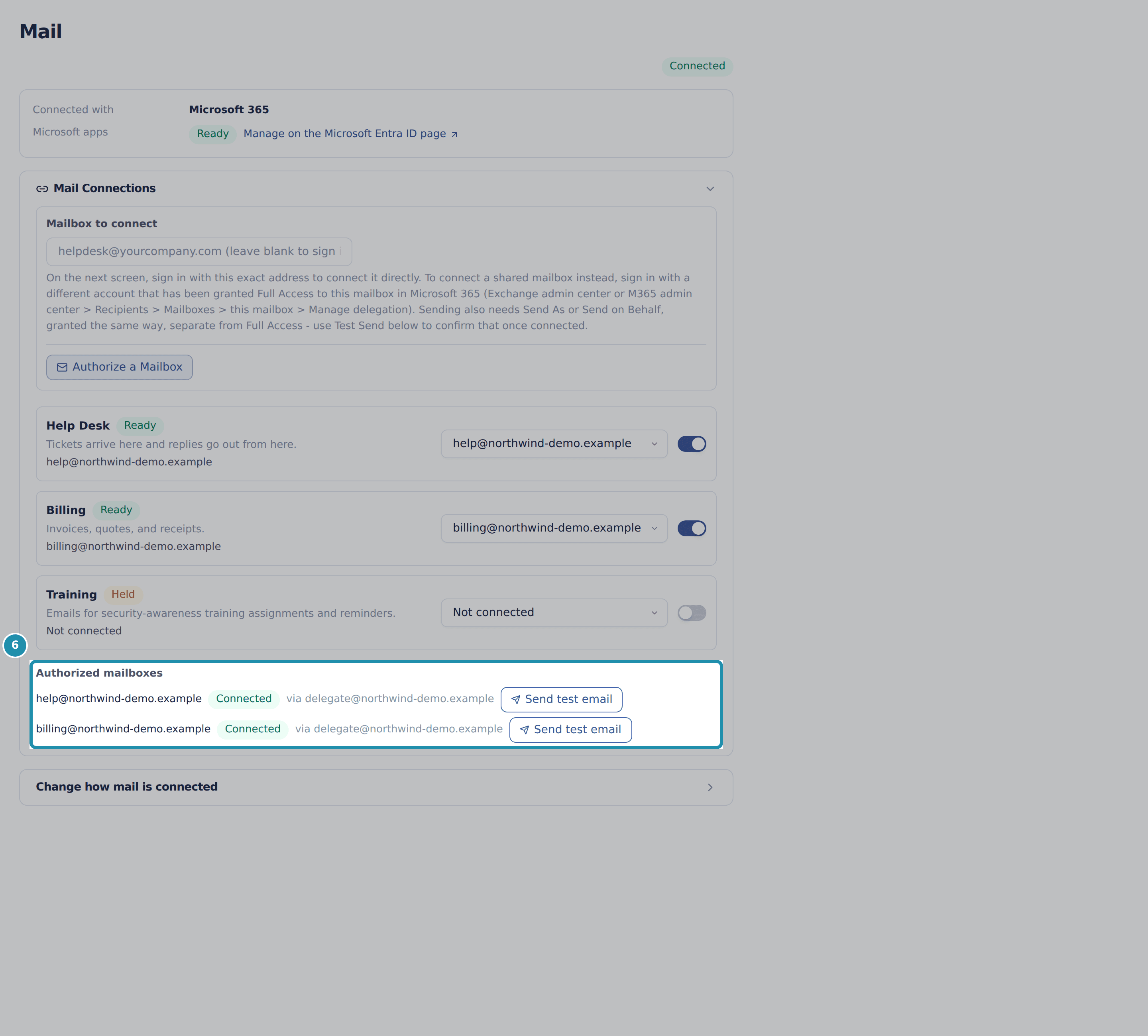 6. Do the same for the next mailbox, then read the via line on each row.
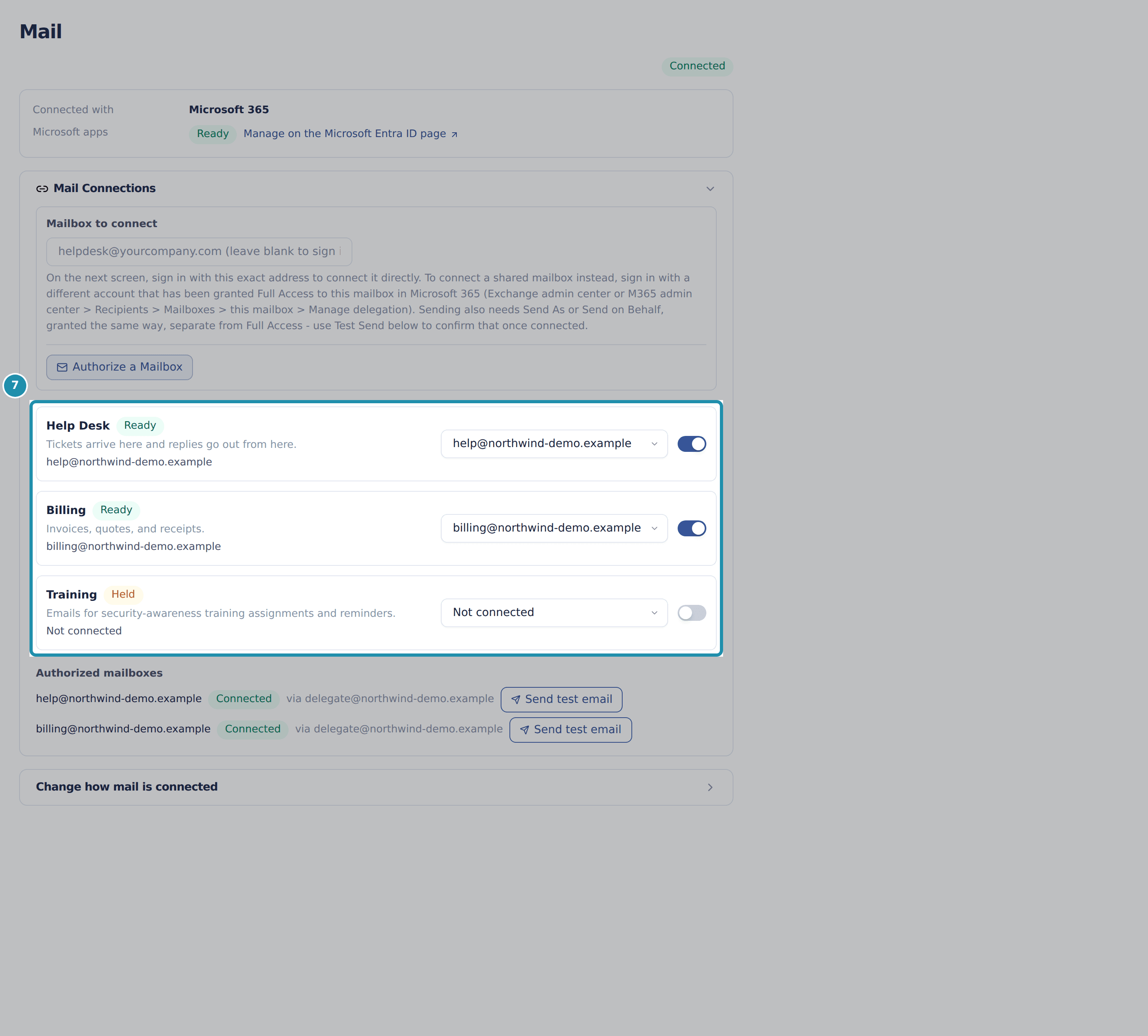 7. Point each function at a mailbox.
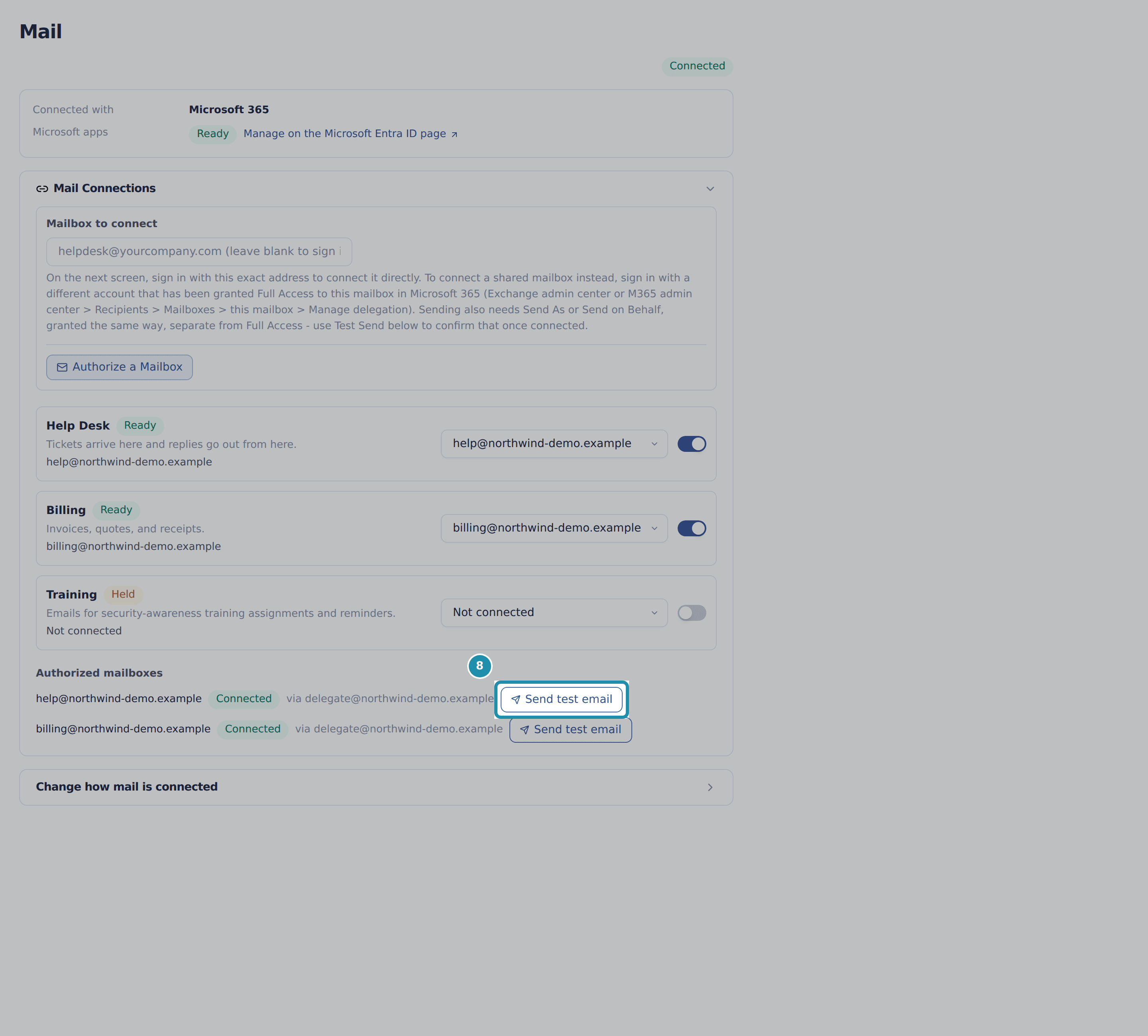 8. Prove the send half with Send test email.
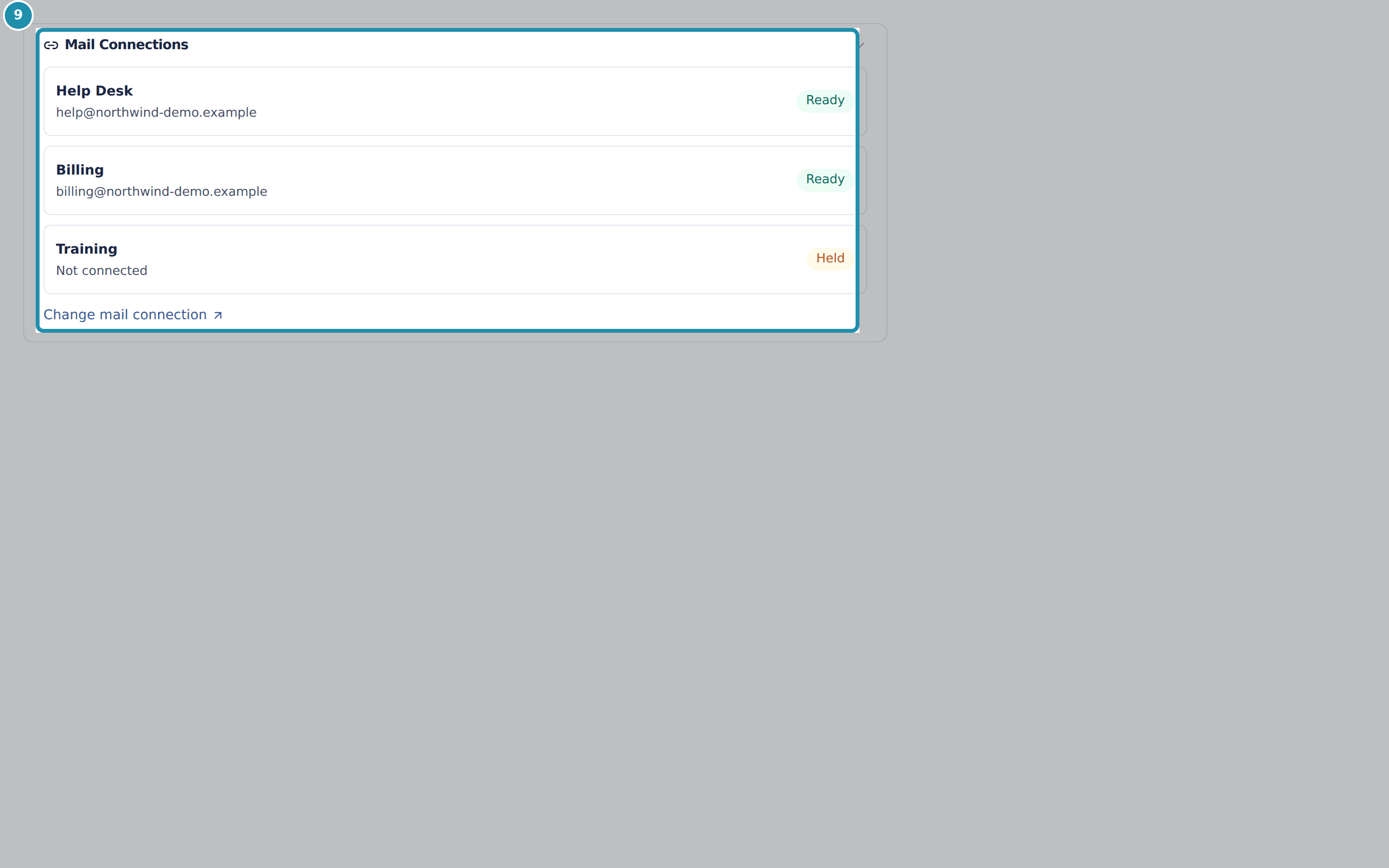 9. Check the same map from Settings, Email, Mailbox & Sending.
Browse
On this page
How to do it
Pick the one account that will sign in for the shared mailboxes.
A service account is the usual choice, because it is not tied to a person who might leave. It is the account you will sign in as in step 5. The shared mailboxes it acts for stay shared mailboxes.
In Microsoft 365, grant that account Full Access and Send As on every shared mailbox.
In the Exchange admin center go to Recipients, then Mailboxes, open the shared mailbox and find Manage delegation. Grant Full Access, which lets the portal read the mailbox. Grant Send As or Send on Behalf, which lets the portal send from it. The two are separate grants. Do it on help@, then billing@, then training@.
Warning: Full Access on its own is not enough. A mailbox with read rights and no Send As connects, reads Connected, and is then refused when it sends.Open Admin, then Integrations, then Mail, and type the shared mailbox into Mailbox to connect.
If nothing is connected yet, click Set up Microsoft 365 first. The field sits in the Mail Connections card. Type the address of the shared mailbox you want, not the address of the delegate. Leaving it blank connects whichever mailbox you sign in as, which is the other pattern, not this one.
Open Admin, then Integrations, then Mail, and type the shared mailbox into Mailbox to connect. Read the note under the field before you go to Microsoft.
The note says: "On the next screen, sign in with this exact address to connect it directly. To connect a shared mailbox instead, sign in with a different account that has been granted Full Access to this mailbox in Microsoft 365 (Exchange admin center or M365 admin center > Recipients > Mailboxes > this mailbox > Manage delegation). Sending also needs Send As or Send on Behalf, granted the same way, separate from Full Access - use Test Send below to confirm that once connected."
Read the note under the field before you go to Microsoft. Press Authorize a Mailbox and sign in as the delegate account.
The portal hands you to Microsoft, you sign in as the delegate rather than as the mailbox, and Microsoft returns you here. The portal then checks one thing before it saves anything: can that account read the mailbox you named. If the check fails, nothing is saved, so a refused grant never leaves a half-connected mailbox behind.
Note: That check reads the mailbox and nothing else. It proves Full Access. It cannot prove Send As, and it never sends anything to try.Press Authorize a Mailbox and sign in as the delegate account. Do the same for the next mailbox, then read the via line on each row.
Authorized mailboxes lists every mailbox connected here, each with Connected and, when the account that signed in was not the mailbox itself, "via" and that account. Two mailboxes here, one account named on both. The via line is the thing to read when someone asks which account is carrying the mail.
Do the same for the next mailbox, then read the via line on each row. Point each function at a mailbox.
Help Desk, Billing and Training each have their own picker and their own switch. Help Desk and Billing read Ready, with a mailbox each. Training reads Held with Not connected beside it, because nothing has been assigned to it yet, so training mail waits instead of going out from another mailbox.
Point each function at a mailbox. Prove the send half with Send test email.
Send test email sits on each authorized mailbox row. It asks for a recipient address and then sends a real message from that mailbox through the same path production mail uses, which is the only thing that can prove Send As is really there. The row reports "Test message sent from" the mailbox "to" your address, or "The test send failed." A failure that points at Send As means Send As or Send on Behalf is missing on that mailbox in Exchange, even though Full Access is present.
Prove the send half with Send test email. Check the same map from Settings, Email, Mailbox & Sending.
The same three functions appear there read-only, each with Ready or Held and the mailbox it is using. Nothing is authorized on that page; Change mail connection is the link back to the Mail page you just used. The rest of that page holds the settings for how the mailbox behaves.
Check the same map from Settings, Email, Mailbox & Sending. Know what Cannot send looks like.
A mailbox that reads Connected but is refused on send shows a Cannot send badge beside it, and a panel titled "This mailbox cannot send" with the mailbox name. The panel gives the reason, such as "Microsoft 365 refused the send. The account that authorized this connection can read the mailbox (Full Access) but has not been granted Send As, which is a separate permission." Then it tells you the fix: grant Send As on the mailbox to the account in its via line in the Exchange admin center, or re-authorize signed in as the mailbox, then use Send test to confirm.
Open System Logs, then Email Log, to see what the portal sent.
The page is called Email Audit Log and lists the outbound email sent from the portal. Search by email or subject narrows it to one recipient or one thread. All Statuses narrows it to Queued, Retrying, Sent, Failed, Suppressed, Paused or Cancelled. All Templates narrows it to one kind of message. This is where a client saying they never got the notification gets settled.
Read the rows.
Each row shows the ticket, the recipient, the subject, the template, the status, the sender and the date. Filter Status to Paused to find mail held behind a mailbox that cannot send: those messages are paused, not lost.
Sign in as the mailbox itself when it is not a shared mailbox.
A mailbox that is also a real person's account is not a shared mailbox, so there is nothing to delegate. Leave Mailbox to connect blank, or type that mailbox's own address, and sign in as the mailbox itself.
The pages behind each click
What you will have
- Connect several shared mailboxes by signing in once as a single delegate account.
- Grant the two Microsoft 365 permissions that matter, and know which one the portal can prove when you connect and which one it cannot.
- Read the via line on an authorized mailbox to see which account carries it.
- Tell Ready from Held, and know what a held function does with its mail.
- Prove the send half with a test message, and read the Cannot send badge when Microsoft refuses a send.
Why it works this way: How to connect shared mailboxes through one delegate account
Shared mailboxes such as help@ have no sign-in of their own. So one account signs in on their behalf, and each mailbox records that account on its own row. Whether your Microsoft 365 plan needs a licence for each mailbox is Microsoft's rule, so ask your Microsoft partner; the portal works either way.
Full Access and Send As are two different grants, and only the first one can be checked when you connect. Authorizing reads the target mailbox's inbox folder and nothing else, which Full Access is enough for. Send As lives in Exchange and is invisible to that read, so a mailbox can read Connected and still be refused when it sends.
That is why the portal shows a second badge. Connected means the read worked. Cannot send appears when Microsoft refuses a send. Messages for that mailbox are paused, not lost, and they send on their own once a test send or a real send succeeds.
Sign-in links are the one exception. They expire in 15 minutes, so instead of waiting behind a blocked mailbox they go out from the platform's own sender.
Held means a function has no mailbox ready to send for it. Mail for a held function waits until it is set up, rather than quietly going out from a different mailbox.
Send test email and the Email Log answer different questions. A test send proves one mailbox can send right now. The Email Log lists the mail the portal has sent, so you can check that ordinary mail is leaving.
Other ways to do this: How to connect shared mailboxes through one delegate account
Sign in as each mailbox
Authorize each mailbox signed in as itself, either by leaving Mailbox to connect blank or by typing its own address, with no delegation set up in Microsoft 365 at all.
Send on behalf instead of Send As
Grant Send on behalf rather than Send as in the same Manage delegation screen; the portal's note names either one for sending.
If it did not work: How to connect shared mailboxes through one delegate account
- A message reading "was not found in this Microsoft 365 tenant. Check the address and try again." means Microsoft could not match the exact address you typed. Check it for a typo or the wrong domain under Recipients in the Microsoft admin center.
- A message saying that the account you signed in as does not have delegate access to the mailbox means the address is real and the grant is missing. Add that account under Manage delegation.
- Either failure saves nothing, so there is no half-connected row to clean up.
- A mailbox showing Connected and Cannot send together has Full Access but no Send As. Grant Send As to the account named on its via line, then use Send test email to confirm.
- A function stuck on Held has no mailbox assigned to it yet, or its own switch is off.
Questions this page answers
Authorizing a mailbox says it "was not found in this Microsoft 365 tenant" - why?
That message comes directly from Microsoft. The address you typed in the mailbox field does not match any mailbox in your tenant. It is almost always a typo. A letter or a dot may be missing in the domain. For example, companyca instead of company.ca. Or the domain may be wrong. The mailbox may exist under an older or different domain. Check the address in Microsoft 365 admin center > Recipients before you try again. Or pick it from the suggestion dropdown when one appears. Do not type it by hand. A different message is "that account does not have delegate access". It means the address is real. But the signing-in account has not been granted Full Access yet. See the delegate-access help entry.
How do I connect the email system?
Settings > Email > Mailbox & Sending shows which mailbox each mail function uses. The functions are Help Desk, Billing, and Training. This view is read-only. You do not connect mail here. Use the link "Change mail connection". It opens Admin > Integrations > Mail. Pick "Microsoft 365" if your mailbox is in Microsoft 365. Pick "Forwarded mail" for Google Workspace, Gmail, or another mail host. Once a function shows Ready, its mail works on its own.
What does the Test button do?
The test send is on the Mail page, at Admin > Integrations > Mail, not on this page. For a Microsoft 365 mailbox, click "Send test email" on its row in "Mail Connections". For forwarded mail, use step 5, "Send a test", or "Send test" under "Sending settings". You type the recipient address, and it sends a real message from that mailbox so you can confirm sending works. If it fails, the result and the provider error are shown inline and the send is recorded in the logs.
Where can I see email delivery status?
Email delivery status lives under Logs > Email Log (route /admin/logs/email), not on the Settings → Email page. The log tracks every outbound email the portal has sent, ticket notifications, meeting agendas, invoice alerts, and the like. Each row shows the recipient, subject, template used, any linked ticket, the sender who triggered it, and the delivery status, plus the error message when a send fails. Status is more than sent or failed. A row reads Queued or Sending while the message is on its way, Retrying when a send did not land and the portal is still trying, Paused when the mailbox it goes through cannot send at all, Sent when it went out, Suppressed when this instance is set to swallow outbound mail instead of sending it (a test/development setting), so the message never left the portal at all, Cancelled when the portal will not try again, and Failed when the portal gave up. A quote or invoice email lands at Cancelled instead of Retrying when no connected mailbox could carry it at all - you were already told nothing went out, so there is nothing to wait on. So a quote or an invoice you just sent can otherwise sit at Retrying for a while before it turns Sent. Filter by status or template, or search by recipient/subject, to troubleshoot a delivery problem, for example when a client says they never got a notification.
What does the Mailbox & Sending tab control?
The Mailbox & Sending tab controls how the mailbox takes mail in and sends it out. Its sibling tabs are Signature & Footer and Email Templates. Email to tickets turns the background poller on or off. The poller checks the shared mailbox for new messages to turn into tickets. Inbox Cleanup shows what happens to a message once it is processed. It is set automatically and marked View only. It is not a picker. Today every processed message moves to Processed. No other choice is wired up yet. The tab also sets the outgoing From Name. It sets whether outbound mail is saved to the mailbox's Sent Items. It also sets how mail from unapproved senders is handled. To let those tickets be dispatched to the default pod, turn on Dispatch Unapproved Senders under Settings > Dispatch & Scheduling > Dispatch Rules. There is no send-as or sign-in-identity field to type anymore. Those come from the mailbox you connect on the Mail page, at Admin > Integrations > Mail.
What is the Mail Connections card?
Each mail function (Help Desk, Billing, Training) uses a mailbox, and this card shows their connection status. It is read-only here. To connect or reauthorize a mailbox, or to change how mail is connected, use the link "Change mail connection". It opens Admin > Integrations > Mail, the one place where mail is connected. After a revoked sign-in or a mailbox-owner change, reauthorize the mailbox there.
Was this helpful?