How to set what Elise can do: actions, confirmations and automation
See the more than 200 actions Elise can take across tickets, time, billing, clients, docs and devices, choose how much confirmation each one needs, and switch her auto-close and auto-dispatch on or off.
See it
Browse
On this page
How to do it
Open Settings > AI Assistant > Actions & Automation.
The page's own subtitle says it: what the assistant may do on its own, covering actions, auto-close and auto-dispatch. Settings sit at the top, with Automation Controls and the Action Catalog below.
Decide whether Elise may act at all with Enable Elise Actions.
On, Elise can propose and run portal actions such as ticket replies, quotes and time entries, each under the confirmation rules you set below. Enable AI Assistant is the bigger switch above it. Turn that off and chat, actions, device Troubleshoot and client Health Narratives all stop.
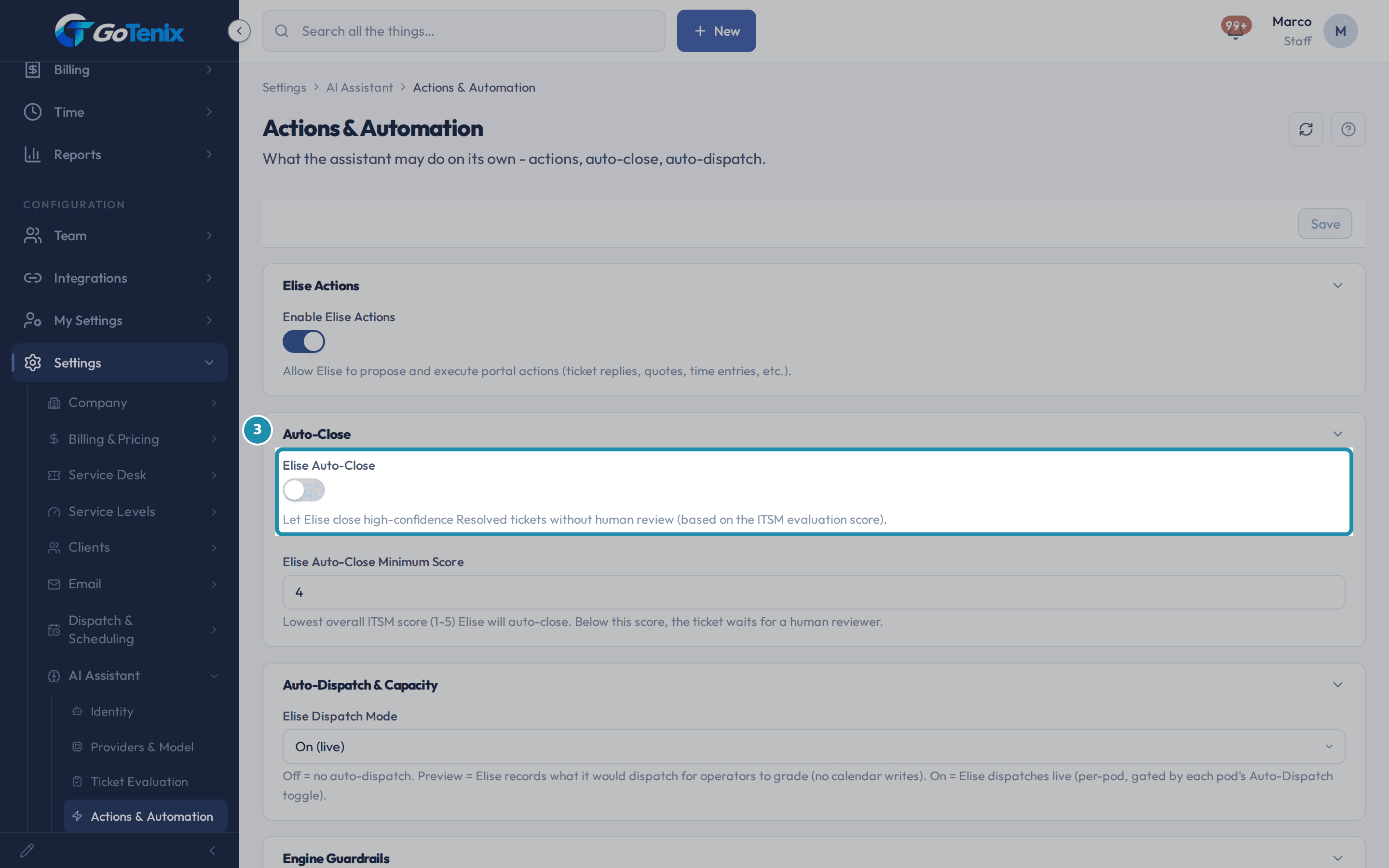
Decide whether Elise may act at all with Enable Elise Actions. Choose whether Elise may close Resolved tickets with Elise Auto-Close.
It is off by default. When on, Elise closes high-confidence Resolved tickets without human review, based on the ITSM evaluation score. Elise Auto-Close Minimum Score is the lowest overall score from 1 to 5 she will close, 4 by default. Below that, the ticket waits for a human reviewer.
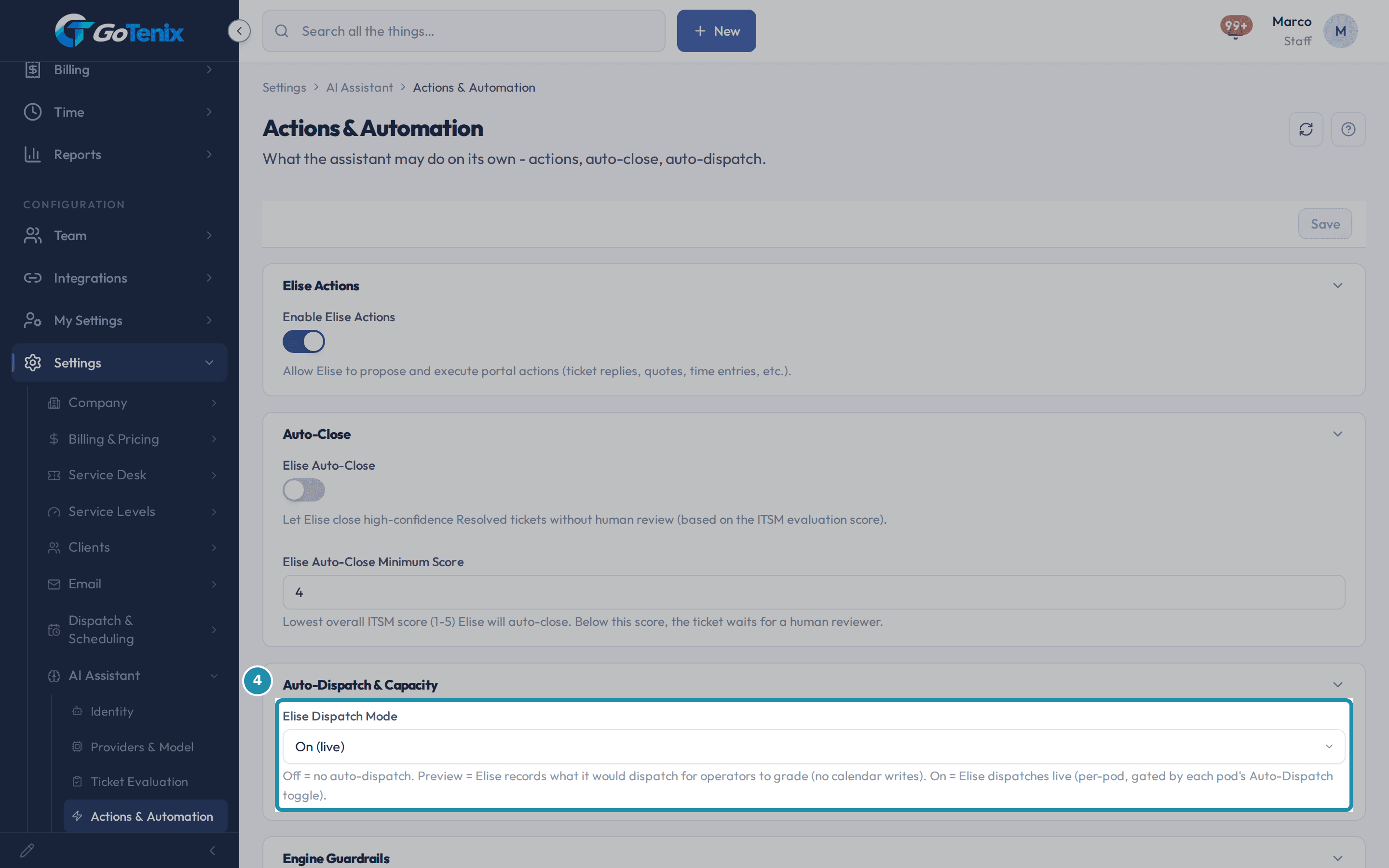
Choose whether Elise may close Resolved tickets with Elise Auto-Close. Choose how Elise dispatches with Elise Dispatch Mode.
Off means no auto-dispatch. Preview records what she would dispatch so your team can grade it, with no calendar writes. On (live) dispatches for real, per pod, and only for pods that have Auto-Dispatch turned on.
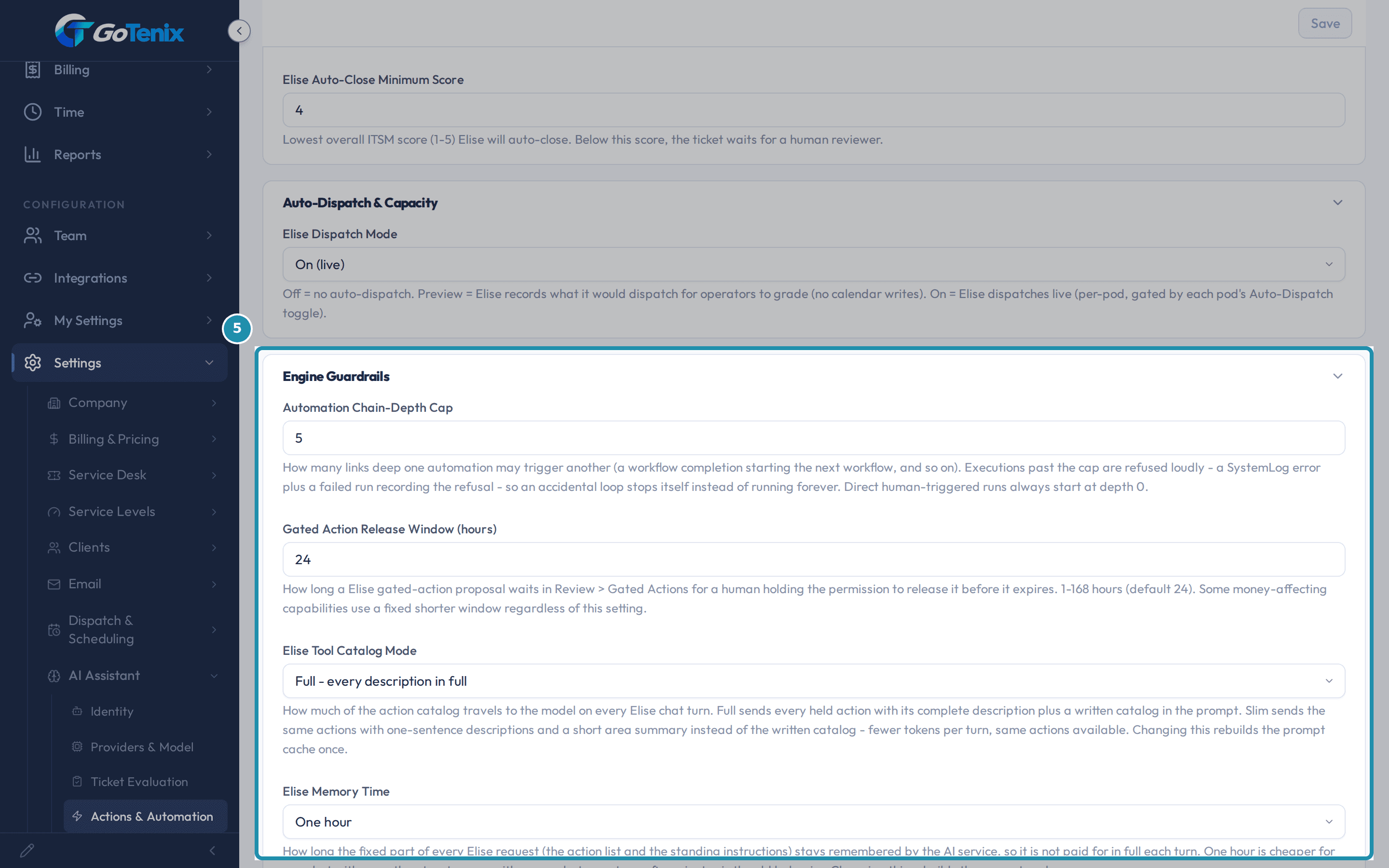
Choose how Elise dispatches with Elise Dispatch Mode. Set the Engine Guardrails.
Automation Chain-Depth Cap, 5 by default, is how many links deep one automation may trigger another. Past the cap the run is refused loudly, so an accidental loop stops itself. Gated Action Release Window is how long a gated action waits in Review > Gated Actions before it expires, 24 hours by default and between 1 and 168. Some money actions use a shorter fixed window.
Set the Engine Guardrails. Open Automation Controls to see the Agent Surfaces.
Chat - Execute Lane lets chat turns carry out actions with plan-then-confirm approval and budget caps. Make Me A Workflow drafts a workflow from a plain description and saves it disabled for your review. Each has its own on/off toggle. Turning a surface off stops Elise's agent loop there only; the chat widget and reply assistant keep working.
Switch Elise's proactive triggers on or off.
Triggers are things Elise says first, grouped by area: Tickets, Replies, Time, Knowledge and Evaluation. They are on by default. Each is one on/off toggle with no per-person routing. Switching one off silences that message only, and the rate limit and duplicate guards still apply.
Open the Action Catalog to see everything she can do.
It lists more than 200 actions in a searchable list, grouped by area such as ticket, client, billing, docs, infrastructure, time, report and team, with a count per tier: Read, Draft, Safe Write, Sensitive Write and Destructive. Click a tier to filter. On an MSP instance, extra MSP-only actions such as CyberSentry alert triage appear too.
See the range before you set a policy.
Find: "Which tickets are open for Acme Dental?" or "Who has portal access at Acme Dental?" Add up: "How many hours did we log for Acme Dental this month?" Report: "Give me a rundown of Acme Dental" or "How are we doing on SLA?" Change: "Log 20 minutes on this ticket" or "Change the status of Acme Dental to Active". Write: "Draft a reply in my voice" or "Draft a KB article from this ticket". For security and devices: "Assess this security alert" or "Why is this PC slow?"
Set the confirmation policy for any action.
Open an area, find the action and pick from Inherit (default), None - fire silently, Preview - show before, Optional - user can confirm, Required - must confirm or Explicit - typed confirmation. The page marks overridden actions and a floor badge shows where a minimum applies. Every change is recorded in the audit list at the bottom of the page.
Note: Destructive actions are locked at Explicit. They never run from chat. Elise files them in Review > Gated Actions, and someone who holds that permission releases them.Turn on Security Awareness Training in Settings > Security > CyberSentry.
Switch on Security Awareness Program at the top of the page, above the sections, and save. Every client then gets an annual training written for them, weekly micro-trainings and reminders go out, and every employee at each client is enrolled automatically. Clients get a Security Training page. Off means nothing is generated, assigned or emailed. Elise can author and assign these trainings for you, which the Awareness training article covers.
Tune the Clear-confidence matrix on the same CyberSentry page, in Triage & Detection.
The page shows one section at a time, listed down the left side bar: Triage & Detection, Ingestion, Notifications, Security ticket board, MSP Accounts & Locations, Country policy and Alert Queue Noise Reduction. Triage & Detection opens first and holds the matrix. It sets how confident Elise must be to auto-clear an alert as noise, for each risk posture: Standard, Strict or Paranoid. Higher is stricter, so more alerts escalate. A mailbox rule, MFA change, role grant, token theft or an unexpected successful sign-in always escalates, and that rule cannot be changed here.
Turn on ThreatLocker auto-approve in Settings > Security > ThreatLocker Automation.
Once a ThreatLocker organization is connected, turn on TL Auto-Approve Elevation Requests and set the checks a request must pass: TL Max VT Detections (0 means the file must be clean), TL Require Valid Certificate, TL Block Script Extensions with its blocked list, and TL Check Prior Ticket History. With auto-approve off, every request creates a ticket with Elise's recommendation instead. The page only shows these fields once ThreatLocker is connected.
Find where staff roles are edited.
Settings > Security > Staff Roles & Permissions is a doorway. Roles live in Team > Staff Roles. Pick a role or create one, set its access tier per area (view, edit or admin), then assign staff to it from their user record.
What you will have
- See the full Action Catalog: more than 200 things Elise can do, searchable and grouped by area.
- Set how much confirmation each action needs, from fire silently to typed confirmation, and know the destructive ones always go to someone who holds that permission.
- Turn Elise's proactive messages, auto-close and auto-dispatch on or off.
- Use the master switch that turns the whole AI assistant off.
- Find the related Security pages: Security Awareness Training, the CyberSentry clear-confidence matrix, ThreatLocker auto-approve and Staff Roles.
Why it works this way: How to set what Elise can do: actions, confirmations and automation
Agent Surfaces and proactive Triggers are two different things on one card. A surface runs Elise's own tool loop with budget caps and plan-then-confirm approval. A trigger only posts one proactive chat message.
Each action's confirmation default comes from its tier: Read fires silently, Draft shows a preview, Safe Write is optional, Sensitive Write must be confirmed, Destructive is explicit. You can tighten any of them and loosen most, but a Destructive action can never be loosened, because the portal always treats it as explicit.
Enable AI Assistant is a different switch from Enable Elise Actions. It turns off chat, actions, device Troubleshoot and client Health Narratives together, and nothing reaches the AI provider. Only the Owner or a Full Admin can see or change it, and it is on by default.
If it did not work: How to set what Elise can do: actions, confirmations and automation
- If a setting will not save, confirm your account has edit access to Settings. A view-only account can read the page but not change it.
- If you cannot see Enable AI Assistant, it is Owner and Full Admin only.
- If Elise says the AI assistant is turned off, an Owner or Full Admin has to turn Enable AI Assistant back on.
- If CyberSentry or ThreatLocker Automation are missing from Security, the instance is not on the MSP module.
- If Elise says an action is gated, ask her to file it. Someone who holds that permission releases it in Review > Gated Actions within the release window.
Questions this page answers
What is an Agent Surface?
An Agent Surface is a place where Elise runs a full autonomous tool loop, not just a chat reply. Today there are two: Make Me A Workflow (drafts a workflow from a plain-language description, saved disabled for your review) and the Chat Execute lane (chat turns that can carry out actions with plan-then-confirm approval and budget caps). Each surface has an on/off toggle, plus seed-time hard caps and a default budget you can view but not edit. Turning a surface off disables Elise's agent loop there; it does not remove the chat widget or reply assistant, which are separate touchpoints. Use it to roll agent behavior out gradually.
What are Elise Triggers?
Pre-built proactive behaviors where Elise speaks first, grouped by area (ticket lifecycle, replies, time, knowledge, and evaluation). Each trigger is a simple on/off toggle, and that is all it controls, there is no per-trigger user or role routing here, only whether it fires. Triggers are enabled by default; flip one off to silence it without removing the underlying behavior, so you can turn it back on later. Use it during rollout to introduce proactive Elise gradually.
What are Confirmation Policies?
For each Elise capability (for example replying to a ticket, or deploying a workflow), pick how aggressively the portal makes you confirm the action: none (silent), preview (show what will happen), optional (ask once), required (must click confirm), or explicit (never runs from the chat; a second person releases it in Review > Gated Actions). Destructive capabilities such as deleting a workflow are floored to explicit, any lower setting is ignored and rejected.
What is the CyberSentry settings page for?
This page sets up Microsoft 365 threat triage. A switch at the top turns Security Awareness Training on or off. Under it, the sections are listed down the left side, and one shows at a time. They are Triage & Detection, Ingestion, Notifications, Security ticket board, MSP Accounts & Locations, Country policy, and Alert Queue Noise Reduction. Triage & Detection opens first, and a link to a section opens that section directly. One Save button saves all of them.
How do I turn on Security Awareness Training?
Go to Settings → Security → CyberSentry. Turn on Security Awareness Program. Then save. Once it is on, each client gets an annual training plan. Weekly micro-trainings and reminders go out. Every employee at each client gets enrolled on their own. Clients then see a Security Training page. When it's off, nothing gets sent.
Why don't I see a CyberSentry page at all?
CyberSentry is a feature for the MSP module. On an instance set up for a different module, the page and its nav row stay hidden. It never shows and fails.
What is the ThreatLocker Automation page for?
This page sets up AI handling of ThreatLocker elevation requests. It picks whether they auto-approve, the checks an approval must pass, who gets escalated requests, and the AI prompt that judges them.
How do I let ThreatLocker elevation requests auto-approve?
Go to Settings → Security → ThreatLocker Automation. Turn on TL Auto-Approve Elevation Requests. Set your checks: TL Max VT Detections (0 means the file must be clean), TL Require Valid Certificate, TL Block Script Extensions with its blocked list, and TL Check Prior Ticket History. Then save. With auto-approve off, each request just creates a ticket with a note instead.
Why don't I see a ThreatLocker Automation page at all?
ThreatLocker Automation is a feature for the MSP module. CyberSentry is too. A different module hides this page and its nav row.
How do I create or edit a permission group?
Click "Open Staff Roles" on this page, or go straight to Team → Staff Roles. Pick a role to edit, or create a new one. Set its permission groups and access tier, view, edit, or admin, per nav area. Then assign staff to it from their user record.
What does Enable AI Assistant do?
This is the master switch for the whole AI assistant on this instance. Turn it off and four things stop: Elise chat, Elise actions, device Troubleshoot, and client Health Narratives. All four refuse to call the AI model. Nothing goes to the provider. It is on by default. It is not the same as "Enable Elise Actions" just above it. That switch only covers proposed and executed portal actions. Once this switch is off, that one does nothing - there is no assistant left to propose anything.
Who can turn the AI Assistant off?
Only the Owner or a Full Admin can see or change this switch. It sits at owner tier, the same tier as Elise Dangerous Mode and the AI Budget Override just below it. Ask an Owner or Full Admin if you need it changed.
Why did I get an "AI assistant is turned off" error?
You tried to use Elise chat, an Elise action, device Troubleshoot, or a client Health Narrative while this switch was off. Nothing was sent to the AI provider. Ask an Owner or Full Admin to turn Enable AI Assistant back on here to restore it.
Was this helpful?