First week with a new client
How to onboard a new client in the first week without the spreadsheet
Create the client, give its main contact portal access, start the onboarding checklist, put the client on a plan and lock a tech to its tickets in one sitting, or ask Elise to create the client, assign the plan and add the portal user.
See it
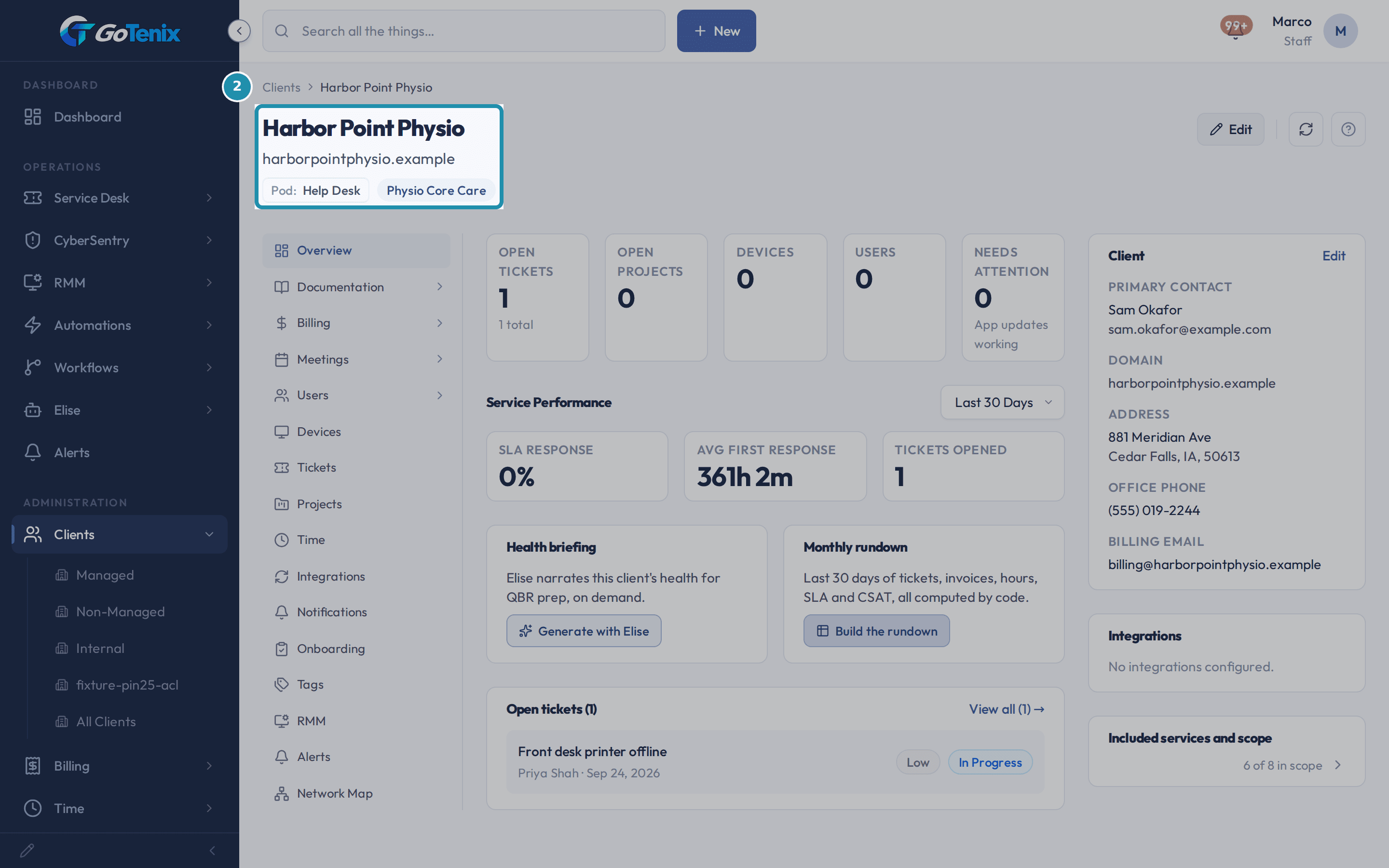 2. See what the new client defaulted to, with nothing else clicked.
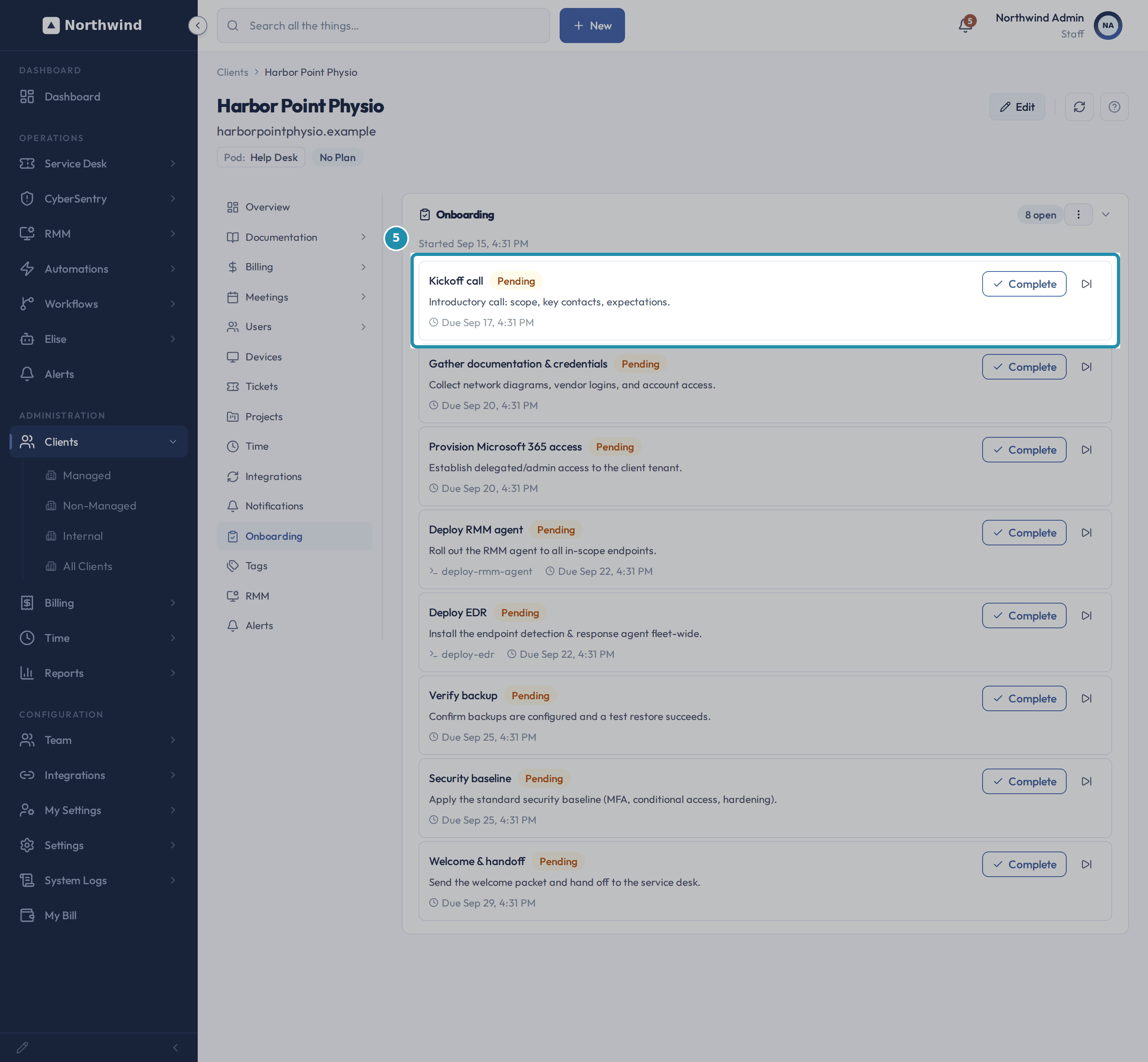 5. Open the Onboarding tab and start the default template.
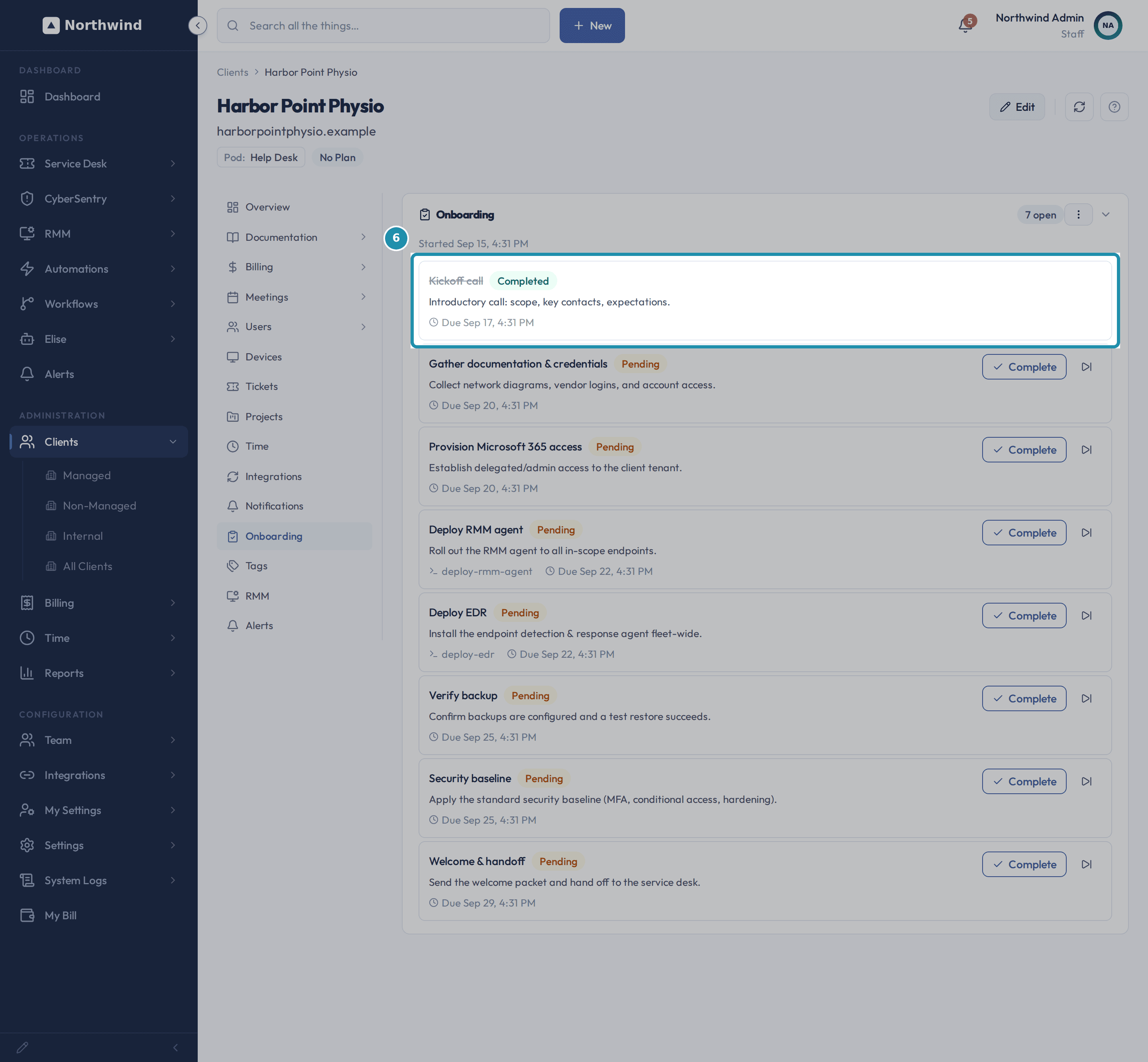 6. Mark the Kickoff call step complete.
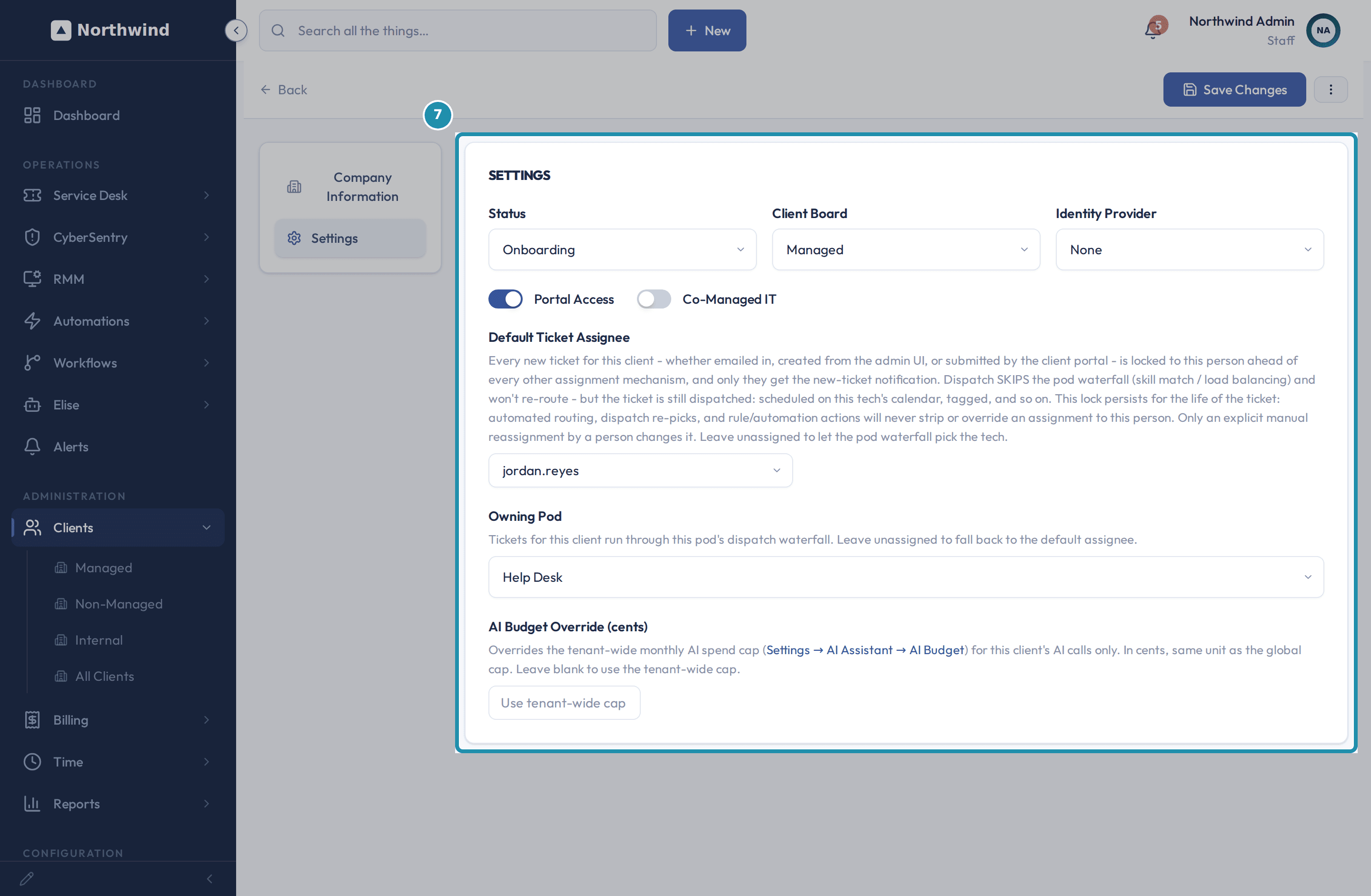 7. Point a dedicated tech at this client from Edit > Settings.
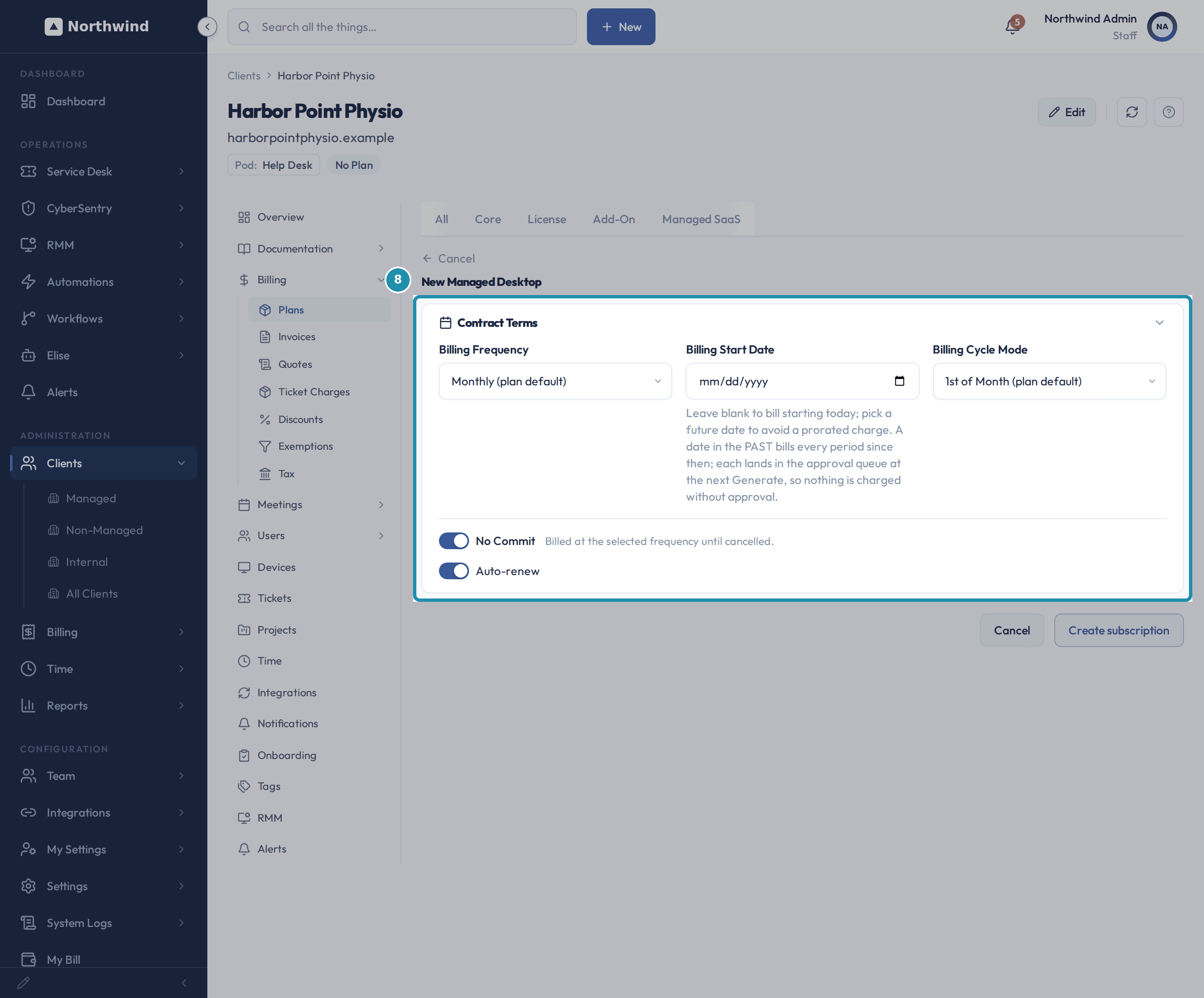 8. Subscribe the client to a Core plan, starting this month.
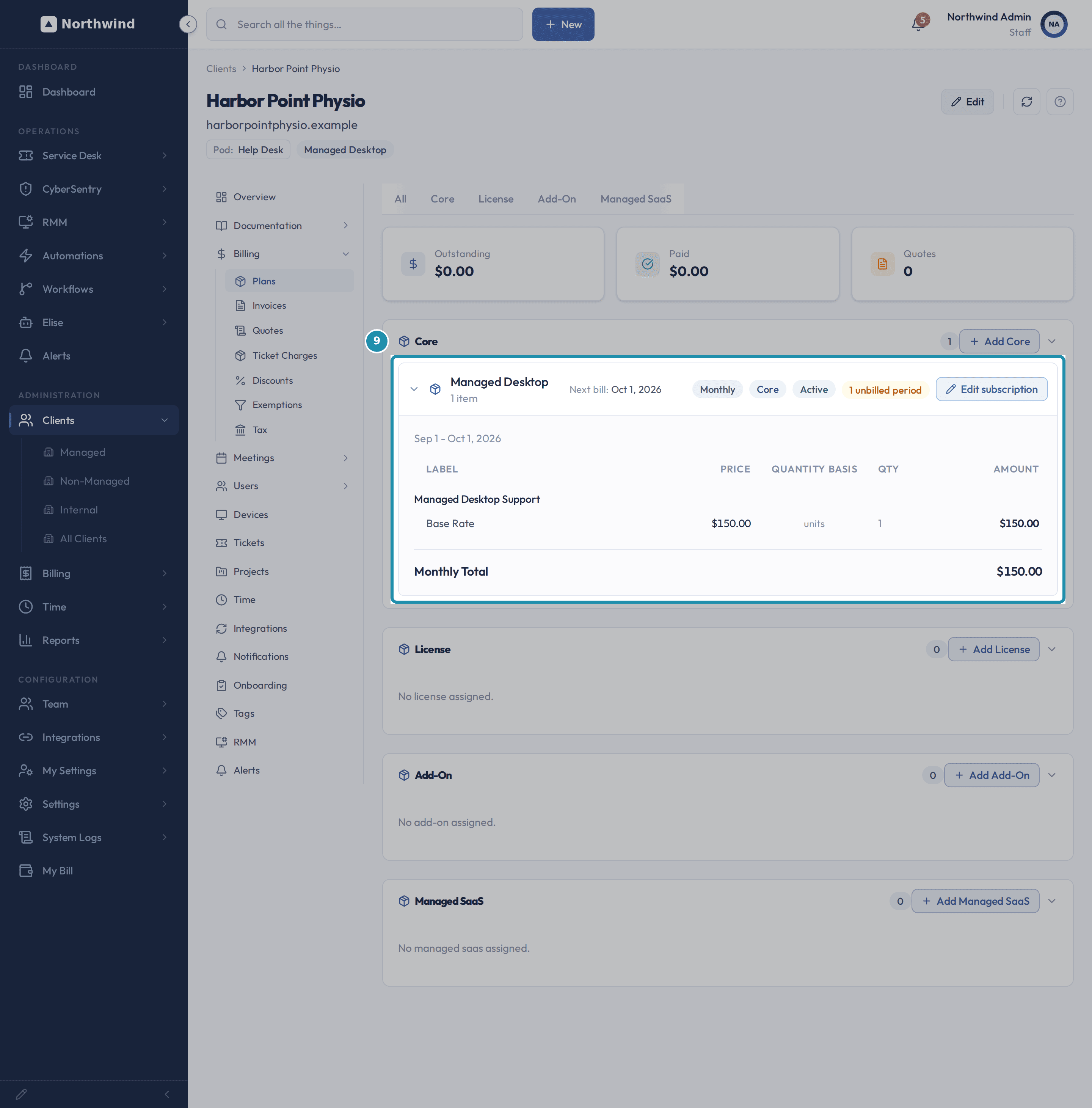 9. See the subscription land: Active, this month's period priced.
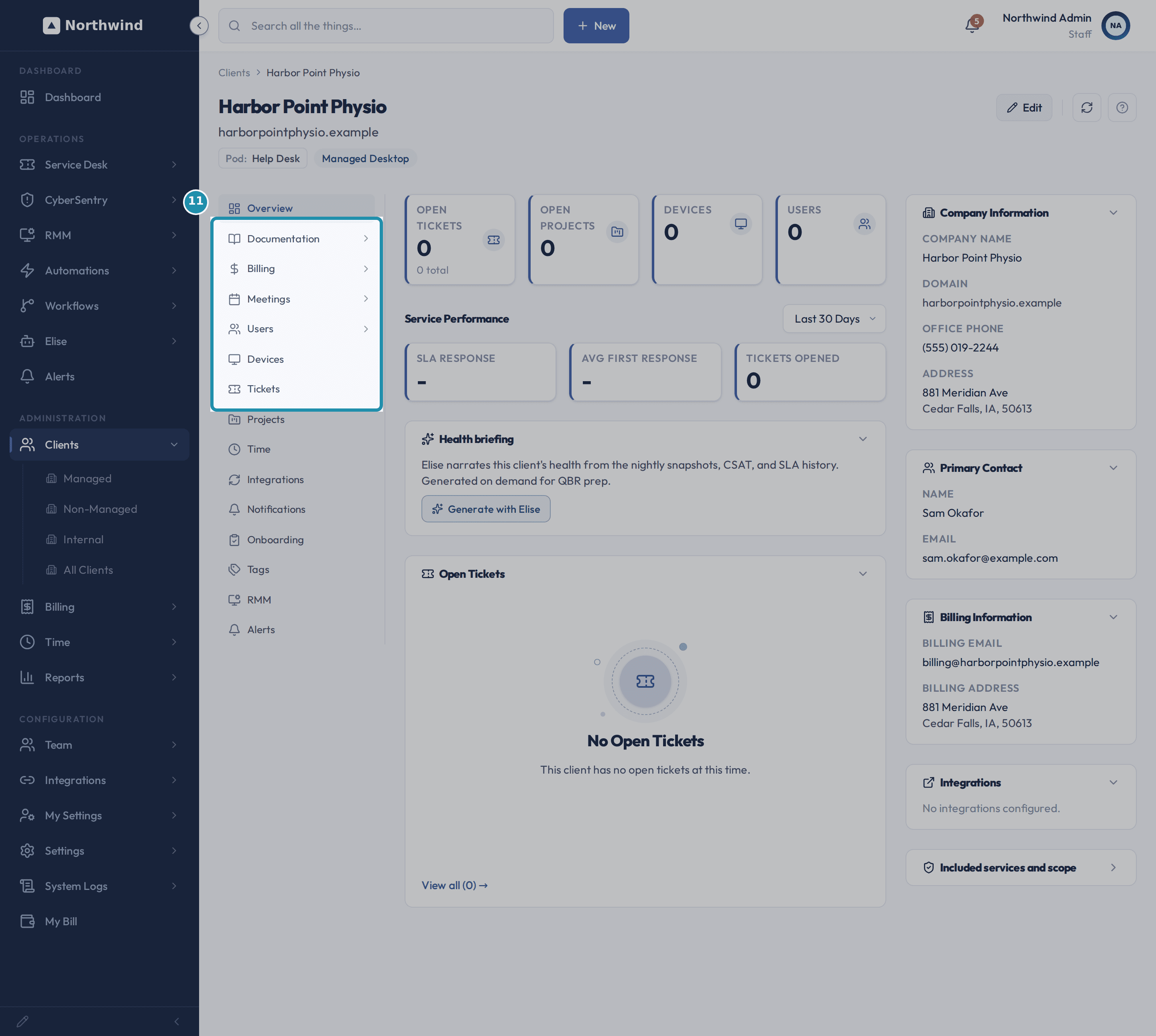 11. Know which tabs your client also has in their own portal.
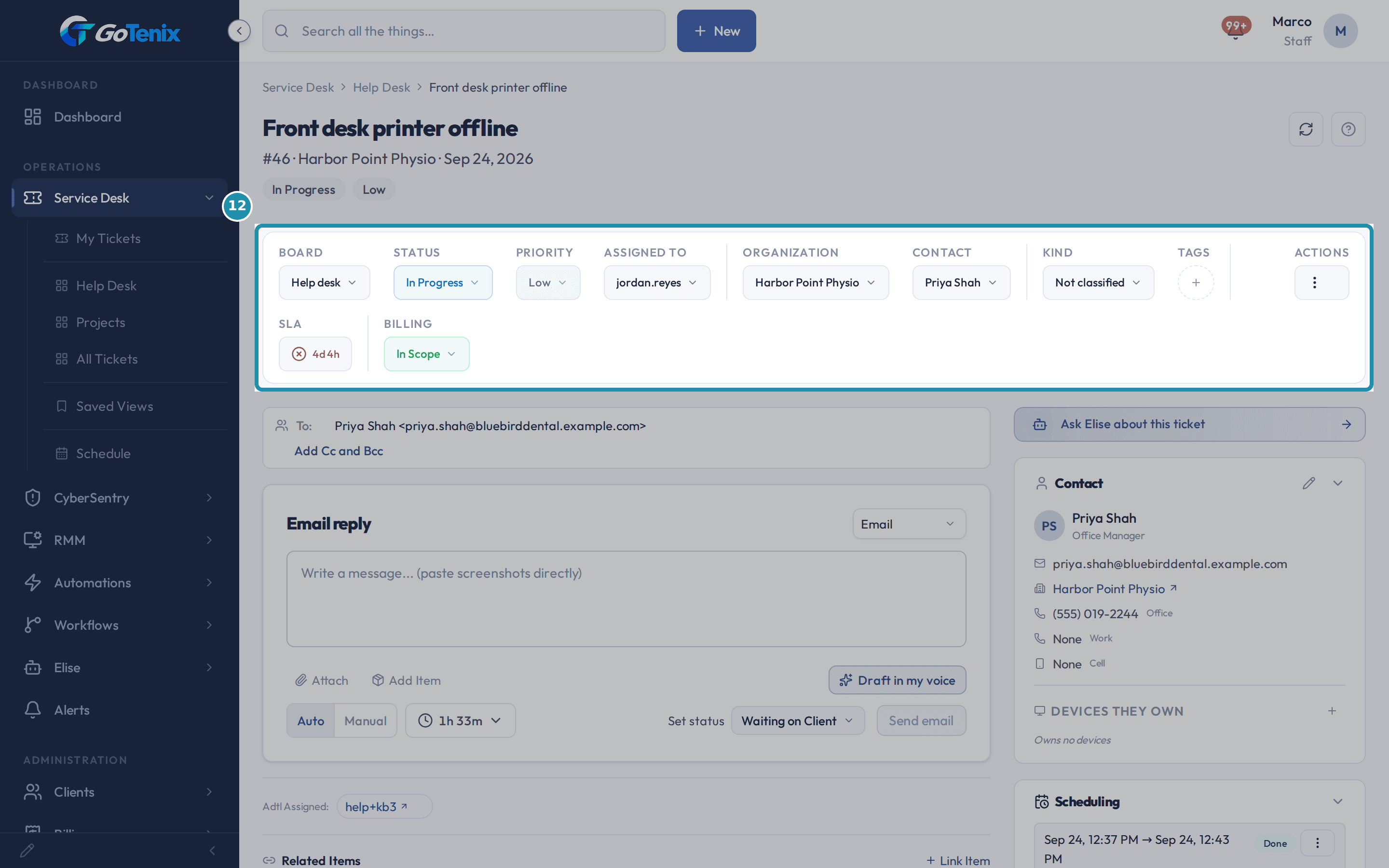 12. Log the first ticket and see exactly where it lands.
Browse
On this page
How to do it
Create the client with Clients > New Client.
Company Name, Domain, Billing Email and the billing Street Address, City, State and ZIP are the required fields. Client Type defaults to Managed. Identity Provider only says which directory the client will connect later, and it is left on None here because nothing is connected yet. Primary Contact and Contact Email name the client's main person. Harbor Point Physio, a physiotherapy clinic, is entered with Sam Okafor as its main contact.
Create the client with Clients > New Client. See what the new client defaulted to, with nothing else clicked.
The client's Overview tab shows Pod: Help Desk under its name, and a plan badge that reads No Plan until a plan is assigned. A new client lands on the board that matches its type, takes the instance's default pod so it can dispatch right away, and starts with the status Onboarding. The Client card on the right already shows Sam Okafor as the Primary Contact. The Health briefing card on this tab has a Generate with Elise button, which narrates the client's health from the nightly snapshots, satisfaction scores and response history.
See what the new client defaulted to, with nothing else clicked. Add Sam Okafor as a Contact on Users > Contacts.
The tab says it holds manual contacts for billing, tickets and meetings, and most need no portal login. Filling in Name, Email, Type and Job Title (Clinic Manager) and clicking Create Contact makes a Contact record. Type is a label on the record and grants nothing. The Type list calls the Primary option Owner (Designated) Contact.
Check Users > Portal Access.
This tab lists the people who hold portal access for the client. Sam Okafor shows as Owner with Full Access, because the person named under Primary Contact on the client is its portal owner. To give someone else access, click Add User, search their name and click their result.
Open the Onboarding tab and start the default template.
The template reads New Client Onboarding (Default) with nothing else to pick. Start onboarding copies its eight steps onto the client's checklist: Kickoff call, Gather documentation and credentials, Provision Microsoft 365 access, Deploy RMM agent, Deploy EDR, Verify backup, Security baseline, and Welcome and handoff. Each step has a due date counted from the day you start. Two of the steps carry a script reference, an optional note naming a deploy script to run.
Open the Onboarding tab and start the default template. Mark the Kickoff call step complete.
Clicking Complete strikes the step through and flips its badge to Completed. The count beside the title drops to 7 open. Every other step stays Pending, so completing one never touches the others. When the last step is done, Mark onboarding complete asks whether to set the client's status to Active.
Mark the Kickoff call step complete. Point a dedicated tech at this client from Edit > Settings.
Default Ticket Assignee started on None (use board notification rules). Setting it to jordan.reyes locks every new ticket for this client to him ahead of every other assignment mechanism and skips the pod's dispatch waterfall. The page says the lock lasts for the life of each ticket. Owning Pod stays Help Desk underneath it.
Point a dedicated tech at this client from Edit > Settings. Subscribe the client to a Core plan, starting this month.
Add Core on the client's Billing > Plans tab, then pick the Managed Desktop plan. It opens its Contract Terms: Billing Frequency Monthly, Billing Cycle Mode 1st of Month, and a Billing Start Date left blank, with No Commit and Auto-renew switched on. The helper text says to leave the date blank to bill starting today, pick a future date to avoid a prorated charge, and know that a date in the past bills every period since then, each one waiting in the approval queue so nothing is charged without approval. The finish-setting-up guide explains the other terms.
Subscribe the client to a Core plan, starting this month. See the subscription land: Active, this month's period priced.
Managed Desktop now shows Active, Next bill: Oct 1, 2026, with its Sep 1 - Oct 1, 2026 period priced: Managed Desktop Support, Base Rate $150.00, quantity 1, Monthly Total $150.00. The 1 unbilled period chip counts billing periods that have no invoice yet.
See the subscription land: Active, this month's period priced. Know where the invoices go: the Approval Queue.
Invoices are generated into Billing > Approval Queue, where each one waits for your approval before it goes out. Generate Invoices builds them. The Set up an agreement and bill a period guide walks through approving the first one.
Know which tabs your client also has in their own portal.
Documentation, Billing, Meetings, Users, Devices and Tickets on this strip each have a matching page in the client's own portal, along with Projects, Licenses and Security. The guide The client portal from your client's seat shows what they see.
Know which tabs your client also has in their own portal. Log the first ticket and see exactly where it lands.
A new ticket for Sam Okafor, Front desk check-in tablet will not connect to Wi-Fi, lands Assigned To jordan.reyes the moment it is created, on the Help desk board with Priority Low. The Communication log says why: Ticket assigned to jordan.reyes, the Default Ticket Assignee you set in step 7, not a pod waterfall pick.
Log the first ticket and see exactly where it lands.
The pages behind each click
What you will have
- Create a client organization and see what it defaults to: a board for its type, the default pod and the status Onboarding.
- Tell a manual Contact apart from a person with portal access, and check the one tab that grants a sign-in.
- Start a client on the default onboarding checklist, mark a step complete, and know what one active onboarding means.
- Point a dedicated tech at a client from Edit > Settings, ahead of the pod's own dispatch waterfall.
- Subscribe a client to a Core plan and read its contract terms, billing start date and unbilled period chip.
- Ask Elise to do the setup for you, and watch the client's first ticket land on the tech Settings already locked in.
Why it works this way: How to onboard a new client in the first week without the spreadsheet
Contacts and Portal Access are two lists. Users > Contacts holds manual contacts for billing, tickets and meetings, and most need no portal login. A contact's Type is a label on the record and grants nothing. Users > Portal Access is the tab that lists who holds portal access. The client's portal owner is the person you name under Primary Contact when you edit the client, and they carry the Owner and Full Access badges there.
A client's Default Ticket Assignee outranks its own pod. Once it is set, every new ticket for that client, however it arrives, is locked to that one person ahead of the pod's dispatch waterfall. Only an explicit manual reassignment by a person changes it.
A client can have only one onboarding in progress at a time. To start a fresh one, cancel the current checklist first.
Other ways to do this: How to onboard a new client in the first week without the spreadsheet
Skip an onboarding step
Click the skip icon next to Complete on any pending step instead of completing it.
Elise
Ask her "create a client called Harbor Point Physio with the domain harborpointphysio.example" and then "assign the Managed Desktop plan to Harbor Point Physio". Each change comes to you as a one-tap approval first. Ask "add Sam Okafor as a billing user on Harbor Point Physio" to give him portal access, and "list the portal users for Harbor Point Physio" to check who has it. Ask "give me a rundown for Harbor Point Physio" for its tickets, invoices, quotes, time, response targets and satisfaction in one table, and "write the health briefing for Harbor Point Physio for our first review" for a narrated summary. Starting the onboarding checklist and adding a manual Contact are done on screen, as in the steps above.
If it did not work: How to onboard a new client in the first week without the spreadsheet
- If a person does not show on Portal Access, add them yourself: Users > Portal Access > Add User, search their name, and click their result.
- If a client's tickets keep landing somewhere other than the tech set on Default Ticket Assignee, check that field again on Edit > Settings. It outranks the pod's dispatch waterfall until it is cleared.
- If Start onboarding will not run a second time for the same client, cancel the current checklist first. A client can have only one onboarding in progress.
Questions this page answers
How do I set up a new client?
Use New Client on the clients list. The form asks for the company name and domain, a primary contact, an email and a phone, and a billing email and address. When the MSP module is on you also pick a Client Type and an identity provider. Saving creates the client. There is no wizard, and no Onboarding item in the sidebar. Guided steps live on the client's own Onboarding tab. Build a template first, then use Start onboarding there. Each step is then marked Complete or Skip.
What happens when I create a client?
Saving the form writes the client record. If QuickBooks is connected, the portal looks there for a matching customer first. It links to that one when it finds a single clear match. It creates one when it finds none. It refuses to guess when two look alike. Nothing is created in Microsoft 365, your RMM, your PSA or your docs system. You link those afterwards, from the client's Integrations tab. No payment card is set up here.
How do onboarding templates work?
A template is a reusable list of steps. Use "Manage templates" to create or edit them, drag to reorder steps, and mark one template as the default. When you start onboarding for a client, the template's steps are copied into that client's checklist - later edits to the template do not change checklists already in progress.
What does "Mark onboarding complete" do?
It closes out the checklist even if some steps are still open, then prompts you to set the client's status from Onboarding to Active. Completing every step does the same. Setting the client Active is your confirmation - it is never done silently.
Can a client have more than one onboarding at a time?
No - a client has at most one onboarding in progress. To re-onboard, cancel the current checklist and start a new one.
Do people added here get a portal login?
Contacts are the people on file for this client. Most never get a login. The client's portal owner is the person you name with "Edit" on the client, under "Primary Contact". That person carries the "Owner" and "Full Access" badges on "Portal Access" and keeps every right. The "Type" picker on this tab is only a label on the record. That includes "Owner (Designated) Contact". It grants nothing. Anyone else gets a login only when you invite them on "Portal Access".
Was this helpful?