How to rotate local admin passwords automatically
One stolen local admin password should never open every machine you manage. Turn this on and each device running the agent gets its own random password that changes itself on a schedule, kept where only the techs you allow can reveal it, with every reveal logged.
See it
Browse
On this page
How to do it
Open RMM > Policies and open the policy your devices follow.
A device follows exactly one policy. Open the one that covers the machines you want, such as Default Workstation Policy, then click LAPS in the policy's tab list on the left. The one card on that tab is titled LAPS (rotating local-admin credential).
Set Rotate local-admin password to On.
It is a dropdown with three choices: Default (Off), On and Off. It reads Default (Off) until you change it, because rotation ships off. Pick On.
Set Rotate local-admin password to On. Name the Local-admin account you want rotated.
The box shows Default (ezcyber-laps). Left blank, each device gets a new admin account with that name and rotates it, and the admin accounts already on the machine keep their passwords. To end the shared password you use today, type that account's name, for example Administrator. Only the named account is rotated. If the account is not on the machine yet, it is created and made a local administrator. The names root, guest, daemon, nobody, bin and sys are refused. Names can be up to 64 characters.
Choose the Rotation interval (days) and press Save.
The box shows Default (30). Type a whole number of days from 1 to 365, or leave it blank for 30. A blank field always falls back to the shipped default shown inside it. Press Save, at the top or the bottom of the page.
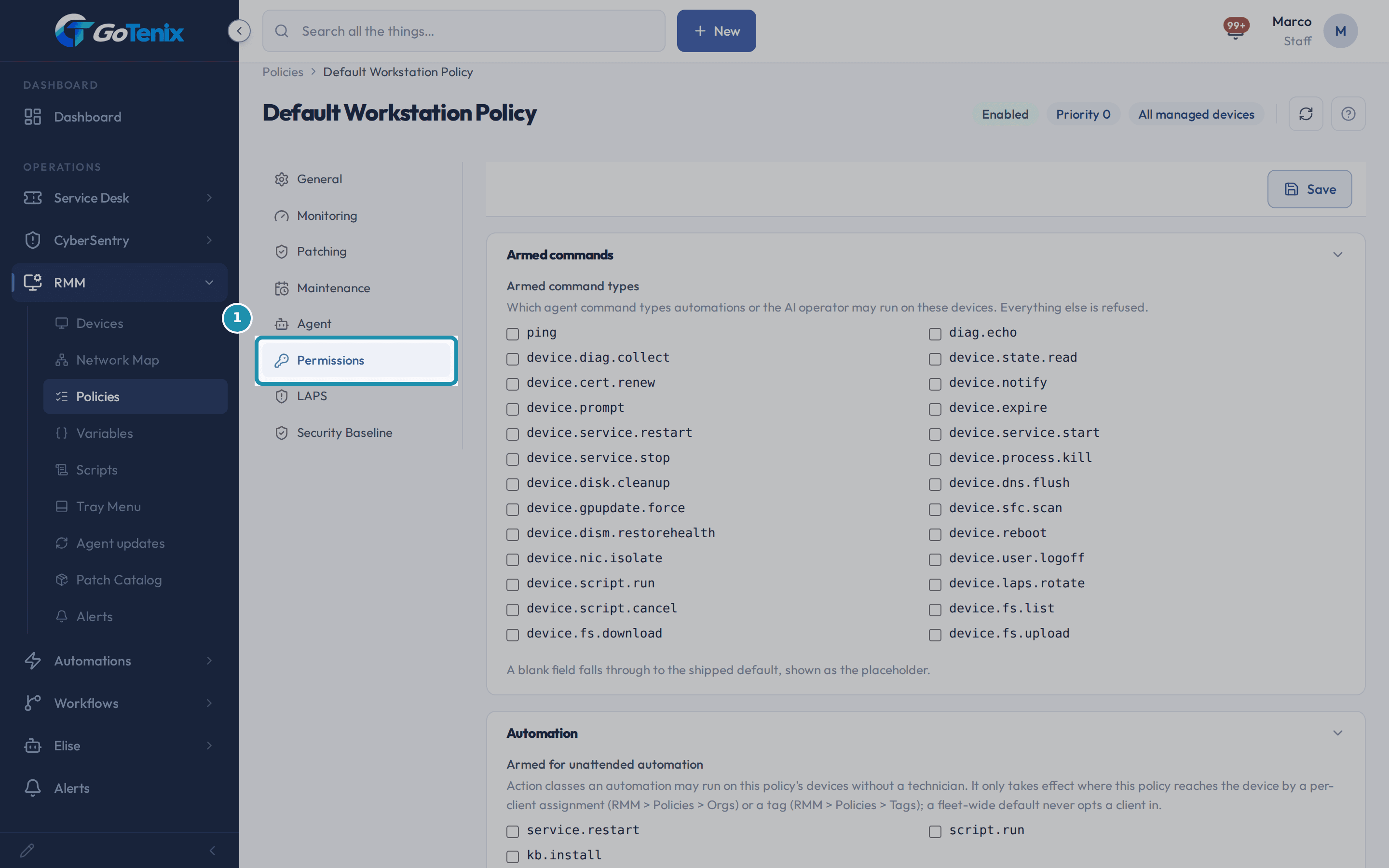
Open the Permissions tab and tick the rotate box under Armed command types.
This is the second switch. The Armed command types card says that everything not ticked is refused. It is a grid of boxes, one per agent command, each named in a short code font with no plain-language label. Tick the one that ends in laps.rotate. Use this card and not the one below it, Armed for unattended automation, which is a different list. Press Save.
Open the Permissions tab and tick the rotate box under Armed command types. Let the first rotation run.
The schedule is checked every 4 hours. A device that has never been rotated is due on the next check, so its first new password appears within about 4 hours of Save, once the device is online. After that it is due again when the interval you set has passed. The new password is 24 random characters.
Open the device, click its Security tab, and find the LAPS card.
The card lists the Account, when it was Rotated, and the Next rotation date. The Password column holds a button, Reveal local-admin password, and never the password itself. The card only appears once a first rotation has landed on that device.
Press Reveal local-admin password when you need the password.
The password opens in a code box with a Copy button beside it. Pressing Copy shows Password copied to clipboard. It is shown only in answer to your press, and reloading the page hides it again. A tech without permission sees No access in place of the button.
Give the right techs permission to reveal.
The permission is named Device LAPS Credentials. Grant it under Team > Staff Roles, in the permission group of the techs who should see these passwords. The Owner and Full Admin groups have it. Every other group has to be given it on purpose, so a tech who can edit devices still cannot read these passwords until you say so.
Open System Logs, then Audit Log, to see who looked.
Each reveal adds a row for the password view. It shows the tech and the device, and the account sits under Show details. The row is written before the password is handed over, so a password is never shown without a record of who asked. The row's badge shows the system's own action name, not a plain-language label.
What you will have
- Give each device running the agent its own random local admin password, so one stolen password opens one machine and no other.
- Change that password on a schedule you choose, every 30 days by default, with no tech touching it.
- Keep every current password in one place where only the techs you allow can reveal it.
- See who revealed which password, on which device, in the Audit Log.
- Rotate the shared local admin account you use today, such as Administrator, so its password stops being the same everywhere and never changing.
Why it works this way: How to rotate local admin passwords automatically
It ships off. A new instance rotates nothing until you turn it on in a policy and allow the action on that policy's Permissions tab. Both are needed, on purpose, so no password on a client's machine changes by surprise.
Passwords change on the schedule only. The device makes the new password itself, sets it on the account, and only then reports it for safekeeping. Revealing a password never changes it, so a tech can read it, use it, and the next change still lands on or just after the date the device shows. If you change the interval, the new one applies at the next check.
The passwords are stored encrypted under your own instance's key, never in a policy, and the page never shows one until a permitted tech presses the reveal button. Elise, the built-in assistant, cannot read the stored passwords at all.
If it did not work: How to rotate local admin passwords automatically
- The device still has its old password: check that both switches are on. Rotate local-admin password must read On on the policy the device follows, and the laps.rotate box must be ticked under Armed command types on that same policy.
- No LAPS card on the device's Security tab: no rotation has landed on it yet. The card appears after the first one.
- A device that is off when its rotation comes due keeps the request waiting for up to 60 minutes. If it is back in that time it rotates. If not, the request lapses when the device next checks in, and the next 4-hourly check asks again.
- A device a tech has switched execution off for does not rotate either, because the rotation is a command and that device is set to refuse commands.
- No Reveal button, only No access: your team group does not have Device LAPS Credentials. Ask an Owner or Full Admin to add it.
Questions this page answers
How do I rotate local admin passwords on every client computer?
Turn on Rotate local-admin password on the RMM policy the devices follow, name the admin account to rotate, tick the rotate box under Armed command types on that policy's Permissions tab, and each device running the agent gets its own random password on the schedule you set.
How often does the local admin password change?
Every 30 days by default. You can set any whole number of days from 1 to 365, and the schedule is checked every 4 hours.
Who can see a device's local admin password?
Only people whose team group has Device LAPS Credentials, which the Owner and Full Admin groups have. Everyone else sees No access.
Does revealing a local admin password change it?
No. A reveal is logged in the Audit Log and nothing more. The password changes only on its schedule.
Was this helpful?