When something changed and nobody did it
How to see why the system changed something
See which job, setting or assistant changed a ticket, invoice or device, right on the record, or ask Elise why in plain words. Your ticket and invoice exports carry the same reason in a Why column.
See it
Browse
On this page
How to do it
Open a ticket that was assigned without anyone picking a tech, then open History in the right column.
Two rows, two kinds of actor. The lower row is tagged "system", reads "Autonomous dispatch", then "to jordan.reyes", then "Dispatched". The row above it is tagged "user" and names the person who reassigned it after. One names a behavior and the tech it picked; the other names a person.
Open a ticket that was assigned without anyone picking a tech, then open History in the right column. Open a different ticket and read the same card.
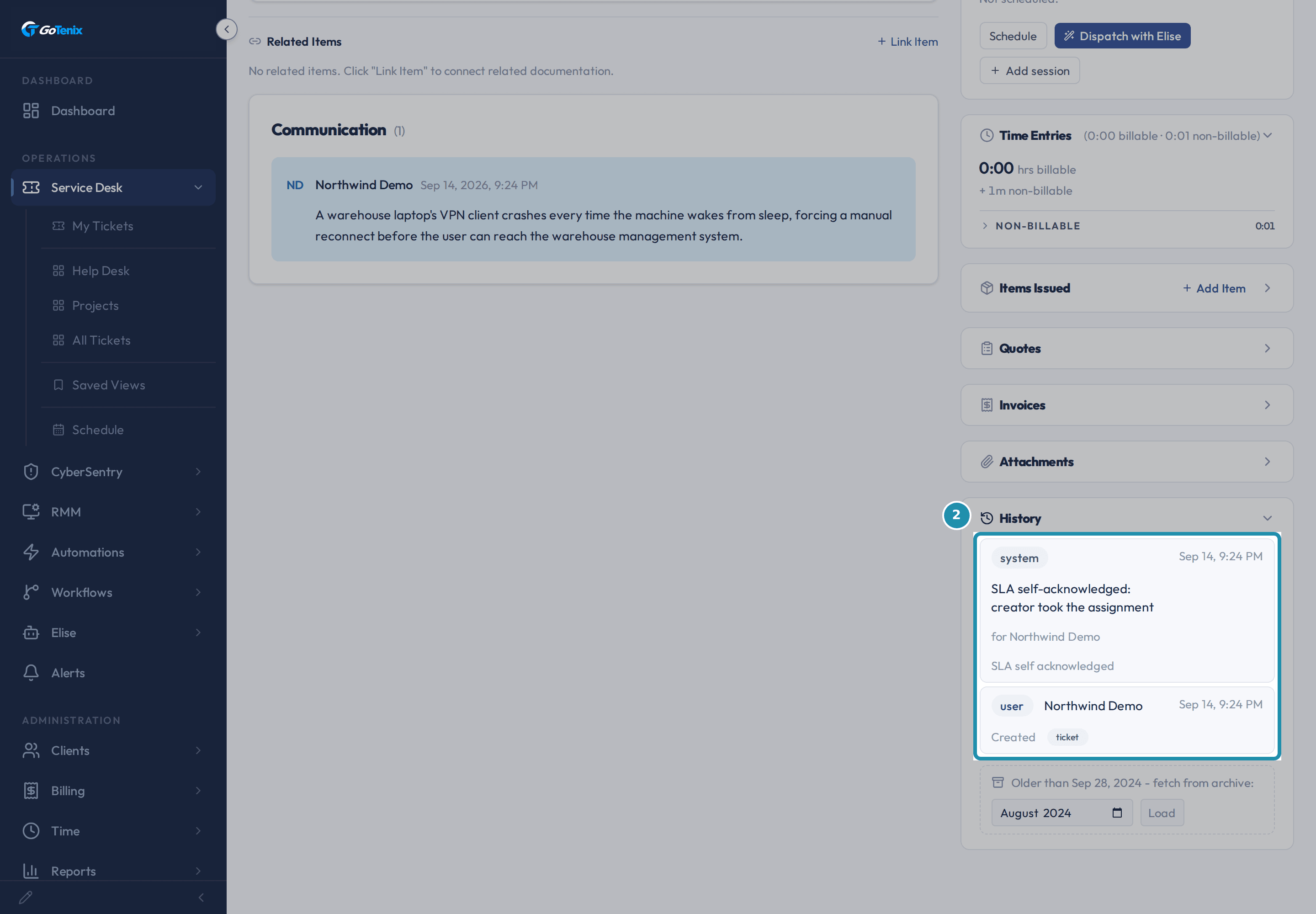
Here the system row reads "SLA self-acknowledged: creator took the assignment", with "for Northwind Demo" after it. A whole sentence, not a code. The clause after the name is the person the row is credited to, so it reads "for" here and "to" on a dispatch row.
Open a different ticket and read the same card. Open an invoice that went overdue on its own.
The status badge reads Overdue. Right beside it, the same line reads "via Invoice overdue sweep". The answer sits next to the value it explains.
Scroll to History on the same invoice.
Each row is tagged system or user. One names the Recurring billing engine, which created the invoice. One names the person who approved it. One names the Invoice overdue sweep, which marked it overdue. The record says which was which without anyone writing a note.
Click the top row.
It opens in place and lists the facts the job acted on, such as the due date and the invoice number. The reason and the facts are one entry, so "what did it look at" does not need a second screen.
Open a ticket that Elise has touched.
Her rows are tagged "elise", name what she did, and credit the person who asked with "for" and their name. A system row and a user row can sit in the same card. An assistant action is recorded the same way a scheduled job is, and it says whose request it was.
Read the same events from the other end: Automations, then History.
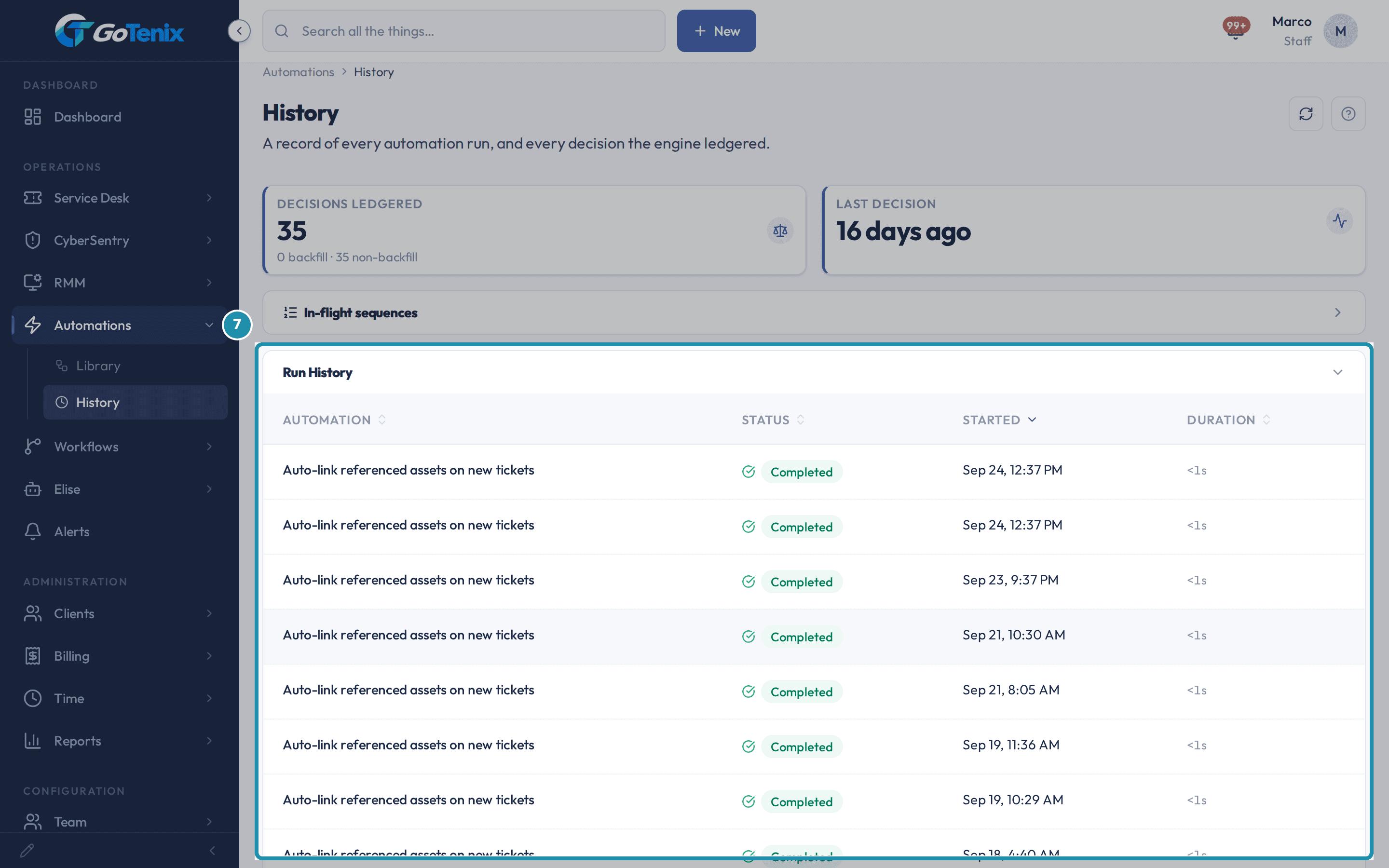
The page opens with Decisions ledgered and Last decision. In-flight sequences shows multi-step automations that are waiting. Run History lists each run with its status, when it started and how long it took. Engine Decisions lists each decision the engine made, with its subject, event, outcome and ticket. The record says which behavior changed it, and this page says that behavior ran.
Read the same events from the other end: Automations, then History. Check a device's Activity tab.
An automated row there carries the same "via" chip beside the actor. The tab's CSV export has a Why column too.
Export a ticket or invoice list.
The ticket export and the invoice export both have a column headed Why. A spreadsheet handed to somebody outside the portal keeps the reason attached to the row.
Check the Audit Log for the same story across the whole portal.
Open System Logs, then Audit Log. A row with no person behind it reads "via" and the name of the behavior that caused it. The word System usually appears when no cause was recorded. Use the All actions filter to list one kind of change on its own.
Ask Elise why, in plain words.
Elise's "Explain why something happened (diagnostic)" ability reads a record's audit trail and the settings that control the behavior. She answers with the setting, its current value, where to change it and the event she found. If the cause was never recorded, she says so and names what is missing. Try: "Why was ticket 1234 assigned to Jordan?" or "Why is this invoice marked Overdue?"
Know who can ask, and about what.
You need view access to Settings and view access to the record itself. A tech who cannot open an invoice cannot ask her why it changed. She can explain tickets, invoices, clients, users, devices, knowledge base entries, vault entries, procedures, network devices, documents, domains and expirations.
Find the control behind a behavior, or change a safe one.
Ask: "Which setting controls ticket auto-close?" She looks up what controls it, what it is set to now and where to change it, and she never changes anything while looking. To change one, tell her the new value. She asks for your one-tap approval first. She declines settings that are sensitive, owner-level or high risk, which you change on their own Settings page.
Hand the evidence to someone else.
Ask: "Export the engine decisions as a CSV." She gives you a download link, and the link checks your own access when you click it. You need view access to Reports and to Automations to ask for the engine decisions.
The pages behind each click
What you will have
- Tell at a glance whether a person or the system changed a ticket, and read the name of the behavior that did it.
- See which job marked an invoice Overdue, beside the status itself.
- Read the whole life of an invoice on one card: what created it, who approved it, what flagged it.
- Find every decision the automation engine made, from the engine's side as well as the record's.
- Ask Elise "why did this happen" about a ticket, invoice, client or device, and know who is allowed to ask.
- Hand a ticket or invoice export to someone outside the portal with the reason still attached.
Why it works this way: How to see why the system changed something
A change is named by what acted, not by whoever held the session. A job that runs at eight in the morning has no person behind it, so the row carries the job's name instead of borrowing one. When a person is involved, they are named after the thing that acted.
The reason sits with the change. Opening a history row shows what moved and what decided it in one place, so nobody has to line up two logs by timestamp.
The same "via" chip shows up on tickets, invoices, devices, expirations and plan subscriptions. So the words you learn on the service desk are the words you read in billing.
Try it on something you run today. Pick one record that changed while nobody was looking and ask the record what changed it. Either the answer is on the record, or somebody has to remember it.
Other ways to do this: How to see why the system changed something
Start from the behavior instead of the record
Open Automations, then Library, and pick any row tagged Setting. The line under the rule's name links back to the page that controls it.
Filter the Audit Log by action
Open System Logs, then Audit Log, and use the All actions filter to list one kind of automated change on its own.
If it did not work: How to see why the system changed something
- Every row names a person: then a person made every change on that record, which is exactly what the rows are telling you.
- Elise says the cause was not recorded: she names what is missing instead of guessing. The Audit Log is the next place to look.
- Elise says she cannot explain a record: you need view access to Settings and to that kind of record before she can read its trail.
Questions this page answers
What does History track?
History has three parts, under cards that show how many decisions the engine has ledgered and when the last one was. In-flight sequences lists multi-step rules that are waiting on their next step. Run History lists each automation run with its status, start time and how long it took, newest first, and a click on a run shows its trigger and the result of each node. Finished runs older than 90 days are removed. Under it, Engine Decisions shows what the engine read and what it chose. Click a column heading to sort the run table.
Was this helpful?