How to turn on network mapping
See every client's networks, gateways, subnets and the machines on them, including machines with no agent, without running a scanner: one switch under Settings > RMM > Network Mapping arms it for the whole fleet, with a per-client exclusion.
See it
Browse
On this page
How to do it
Open Settings > RMM > Network Mapping.
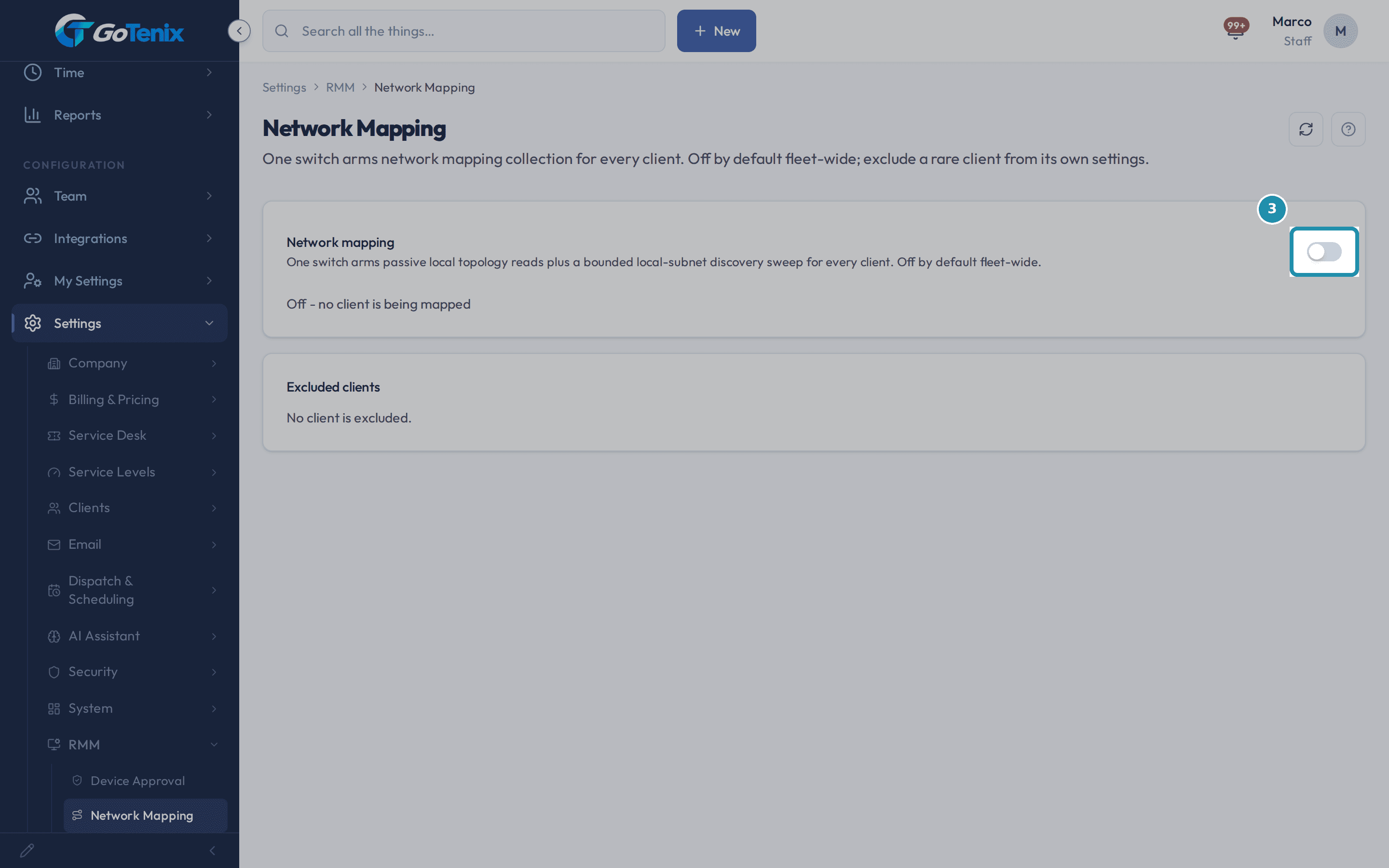
It is its own settings page, listed under RMM in the Settings rail next to Device Approval. It holds one switch, Network mapping, and an Excluded clients panel.
Read the switch before touching it.
It starts off, and the line under it reads "Off - no client is being mapped". The helper text says what turning it on does: "One switch arms passive local topology reads plus a bounded local-subnet discovery sweep for every client. Off by default fleet-wide." In plain words, each client's agents send what their own machine already knows about the network it sits on, its subnets, its route table and the neighbors in its ARP cache, plus a bounded scan of its own local subnet and nothing past that. Those readings build the picture on RMM > Network Map.
Read the switch before touching it. Turn the switch on.
One click, no confirmation, and it applies at once. The line under the switch becomes a count of clients mapped, and a toast reads "Network mapping turned on for the fleet". New clients created later are armed too, from the moment they exist. The flip is recorded in the audit log with the number of clients it armed.
Turn the switch on. Open RMM > Network Map.
The list shows every client's networks with Client, Network, Public IP, Internal IP / range, Devices and Last scan columns. You can search by network name or IP and filter to one client. Until the first scan arrives it reads "Mapping is on. Networks appear here after the next scan." A client's own Network Map is also in that client's menu, scoped to that client. Give a network a name with Rename network, and everyone on that client sees it. It shows the latest reading only, and a network drops off 30 days after a device last reported it.
Open a network to see its map.
The page shows its public IP, its gateway, its subnets, the devices with an agent and the other hosts seen on the network with no agent. The map draws each device as a pill: Agent, No agent, or Not seen in 24 h. When the gateway has stored routes to other networks, a Behind the router section lists them, by the name you gave them or by their range, and goes no further than those routes. Click one for its OS, last seen time, IP, MAC address, DNS name and which device saw it.
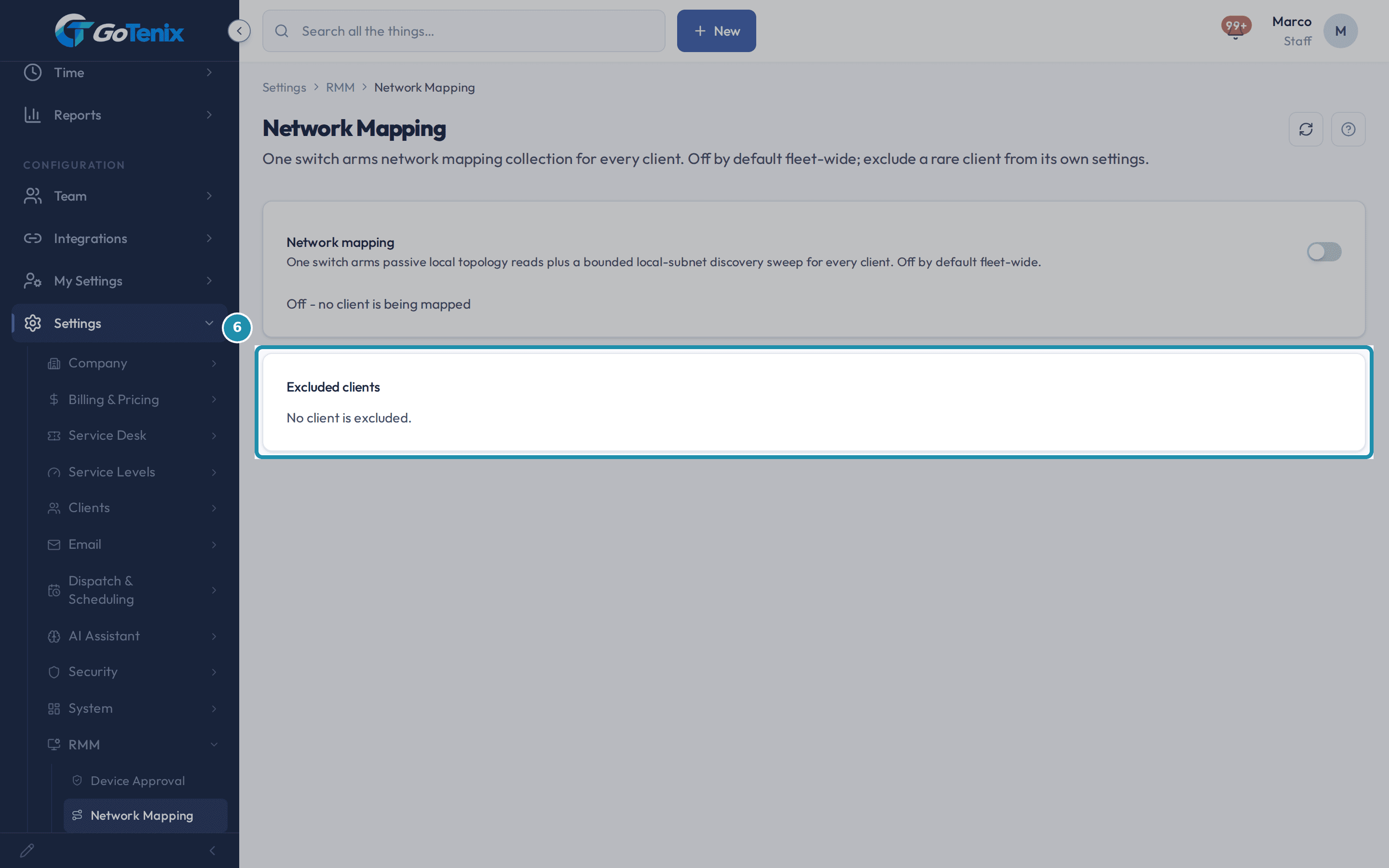
See the Excluded clients panel on the settings page.
It sits right below the switch. A client shows up here once it is excluded on its own RMM tab, with an Un-exclude button to bring it back in. With nobody excluded it reads "No client is excluded." This panel only narrows who the switch reaches, and it is never a second way to turn the whole thing off.
See the Excluded clients panel on the settings page. Open Clients, pick a client, then its RMM tab, for the one exception.
A card near the top, titled Exclude from network mapping, says "This client follows the fleet-wide network mapping switch unless excluded here." With the switch on and the box unticked, its status line reads "Currently mapped (the fleet-wide switch is on)". Ticking the box takes that client's devices out while every other client keeps collecting, and unticking it returns the client to following the switch. The same tab holds that client's variables.
Turn the switch back off to close the loop.
It is the same single click on the Network Mapping settings page, and a toast reads "Network mapping turned off for the fleet". Collection stops for each client at its agents' next check-in. Whatever a device already reported stays on its map until it ages out, so the map tells the truth about when it last saw something instead of going blank. Turning the switch on later picks collection straight back up for every client that is not excluded.
What you will have
- See each client's network the way its devices report it: gateways, subnets and the machines on them, on RMM > Network Map.
- Spot machines on a client's network that have no agent installed.
- Turn network mapping on for every client with one switch, and leave out a rare client from its own RMM tab.
- Turn it off again and know what stops and what stays.
Why it works this way: How to turn on network mapping
Network mapping is one switch for the whole fleet. One flip arms every client at once, existing and new, and the only per-client control is an exception: a checkbox on a client's own RMM tab that takes that one client out while everyone else stays in.
Every flip of the switch writes one row to the audit log, and so does a client's own exclude checkbox. Being armed is worked out when each device checks in, so no per-client row is created when the switch arms many clients at once.
Other ways to do this: How to turn on network mapping
The client's own RMM tab
Clients > pick the client > RMM shows the same Exclude from network mapping card used in step 7.
Read what the agents reported
RMM > Network Map lists every network your agents report and draws each one. How to read the Network Map walks through the list, the map, the pills and naming a network.
If it did not work: How to turn on network mapping
- If the Network Map says "Network mapping is off", turn the switch on in Settings > RMM > Network Mapping.
- If a client's map says "This client is excluded from network mapping", turn off the exclude checkbox on its RMM tab.
- If the toggle will not stay on, check your access: turning the switch on or off needs the delete right on RMM, the same as deleting an RMM record, while the client's exclude checkbox needs only edit access on that client.
- If the fleet switch is off, a client's own exclude checkbox does nothing either way: nobody is mapped while the switch is off.
Questions this page answers
What does turning network mapping on do?
It tells every client's agents to send what their own machine already knows about the network: the subnets its cards are on, its route table, and the neighbors in its ARP cache, plus a bounded discovery sweep of its own local subnet. Nothing outside that bound is scanned. The readings build the picture you see on RMM > Network Map. One switch, the whole fleet - there is no per-client toggle any more.
Why is it off by default, and how do I leave one client out?
It starts off. This is new, so off is the safe start. Turning it on arms every client at once. New clients get it too. If one client should sit out, use the exclude checkbox on that client's RMM tab. Everyone else keeps collecting. Every flip, and every exclude, goes in the audit log.
What happens when I turn the switch back off?
Collection stops fleet-wide at each agent's next check-in. The readings already collected stay on the map until they age out, so the page keeps telling you the truth about when it last saw each thing. Turning the switch back on picks straight back up for every client that isn't excluded.
How do I keep the switch on but leave one client out?
Open that client's RMM tab. Go to Clients, pick the client, then RMM. Turn on "Exclude from network mapping" there. This only narrows the switch. It needs normal edit access, not owner-level access. This page's excluded list shows who is out. Click to bring one back.
Was this helpful?