How to set time tracking rules and SLA targets
Capture billable time without anyone remembering to press Start, and hold every ticket to response and resolution targets per priority, with a warning before a response target is missed and a different target for any one client.
See it
Browse
On this page
How to do it
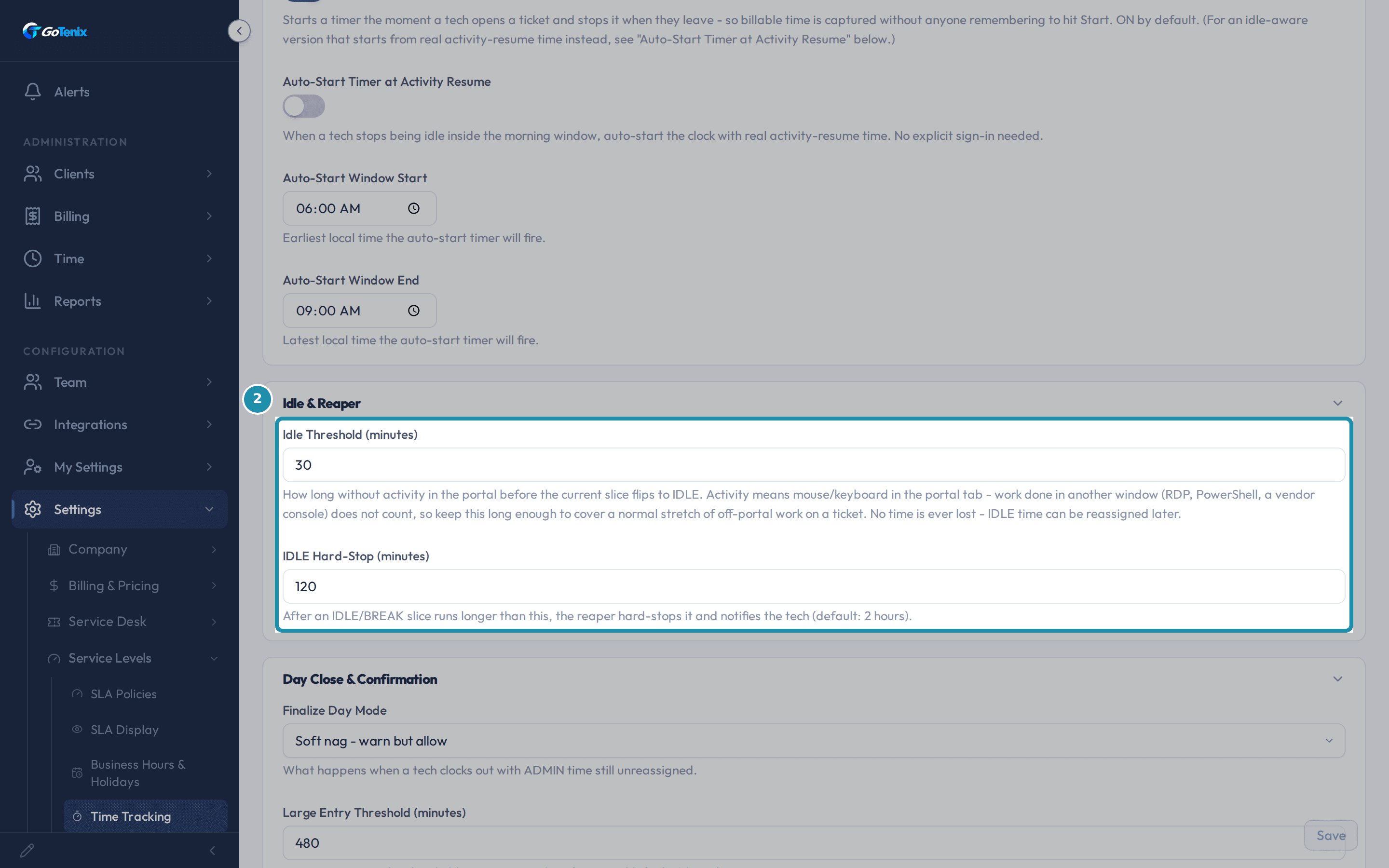
Open Settings, then Service Levels, then Time Tracking, and check Auto-Start Timer.
Auto-Start Timer starts a timer the moment a tech opens a ticket and stops it the moment they leave, so billable time is captured without anyone remembering to hit Start. It is on by default. Auto-Start Timer at Activity Resume is a separate toggle, off by default: when a tech stops being idle inside a set morning window, it starts the clock from real activity-resume time instead, with no explicit sign-in needed. Auto-Start Window Start and Auto-Start Window End set that morning window, 6:00 AM to 9:00 AM by default.
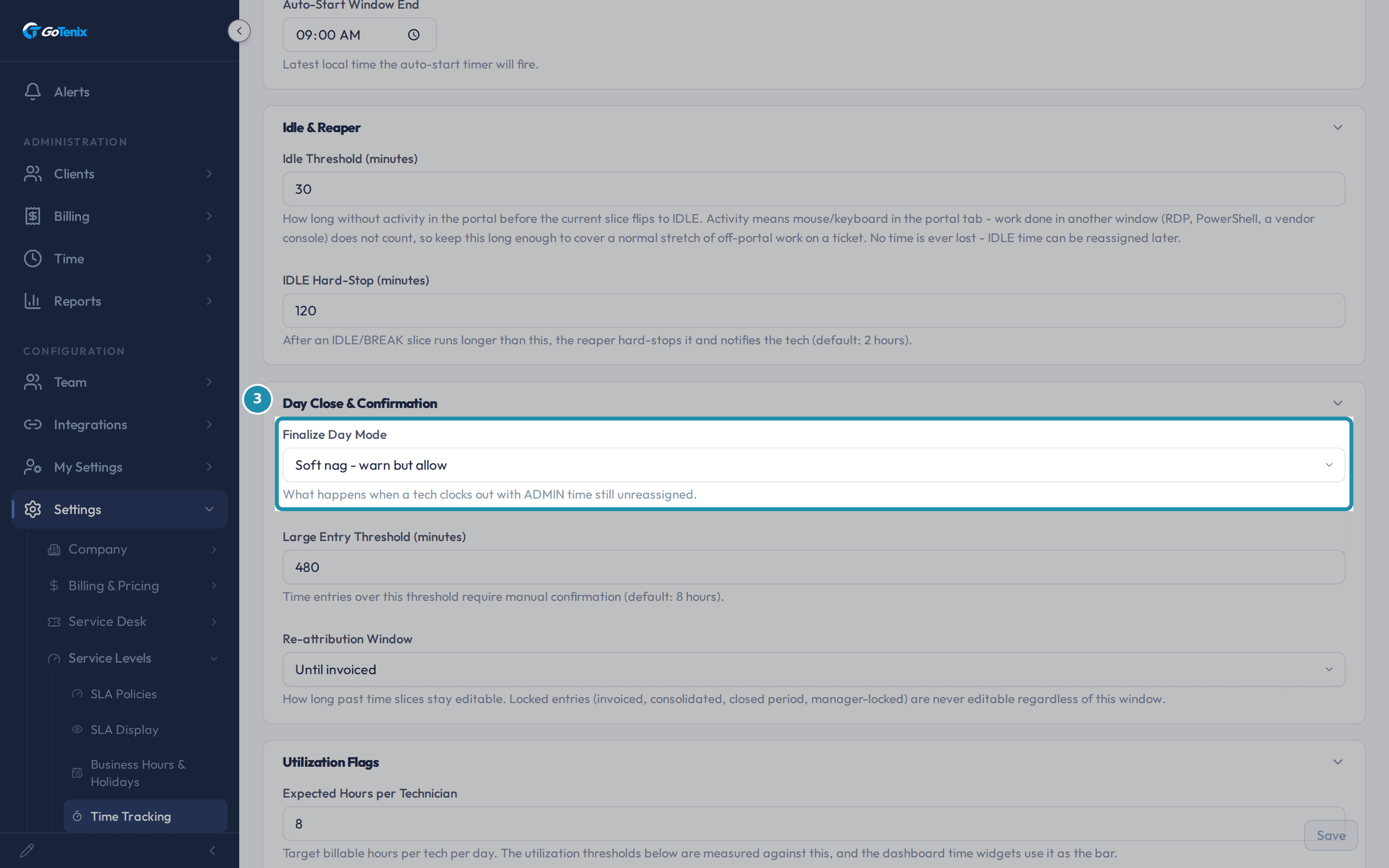
Open Settings, then Service Levels, then Time Tracking, and check Auto-Start Timer. Scroll to Idle & Reaper to see when a timer goes idle, and when it gets force-stopped.
Idle Threshold is how long a tech can go without mouse or keyboard activity in the portal tab before the current time slice flips to IDLE, 30 minutes by default. Work in another window, such as RDP, PowerShell or a vendor console, does not count, so set it long enough to cover a normal stretch of off-portal work on a ticket. No time is lost when a slice goes IDLE; it can be reassigned later. IDLE Hard-Stop is the second, longer limit: when an IDLE or BREAK slice runs past it (120 minutes by default), the portal force-stops it and notifies the tech, so a forgotten browser tab cannot run all day.
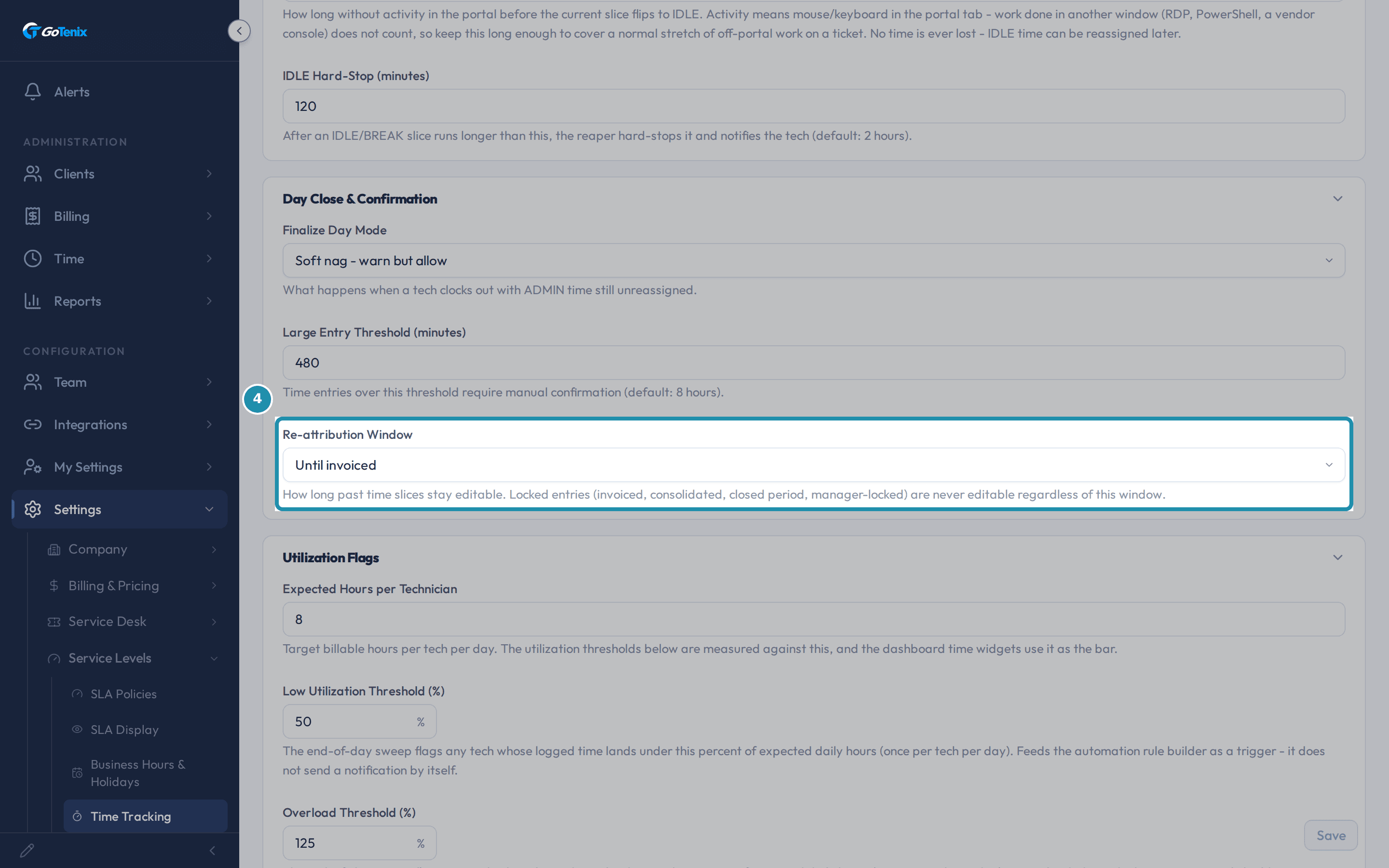
Scroll to Idle & Reaper to see when a timer goes idle, and when it gets force-stopped. Scroll to Day Close & Confirmation and open Finalize Day Mode.
Finalize Day Mode controls what happens when a tech still has ADMIN time, unattributed minutes, at the end of a day. Off - no nagging runs no check. Soft nag - warn but allow, the default, warns the tech but lets them keep working, with a Discard option. Hard block - must reassign first stops new work, clocking in, allocating time and discarding until that leftover time is attributed. Large Entry Threshold, just below it, requires manual confirmation on any single time entry over this many minutes, 480 by default.
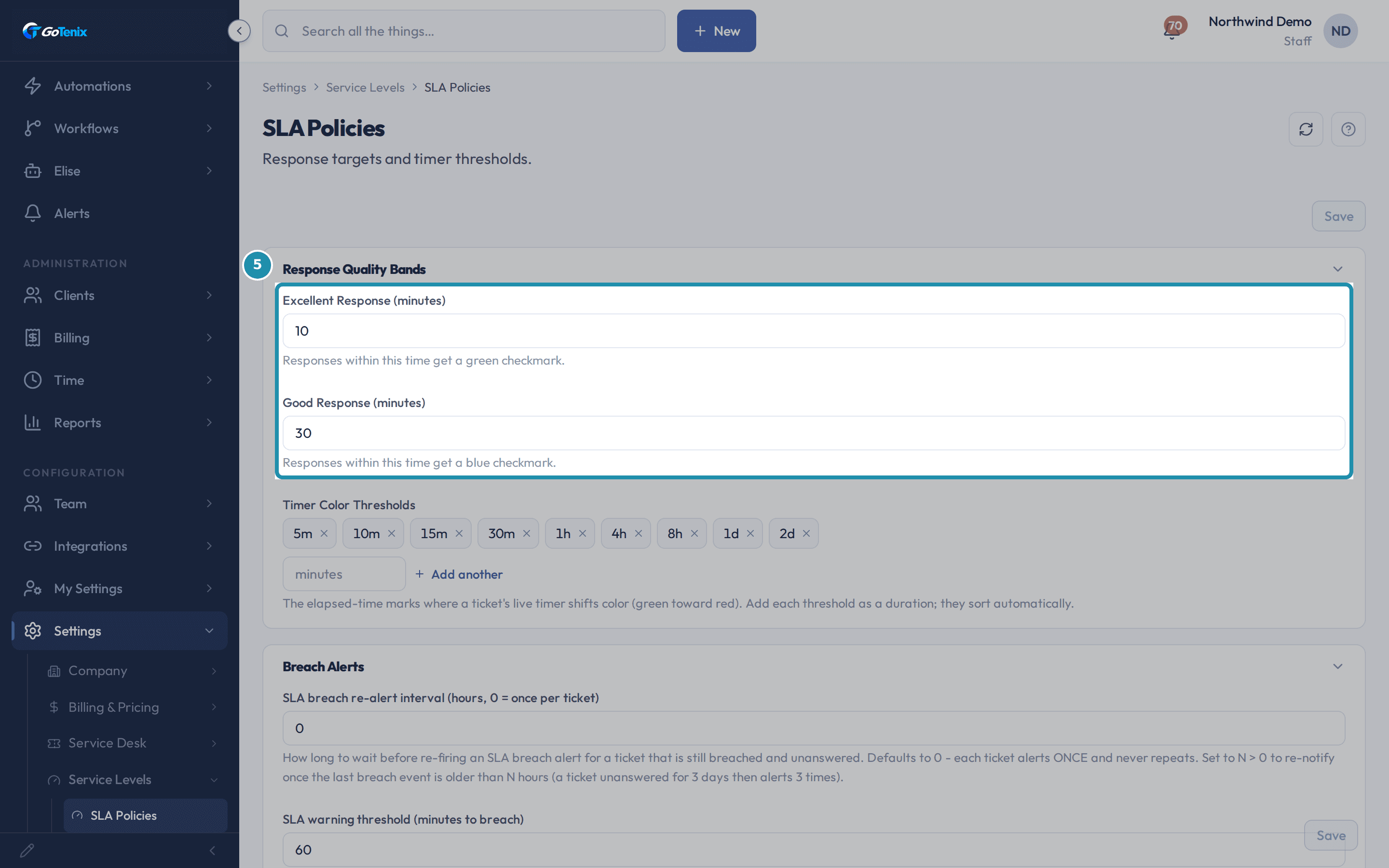
Scroll to Day Close & Confirmation and open Finalize Day Mode. Below Finalize Day Mode, read Re-attribution Window.
Re-attribution Window is one rule that governs both editing existing time entries and creating backdated ones: Unlimited (no age limit), 7 days, 30 days, Until period close (locked once the entry's calendar month ends), or Until invoiced, the default (free to change until the entry lands on an invoice). Locked entries, invoiced, consolidated, in a closed period, or manager-locked, are never editable regardless of this window. Closing an accounting period, from the actions menu on Time > My Time, hard-locks every entry dated on or before the close date no matter what this window says.
Below Finalize Day Mode, read Re-attribution Window. Open Settings, then Service Levels, then SLA Policies, and read Response Quality Bands.
SLA Policies holds Response Quality Bands (Excellent Response and Good Response, the minute counts that earn a green or blue checkmark on a ticket's first reply), Timer Color Thresholds (the elapsed-time marks where a ticket's live timer shifts from green toward red; each is a chip you can remove, and Add another adds more), and Breach Alerts below them. The per-priority response and resolution targets are not here; they are on SLA Display, in step 7.
Open Settings, then Service Levels, then SLA Policies, and read Response Quality Bands. Scroll to Breach Alerts and set when you hear about a ticket in danger.
Breach Alerts has two fields. SLA warning threshold (minutes to breach), 60 by default, fires an approaching-breach warning when an unanswered ticket is within that many minutes of its response deadline, once per ticket. SLA breach re-alert interval (hours, 0 = once per ticket), 0 by default, controls repeats: at 0 each breached ticket alerts once and never again; at 3, a ticket still breached and unanswered alerts again once the last alert is more than 3 hours old. Only the response deadline is watched; a Resolution time does not alert. Tickets in a status that pauses the SLA clock, and tickets on project boards, are not checked.
Open SLA Display and set a priority's Response Time and optional Resolution time.
SLA Display shows four cards on one page, CRITICAL, HIGH, MEDIUM and LOW, each with Response Time, Unit and Counting, its own Save Changes button, and an optional Resolution time. Response Time is the first-reply target. Counting is either Business Hours or Calendar Time (24/7); the Business Hours option shows your own working days and hours in brackets, which you set under Business Hours & Holidays, so a 2 hour CRITICAL target counted in Business Hours means 2 working hours. Resolution time is optional: leave it at 0 and the card says "No resolution target - resolution-due stays unset." Set a number and the card says it drives resolution-due. Each save applies to the tickets that come after it (see the last step).
On SLA Display, read the quality bands and timer colors it mirrors.
Below the four cards, SLA Display shows Excellent Response, Good Response and Timer Color Thresholds as read-only values, each with an Edit in Service Levels -> SLA Policies link. Change them on SLA Policies, in step 5.
Open a client's Billing, then Plans, then Edit subscription, to give that one client different SLA targets.
Per-client overrides live on the client's own subscription, reached from Billing, then Plans, then Edit subscription on one of that client's plan cards. Pick SLA Response Times on the left side bar (it is there for Core plans). It shows CRITICAL, HIGH, MEDIUM and LOW, each blank with its default as a grey placeholder, plus a Business Hours Start and End override. Leave a field blank and that client follows the default from SLA Display; type a number of minutes and it becomes that client's own target, which wins over the global default.
Back on Time Tracking, scroll to Utilization Flags.
Expected Hours per Technician is the target billable hours per tech per day, 8 by default; the utilization thresholds below it are measured against it, and the dashboard time widgets use it as the bar. Low Utilization Threshold (%), 50 by default, and Overload Threshold (%), 125 by default, are the two fields under it. The page says the end-of-day sweep flags a tech against each one and feeds the automation rule builder as a trigger, but sends no notification by itself, so build an alert on it in Automations if you want one.
Know which tickets stop the SLA clock.
A status marked Pauses SLA, such as Waiting on Client, stops the clock for a ticket sitting in it. When the ticket leaves that status, the paused time is credited back and the due dates move out by that much. Which statuses pause the clock is your choice, set per status on the Service Desk status workflow page, so a status nobody has marked never pauses anything.
A saved target applies to tickets from then on.
A ticket's due dates are worked out when it is created, reopened, moved to another board or given a new priority, from that priority's target on SLA Display or from the client's own override. Saving a new target does not rewrite the due dates already on tickets that are open.
Ask Elise to add up time or report on your SLAs.
With Reports view access, ask "Summarize our SLA attainment for the last 90 days" and she reports first-response and resolution met rates overall, by month and by priority, and names the clients with the most misses; add a client name to scope it to one client. With Time view access, ask "How did the team do this week?" for a per-tech time report, "Which client used the most tech time in the last 30 days?" for a ranking, or "Where did Alice's time go yesterday?". To change time instead, say "Log 45 minutes on ticket 1234" and she logs it as a manual entry. To find a setting, ask "What controls the SLA warning before a breach, and what is it set to?" and she answers from the settings map.
What you will have
- Turn Auto-Start Timer on or off, and set the morning window for the activity-resume variant.
- Set how long a tech can sit idle before time flips to IDLE, and when an idle timer is force-stopped.
- Choose a Finalize Day Mode and a Re-attribution Window.
- Set the per-priority response and resolution targets on SLA Display.
- Get a warning before a response target is missed, and decide how often a breach re-alerts, under Breach Alerts on SLA Policies.
- Give one client its own SLA targets, and ask Elise to add up time or report SLA attainment.
Why it works this way: How to set time tracking rules and SLA targets
Service Levels splits the SLA settings across two pages on purpose. SLA Display holds the four per-priority targets (CRITICAL, HIGH, MEDIUM and LOW). SLA Policies holds the response quality bands, the Timer Color Thresholds and Breach Alerts. SLA Display also shows the quality bands and timer thresholds read-only, with a link to edit them on SLA Policies.
Time Tracking's fields do not save themselves. Every field on that page, including Auto-Start Timer, waits for the page's Save button; clicking a toggle only changes what is on screen until you save.
A per-client SLA override on the client's own subscription wins over the global default set on SLA Display.
If it did not work: How to set time tracking rules and SLA targets
- If Finalize Day Mode or Re-attribution Window will not change, check that the field shows the value you picked and click the page's Save; every field on Time Tracking waits for it.
- If a client's SLA targets do not look like they moved, check that client's own subscription for an override first; a target set there wins over anything changed on SLA Display.
Questions this page answers
What does the Re-attribution Window control?
One rule that governs both editing existing time and creating backdated entries. Unlimited - no age limit. 7 or 30 days - entries older than that are locked. Until period close - locked once the entry's calendar month ends. Until invoiced (the default) - free to change until the entry lands on an invoice. Separately, closing an accounting period (the actions menu on Time > My Time) hard-locks every entry dated on or before the close date, whatever the window says.
How do I give one client different SLA targets?
Per-client overrides live on the client's Subscription (Billing > Plans on the client detail page). The contractual override always wins over what you set here - these tabs configure the global Default tier that applies when a client has no override.
What are expected hours?
Settings → Service Levels → Time Tracking includes the Utilization Flags card. Its Expected Hours per Technician field sets the target billable hours per tech per day (default 8). This is the denominator for the utilization percentages on the dashboard. A separate, fixed rule sends an end-of-day reminder to any tech who logged under 75% of their expected hours; that 75% is fixed and not this field. The same card also has a Low Utilization Threshold (%) field (default 50). It does not drive that reminder. It feeds the automation rule builder, so you can build your own alert off it. Example: with Expected Hours per Technician set to 6 and a tech logging 4.5 hours, utilization is 75%.
How do timer color thresholds work?
Comma-separated minute values, low to high. Default "5,10,15,30,60,240,480,1440,2880". As elapsed minutes cross each threshold, the live ticket timer ramps green to amber to red. On this page the value is a read-only mirror; use the Edit in SLA Policies link to change it, where each threshold is its own removable chip, with an "Add another" button to add more.
Was this helpful?