How to finish setting up a client: co-managed access, contract terms, cancelling a plan and a few extras
Choose how a client's subscription is charged, give the client's own IT staff co-managed access, and cancel or reactivate a plan knowing exactly what billing will do. Three small extras are covered too: where the Microsoft tenant ID comes from, vault one-time codes and onboarding script references. Elise can assign the plan and brief you on the client.
See it
Browse
On this page
How to do it
Open Clients, click New Client, and look at the Identity Provider field.
Identity Provider only says which directory this client will connect, such as Microsoft 365. There is no box anywhere for a Microsoft tenant ID. The connection is made when the client's Microsoft Global Admin approves consent, and the client's owner sees a banner in their portal that starts that approval or copies the link to send.
Open the client, click Edit, go to Settings, and turn on Co-Managed IT.
With it on, this client's own IT Admin and Primary Contact users, and its Owner, work inside their own company. They can claim tickets, log time, write internal notes and escalate to you, and they see a fuller read-only CyberSentry security view. If no user on the client holds one of those roles yet, the page warns: "No user on this client is eligible for the full CyberSentry security view yet (IT Admin, Primary, or Owner). The feature will have no viewer until one is added."
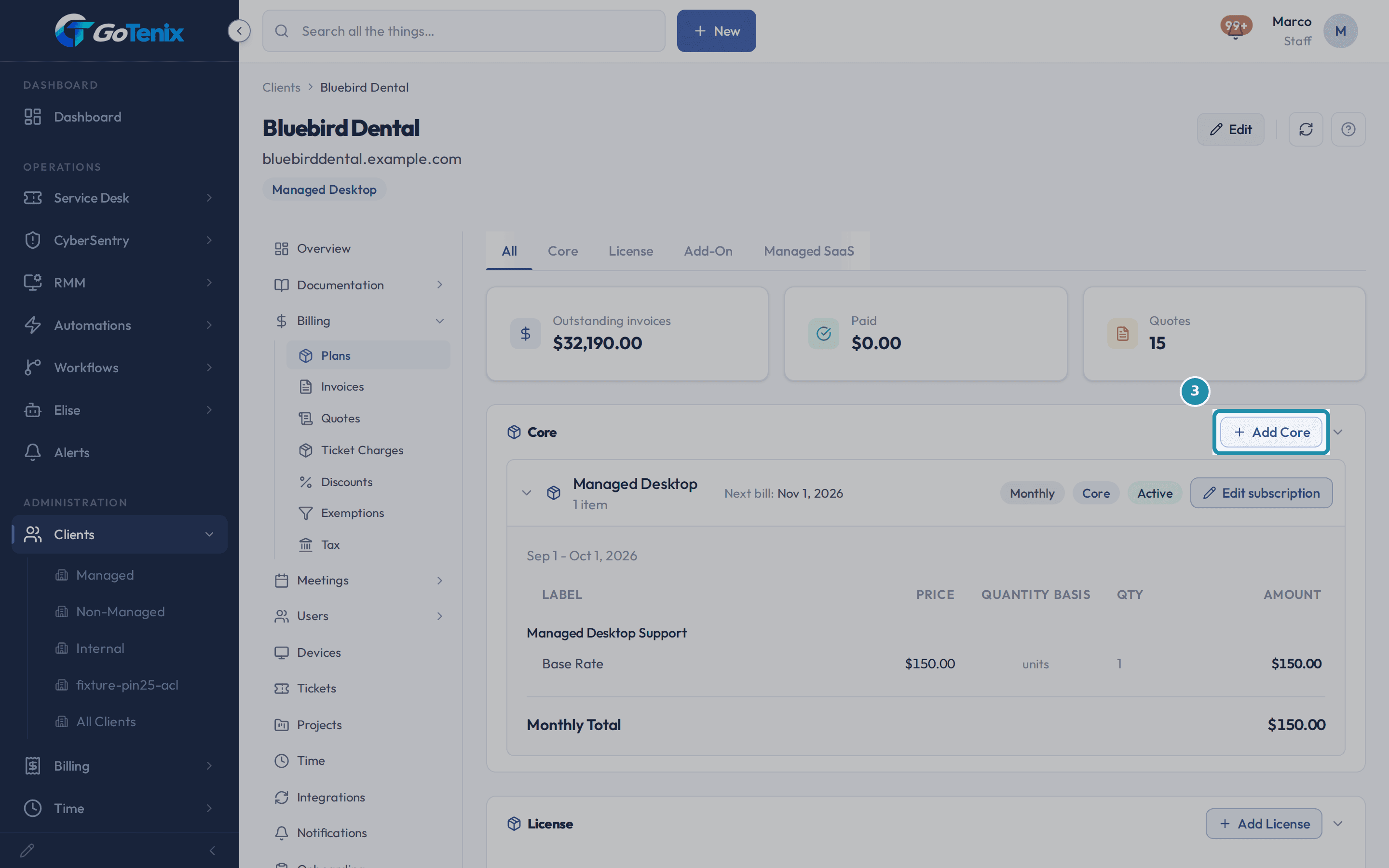
Open the client, click Edit, go to Settings, and turn on Co-Managed IT. On the Billing tab, click Add Core to give the client its main plan.
A client can have only one Core plan. Picking the plan opens its Contract Terms, covered next. Leave the Billing Start Date blank to bill starting today. Pick a future date to avoid a prorated charge. A date in the past bills every period since then, and each one waits in the approval queue, so nothing is charged without your approval.
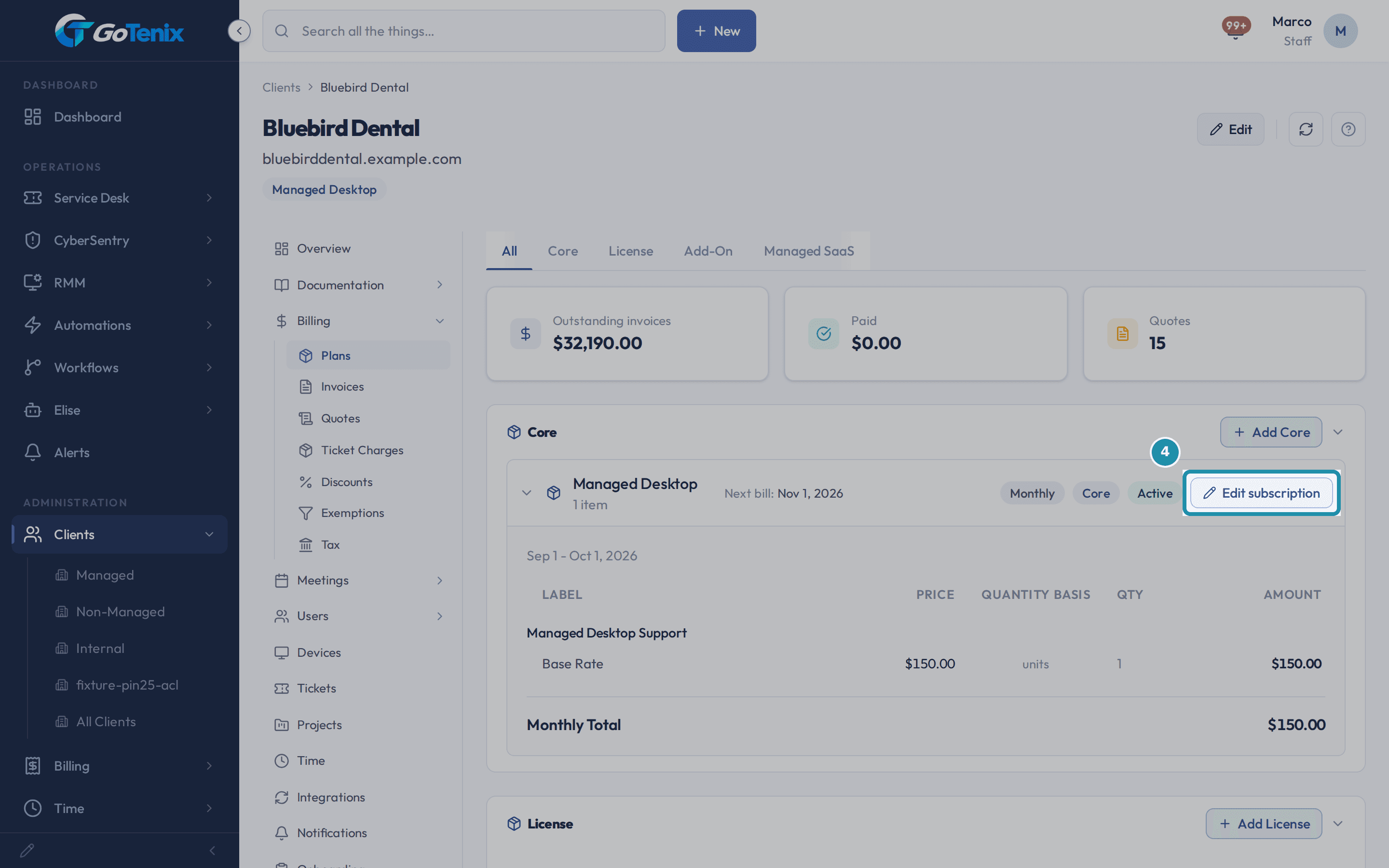
On the Billing tab, click Add Core to give the client its main plan. Open Edit subscription, pick Contract Terms on the left side bar and find No Commit.
No Commit means the subscription is billed at its chosen frequency until someone cancels it.
Open Edit subscription, pick Contract Terms on the left side bar and find No Commit. On the same screen, find Bill in arrears.
Bill in arrears (after the period) charges the client after the period ends.
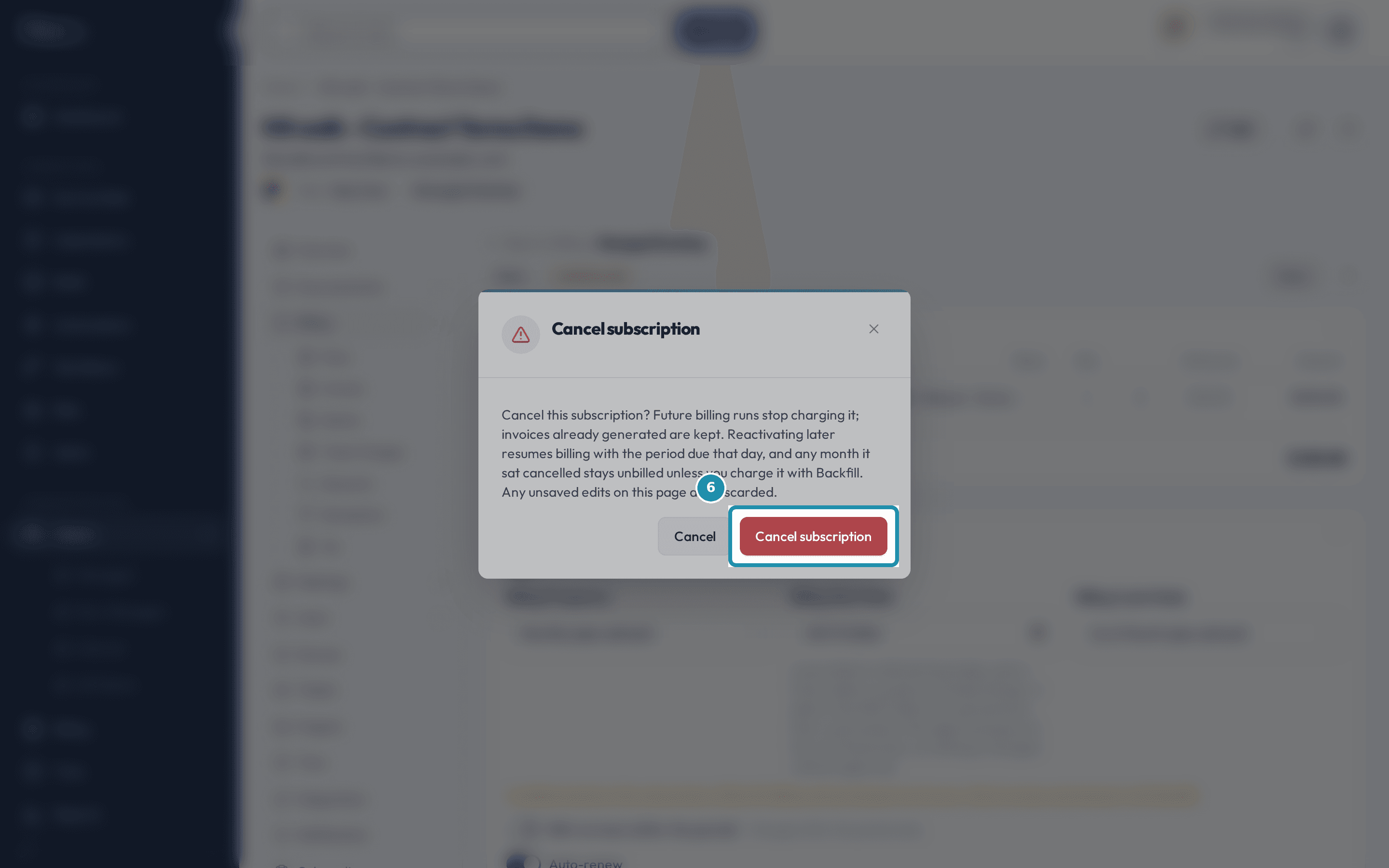
Cancel the subscription from its menu.
The confirm dialog says what cancelling does: future billing runs stop charging it, invoices already generated are kept, and reactivating later resumes billing with the period due that day. Any unsaved edits on the page are discarded.
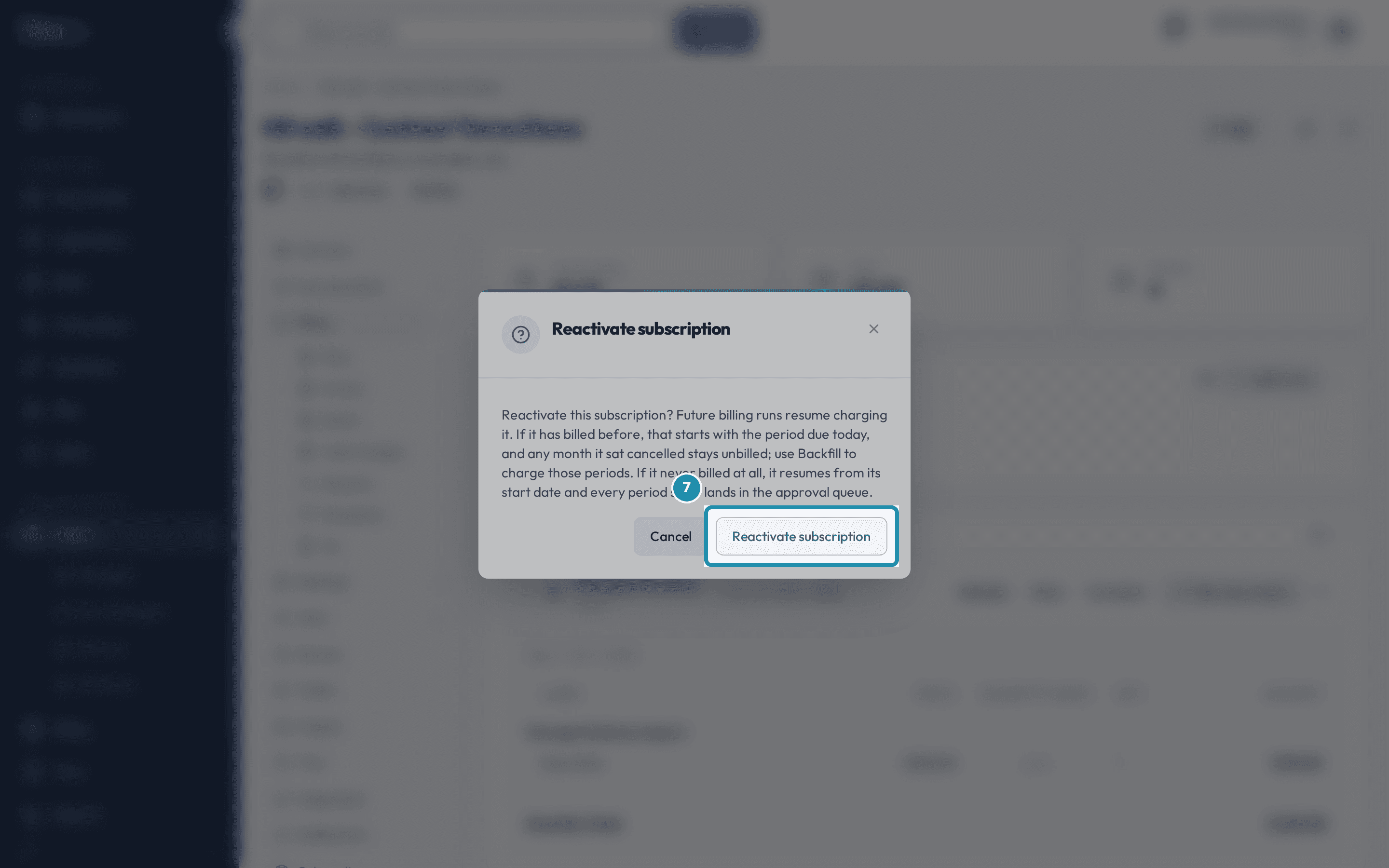
Cancel the subscription from its menu. Open the Core - Inactive section and reactivate it.
The Reactivate subscription dialog gives two outcomes. If the plan has billed before, billing resumes with the period due today and any month it sat cancelled stays unbilled, so use Backfill to charge those periods. If it never billed at all, it resumes from its start date and every period since lands in the approval queue.
Open the Core - Inactive section and reactivate it. Check the unbilled period chip on the subscription.
The chip counts billing periods that have no invoice. Click it to open Backfill, which lists each period with its amount so you can pick the ones to generate. Each pick becomes an invoice waiting for your approval. Dismiss closes the unbilled periods for good: billing does not offer them again and it charges nothing.
Open Documentation > Password Vault, edit an entry, and find TOTP Secret.
TOTP Secret takes the secret text an authenticator app shows under its QR code. It is stored masked like the Password field.
Back on the vault list, read the live code in the TOTP column.
The entry's TOTP column shows a six-digit code with a countdown and a button to copy it. The entry's own page has a Generate TOTP control.
Start onboarding and look for a script reference under a step.
A script reference is an optional note on an onboarding step, such as the name of a deploy script to run before checking the step done. Two of the default template's steps, Deploy RMM agent and Deploy EDR, carry one. You can add your own when you build a template.
What you will have
- Turn on Co-Managed IT for a client and know who it gives access to.
- Set a subscription's Contract Terms: No Commit, Bill in arrears and the billing start date.
- Cancel a subscription and reactivate it, including a plan that never billed, and know what billing does each time.
- Charge or dismiss the months a plan sat unbilled.
- Add a one-time-code secret to a vault entry and read the live code.
- Ask Elise to assign a plan, add a portal user or write the client's briefing.
Why it works this way: How to finish setting up a client: co-managed access, contract terms, cancelling a plan and a few extras
Reactivating a cancelled subscription does not pick up where it left off. If it has billed before, billing resumes with the period due today, and any month it sat cancelled stays unbilled until you charge it with Backfill or dismiss it.
A client's Microsoft tenant is never typed in by hand. There is no tenant ID box on the New Client form or the Edit form, and the connection is made when the client's Microsoft admin approves consent.
Other ways to do this: How to finish setting up a client: co-managed access, contract terms, cancelling a plan and a few extras
Ask Elise
Ask her "assign the Managed Desktop plan to Harbor Point Physio" and she shows you the change to approve first. Ask "give me a rundown for Harbor Point Physio" for the client's tickets, invoices, quotes, time, response times and satisfaction in one table, or "write the health briefing for Harbor Point Physio for our quarterly review" for a narrated summary. Ask "which of their subscriptions have unbilled periods" to find the gaps, or "add Sam Okafor as a billing user on Harbor Point Physio" to give someone portal access. Ask her to cancel their Managed Desktop subscription and she files it for a second person who holds the permission to release at Review > Gated Actions. Elise can show you the unbilled count. Reactivating a plan and charging the gap are done from the client's Billing tab with Backfill.
If it did not work: How to finish setting up a client: co-managed access, contract terms, cancelling a plan and a few extras
- If Co-Managed IT shows a warning, add a user in the IT Admin or Primary Contact role, or mark one as Owner, so the feature has someone to use it.
- If a generated one-time code never appears, check the secret was saved as plain secret text and not as a full otpauth link.
Questions this page answers
Where does a client's Microsoft tenant ID come from?
You do not type it in. The hand entry boxes were taken out, and the field is read only now. Microsoft hands the tenant ID back when the client's admin grants consent, and the portal saves it then. You can start that from the Microsoft icon on the clients list, from the client's Integrations tab, or from a consent link you send them. The client can also start it. An owner, a primary contact or an IT admin sees a consent banner in their own portal. Once the ID is stored, a Disconnect Tenant action shows on the client edit form.
Which client roles get co-managed access?
IT Admin and Primary Contact, and only while that client has Co-Managed IT turned on. Those two can claim an unassigned ticket for themselves and log time against it. They cannot write internal notes. Notes are staff only and clients never see them. They also cannot hand a ticket to one of your techs. Claiming is the only assigning they do. Billing and User get none of this. They work their own tickets and nothing else.
What does "No Commit" mean on a subscription?
No commitment term: the subscription bills at the selected frequency until it is cancelled, with no contract start/end dates, renewal term, or annual increase. It covers both month-to-month and annual no-commit arrangements. Turning it on clears the contract-term fields; turn it off to set explicit contract dates.
What does "Bill in arrears" change?
It changes WHEN the customer is charged for a period, never how much. Off (the default): the customer is charged in advance, at the start of the period. On: the customer is charged in arrears, after the period ends, for usage already delivered. Set it per subscription in the client's Contract Terms.
What happens when I reactivate a cancelled subscription, or resume a paused one?
Billing resumes with the period due TODAY - not from where it left off. The confirm dialog does not report a count of skipped periods; instead, the subscription's row on the Billing tab shows an "N unbilled periods" badge for every month it sat cancelled or paused, and clicking it (or Run Backfill from the subscription's own menu) opens a picker that previews exactly those months and lets you generate catch-up invoices for the ones you choose. Nothing is billed for the gap automatically.
How do one time codes work in the vault?
Store the code secret on the vault entry. It has to be Base32 text. Most authenticator apps show that text under their QR code. On the vault list, use the shield on the row to make a code. On the entry page, use the Generate Code button instead. There you also get a ring that counts down. A code lasts 30 seconds and then a new one takes over. The code panel closes itself after 5 minutes. The copy button puts the code on your clipboard. The secret is encrypted, with its own key parts.
What is the script reference on a step?
A step can carry an optional script reference - the name or link of a deploy script a technician runs manually, then checks the step done. It is a pointer for the tech; the portal does not run the script for you.
Was this helpful?