What the Settings > System pages control and how to read them
See exactly how long your logs and records are kept, watch the work you started in the background, and search every setting from one page, with Owner Controls locked to the owner and Integrations and System Logs one click away.
See it
Browse
On this page
How to do it
Open Settings > System > Owner Controls.
Owner Name and Owner Email are tagged (owner only): only the tenant's own owner account or an internal Super Admin can save them, although any admin with Settings access can view the page. Owner Email is the account that becomes Super Admin on first sign-in, so treat it like a domain-transfer credential. System Email is the address the system uses for records it creates on its own.
Open Data Retention to see how long each kind of record is kept.
Every field is set automatically and view only. Info logs are kept 1 day, warn logs 2 days, error logs 30 days, the processed event ledger 30 days, rule-engine decisions 90 days, the outbound email log 180 days, read notifications 90 days and unread notifications 180 days, so an alert nobody has seen survives longer. Archived Elise chats default to 0, which means keep forever.
Open Data Retention to see how long each kind of record is kept. Open Integration Sync and read its windows.
Device Activity Window, Device Aging Threshold, the warranty lookup budgets, Days Before License Renewal and MS Renewal Warning Days are windows and lookaheads, not schedules. PSA Write-Back on this page shows Off and View only. How often each sync runs lives on Scheduled Jobs.
Open Scheduled Jobs to see every background job and how often it runs.
Each row names the job, says what it does, shows its cadence, such as Every 5 minutes or Daily at 4:00 AM, and carries a Run Now button and an On or Off toggle. Off pauses the job. Run Now asks you to confirm first, because it does the job's real work and the records it creates are created for real. The page then answers at once, the button reads Running while the job works, and a Finished badge or a red reason follows. The job keeps going if you leave the page, and a second Run Now is limited to once a minute for each job.
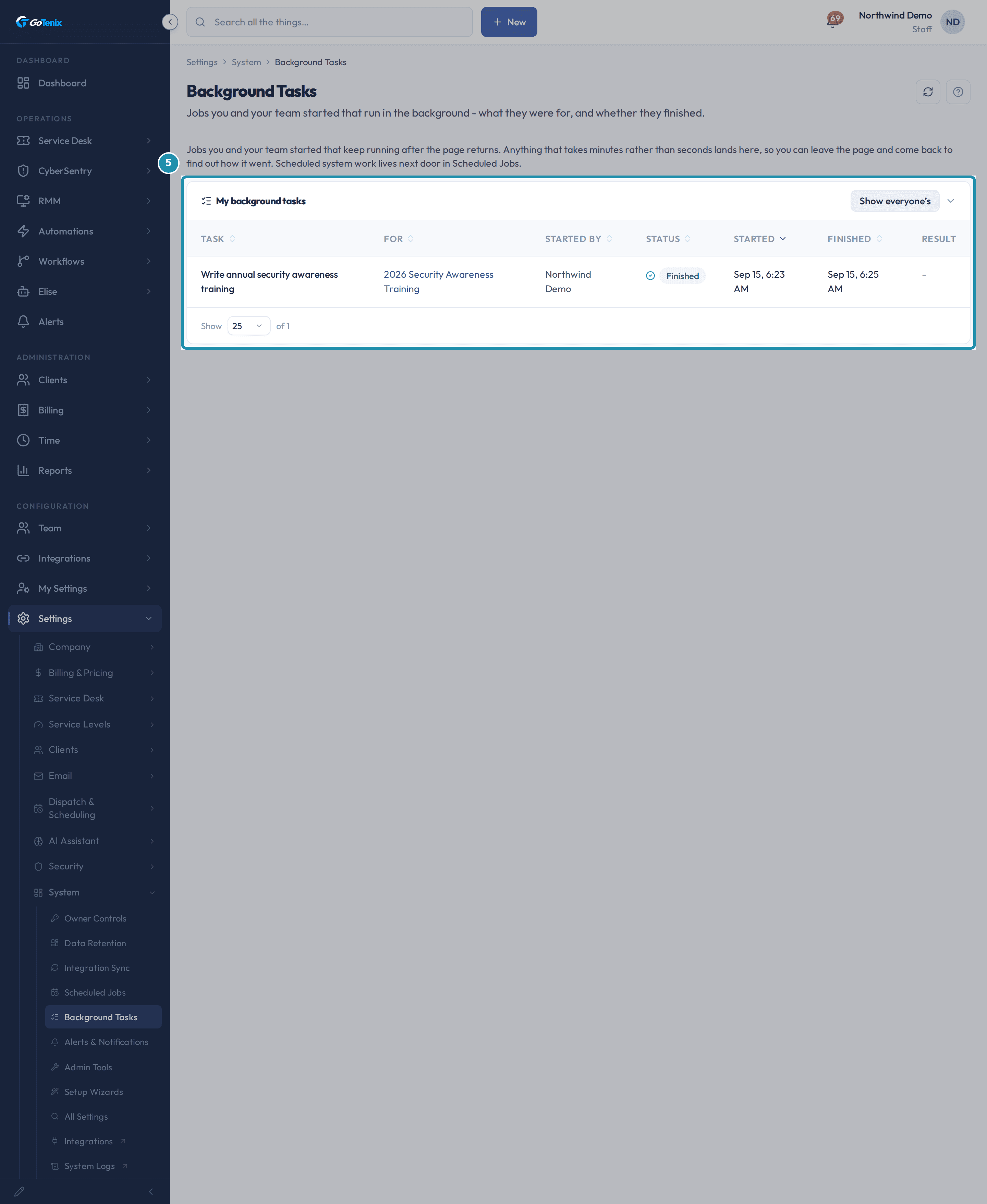
Open Background Tasks to see what you and your team have started.
Background Tasks lists jobs a person clicked to start that keep running after the page returns, such as writing a year of security awareness training. Each row shows the task, what it was for, who started it, its status, when it started and finished, and a Result. The card opens on your own tasks.
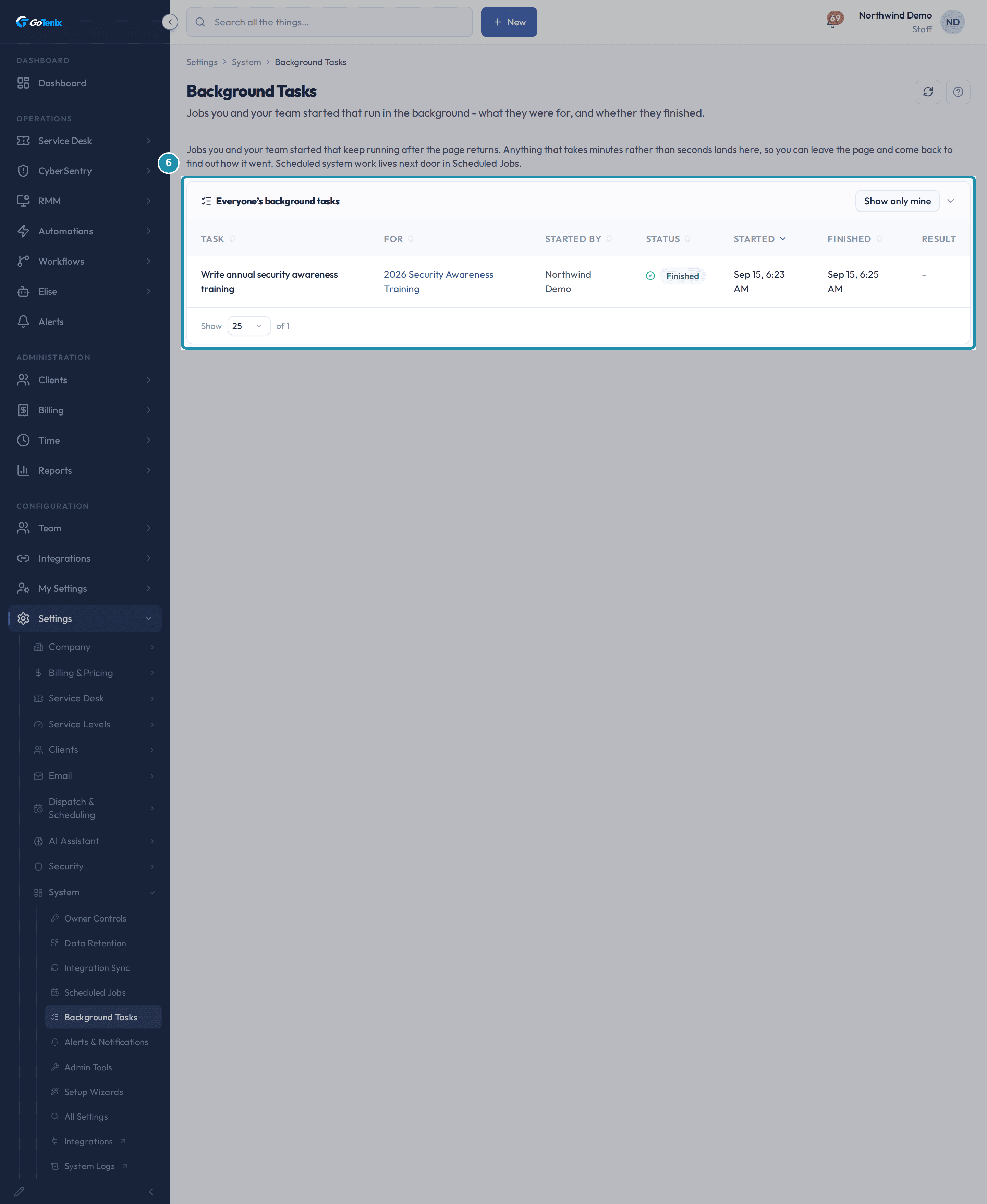
Open Background Tasks to see what you and your team have started. Click Show everyone's to widen the list past your own tasks.
The card's title changes to Everyone's background tasks and the button flips to Show only mine. Use it to work out why a colleague's training or report never appeared. Seeing everyone's tasks is its own permission, separate from ordinary Settings access.
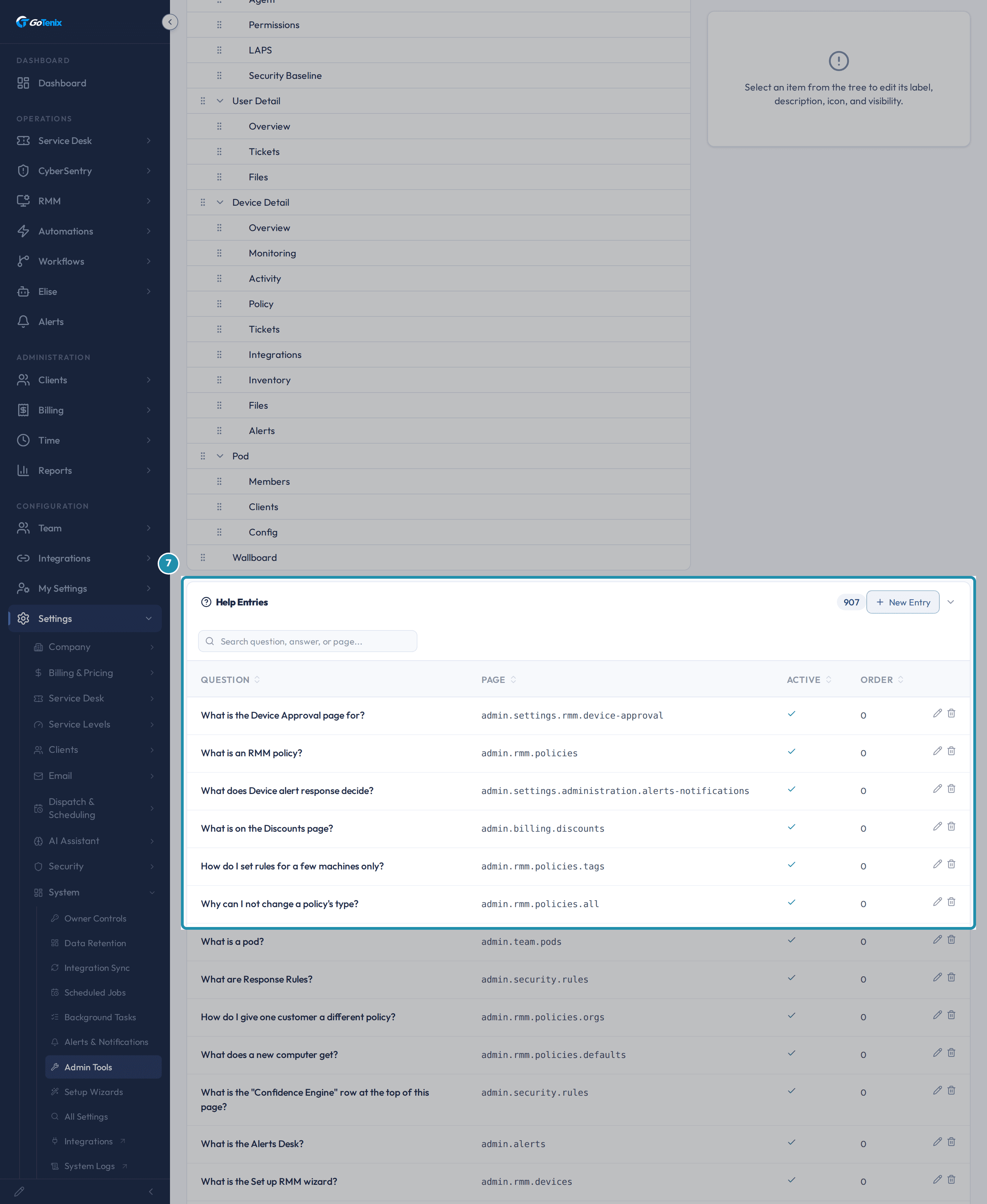
Click Show everyone's to widen the list past your own tasks. Open Admin Tools and scroll to Help Entries.
Above Help Entries, Admin Tools holds the Admin Navigation Tree, where you drag rows to reorder the sidebar. Help Entries lists each help question with the page it is pinned to, whether it is Active and its sort order, with a search box and a New Entry button.
Open Admin Tools and scroll to Help Entries. Open All Settings and expand a category.
The search box searches every registered setting on the platform, and a count beside it shows how many are on screen. A chip per category, such as Billing, Tickets or Security, filters the list. Each setting shows its name, a plain description, its current value and an Edit link that jumps to the page that edits it.
Open Integrations to see why it lives outside Settings.
This page explains that connections to outside systems, such as your PSA, RMM, identity and accounting, are their own marketplace of vendor tiles with live connection state, so they live in the Integrations area. Open Integrations jumps straight there.
Open System Logs to see why it also lives outside Settings.
Open System Logs from the System menu to reach the Logs area, where each stream has its own page: Audit Log, Email Log, System Log, Operations and Sessions. Elise's own log is a separate page, Elise - Action History.
You do not have to stay on Background Tasks while something runs.
Once a task is listed it runs on the server, not in your browser, so closing the tab or signing in from another machine makes no difference. The page checks for updates every 5 seconds only while one of your tasks is still running.
What you will have
- Find the owner-only Owner Name, Owner Email and System Email fields, and see why they are locked to the owner.
- Read Data Retention to see how many days each kind of log, event and chat is kept before it is purged.
- Read Integration Sync's windows and see that PSA Write-Back is off for good.
- See what the platform's own scheduled jobs do and how often, and run one now.
- Watch a job you started, like writing a year of security awareness training, on Background Tasks, and see everyone else's too.
- Find where help text for a page is added or edited, on Admin Tools.
- Search every setting on the platform by name from All Settings and jump to the page that edits it.
Why it works this way: What the Settings > System pages control and how to read them
PSA Write-Back cannot be switched on. Integration Sync always shows it Off and view only, because a connected PSA is a read-only mirror you disconnect from Admin > Integrations > PSA when you are ready to cut over.
Scheduled Jobs and Background Tasks answer opposite halves of 'what is running'. Scheduled Jobs is the platform's own clockwork, running whether anyone is here or not. Background Tasks is the list of jobs a person clicked to start, and nothing on it runs on its own.
Integration Sync's numbers are windows and lookaheads: how far back or ahead each sync looks. How often each sync runs is set on Scheduled Jobs.
Ask Elise "what controls ticket auto-close and what is it set to" and she lists the settings behind it, their current values and where to change each one. Ask her to change an ordinary setting and she shows you the before and after for a one-tap approval. She refuses owner-tier controls such as the Owner Controls fields, and sends you to their page.
If it did not work: What the Settings > System pages control and how to read them
- If Owner Name or Owner Email will not save, only the owner account or a Super Admin can change them.
- If PSA Write-Back stays Off with no way to switch it on, that is by design: write-back is retired and the field is view only.
- If a task a colleague started never appears on Background Tasks, you are looking at My background tasks. Click Show everyone's.
Questions this page answers
Why is Owner Email marked sensitive?
Owner Email is the single account that auto-promotes to Super Admin on first login, so it is the seed of trust for the whole portal. Sensitive and owner-tier settings, including Owner Email itself, can only be changed by the owner account or by a Super Admin, so keep that circle small. Treat it like a domain transfer credential, losing it means re-establishing trust at the Super Admin layer.
What is the Data Retention page for?
This page sets how long each kind of log, event, and chat is kept. Nightly cleanup deletes them after that. It covers info logs, warn logs, error logs, the event ledger, the email log, notifications, and archived AI chats.
Why are some of these kept much longer than others?
Error logs, the event ledger, unprocessed events, and emails still in flight are held longer, or never purged. That is on purpose. The AI diagnostic engine and support both rely on them to explain what happened later.
How often does sync actually run?
The values here are windows + lookaheads, how far back to look on each tick. The tick interval itself (clients every 6 h, tickets every 1 min) lives in Settings → System → Scheduled Jobs. Adjust the cadence there if your API budgets need more headroom; adjust the windows here to tune false-positive churn.
What is this page for?
It lists the jobs you and your team started that keep running after the page comes back. Some work takes minutes rather than seconds - writing a whole annual security awareness training with AI is the current example - and making you sit on a loading spinner for three minutes is both unpleasant and fragile, because the connection times out long before the work does. So the click returns immediately, the work carries on, and this is where you come to find out how it went.
How is this different from Scheduled Jobs?
Scheduled Jobs is the system’s own clockwork - the syncs, sweeps and reminders that run on a cadence whether anyone is here or not, and where you set that cadence. This page is the opposite: nothing on it runs on its own, and there is nothing here to configure. Every row is something a person clicked. Keeping them apart is deliberate - if the system’s hourly work were mixed in, the one question this list answers, "did the thing I started finish?", would be buried under noise.
Can I see what other people started?
Yes - the list opens on your own tasks, because that is usually what you came for, and the button in the card header switches it to everyone’s. That is the view for working out why a colleague’s training never appeared. Access to the page as a whole is its own permission, separate from general Settings access, so being able to change a setting does not by itself let someone read what the whole team has been running.
Do I have to stay on the page while something runs?
No. Once a task is listed it is running on the server, not in your browser - close the tab, go to lunch, sign in from another machine, it makes no difference. The page you started from updates itself if you happen to still be on it, and this list is here for when you are not. The only thing that can interrupt a task is the portal itself restarting, and a task caught by that is marked failed with a note saying so rather than sitting on "Running" forever.
What is the Integrations link for?
This doorway explains why Integrations lives outside Settings. Your PSA, RMM, identity, and accounting links each show live status. They act like a small marketplace of vendor tiles. So they live in the Integrations area instead.
How do I connect a new integration?
Click "Open Integrations" on this page, or go straight to Integrations. Pick the provider you want, like QuickBooks, Microsoft, or your RMM. Enter or authorize its credentials. Then turn on the connection and check that it shows as connected.
What is the System Logs link for?
This doorway explains that logs are a record you read and filter, not a setting you configure. They live in their own Logs area, with each stream kept separate.
How do I find a specific log entry?
Click "Open Logs" on this page, or go straight to Logs. Choose a stream: Audit, Email, System, Operations, or Sessions. The assistant's own action log is under its Action History tab, not here. Filter by date, user, or source. Then open an entry to see its full detail.
Was this helpful?