How to set up a client agreement and bill the first period
Build a monthly Service Plan, subscribe a client, email them the agreement to sign, and turn the period into an approved invoice. Pricing lines can follow user, device or license counts, so the bill matches what the client has without retyping numbers.
See it
Browse
On this page
How to do it
Open Billing > Service Plans and start a new plan.
Name it Managed Desktop and set its type to Core in Plan Details, which opens first. Then pick Recurring Items on the left side bar and add a recurring item with a name and a price. The page shows one section at a time. Quantity Basis starts as Manual - No Audit, which is a flat line: the price you type times Default quantity. For a plan that follows the client's size, pick Licensed Users, Total Users, All Devices, Workstations or Servers instead. Other choices count a Microsoft 365 license, tagged entities or a client-size band. The count then comes from the client's synced data. Prepay Discounts for clients who pay quarterly or annually sit under Billing Schedule, and One-Time Charges for setup fees on the first invoice have their own entry on the side bar.
Open Billing > Service Plans and start a new plan. Save the plan and find it in the Service Plans catalog.
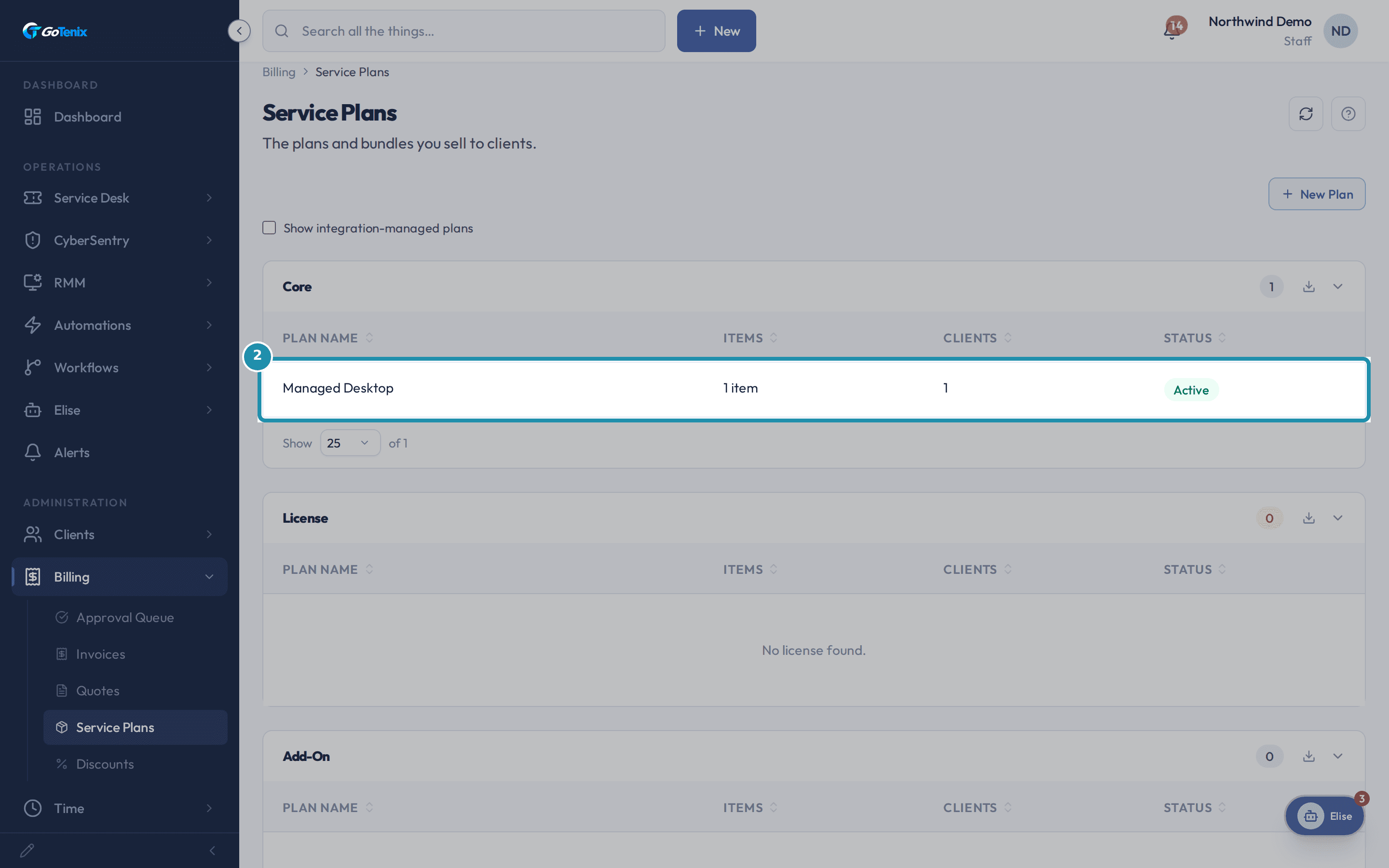
Managed Desktop now shows under the Core section with 1 item and an Active status. Add-On and License plans live in the same list, each in its own section.
Save the plan and find it in the Service Plans catalog. Assign the plan to a client from their Billing > Plans tab.
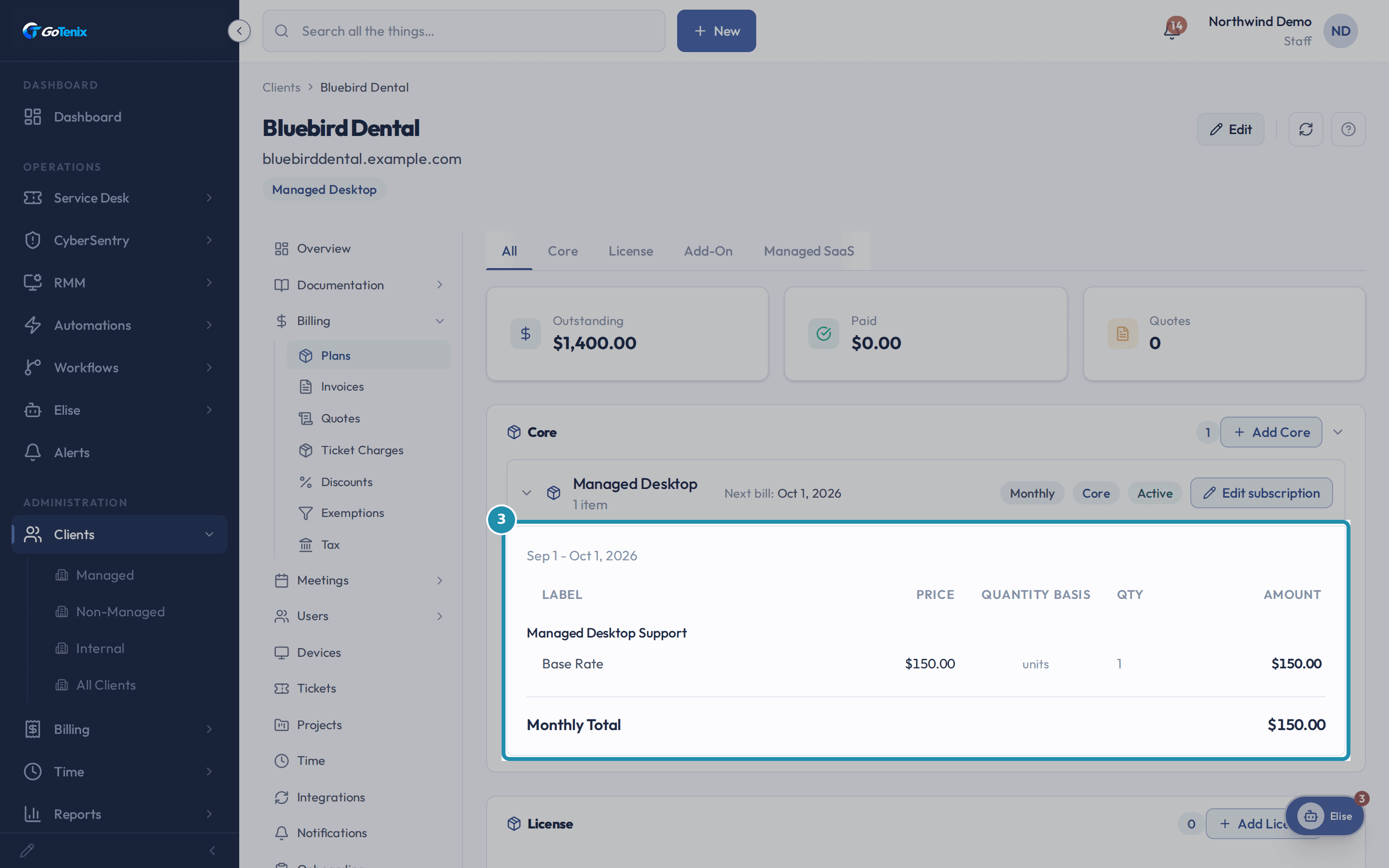
Open the client, choose Billing > Plans, and use Add Core. That creates a subscription: the plan attached to this one client. A real period appears at once, here Sep 1 - Oct 1, 2026, with Managed Desktop Support at $150.00 a month. The plan itself never billed anyone. The subscription is what owes money.
Assign the plan to a client from their Billing > Plans tab. Email the client the agreement.
In the subscription's editor, open Agreement on the left side bar and choose Send as quote. The client gets an email with the agreement as a PDF and a link to sign and accept. If their yes comes some other way, Mark as Accepted records it yourself. Sending needs a billing mailbox connected under Integrations > Mail.
The client accepts or declines on their own page.
They type their full name, tick the box saying they reviewed the pricing, service levels and terms, and press I Accept. They then see Agreement Accepted, and the agreement is active. Decline asks for an optional reason and is final: the link stops working and you send a new agreement. Your editor then shows Declined with the date and the reason. A plan you start today bills without waiting for the signature, but a change scheduled to start later waits until the agreement is signed or marked accepted.
Check the client's Ticket Charges tab for billable ticket time.
The tab lists pending Materials and billable Time with a Combined total, and a Billable Time table that shows each tech's actual and billed minutes. Time that cannot bill yet is listed under Time that won't invoice, with the reason: no hourly rate on its billing status, or no mapped product. On the client's Invoices tab, Generate Ticket Charges Now builds the client's ticket-charges invoice without waiting for the next run. Ticket charges always make their own invoice and never join the plan's Core invoice.
Open Billing > Approval Queue and generate the period's invoices.
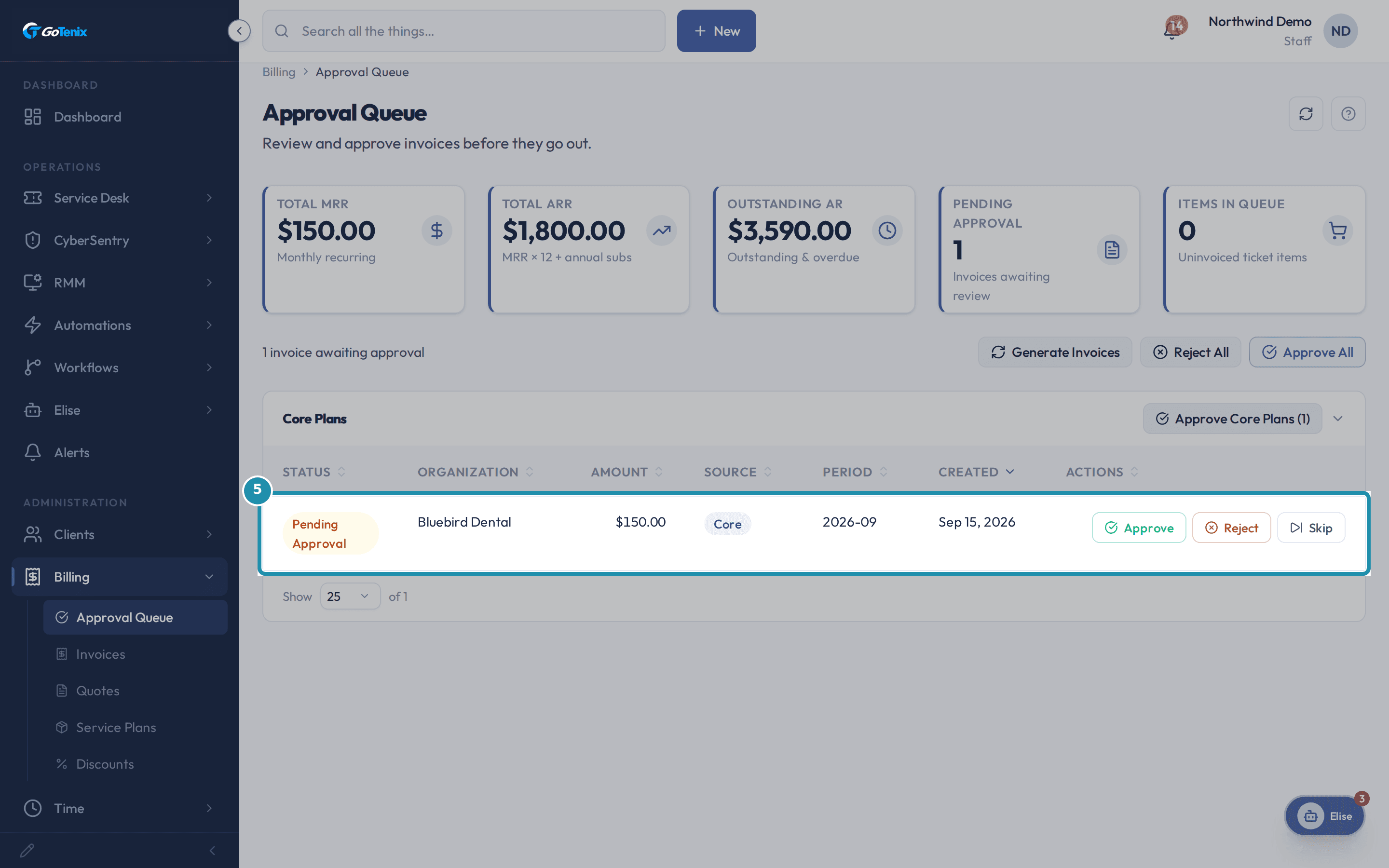
Generate Invoices turned Bluebird Dental's Managed Desktop period into one row: Pending Approval, $150.00, source Core, period 2026-09. Each row has Approve, Reject and Skip. Approve All, or a group button such as Approve Core Plans (1), approves a whole set after a confirm that says it cannot be undone. Rows are grouped as Core Plans, Add-On Plans, License Plans, Ticket and Quotes.
Open Billing > Approval Queue and generate the period's invoices. Open the pending invoice and read its line items.
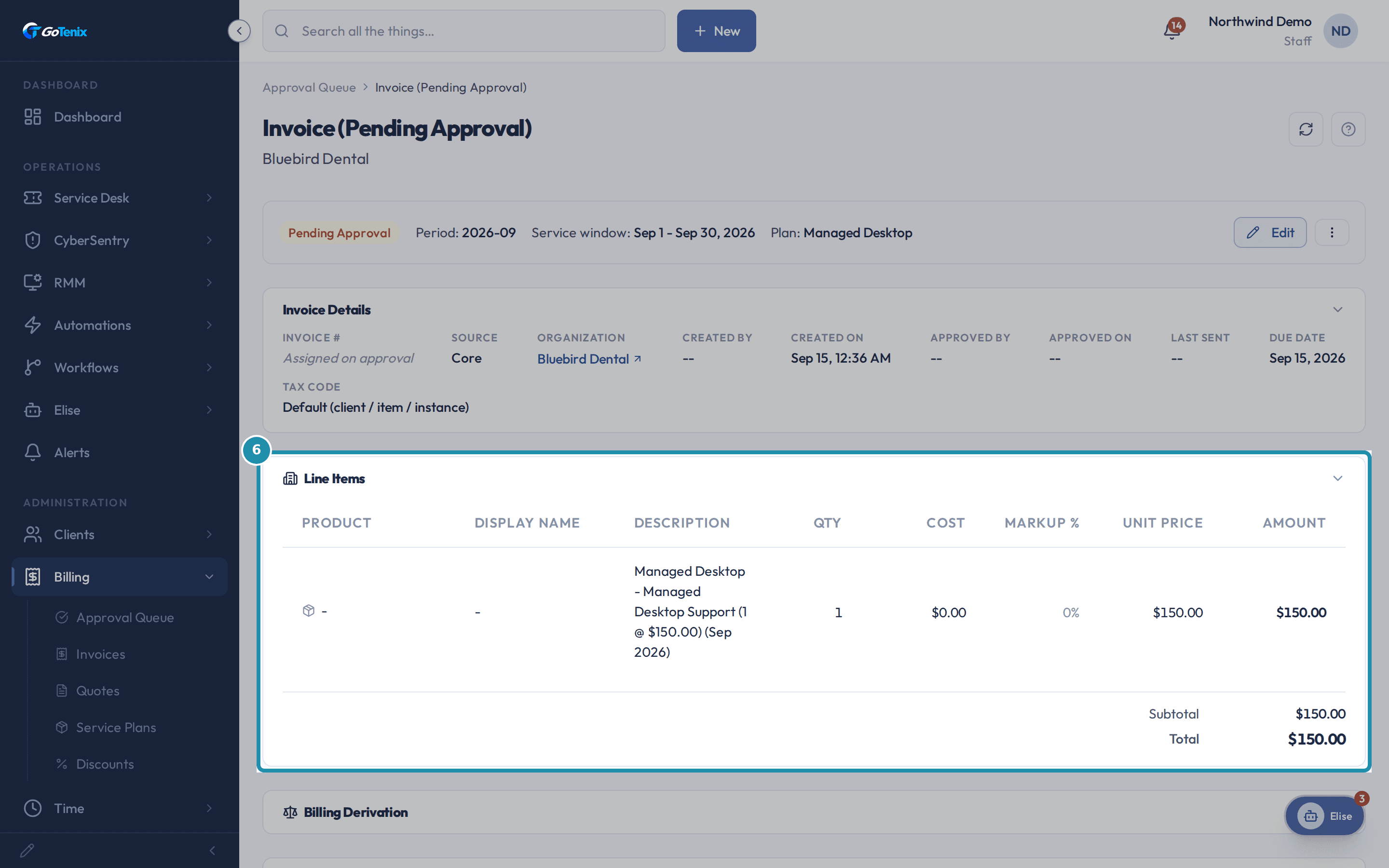
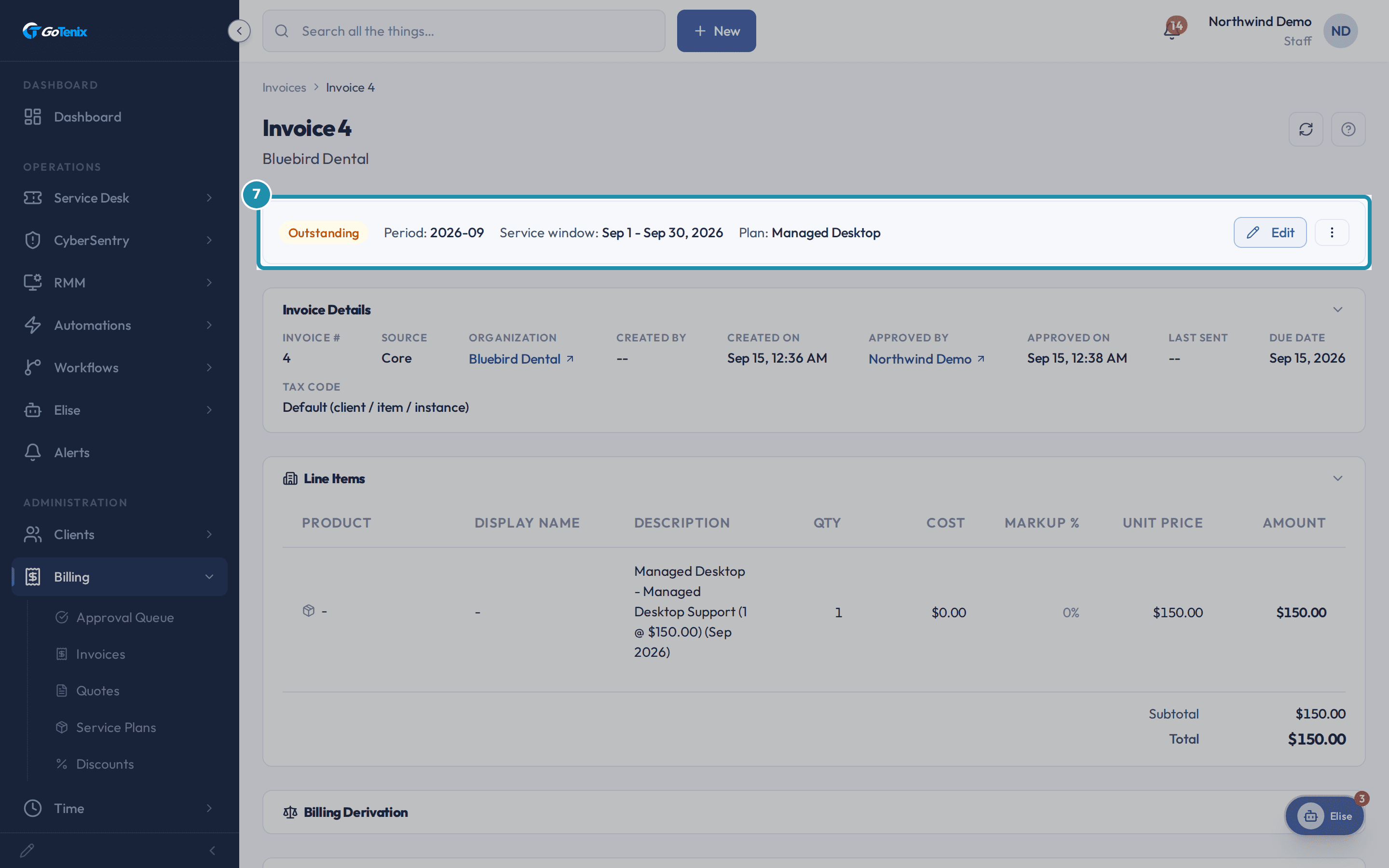
The invoice, still unapproved, shows one line, Managed Desktop - Managed Desktop Support (1 @ $150.00) (Sep 2026), for $150.00, with a matching Subtotal and Total. A plan's recurring charge and a client's ticket time are different invoice sources, so they are never merged onto one bill.
Open the pending invoice and read its line items. Approve the invoice.
Approve asks you to confirm first: This approves $150.00. The invoice is numbered, becomes payable, and is pushed to QuickBooks. It cannot be undone. Confirming flips the invoice to Outstanding, gives it its invoice number, and fills in Approved By and Approved On. If QuickBooks is connected, it is sent there.
Approve the invoice. See what the client sees on their own Billing > Invoices.
The client's list shows approved invoices only. Draft and Pending Approval invoices never reach them. The statuses they can see are Outstanding, Overdue, Paid and Void.
Generate again and see the same period stay billed once.
Generate Invoices asks Regenerate pending invoices? first: All pending invoices are cleared and regenerated fresh from the billing engines. Nothing approved is touched. A period that is already billed and approved is not billed a second time. The not billed list shows it as already billed, which is the healthy state.
Know when an add-on rides on the Core invoice.
An add-on plan with Roll up to Core invoice turned on joins the client's Core invoice when its period lands inside that Core invoice's date window. The window runs from the Core plan's bill day to the day before its next bill day, and each line keeps its own plan and month. If no Core invoice is due that run, or the client has no Core plan, the add-on bills on its own as an Add-On invoice, so the money is never held back. The switch stays on and it merges again when a Core invoice is due. Approving a Core invoice never merges anything and cannot reopen it, so fix the switch and let the next run catch the add-on, or approve the two separately.
Know why an annual plan skips most months.
An annual plan makes one invoice a year, in its own billing month. Once it has billed its current term it produces nothing until its anniversary, so a month with nothing for it is correct. The plan's row shows the next bill date.
Read why a plan was not billed.
Right after you press Generate Invoices, a not billed card on the Approval Queue lists each subscription passed over. The same list is in System Logs > Operations, inside the billing run. Each line names the client, the plan, the month and one reason: already billed, not started, nothing owed, priced to $0, billed on its own, period already closed, outside the billable range, or unexplained. The first three are ordinary. Anything still unbilled shows as an unbilled period badge on the plan's row, and Run backfill charges it when you choose, or Dismiss closes it for good.
What you will have
- Create a Service Plan with flat, per-user or per-device pricing lines.
- Subscribe a client to the plan and email them the agreement to accept or decline.
- See why ticket time may not reach an invoice, and what to check.
- Generate the period's invoice, read its lines and approve it.
- See the invoice the way your client sees it.
- Know why a period bills on its own, bills once a year, or is skipped, and where to read the reason.
Why it works this way: How to set up a client agreement and bill the first period
A plan, a subscription and an invoice are three different things. The plan is a pricing template that bills nobody on its own. A subscription is that template attached to one client. An invoice is what a billing run generates from an active subscription for one period. A plan nobody is subscribed to bills nobody, however well it is priced.
Billing is once per period. Voiding an invoice does not free its period, and the void dialog says so before you confirm. Billing a voided period again is a separate action, Regenerate from source. Rejecting a pending invoice deletes only that draft. The month is then still owed: if the next Generate does not pick it up again, it shows as an unbilled period that you can charge with Backfill or dismiss. Skip uses the period up without billing it, for good. Delete on an invoice that already billed a period makes you choose between Re-bill this period next run and Leave it billed.
A price of $0 never bills quietly. A subscription whose priced lines all come to $0.00 is passed over as priced to $0.00 and no invoice reaches the queue, so a missing rate shows up as a skipped line, not a free month.
Every generated invoice lands in the Approval Queue as Pending Approval first. Approving it numbers it, makes it payable and sends it to QuickBooks when that is connected. The confirm says it cannot be undone. If you would rather skip the review, the Auto-Approve Generated Invoices setting sends new invoices straight to Outstanding. It is off by default.
When a client's own price is lower than the plan's list price, the invoice shows the list price on one line and the saving as a minus Discount line under it. The total is the same either way. This display is the Discount True Value Pricing setting, and it is separate from a real Discount you apply to a client on purpose.
Other ways to do this: How to set up a client agreement and bill the first period
Ask Elise
To find things, ask "which clients have unbilled periods?" or "show every invoice waiting for approval", or ask for a client's overdue invoices. To size a plan, ask "how many clients are on the Managed Desktop plan?" and she reads the plan's subscriber count. To change things, ask her to "create a Core plan called Managed Desktop" (that makes the plan only, so she adds its price line as a second step), "subscribe Bluebird Dental to it", "generate their invoice now" and "approve it". Each of those changes asks you to confirm first. Emailing the agreement is filed for you to release with a typed reason, because a sent contract cannot be unsent.
A manual, one-off invoice
Billing > Invoices > New Invoice creates a standalone invoice for a client with no plan and no ticket behind it, and you type the lines yourself.
A quote converted to an invoice
Billing > Quotes > New Quote, sent to the client and accepted. The accepted quote becomes an Outstanding invoice directly, so it skips the Approval Queue.
QuickBooks
Connect it from Settings > Integrations. A plan item can then link to a QuickBooks product through the QB Product field, and approved invoices are sent there.
The Set up billing and Bill your first client wizards
Settings, then System, then Setup Wizards. Set up billing sets the invoice prefix, starting number, payment terms and proration. Bill your first client then checks that a plan and a subscription exist and points you to the first invoice. There is an article on each wizard.
If it did not work: How to set up a client agreement and bill the first period
- If Generate Invoices produces nothing for a client, check the client has an Active subscription for that period, then read the not billed list. It names the client, the plan, the month and the reason.
- If a plan produces no invoice, check its lines are priced. A plan whose every line is $0.00 is skipped as priced to $0.00.
- If a ticket's billable time is not on an invoice, open the client's Ticket Charges tab. Time that won't invoice lists each ticket with the reason.
- If part of a ticket's time is missing, check Minimum Billable Time (minutes) in your billing settings. By default a tech's total under 5 minutes on a ticket is left off the invoice. Set it to 0 to bill all time.
Questions this page answers
What is a Service Plan?
A Service Plan is a template for something you sell. It holds the price, how often it bills, and the lines included each cycle. It bills nobody by itself. Think of it as a product in a catalog, not a bill. Build it first under Billing > Service Plans. Then attach it to a client from their Billing > Plans tab. That gives them a subscription, and a subscription is what makes invoices.
How do a plan, a subscription and an invoice differ?
They are three things, in order. A Service Plan is the template. It holds the price, the cycle and the lines, and it is sold to nobody yet. A subscription puts one plan on one client. It is the record that says this client is on this plan from this date. An invoice is what the billing run makes from an active subscription on its bill day. That is the real bill the client sees. Change the plan later and it moves future invoices for every client on it. A price just for one client lives on that client's own subscription.
How do I build my first Service Plan?
Open Billing > Service Plans and click New Plan. Name it the way you would say it to a client. Set the type, the currency, how often it bills and the bill day. Add your Recurring Items, which are the lines billed each cycle. Add One-Time Charges if the first invoice needs them. Click Save Plan. Then open the client you want to bill. Go to their Billing > Plans tab and click the add button for that plan type. Pick your plan and click Create subscription. That step is what starts billing them. Making the plan alone bills nobody.
What are Client Subscriptions?
This doorway explains that a subscription links one client to one of your Service Plans. It lives on the client record, not here in Settings. This is how recurring billing gets attached to a customer.
How do I subscribe a client to a plan?
Click "Open Clients" on this page, or go straight to Clients. Pick the client. Go to Billing, then Plans. Add a subscription by choosing a Service Plan, or change or cancel an existing one.
How do Ticket Charges work?
Ticket Charges cover two things. One is the products you add to ticket replies. The other is the billable time on the ticket. While the ticket is open, both are held as pending charges. You can see them on the client's Ticket Charges tab, under Materials and Billable Time. When the ticket is CLOSED, one invoice is made for that client right away. It is made already waiting for approval, so it shows up in the Approval Queue. Approving does not make the invoice. It publishes the one that is already there. So a client is billed only once the work is done and a human has looked.
How does billable time get on an invoice?
When a ticket with a billable status closes, one Ticket Charges invoice is made for that client. It waits for approval. It carries both the items issued on the ticket and the billable time. For time, each tech's minutes are added up on their own. Each tech's total is rounded up to your billing unit, then multiplied by the hourly rate. Items carry their own lines. A time line starts with the ticket number and a one sentence plain summary of the work. That summary is drafted by AI from the notes and messages on the ticket. If no AI key is set, or the draft fails, the ticket subject is used instead. The exact minutes and rate always follow. An item line ends with the ticket number in brackets. Everything lands on one invoice, which goes to the Approval Queue for a human to check before it goes out.
Should I void an invoice or delete it?
Void is in the invoice's actions menu. You can void an approved invoice that is not paid. It stops the invoice being money owed. It keeps the number, the lines and the history as a permanent record. Delete wipes the invoice instead. Delete is gone once the invoice is paid or already void. If the invoice used up a plan month, Delete asks you what to do with that month first. If the invoice was pushed to QuickBooks, the void happens in QuickBooks first. If QuickBooks refuses, nothing changes here, so the two never drift apart. Voiding does NOT free the billing period. Nothing bills again on its own. To bill that month again, use Regenerate on the void invoice.
What does Regenerate from source do?
Regenerate throws the invoice lines away and builds them again from today's numbers. It is the same work the nightly run does, but for this one invoice, right now. On a draft or a pending plan invoice, the invoice is rejected and the run happens again for that client. You land on a new pending invoice with today's counts, prices, discounts, proration and tax. A ticket charges invoice is rebuilt in place from the ticket's current items and time. On a void plan invoice it re-opens that month, because voiding alone never frees a month. The void invoice stays as history. Hand edits on the old lines are not kept. That is the point of it. Edit the new invoice if it still needs a touch. Approved, paid and hand built invoices have no Regenerate action.
How do I turn a quote into an invoice?
Open an accepted quote and click Convert to Invoice. The lines, amounts and prices come across. If the client ticked optional items, only the ones they ticked come over. Tax follows the client's own setup on their Billing > Tax tab. That means a QuickBooks tax code when an accounting system is connected, and your local rate when none is. So there is no single fixed rate. The new invoice's Source reads Quote. If the quote was tied to a ticket, it reads Ticket instead. The quote keeps the trail. Its Timeline reads Converted to Invoice, with the date and a link straight to the invoice it became, whether you pressed the button or the quote converted itself when the client accepted. The invoice does not link back to the quote; the audit log holds that side.
What is the Approval Queue?
It lists every invoice the billing engines made that nobody has approved yet. That is plan invoices, backfill invoices and ticket charge invoices. There is no rule about odd amounts or new clients. Auto approve is off out of the box, so everything lands here. Charges from a ticket only arrive once the ticket is CLOSED. Approve gives the invoice a number, makes it payable, and pushes it to QuickBooks. Reject throws the draft away. The month is still owed, so it comes back at the next run. You can also charge it later with Run backfill. Reject does not send anything back for edits. You can edit a pending invoice in place.
What are billing statuses?
The ticket-time billing categories your techs classify labor into (Billable, In-Scope, Warranty, Project-Hours, and any you add). Each status is either in-scope (never billed) or billable, and a billable one carries an hourly rate, a rounding unit (15 to 240 minutes), and a QuickBooks product, so tech time is classified once and rolled into invoices without manual mapping. The status lives on the ticket, not on the invoice or subscription. These are not invoice states like Draft, Sent, or Paid; those are separate. The list sorts by any column; there is no drag ordering here.
What is Min Billable Minutes?
A noise floor for ticket time, not a rounding-up rule: if a technician's total logged time on a ticket is below this many minutes, that time is dropped from the invoice (excluded entirely, it does not round up to N). The default is 5 minutes. Rounding logged time up to an increment is a separate setting, the per-status Billing Unit shown above. This value is edited on Billing & Pricing → Invoice Settings; this page only links there, so there is a single input, not two that sync. Note: because the code parses this value as `parseInt(value) || 5`, entering 0 reverts to the default 5 rather than billing all time, set it to 1 to bill every entry.
What do the invoice statuses mean?
Draft is one you are still writing. Pending Approval is one a billing run made that nobody has approved yet. Outstanding means it is owed. Overdue means it is owed and past its due date. Paid means it is settled. Void means it was withdrawn and is not owed.
What do Skip and Void do?
Skip is in the menu on a plan invoice waiting for approval. It uses up that billing period without billing it, and the period never comes back. Void is in the menu on one that is owed and not yet paid. It withdraws the bill and keeps the number, the lines and the history as a record. Void cannot be undone, and it does not free the billing period.
What billing integrations are supported?
QuickBooks Online is the live accounting provider - invoices, payments, customers, and items sync bidirectionally. Xero is scaffolded but not yet implemented. Each provider exposes the same AccountingProvider contract so business code never imports the vendor SDK directly.
How do I view my invoices?
Open Billing to see every invoice for your organization. Each one shows the amount, the status, the due date, and its line items. Your IT provider creates these from your service plans, from work on your tickets, or by hand, and may keep them in step with their accounting software.
What are the billing tabs?
Billing has five tabs. Approval Queue holds new invoices until you approve them. Invoices lists every invoice, both plan invoices and one-off ones. Quotes is where you draft and send quotes. Service Plans holds the plans you sell. Discounts lists the discounts your clients get.
What do invoice statuses mean?
Outstanding means the bill is due and not paid yet. Overdue means the due date has passed. Paid means the payment came in. Void means your IT provider cancelled it. Click any invoice to see the full detail and its line items.
Why was I billed for a support ticket?
Some work sits outside your service plan. Project work and after-hours help are two examples. That work is marked billable, and it is billed by the time it took. Your plan sets the rate. Any bill for it shows up with your other invoices.
Why did my client's annual add-on not join the May invoice?
An annual plan only makes an invoice in its own billing month. It does not make one every month. If the annual add-on billed in March or April, at the start of the contract, it already produced its whole year of revenue. It will not bill again until the next anniversary. So there was nothing to merge in May. That is correct, not a bug. To check, look at the plan's lastBilledDate. That is the one that says a term was really billed. nextBillDate only means something beside it. On a plan that has never billed it is a stale pointer that the nightly run fixes. There the real answer is the start date, because every period since then is still owed.
How does a rolled up plan find the right Core invoice?
Not by matching period labels. A Core invoice covers a date window on the Core plan's own cycle. It runs from the core's bill day to the day before its next bill day. A rolled up plan joins whichever Core window contains its period. Say a client bills on the 16th. Their Core invoice covers Jul 16 to Aug 15. Their Microsoft 365 licences bill on the 1st, like all synced licence plans. The licence period starting Aug 1 falls inside that window, so it merges onto the July Core invoice. The Core line still reads July and the licence line right below it reads August. Both are right. The invoice is the window, and each line names its own month. If a plan's period does not land in any Core window this run, it does not wait. It bills standalone, the same as an add-on with no Core plan at all. The run records billed on its own against that plan and month. You can see it in the not billed card on the Approval Queue and in System Logs > Operations. The rollup switch stays on, so the next period a Core window does cover, it merges again. A period never waits for a future window. The rollup test only decides WHICH invoice a due period lands on, never whether it bills.
What if a client has add-ons but no Core plan?
The add-on bills on its own, by itself. That happens when the client has no Core plan, or the Core plan has nothing due this cycle. Billing it is the point. Holding it back would park a month of money behind a plan that may not be due for a year. The switch is kept, so once a Core invoice is due in the same window, later cycles merge it again. The invoice carries no special mark, but the run does. It records billed on its own against that plan and month. You can see it in the not billed card on the Approval Queue and in System Logs > Operations. So you can tell why the client got an invoice they did not get last month.
I approved the Core invoice, so why is the add-on still pending?
If the add-on shows as its own invoice in the queue, the merge did not happen when the invoices were made. There are three usual reasons. The add-on may not have Roll up to Core invoice turned on. Its period may not have landed in any Core window this run. Or the client may have had no Core invoice due at all. Approving does not merge anything. It only moves the invoice from pending to outstanding and pushes it to QuickBooks. An approved Core invoice cannot be re-opened to take the add-on. So fix the switch and let the next run catch it, or just approve the two on their own.
Where do I see which plans were not billed?
Look at the not billed card on this page, right after you press Generate Invoices. The same list is in System Logs > Operations, inside the billing run. Both show the client, the plan, the month and the reason. The reasons are a fixed set. Most nights three ordinary ones fill the list. Already billed means that month already has an invoice, which is the healthy state. Not started means the billing start date has not arrived. Nothing owed means today has not reached the next billing date, or Dismiss closed everything in range. None of those three mean anything is wrong. The rest are worth a look. Priced to $0 means the plan worked out a zero total for that month. That is a data problem, not a real charge, so no invoice was written. Billed on its own means a rolled up add-on made its own invoice, because no core plan invoice was due for it to join. The money still billed. Period already closed means something else billed or skipped it since the run began. Outside the billable range means the month is not in that plan's owed window. Unexplained means no reason was recorded, and you should report it. One month never blocks another. A plan billing several months at once makes one invoice for each. Anything still unbilled shows as a badge on the plan row and you can charge it later with Run backfill. This list is capped, and the odd reasons are kept first, so what you see is what matters.
Was this helpful?