Monday morning
How to run your Monday morning dispatch
Start Monday knowing what Elise handled overnight, what needs a person and who is free: hand tickets to techs by name, let Elise pick the tech and book the slot in one click, or ask her in chat to find, assign, change priority on and report.
See it
Browse
On this page
How to do it
Start at the dashboard and read the overnight summary.
The "While you were away" card says how many tickets came in and what Elise did with them. It ends with how many need a human. The "Start here" list names those tickets and says why each one is there, such as an SLA that has breached or is about to, or a client who replied. The strip underneath reads my open, SLA risk, customer replied, unassigned and revenue this month.
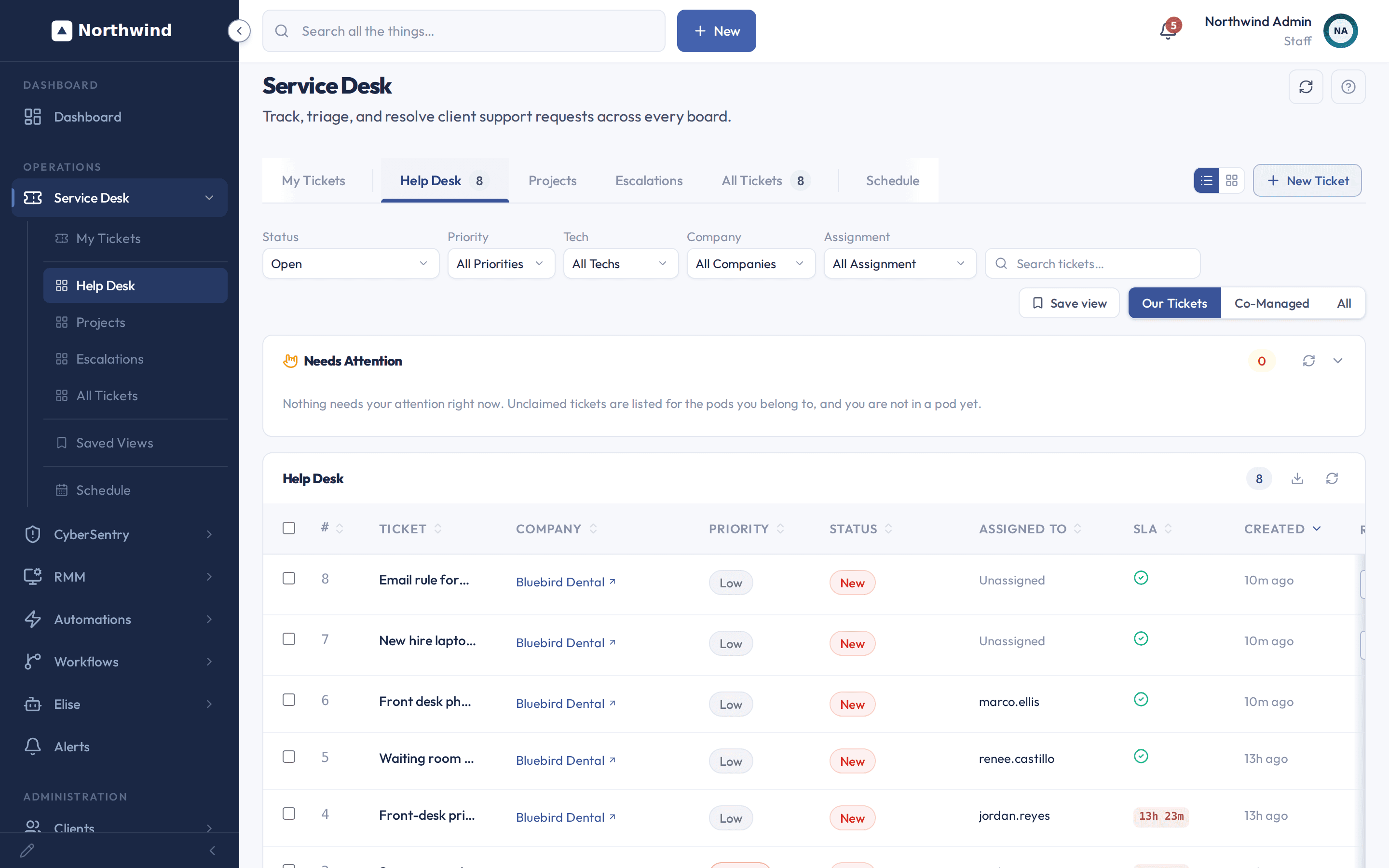
Start at the dashboard and read the overnight summary. Open Service Desk, then Help Desk, and find the unowned tickets.
The Assigned To column shows who owns each ticket and reads Unassigned where nobody does. The Needs Attention card above the list shows unclaimed tickets from the pods you belong to. If you are in no pod, the card says so, as it does here, and the Assigned To column is where you find unowned work. A tech in a pod sees a Claim Ticket button on those rows. Pod leaders also get a Mine and Pod switch on the card.
Open Service Desk, then Help Desk, and find the unowned tickets. Hand a ticket to a tech by name.
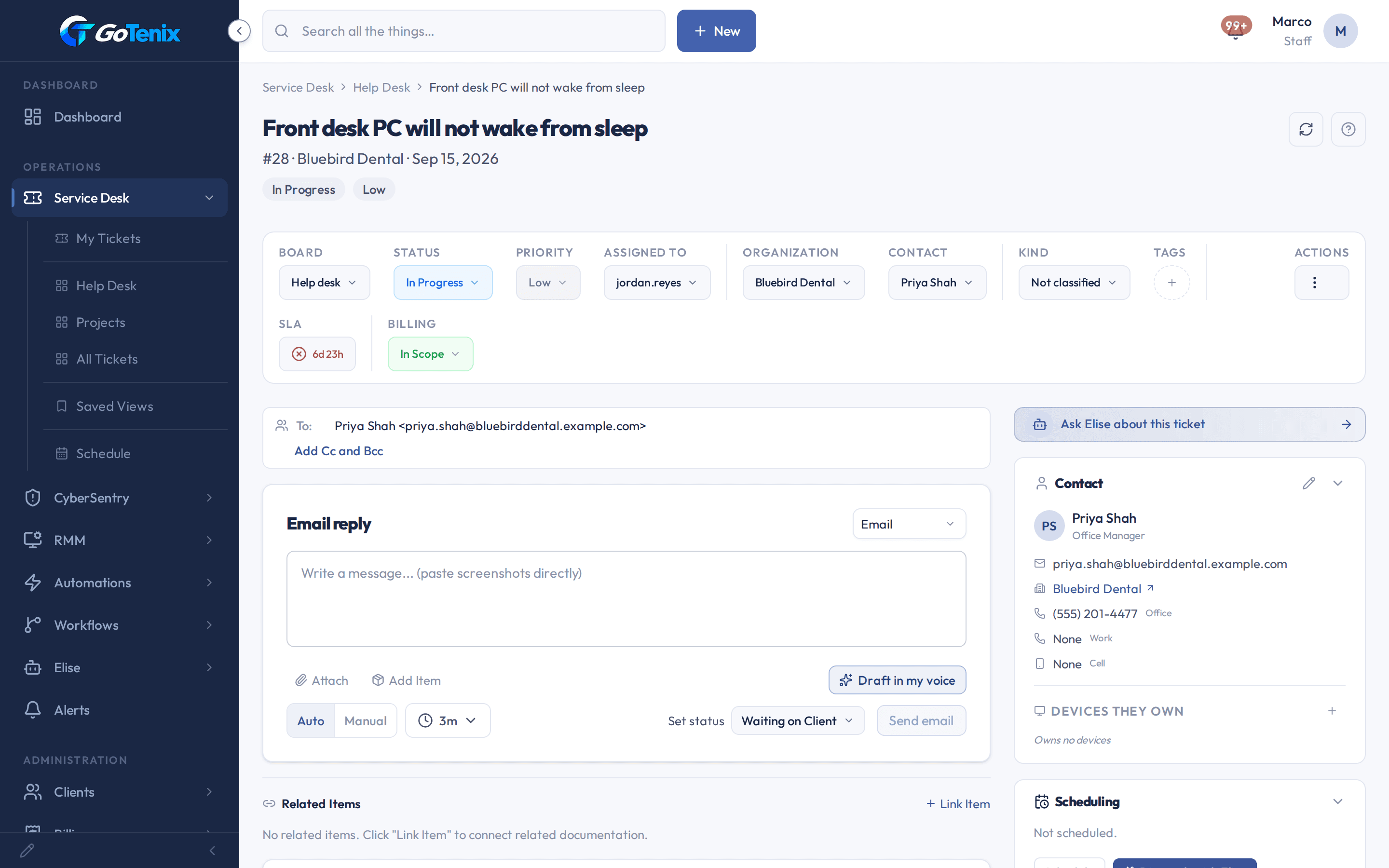
Open the Assigned To dropdown on the ticket toolbar and pick the tech. The ticket is theirs at once. That is the plain manual door: pick whoever should own it, for whatever reason.
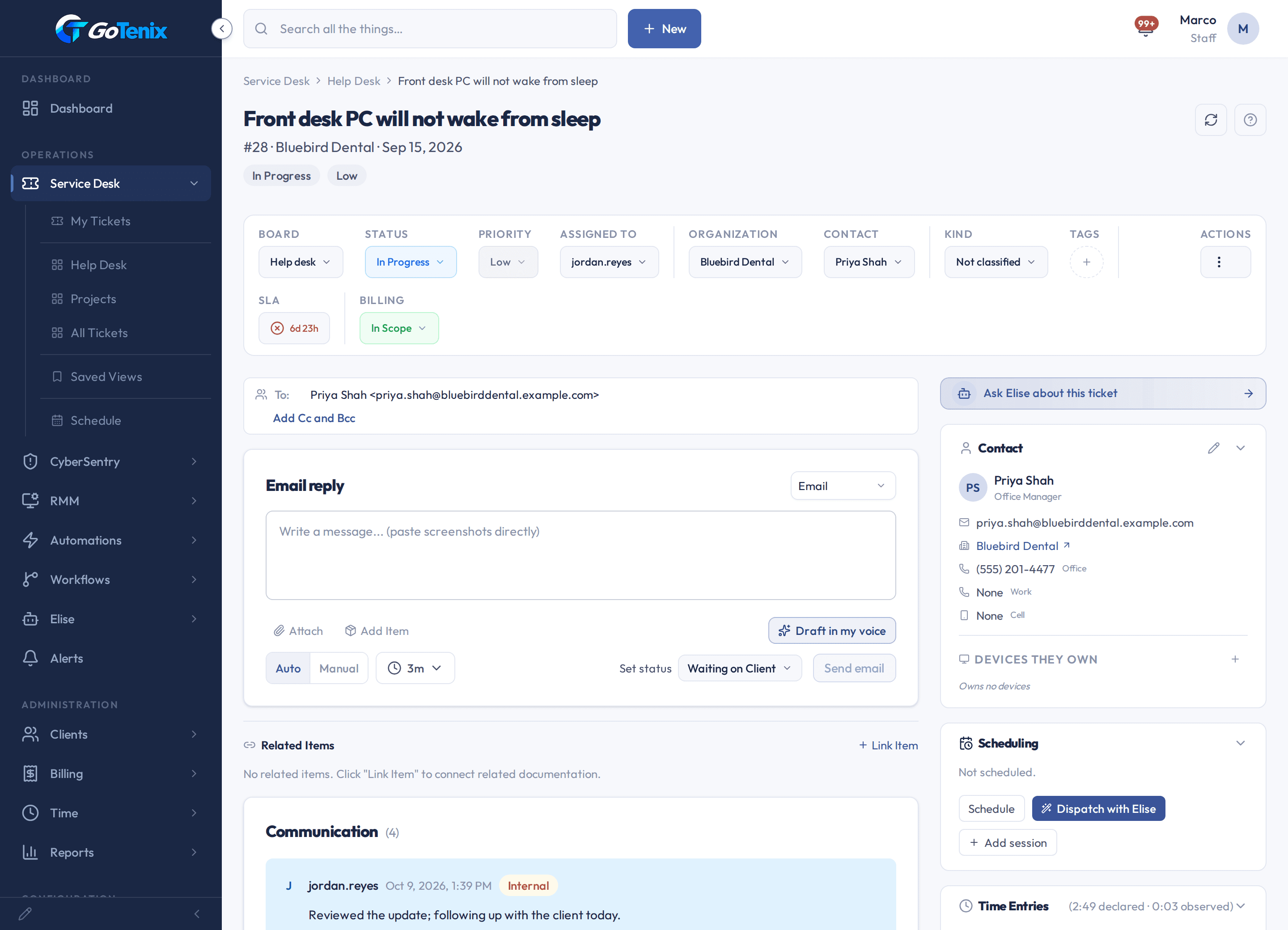
Note: A manual pick only sets the owner. The Scheduling card still reads Not scheduled; nothing books a calendar slot unless you click Schedule or Dispatch with Elise.Hand a ticket to a tech by name. Or click Dispatch with Elise.
The button sits in the ticket's Scheduling card, next to Schedule, while the ticket is not yet scheduled. Elise picks who and when and commits it in one click. If she cannot place the ticket, she tells you why.
Or click Dispatch with Elise. Read what she picked.
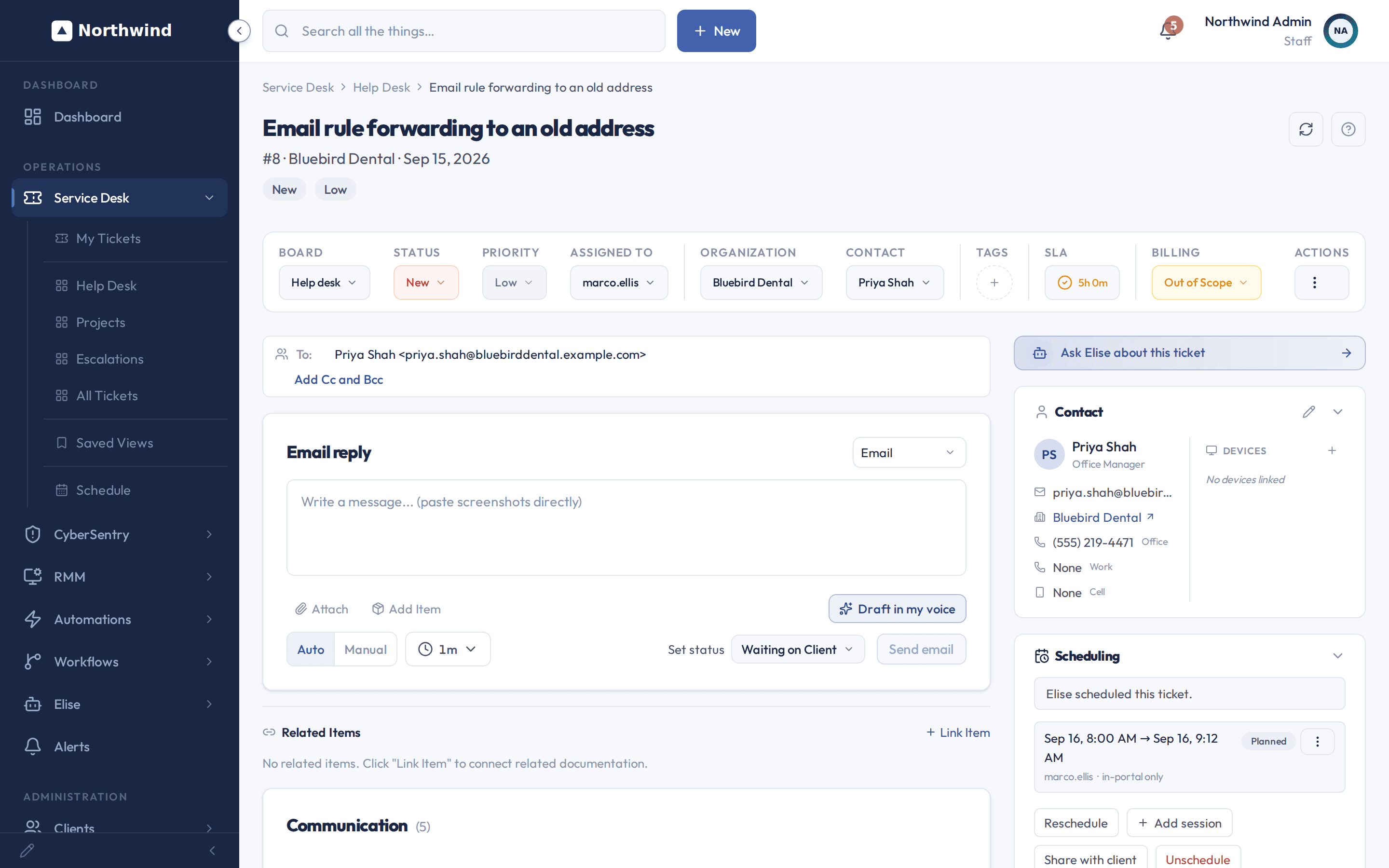
Assigned To now shows the tech Elise chose, and the Scheduling card says "Elise scheduled this ticket" with the planned slot underneath. Reschedule, Add session, Share with client and Unschedule sit below it if you want to change her choice.
Read what she picked. Open Service Desk, then Schedule, to see who is booked.
The Schedule board is a day timeline of scheduled tickets by pod and tech. It is read only: to move a ticket, use that ticket's Scheduling card. A tech who is in more than one pod is drawn once, under the first pod, and the other pods point to that row. Sync now pulls external calendar changes in straight away instead of waiting for the hourly sync. Mark out-of-office blocks a window on a tech's calendar, and you can tick a switch to move their not-started tickets to other techs while in-progress tickets stay put. You need team access to see it.
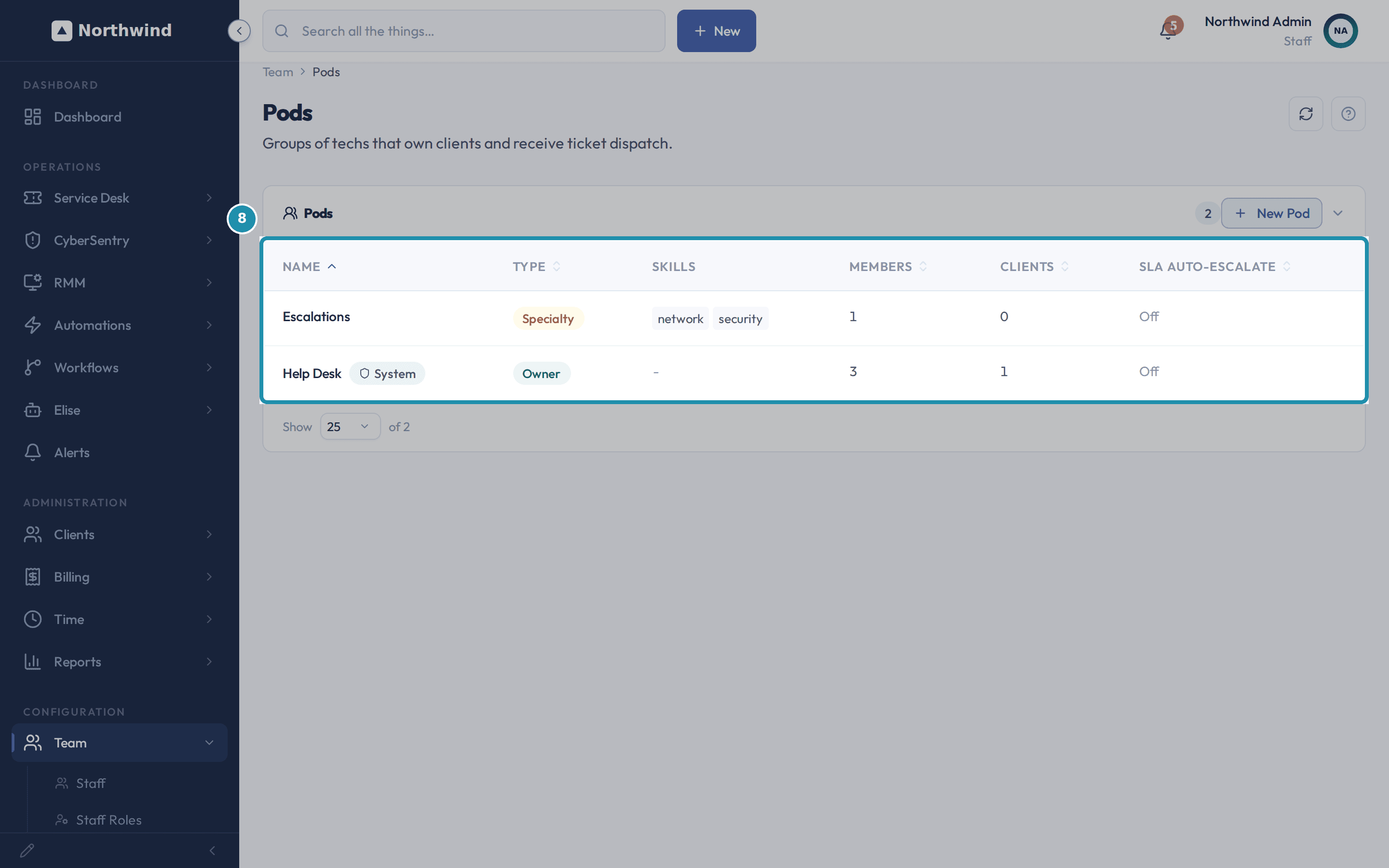
Open Team, then Pods, to see who dispatch can pick.
Pods are the groups of techs that own clients and receive ticket dispatch. Each row shows the pod's type, skills, members, clients and SLA Auto-Escalate setting.
Open Team, then Pods, to see who dispatch can pick. Ask Elise to find things.
Ask "How many open tickets do we have, and for which clients?" and she counts them by status and by client. Ask "When is ticket 4 due?" and she answers from the SLA clocks, because tickets have no separate due date. Ask "Show me the recent tickets for Bluebird Dental" and you get the latest tickets with subject, status, priority, assignee and last activity. These are reads, so nothing changes. Open Elise from the sidebar, or use Ask Elise about this ticket on any ticket.
Ask Elise to change things.
Ask "Assign ticket 7 to Renee" or "Make ticket 8 high priority" and she does it without a pause, unless an admin has tightened that. She will not move a ticket off its client's Default Ticket Assignee, take over a ticket copied from another PSA, or assign to someone who cannot own tickets; a person can still move a ticket off its dedicated tech or take over a copied ticket from Assigned To, which only offers people who can own tickets. Changing priority recalculates the SLA deadlines. Ask "Close tickets 31, 32 and 33" and she shows an approval card first. Ask "Draft a reply to ticket 7 in my voice" and she writes the draft; you read it and send it. Each of these needs the matching permission on your account.
The pages behind each click
What you will have
- Know at a glance what Elise handled overnight and what still needs a person.
- Find the tickets nobody owns yet.
- Hand a ticket to a tech by name, or let Elise pick the tech and book the slot with one click.
- See who is booked and who is free, and mark a tech out of office so their not-started tickets move to others.
- Run the rest of the morning by asking Elise: counts, deadlines, assignments, priorities, drafts and bulk closes.
Why it works this way: How to run your Monday morning dispatch
Elise works the night shift. The dashboard's "While you were away" card can report what she triaged, drafted replies on, scheduled onto a tech's calendar, resolved, and submitted as KB drafts for review, so the morning starts from what is left.
A manual pick on Assigned To sets the owner only. Dispatch with Elise picks the tech and the time and books it in one click.
A client's Default Ticket Assignee comes first. Automated dispatch leaves a ticket with its dedicated tech instead of picking someone else.
Other ways to do this: How to run your Monday morning dispatch
Claim, from inside a pod
A tech who is a member of the pod sees the unclaimed rows on their own Needs Attention card, with a Claim Ticket button on each. A personal setting called Opening a claimed ticket decides whether claiming opens the ticket right away or keeps you on the list.
Set a Default Ticket Assignee
On the client's edit form, set the Default Ticket Assignee. New tickets for that client start with that person.
If it did not work: How to run your Monday morning dispatch
- Needs Attention is empty but tickets read Unassigned in the list: the card lists unclaimed tickets only for pods you belong to. Work from the Assigned To column, or join a pod.
- A ticket still reads Not scheduled after you hand-pick an assignee: that is expected. Click Dispatch with Elise or Schedule to book a slot.
- Dispatch with Elise could not place a ticket: she says why. On the dashboard the reasons read that the client has no owning pod, that there is no eligible technician in the pod, or that there is no free slot on any calendar.
- A client's tickets keep landing on one tech: check that client's Default Ticket Assignee on its edit form. Automated dispatch leaves a ticket with its dedicated tech.
Questions this page answers
Why do I see unclaimed tickets that are not mine?
That is on purpose. An unclaimed ticket in a pod belongs to the whole pod. So the Unclaimed rows show the grab pile for every pod you are in. That holds whatever your tier, and whichever way the Mine and Pod toggle is set. If you would rather not see them, turn the Unclaimed pool bucket off at My Settings > Display. If you are in no pod, you see no unclaimed pile at all.
What is the Schedule page for?
It is one day at a glance: every pod, each tech in it, and the tickets on their calendars, laid out by time and coloured by priority. Use the arrows or "Jump to date" to move day to day, and "Today" to come back. Click any block to open the ticket.
Was this helpful?