How to schedule recurring tickets and manage company-wide tags
Make routine work create itself with a recurring ticket rule that opens a ticket for a client on a schedule, and add company-wide tags once so every client can use them and a plan line can bill by how many things carry a tag.
See it
Browse
On this page
How to do it
Open Settings > Service Desk > Recurring Tickets and click New Recurring Ticket.
A recurring ticket is a rule that creates one ticket for one client on a calendar cadence. Use it for repeating work such as a monthly patch review, a quarterly disaster recovery test, or a weekly site check, so nobody has to remember to open the ticket.
Open Settings > Service Desk > Recurring Tickets and click New Recurring Ticket. Fill in the Title, Problem / description and Client.
Pick a client, because Client is required and one rule serves one client. The form also takes a Priority, an optional Board that otherwise uses the Default board, and an optional Assignee that otherwise reads Unassigned (triage). The Problem / description is what the technician sees on every ticket the rule creates.
Pick a Cadence and a Start date.
Cadence is Daily, Weekly, Every two weeks, Monthly, Quarterly or Yearly. Start date anchors the first ticket. It does not have to be a day you are open, because a start date on a closed day rolls forward to the next open day.
Add Tags (optional) if you want the tickets tagged.
The Tags (optional) field appears after you pick a client. The tags you choose are copied onto every ticket the rule creates.
Read the schedule hint, then click Create rule.
The page states its own timing: "Tickets fire at the start of the workday (the Business Hours Start time on Settings → Service Levels → Business Hours & Holidays). Weekends + holidays are skipped automatically." Leave Active - fires on schedule on, and click Create rule. Changing a rule later uses Save changes.
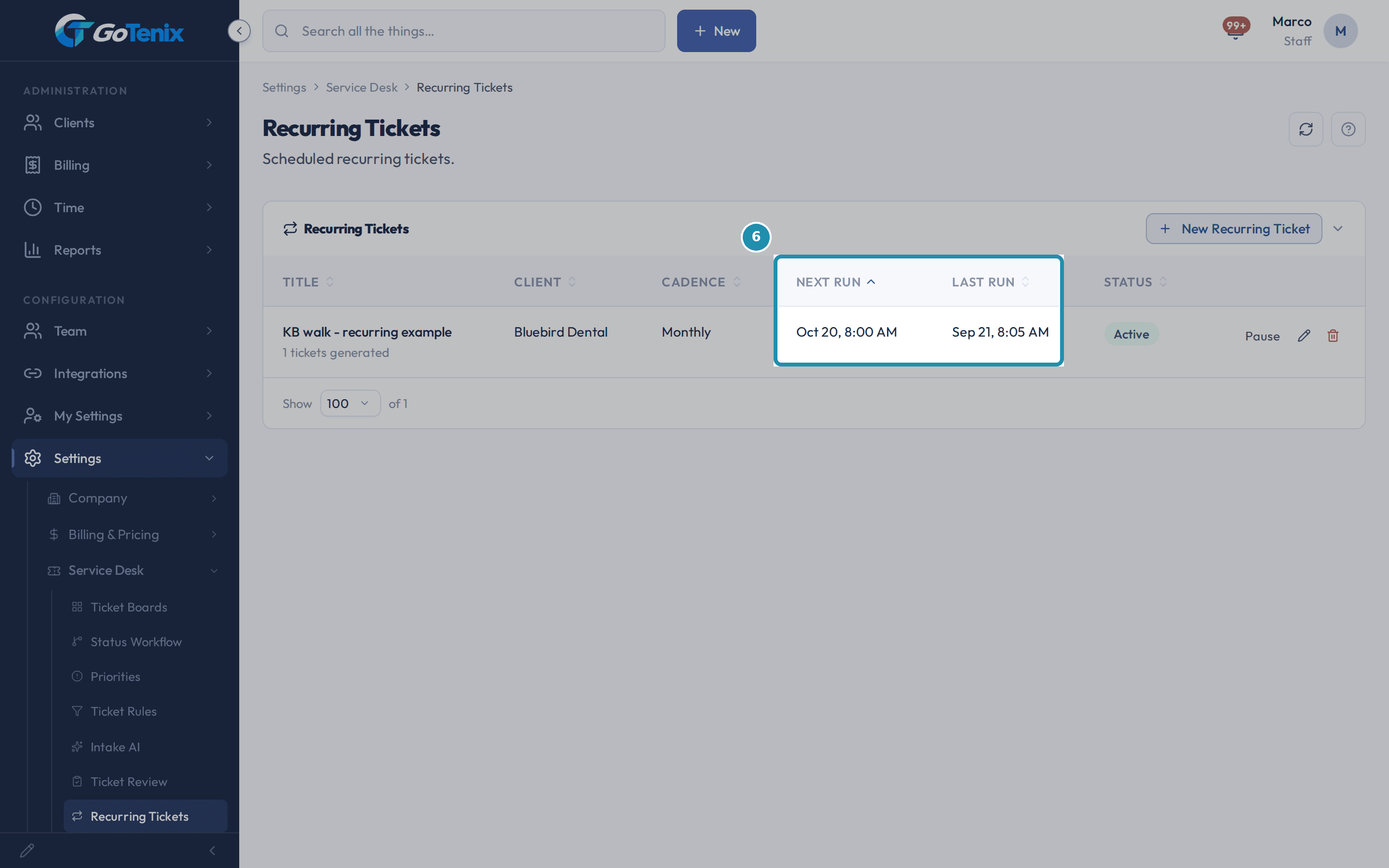
Read the list: Next run, Last run and the tickets generated count.
Each row shows the Title with how many tickets it has generated, the Client, the Cadence, Next run, Last run and Status. Next run is the next date on the rule's cadence, moved to the next open day if it lands on a weekend or holiday.
Read the list: Next run, Last run and the tickets generated count. Know what happens after an outage.
If the system was down and a rule fell several cycles behind, it creates one ticket on the first pass afterward and then jumps to the next future date. It does not create a ticket for every missed cycle.
Click Pause on a row to stop a rule without losing it.
The rule stays in the table, Status reads Paused, and Next run shows a dash. A paused rule creates no tickets. Click Resume to turn it back on. Resume does not move the rule's stored date, so if that date has already passed, the rule creates one ticket on the next pass and then moves to its next future date.
Click the trash icon to delete a rule.
The confirmation reads "Delete recurring ticket?" and says the rule "will stop creating new tickets. Generated tickets stay." Deleting removes the rule only. Tickets it already created are kept.
Open Settings > Service Desk > Tag Defaults and add a company-wide tag.
Under Add a new company-wide tag, type a Tag name, pick a color from Slate, Blue, Emerald, Amber, Red or Violet, pick a category or leave No category, and click Add tag. The optional description helps the picker tooltip and, when enabled, helps Elise know when to apply the tag. Company-wide tags apply to every client immediately, with no step to push them out.
Open a tag picker for any client and find the tag.
The new tag turns up in the Tags (optional) field of a recurring rule and in the tag pickers for any client.
Lock a tag to protect it, or Archive it to retire it.
Lock makes a tag match only its exact name, and renaming, recategorizing or archiving it needs an Unlock first. A locked tag shows Protected, and its Archive button is hidden. Archive hides the tag from pickers and shows an archived badge on its row. Restore brings it back. Tag Defaults has no Delete button.
Bill by tag: let a plan line count what carries a tag.
On a service plan's price line, set the quantity basis to Count tagged entities under Tag Aggregation, pick the tags, and choose what to count: Users, Devices, Network Devices or Tickets. When invoices are generated, each client is billed for the number of distinct things in its own organization that carry any of the tags: active users, non-archived devices, active network devices, or tickets, less any user or device you have excluded from billing. Tickets counts every ticket that carries the tags, not only those from the billing period. Tag every managed workstation, for example, and the line counts those workstations.
Note: Archiving a tag does not remove it from the count. The count reads the tags already on each user, device or ticket, so an archived tag still counts until it is taken off the items.
What you will have
- Create a Recurring Tickets rule that opens a ticket for one client on a schedule.
- Know exactly when a rule fires, including the weekend and holiday skip and what happens after an outage.
- Pause and resume a rule, and know what Delete does.
- Add a company-wide tag once on Tag Defaults and use it for every client.
- Lock or archive a tag, and know what each does.
- Bill a plan line by how many users, devices, network devices or tickets carry a tag.
Why it works this way: How to schedule recurring tickets and manage company-wide tags
The Tags (optional) field on a rule only appears once a Client is picked, because a rule belongs to one client and tags are chosen from the pool that client can use.
A recurring ticket is a normal ticket once it is created. It goes through your Ticket Rules, gets its SLA deadlines, and carries the client's default billing status.
Tags are not only labels. A plan's price line can count the entities that carry a tag and bill that count, so a tag you add once can change what a client is billed.
Other ways to do this: How to schedule recurring tickets and manage company-wide tags
Workflows
Build a multi-step Workflow template and push it by hand with Apply Template, or fire it automatically from an Automation.
If it did not work: How to schedule recurring tickets and manage company-wide tags
- If a rule did not create a ticket today, check that it is Active, that today is an open business day, and that its Next run date has arrived.
- If a change will not save, confirm your account has edit access to Settings. A view-only account can read these pages but not change them.
- If the Tags (optional) field is missing on a rule, pick a Client first.
Questions this page answers
What is a recurring ticket?
A rule that auto-creates one ticket on a calendar cadence (daily, weekly, monthly, etc.). Fill in the title + problem + client + schedule, and the portal generates a new ticket each cycle. Use it for repeating low-touch work like monthly patch reviews, quarterly DR tests, or weekly site checks.
How is this different from a Workflow?
Workflows are multi-step project templates (a tree of tickets) pushed manually via Apply Template or fired by an Automation. Recurring tickets are single tickets on a cadence - different concept, different UI. If you need a 12-step onboarding project to fire quarterly, use an Automation that wraps a Workflow.
When do recurring tickets fire?
At the start of the workday - specifically, the Business Hours Start time in Settings → Service Levels → Business Hours & Holidays (default 08:00). Weekends and holidays are skipped automatically using the same calendar that drives SLA business-hours math.
Was this helpful?