When you keep opening the same report
How to pin a report to your dashboard and tune your daily briefing
Pin the reports you open every morning to your own dashboard, tune the daily briefing Elise prepares for you, and ask Elise to build a report from a plain request. A pinned report is one click away, and a briefing domain lands on your Command Center home.
See it
Browse
On this page
How to do it
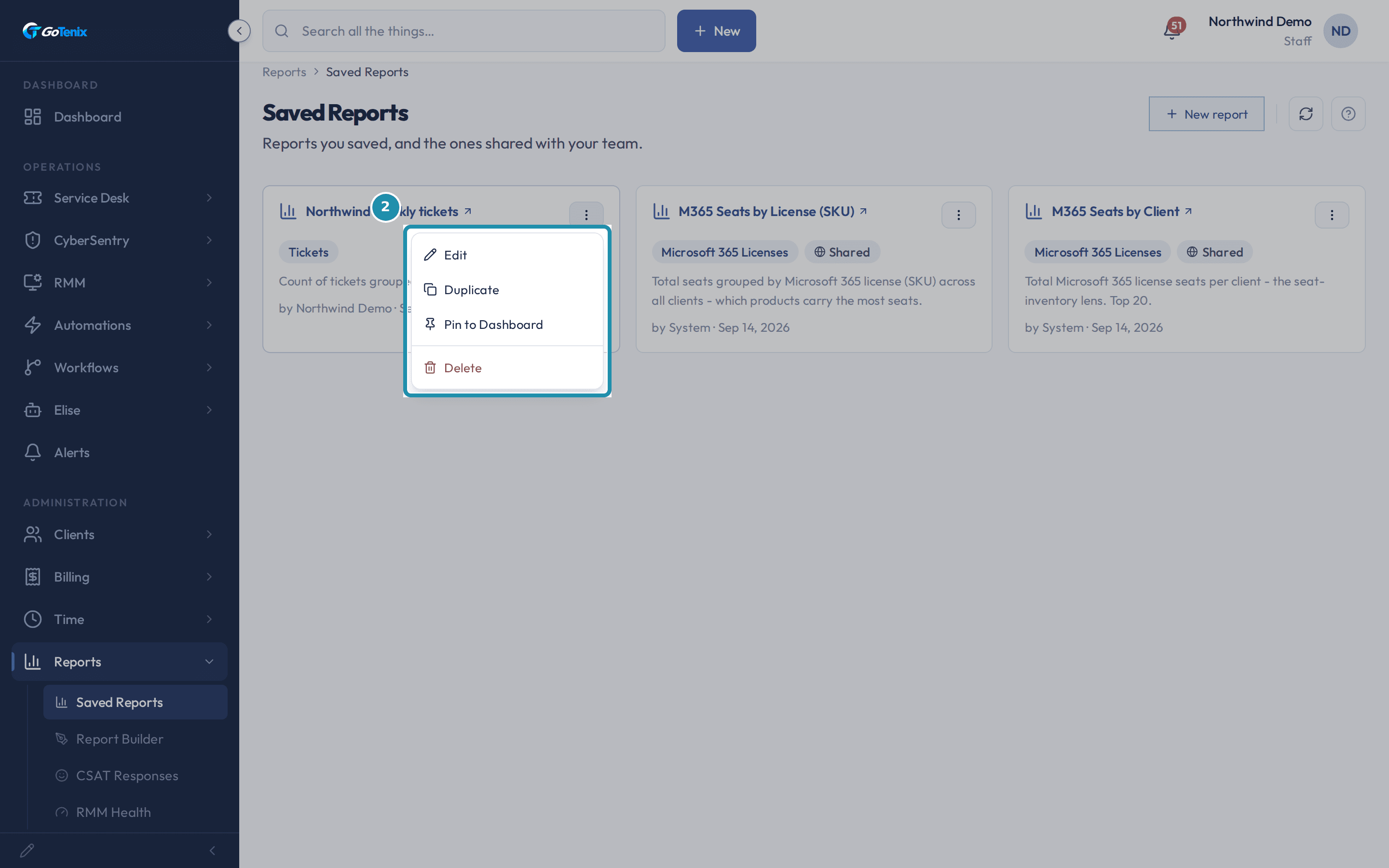
Open Reports > Saved Reports and find the report you already run every week.
Each report card names the report, its data tag, who built it and when. Some are built in and shared with the whole team.
Open Reports > Saved Reports and find the report you already run every week. Open its Actions menu and click Pin to Dashboard.
The menu also holds Edit, Duplicate and Delete. Pin to Dashboard puts this report's own chart on your active dashboard. Pinning the same report again shows the existing tile instead of adding a second one. Pinning needs permission to edit reports.
Open its Actions menu and click Pin to Dashboard. Open the Dashboard and expand Your dashboard.
The report now renders as its own widget, chart included, with a title link back to the full report. The View dropdown at the top of Your dashboard switches dashboards, and a pin lands on whichever one is selected. Some dashboards are built in and shown by role: Executive Overview comes preloaded for admins.
Click Customize to see what you can do to that widget without leaving the page.
The instruction line spells out the moves: drag to reorder, click eye to hide, click size to resize, trash to remove. The widget's own row carries a drag handle, a size button, an eye and a trash can. The same bar has Add Widget and Reset. Your dashboard sits collapsed lower on the page, beside Approvals & subscriptions.
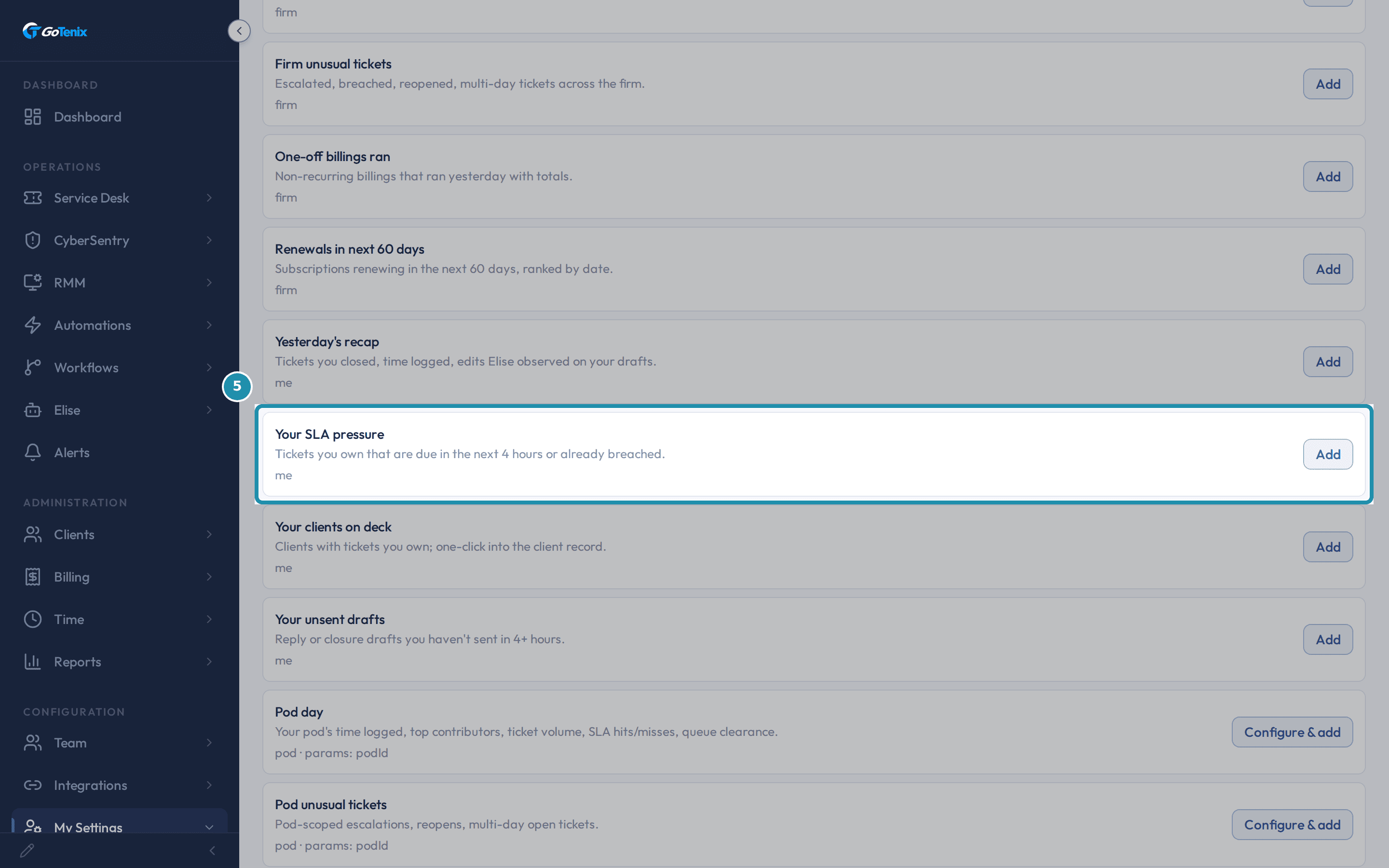
Open My Settings, Briefing, and pick a domain from the Catalog.
The page says: "Tune the daily briefing Elise prepares for you." The Catalog lists what you can add, based on your permissions: Your SLA pressure, Today's priorities, Yesterday's recap, Client deep-dive, Pod day, Pod unusual tickets, Firm pulse, Renewals in next 60 days, AR aging buckets and more. Your SLA pressure reads "Tickets you own that are due in the next 4 hours or already breached" and has a plain Add button. A domain that needs a client or a pod, like Pod day, shows Configure & add and asks for that first.
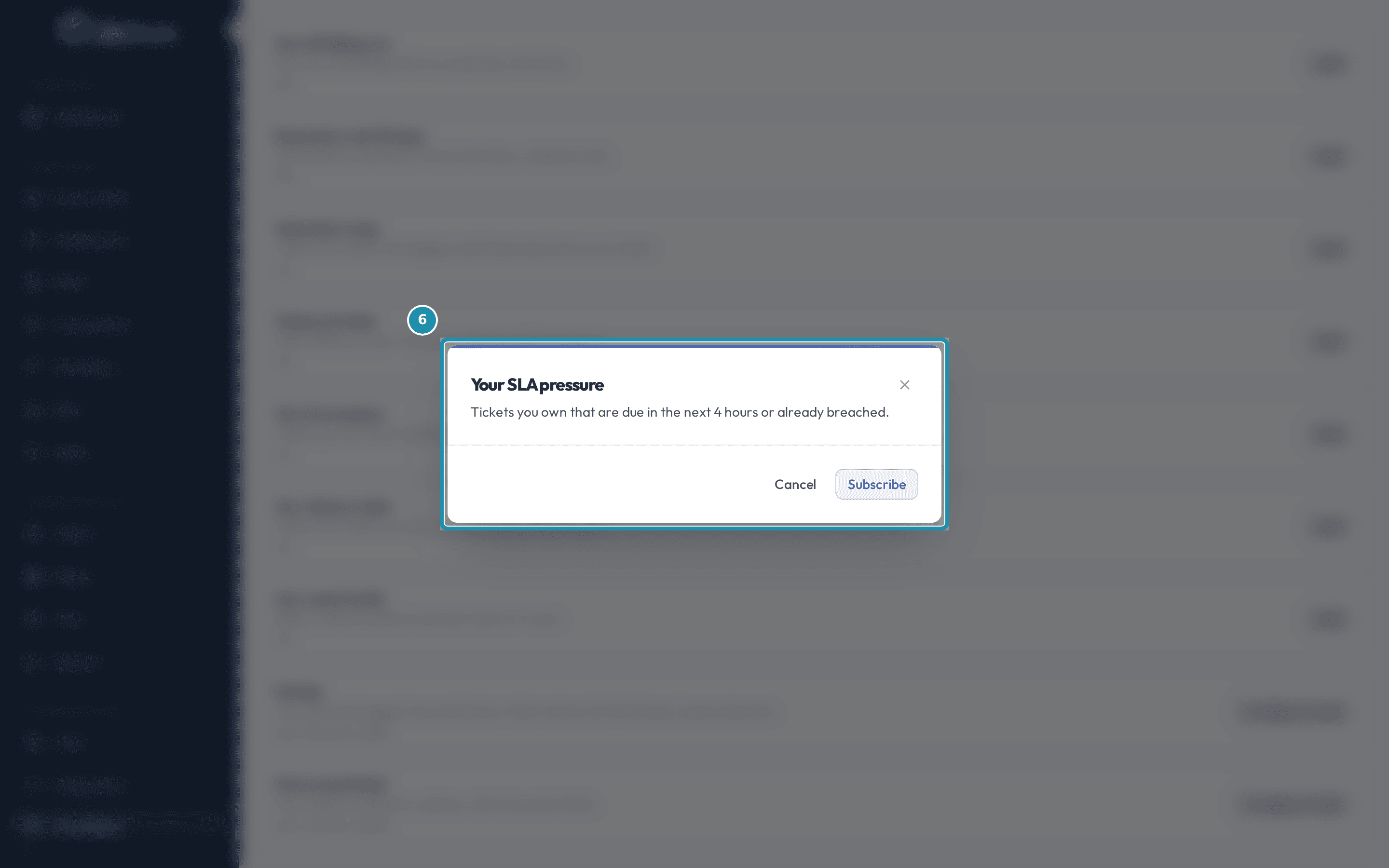
Open My Settings, Briefing, and pick a domain from the Catalog. Confirm the subscription in the dialog that opens.
Add and Configure & add both open the same kind of dialog before anything is added: the domain's name, its one-line description, and Subscribe. Nothing is added until Subscribe is clicked.
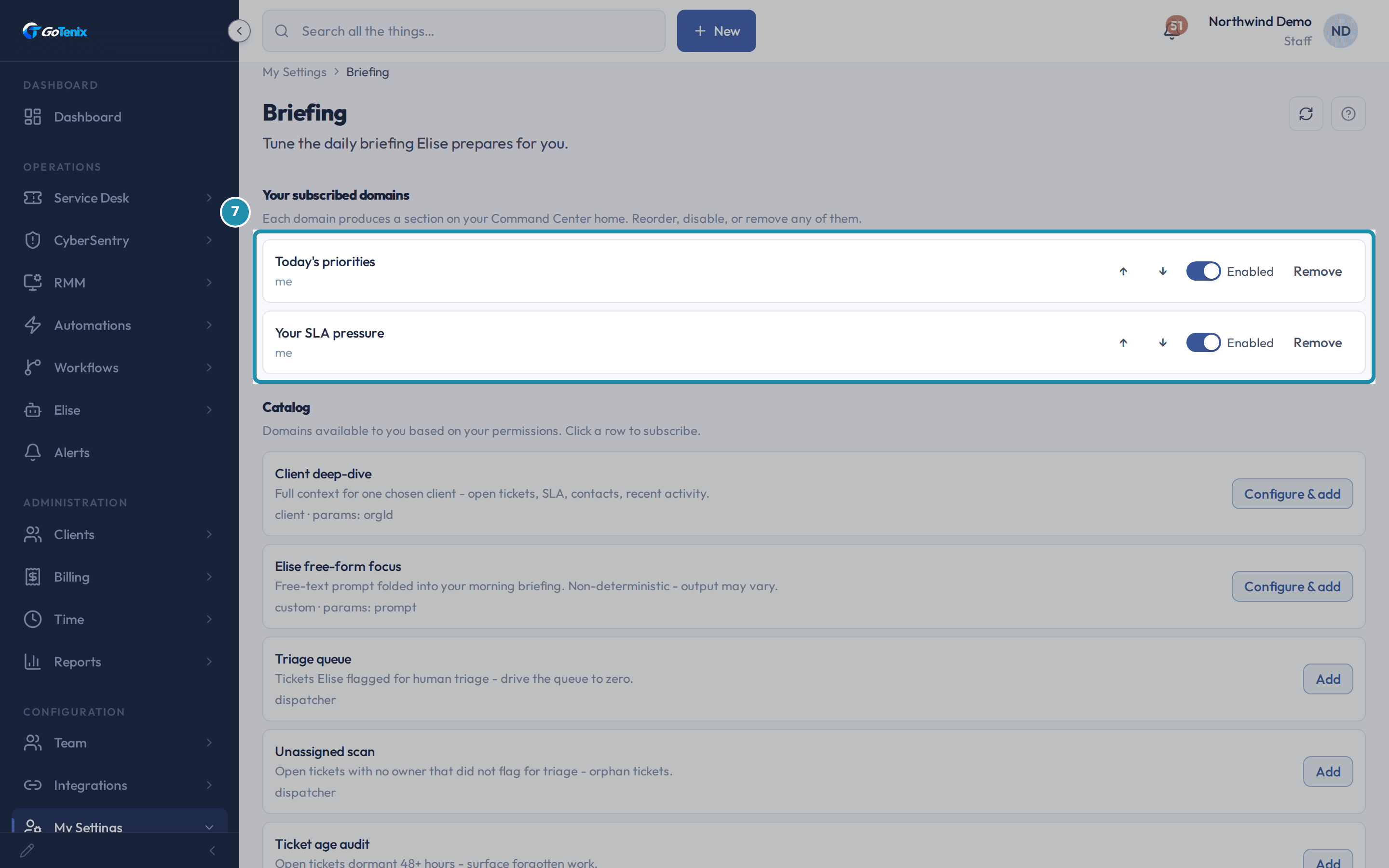
Confirm the subscription in the dialog that opens. Read the result under Your subscribed domains.
Each subscribed domain has up and down reorder arrows, an Enabled toggle and Remove. Disabling one keeps the subscription. Remove takes it off the list.
Read the result under Your subscribed domains. Back on the Dashboard, read While you were away.
It is Elise's own handoff. On one side, While you were away says what changed since your last visit. On the other, Start here lists the tickets that need a human. It is separate from your subscriptions.
Know what Approvals & subscriptions shows when a domain has nothing to say.
This collapsed section further down the dashboard is where your subscribed domains show up. A domain with content shows it. A domain with nothing to show says why instead of an empty box: "Your subscribed briefings aren't available to your role yet.", "Some subscribed briefings couldn't load.", or "Your subscribed briefings appear in the pulse strip above." If you have subscribed to nothing, it reads "Nothing subscribed yet." with a "Pick some domains." link.
Know the two things above While you were away: the numbers row and Get set up.
A thin row of your own numbers sits under the headline: my open, SLA risk, customer replied and unassigned. A Get set up checklist can also appear, titled "Get set up" with how many items are done.
Ask Elise to build a report for you.
Tell her what you want in plain words, for example: "Build a report of tickets by status for the last 30 days and save it as Weekly tickets." She saves it under Reports, Saved Reports. Then pin it yourself with step 2, because pinning is your click, not hers. To see what you already have, ask: "Which reports have I saved?"
Ask her for the numbers without building anything.
Try: "Show tickets by status for the last 30 days." She can run reports on tickets, CSAT, evaluations, time, invoices, devices, organizations and ticket replies. For a plain-English read, ask: "How are we doing on SLA over the last 90 days?" or "Which clients have unhappy CSAT scores?"
Ask her to change, export or remove a report.
Try: "Rename my Weekly tickets report and group it by priority." To take the data away, ask: "Export all tickets as a CSV." She gives you a download link that checks your own access when you click it. If you ask her to delete a report, she files the request for someone who holds delete permission to release, and tiles pinned from it will break.
The pages behind each click
What you will have
- Pin a saved report from Reports, Saved Reports so its chart lives on your own dashboard from now on.
- Find that pinned widget in Your dashboard, and reach the full report again with one click on its title.
- Reorder, hide, resize or remove any pinned widget with Customize.
- Choose what your daily briefing covers: your SLA pressure, a client deep-dive, your pod's day, unusual tickets and more.
- Reorder, disable or remove a briefing subscription without losing the rest.
- Ask Elise to build, run and export reports in plain words, then pin the result yourself.
Why it works this way: How to pin a report to your dashboard and tune your daily briefing
While you were away is a different thing from a briefing subscription. It is Elise's own handoff of tickets that need a human, shown with a Start here list beside it. What you subscribe to under My Settings, Briefing feeds a separate section of your Command Center home.
Trash, in Customize, only removes the dashboard widget. The report itself stays under Reports, Saved Reports. Deleting the report is a different action on its own Actions menu, and any pinned tiles pointing at it will break.
A pin and a briefing domain are both personal. Pinning adds a tile to your own dashboard, and subscribing adds a section to your own home. A teammate's dashboard and subscriptions are unaffected.
If it did not work: How to pin a report to your dashboard and tune your daily briefing
- If the widget is not where you left it, check View at the top of Your dashboard; a pin lands on whichever dashboard is selected.
- If a Catalog row shows Configure & add instead of Add, it needs a client or a pod first; a plain Add row needs nothing.
- If a domain is missing from the Catalog, the Catalog only lists domains your permissions allow.
- If you have no subscriptions, staff get a starter set based on role, job title and pod membership; once you have any, it is left alone.
Questions this page answers
How do I customize my dashboard?
Click the Customize button, then drag to reorder, click the eye to show/hide, or click the size button to resize widgets.
How do I switch dashboards?
Use the View dropdown at the top of the dashboard to switch between dashboards. It shows up once you have more than one. Admins create system dashboards, shown by role. Operations and the preloaded Executive Overview are two examples. Personal dashboards are your own.
What does the dashboard show?
It opens with Elise's handoff: "While you were away" lists what she already did, and "Start here" ranks what still needs a person, each with a reason. Under that sits a thin row of your own numbers - open tickets, SLA risk, and customer replies waiting; leaders also see unassigned tickets and revenue this month - and every number there links to its filtered list. Below, two collapsed sections hold more: "Your dashboard" is a widget grid you build yourself, and "Approvals & subscriptions" holds approval cards and subscription cards. If a subscription has nothing to show, the card says why instead of looking empty: not yet permitted for your role, already covered by the numbers row above, or a subscription that could not load right now. Until your instance is fully set up, a "Get set up" checklist also shows above all of this. You can also pick Executive Overview. It is a system dashboard in the View dropdown at the top.
Was this helpful?